Guide
How the assistant
is doing.
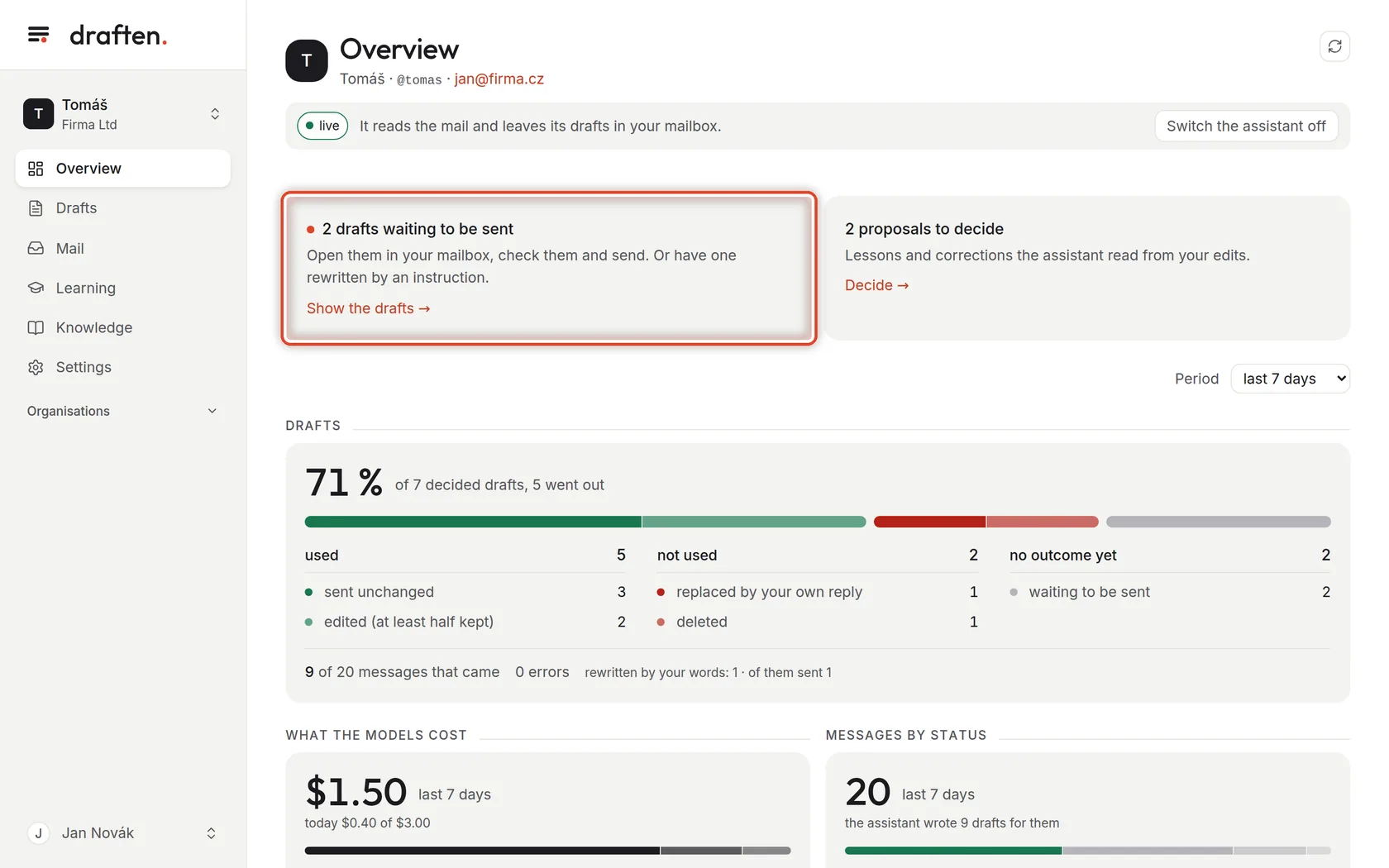
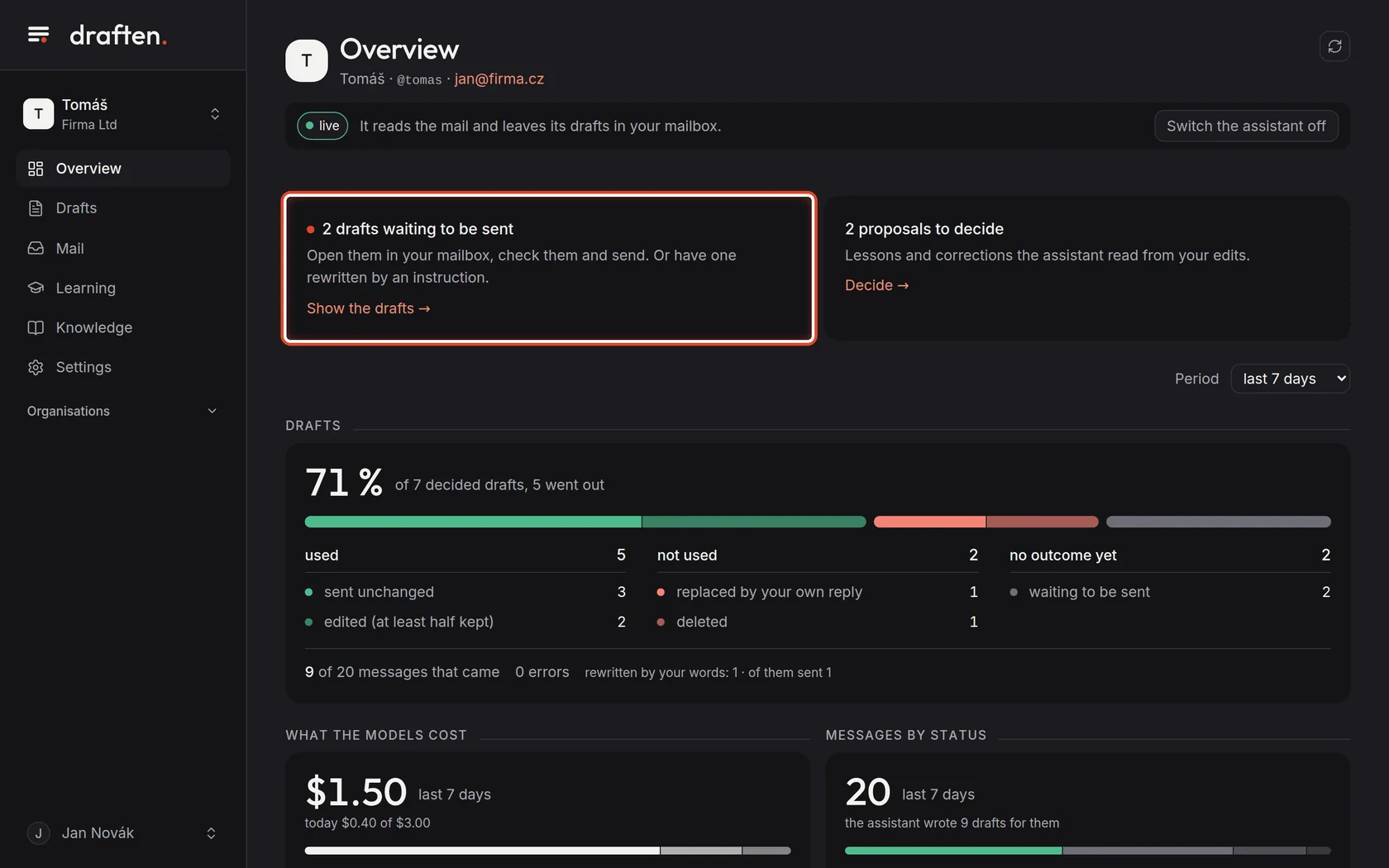
The Overview is the first page you see after signing in. In one place it shows what is waiting for you, how many drafts you used, what it cost and when the assistant last checked the mail.
Before you start
- An open assistantThe Overview always belongs to one assistant — the one whose name is at the top left.
- About 3 minutesThe tour takes a moment.
Step 1 of 7
What is waiting for you
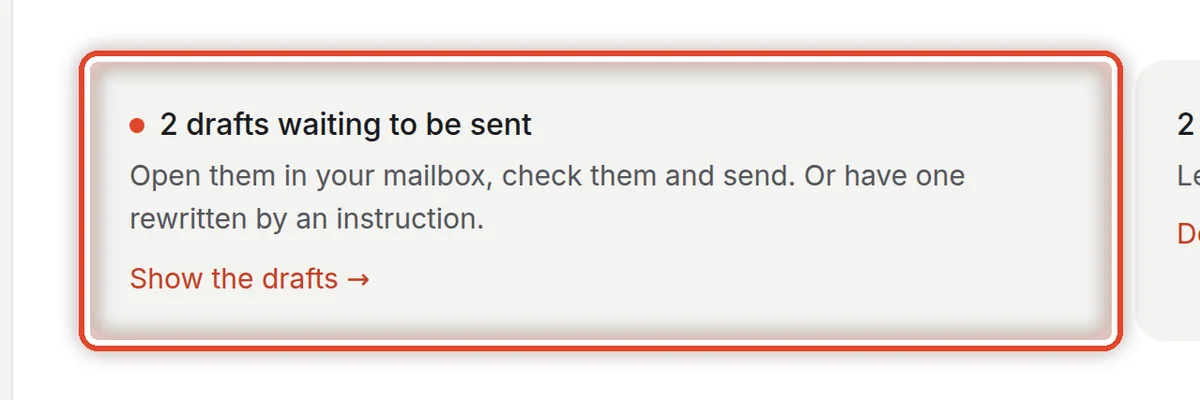
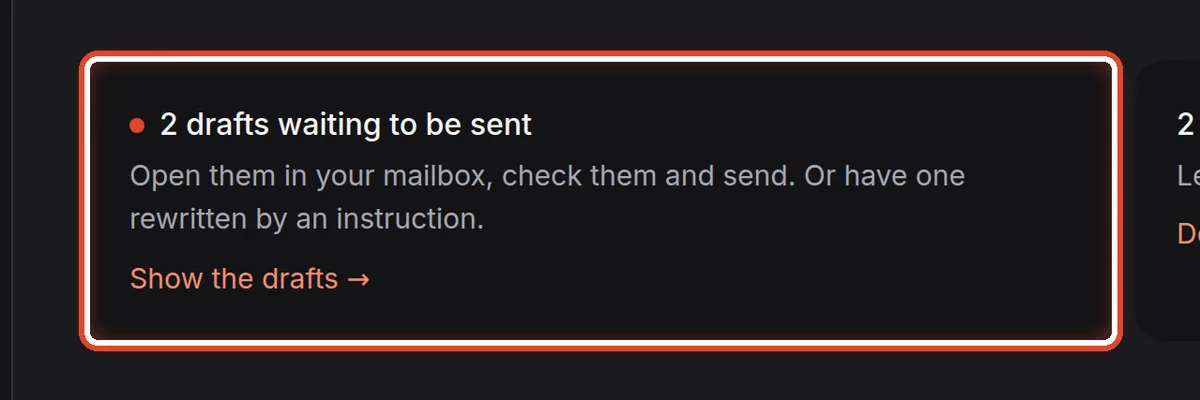
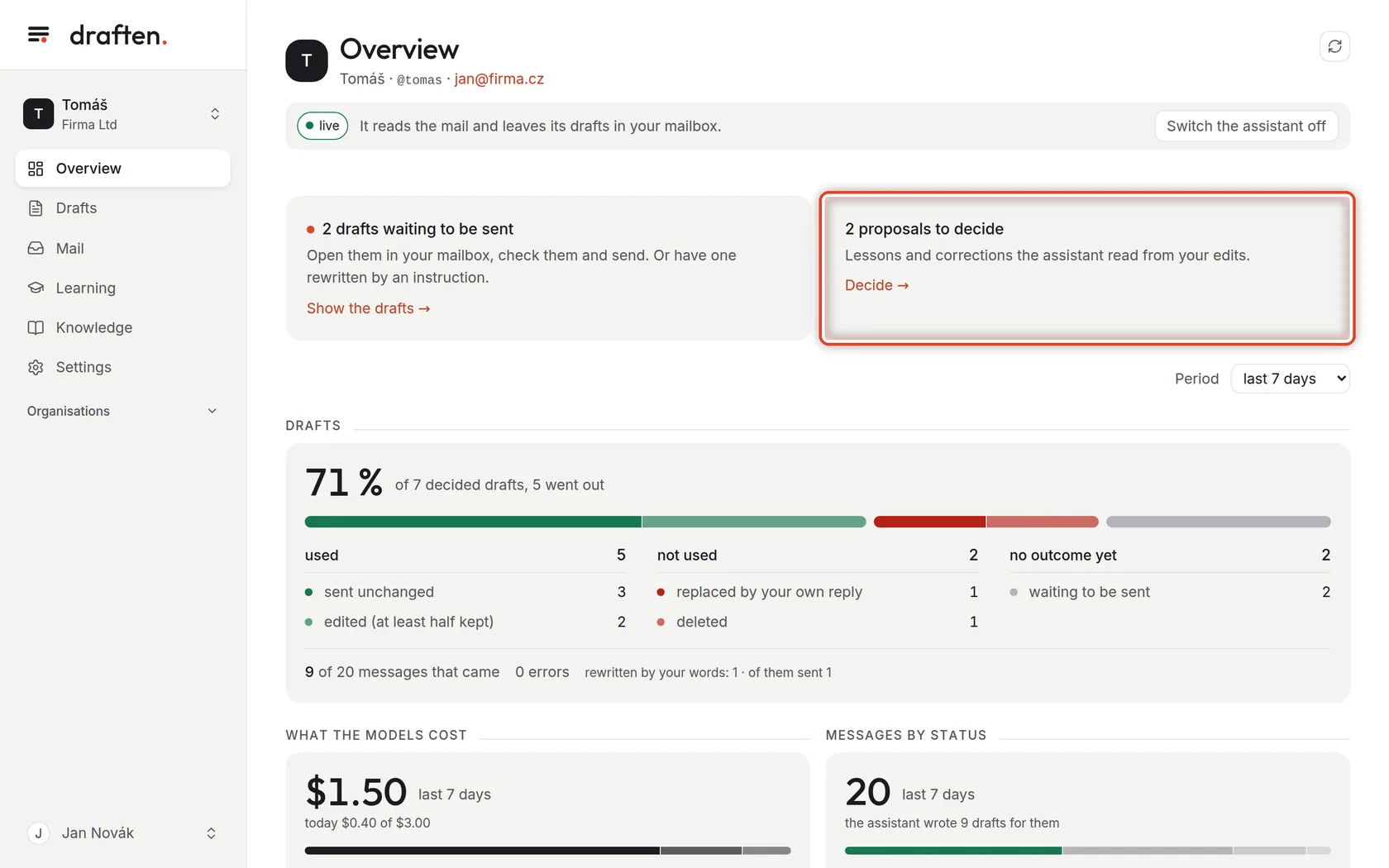
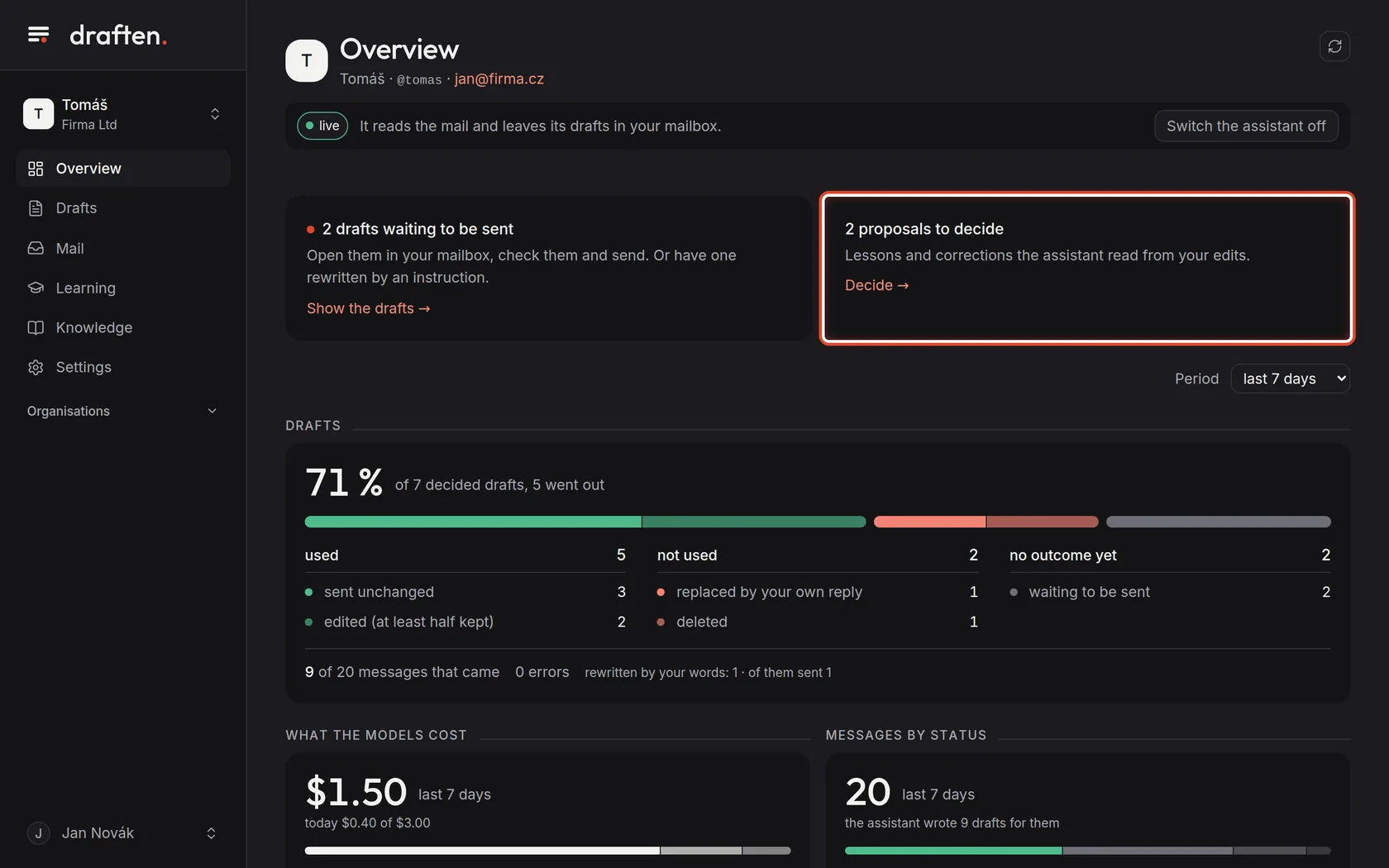
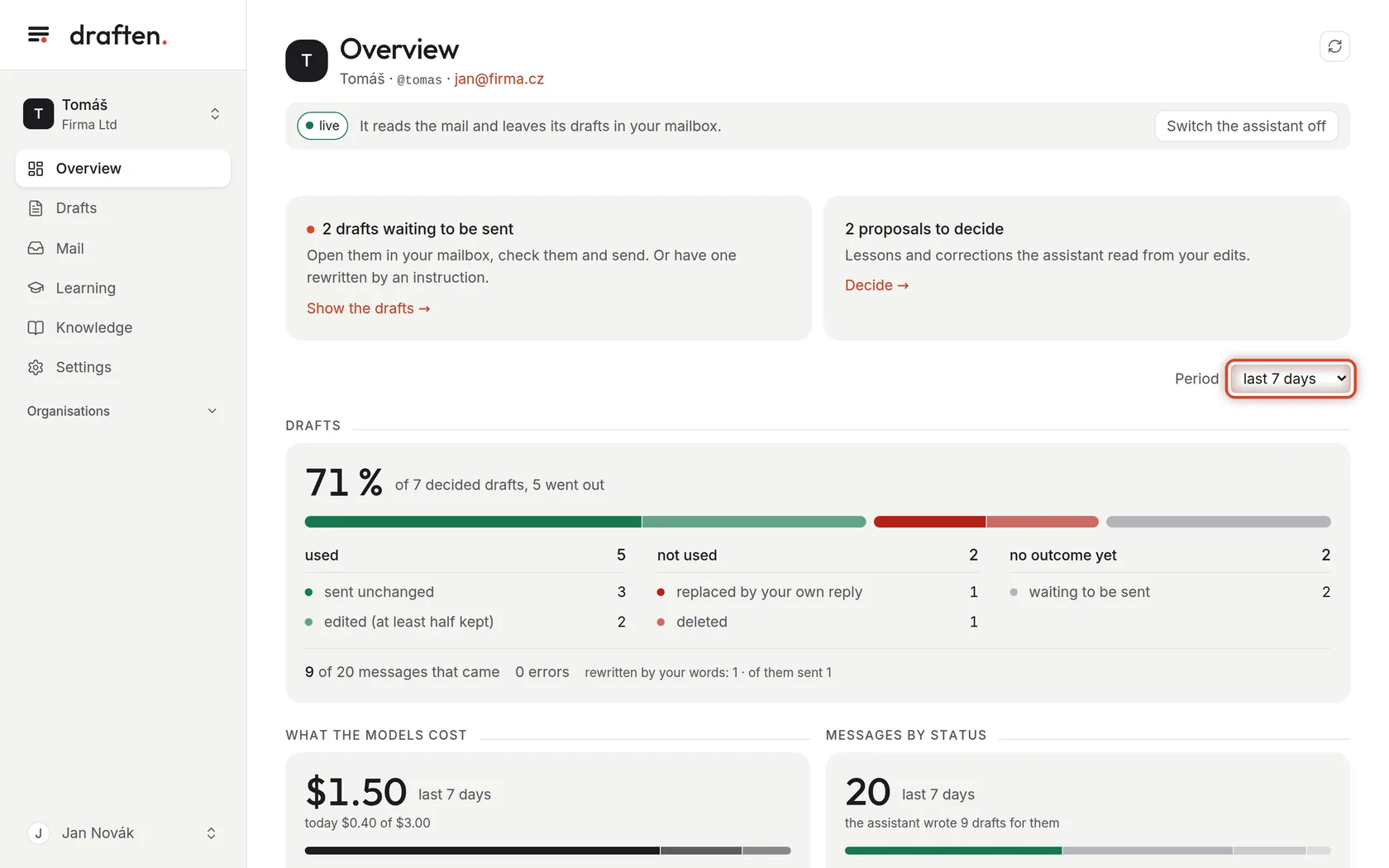
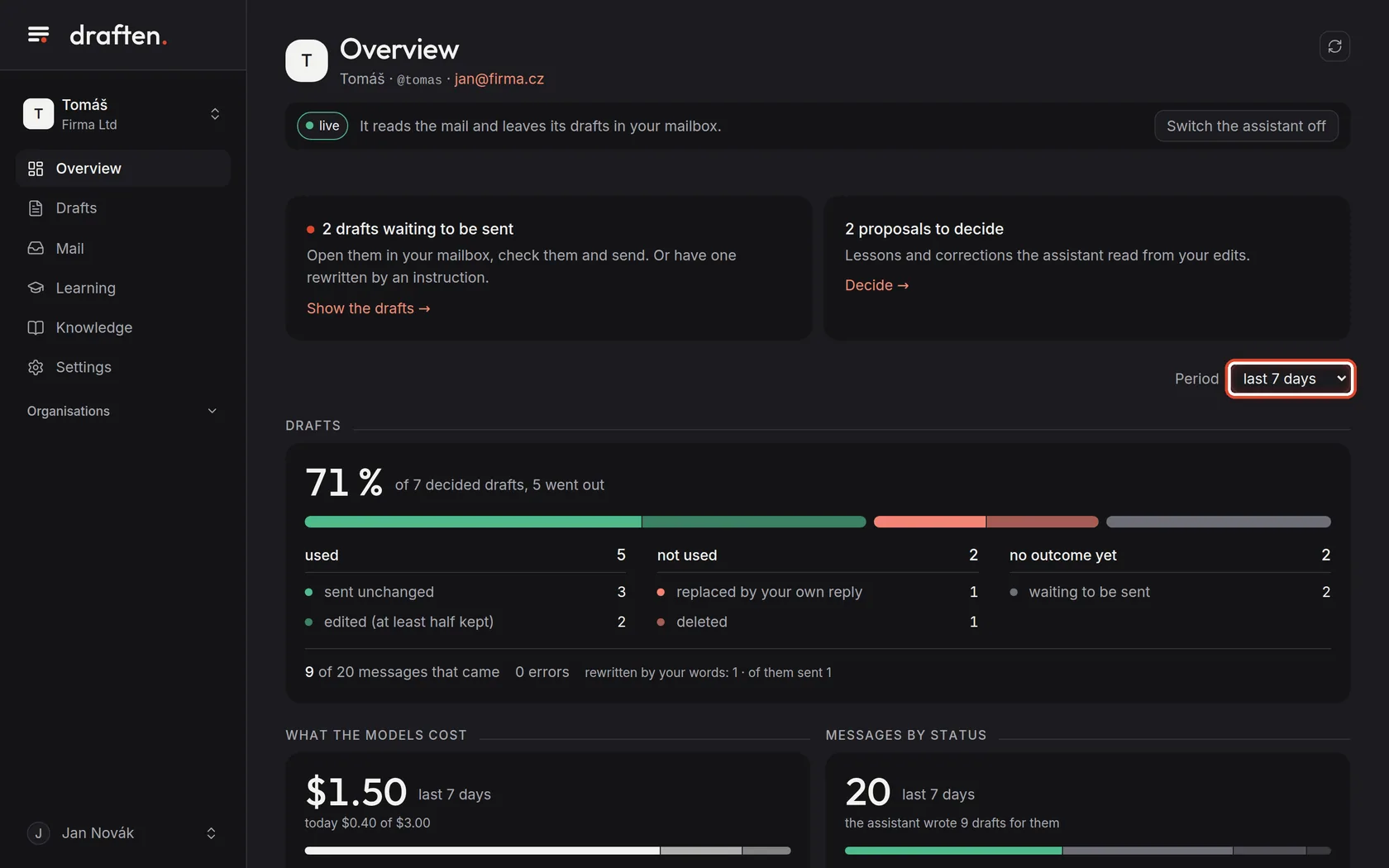
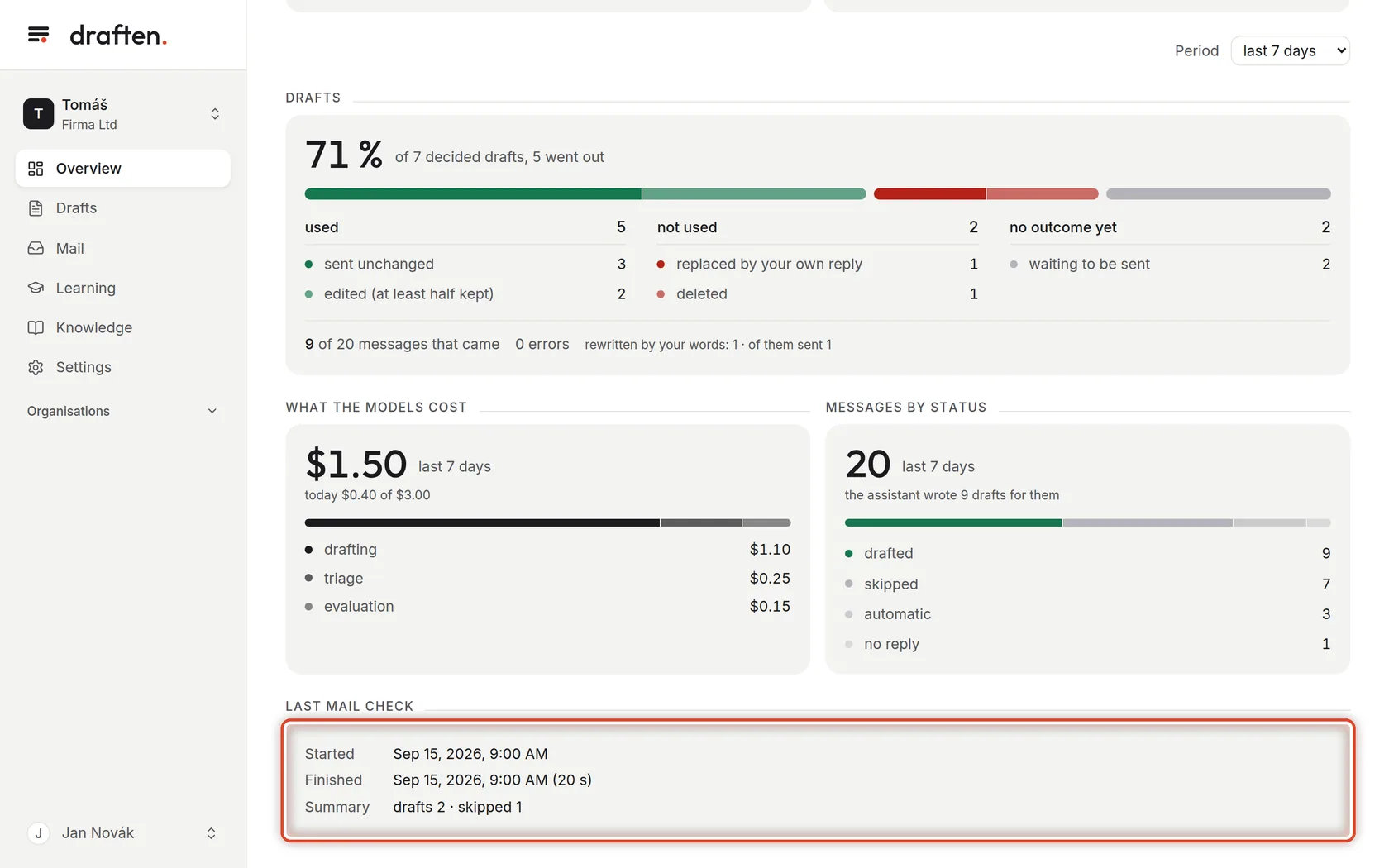
On the screenAt the top, a card with the number of drafts waiting to be sent.
Do thisThis is how many replies the assistant has prepared that you have not sent yet. Click Show the drafts and go through them.
NoteIn trial mode the card shows drafts written in trial mode. They stay in draften for you to look at — they never move to your mailbox, not even after you go live.
Step 2 of 7
Proposals to decide
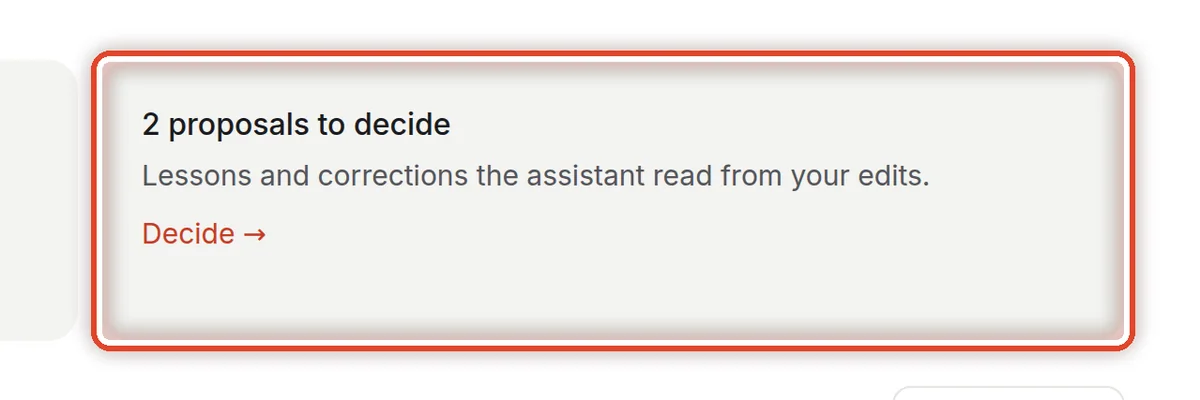
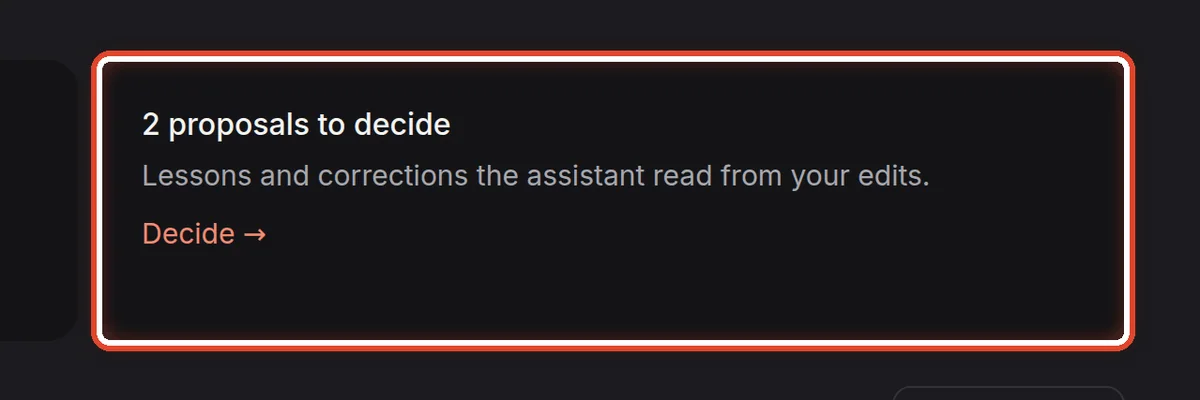
On the screenNext to it, a card with proposals the assistant drew from your edits.
Do thisWhen you edited drafts, the assistant proposes rules (lessons) and fact corrections from it. Click Decide — none of it is used until you approve it.
NoteWhen nothing is waiting for you, the cards do not appear at all.
Step 3 of 7
Choose the period
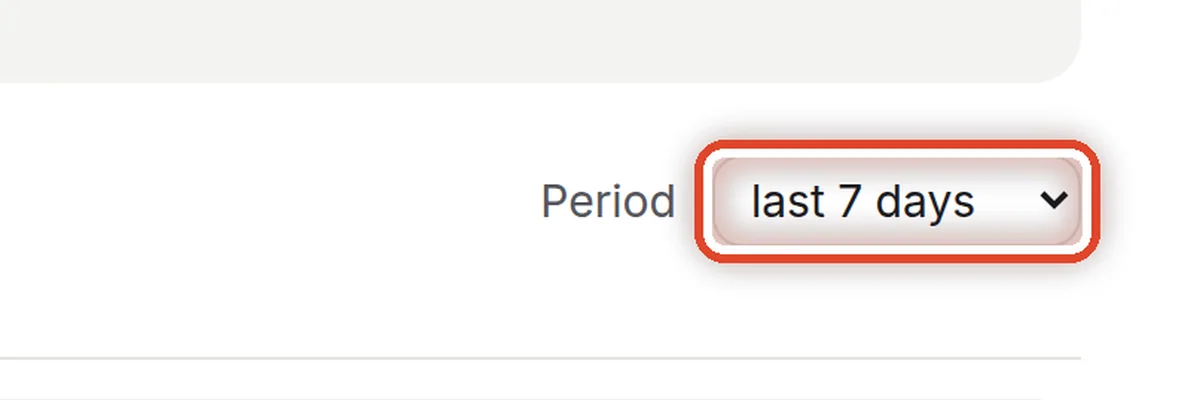
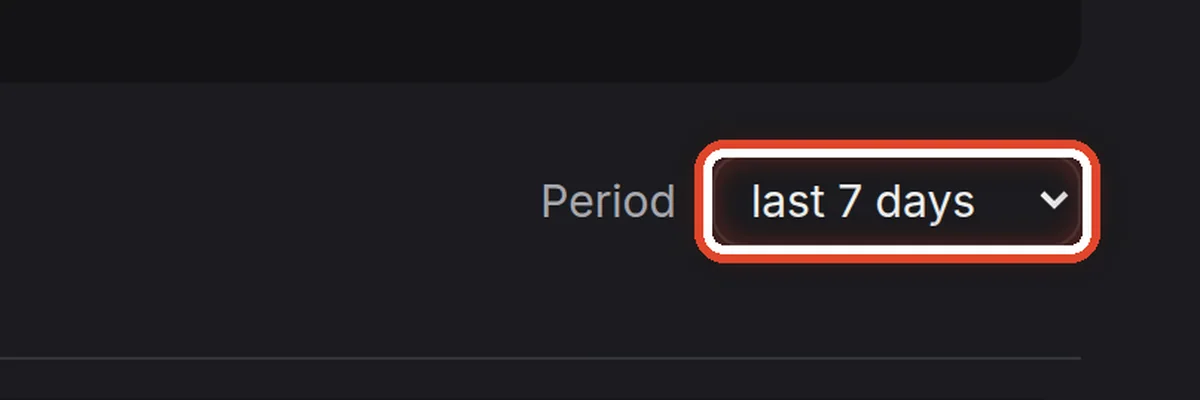
On the screenThe Period field above the numbers, on the right.
Do thisChoose which stretch of time the numbers cover: the last day, 7, 30 or 90 days. Everything below is recounted.
Step 4 of 7
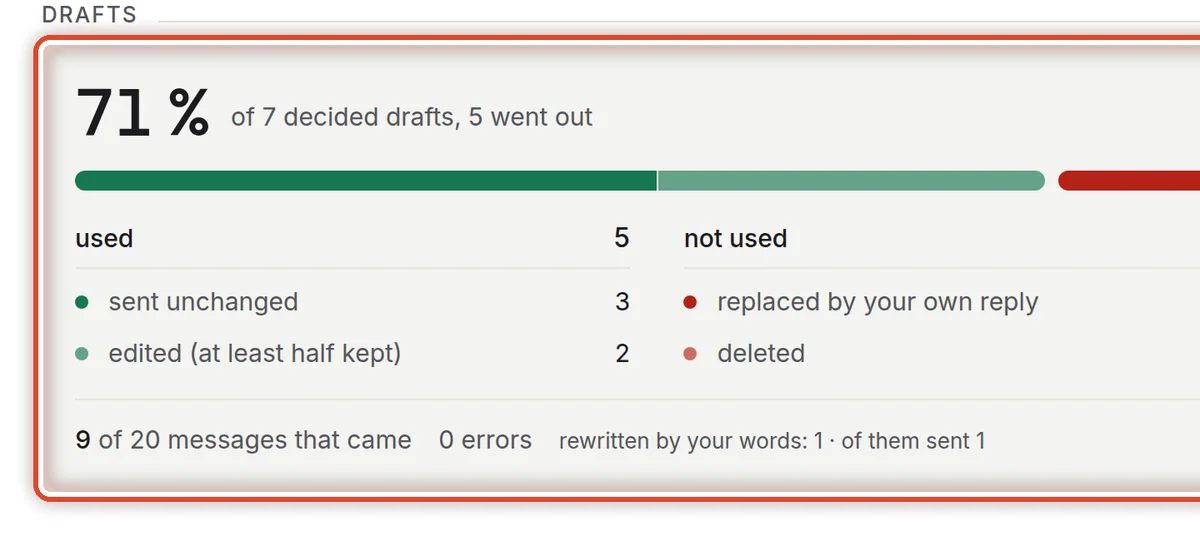
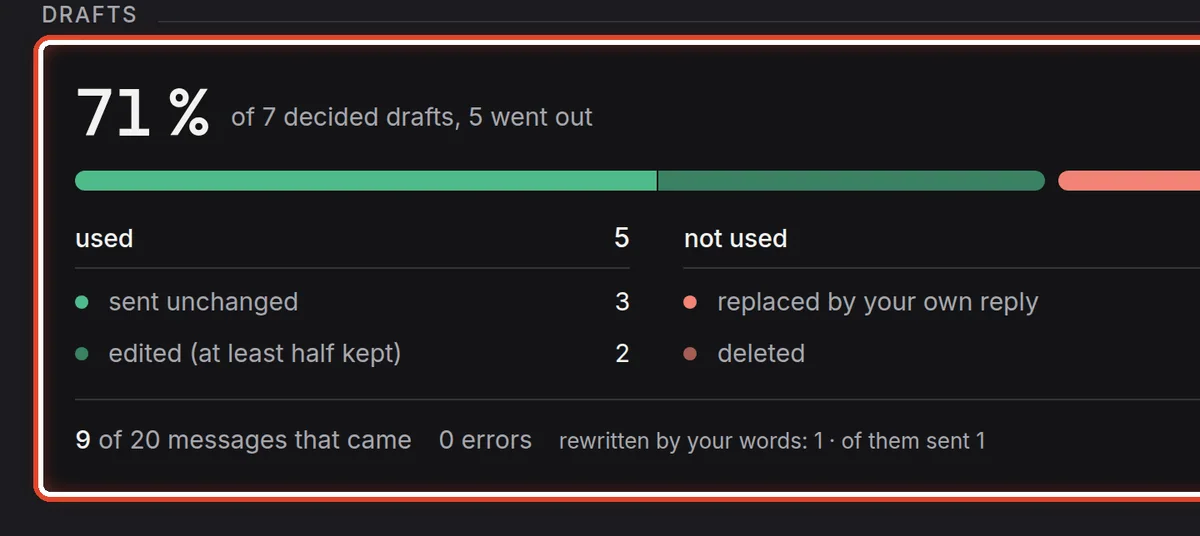
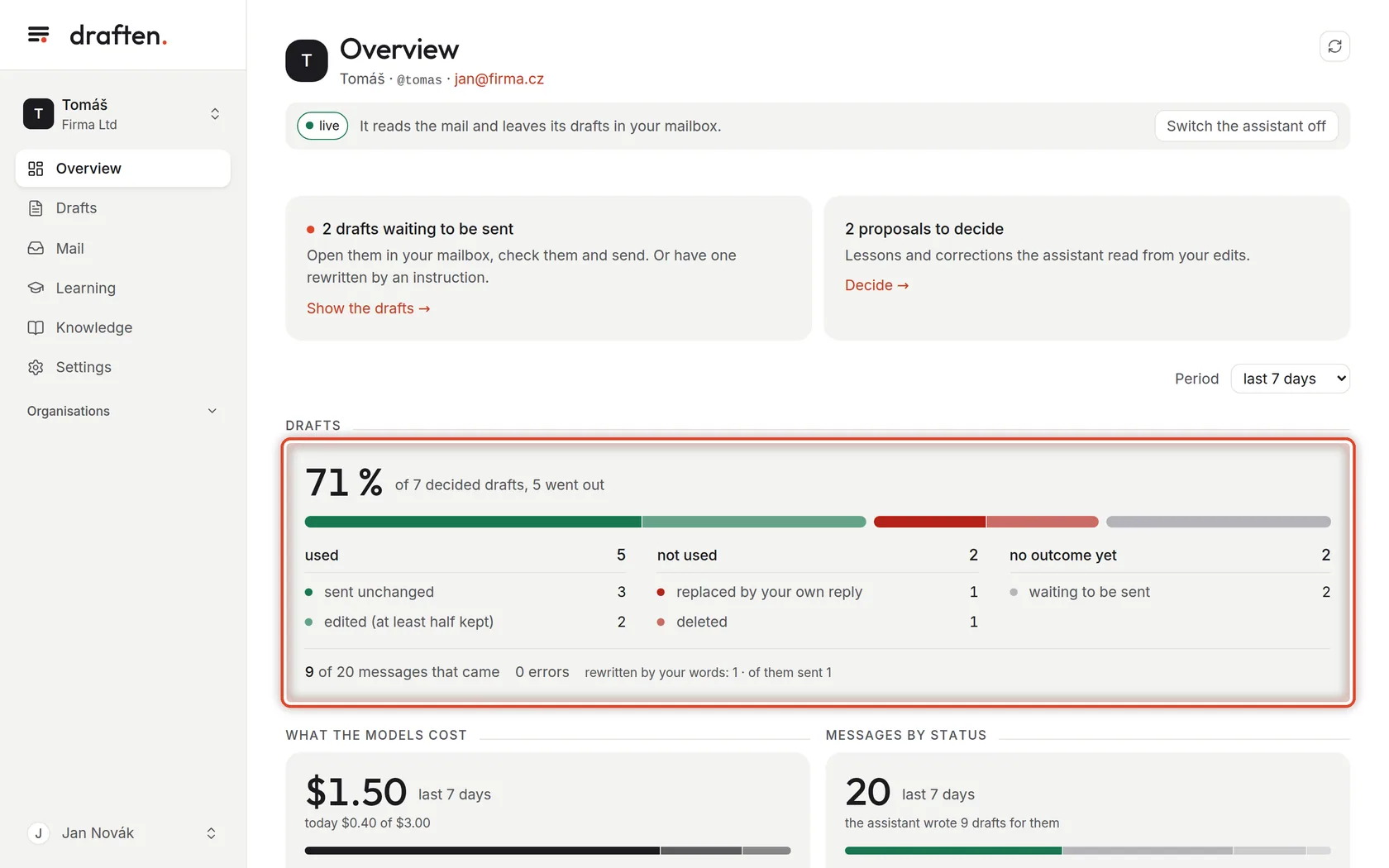
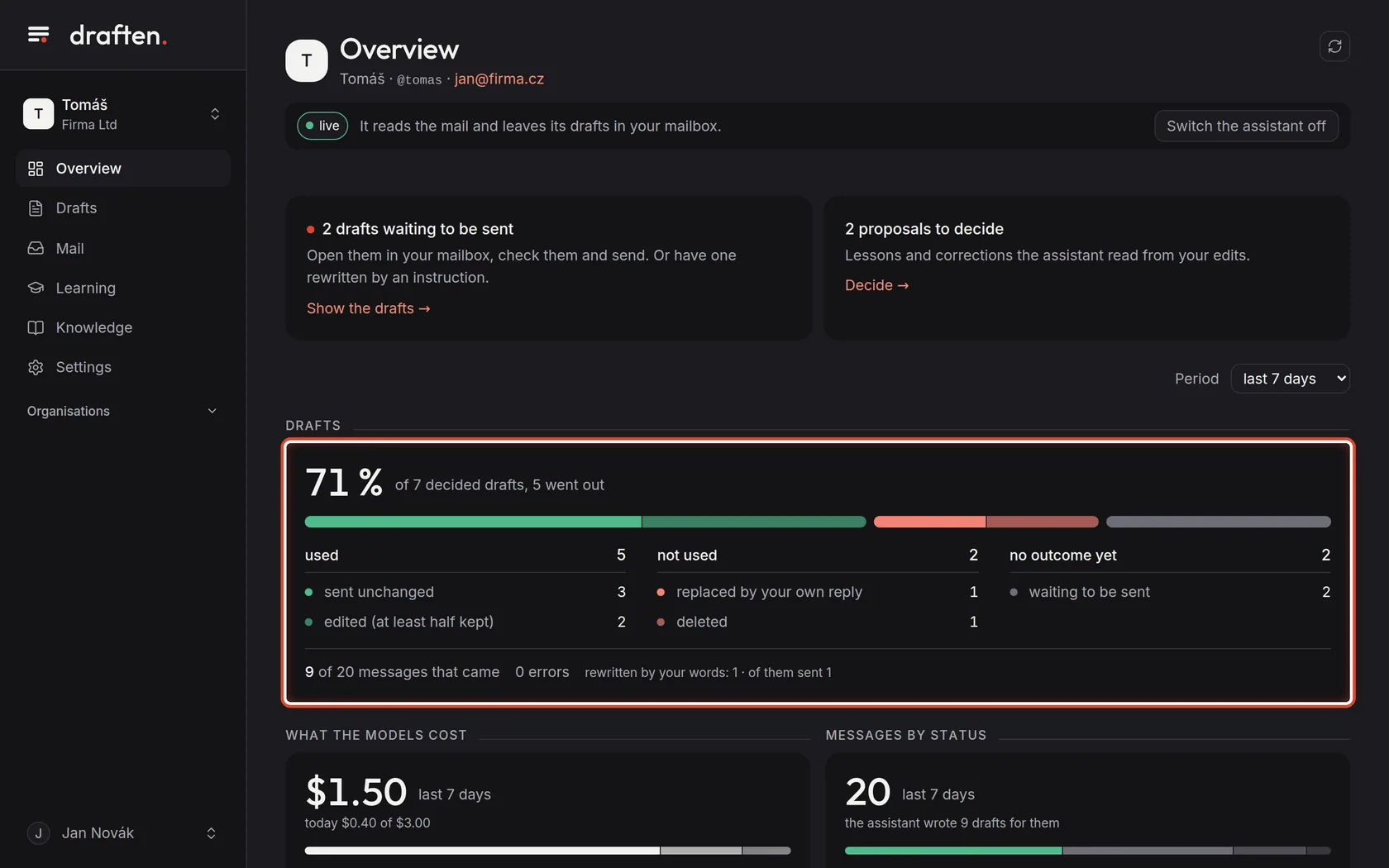
How many drafts you used
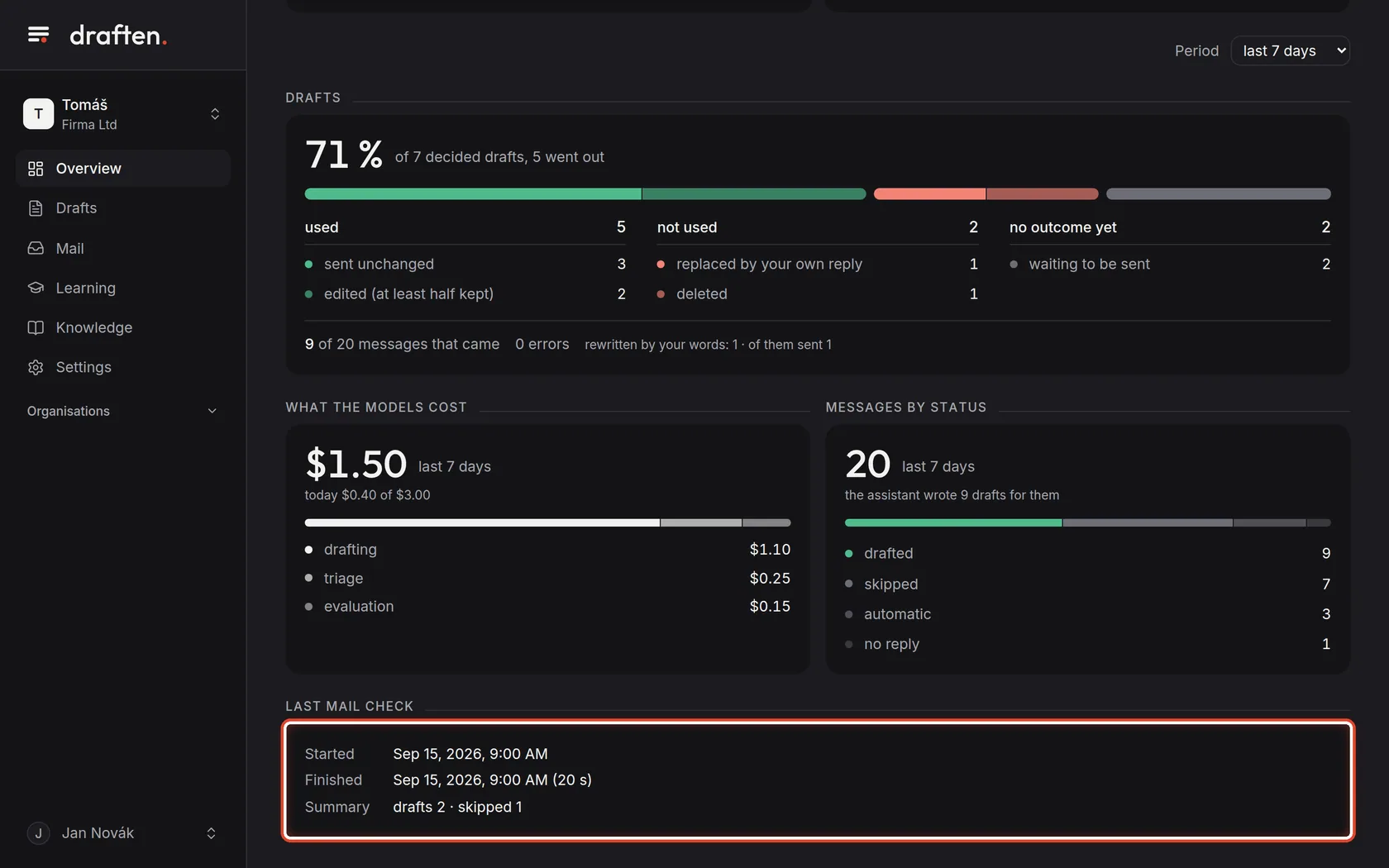
On the screenA large percentage and a bar split into three groups below it.
Do thisThe percentage says how many of the decided drafts actually went out — unchanged or with your edits. Used are the ones sent, not used the ones you deleted or replaced with your own reply, and no outcome yet those not decided so far.
NoteDrafts still waiting, expired or written in trial mode do not count — nor those where the evaluation found you knew something the assistant could not (from a phone call, say).
Step 5 of 7
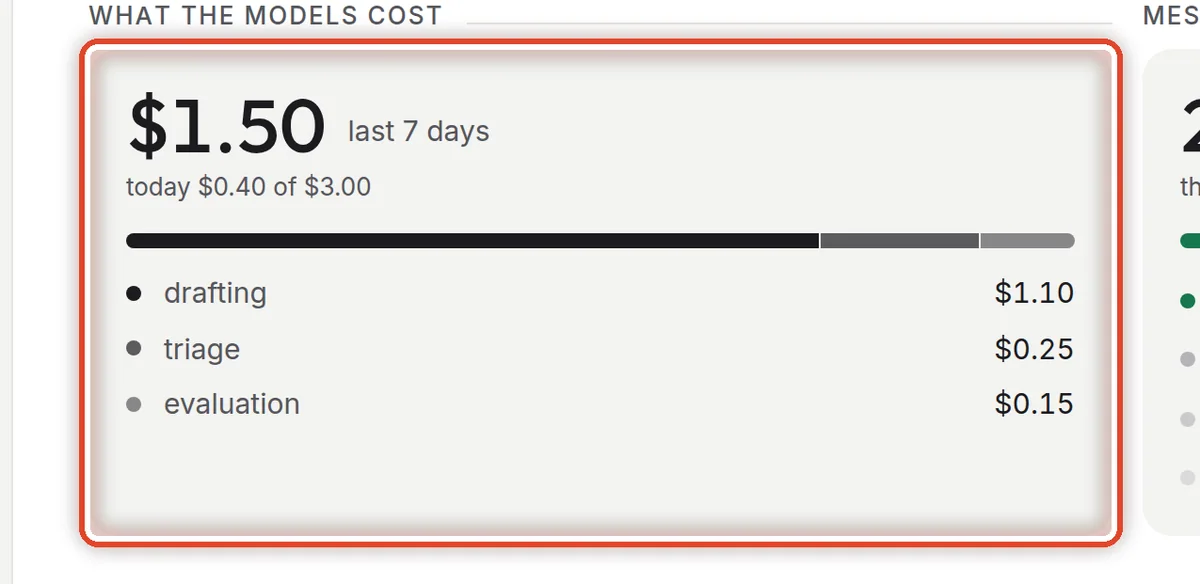
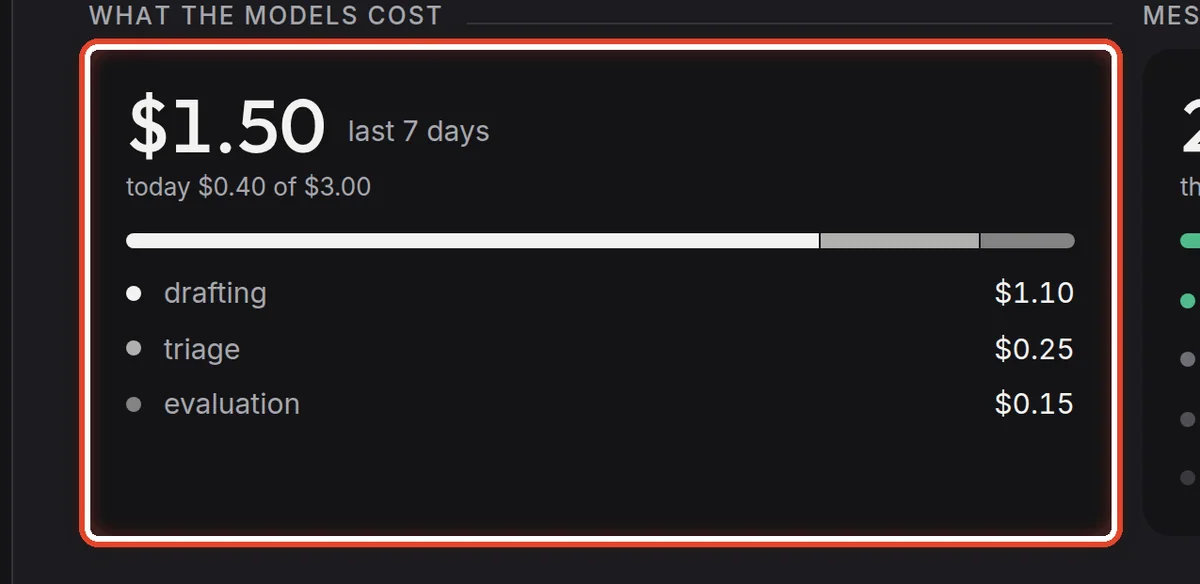
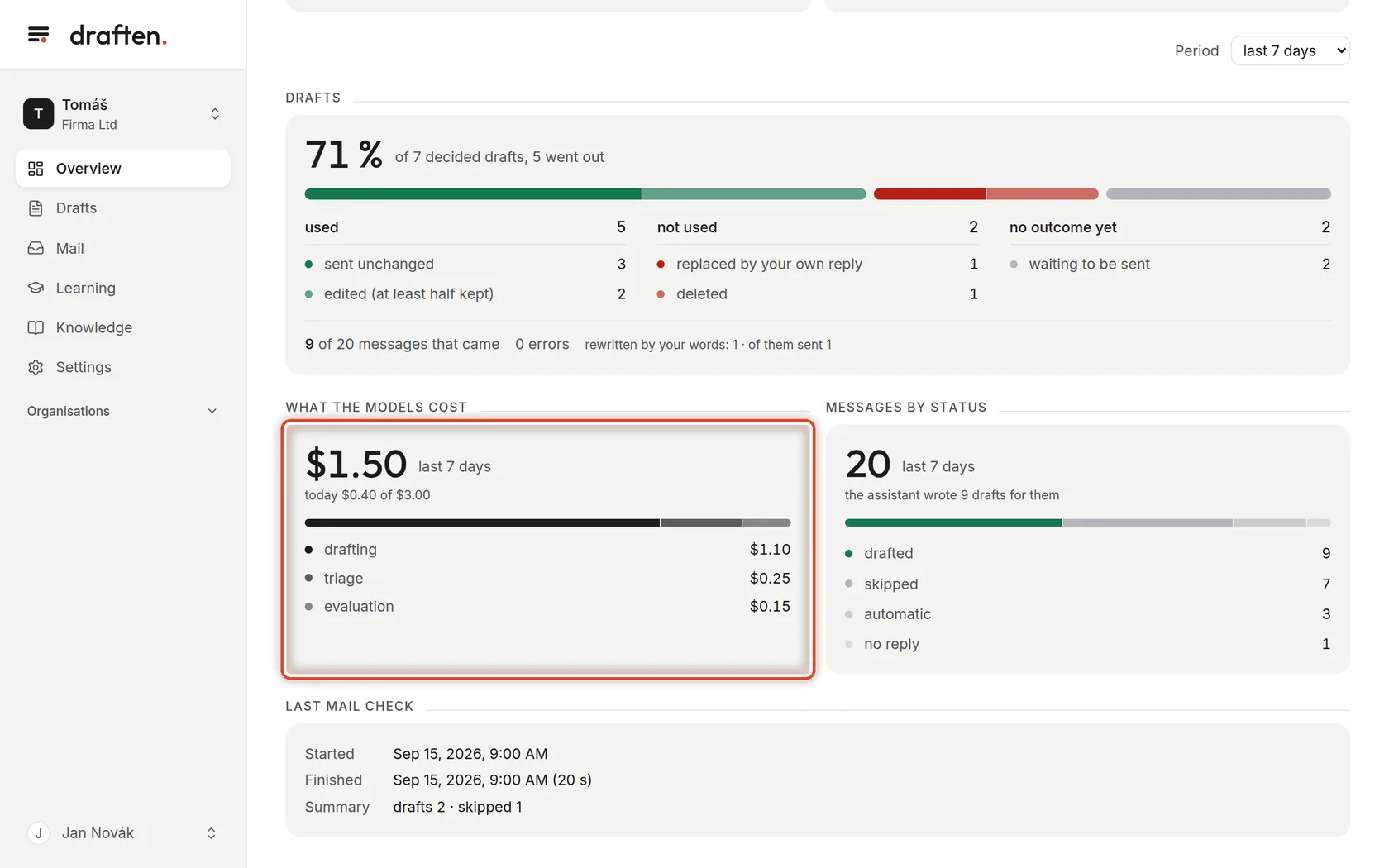
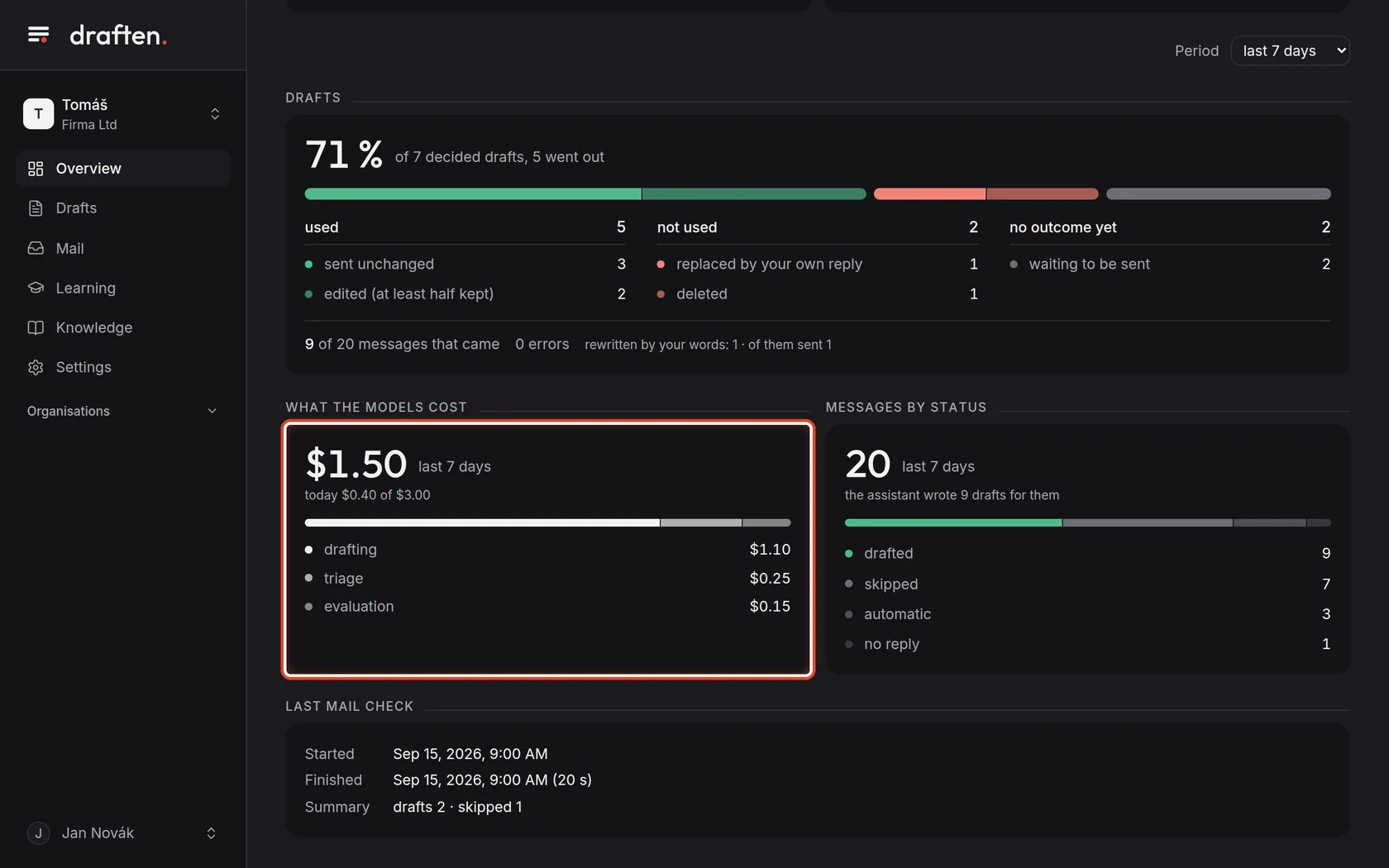
What the models cost
On the screenThe What the models cost card.
Do thisWhat writing, sorting and evaluating cost over the chosen period. Below the amount: today's spend and the daily cap.
NotePrices are in dollars, as the model provider charges them. Once the daily cap is reached, the assistant writes nothing until the next day. More in Models and prices.
Step 6 of 7
What arrived in the mail
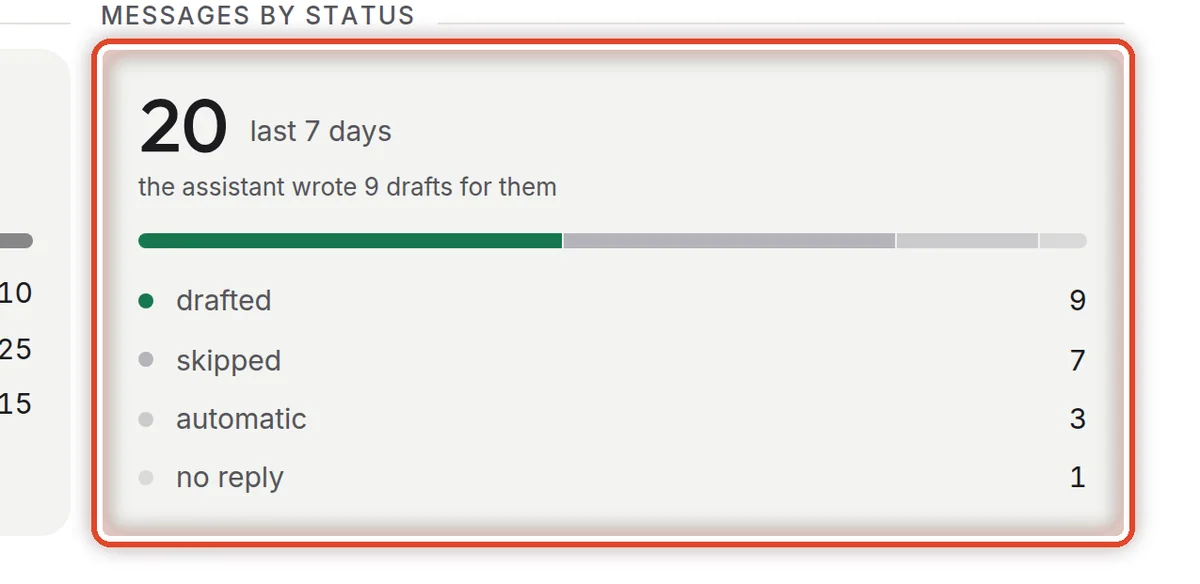
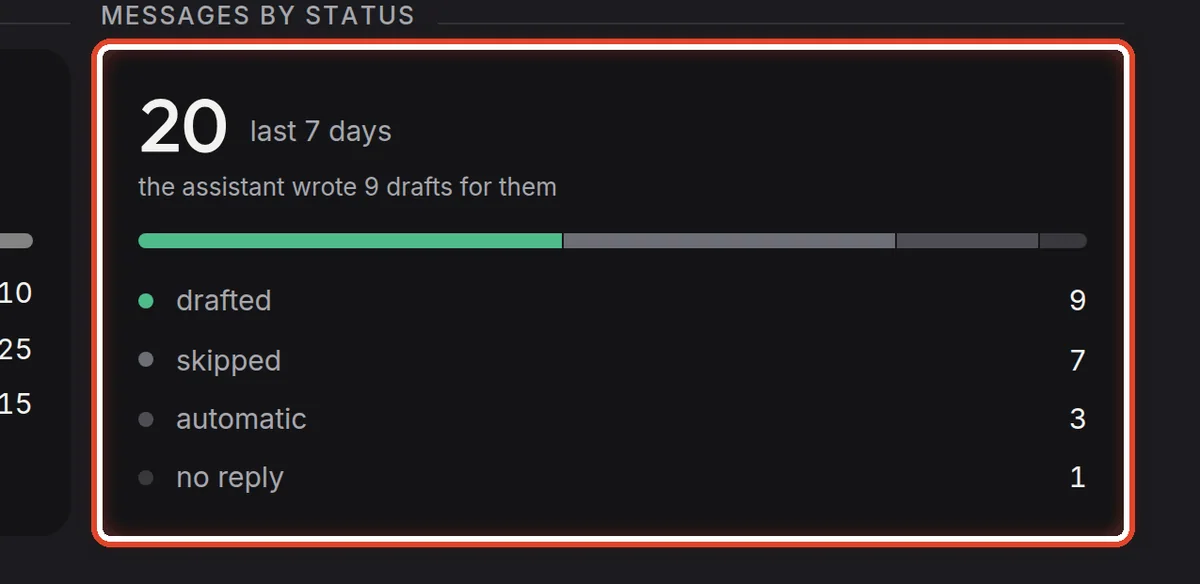
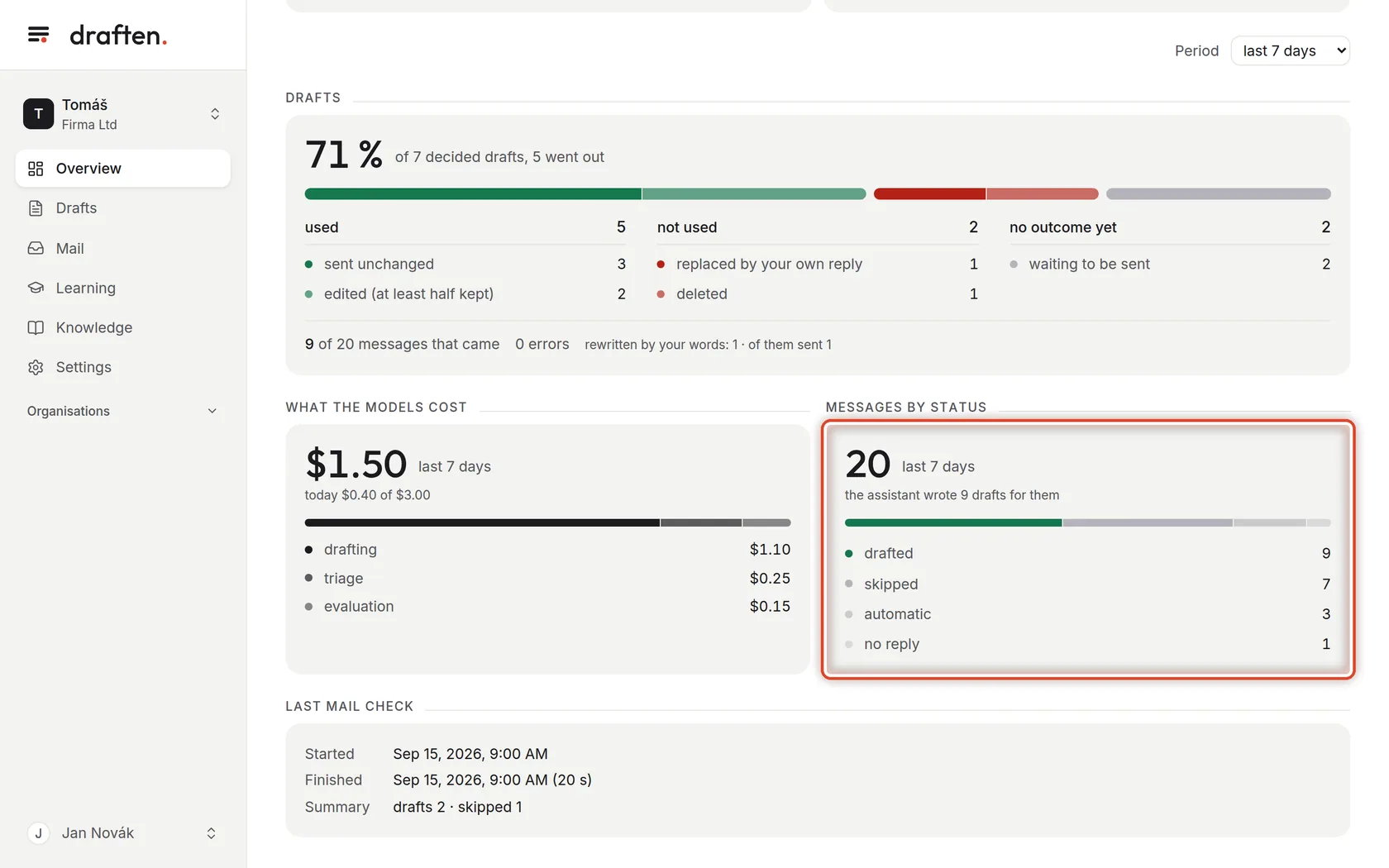
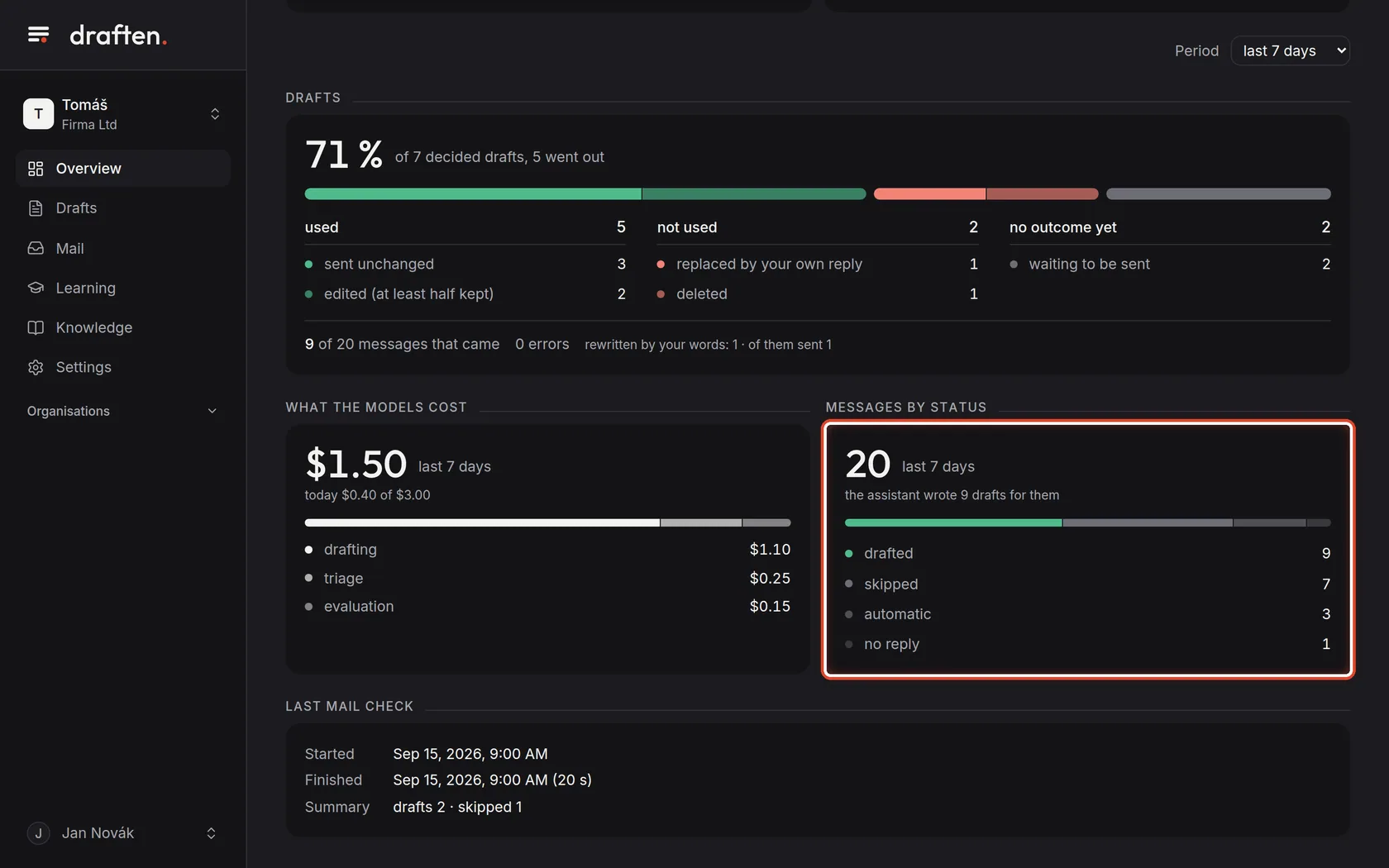
On the screenThe Messages by status card.
Do thisHow many messages arrived in the period, how many got a draft and how many were skipped. Why the assistant decided as it did about a particular message, you will find in Mail.
Step 7 of 7
When the assistant last checked the mail
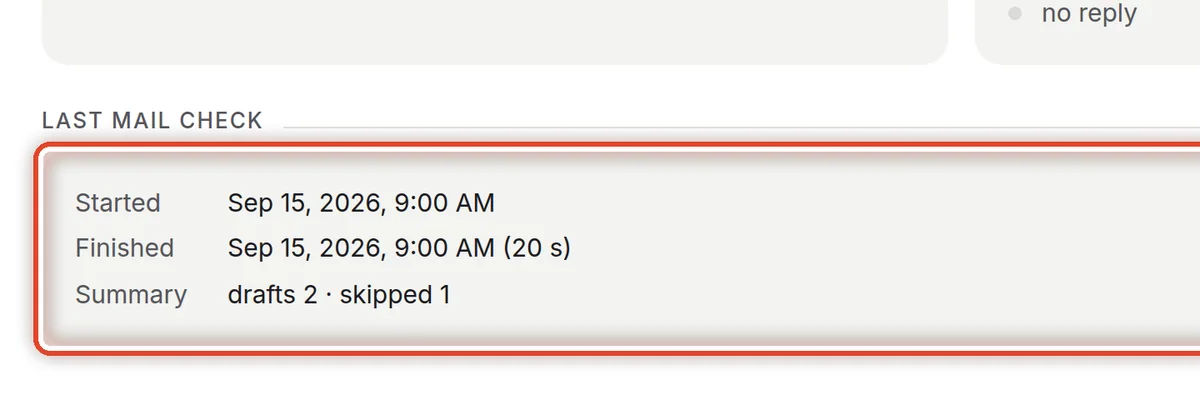
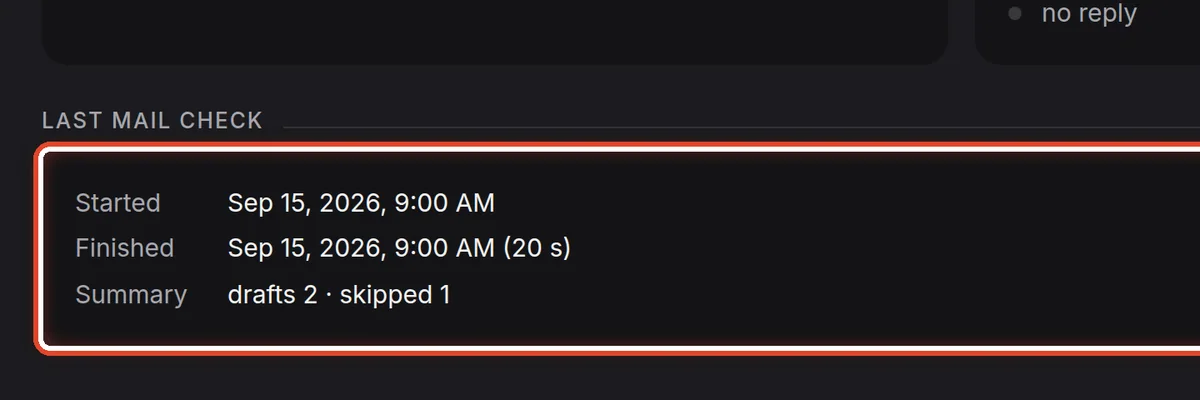
On the screenAt the bottom, the last mail check: when it started, when it ended and what came of it.
Do thisThis tells you the assistant is working. If there is an error here, you will find the details in Settings → Activity.
The end
You know what the numbers mean
A look here once a day is enough: what is waiting to be sent and what to approve.
- A low share of used drafts?Look at what you correct in the drafts. The help page The draft is wrong or invents things tells you where to change it.
- No mail check at all?The help page No drafts at all goes through the possible causes in order.