Guide
What the assistant
did with the mail.
Mail shows every incoming message and what the assistant did with it: wrote a draft, skipped it, recognised a machine, or decided no reply is needed. For each you can find out why.
Before you start
- An open assistantMail is in the menu on the left, under Drafts.
- About 3 minutesThe tour takes a moment.
Step 1 of 8
What arrived in the mailbox
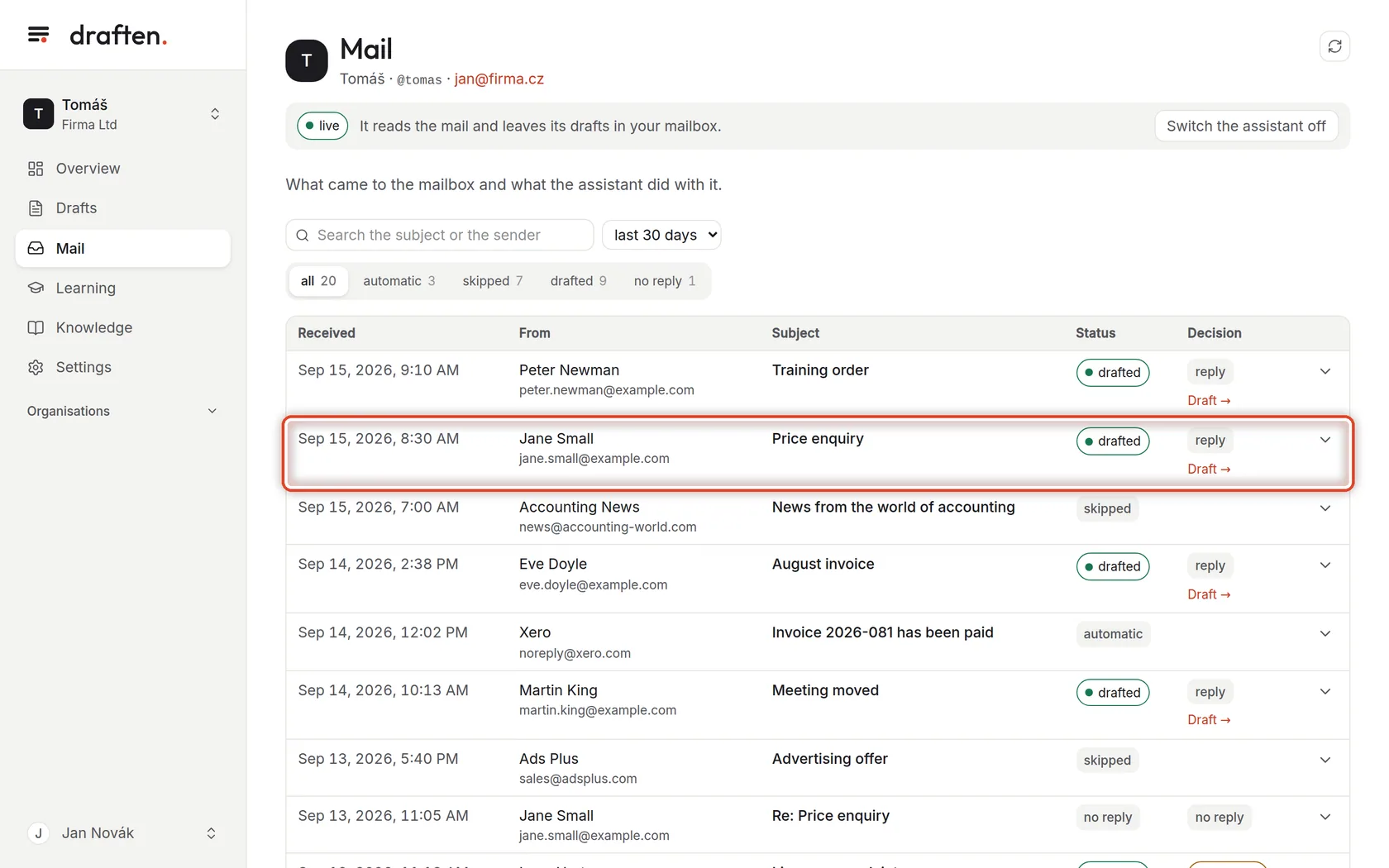
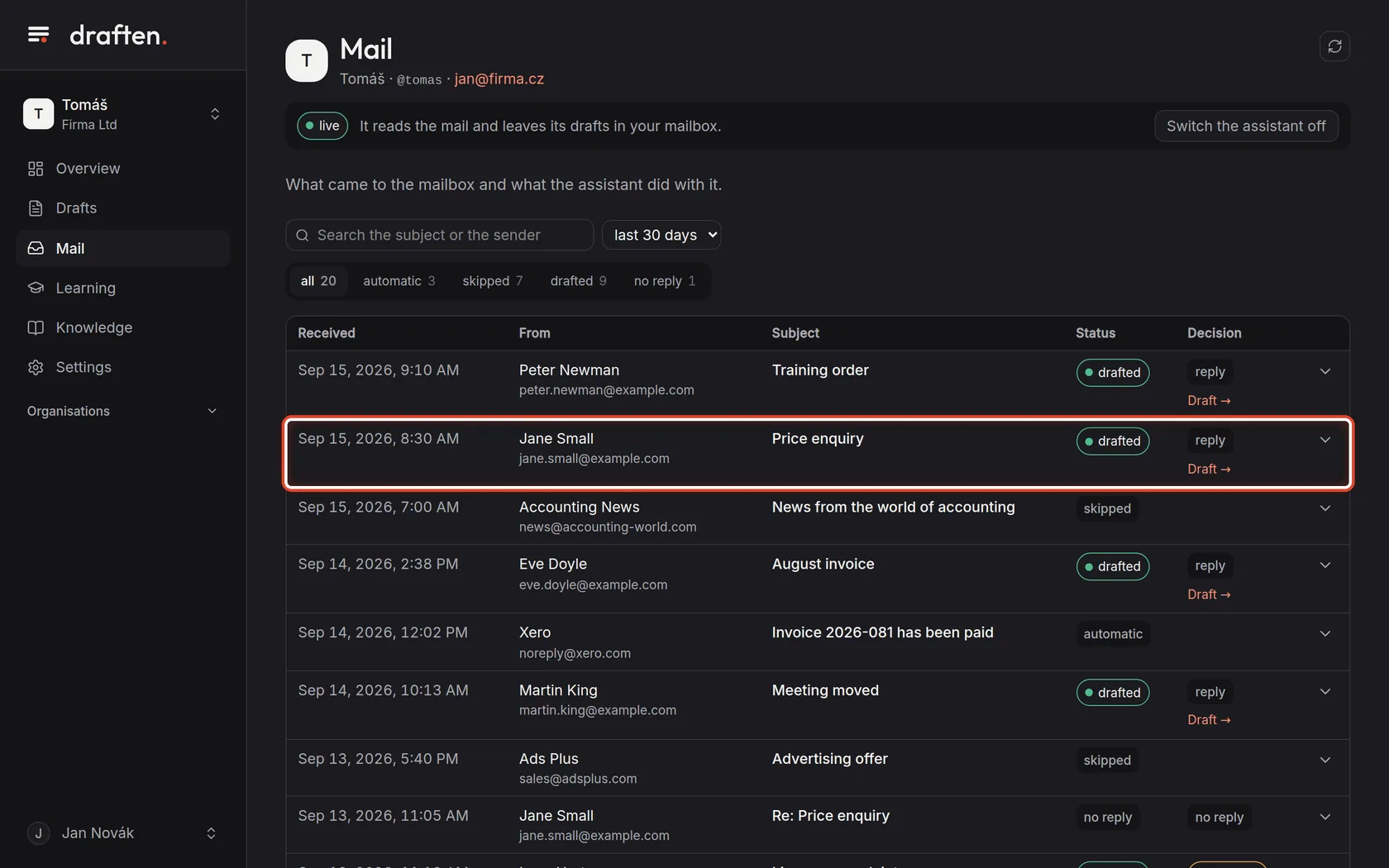
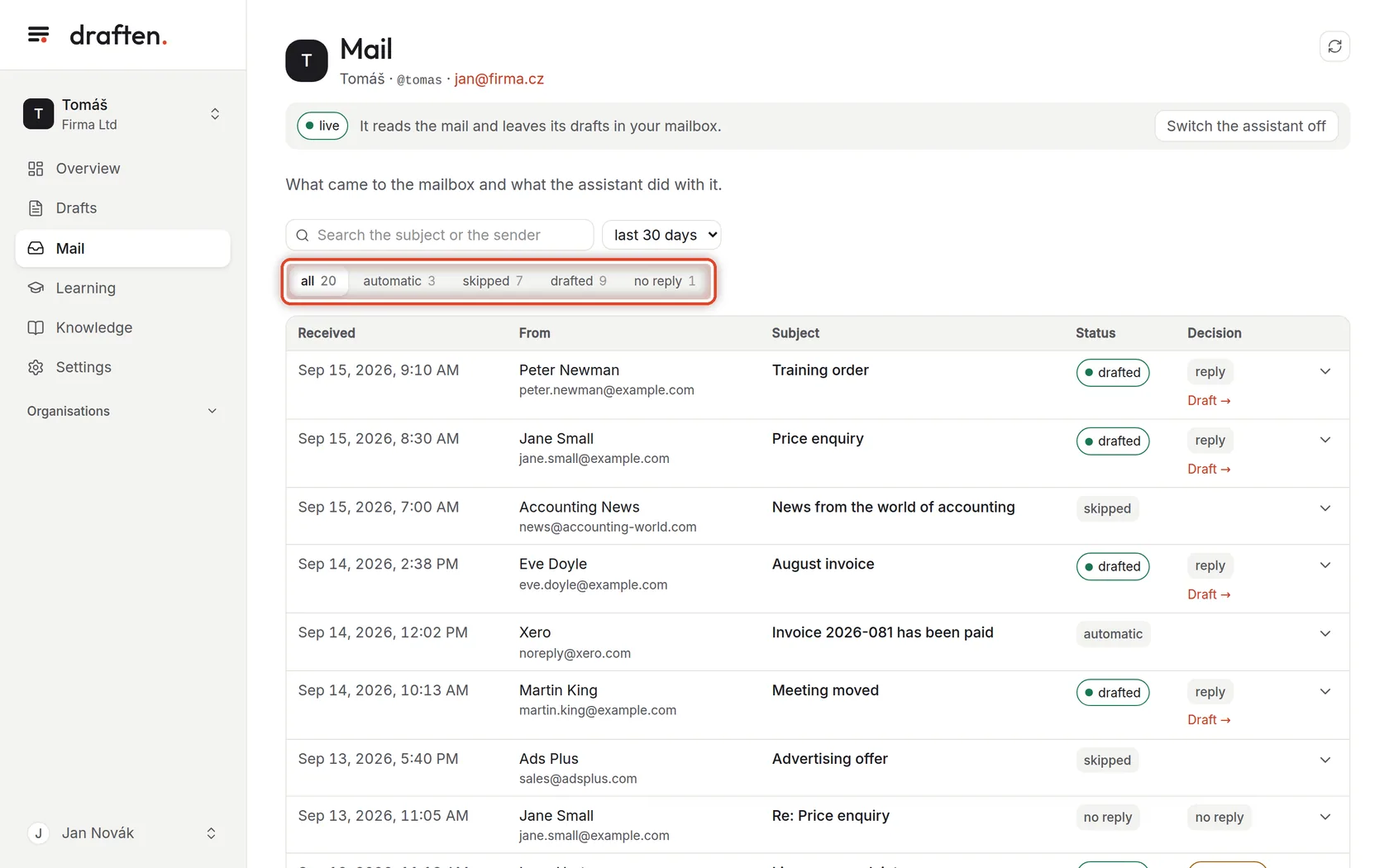
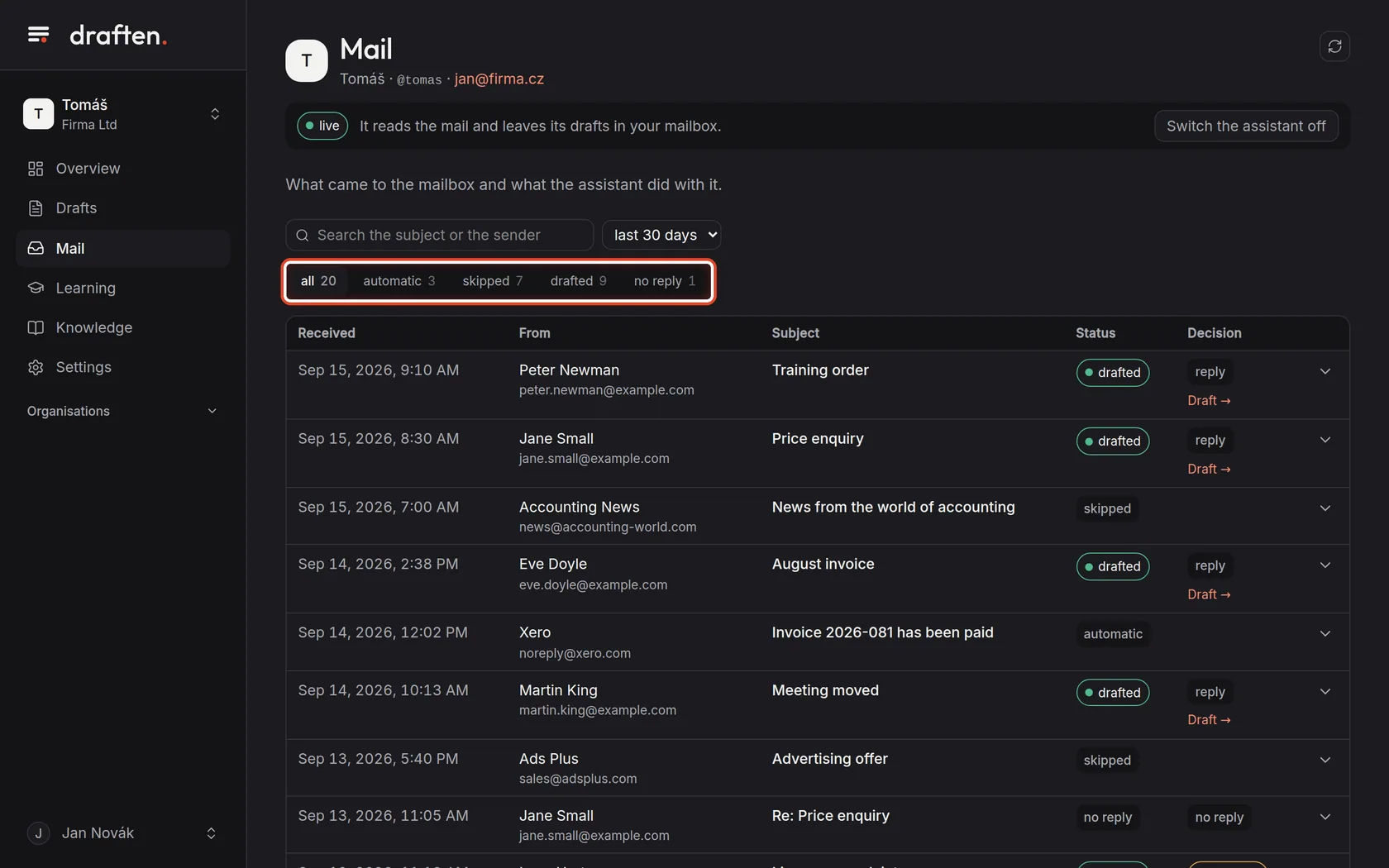
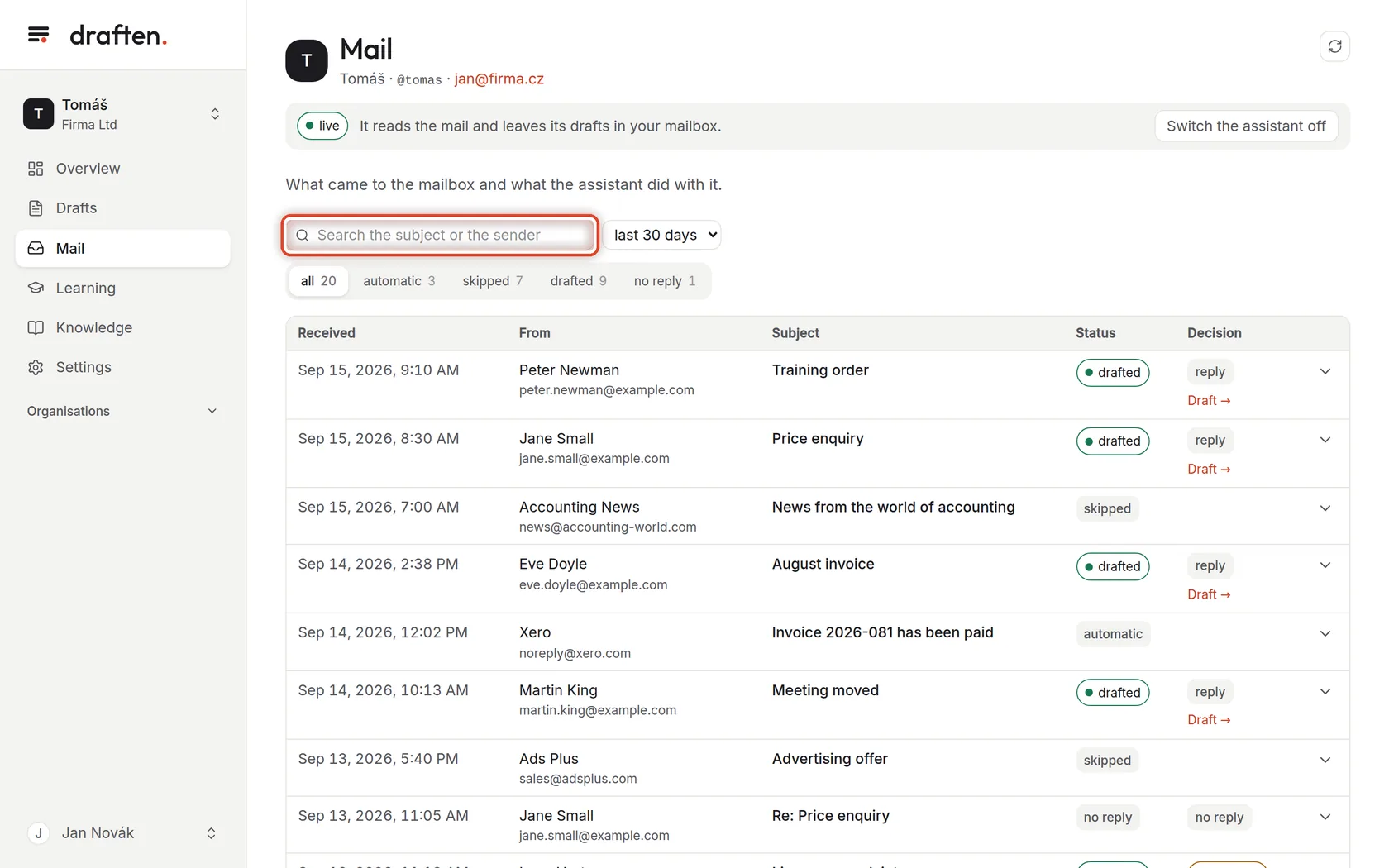
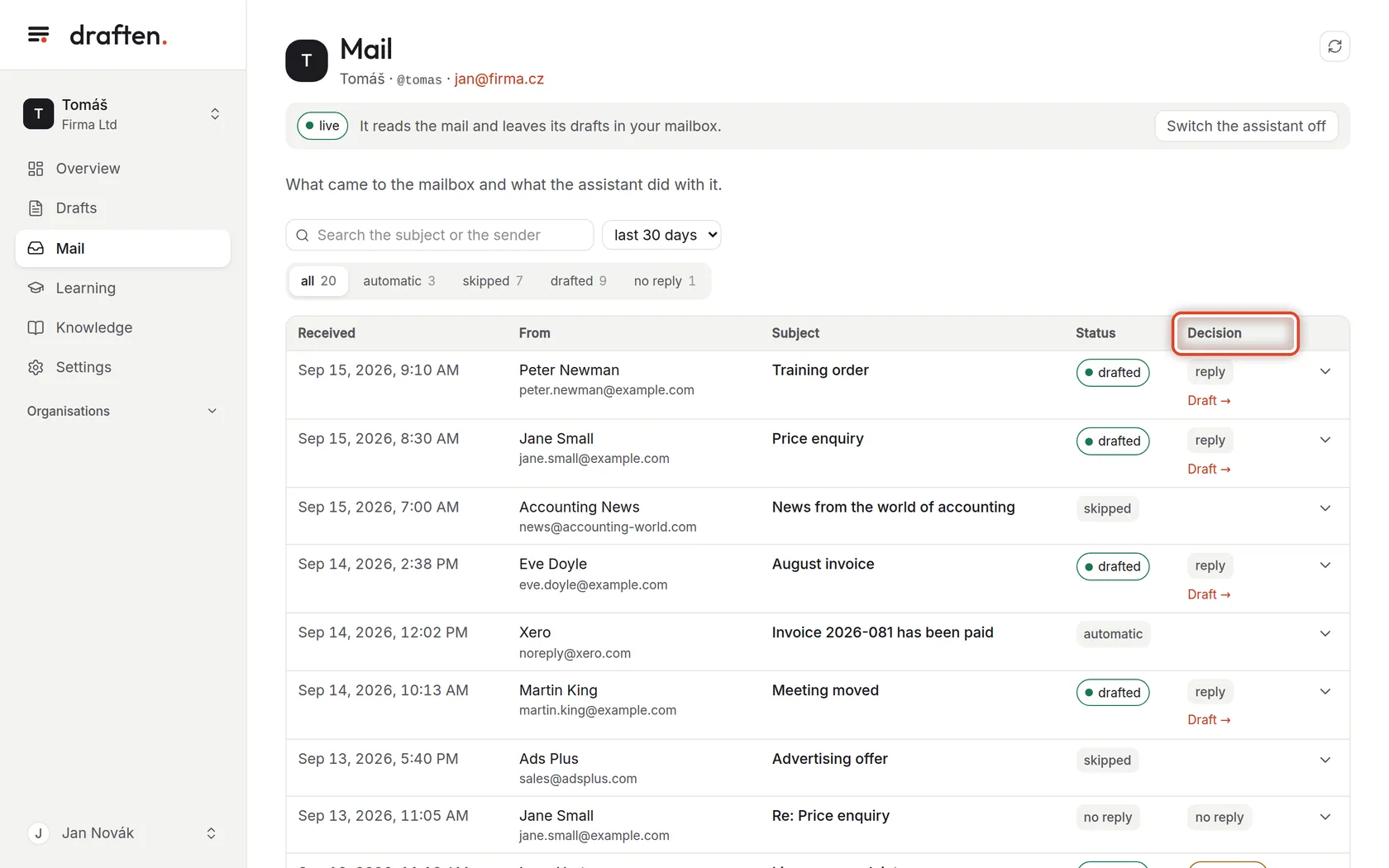
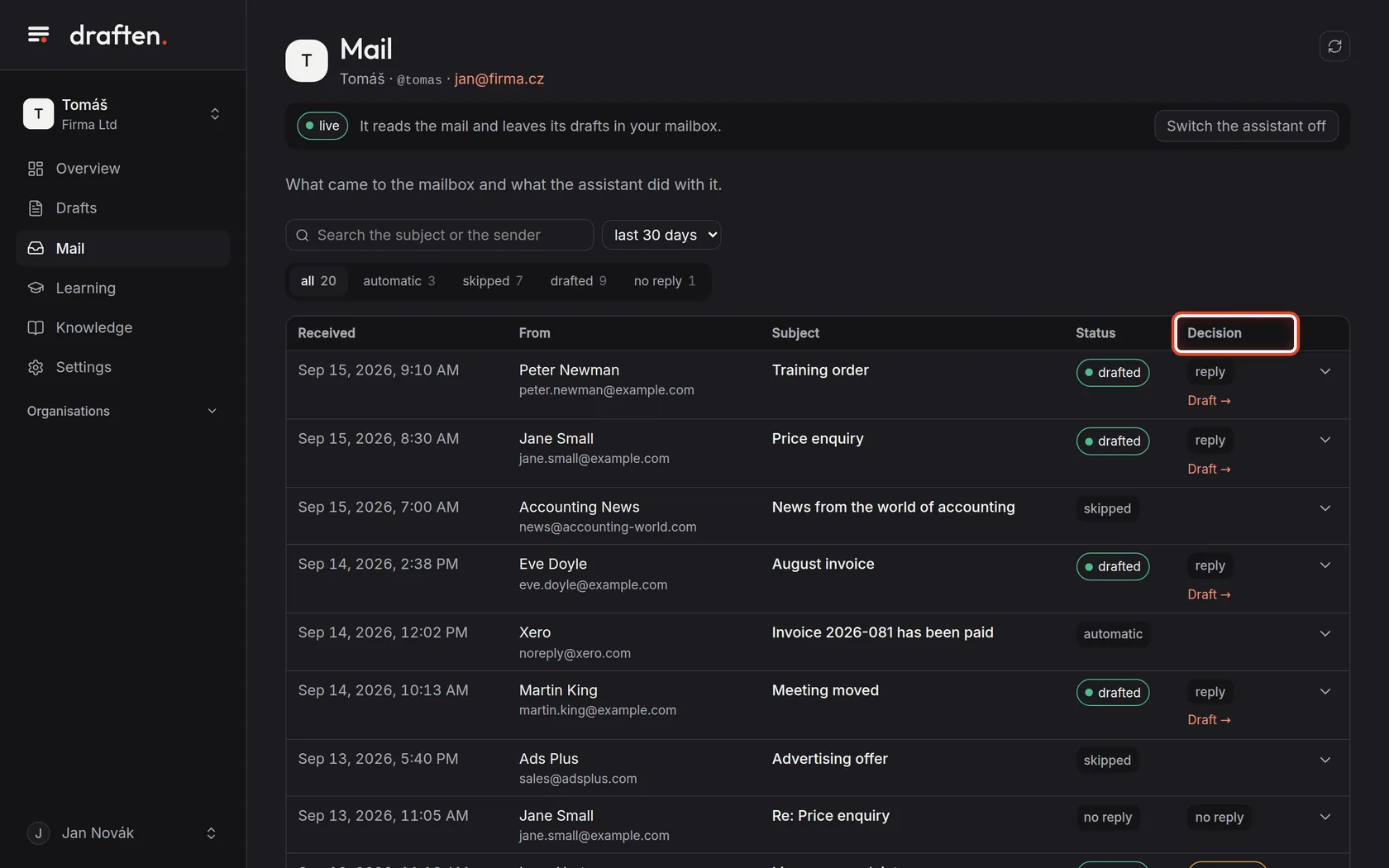
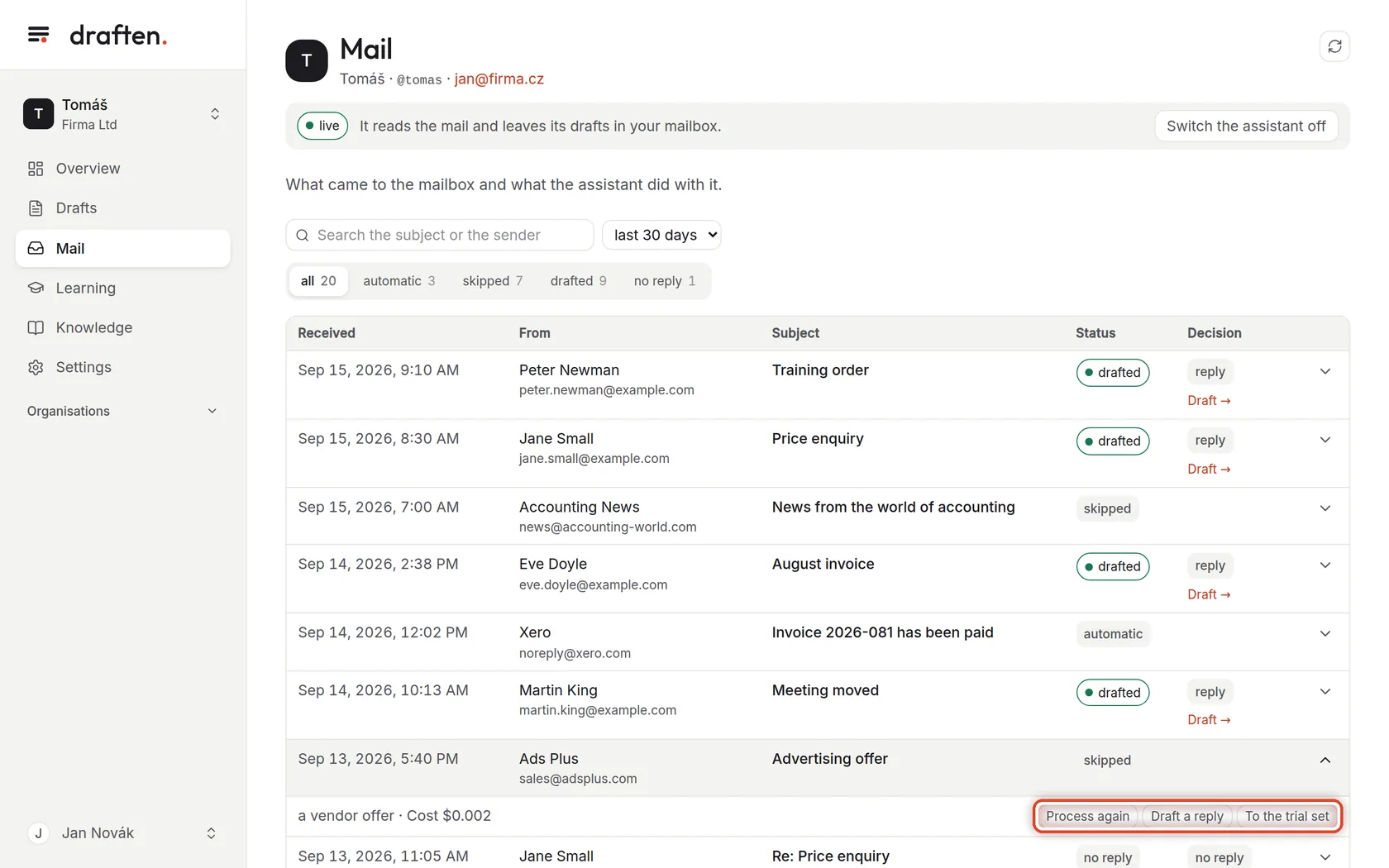
On the screenIn Mail, a list of every message the assistant saw in the chosen period.
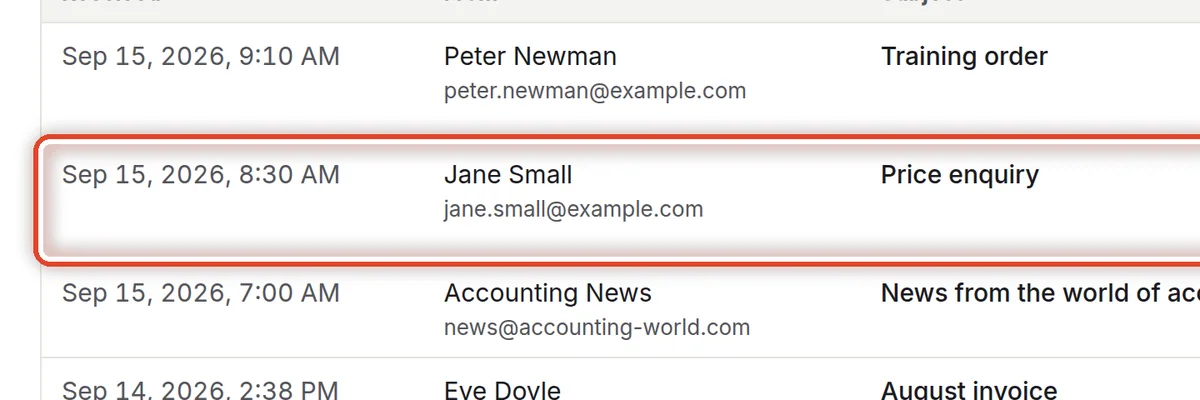
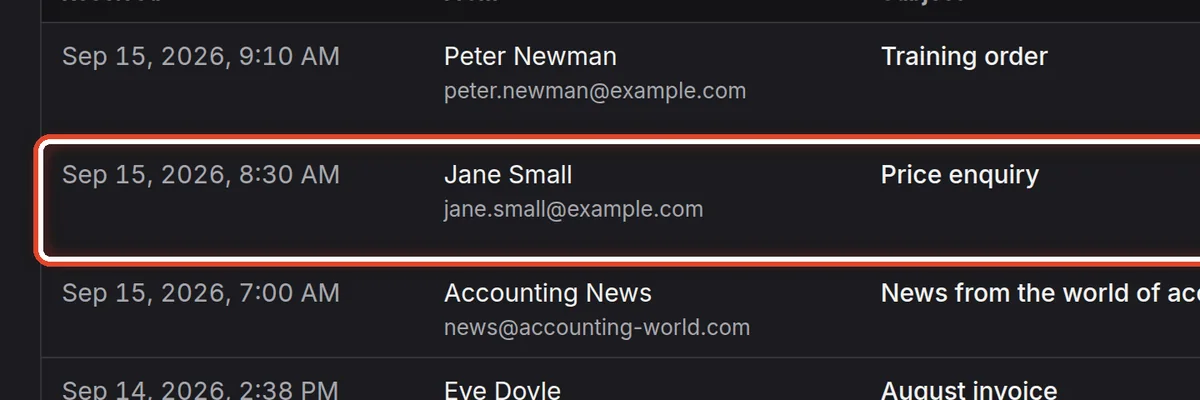
Do thisEach row is one incoming message: when it came, who from, the subject and what the assistant did with it. Where there is a draft, the Draft link leads straight to the prepared reply.
Step 2 of 8
Pick a status
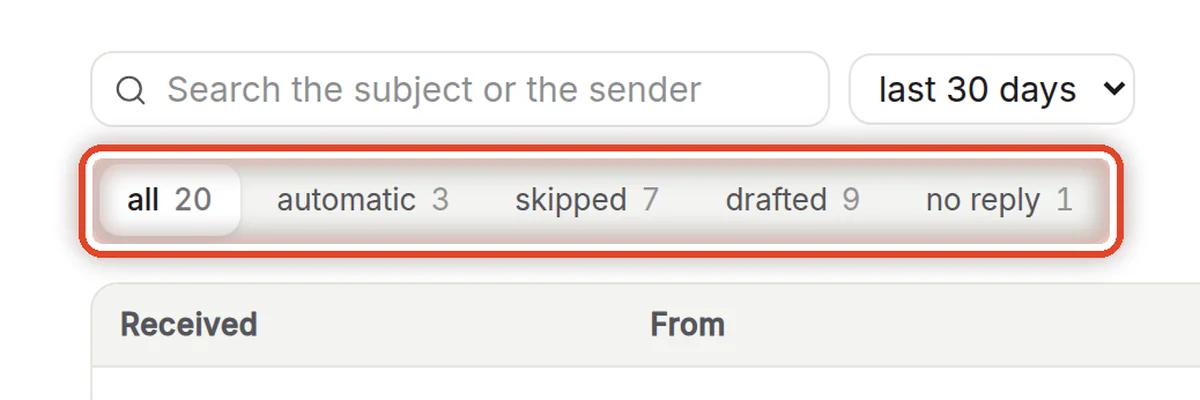
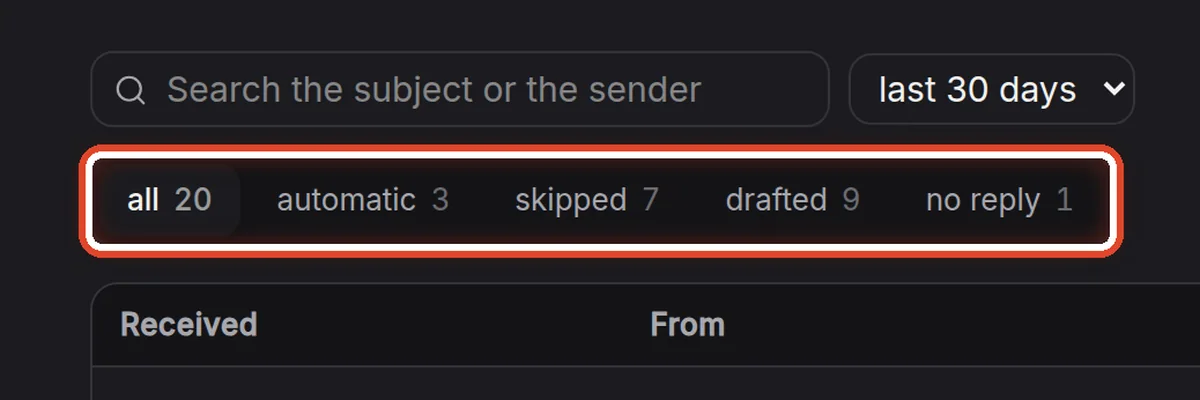
On the screenAbove the list, buttons with statuses and counts.
Do thisClick a status to see only those messages. drafted — the assistant prepared a reply. skipped — by the Filter instruction the message needs no reply. automatic — machine mail (notifications, auto-replies), which the assistant does not read at all. no reply — the assistant read the message and decided no reply is needed.
NoteLess often you see limit (the message ran into one of the limits in Behaviour and limits), rejected (the draft failed a check and was not created) or failed (not even the third attempt worked). More in Why some mail gets no draft.
Step 3 of 8
Find a message
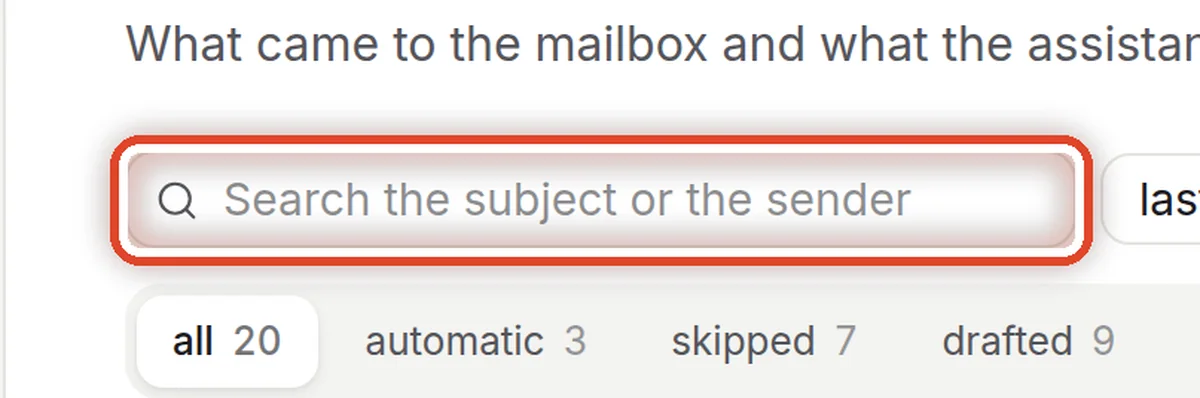
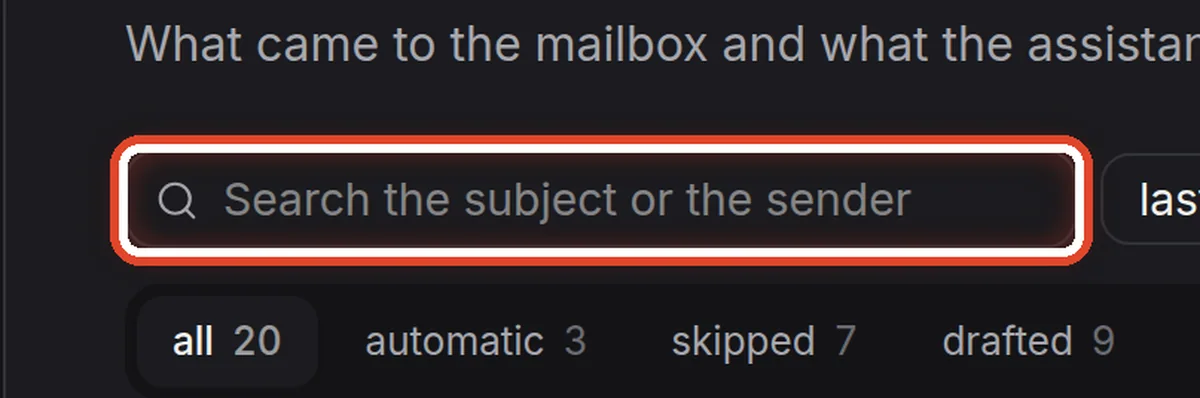
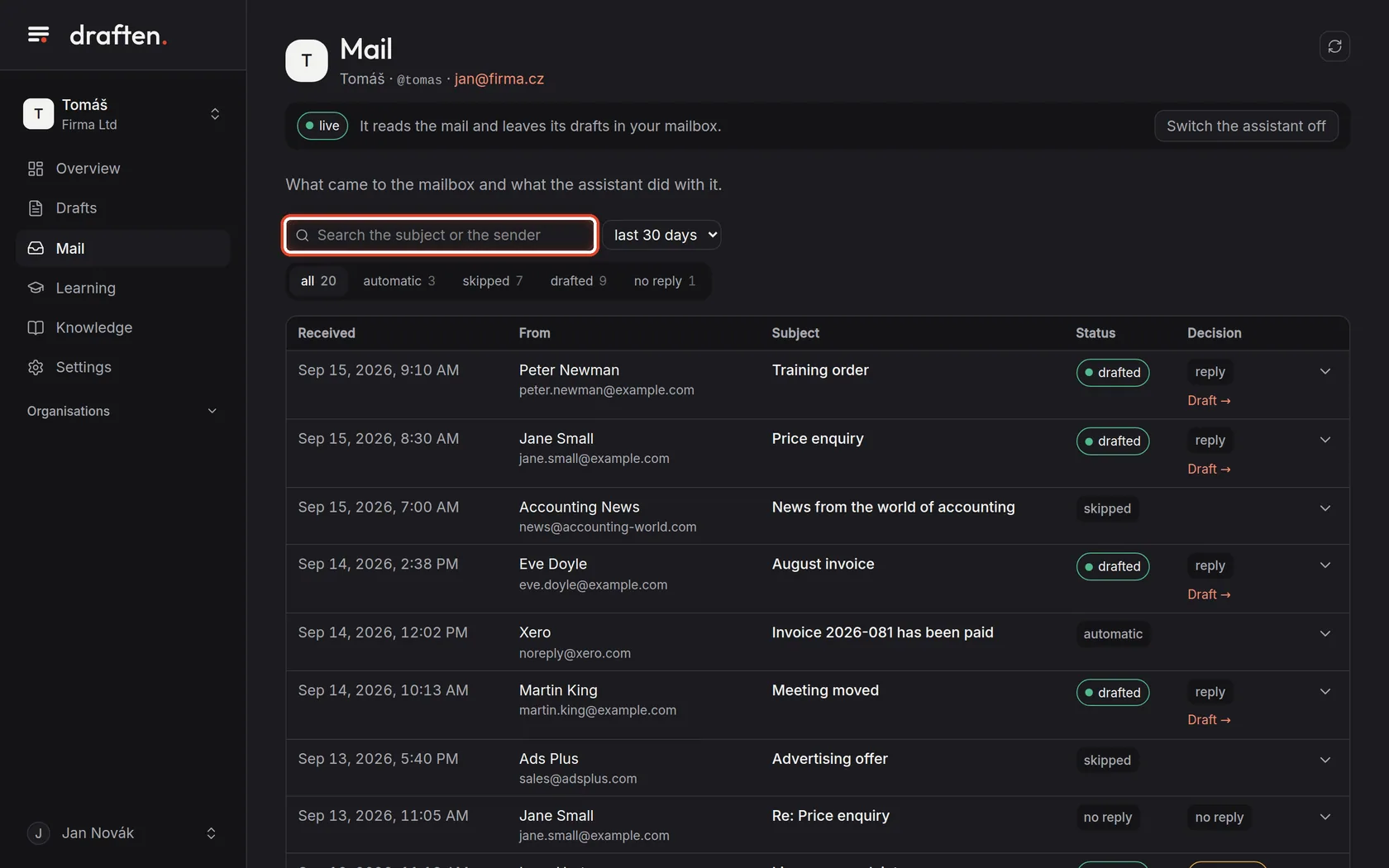
On the screenThe search field and the period.
Do thisType part of the subject, or the sender's name or address. Next to it you choose how far back the list goes.
Step 4 of 8
The assistant's decision
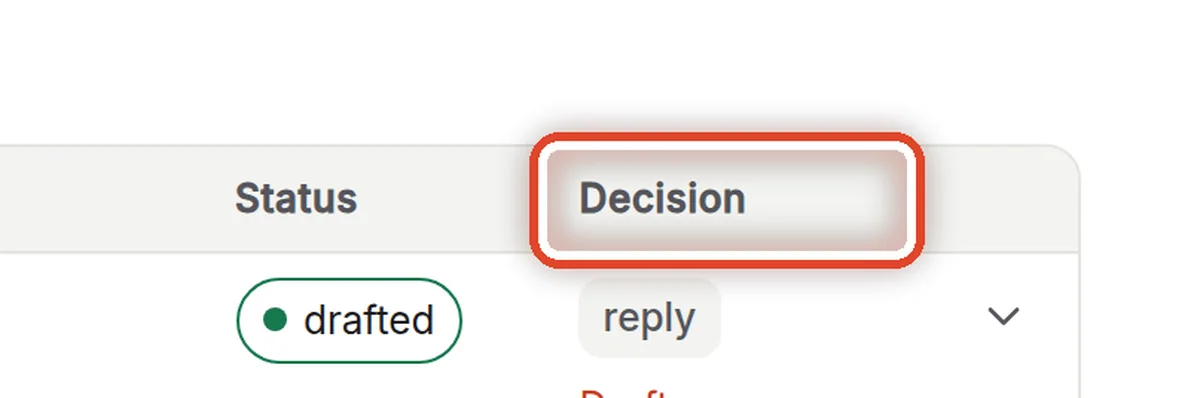
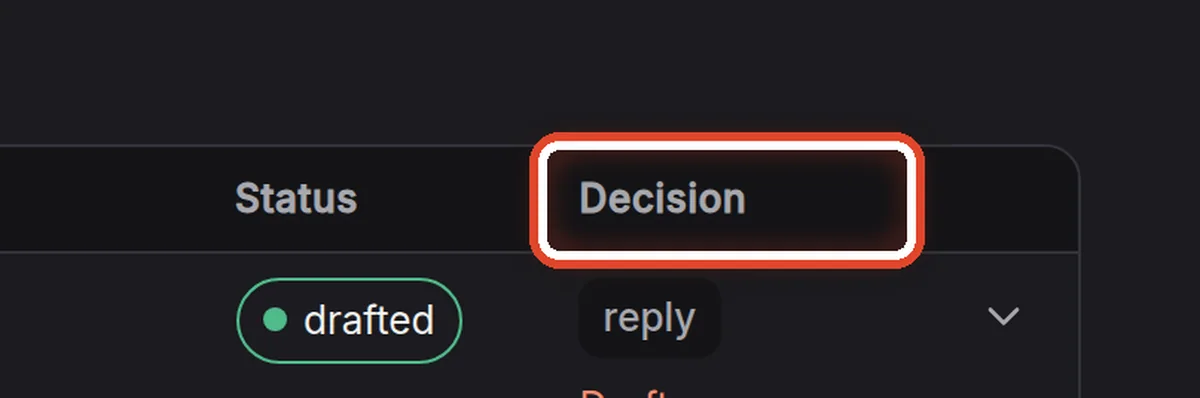
On the screenThe Decision column for messages the assistant wrote a reply to.
Do thisreply — the draft answers on its own. escalate — the draft answers what it can and says the matter is passed on (by the Routing instruction). no reply — no draft was made.
Step 5 of 8
Why the assistant decided so
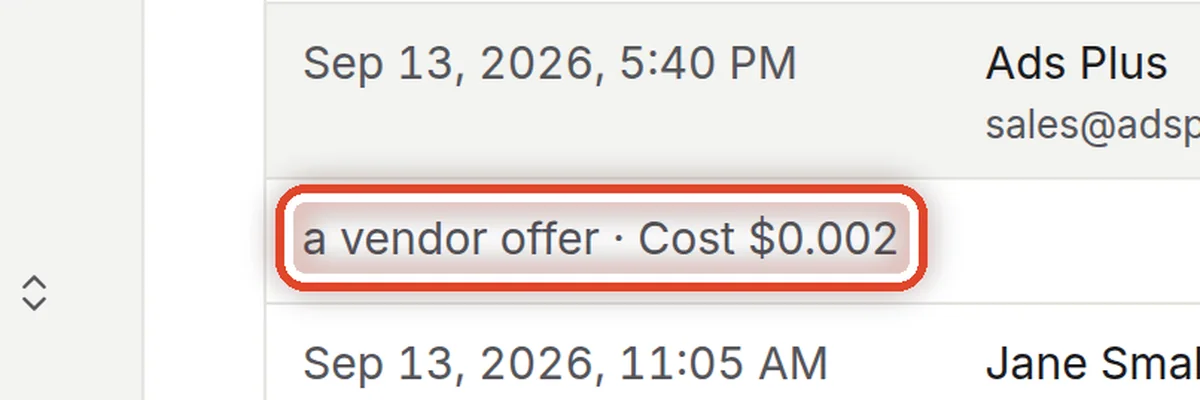
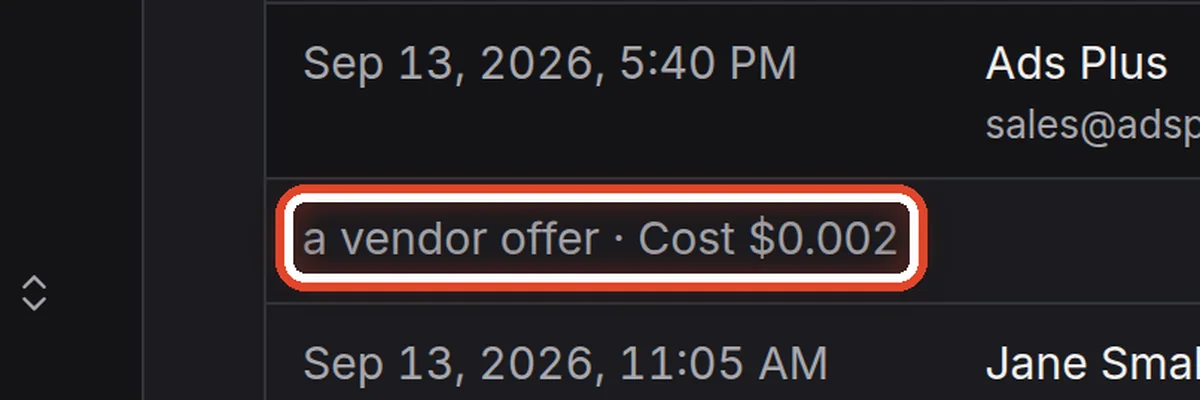
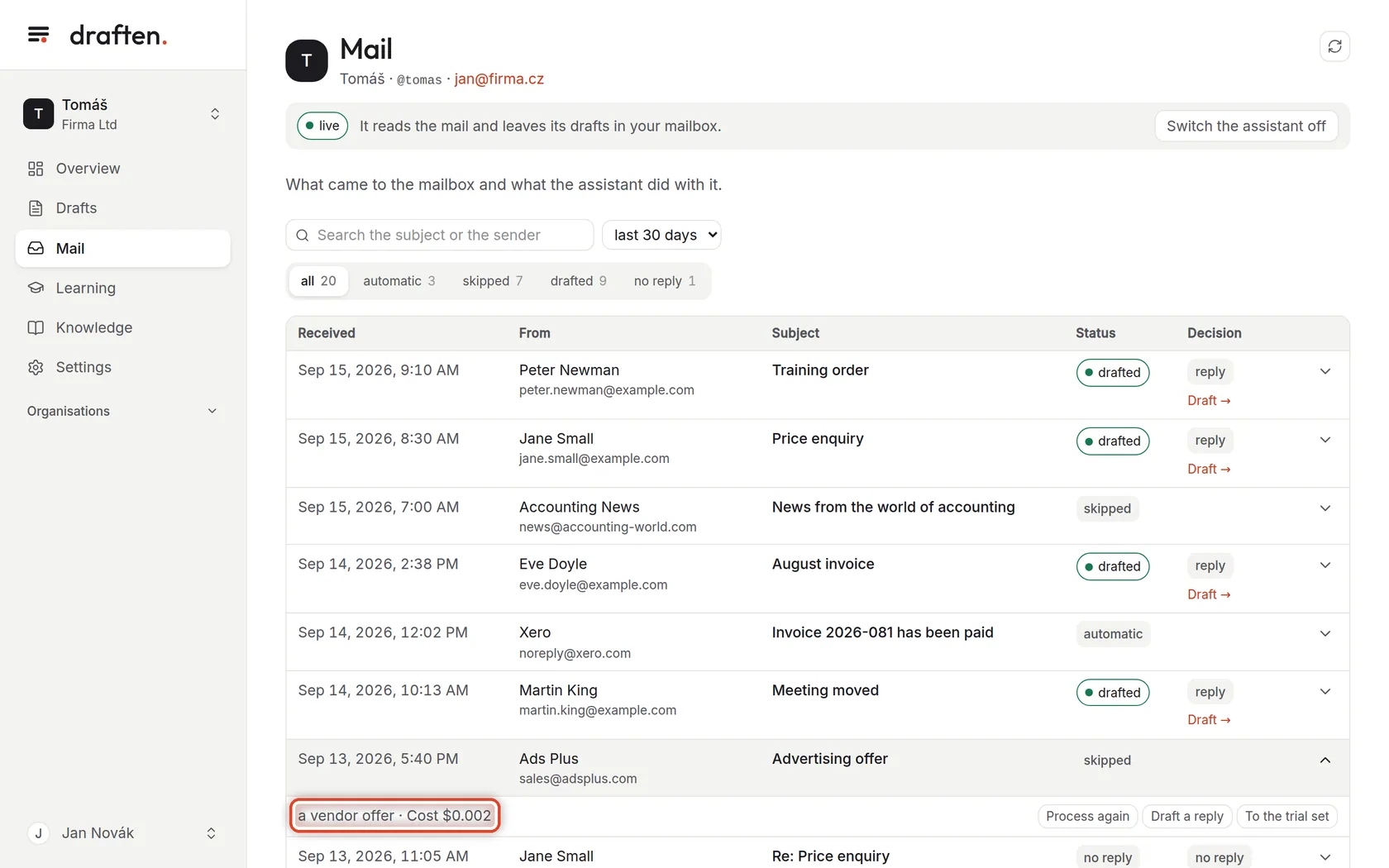
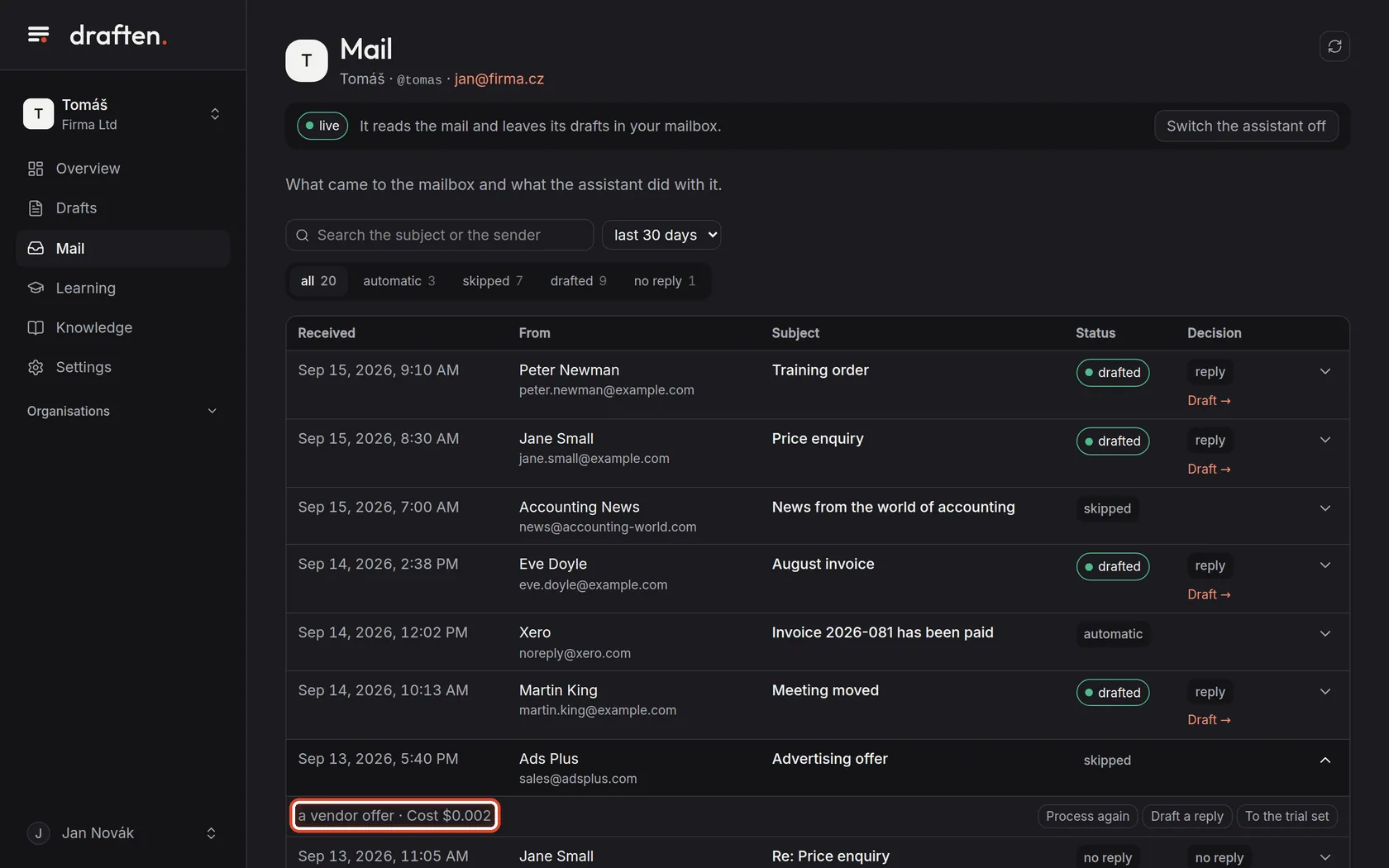
On the screenAn opened row of a skipped message with the reason and the cost.
Do thisClick the row (or the arrow on the right). Under it you see why the assistant decided as it did and what processing the message cost.
Step 6 of 8
When it decided wrongly
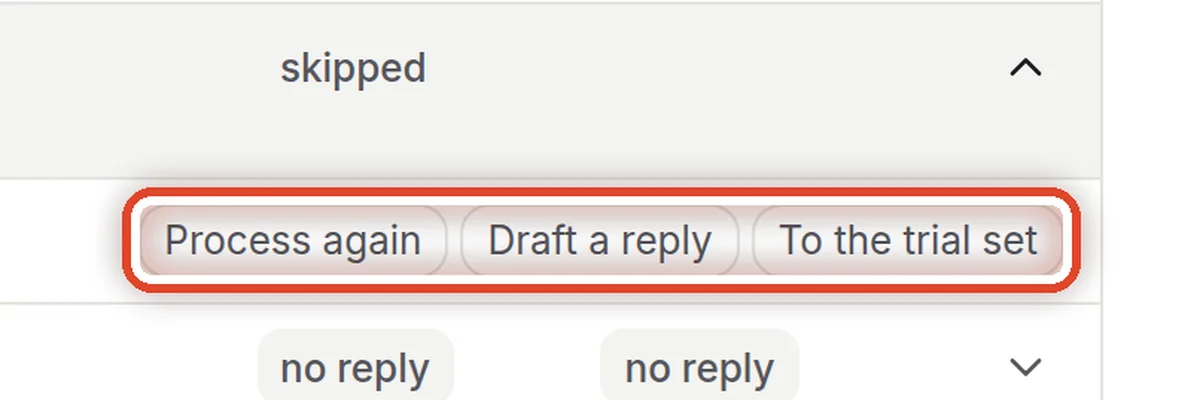
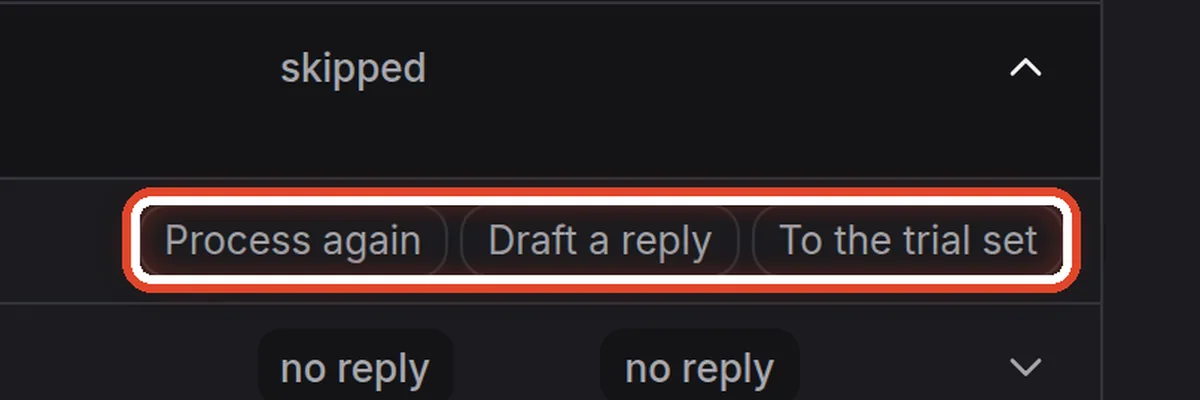
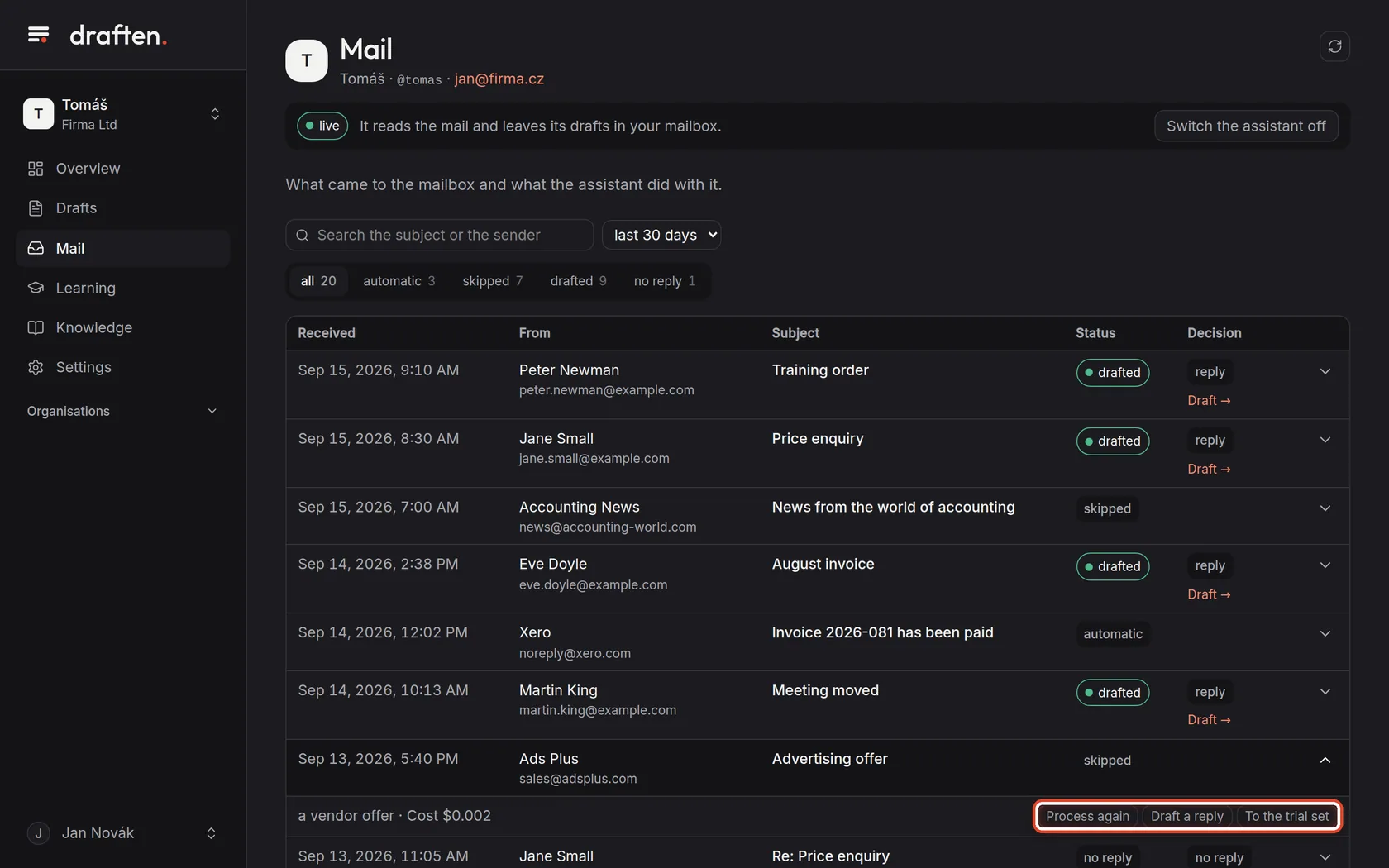
On the screenThree buttons in the opened row.
Do thisDraft a reply writes a reply right away, whatever the assistant decided. Process again takes the message through the whole way again, as if it had just arrived — useful after changing the instructions. To the trial set saves the message so you can try changes of the instructions on it.
NoteThe assistant's owner and editors see the buttons. When the assistant skips mail it should not, adjust the Filter instruction.
Step 7 of 8
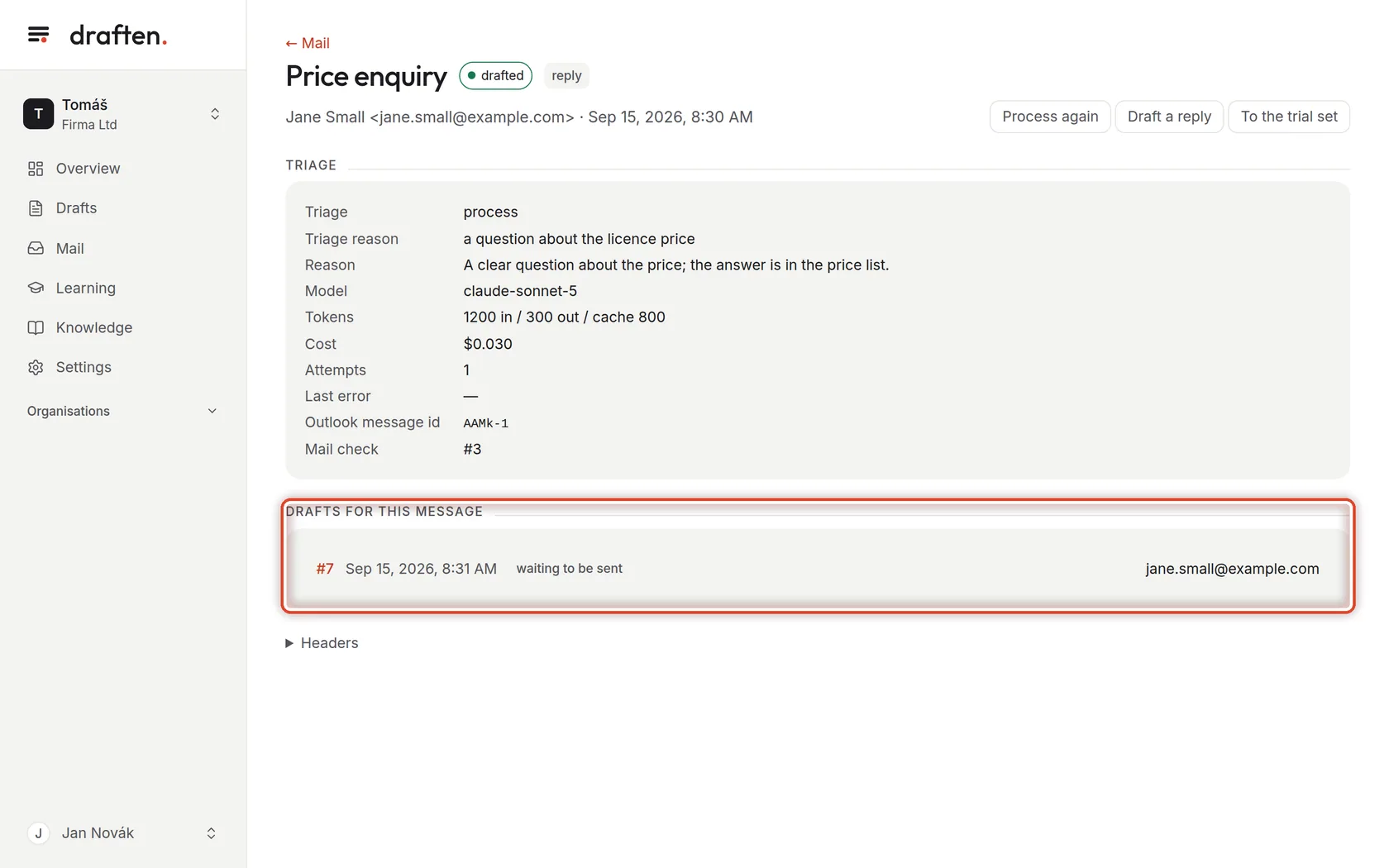
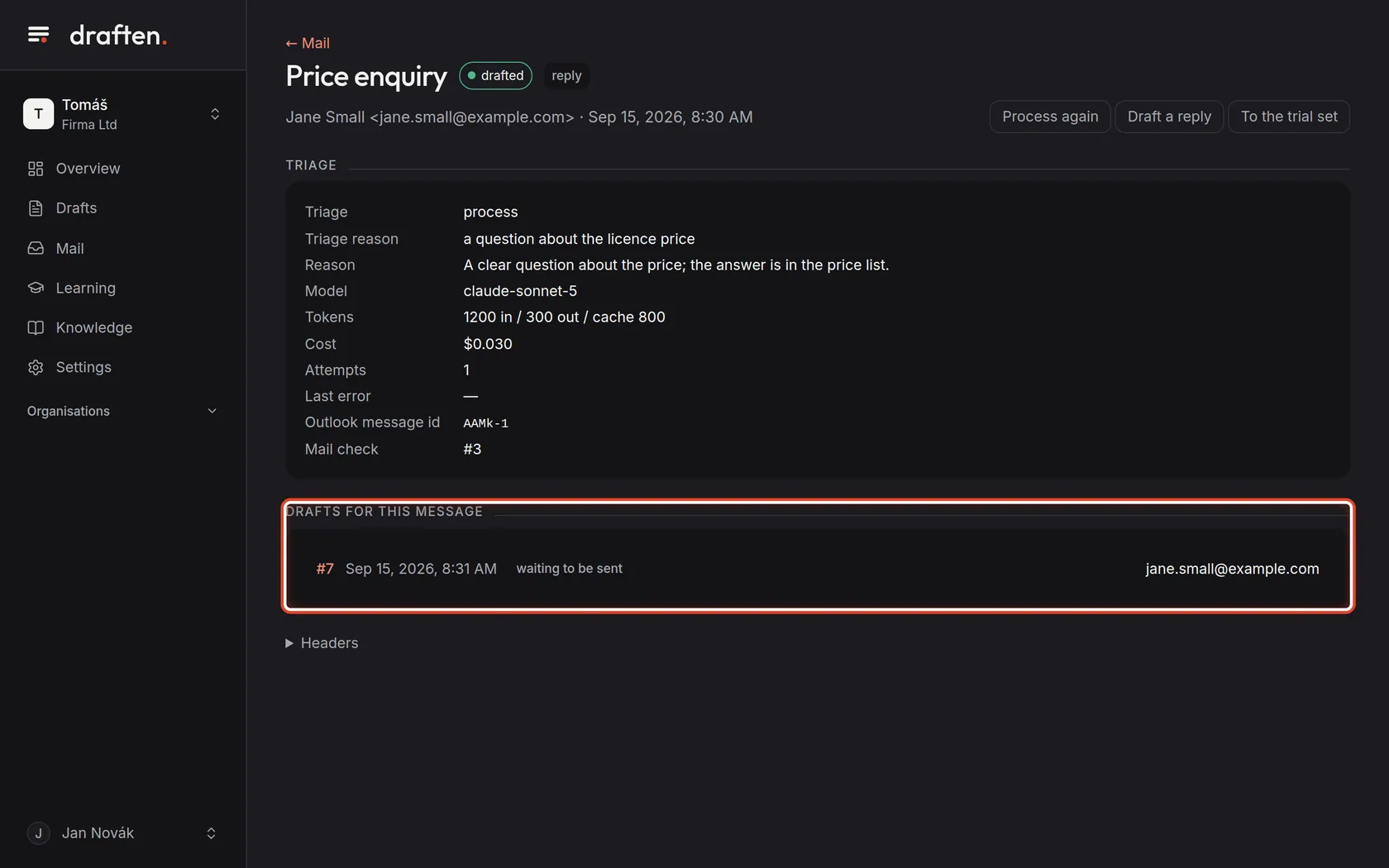
The message detail
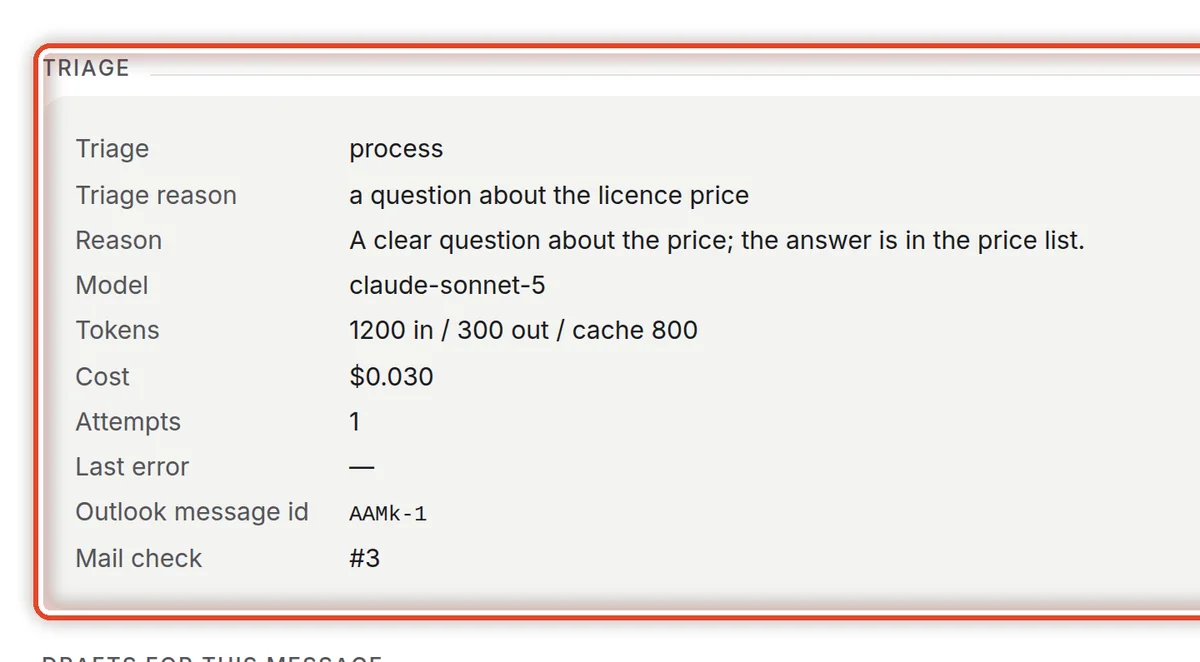
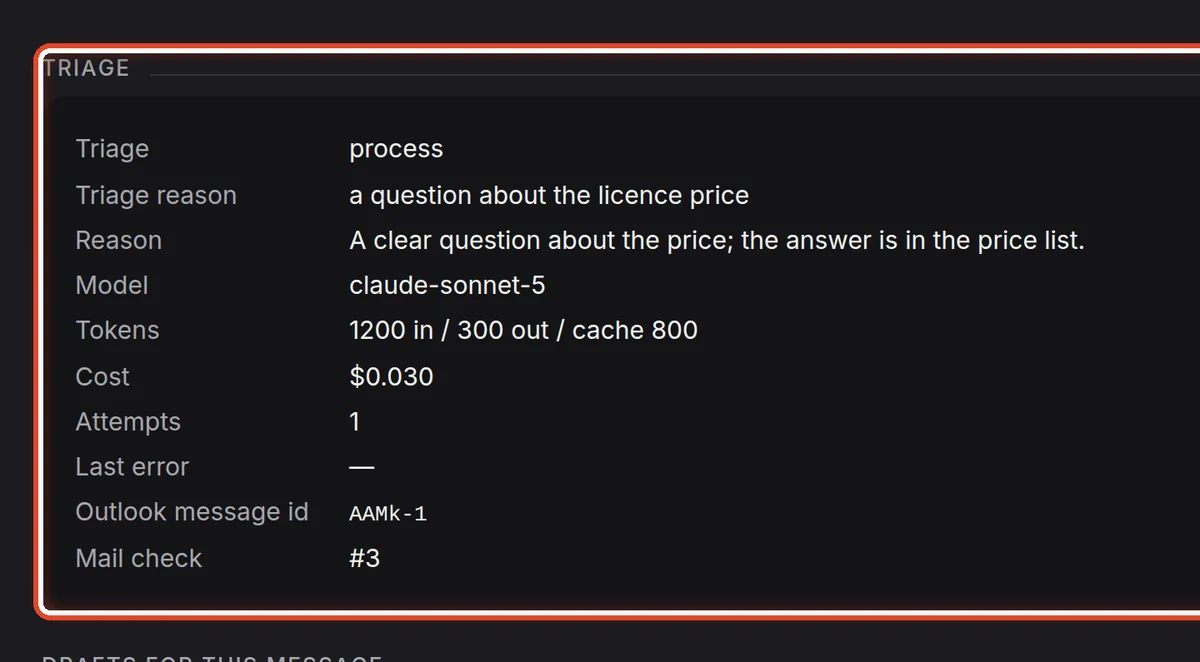
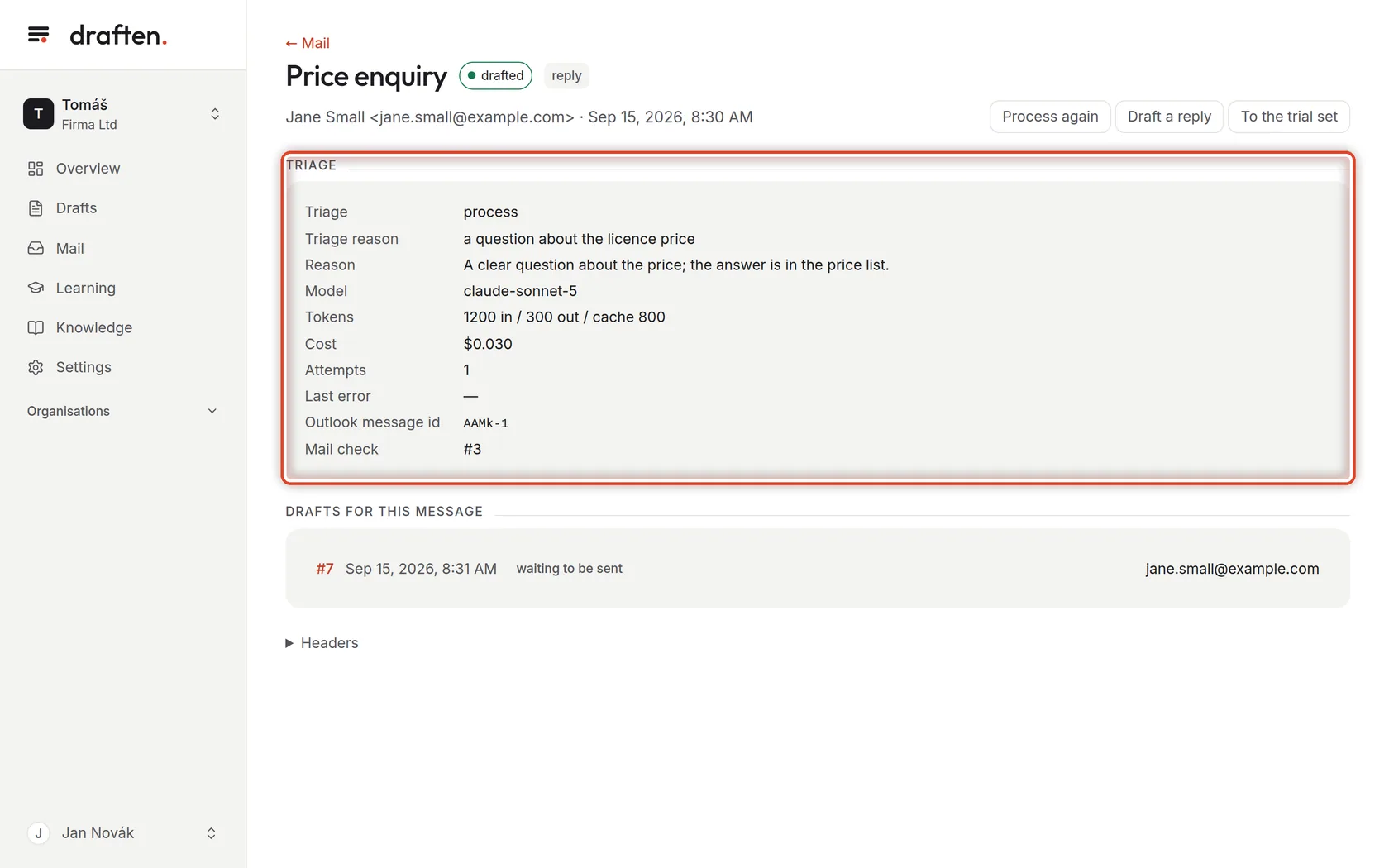
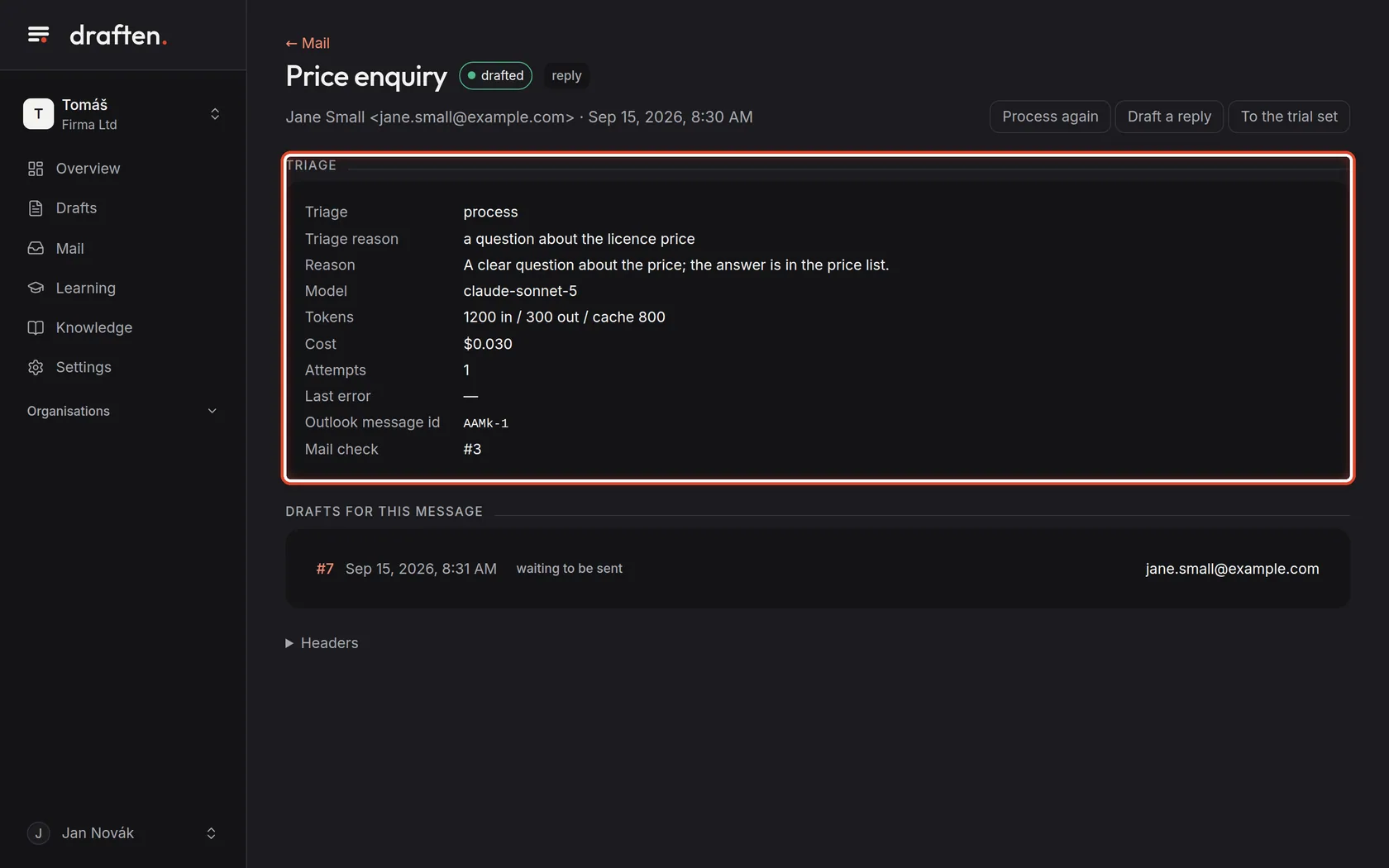
On the screenAfter clicking the subject, the message's page with the Triage card.
Do thisEverything is together here: how the assistant sorted the message and why, what it decided about the reply, what the processing cost and how many attempts there were. The same three buttons are at the top right.
Step 8 of 8
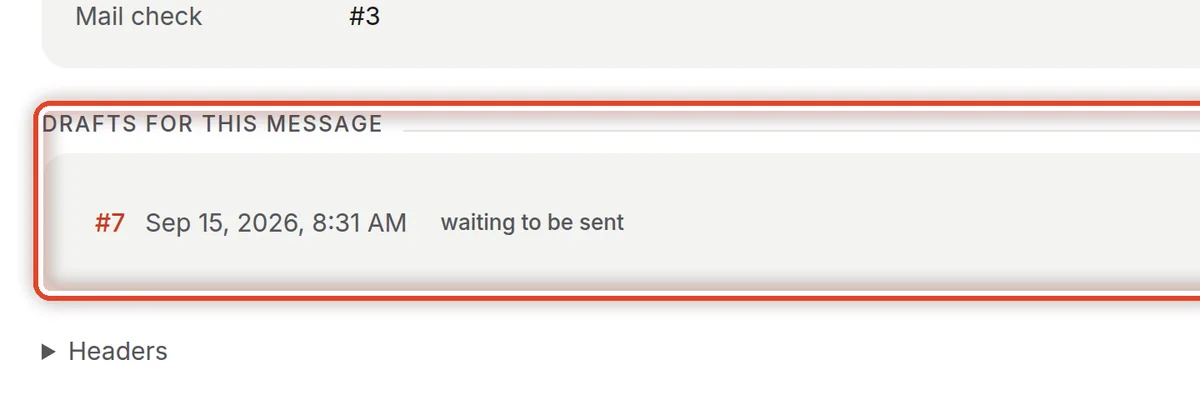
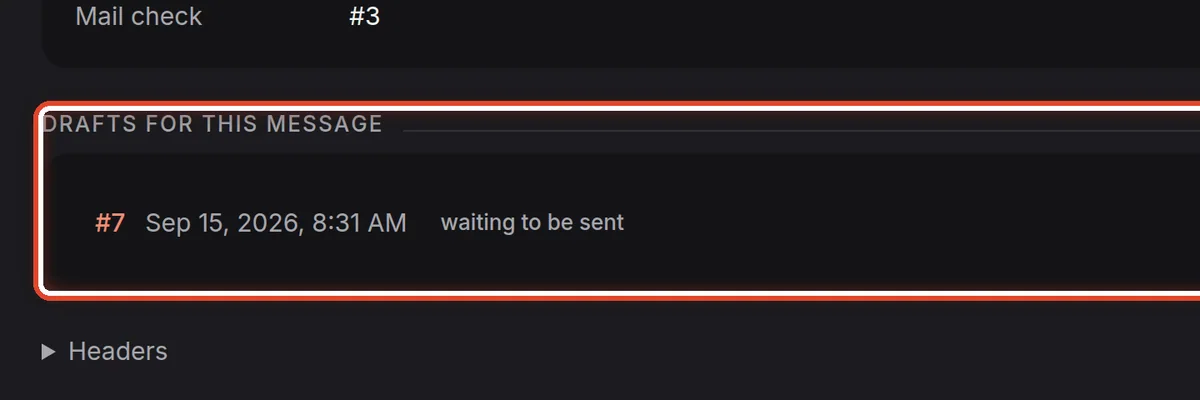
Drafts for this message
On the screenUnder the triage, the drafts made for the message.
Do thisClick a draft's number to open it. When you have the message processed again or ask for a draft, another one appears here.
The end
You know what the assistant does with the mail
When you do not like what the assistant skips or answers, change the Filter instruction — and have the message processed again.
- A message without a draft?Why some mail gets no draft goes through every status.
- Want to try changes safely?Save messages into the trial set — the Trial set guide.