Guide
A new version
without a terminal.
With the updater running on the installation, you update draften on the Installation page with one button. The application keeps running, and should the new version cause trouble, going back is just as easy.
Before you start
- The installation's operatorOnly the operator (superadmin in the interface) sees the Installation part of the menu.
- A running updaterIt is switched on at installation (COMPOSE_PROFILES=updater in .env). Without it you update with ./draften update.
Step 1 of 8
Open the Installation page
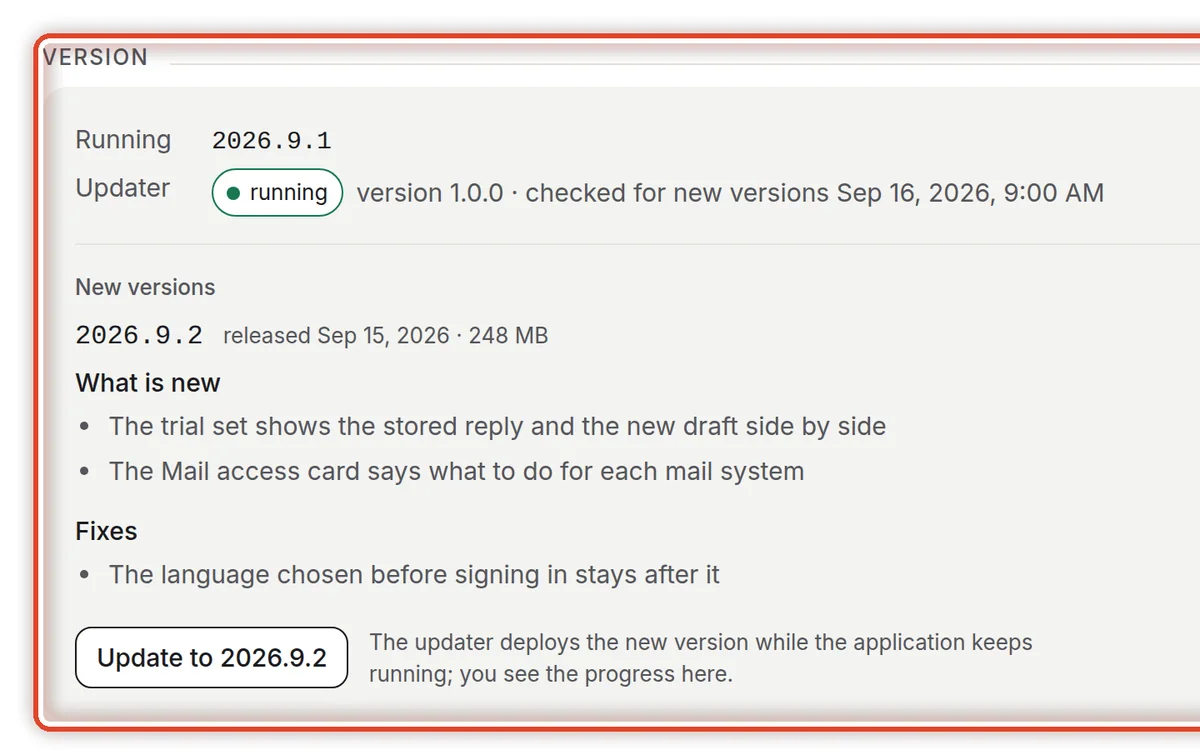
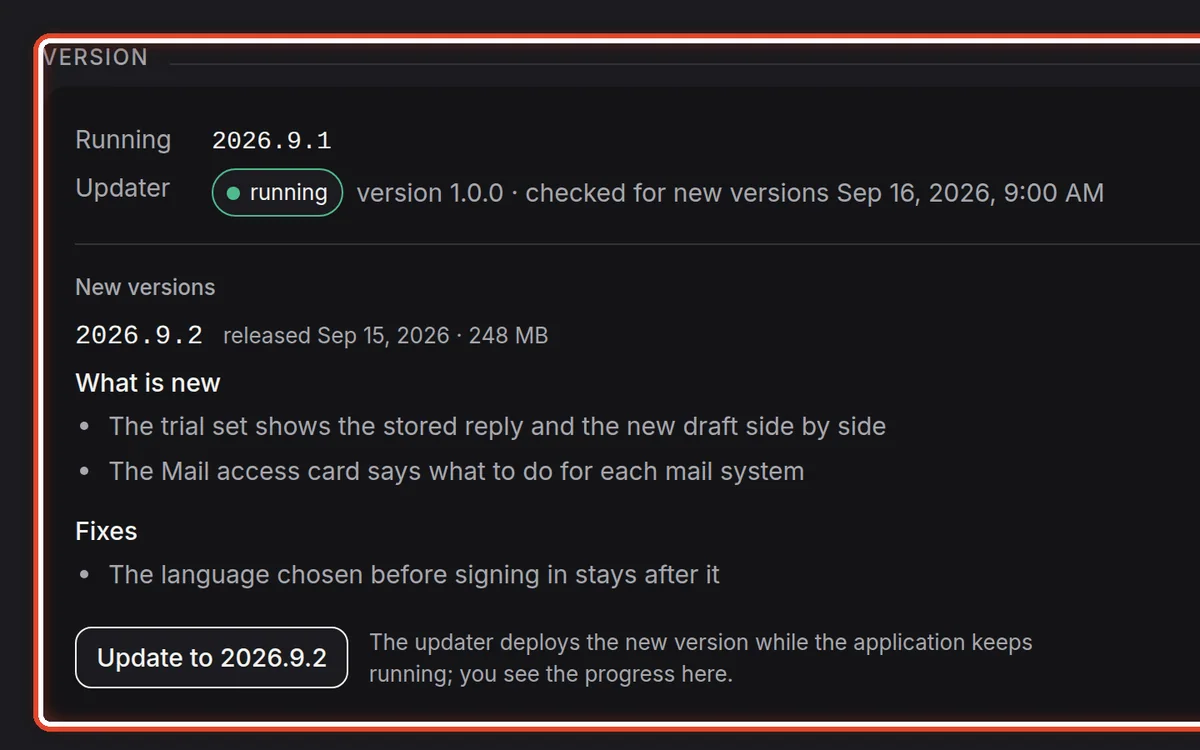
On the screenIn the menu under Installation, the Installation page; the Version card at the top.
Do thisThe Running row shows the version that serves now. The Updater row must say running — otherwise you cannot update here and use the command line instead.
NoteThe updater looks for new versions itself and the row says when it last did. It downloads them with the key from the licence; on a machine without internet it offers a release you copy into the updates/ folder of the installation directory.


Step 2 of 8
Read what is new
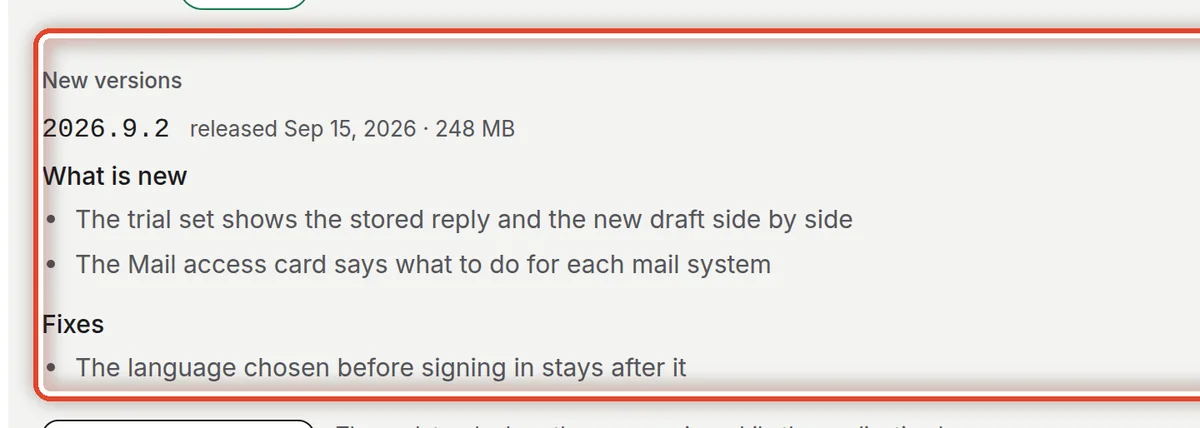
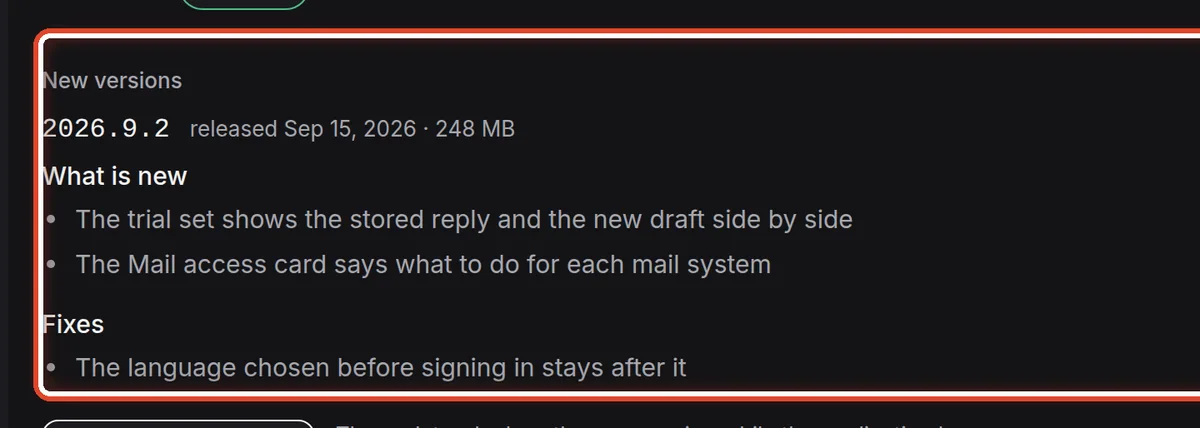
On the screenThe New versions part with the version on offer.
Do thisThe version shows its release date, its size and the release notes. Go through them so you know what changes for the people in the organisations.
NoteA release we withdrew carries the label withdrawn and the reason; the updater does not offer it.


Step 3 of 8
Start the update
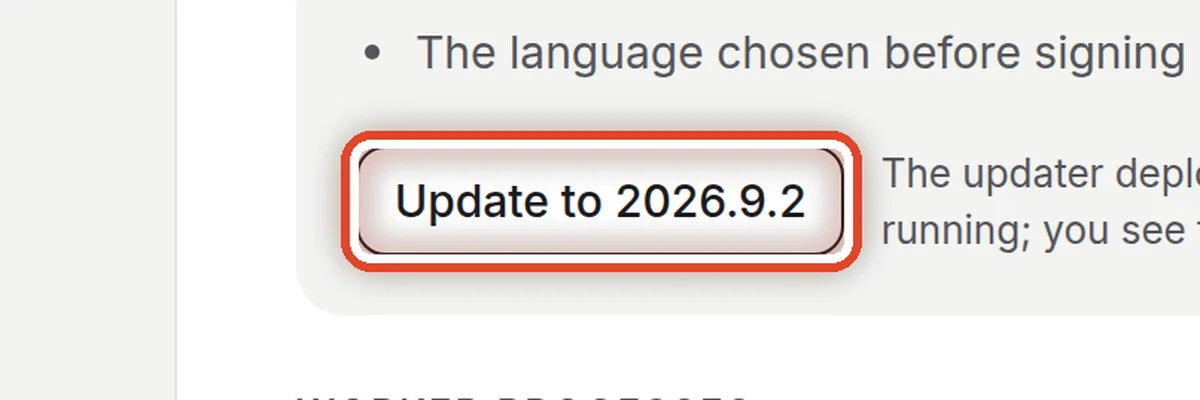
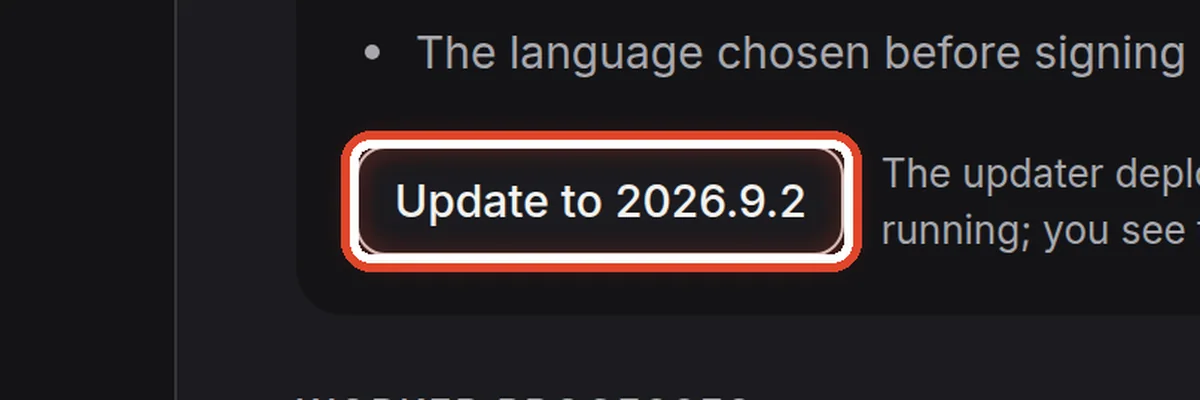
On the screenBelow the notes, a button with the new version number.
Do thisClick Update to 2026.9.2.
NoteThe application keeps running during the update: the new version starts beside the current one and takes over only once it is healthy. Before that, the updater dumps the database into the backups/ folder.


Step 4 of 8
Confirm
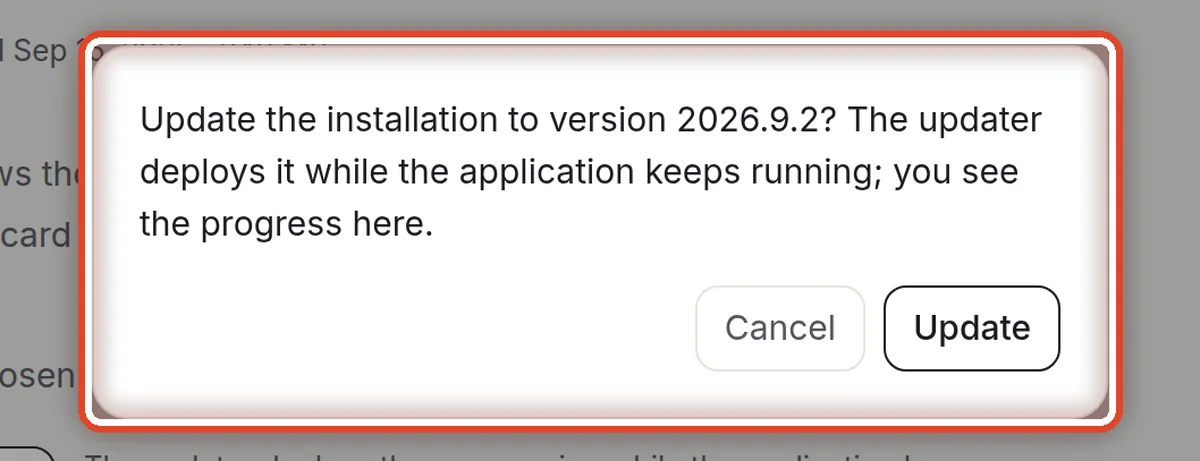
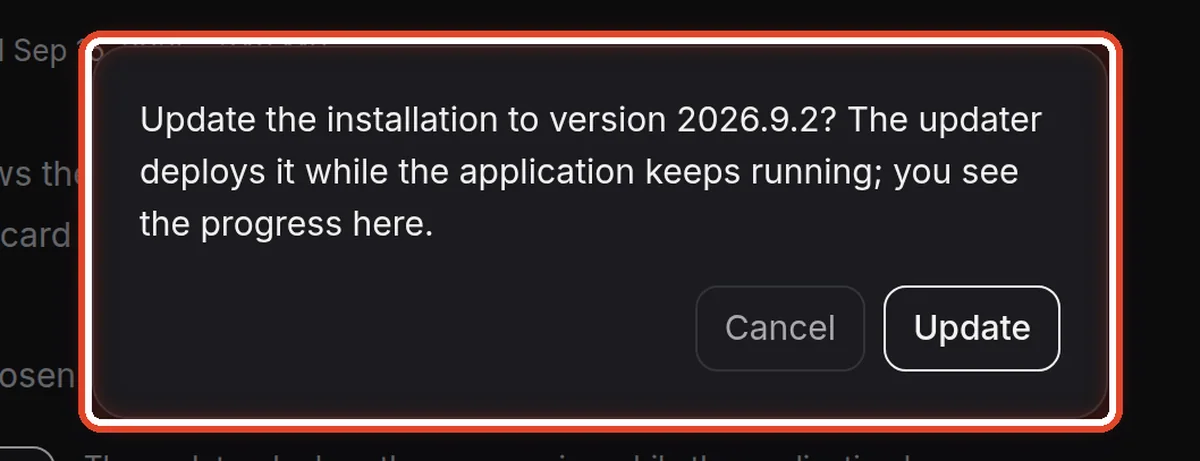
On the screenA dialog asking whether to update to the new version.
Do thisClick Update.


Step 5 of 8
Follow the progress
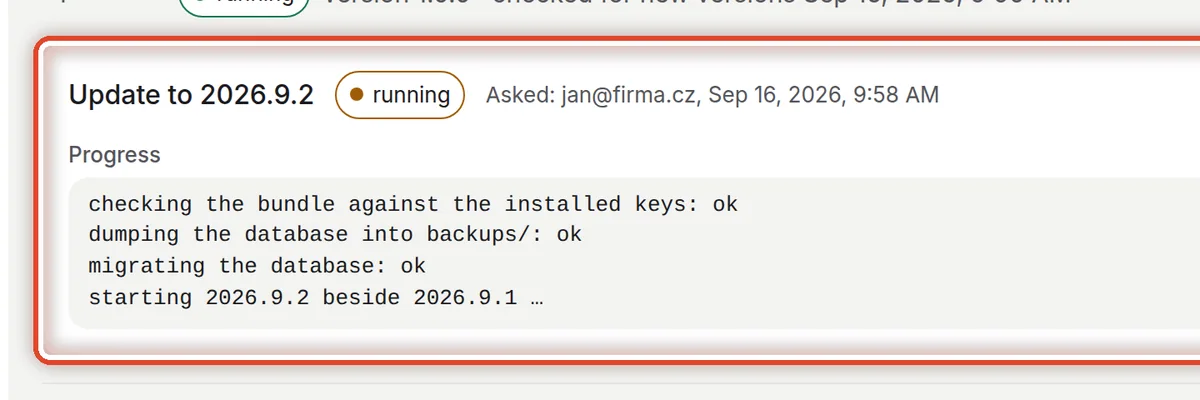
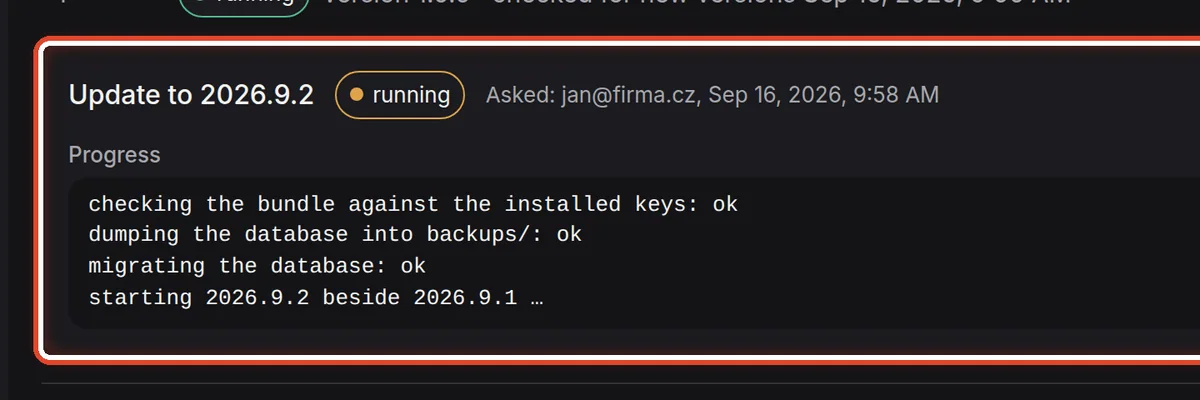
On the screenIn the Version card, the request Update to 2026.9.2 with the status running.
Do thisUnder Progress the updater adds its lines: checking the bundle, dumping the database, migrating, starting the new version. The page refreshes itself every two seconds.
NoteWhile the request is waiting, you can Cancel the request. When the update fails, the current version keeps serving and the error shows in red in the request.


Step 6 of 8
Load the new version
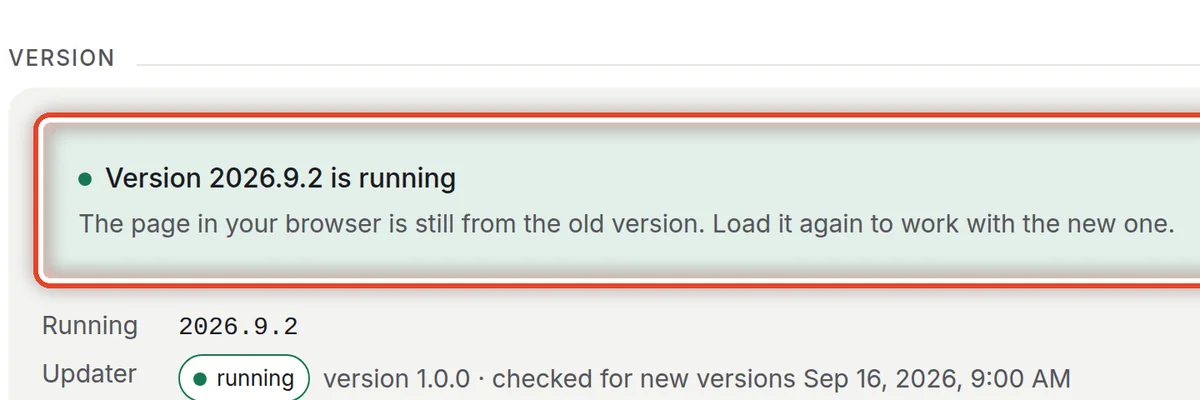
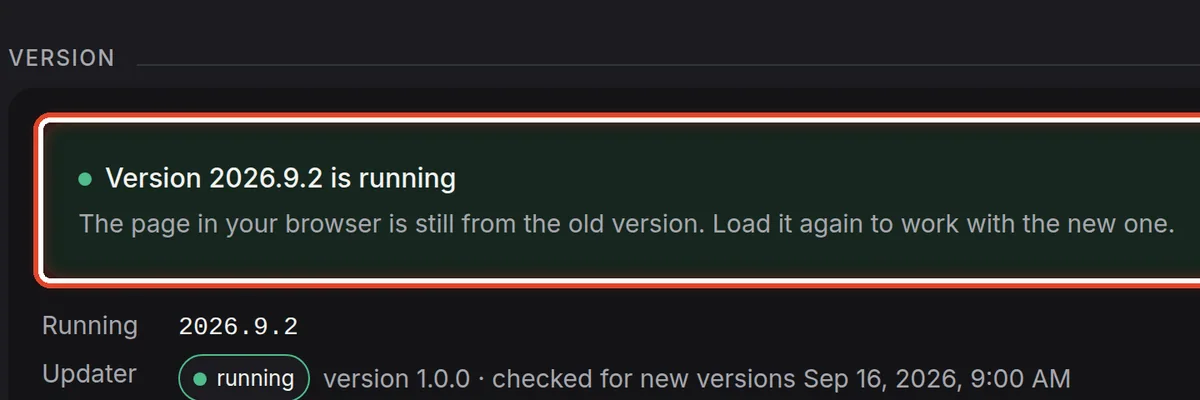
On the screenA green bar Version 2026.9.2 is running.
Do thisThe new version has taken over. The page in your browser is still from the old one, though — click Load the new version.


Step 7 of 8
If the new version causes trouble
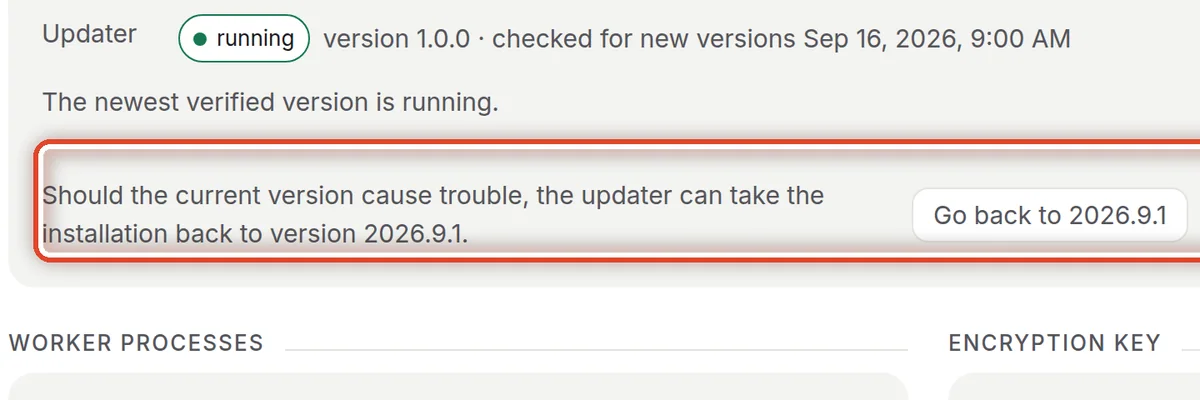
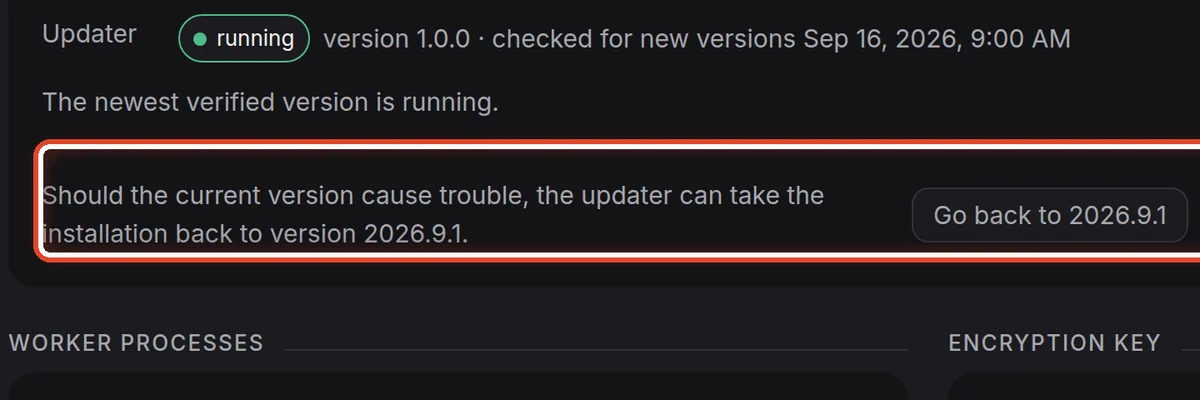
On the screenBelow the version, an offer to go back to the previous one.
Do thisClick Go back to 2026.9.1 and confirm. The updater switches back to the version that served before the update; the application keeps running meanwhile.
NoteAfter an update the previous version keeps running without traffic, so going back is immediate. Going back further means restoring a database dump — the page Updating from the command line describes it.


Step 8 of 8
The request history
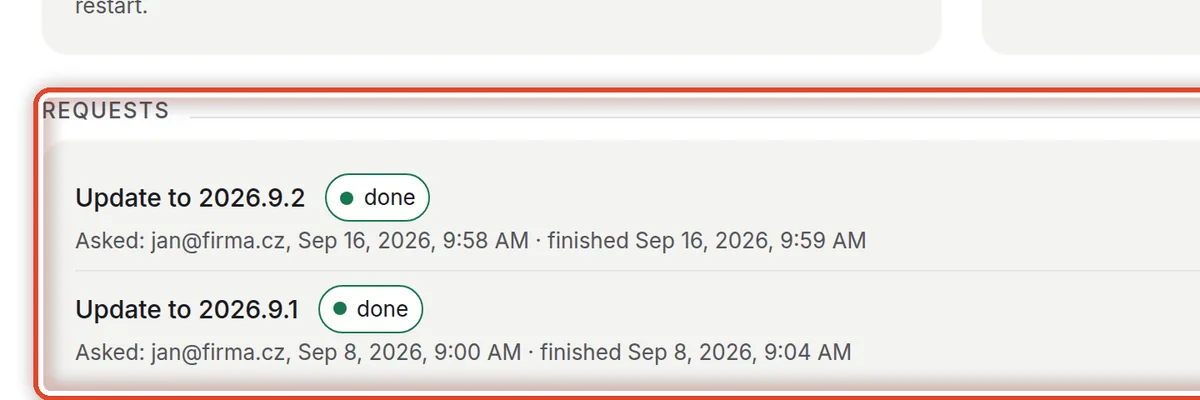
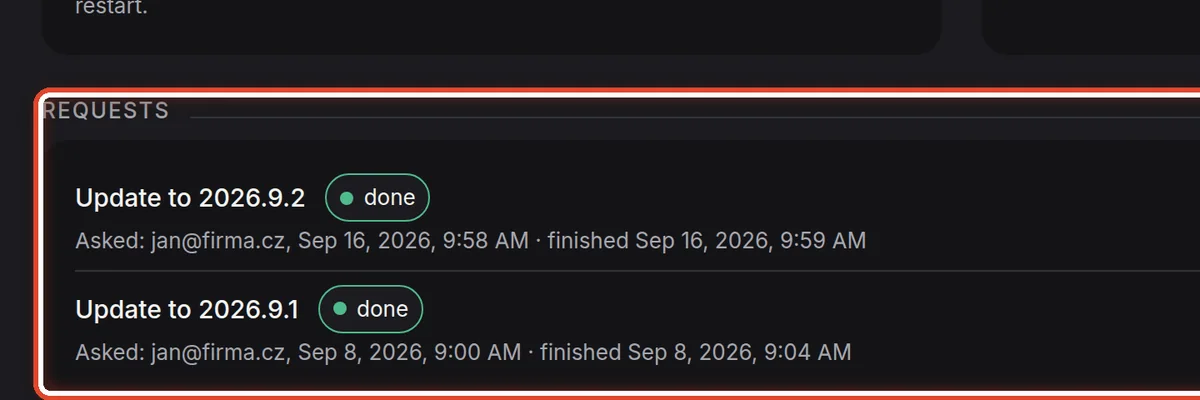
On the screenAt the bottom of the page, the Requests card.
Do thisHere are the updater's last ten requests — updates, rollbacks, changes of the number of processes and key rotations: who asked, when they finished and any error.


The end
The installation runs the new version
An update does not touch the assistants' settings, the instructions or the mail — all of it stays in the database.
- No updater?The page Updating from the command line describes ./draften update, checking a bundle and going back to an older version.
- Database dumpsBefore every update the database is dumped into backups/ (the last three are kept). Copy them and .env off the server — see Backup and restore.