Guide
Changing the instructions
without risk.
The trial set is saved messages on which you try how the assistant will answer before a change of the instructions reaches real mail. The same messages before the change and after it — and you see the difference at once.
Before you start
- Editor or owner roleThe assistant's owner and editors can run and edit the set.
- A few messages in the setSave them from Mail with To the trial set.
Step 1 of 6
Saved messages
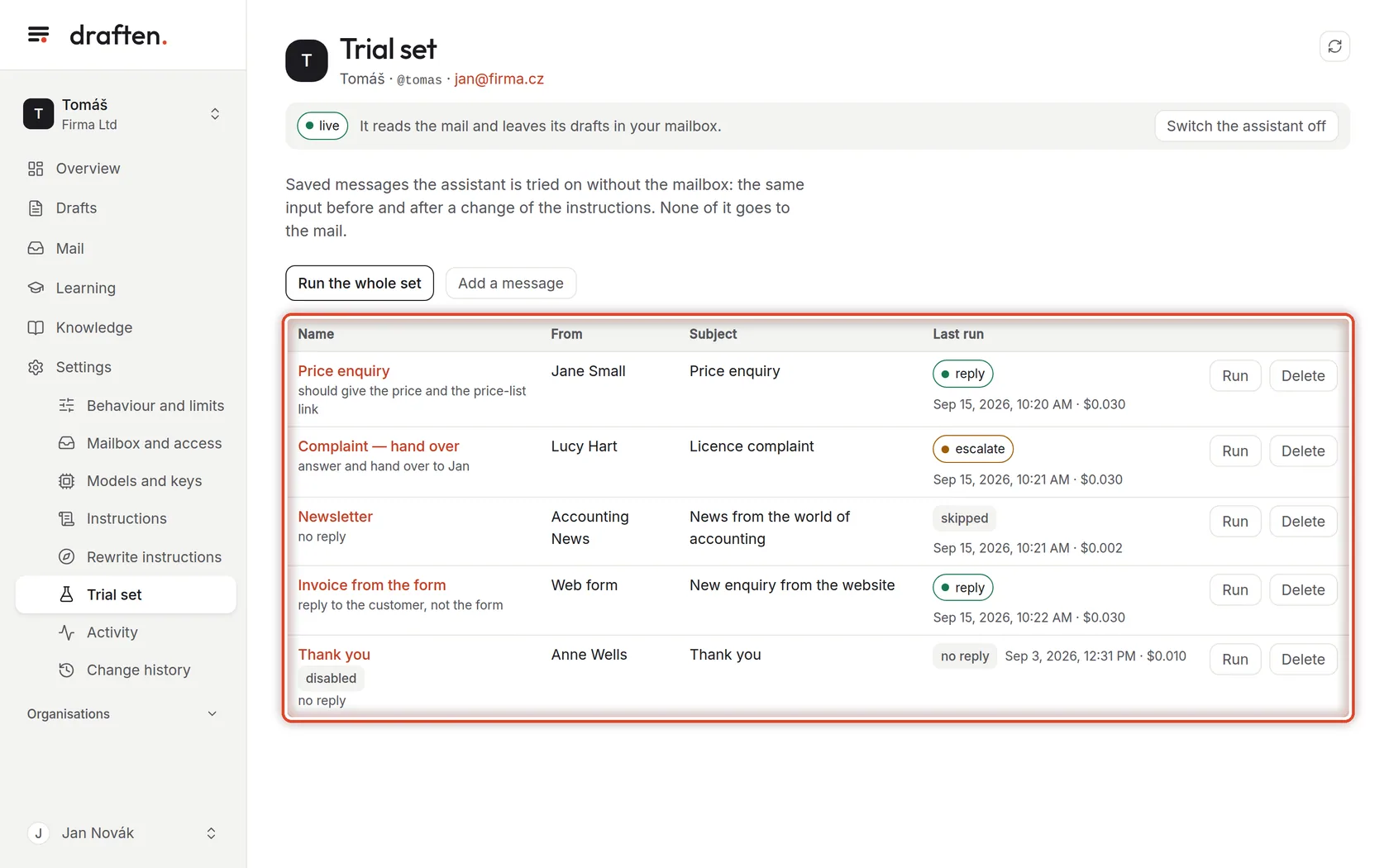
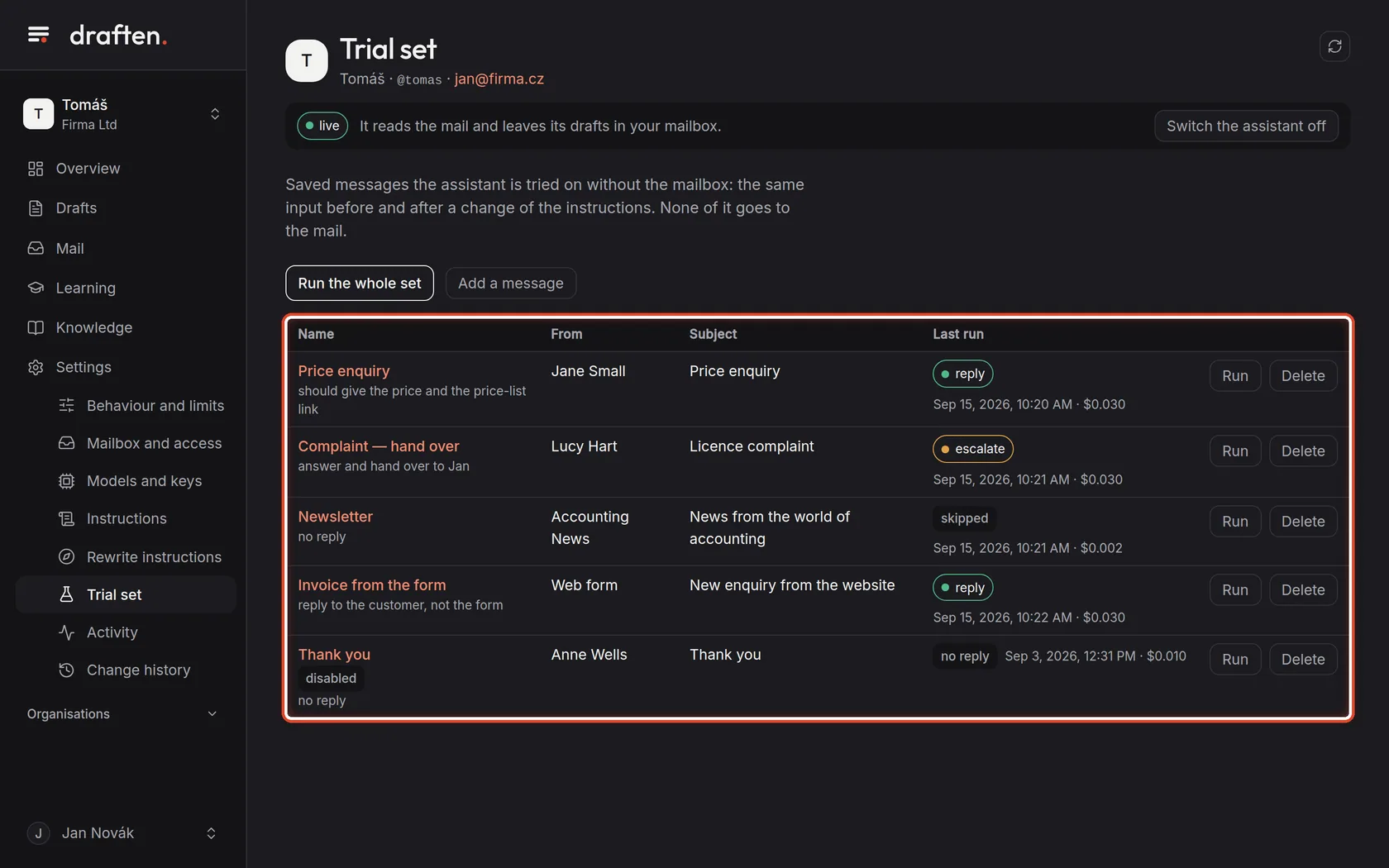
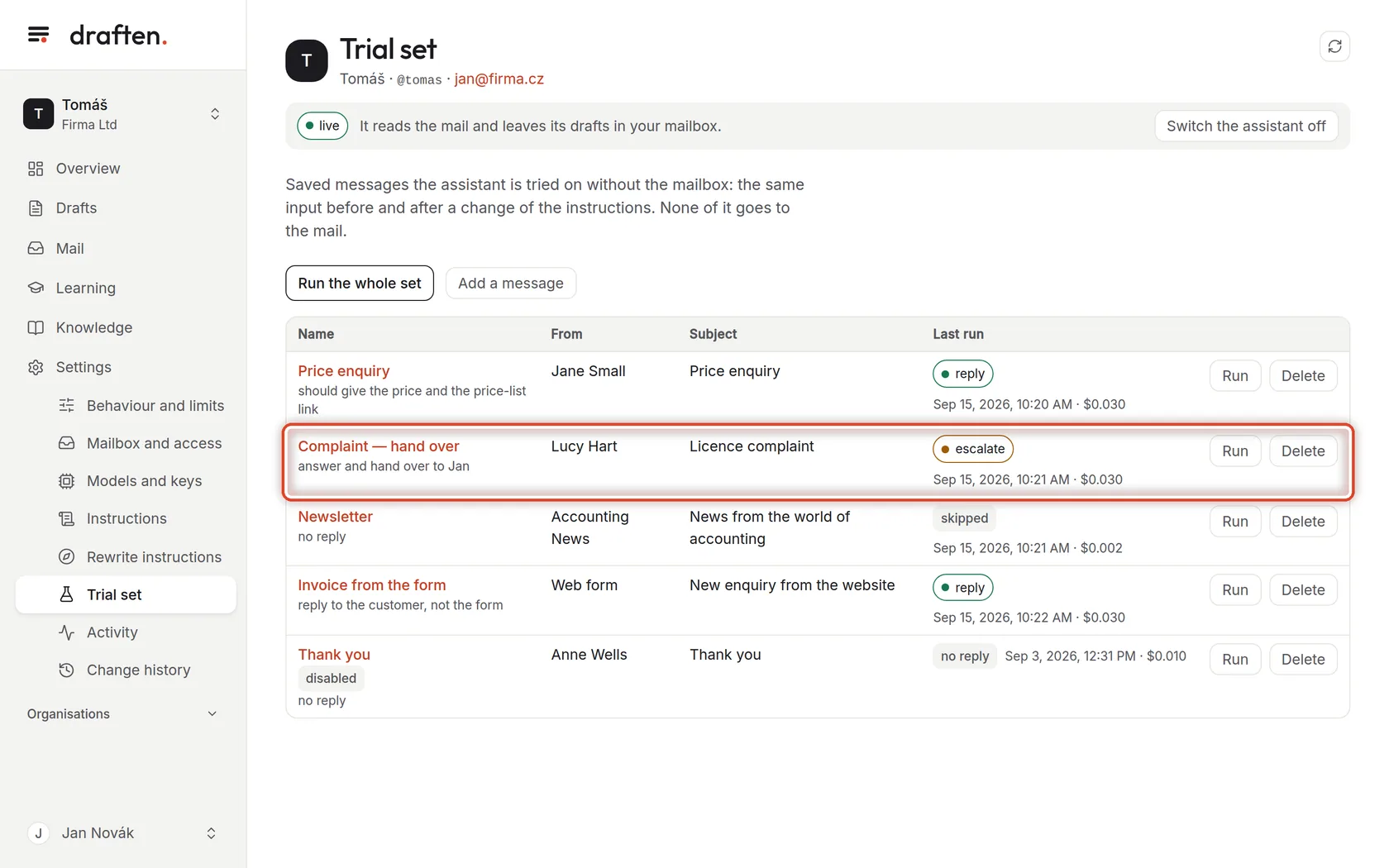
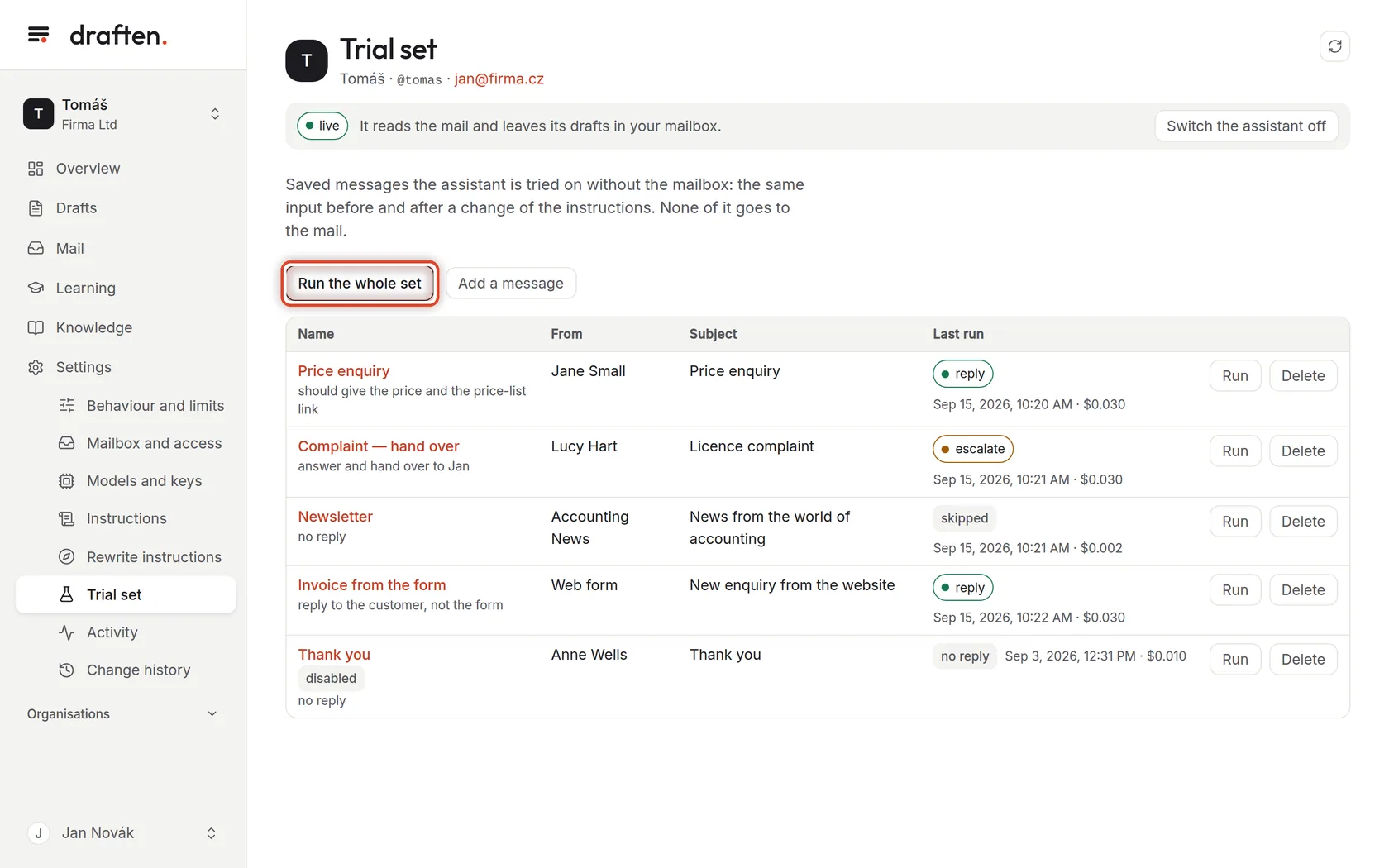
On the screenIn Settings → Trial set, a table of saved messages.
Do thisThe trial set is a handful of real messages you use to try how the assistant decides and writes. It runs outside the mailbox: nothing is created in the mail and nothing reaches customers.
NoteA good set has 15–20 messages from different situations: a question the assistant answers on its own, a hand-over to a colleague, mail that gets no reply, a web-form message and a thread with history.
Step 2 of 6
What should come out
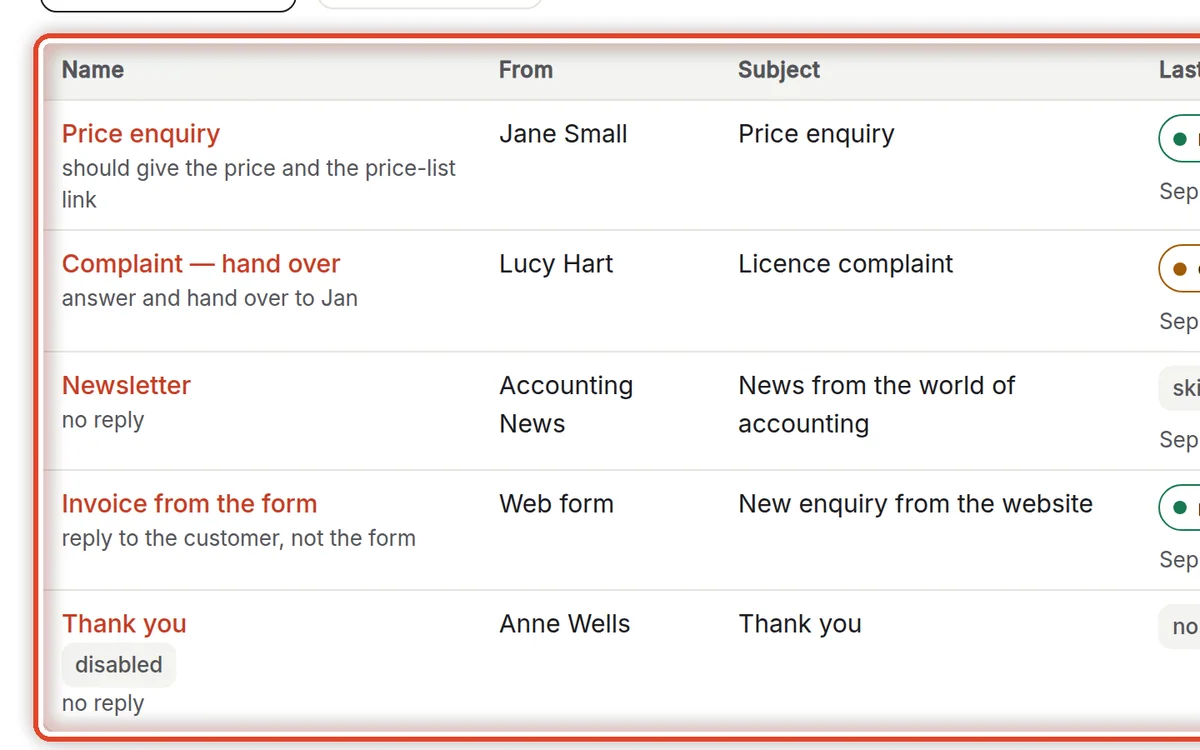
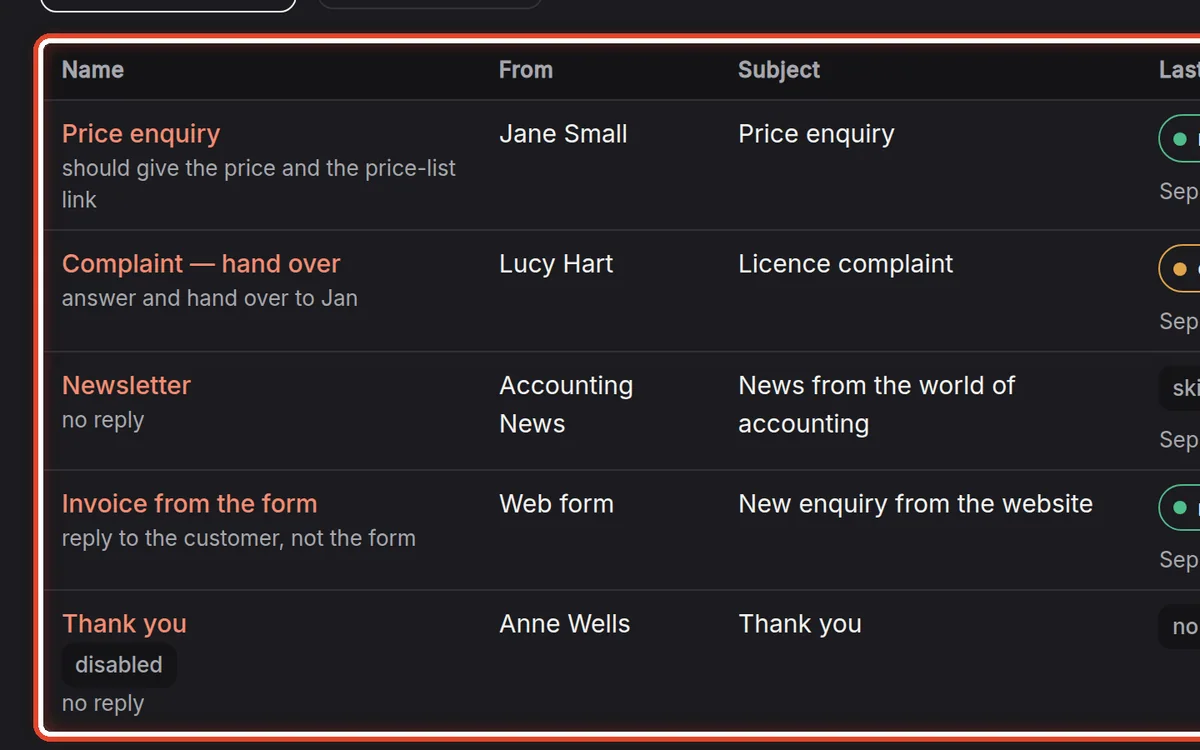
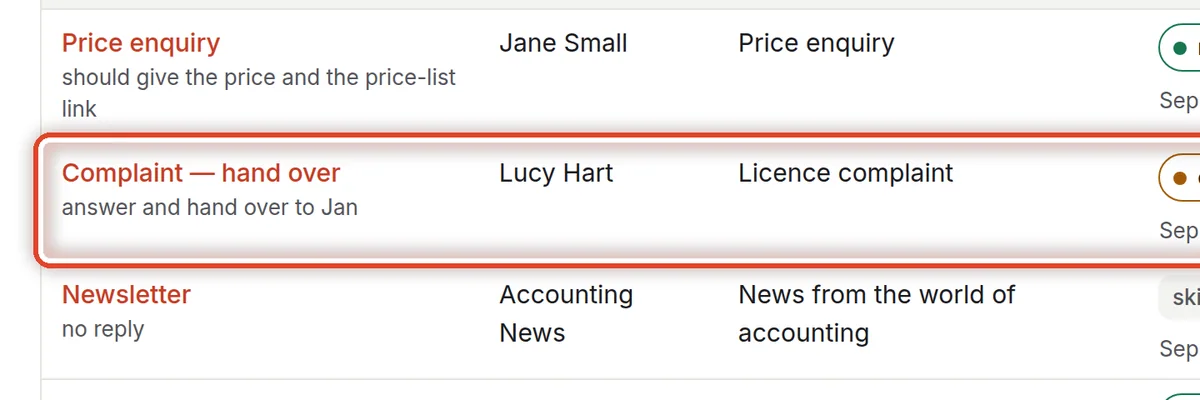
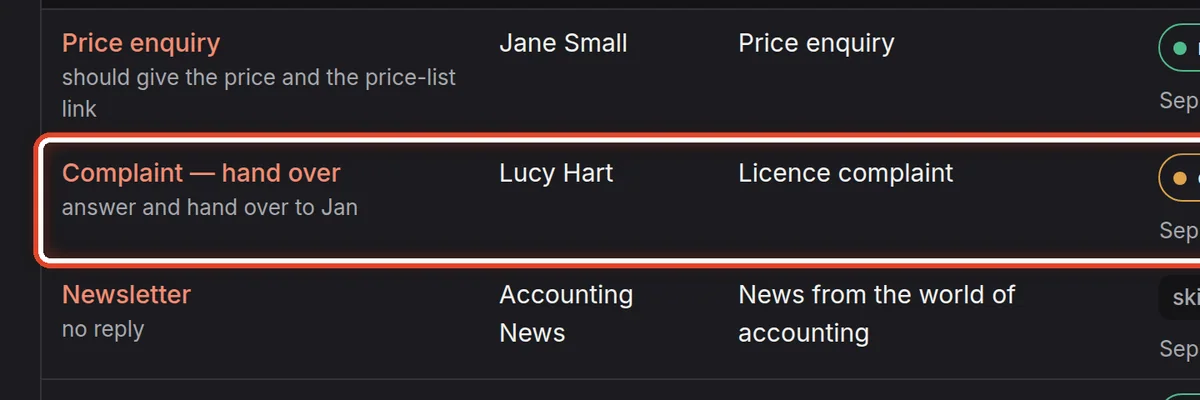
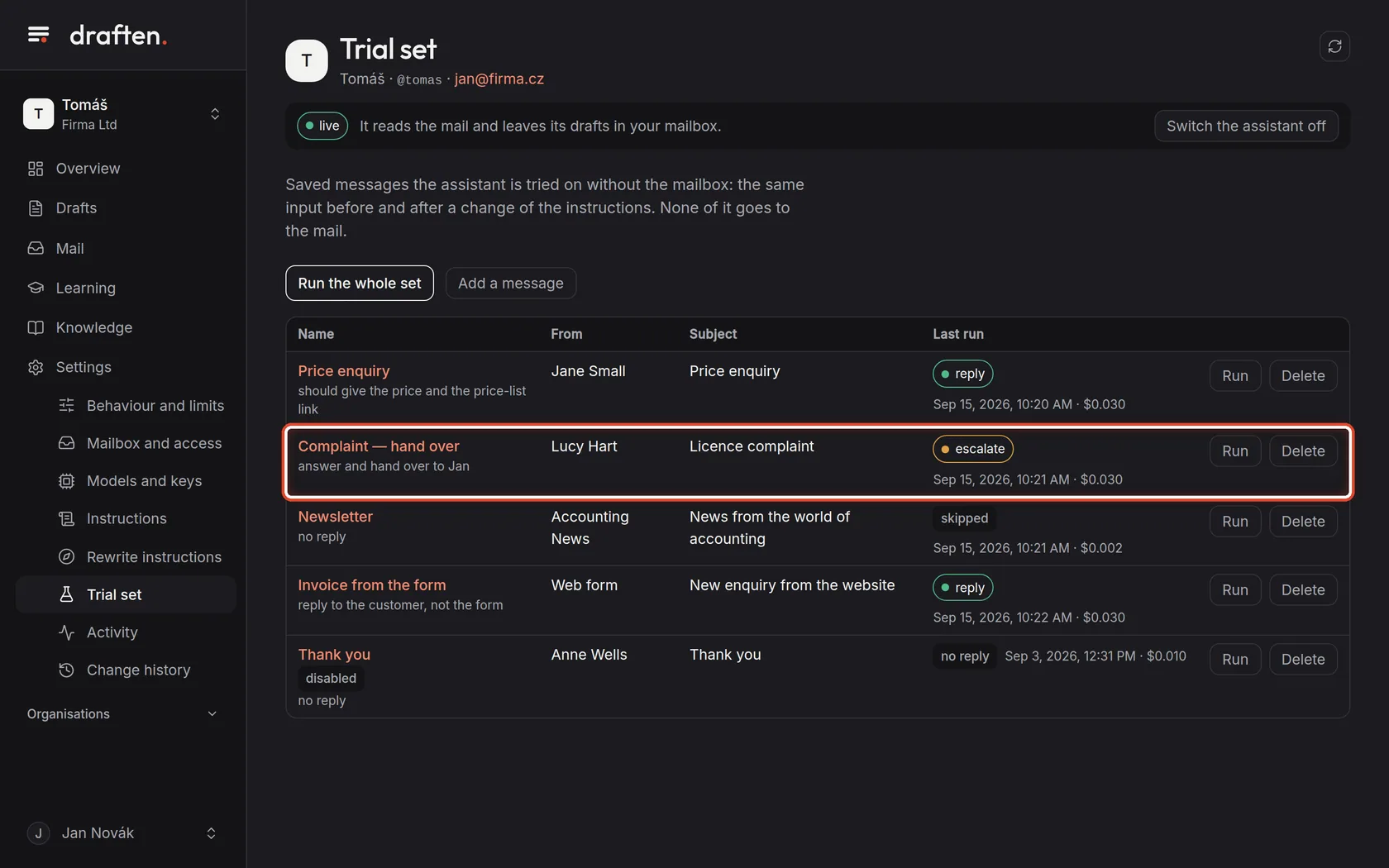
On the screenFor each message a name, a note under it and the last run on the right.
Do thisThe note says what should come out ("answer and hand over to Jan", say). The Last run column shows how the assistant decided last time: reply, escalate, no reply, or skipped.
Step 3 of 6
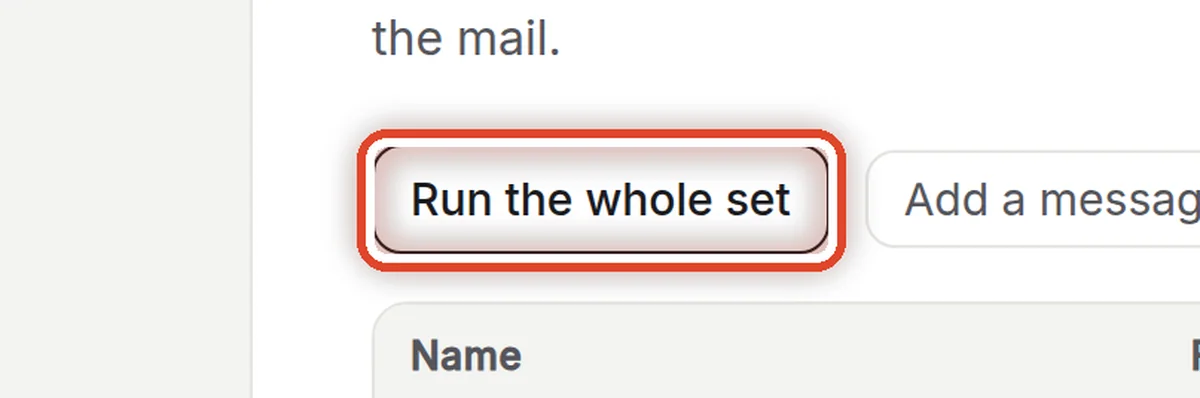
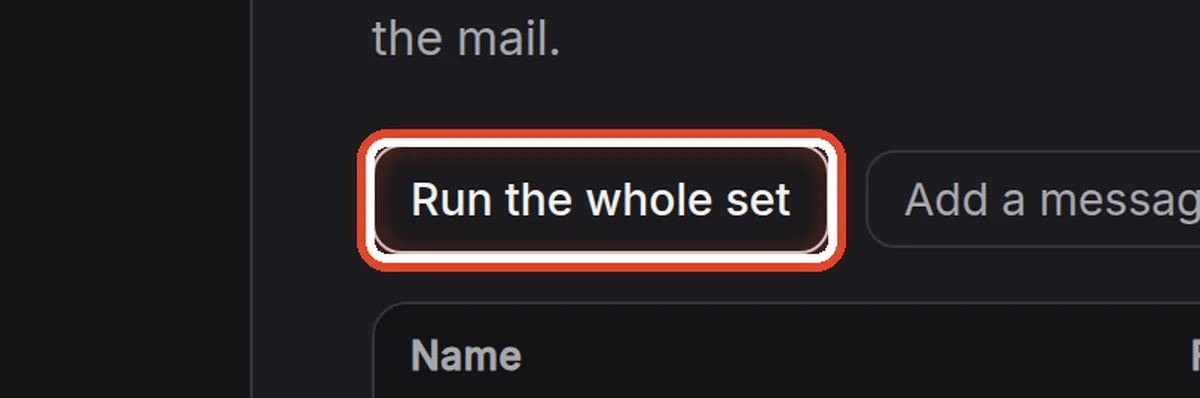
Run the whole set
On the screenAbove the table, the Run the whole set button.
Do thisClick Run the whole set. The assistant goes through every enabled message with the instructions as they are now, and each gets a new run. When it is done you see how many messages ran and what it cost.
NoteA run costs the same as processing a real message. To run one message, use Run in its row.
Step 4 of 6
Add a message
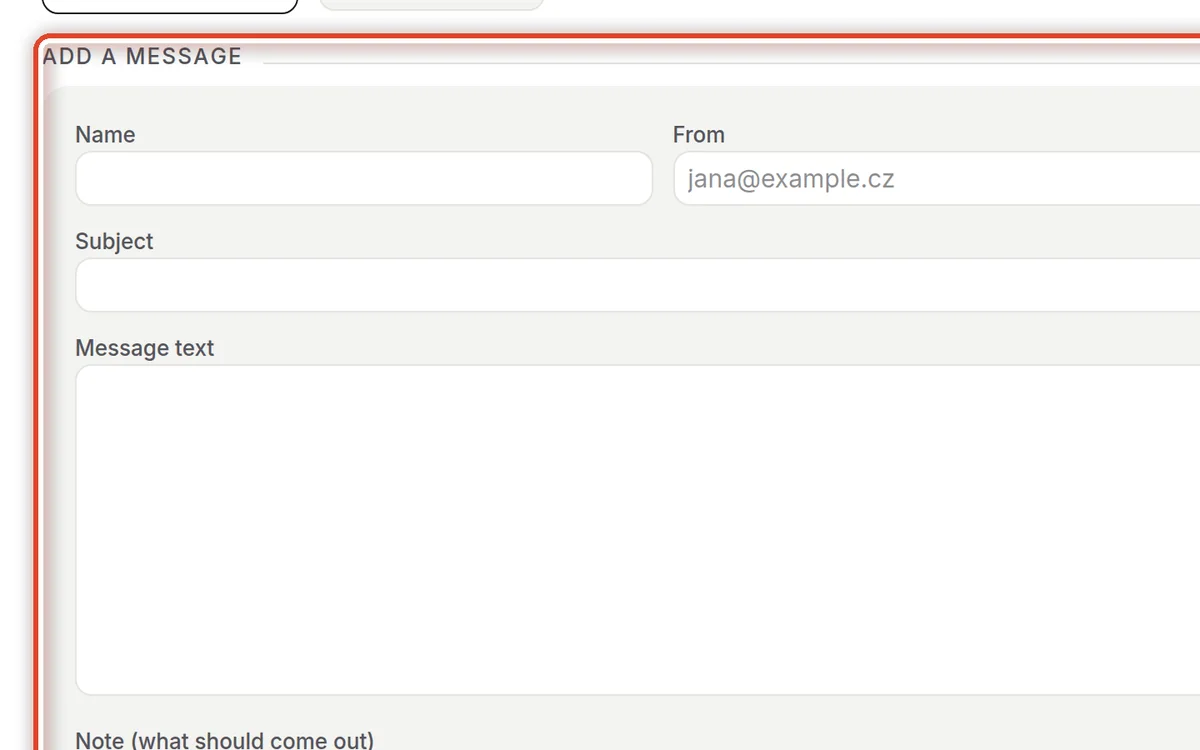
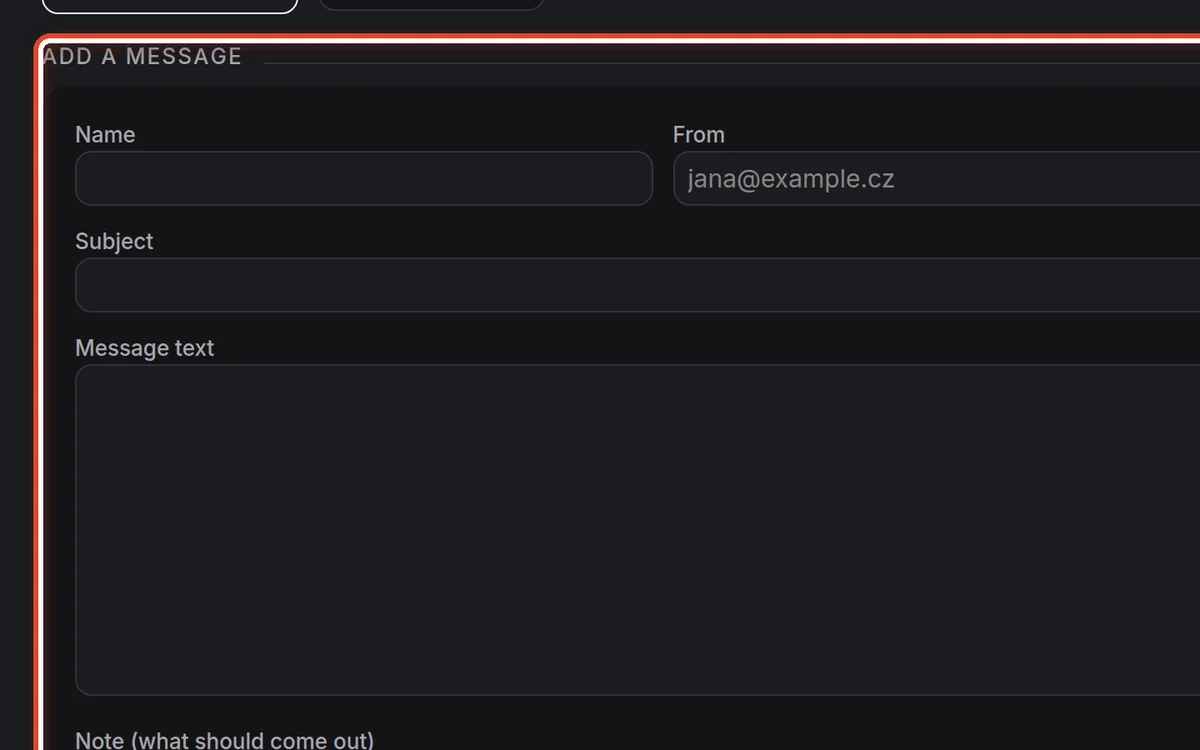
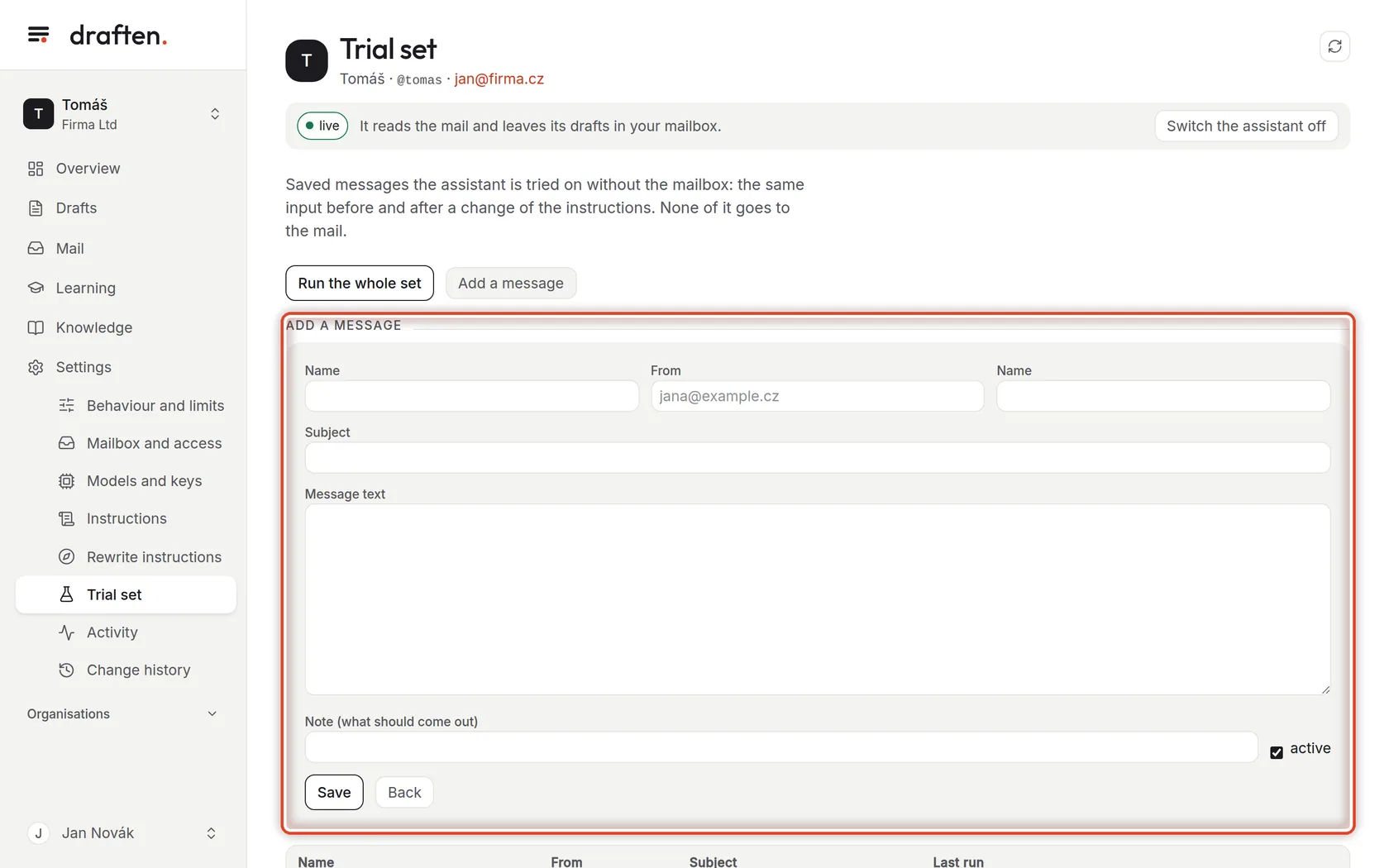
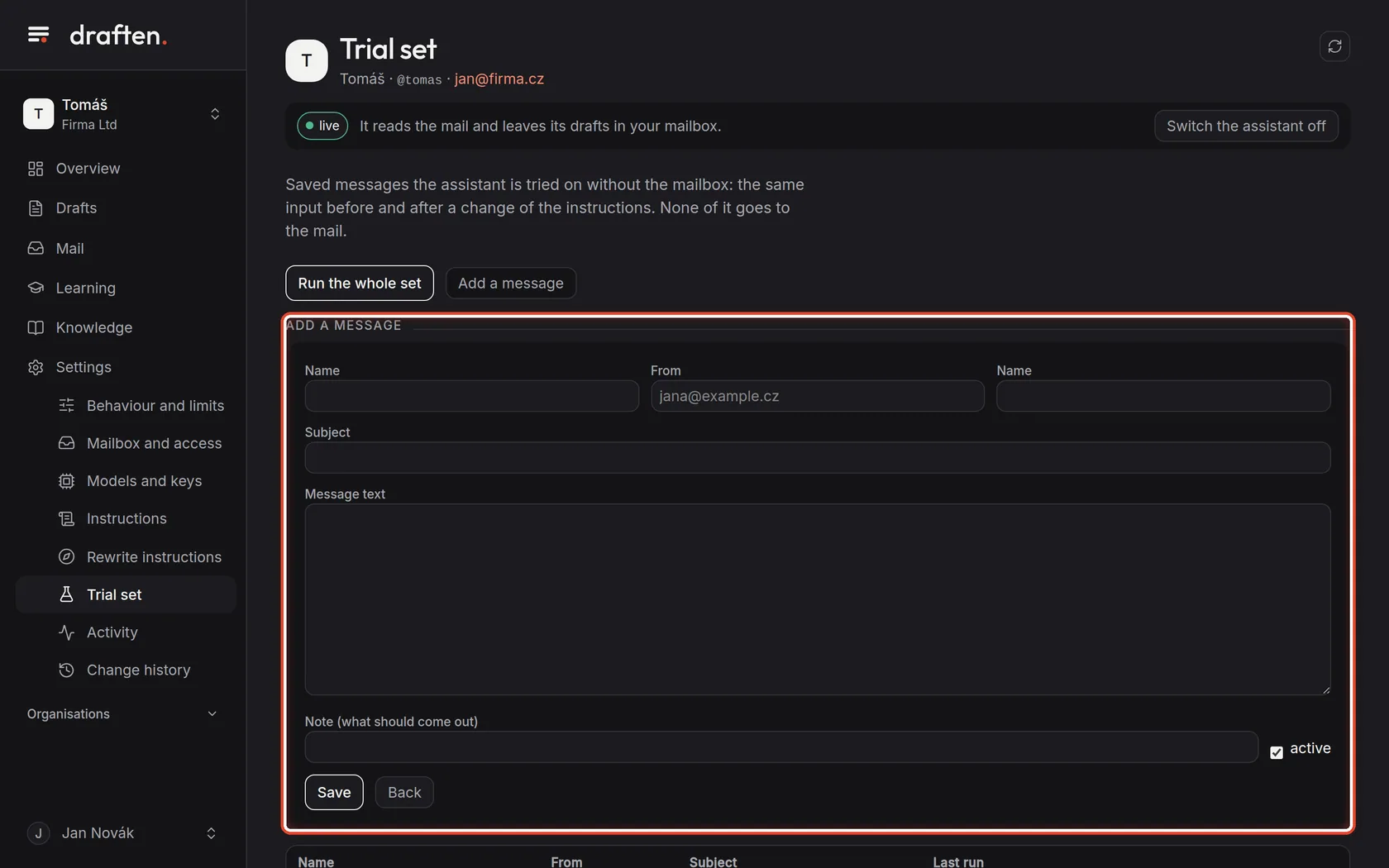
On the screenAfter clicking Add a message, a form for a new message.
Do thisFill in the name, the sender, the subject and the message text, and write in the note what should come out. Click Save.
NoteIt is easier to save a real message: in Mail, open its row and click To the trial set. It is saved with its thread as it was when it arrived — without your later reply.
Step 5 of 6
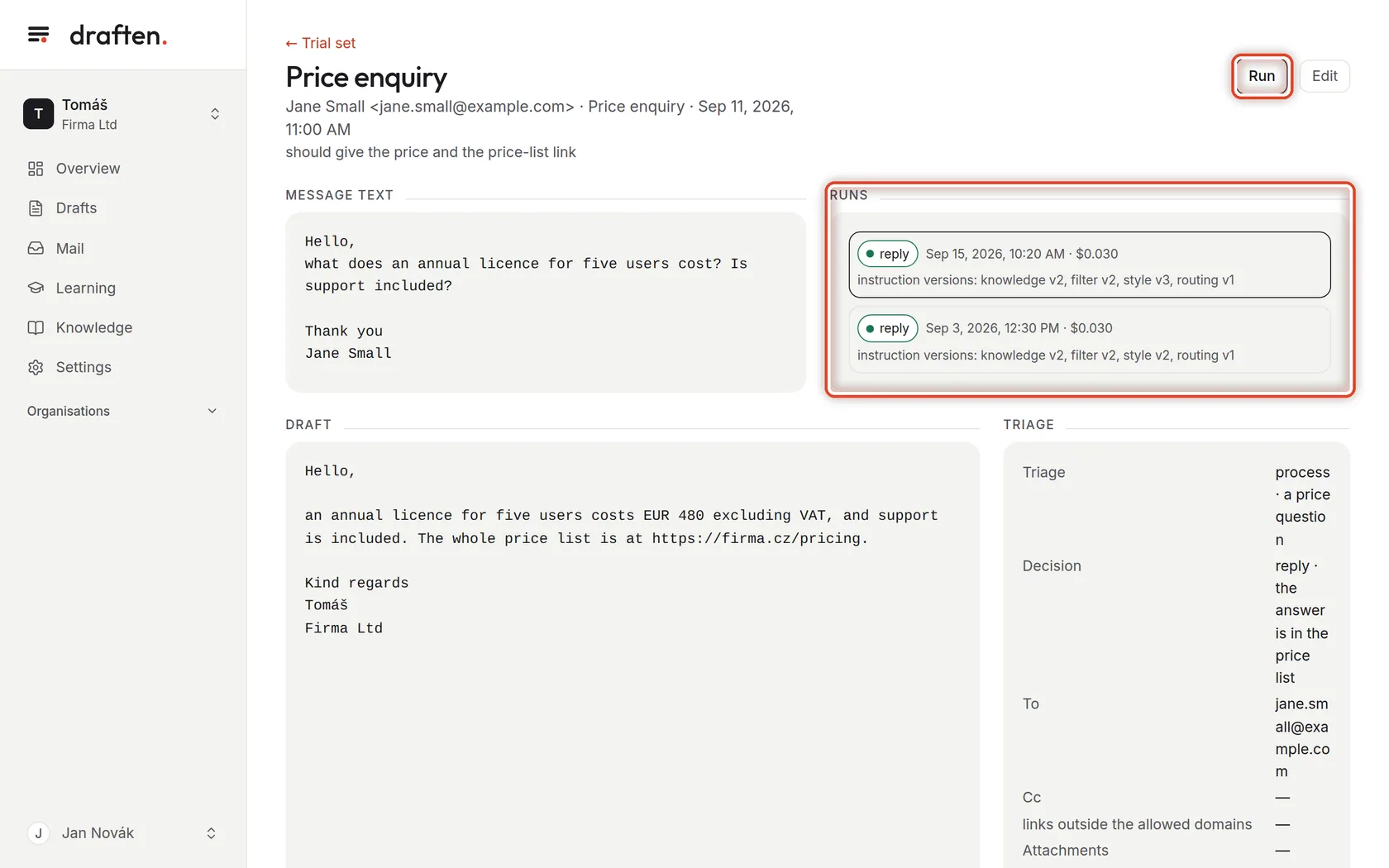
A message and its runs
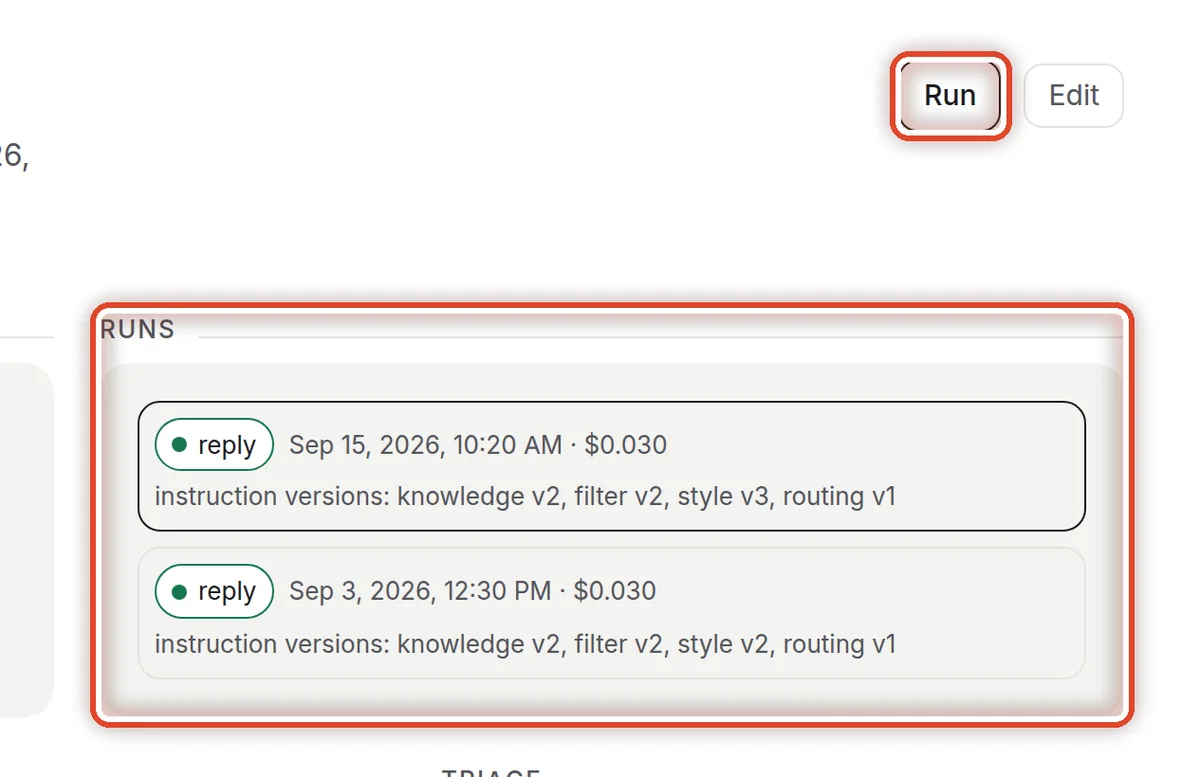
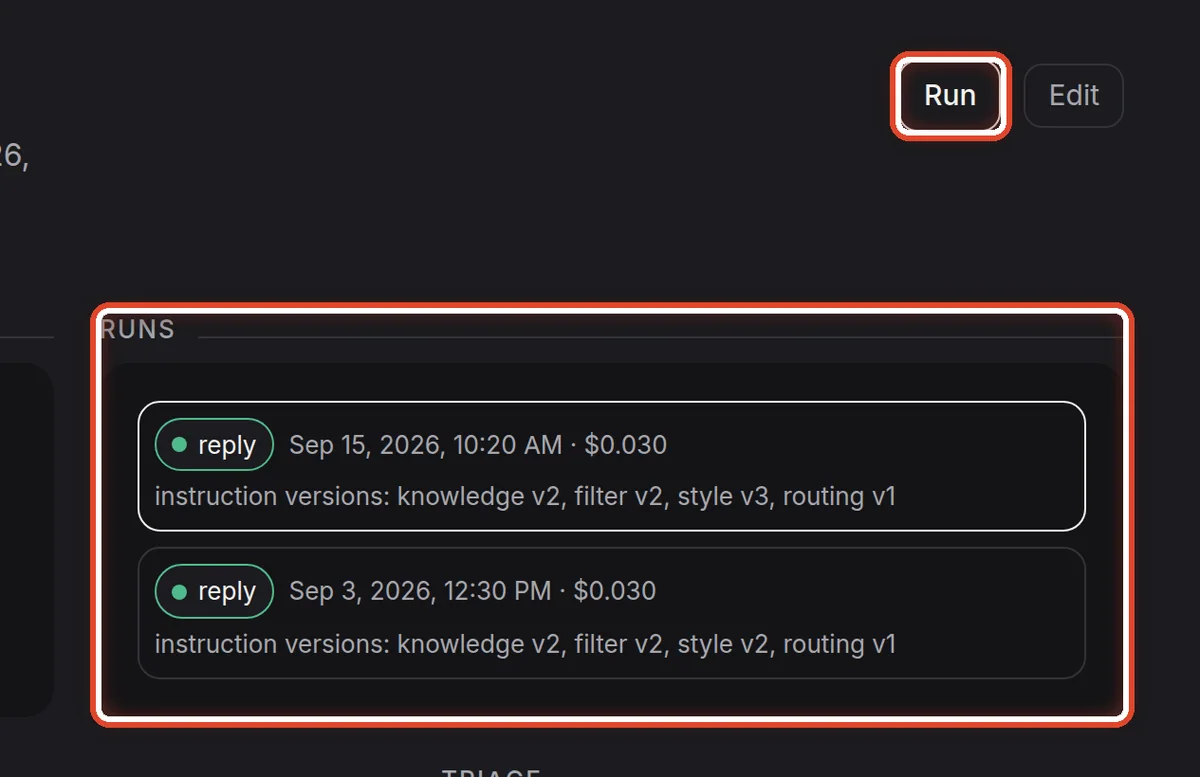
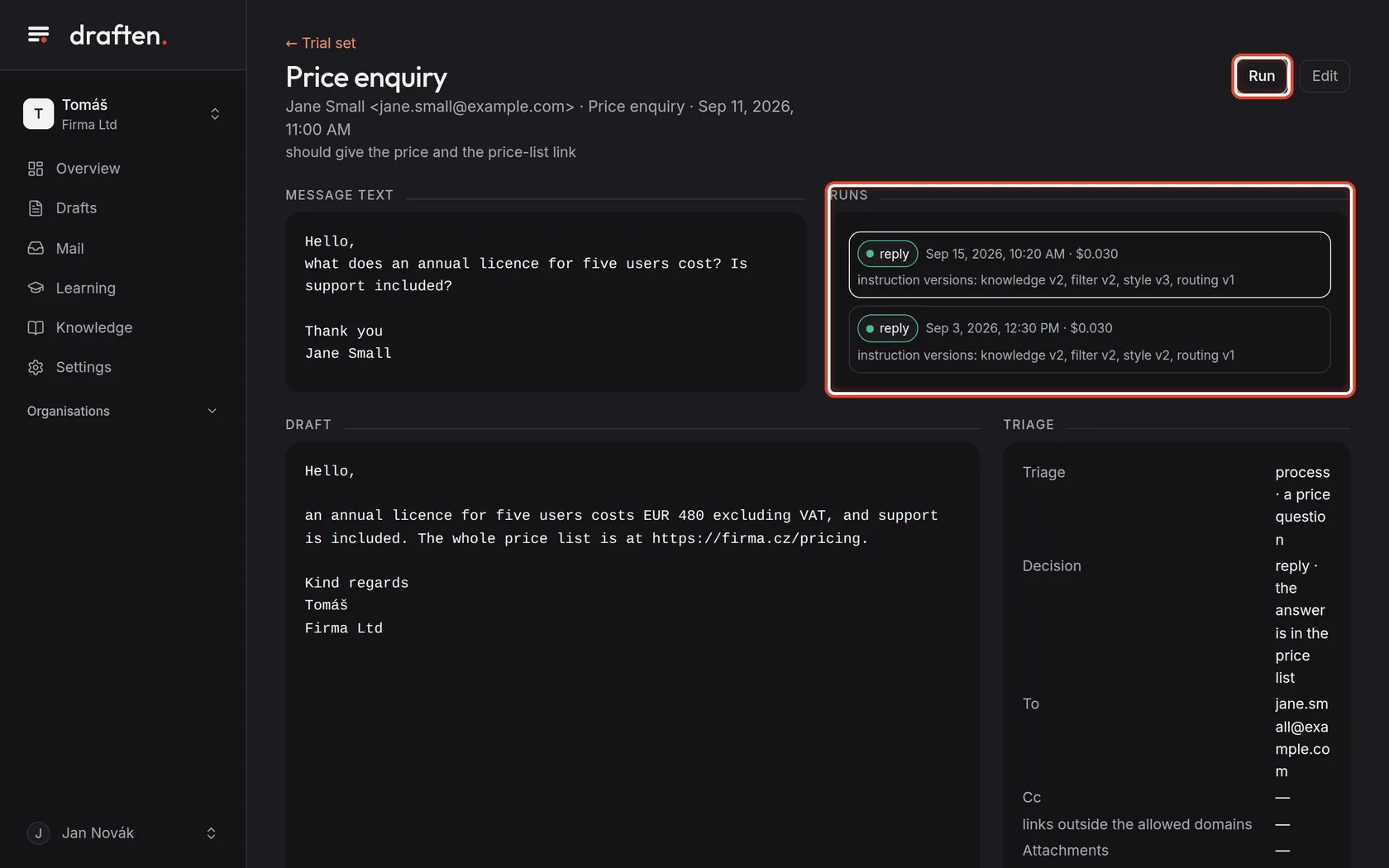
On the screenAfter clicking a message's name, its text and, on the right, its runs.
Do thisFor each run you see the decision, the cost and the instruction versions it ran with. Click a run to see the draft below and how the assistant sorted the message.
Step 6 of 6
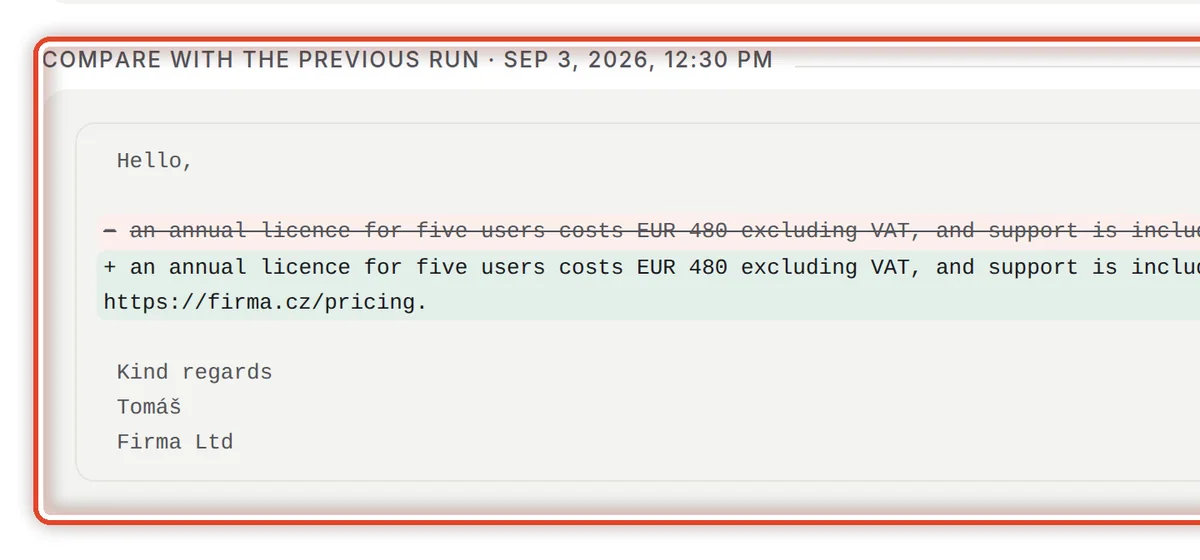
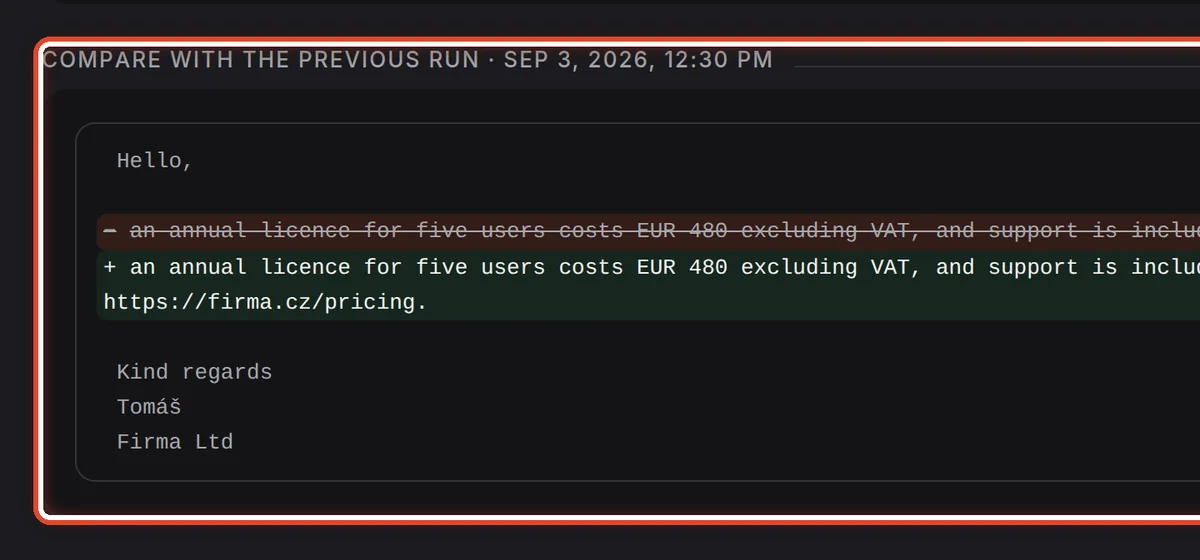
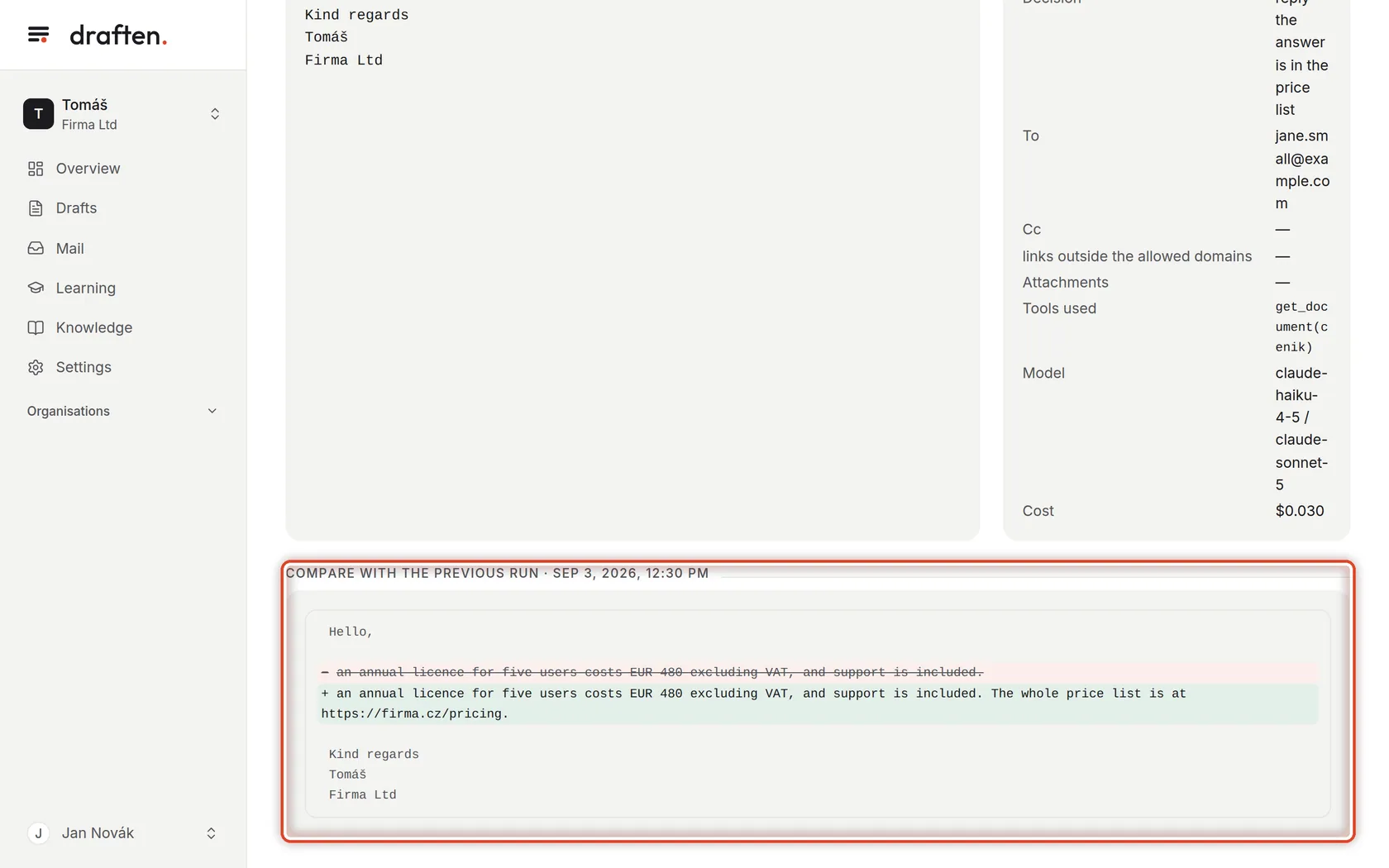
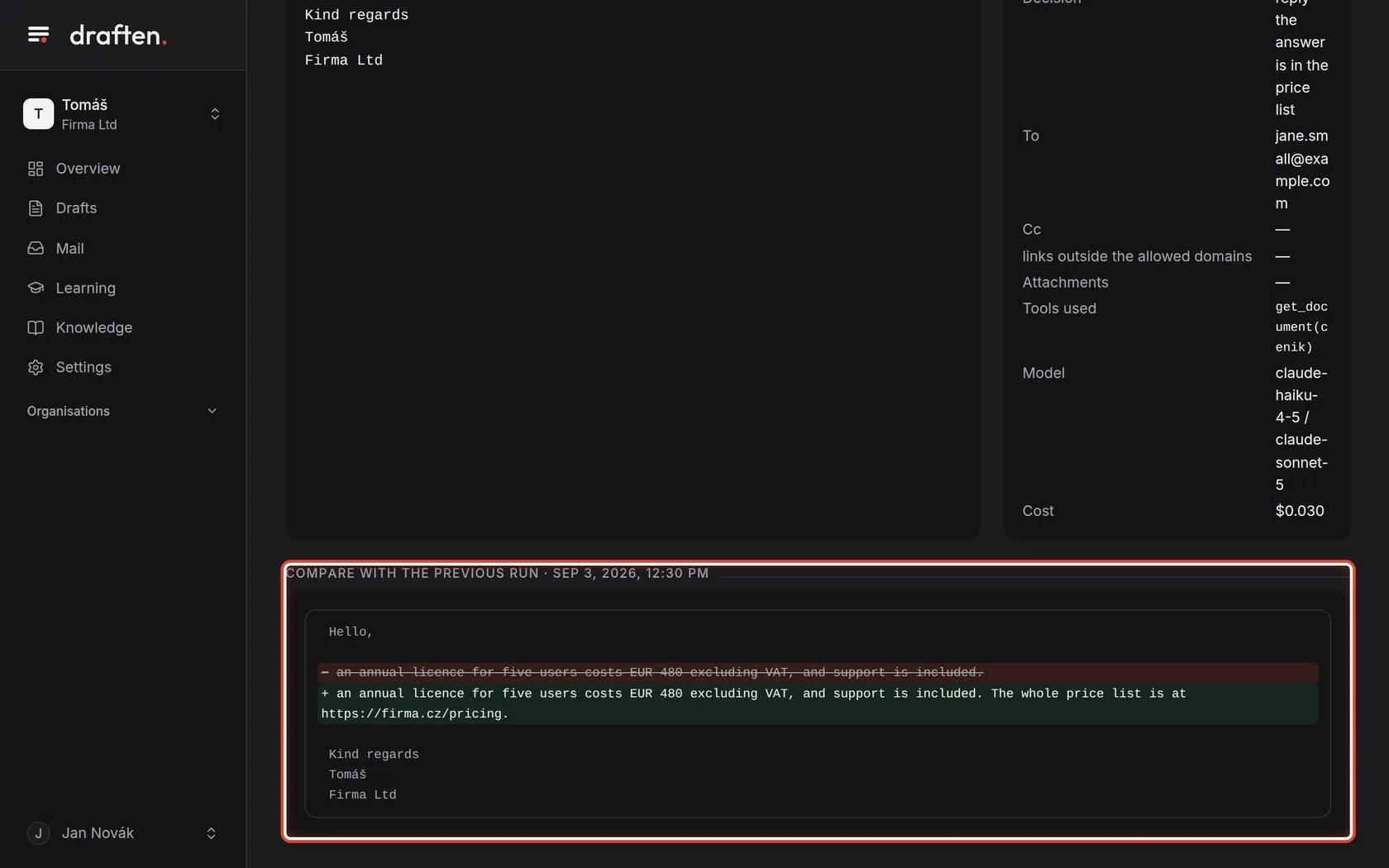
Compare with the previous run
On the screenAt the bottom, the Compare with the previous run card.
Do thisThe card shows how the draft differs from the previous run: removed text is struck through, added text is green. This is where, after changing the instructions, you see whether the change did what it should — and broke nothing else.
The end
You know what a change will do
Run the set before changing the instructions and again after. When the replies got better and nothing broke, keep the change.
- Changing an instructionThe Instructions guide shows how to change one and how to go back to an older version.
- Mail skipped by mistakeSave it to the set from Mail and adjust the Filter instruction until it comes out right.