Guide
First,
on trial.
A new assistant always starts in trial mode: it reads the mail and writes drafts, but keeps them in draften. You go through them and, when you are happy, switch it to live — the drafts then wait right in your mailbox.
Before you start
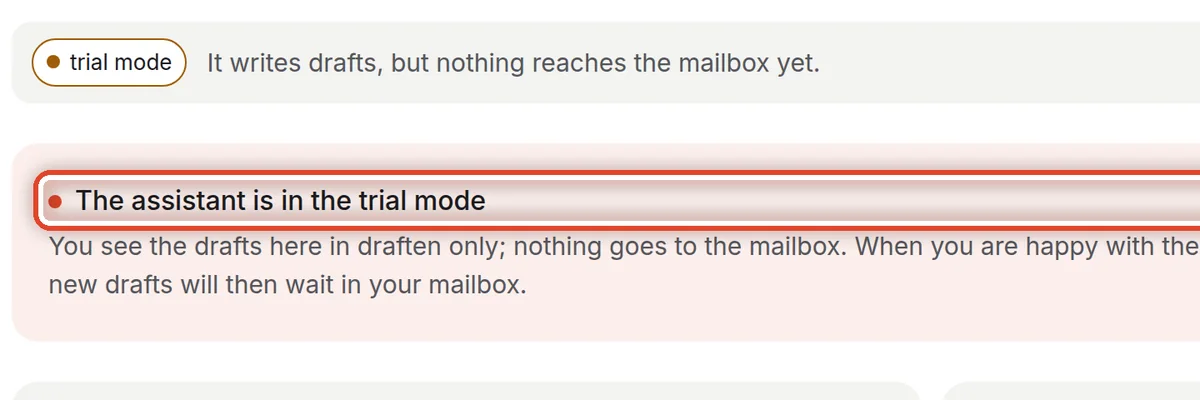
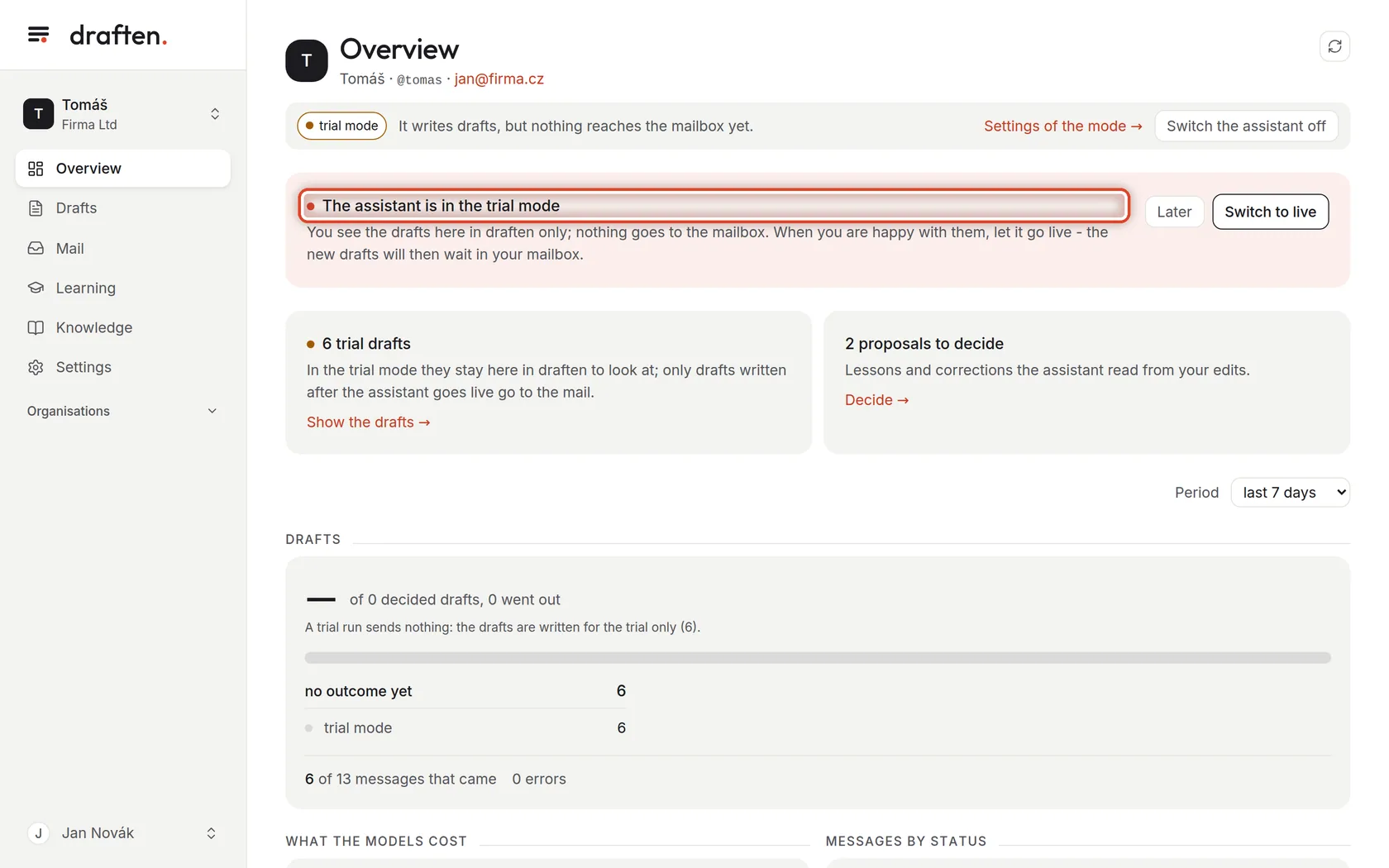
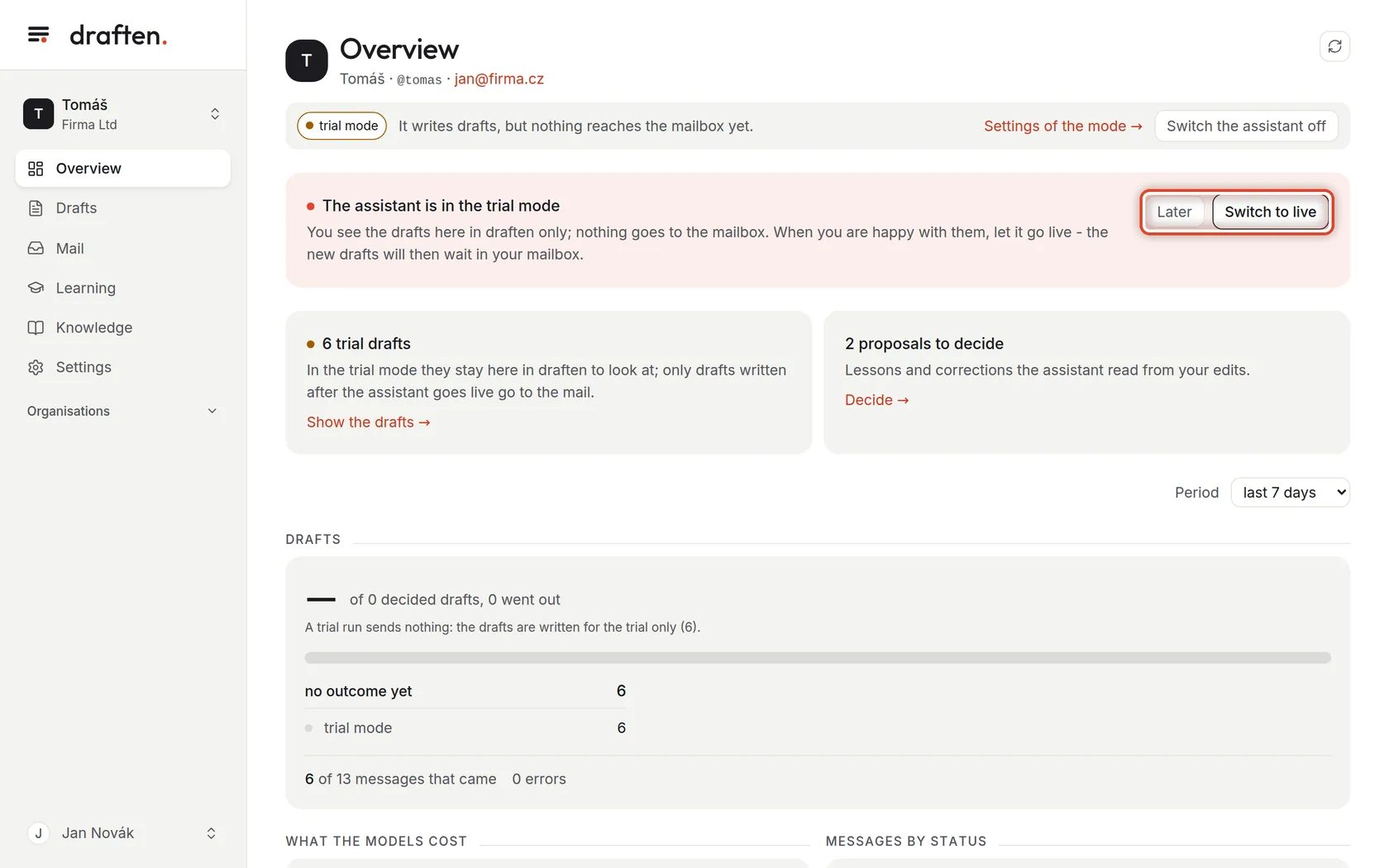
- An assistant in trial modeThe Overview shows the pink band The assistant is in the trial mode.
- A few days of mailLet the assistant work on trial for a while, so there is something to judge.
Step 1 of 6
How you know the assistant is trying
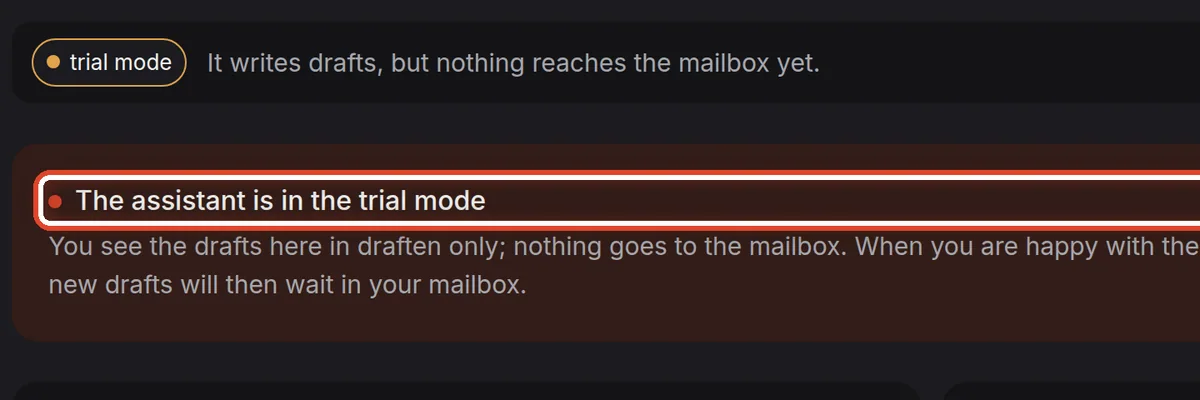
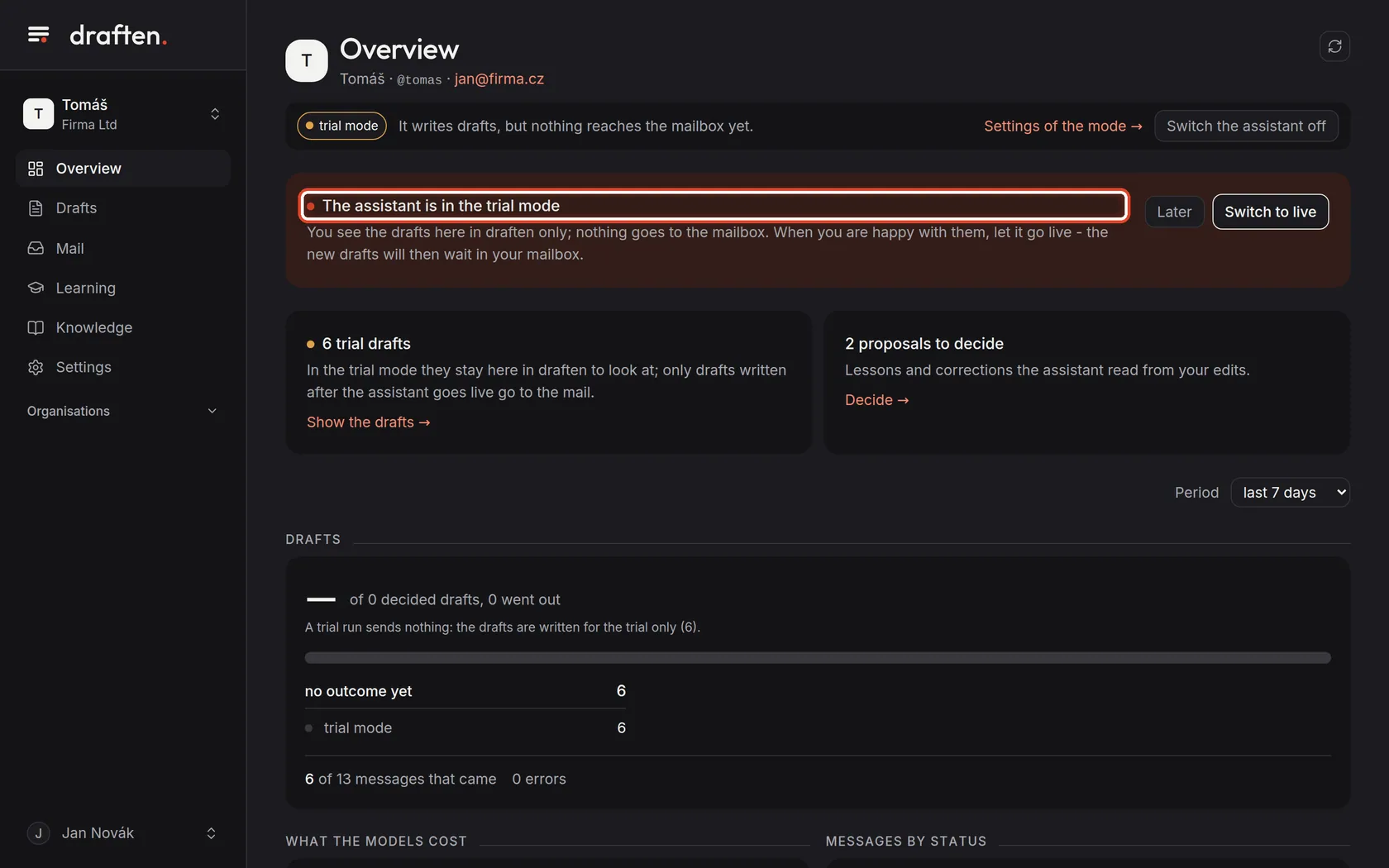
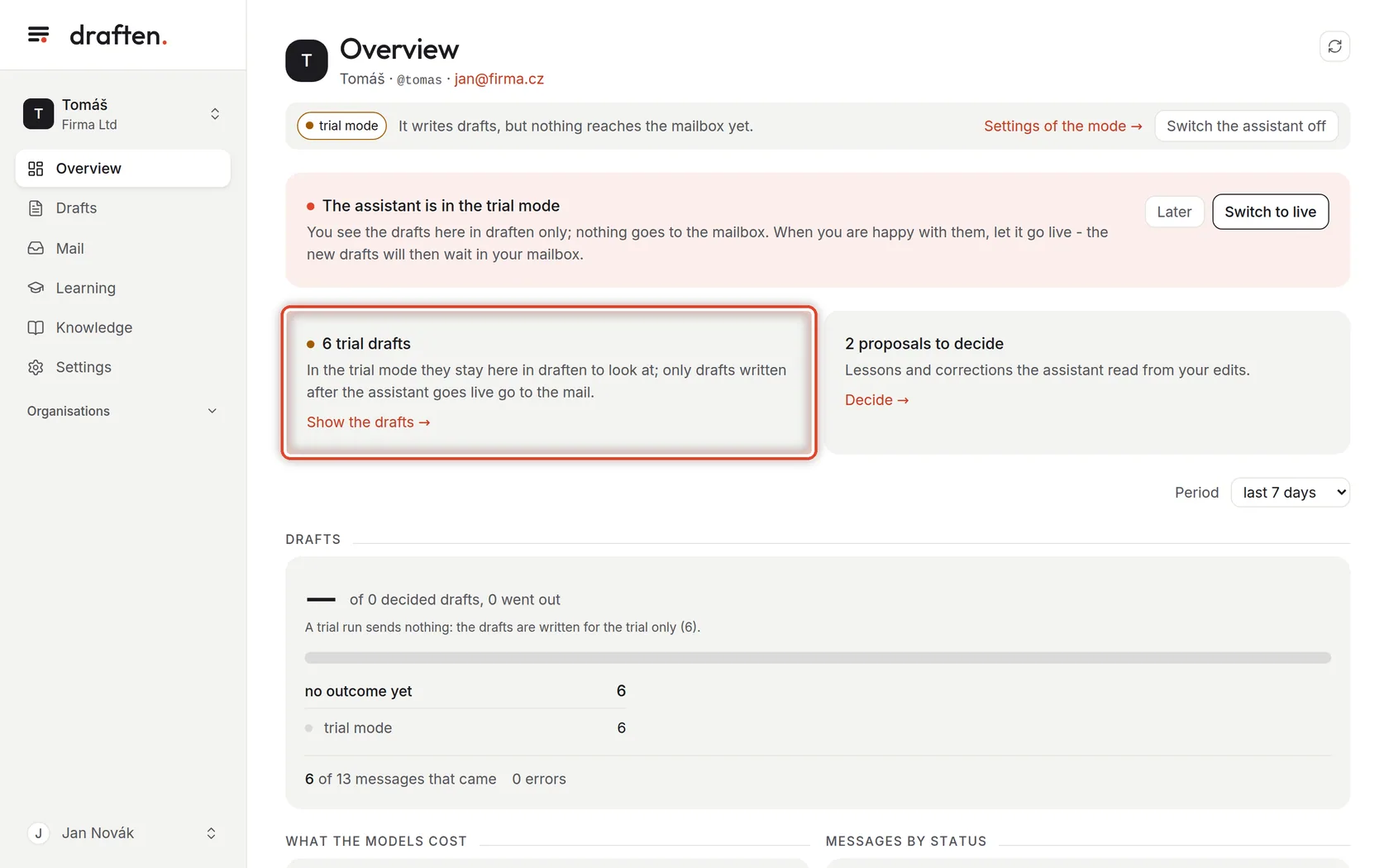
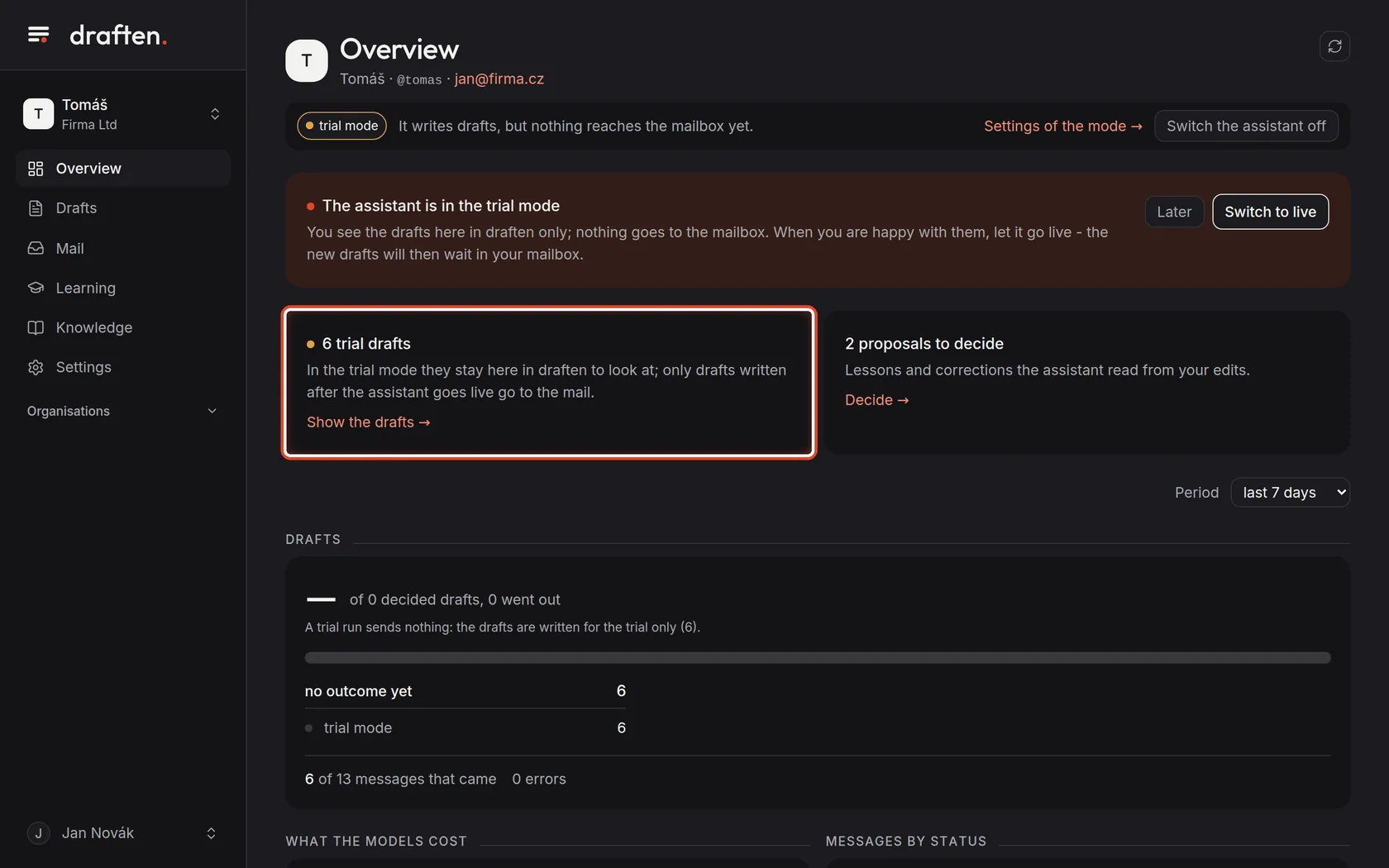
On the screenOn the Overview, the pink band The assistant is in the trial mode. The trial mode label at the top of every page says the same.
Do thisIn trial mode the assistant reads the mail and writes drafts, but keeps them in draften only. Nothing goes to your mailbox. Every new assistant starts like this.
Step 2 of 6
Trial drafts
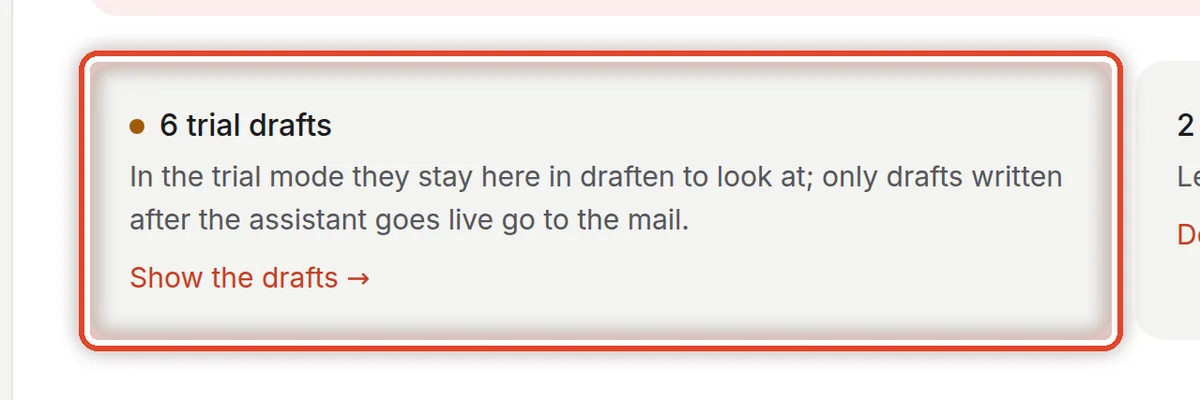
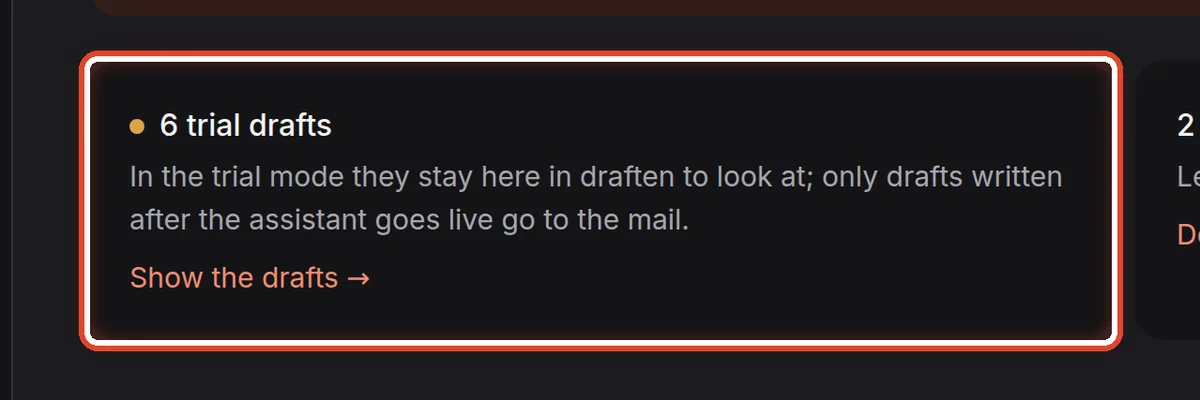
On the screenUnder the band, a card with the number of trial drafts.
Do thisThis many replies the assistant wrote on trial. Click Show the drafts and go through them — they tell you whether the assistant is ready.
NoteTrial drafts stay in draften, for you to look at. They do not go to the mail even after you go live; only drafts written after that do.
Step 3 of 6
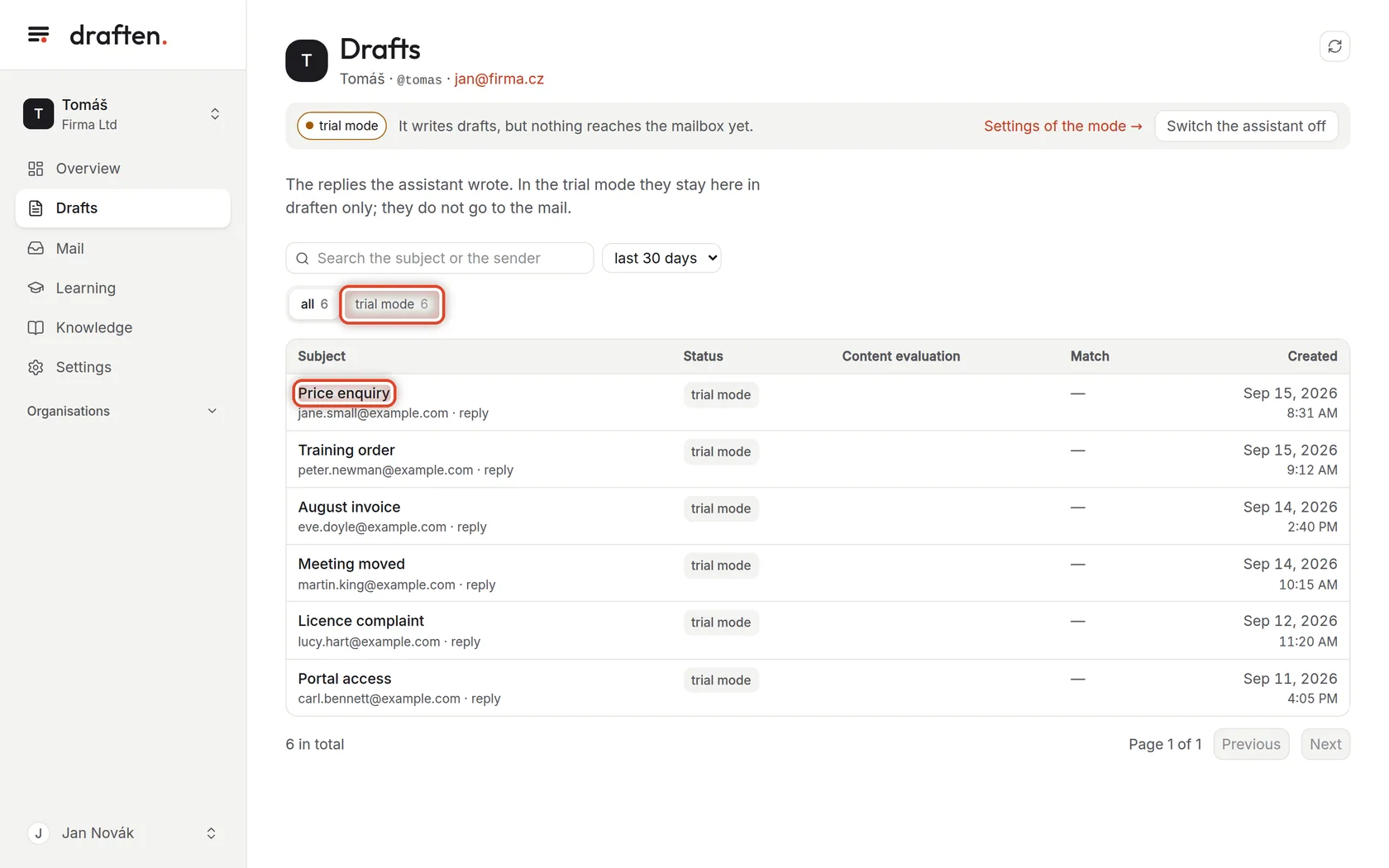
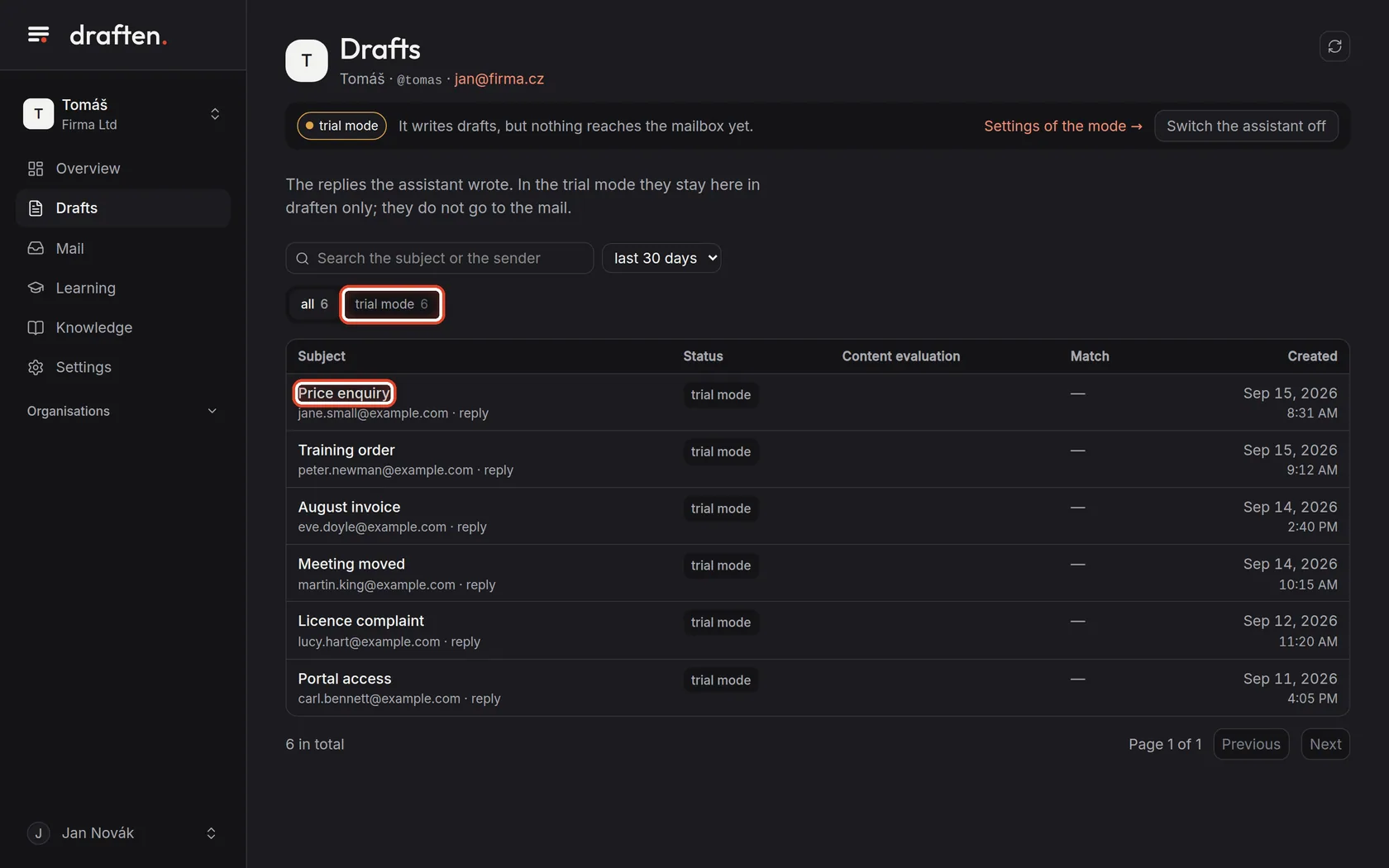
Go through the drafts
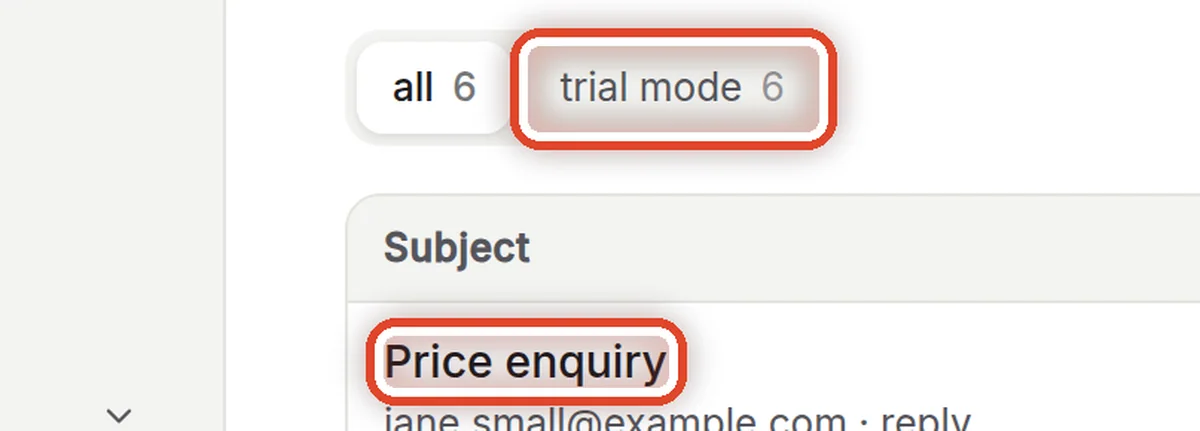
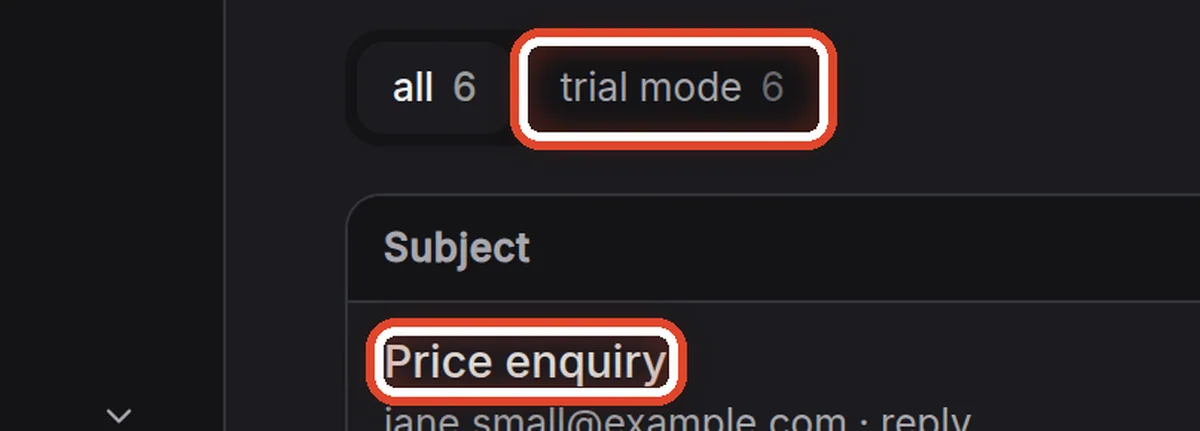
On the screenIn Drafts, the trial mode button and the list of drafts.
Do thisThe trial mode button shows only the trial drafts. Open them one by one and read them as if you were about to send them: are the facts, the tone and the signature right?
NoteWhen the same mistake keeps coming back, fix the knowledge or the instructions — The draft is wrong or invents things tells you which.
Step 4 of 6
Check what the assistant skipped
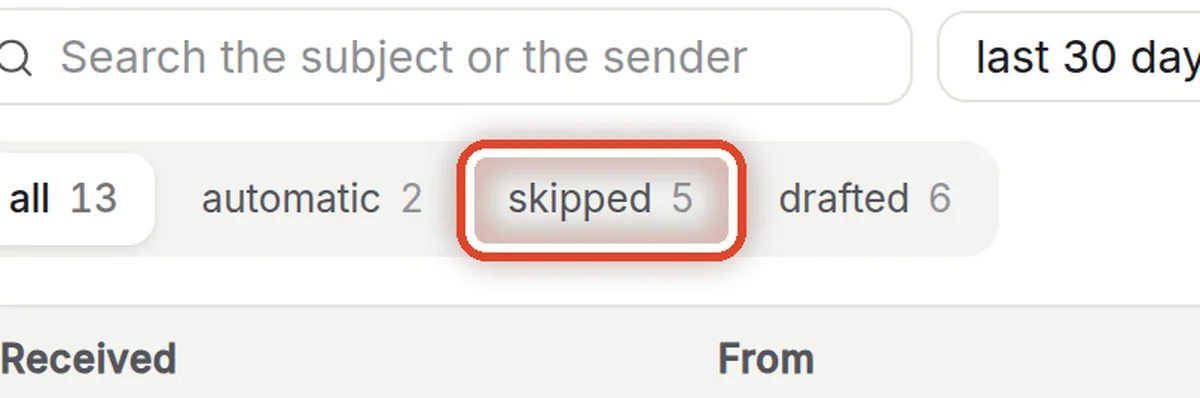
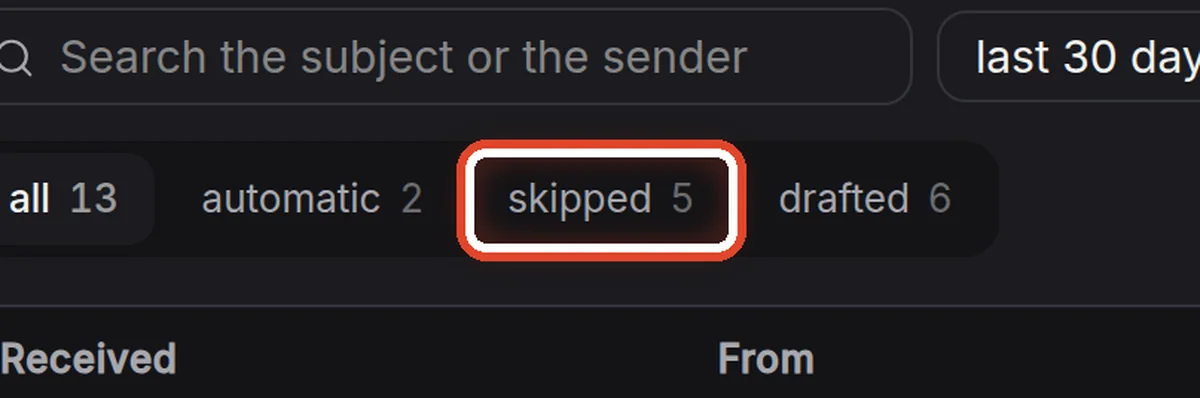
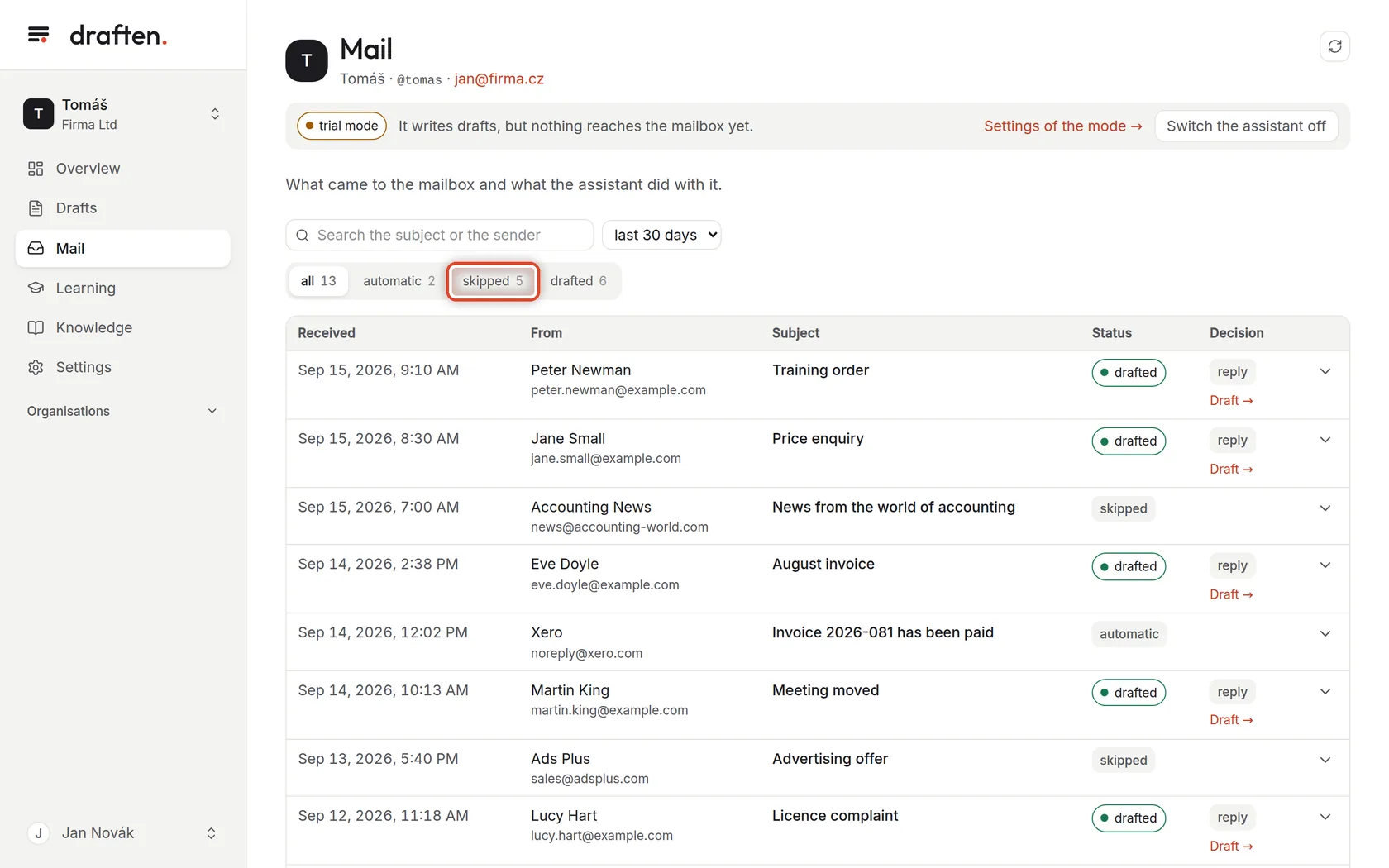
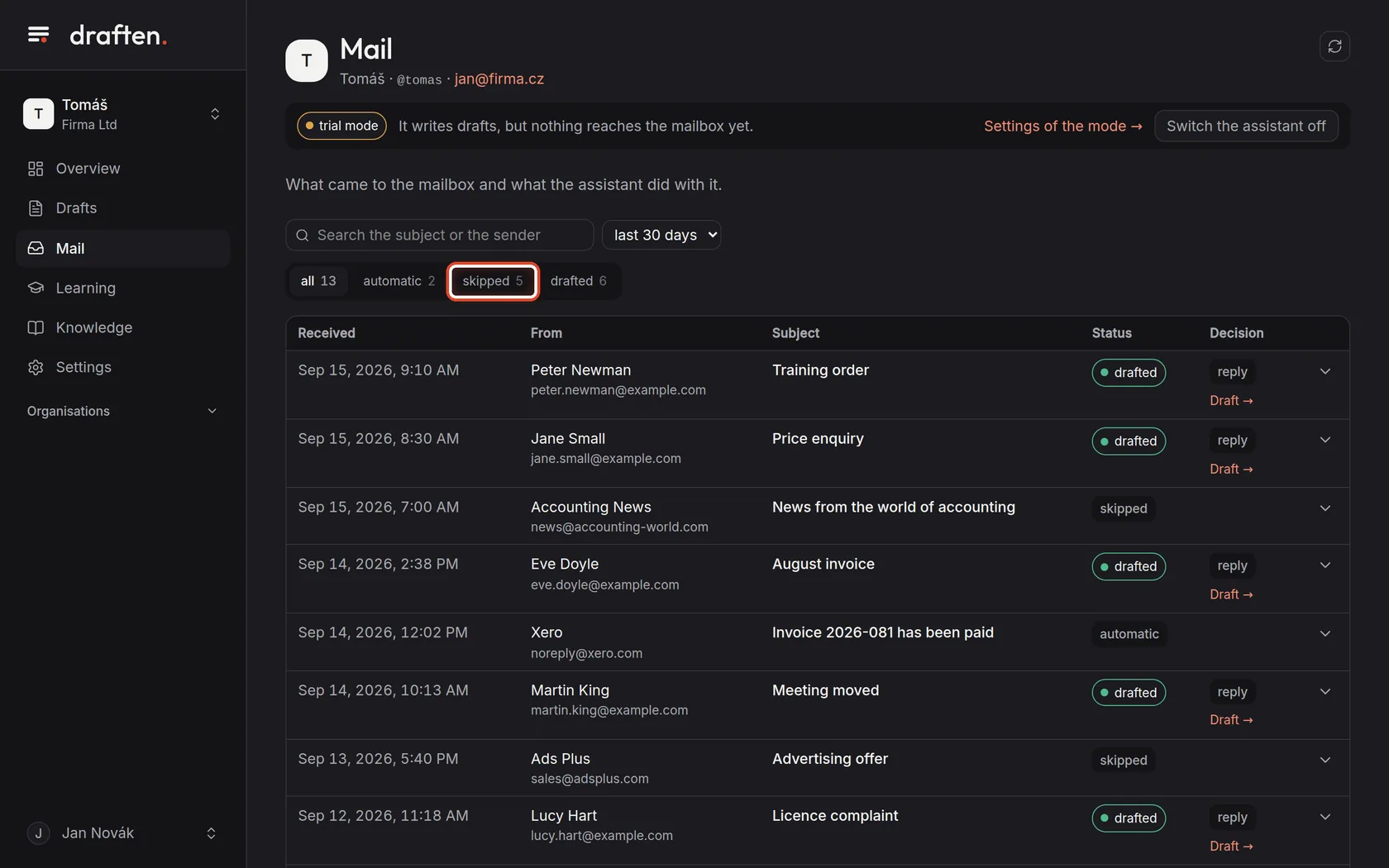
On the screenIn Mail, the skipped button.
Do thisClick skipped. You see the mail the assistant wrote no draft for. Click a row to find out why.
NoteIt skipped mail you wanted answered? Adjust the Filter instruction. More in Why some mail gets no draft.
Step 5 of 6
Switch to live
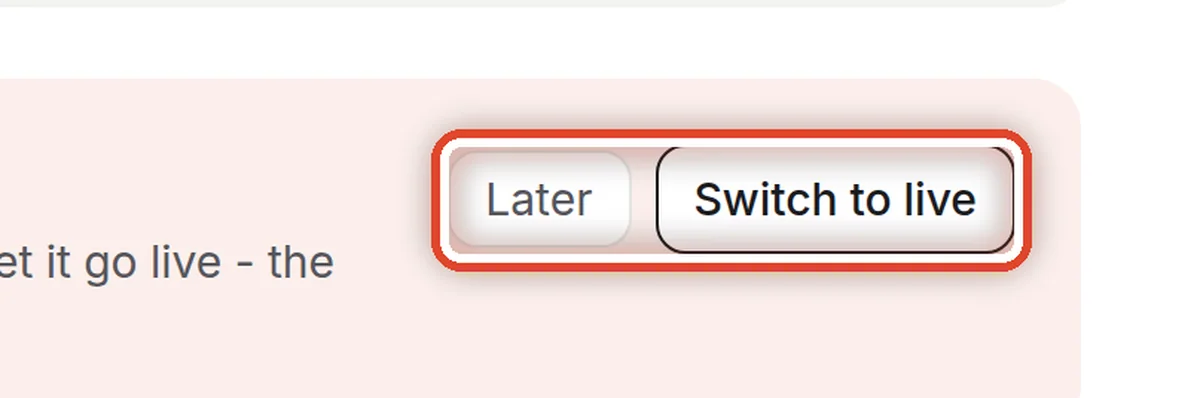
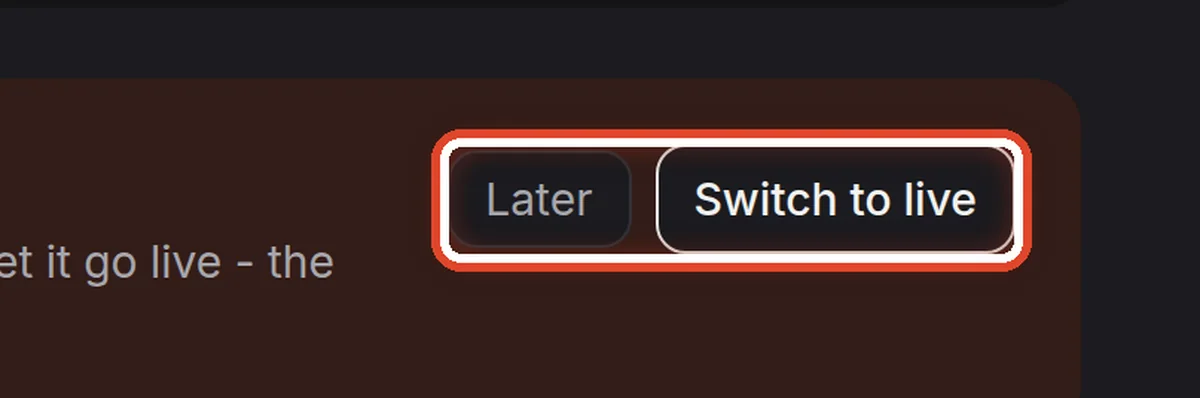
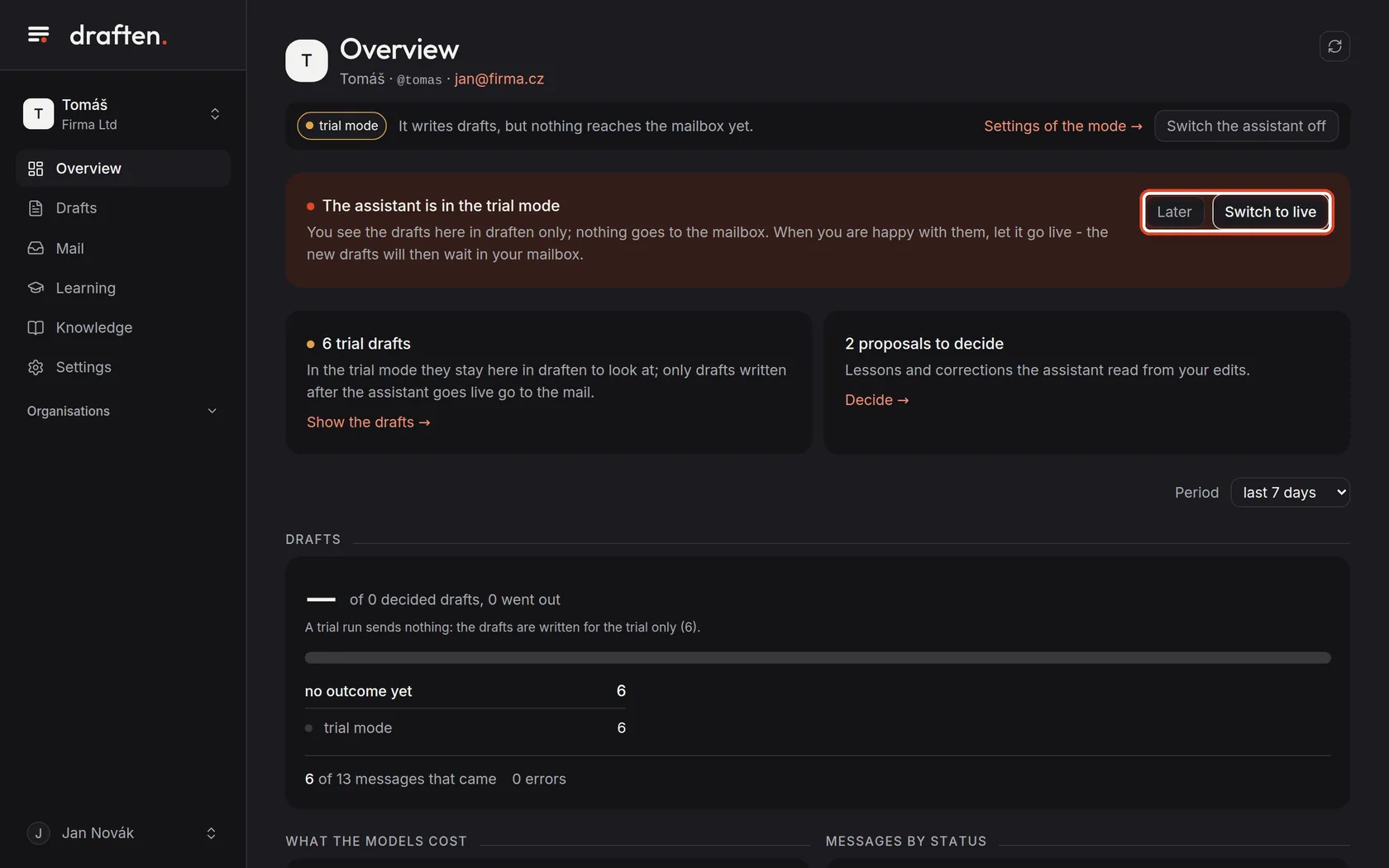
On the screenIn the band on the Overview, the Switch to live and Later buttons.
Do thisWhen you are happy with the drafts, click Switch to live. It switches at once, with no further confirmation; new drafts then wait right in your mailbox, in the Drafts folder.
NoteLater hides the band only until your next visit. The assistant's owner and editors can switch.
Step 6 of 6
Or in Settings
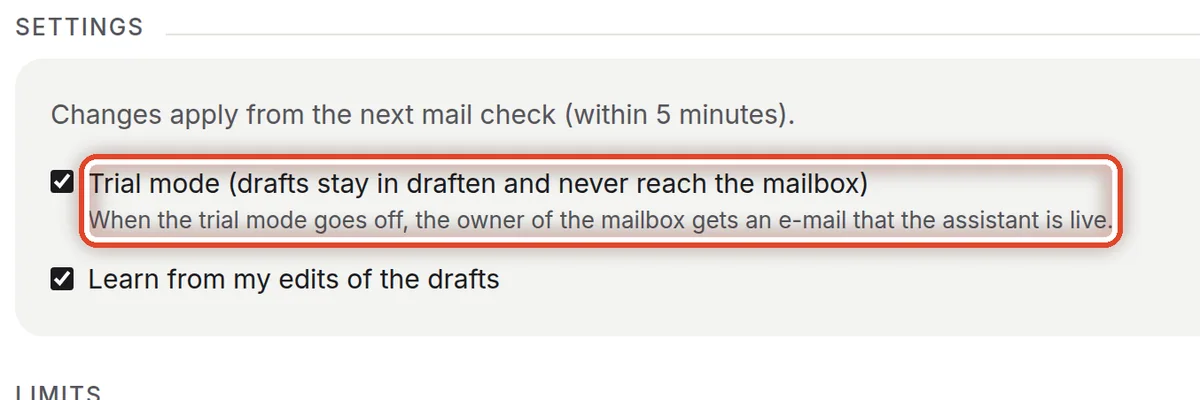
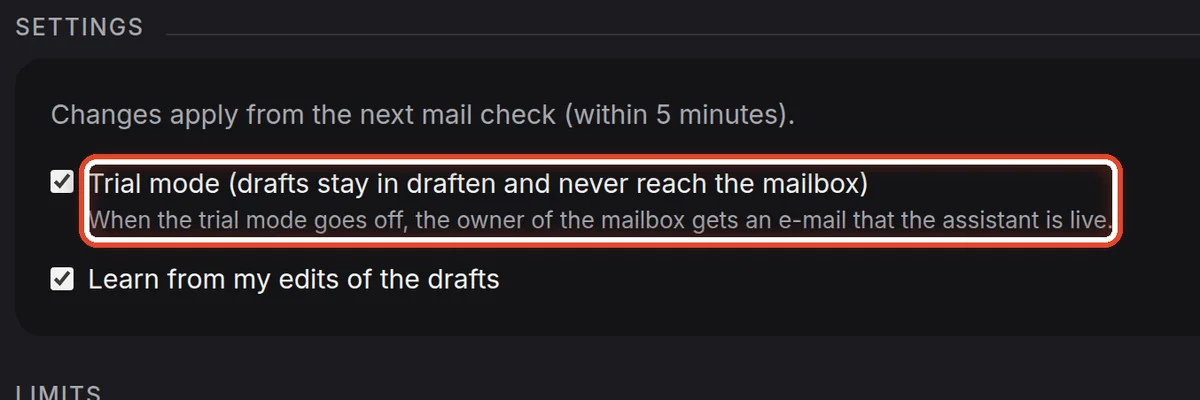
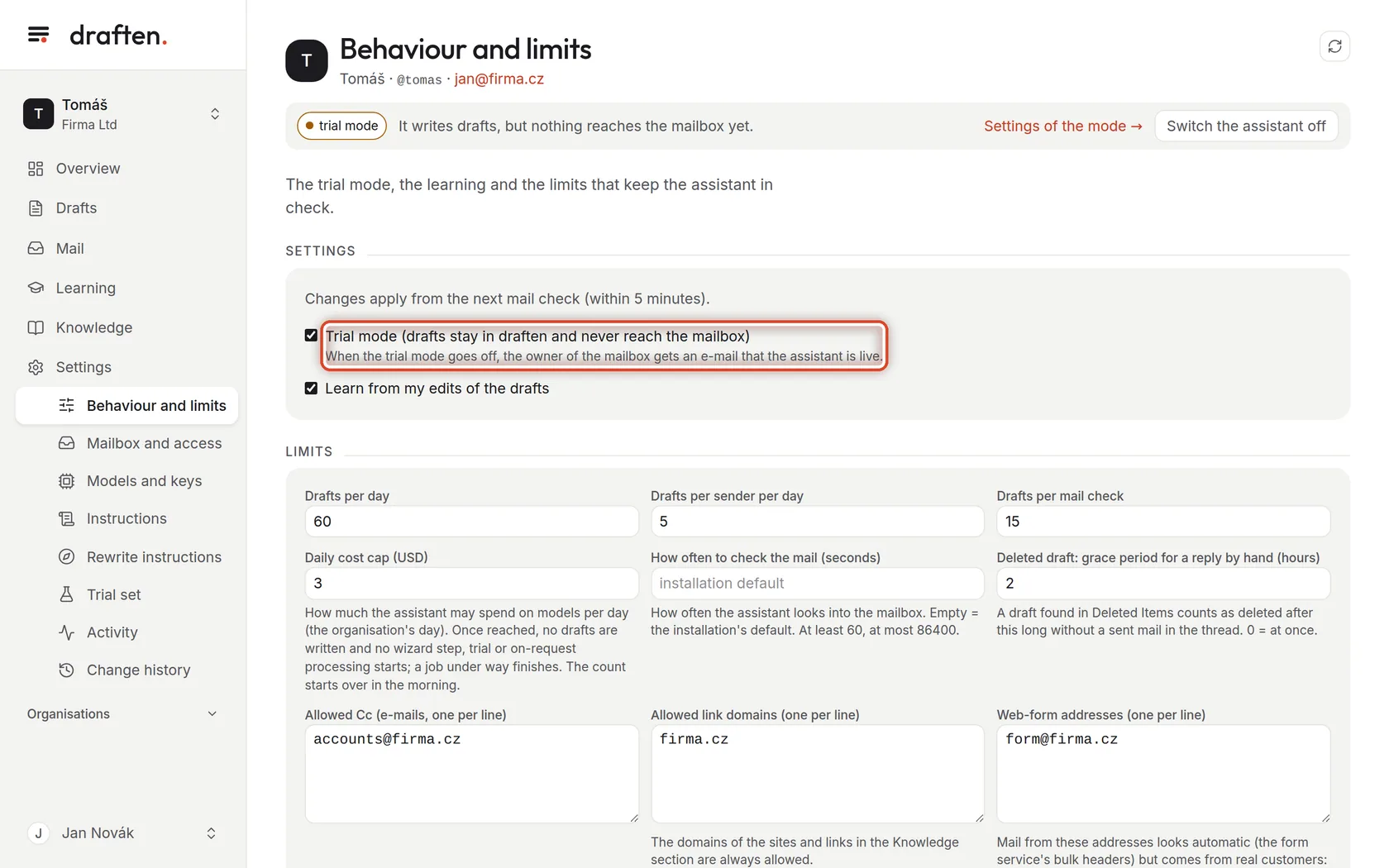
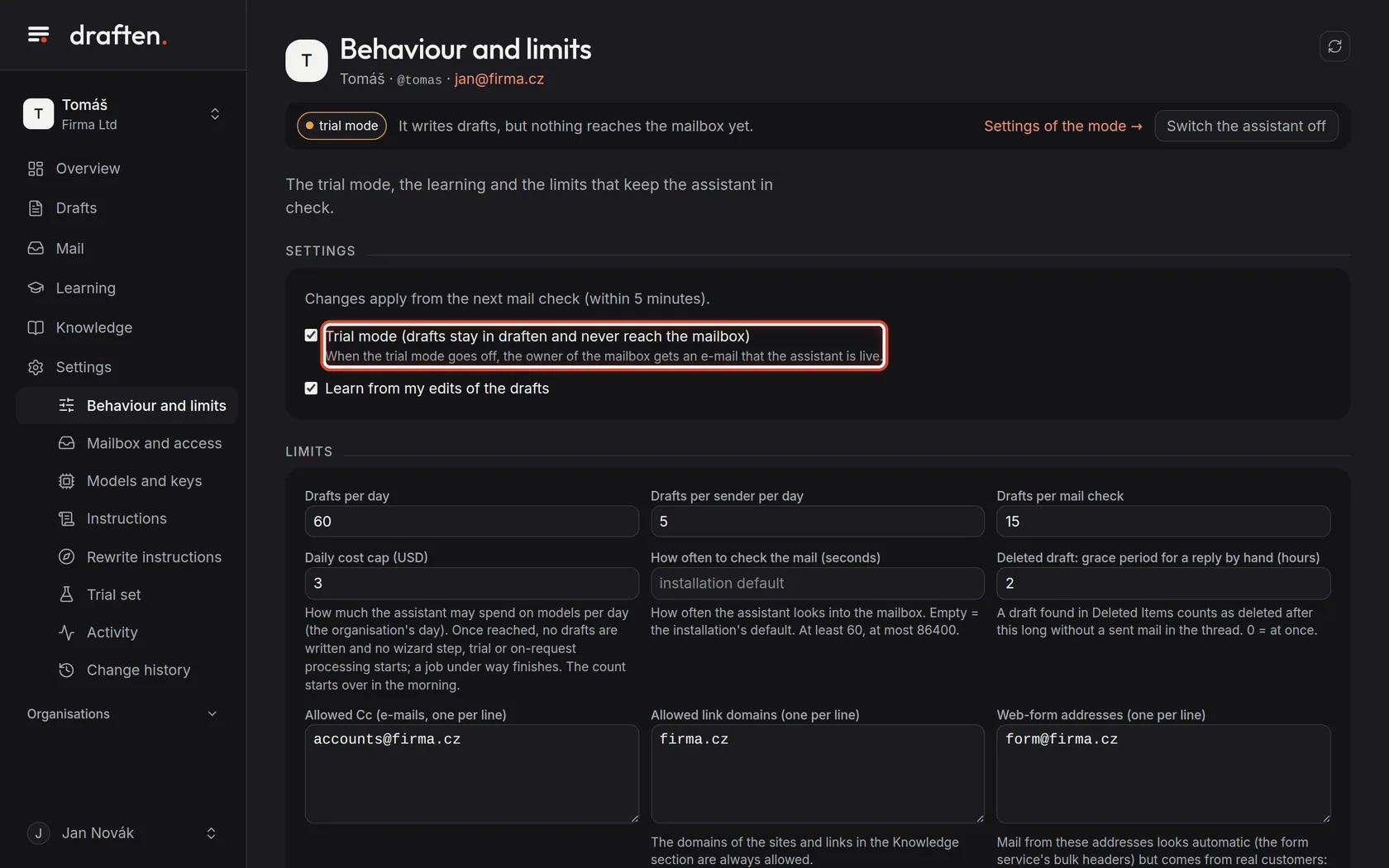
On the screenIn Settings → Behaviour and limits, the Trial mode tick box.
Do thisUntick Trial mode and click Save at the bottom. Ticking it again puts the assistant back into trial mode.
NoteThe change applies from the next mail check, within 5 minutes. When trial mode goes off, the mailbox owner gets an e-mail that the assistant is live.
The end
The assistant is live
New drafts are now in your mailbox, in the Drafts folder. You always send them yourself.
- Working with draftsThe Drafts guide shows how to go through them and what their states mean.
- Want to go back?Turn trial mode on again in Settings → Behaviour and limits.