Guide
When a draft
is not quite right.
You do not have to rewrite it yourself. Tell the assistant in one sentence what is wrong and it rewrites the draft — in draften, or right in your mailbox.
Before you start
- A draft that waitsYou can revise a draft that is waiting to be sent.
- One sentenceWhat is missing or wrong. The assistant needs nothing more.
- About a minuteThat is how long the new text usually takes.
Step 1 of 6
Open Drafts
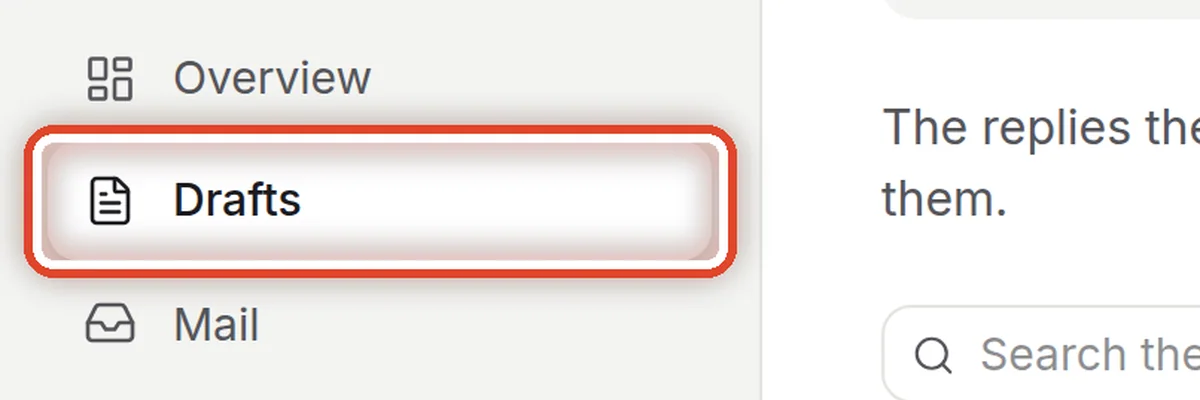
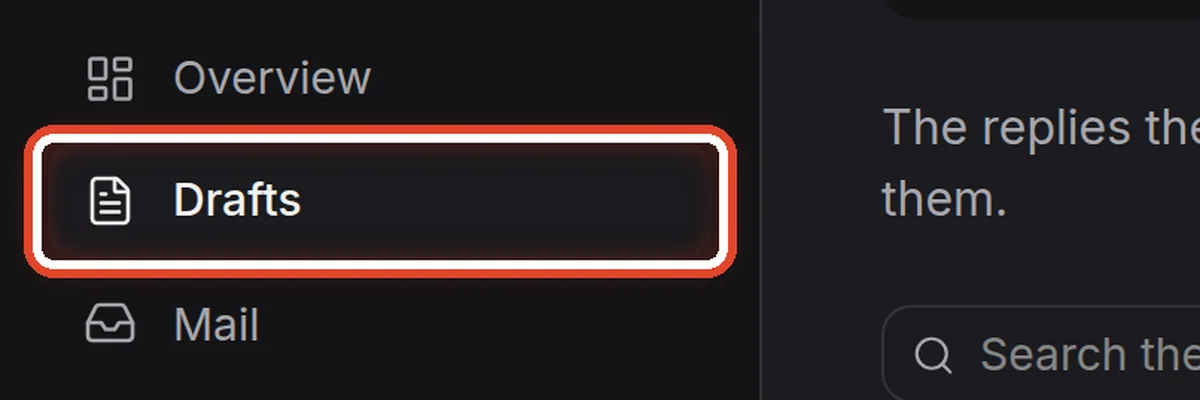
On the screendraften's side menu.
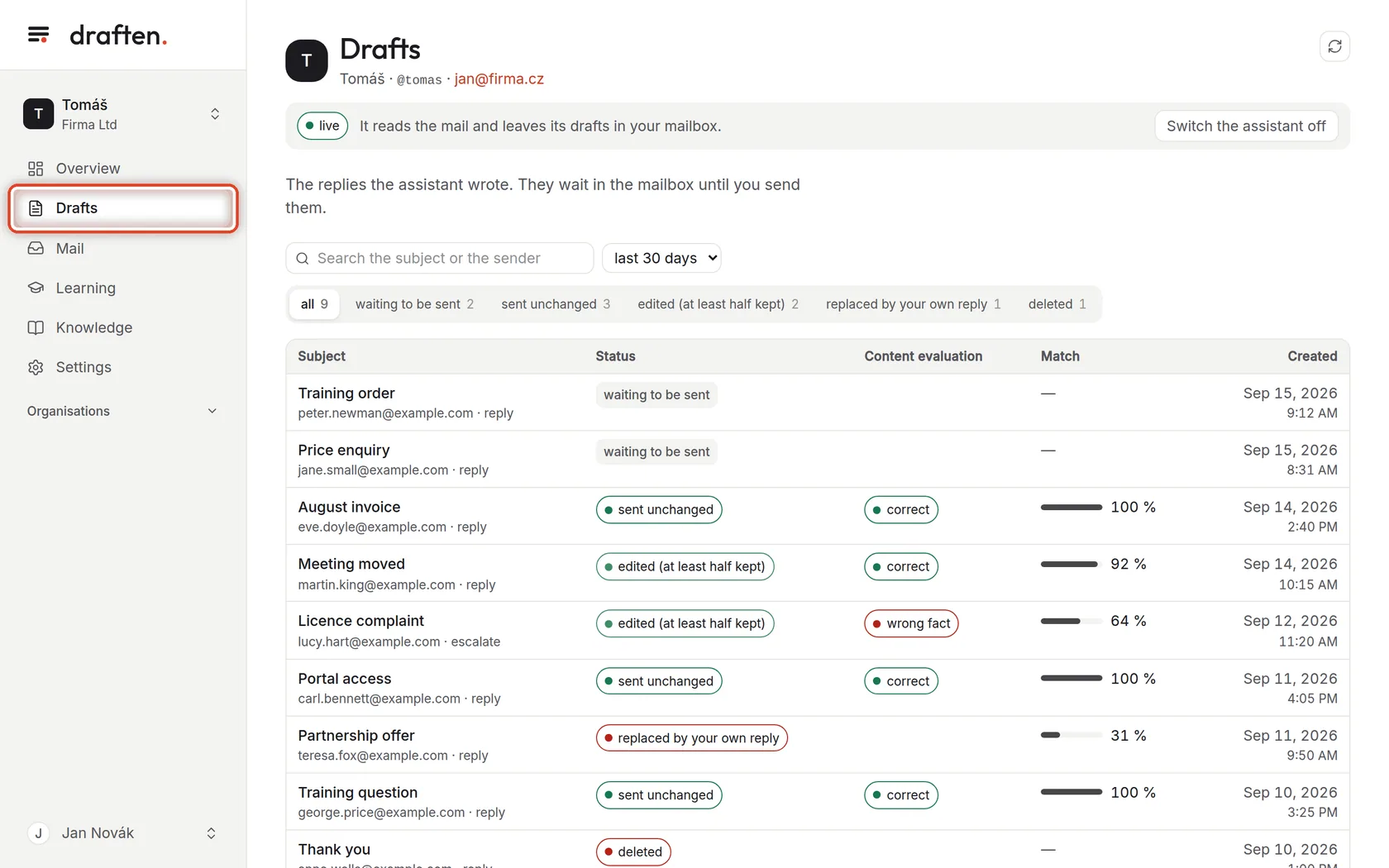
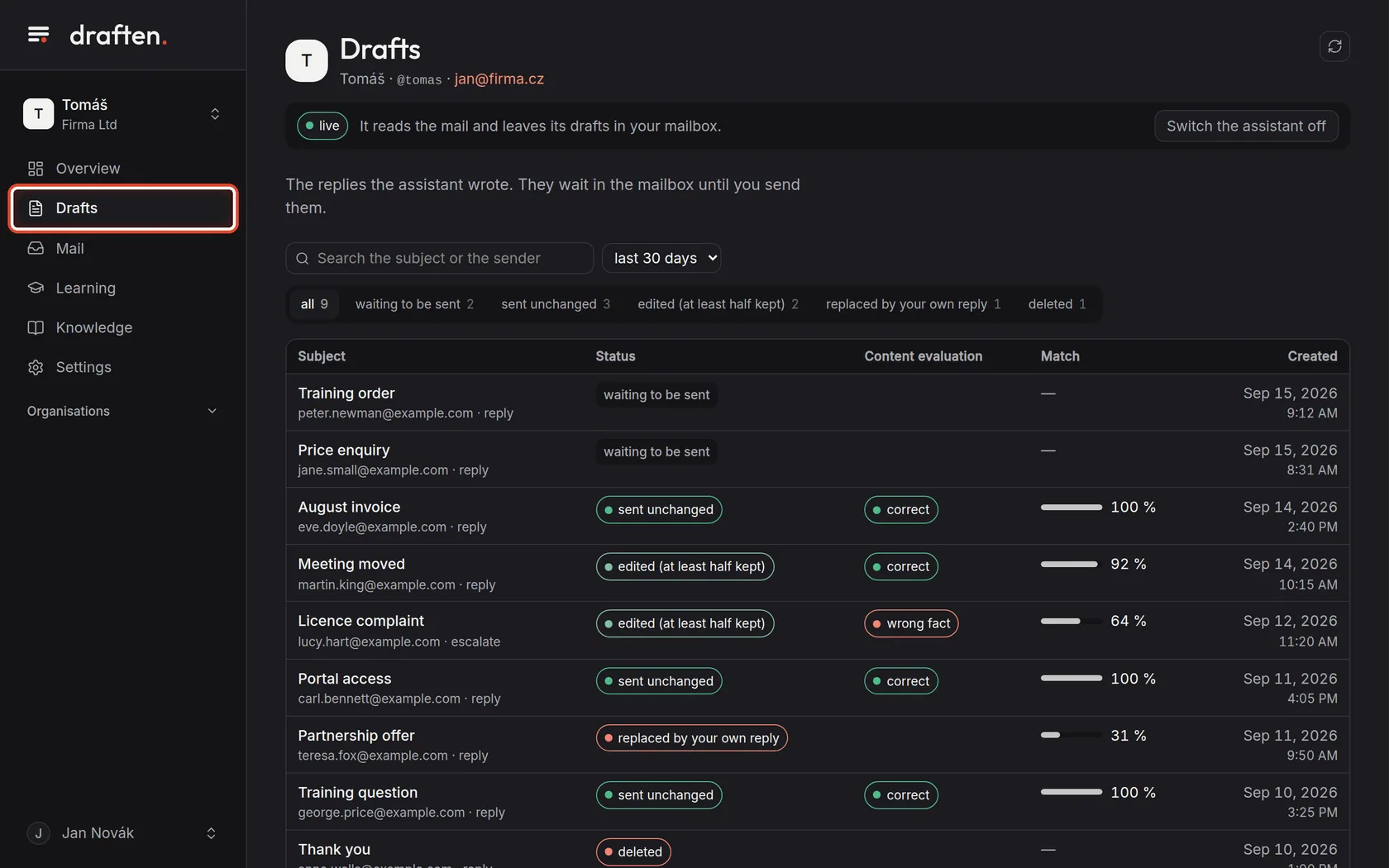
Do thisClick Drafts in the side menu. You will see every reply the assistant has written.
Step 2 of 6
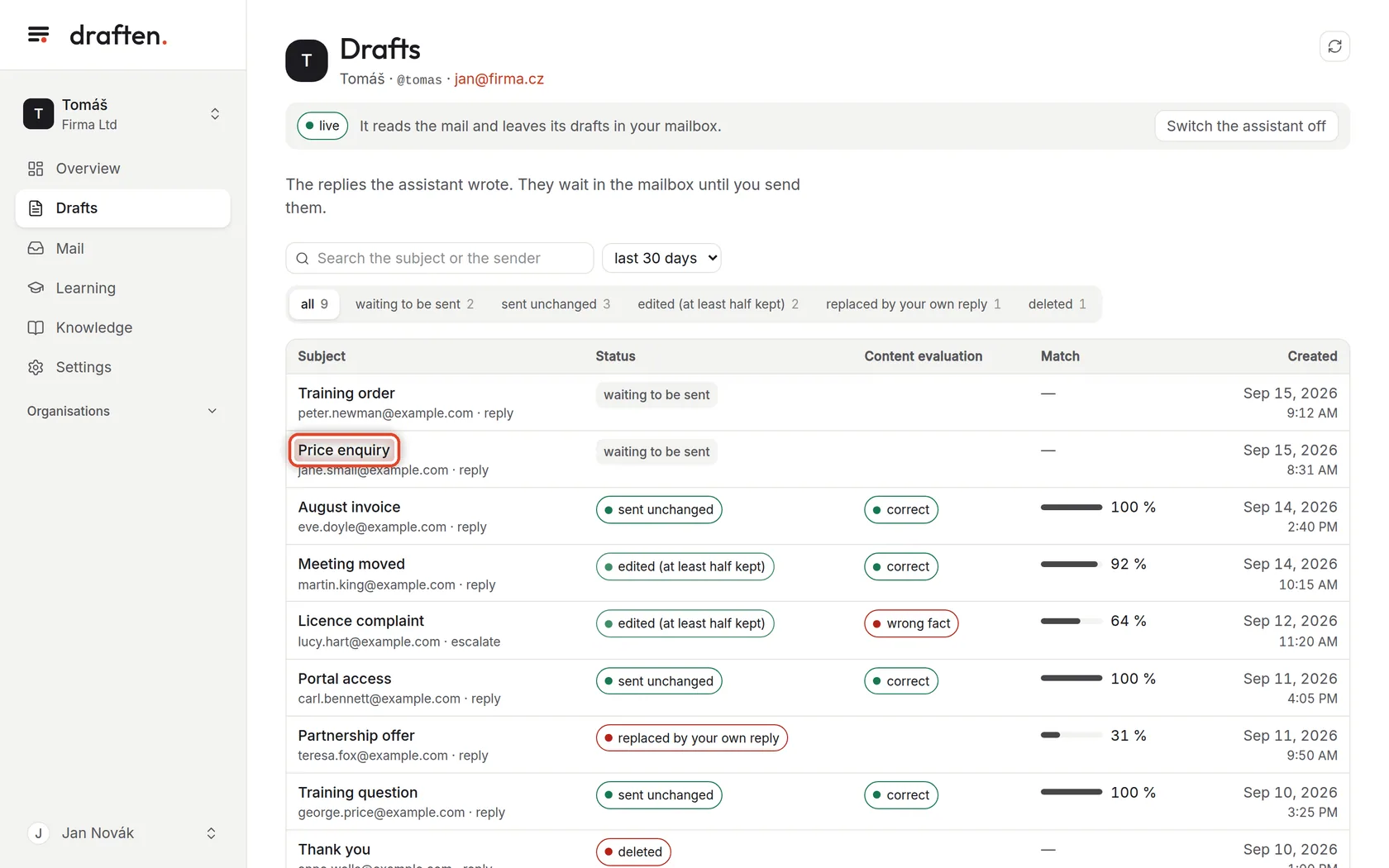
Pick the draft that is not right
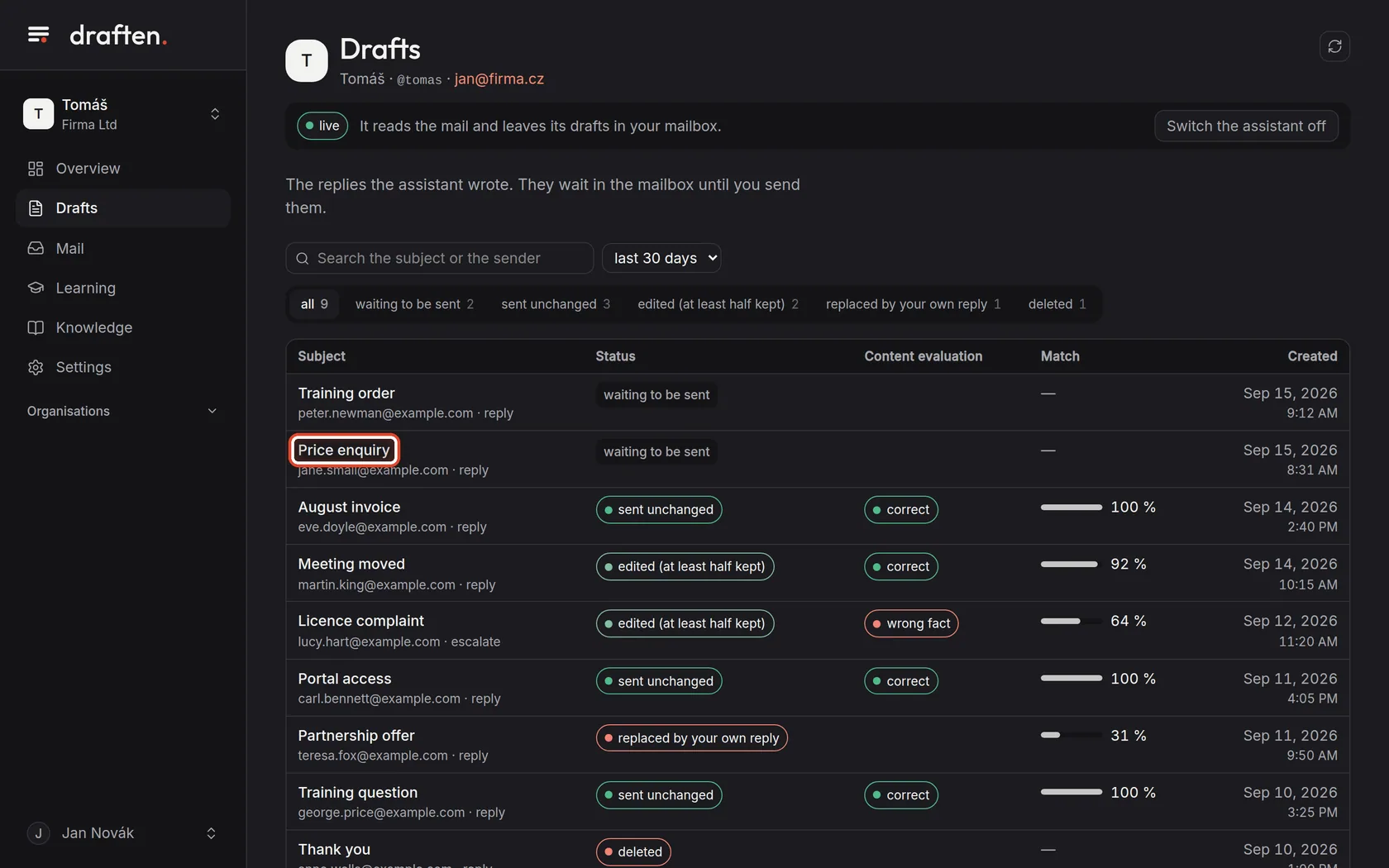
On the screenThe list of drafts. Each shows its subject, who it is for and what state it is in.
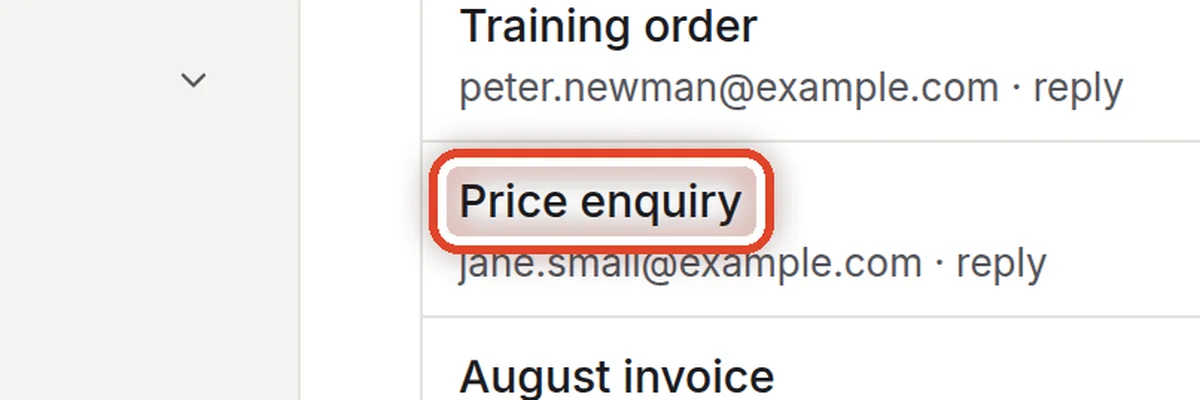
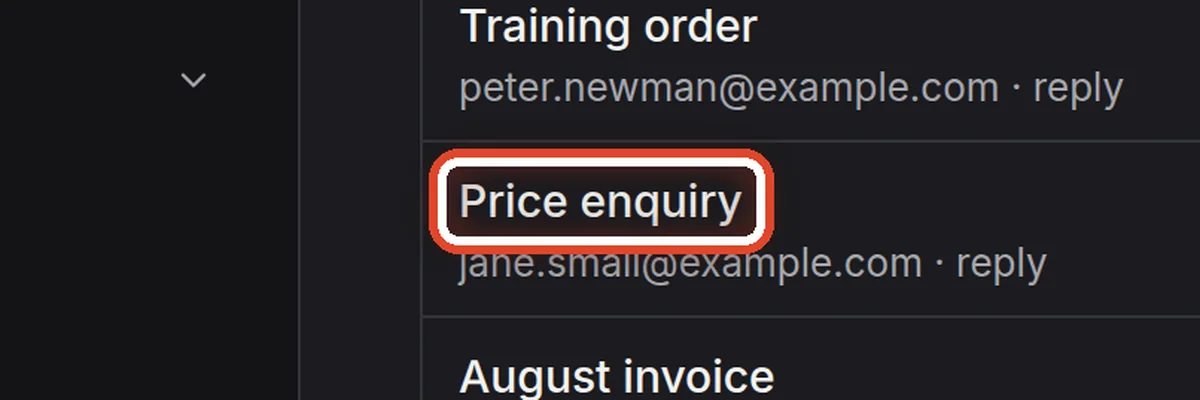
Do thisClick the subject of the draft you want to change — for example Price enquiry.
NoteA draft can be revised while it is waiting to be sent or was written in trial mode. Once sent or deleted, the assistant leaves it alone.
Step 3 of 6
Write what the assistant should change
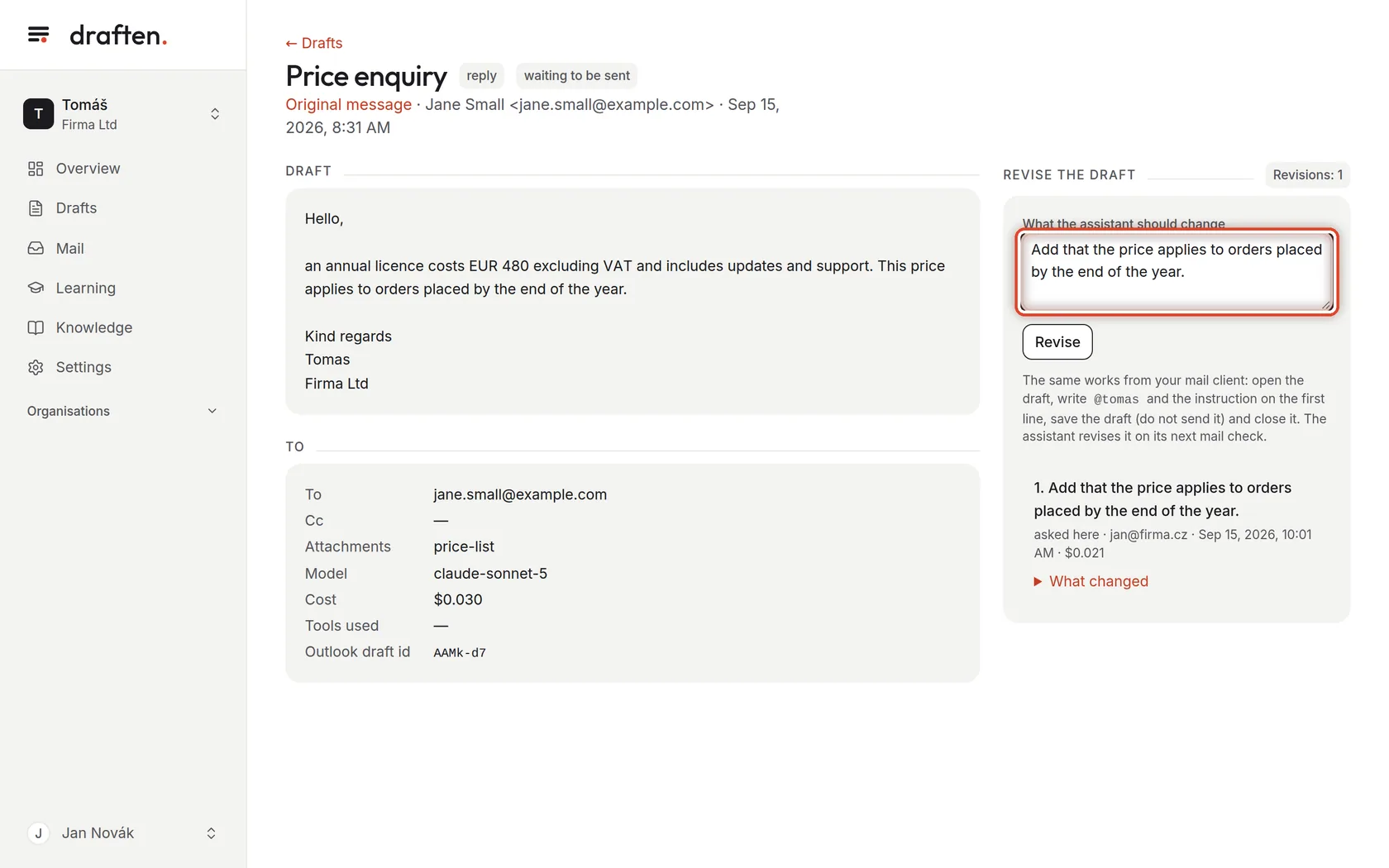
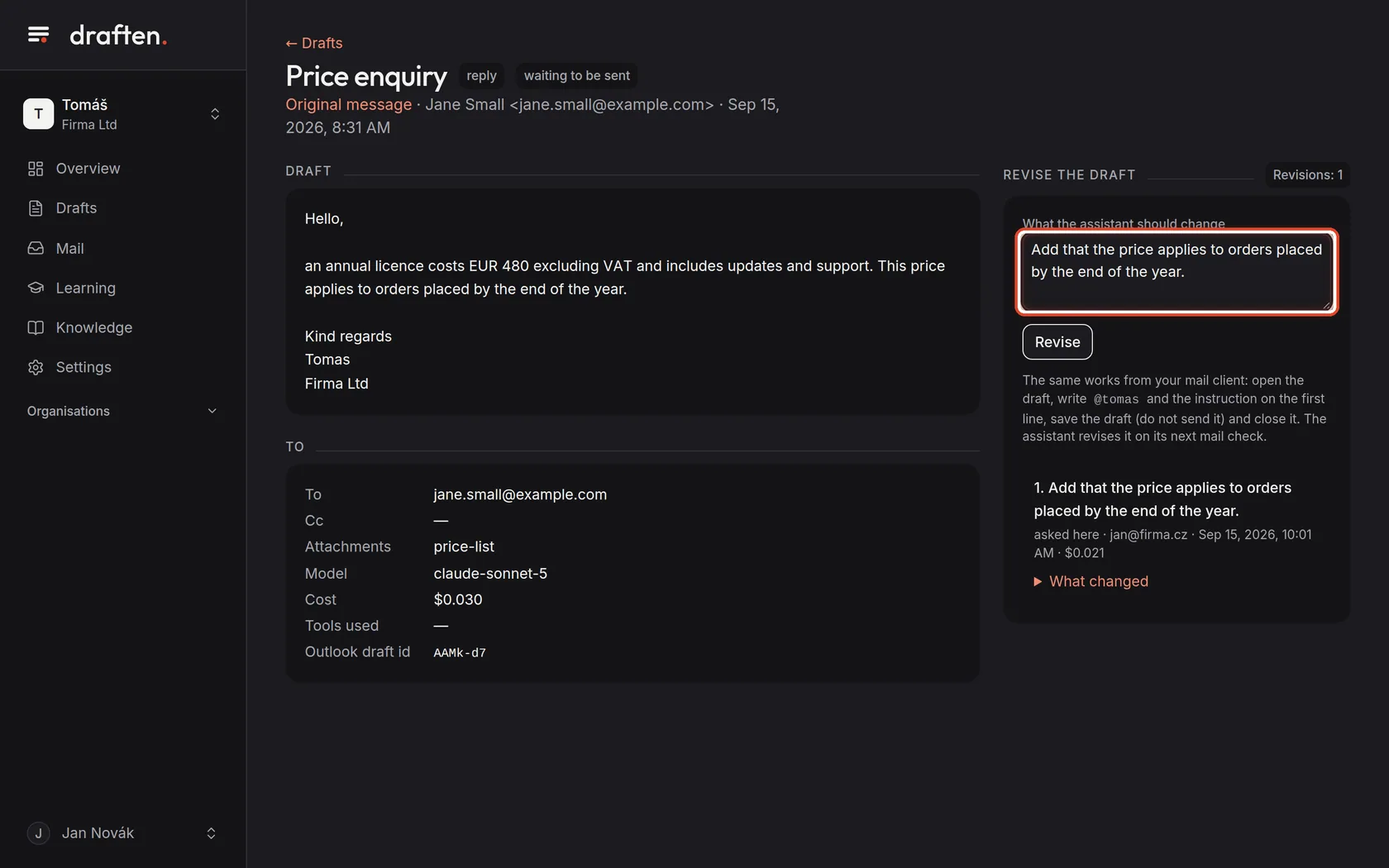
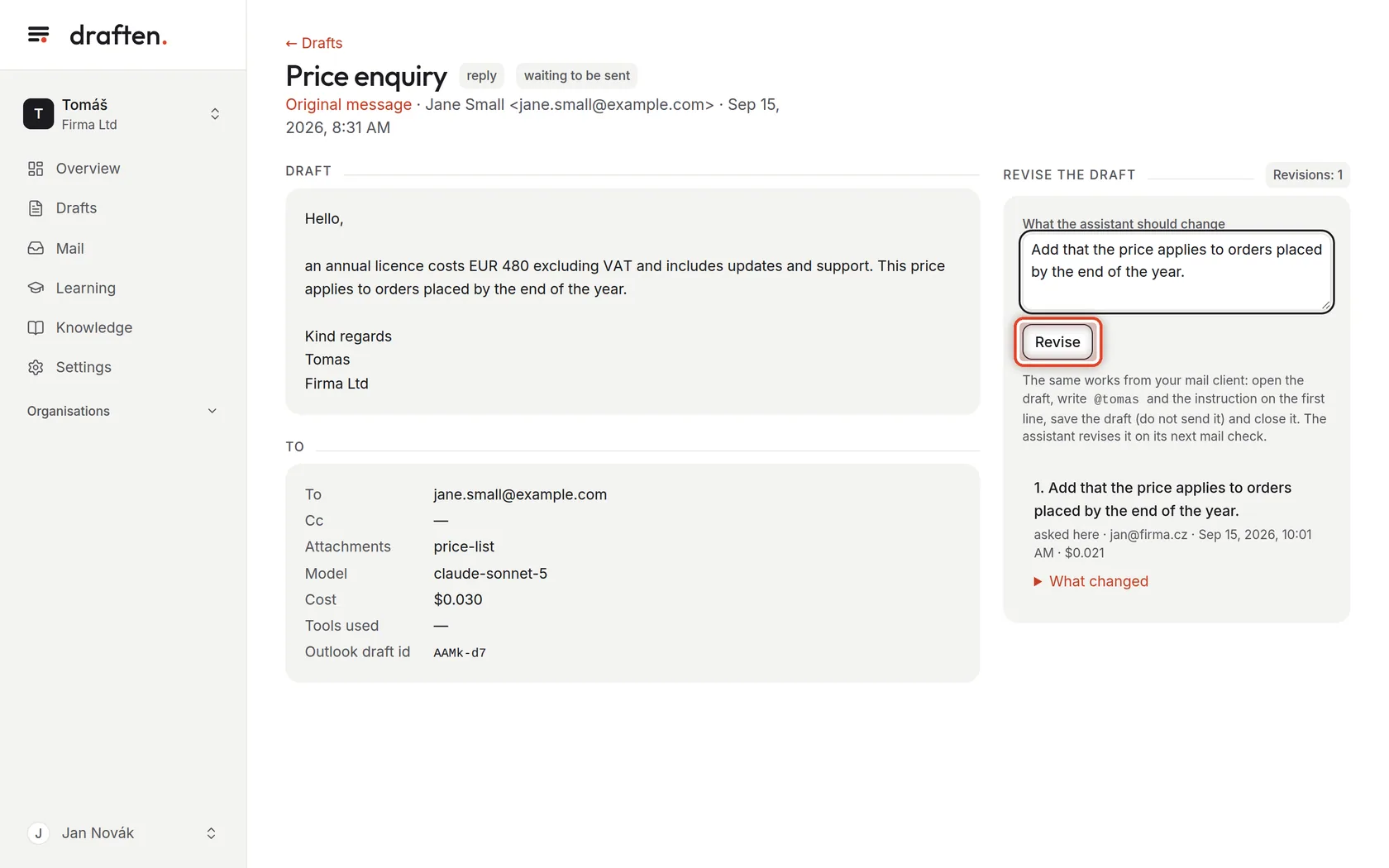
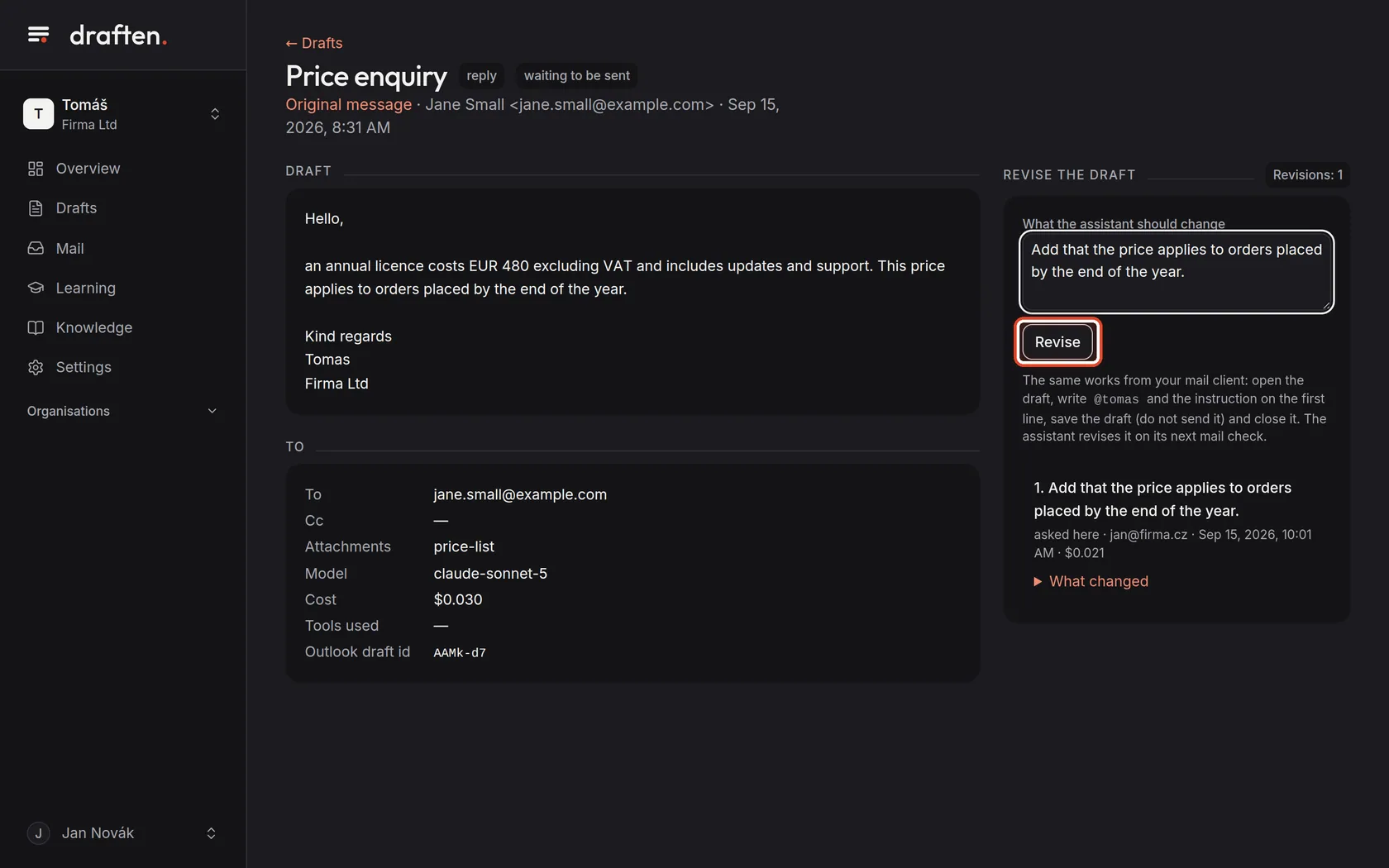
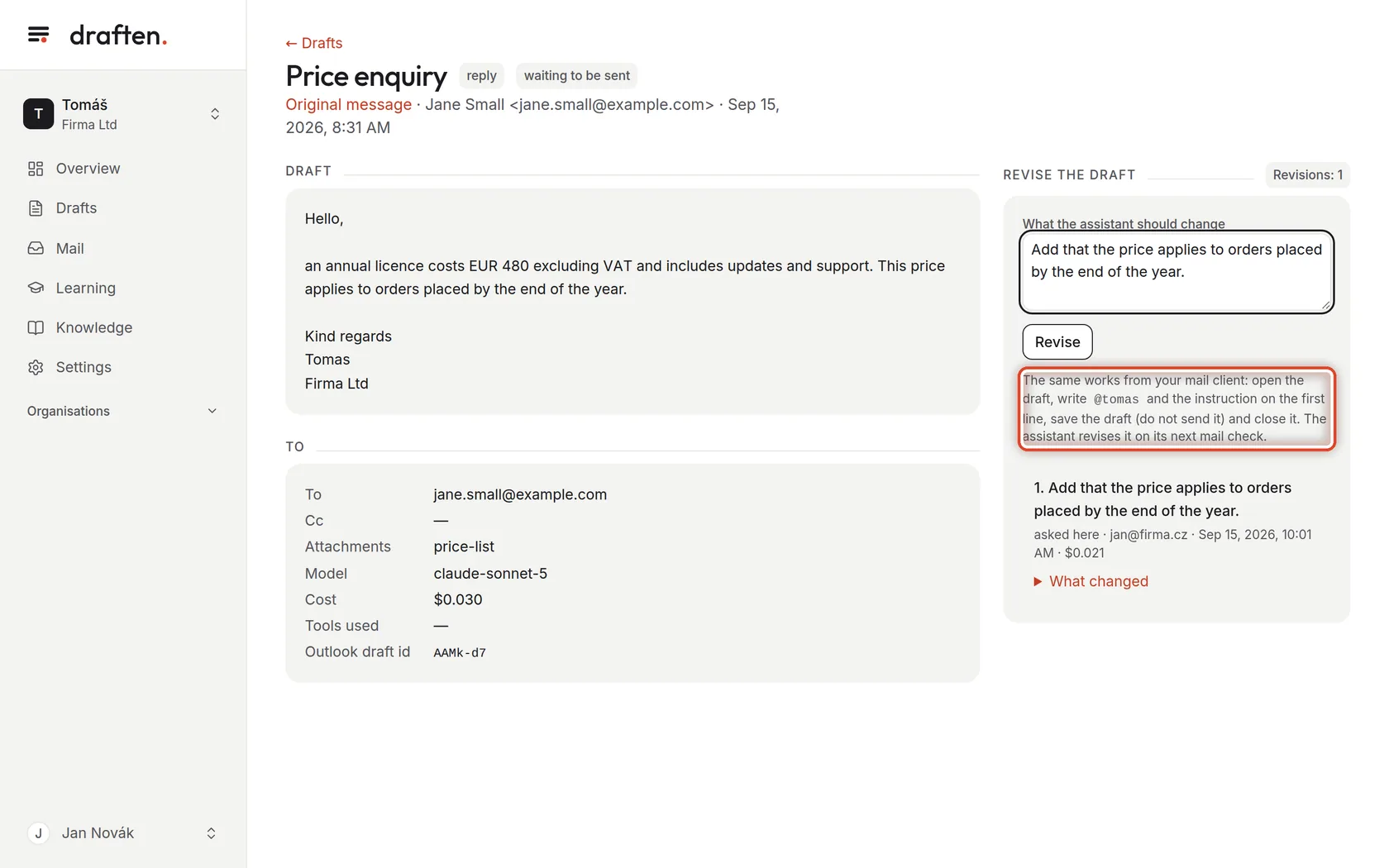
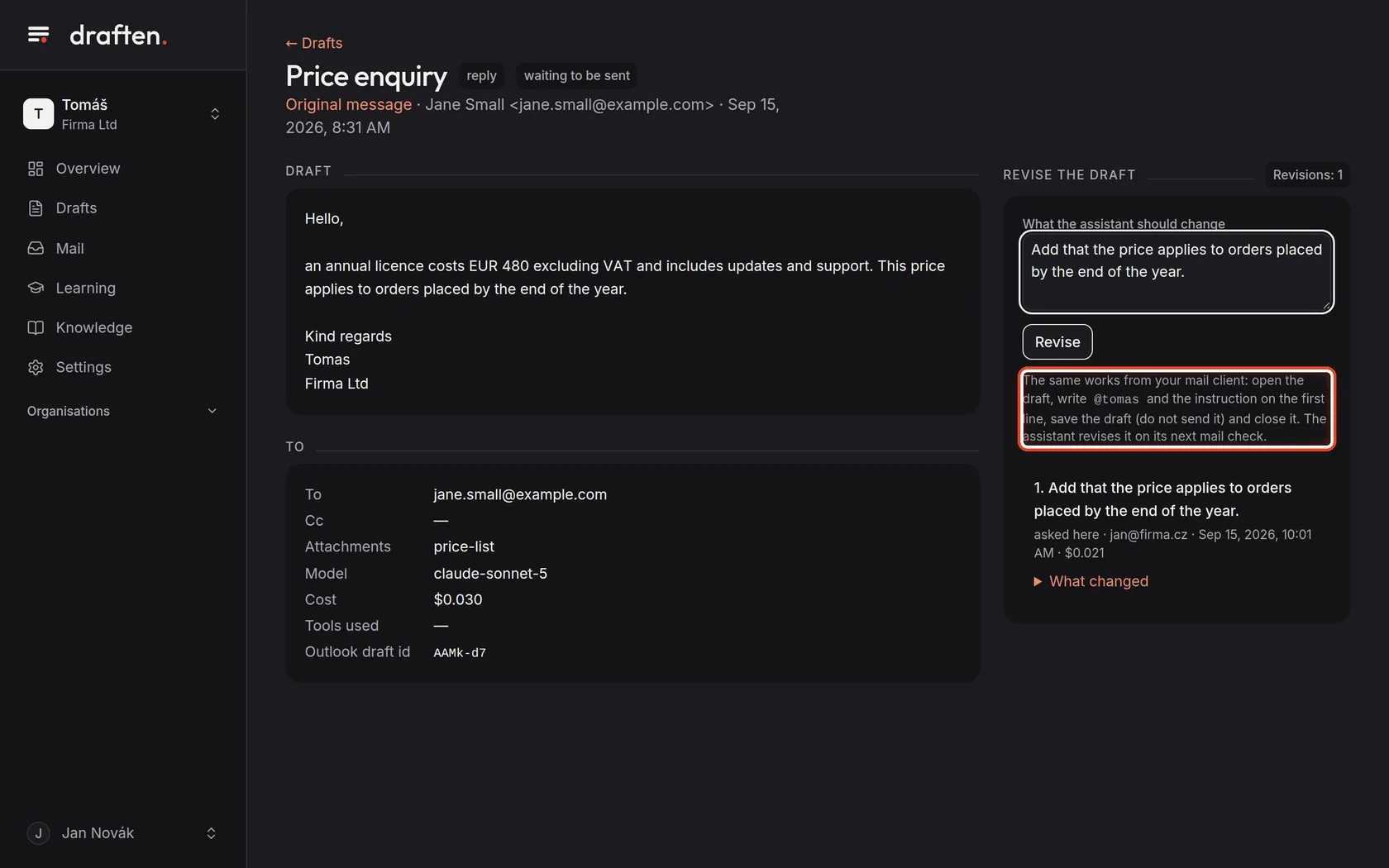
On the screenThe draft's text on the left, Revise the draft on the right.
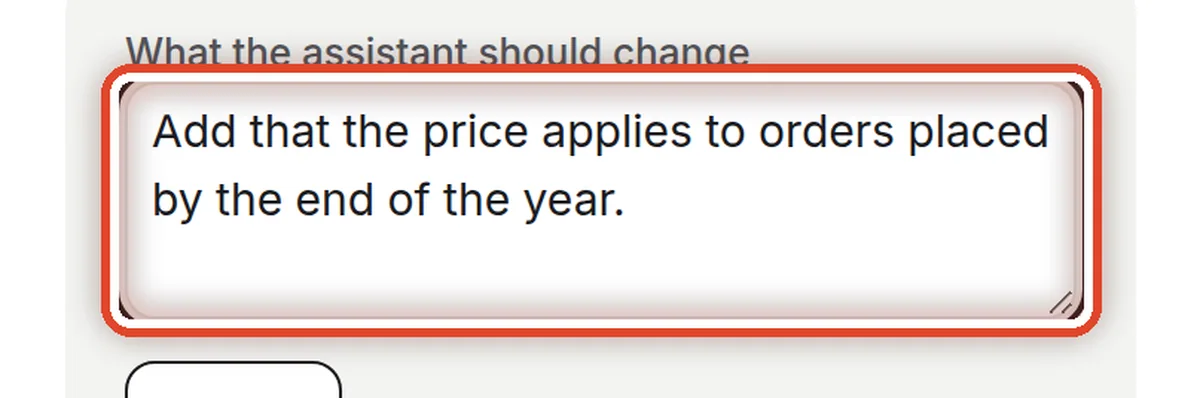
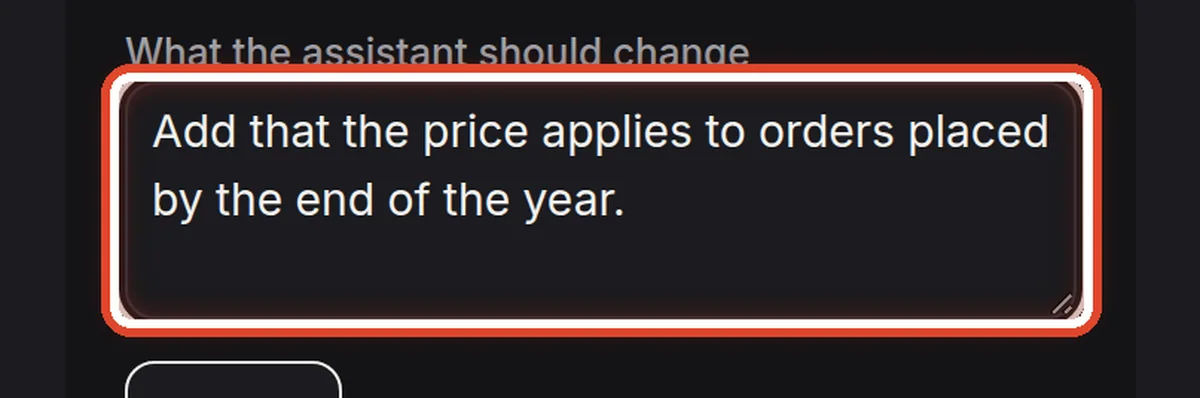
Do thisIn What the assistant should change write one sentence about what is wrong or missing. Plain words are enough, as if you were telling a colleague.
NoteSay what to change, not the whole new text: “Add that the price applies until the end of the year.” The assistant starts from the draft as it is now — if you have already edited it yourself, your edits stay.
Step 4 of 6
Have the draft revised
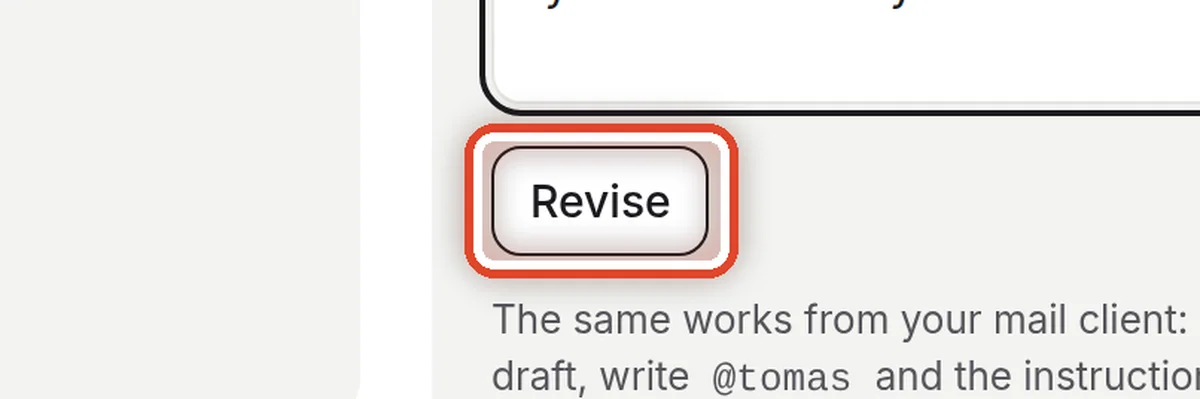
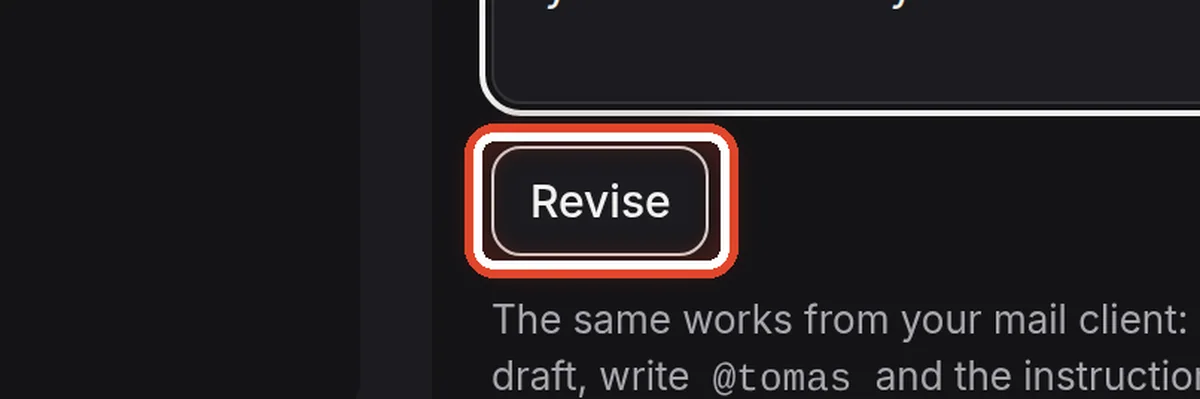
On the screenBelow your instruction there is a button.
Do thisClick Revise. The assistant rewrites the draft within a moment — in the same place, in your mailbox as well as here.
CarefulA revised draft does not send itself. You still send it, from your own mail.
Step 5 of 6
Check the new text
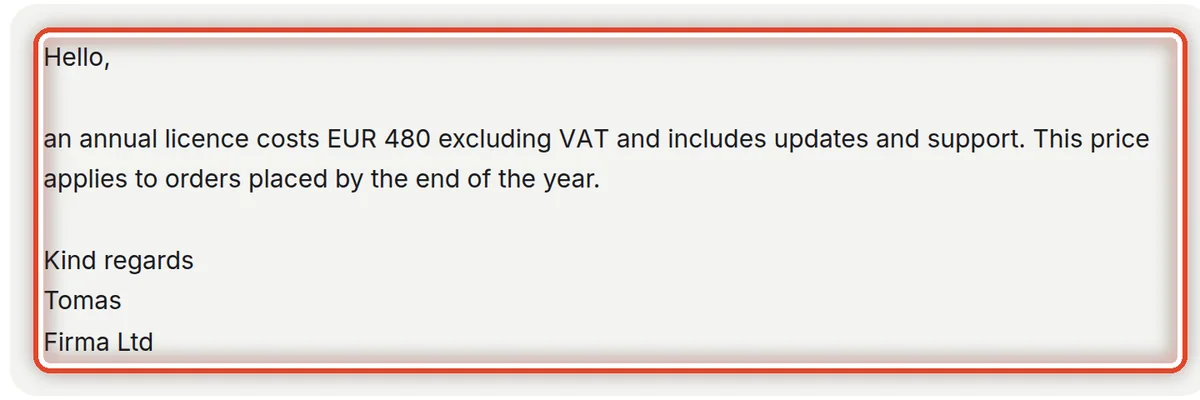
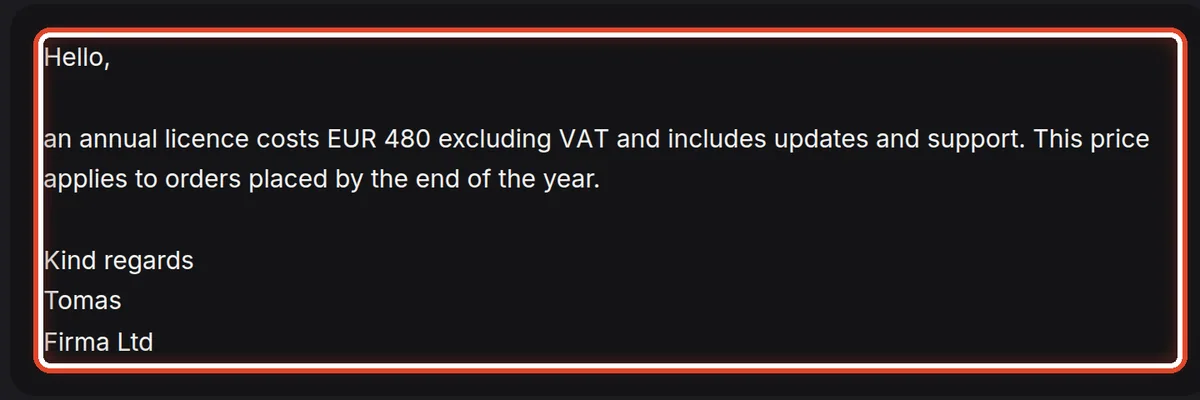
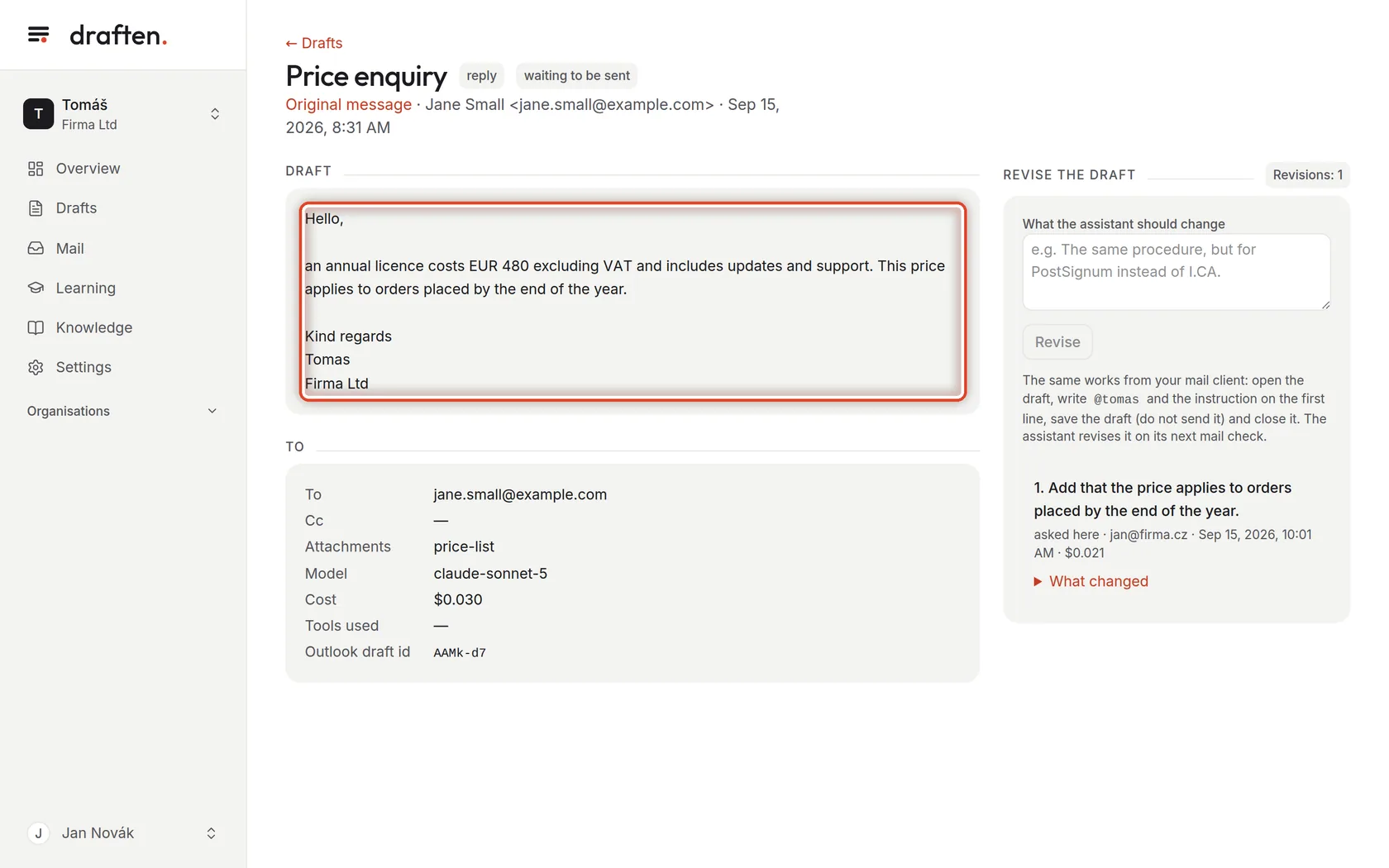
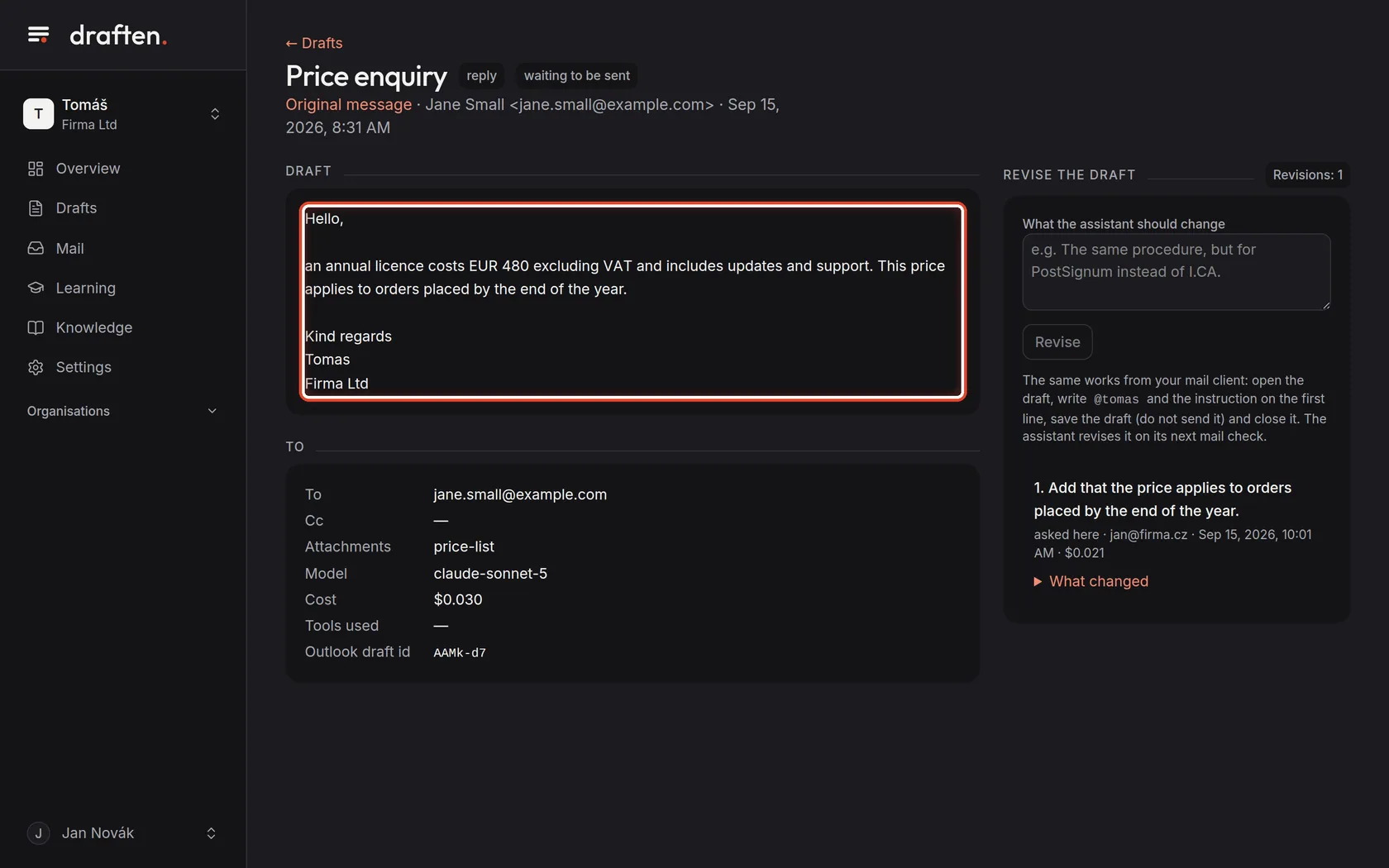
On the screenThe draft now contains the change. Your instruction has joined the list of revisions on the right.
Do thisRead the draft again. If it is still not right, write another instruction — as many times as you like. Under each instruction, What changed shows the difference from the previous text.
Step 6 of 6
The same from your mail program
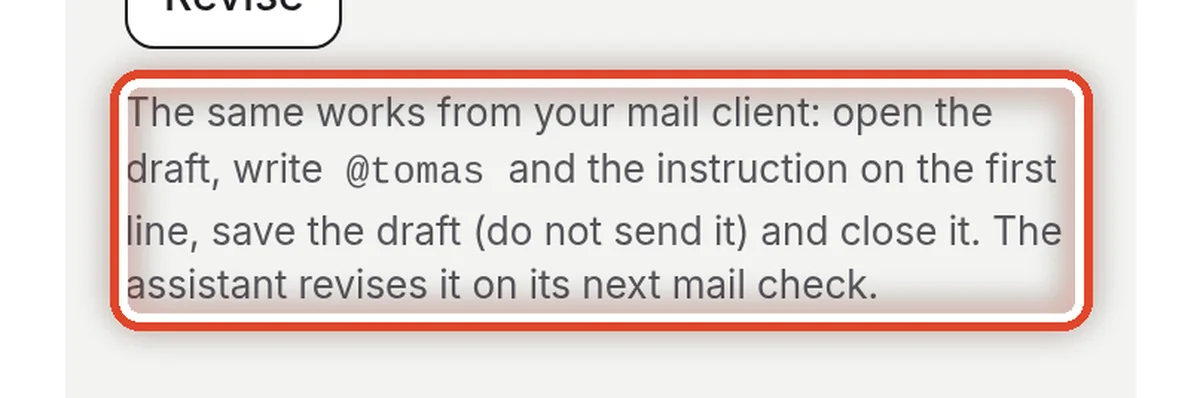
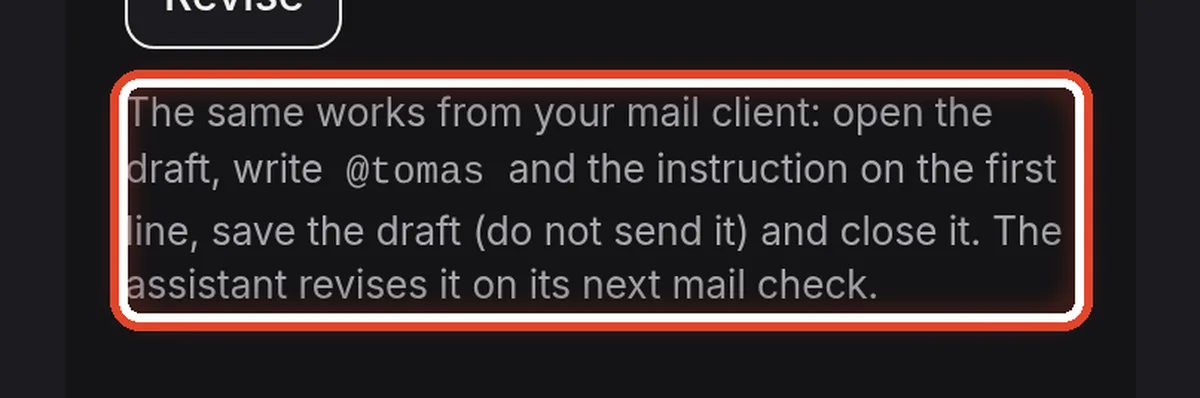
On the screenBelow the Revise button there is a note on doing it without draften.
Do thisIn Outlook or Gmail open the draft, write the assistant's name on the first line — here @tomas — and your instruction after it. Save the draft, do not send it, and close it. The assistant revises it at the next mail check.
NoteYou will find your assistant's name in Settings → The basics, field What to call it in a draft.
The end
Done
The assistant has rewritten the draft. Sending it is still up to you, from your own mail.
- The instruction is keptdraften remembers it and takes it into account when it proposes lessons. If you keep correcting the same thing, Learning will offer it to you as a rule.
- As often as you likeOne draft can take any number of instructions in a row.
- Correcting the same thing again and again?Then the change belongs in the Instructions or Knowledge, not in every draft.