Guide
The mailbox
and who may use it.
Mailbox and access shows which mailbox the assistant answers, how it is connected and which colleagues see it in draften. This is where you reconnect it after it was disconnected, and test it.
Before you start
- Mailbox owner roleThe owner manages the access and the connection; an editor sees the page.
- The mailbox's sign-inTo connect with the account you need the mailbox's sign-in details.
Step 1 of 7
The assistant's mailbox
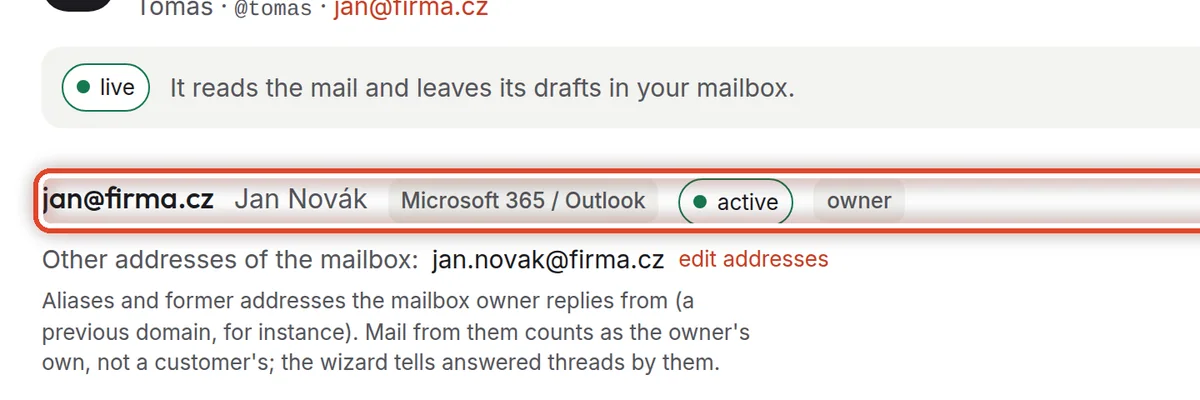
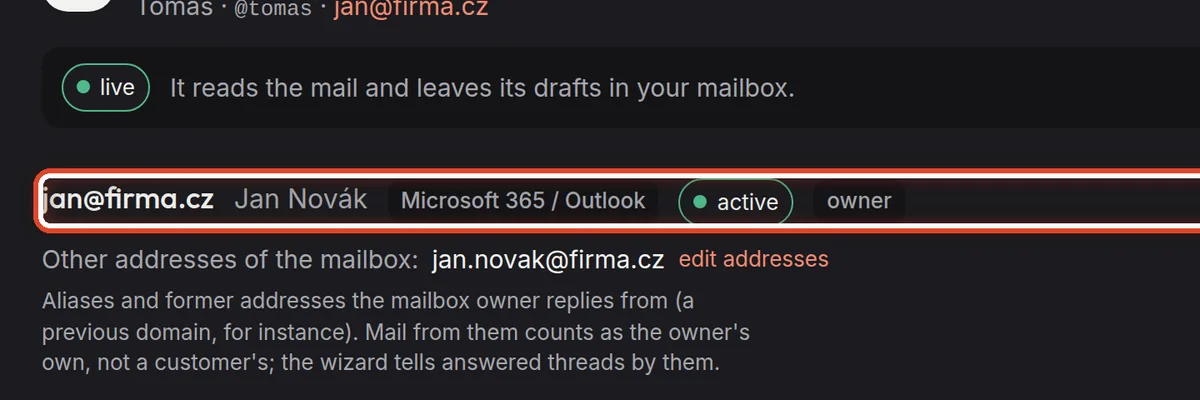
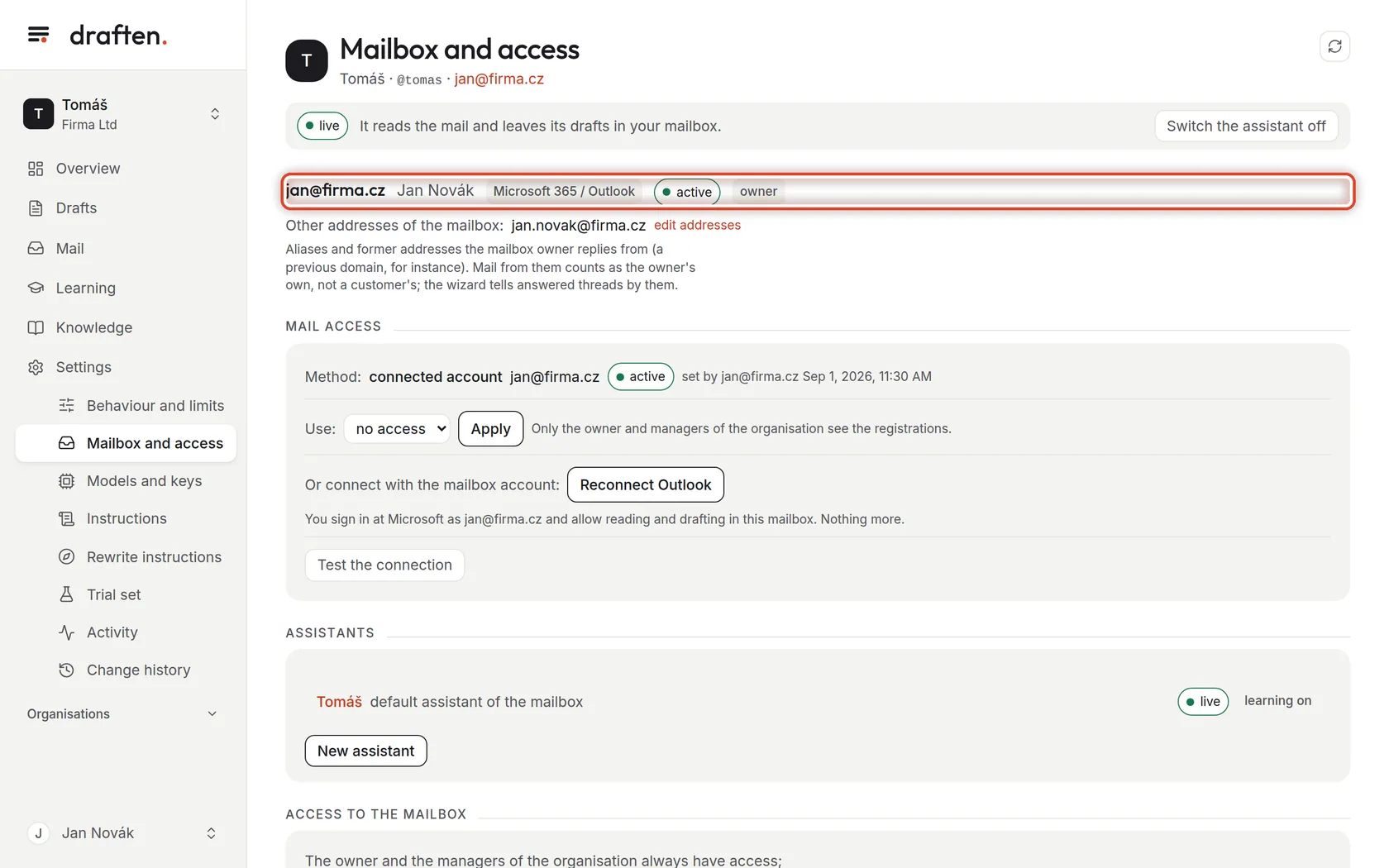
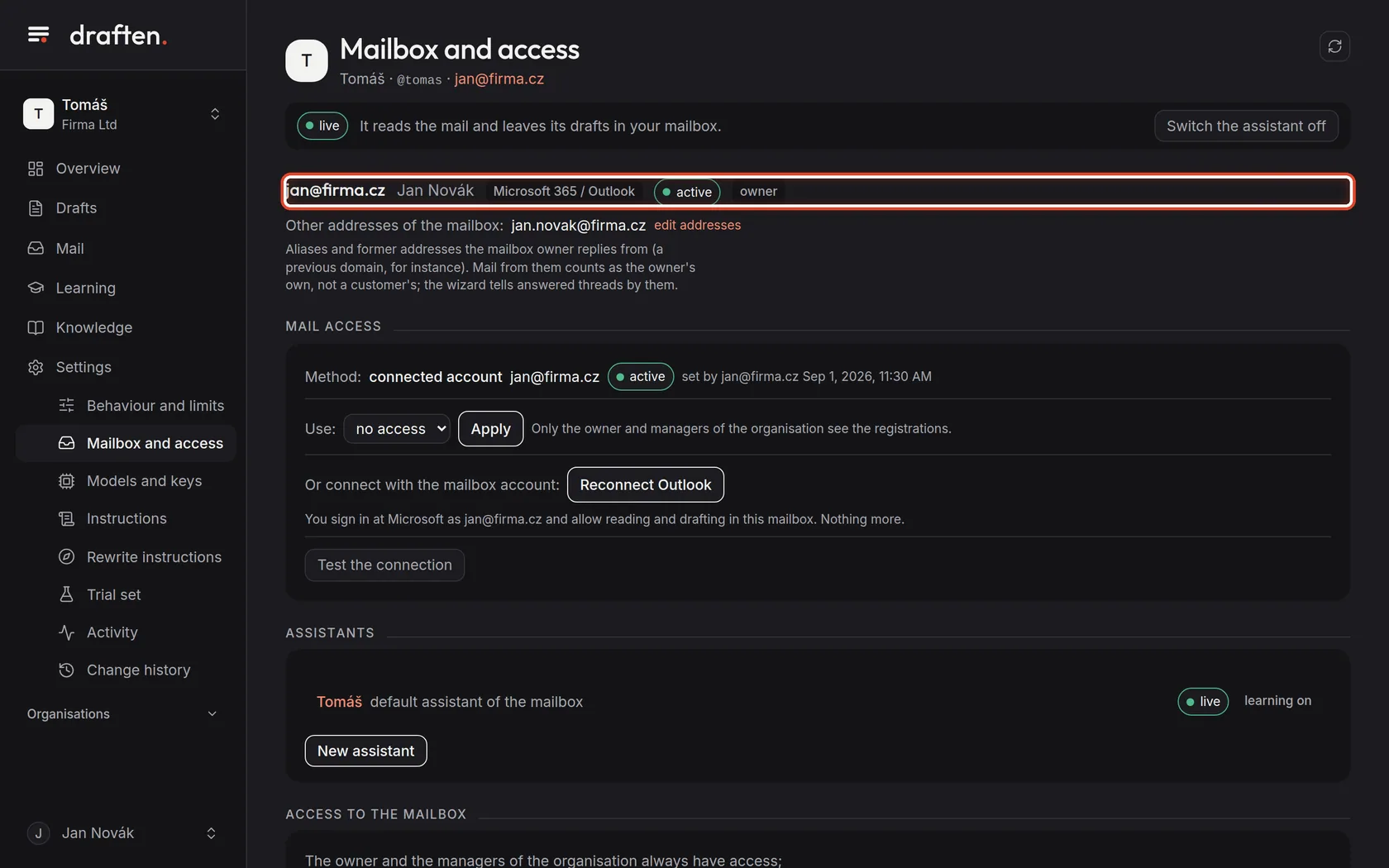
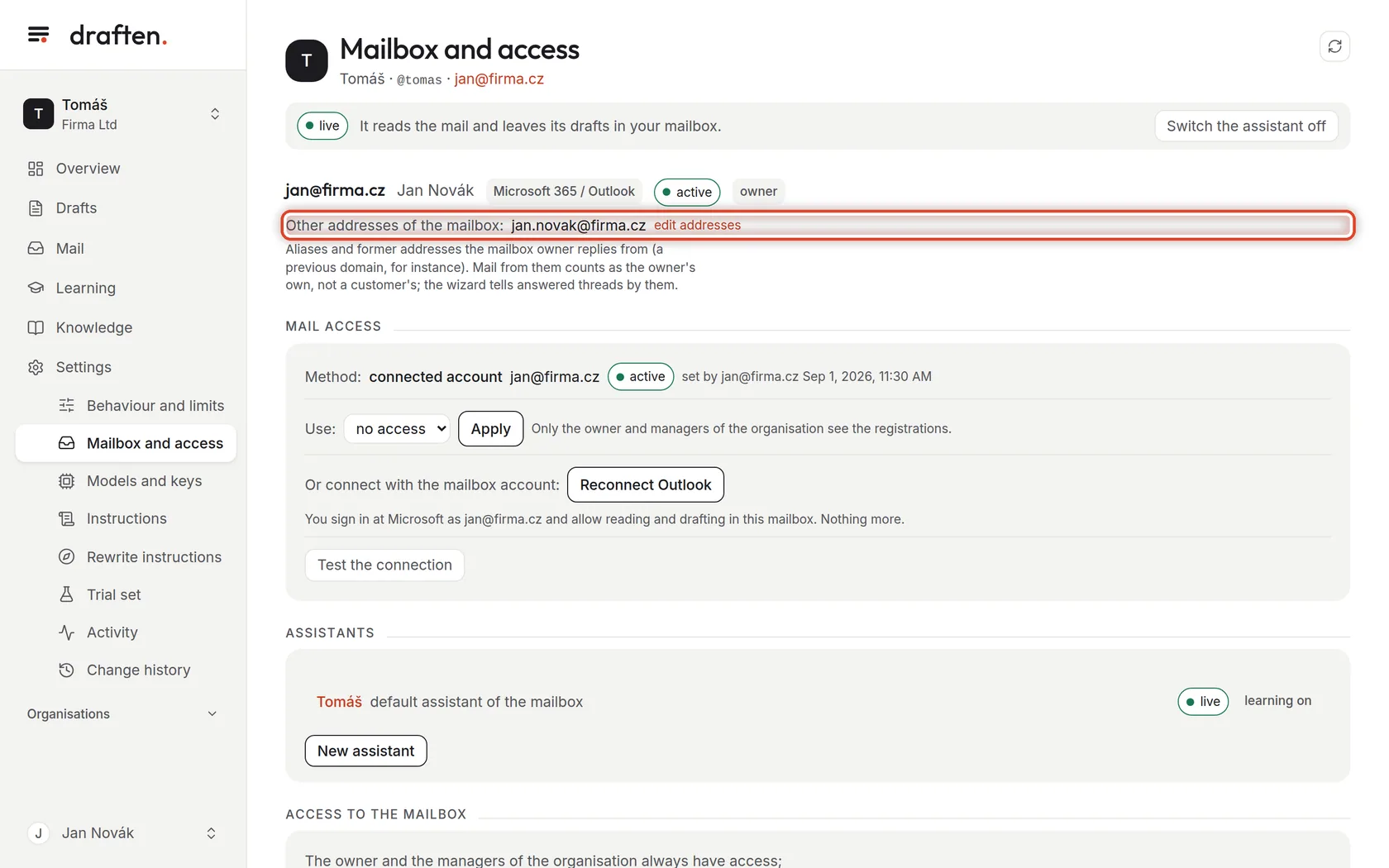
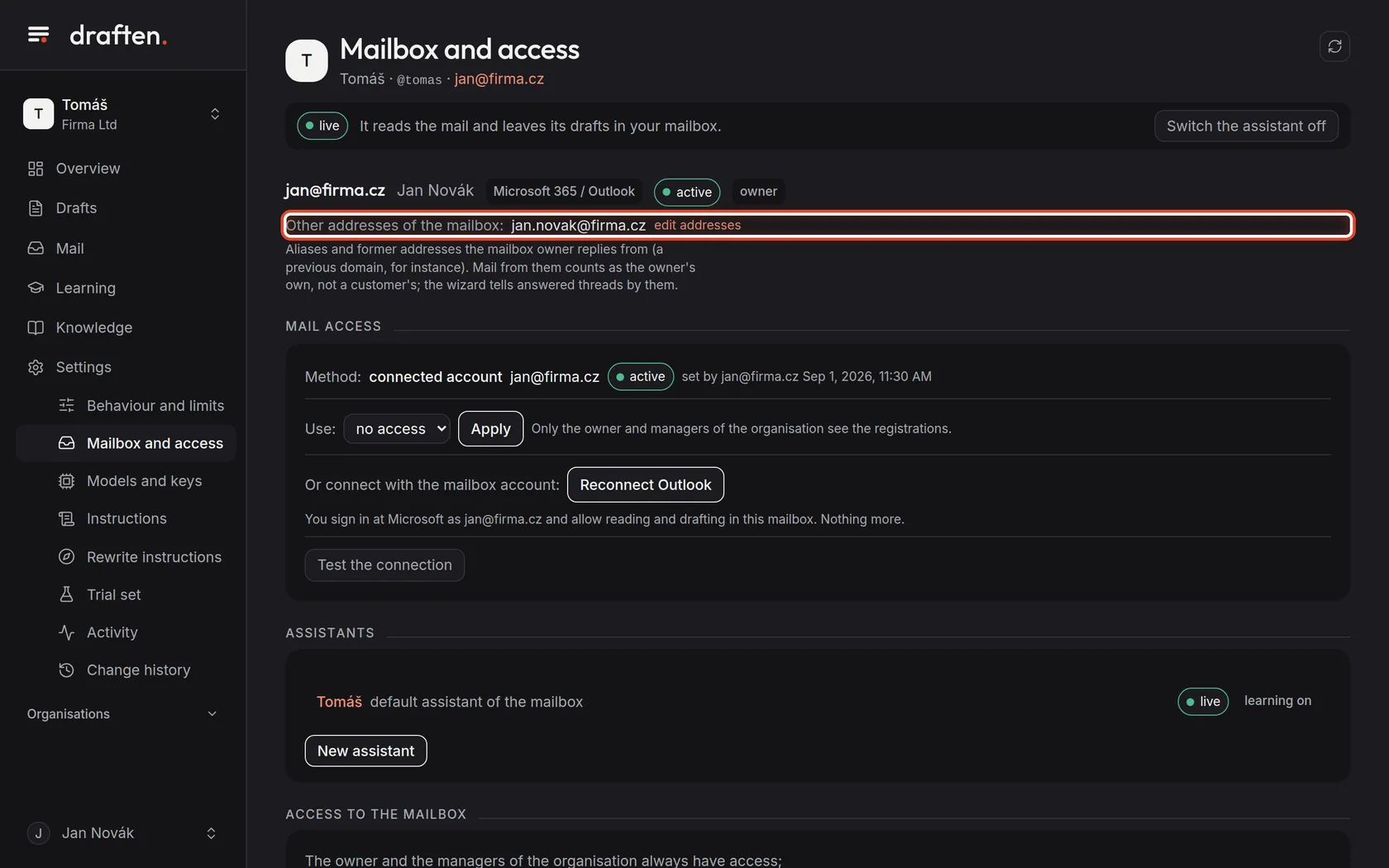
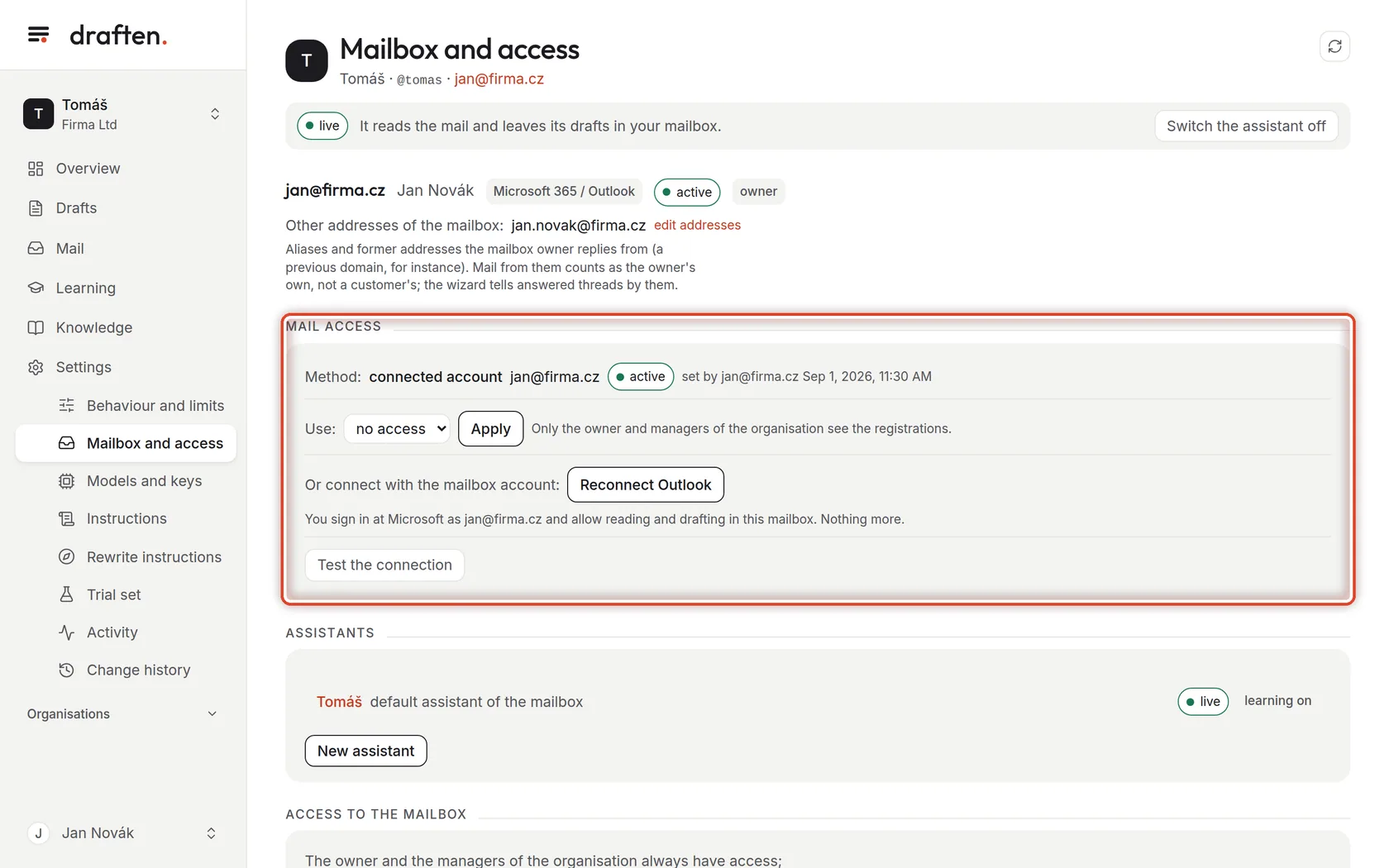
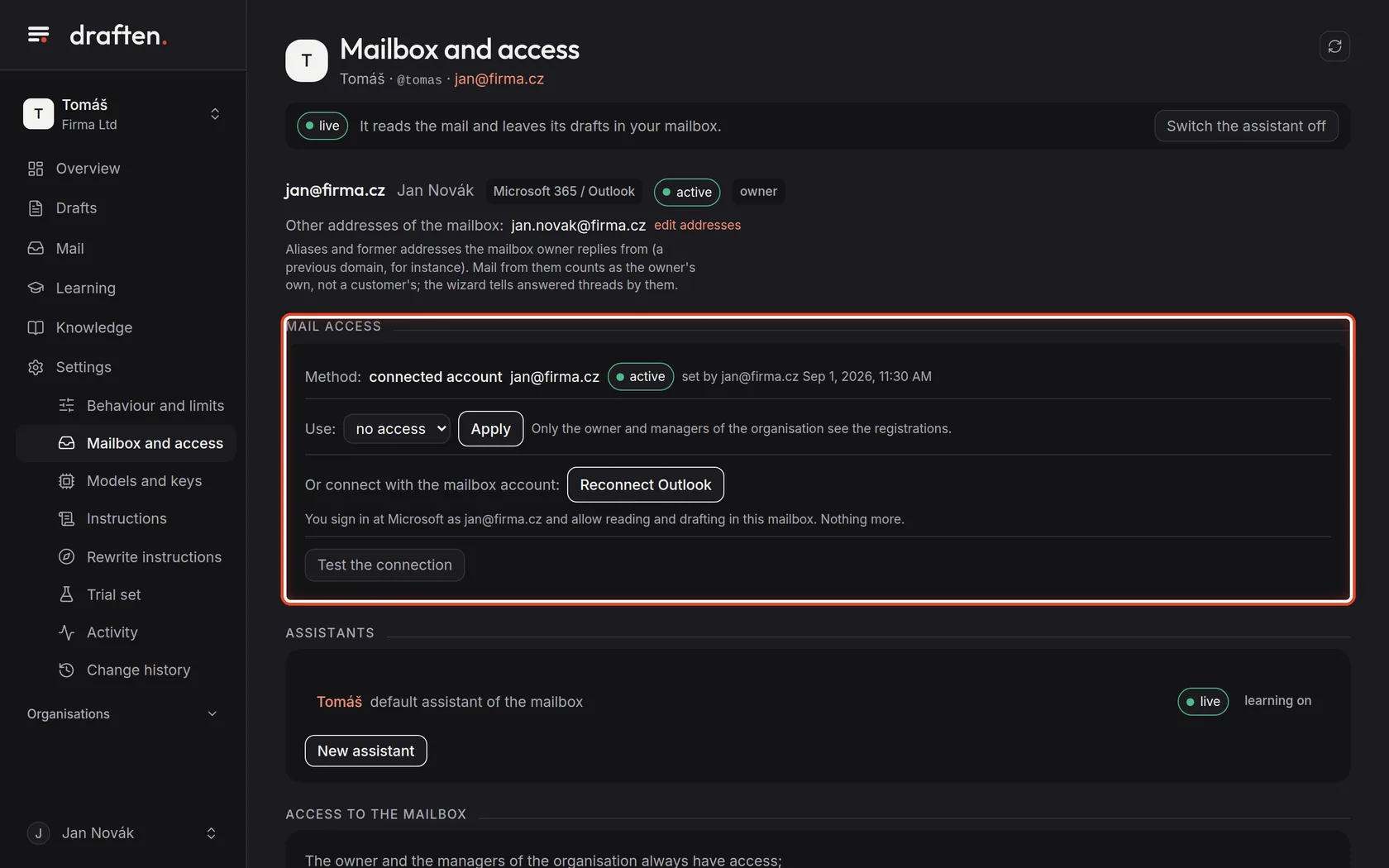
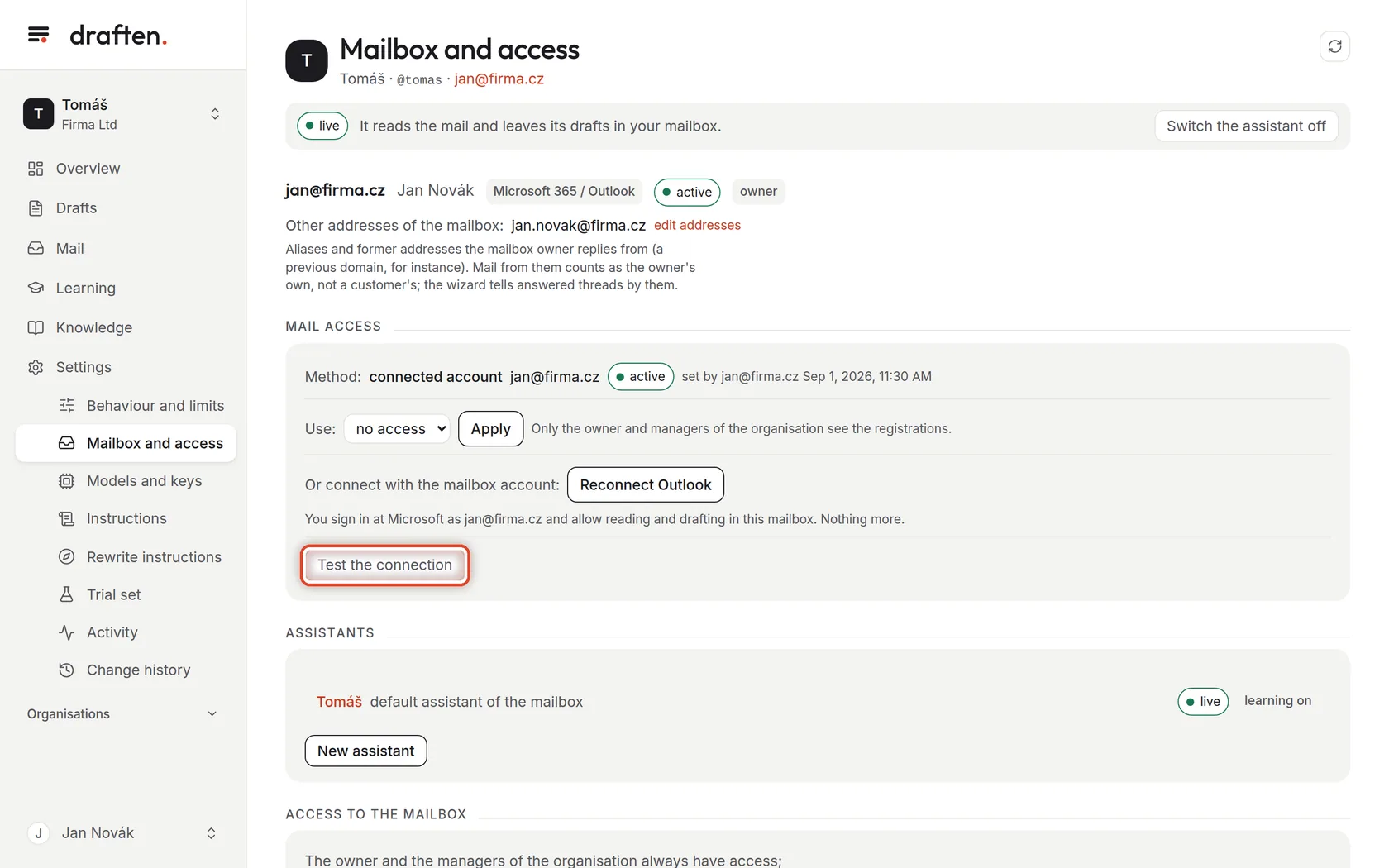
On the screenIn Settings → Mailbox and access, at the top: the mailbox address, the mail system, the status and your role.
Do thisThis is the mailbox the assistant answers. active means the assistant can see into it; disconnected means you have to connect it again (a step below).
Step 2 of 7
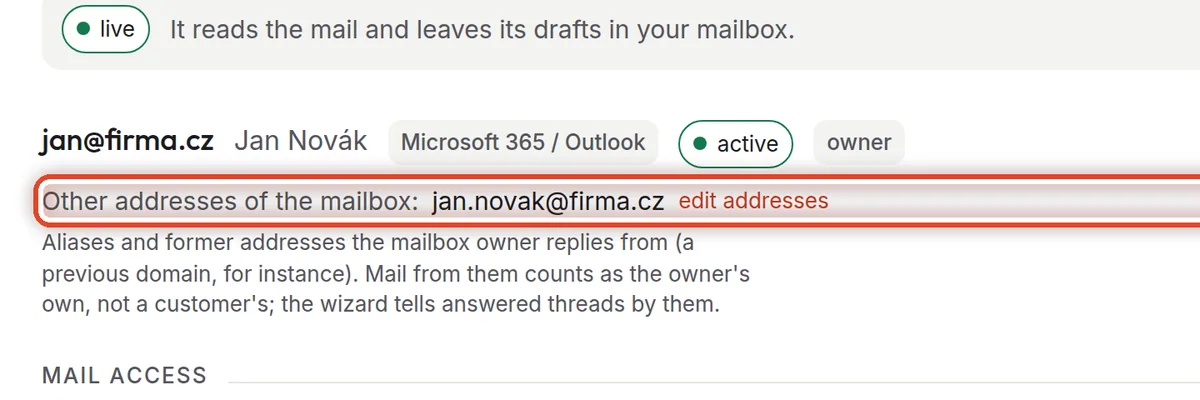
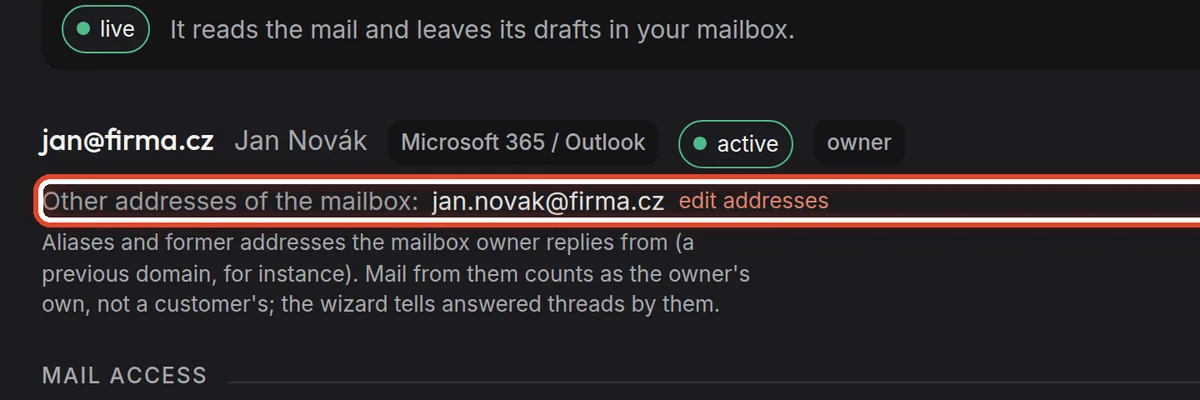
Other addresses of the mailbox
On the screenThe Other addresses of the mailbox line with an edit addresses link.
Do thisAliases and former addresses you reply from in this mailbox. Mail from them is your own, not a customer's — the assistant does not answer it, and the wizard knows from them what you have already answered. Click edit addresses, type them separated by commas and save.
NoteThe mailbox owner and the organisation's managers change the addresses.
Step 3 of 7
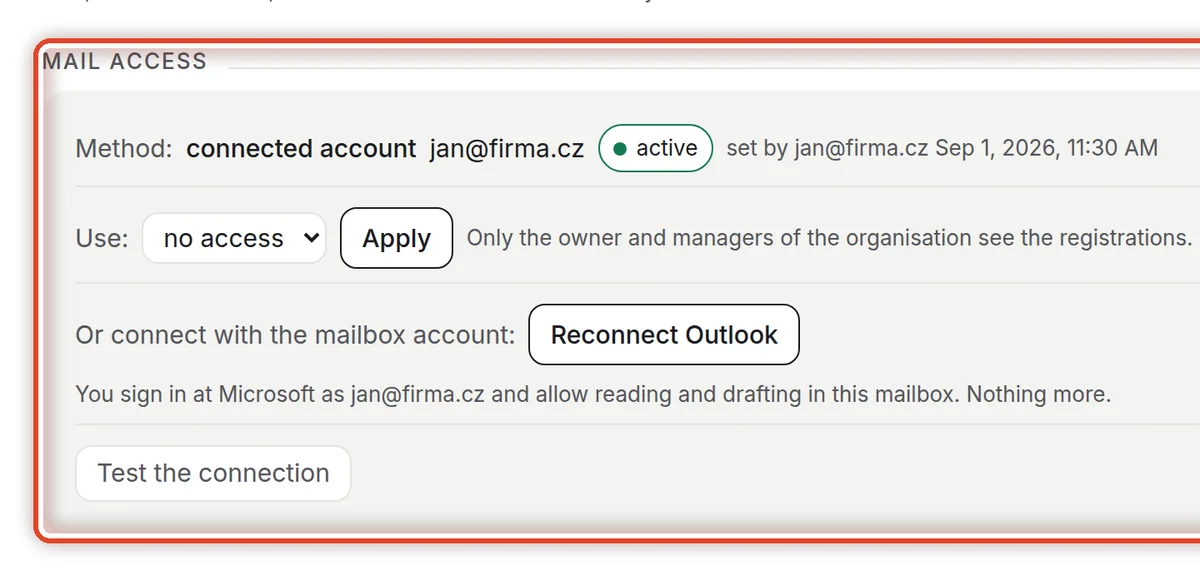
Mail access
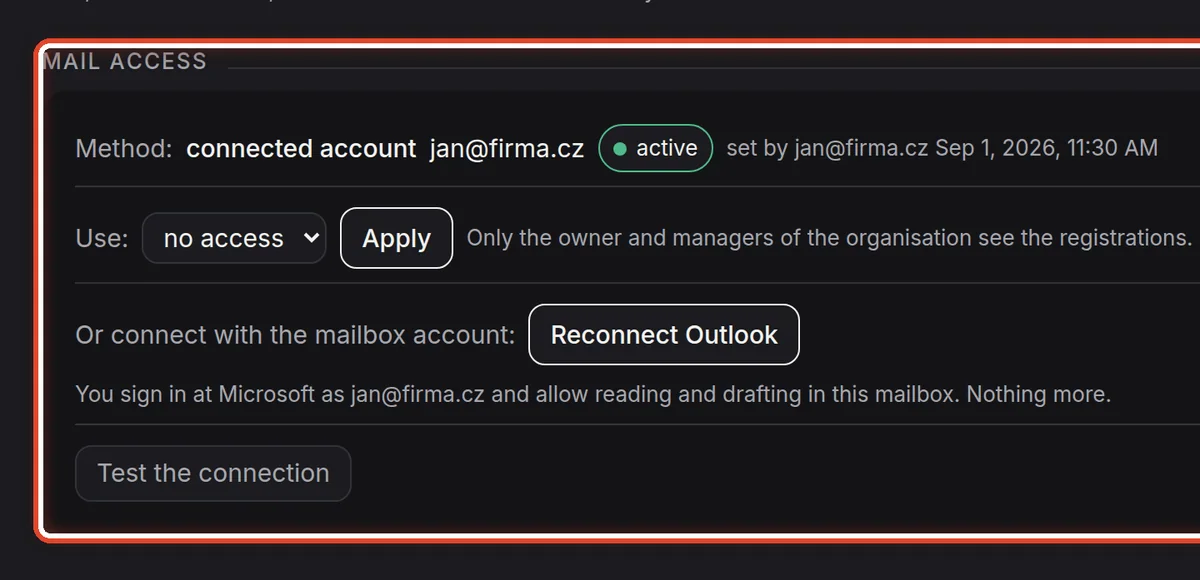
On the screenThe Mail access card with the way the mailbox is connected.
Do thisHow the assistant gets into the mailbox: a connected account (you signed in with the mailbox account), an app registration (a connection for the whole organisation, set by a manager) or an IMAP login (for other mail services). Each shows who set it up and when.
NoteThe assistant may only read mail and write drafts. It cannot send or delete anything — draften never asks for such a permission.
Step 4 of 7
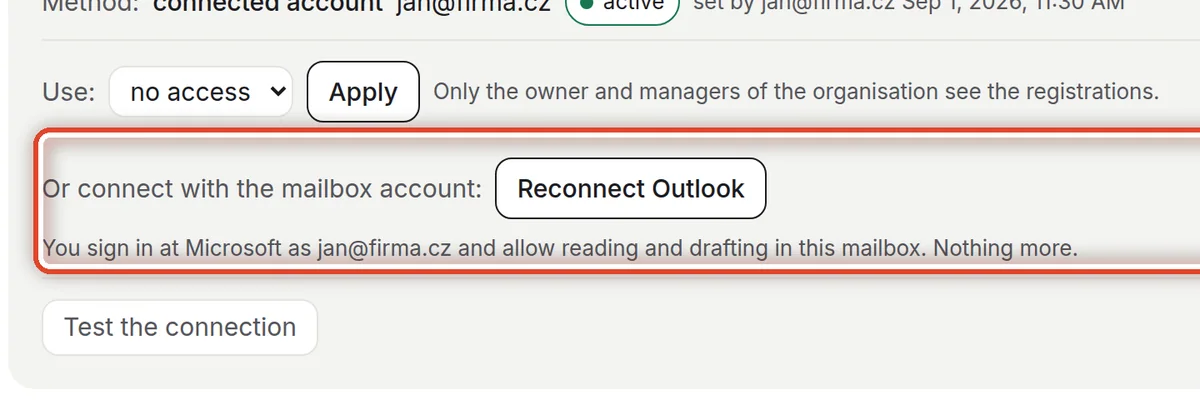
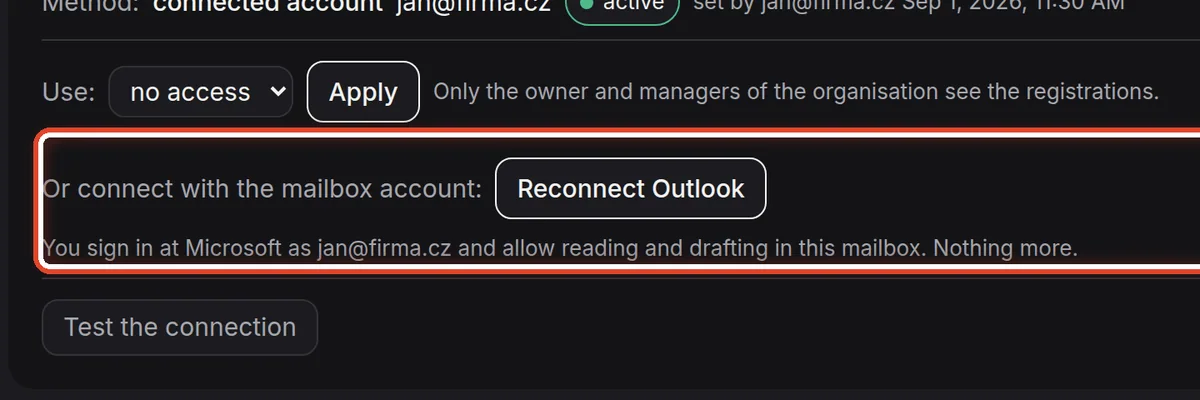
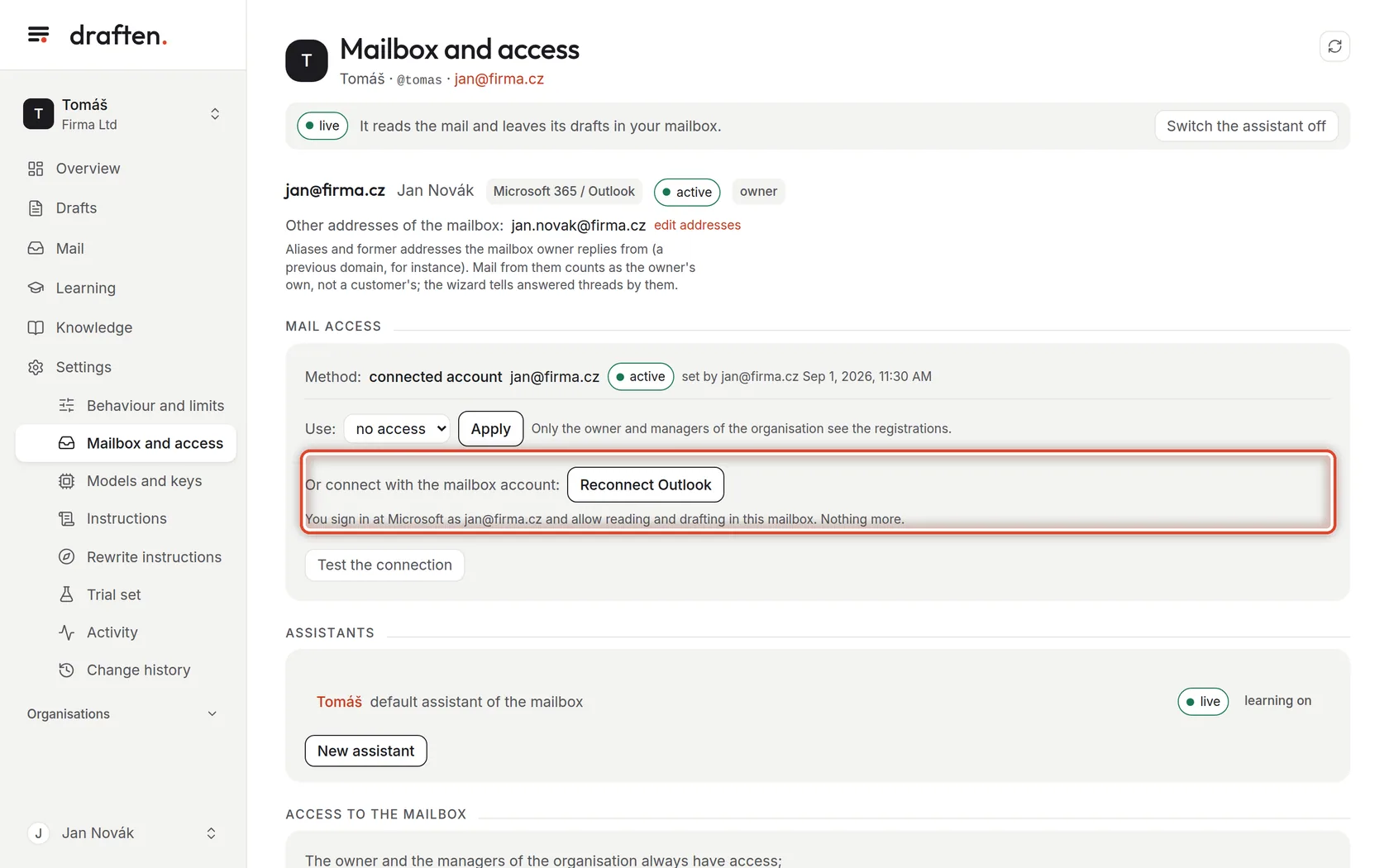
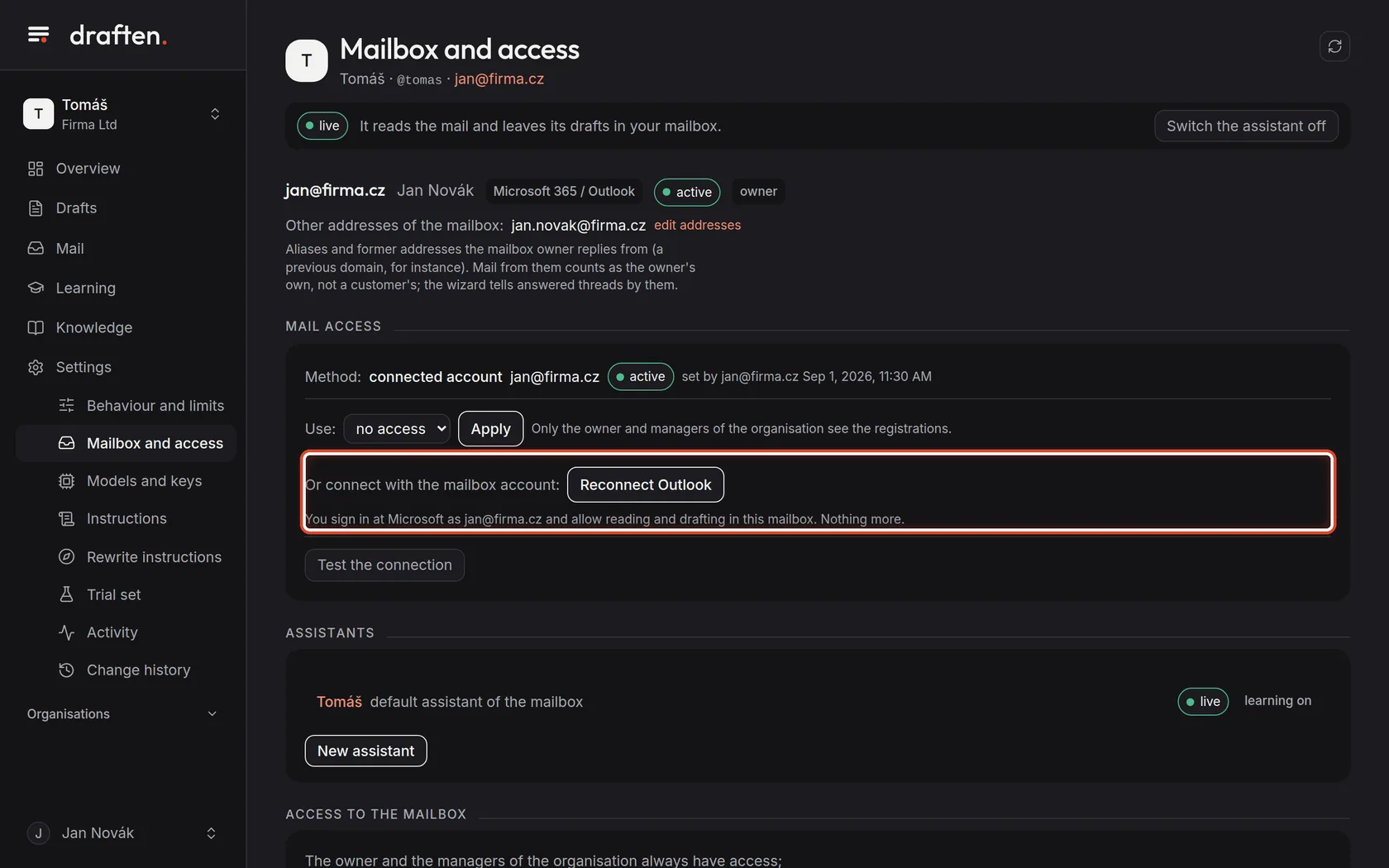
Connecting with the mailbox account
On the screenThe Reconnect Outlook button (Connect Gmail for Gmail).
Do thisClick it, sign in at Microsoft (or Google) with this mailbox's account and allow reading and drafting. Then you come back here.
NoteWhen the mailbox loses access (a changed password, a withdrawn consent), its status is disconnected and the assistant skips it. Connect it again with the same button.
Step 5 of 7
Test the connection
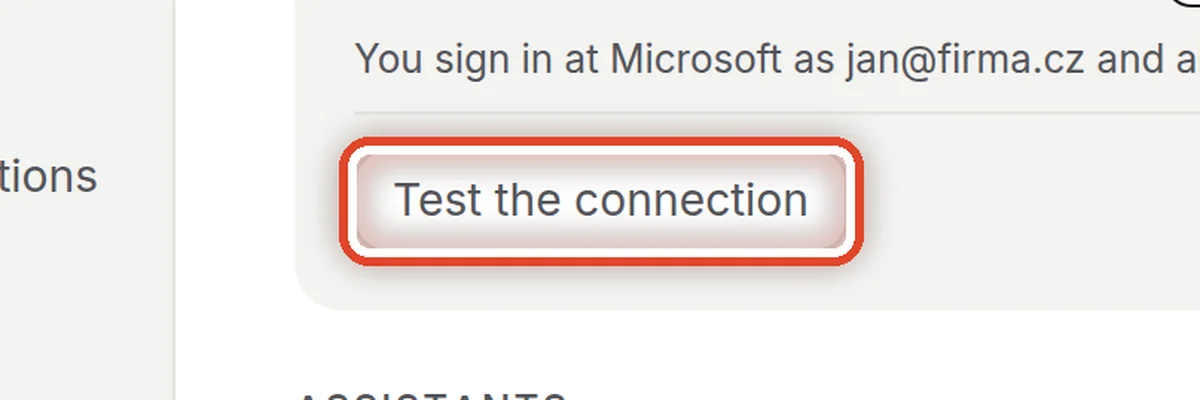
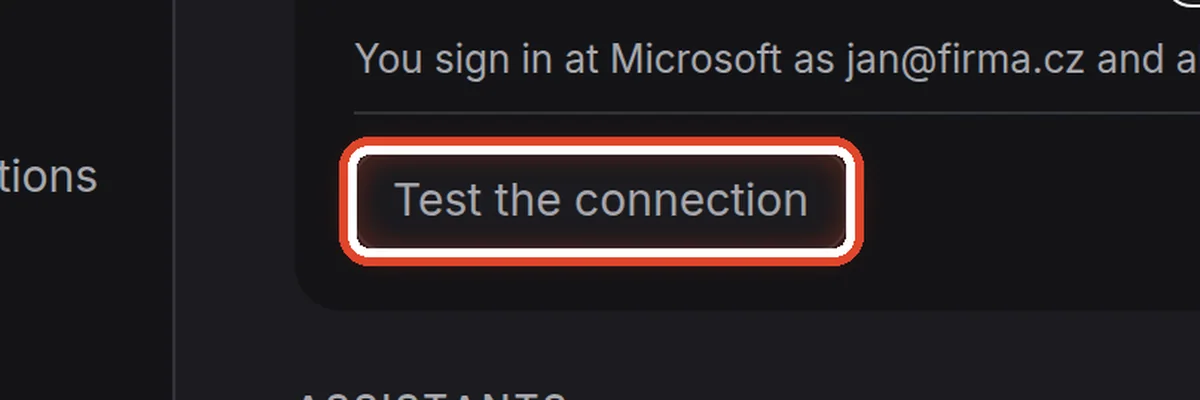
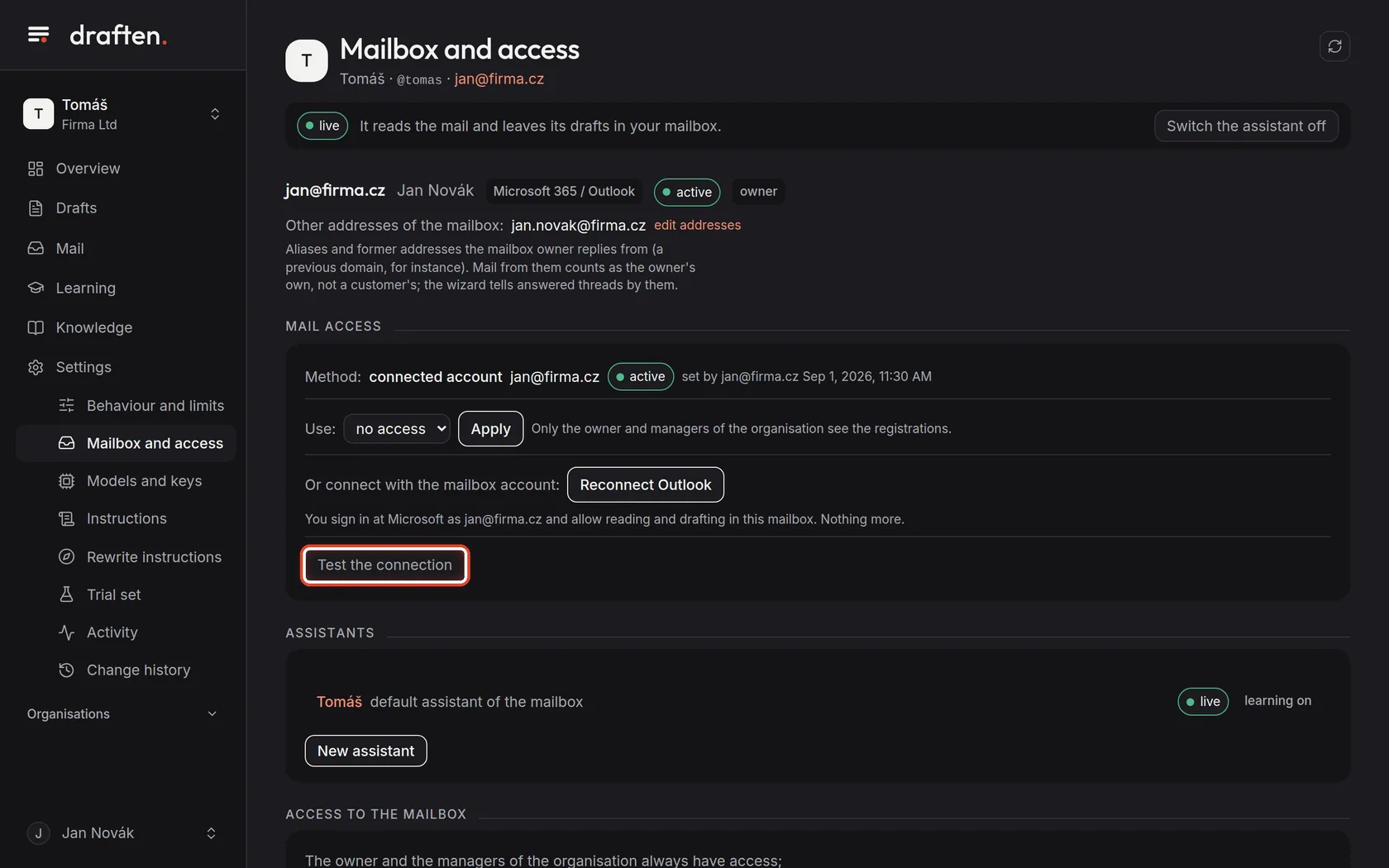
On the screenThe Test the connection button.
Do thisClick Test the connection. The assistant tries the access, the permission and reading the inbox, and shows the result of each. When the test passes for a disconnected mailbox, it switches itself back on.
Step 6 of 7
Who may use the mailbox
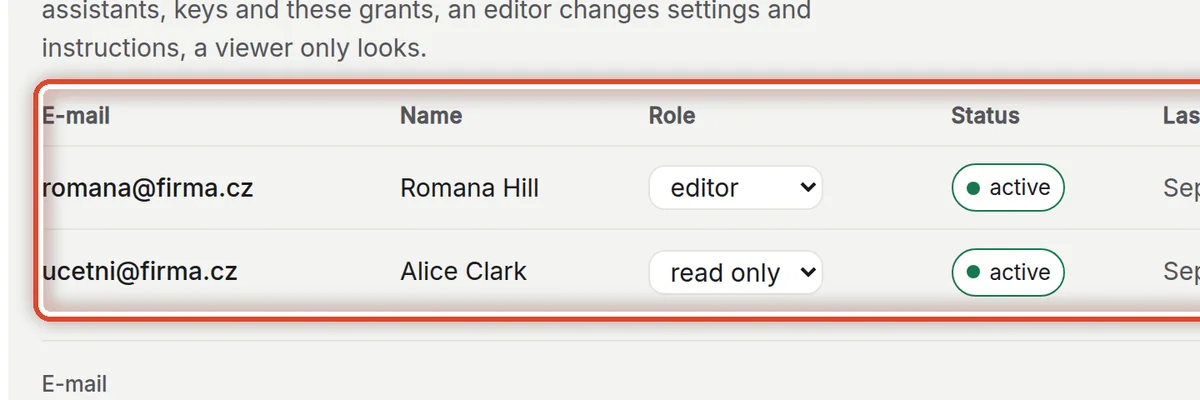
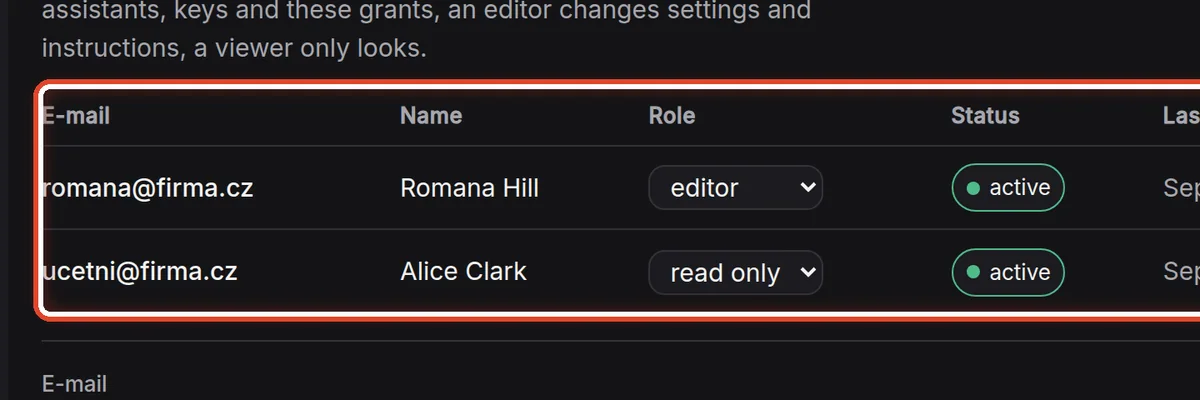
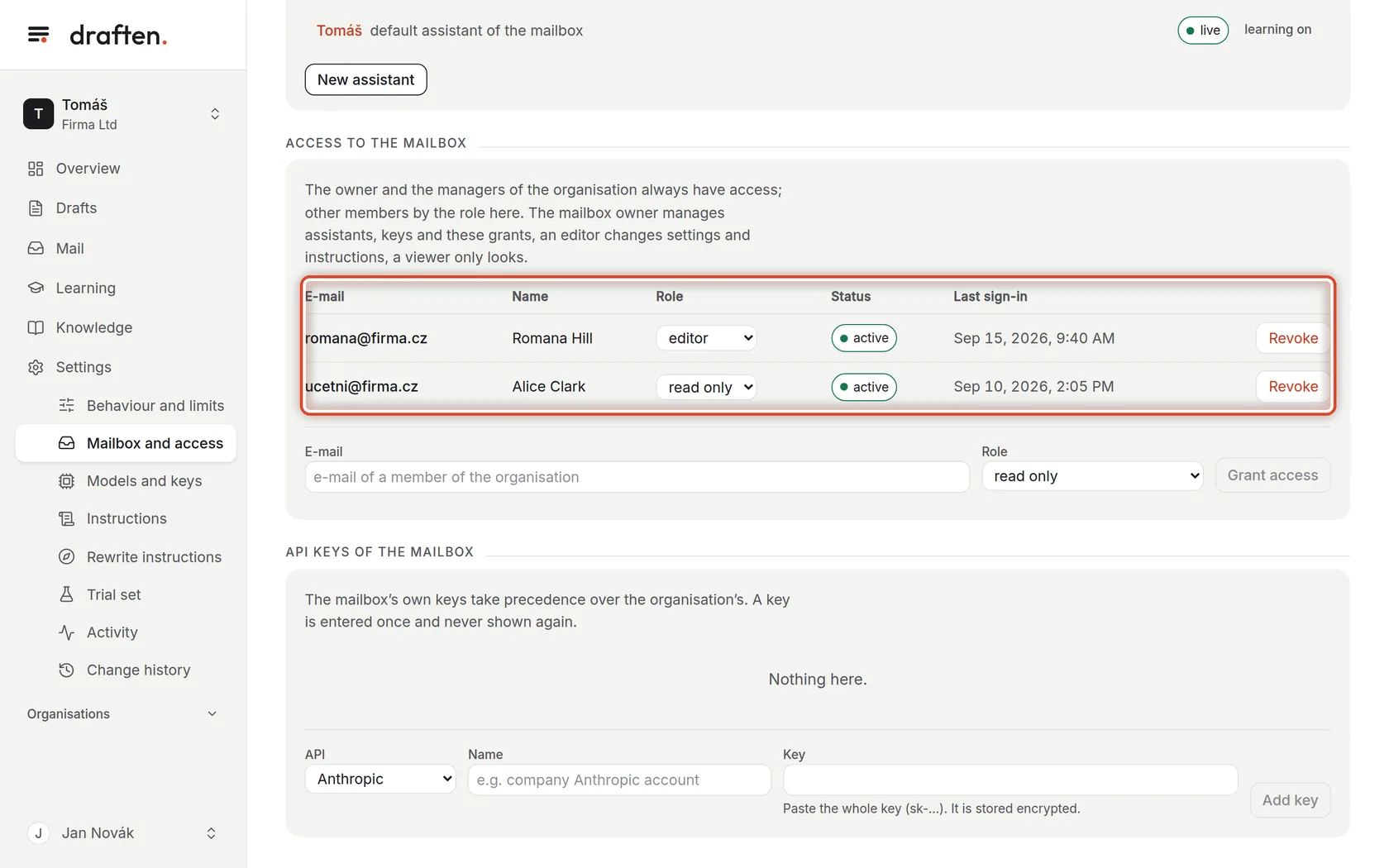
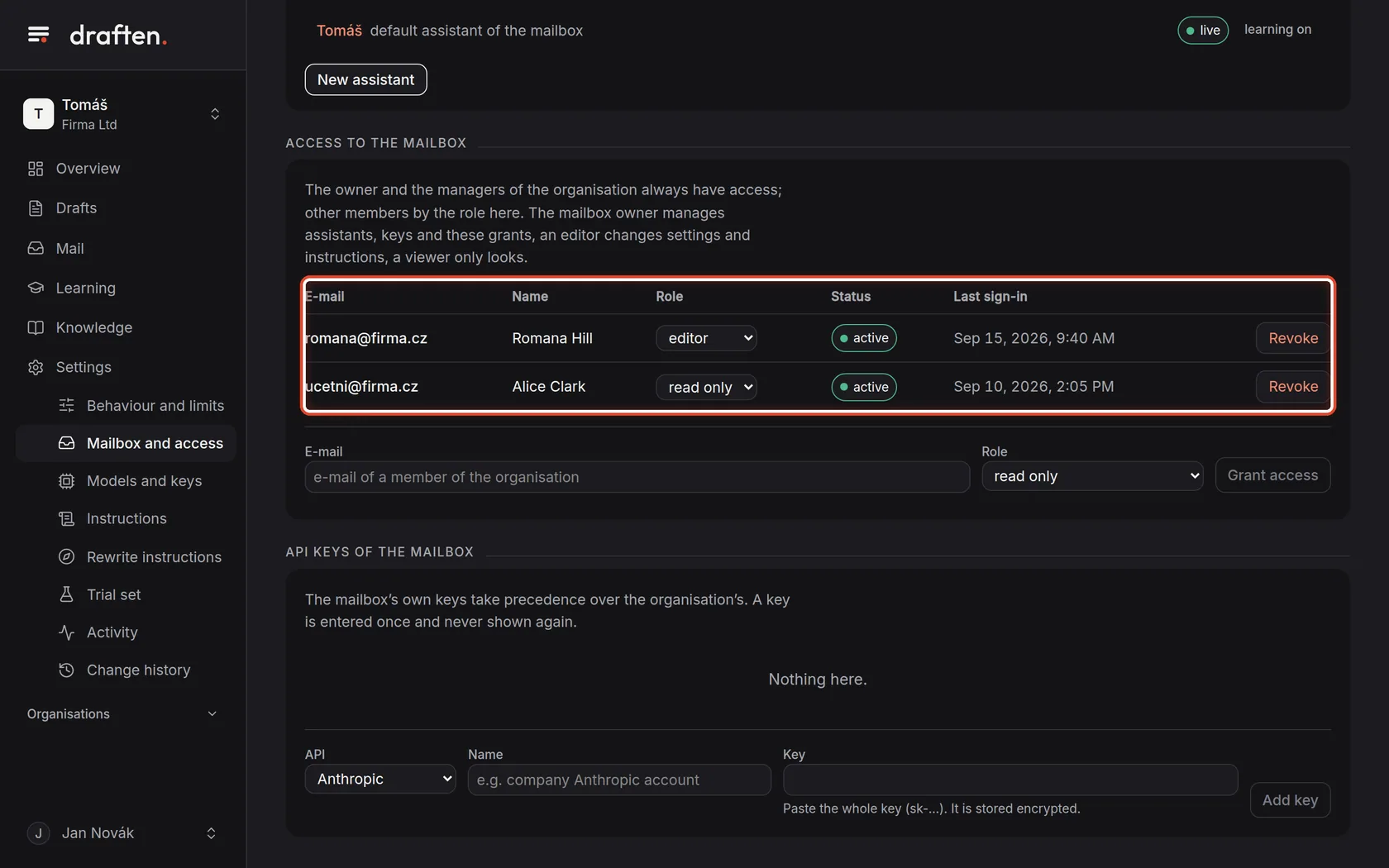
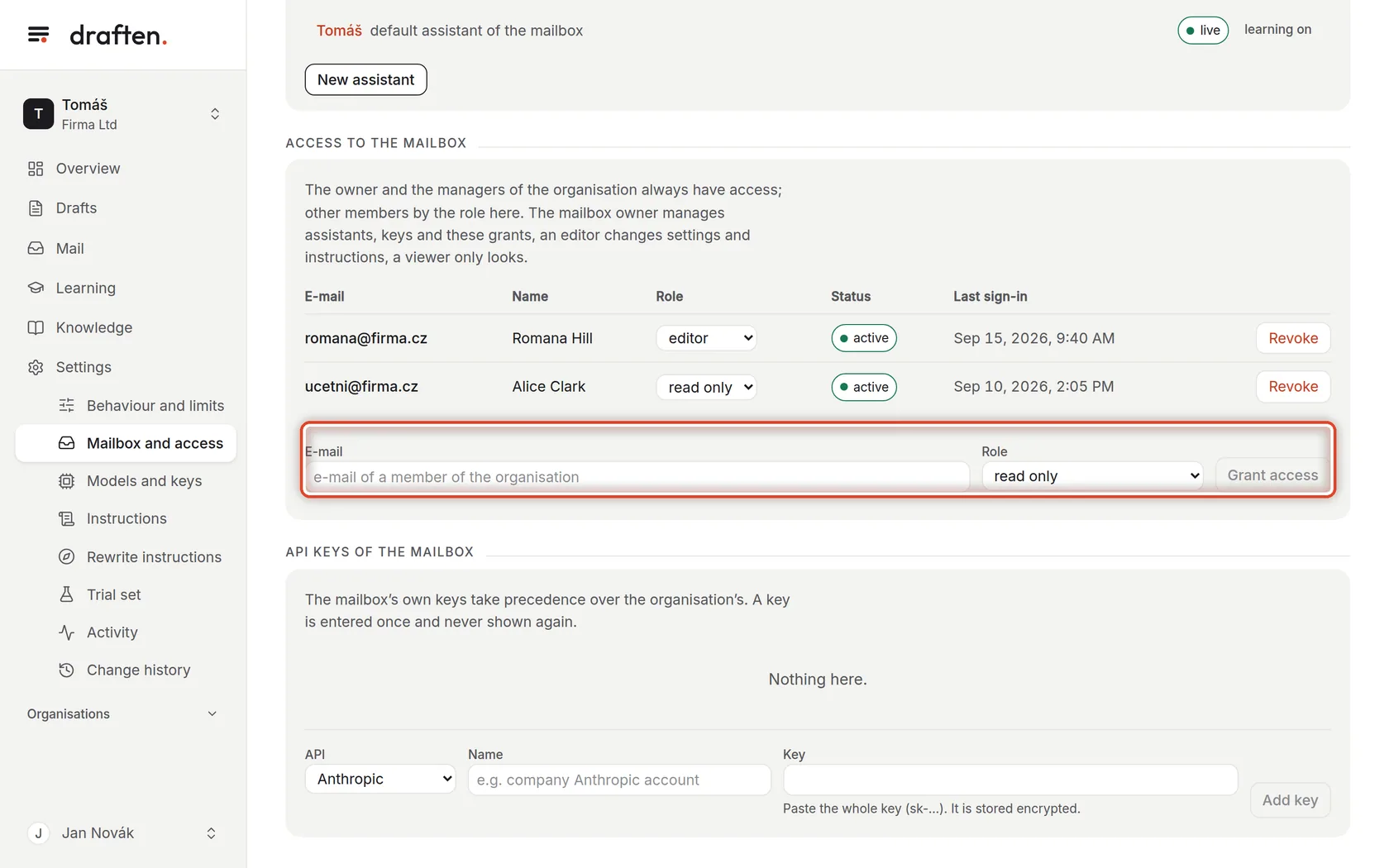
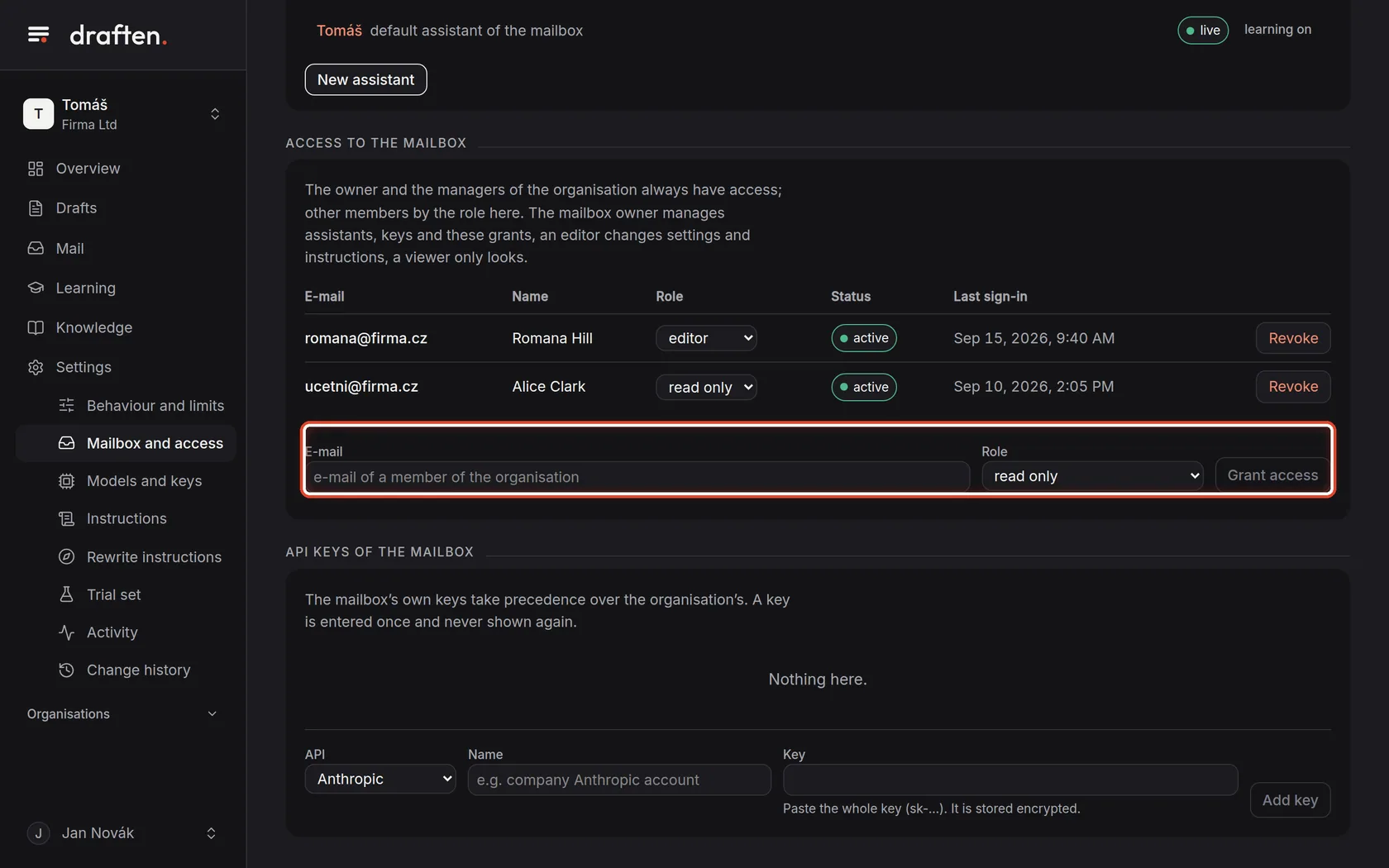
On the screenThe Access to the mailbox card with people and their roles.
Do thisThe owner and the organisation's managers always have access. Other members of the organisation get it here: an editor changes settings, instructions and knowledge, read only only looks. Change a role in the row; remove access with Revoke.
NoteThe mailbox owner manages the access. Who may do what is described in the administrators' page People and roles.
Step 7 of 7
Grant access
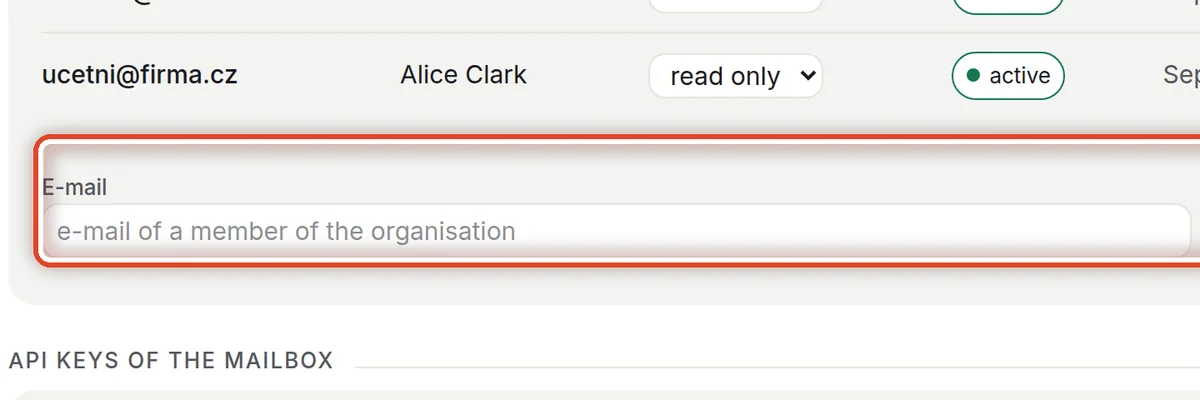
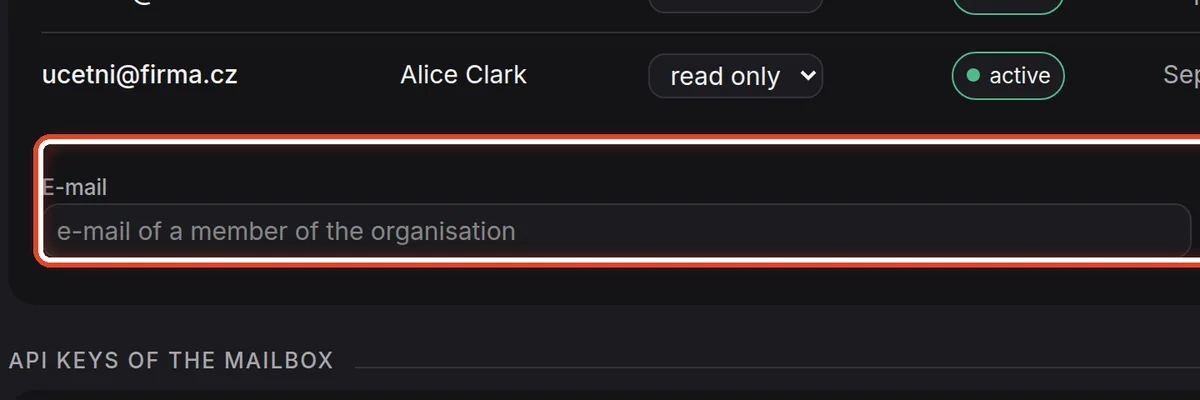
On the screenUnder the list, the E-mail field, the Role choice and the Grant access button.
Do thisType the e-mail of a member of the organisation, choose the role and click Grant access.
NoteOnly a member of the organisation can be added. A new member is invited by an organisation manager.
The end
The mailbox is connected
The active status means the assistant can see into the mailbox. When it shows disconnected, connect it again and run the test.
- A connection for the whole organisationAn app registration is set up by a manager — the administrators' page Mail access for the whole organisation.
- Model keysThe mailbox's API keys card is for advanced use; see the administrators' page Model API keys.