Guide
What the assistant
learnt from your edits.
When you edit a draft before sending it, the assistant notices and compares it with what it wrote. From repeated edits it proposes rules of writing (lessons) and fact corrections. It uses none of them until you approve them.
Before you start
- Learning switched onIn Settings → Behaviour and limits, Learn from my edits of the drafts must be ticked.
- A few sent draftsProposals come from edits, so they appear once you have edited and sent some drafts.
Step 1 of 8
A lesson proposed
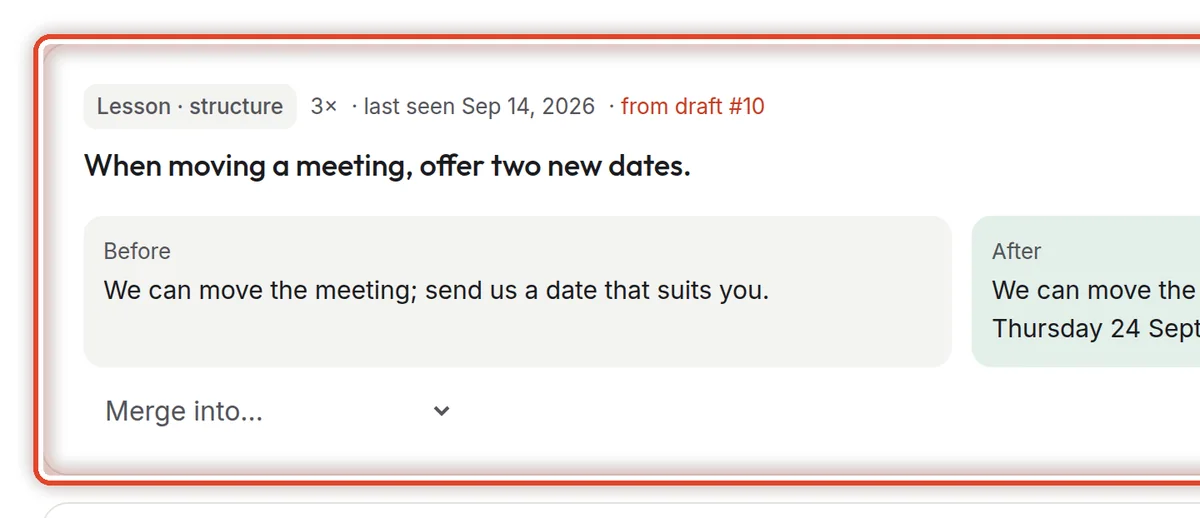
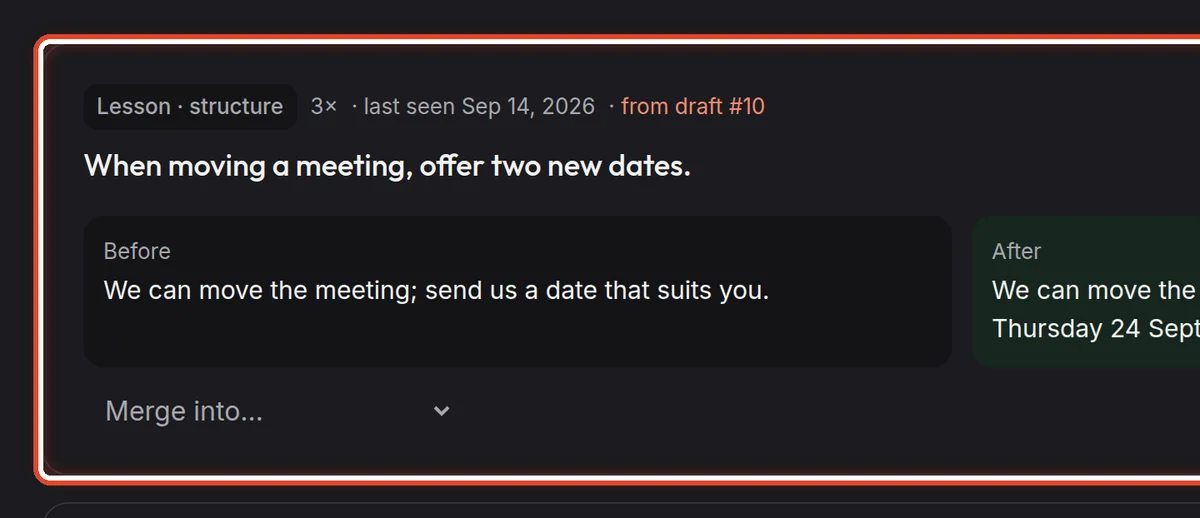
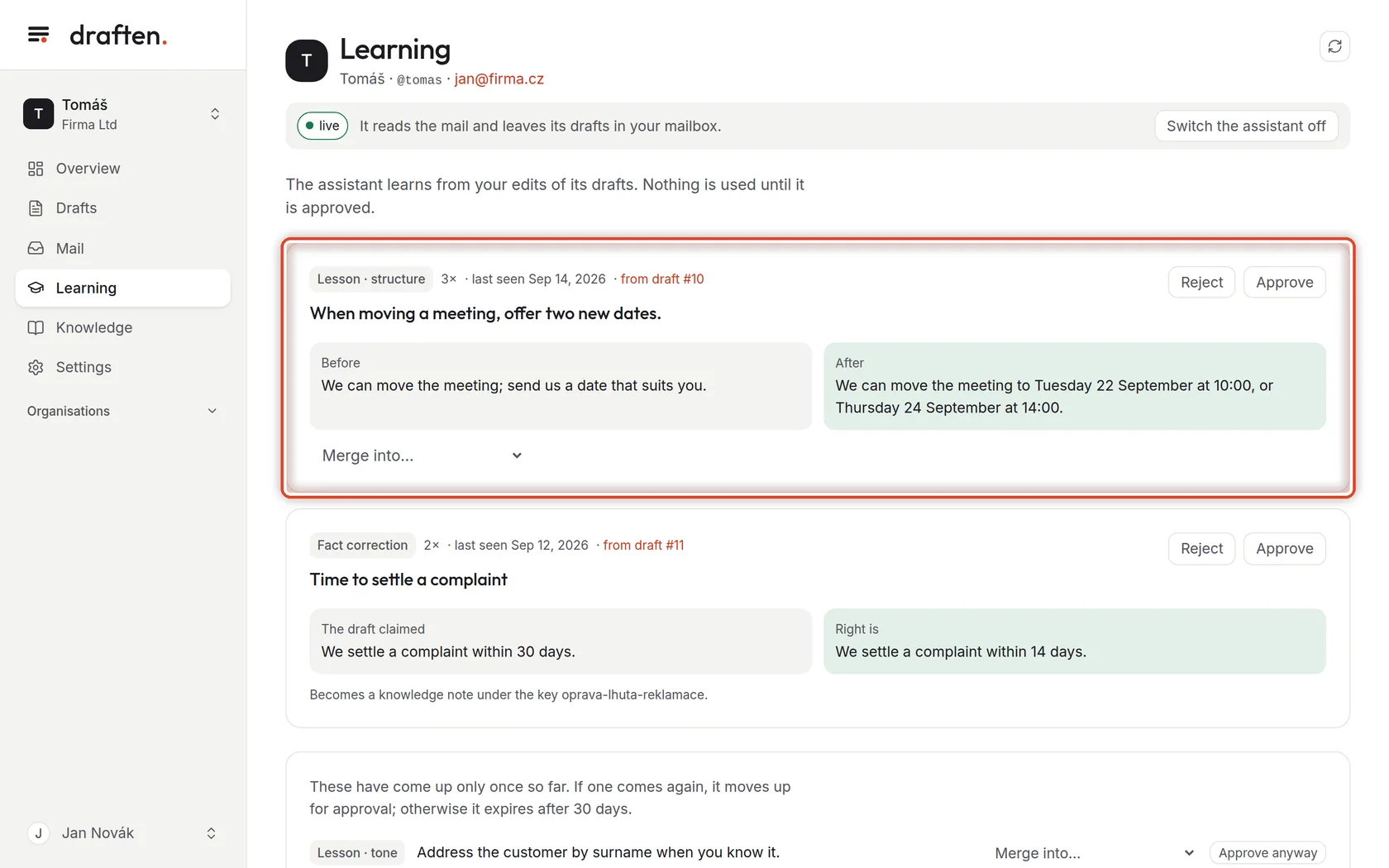
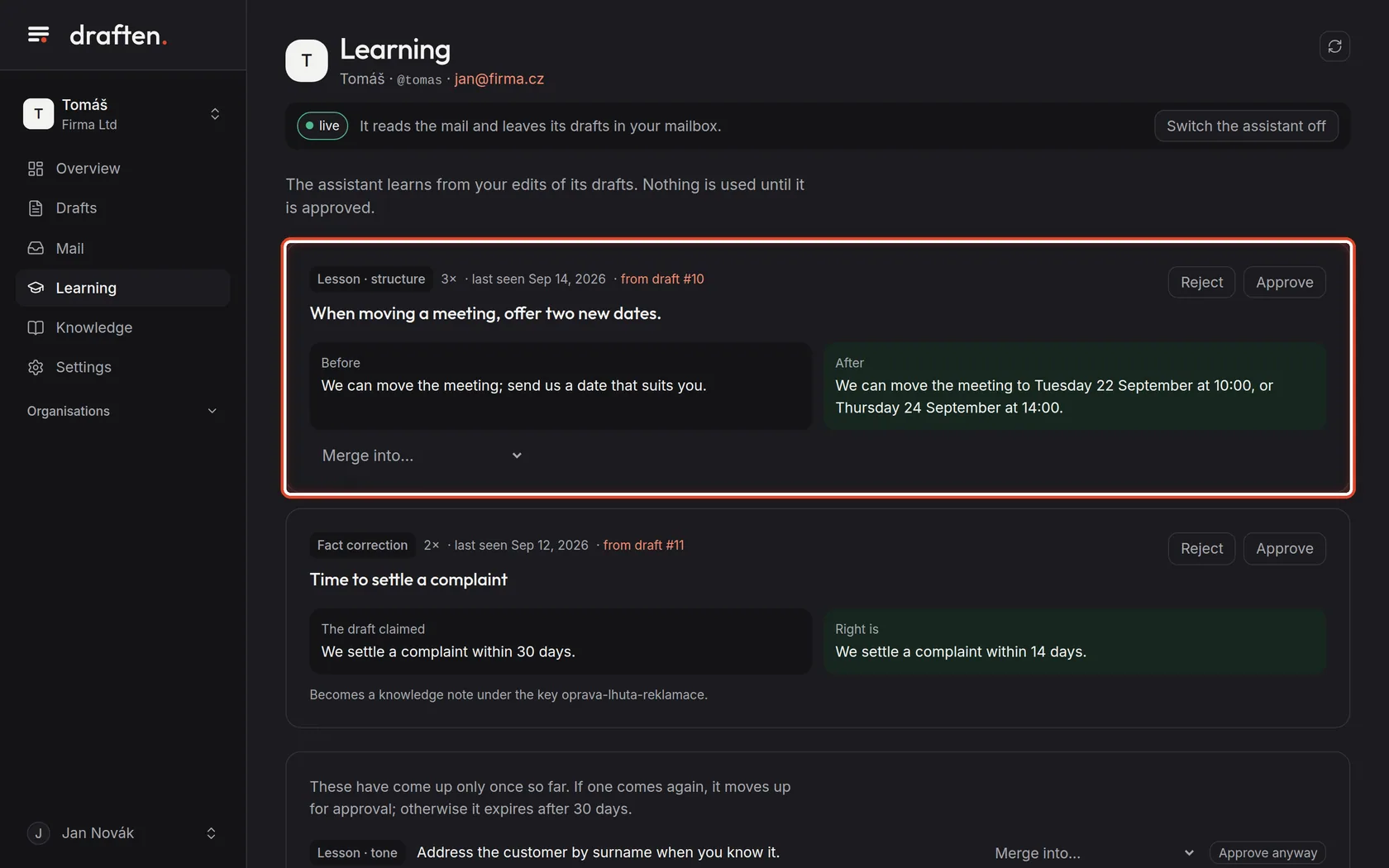
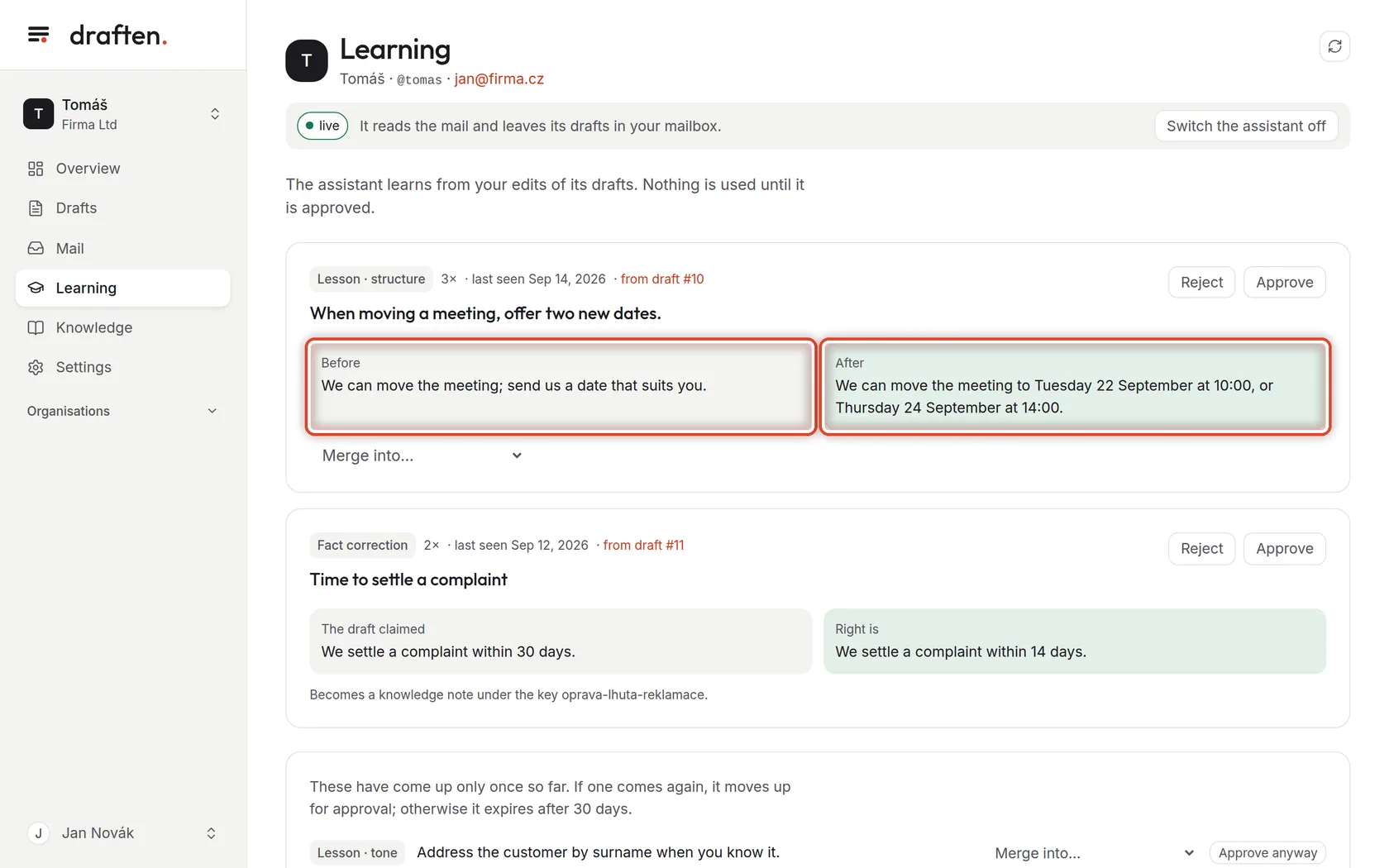
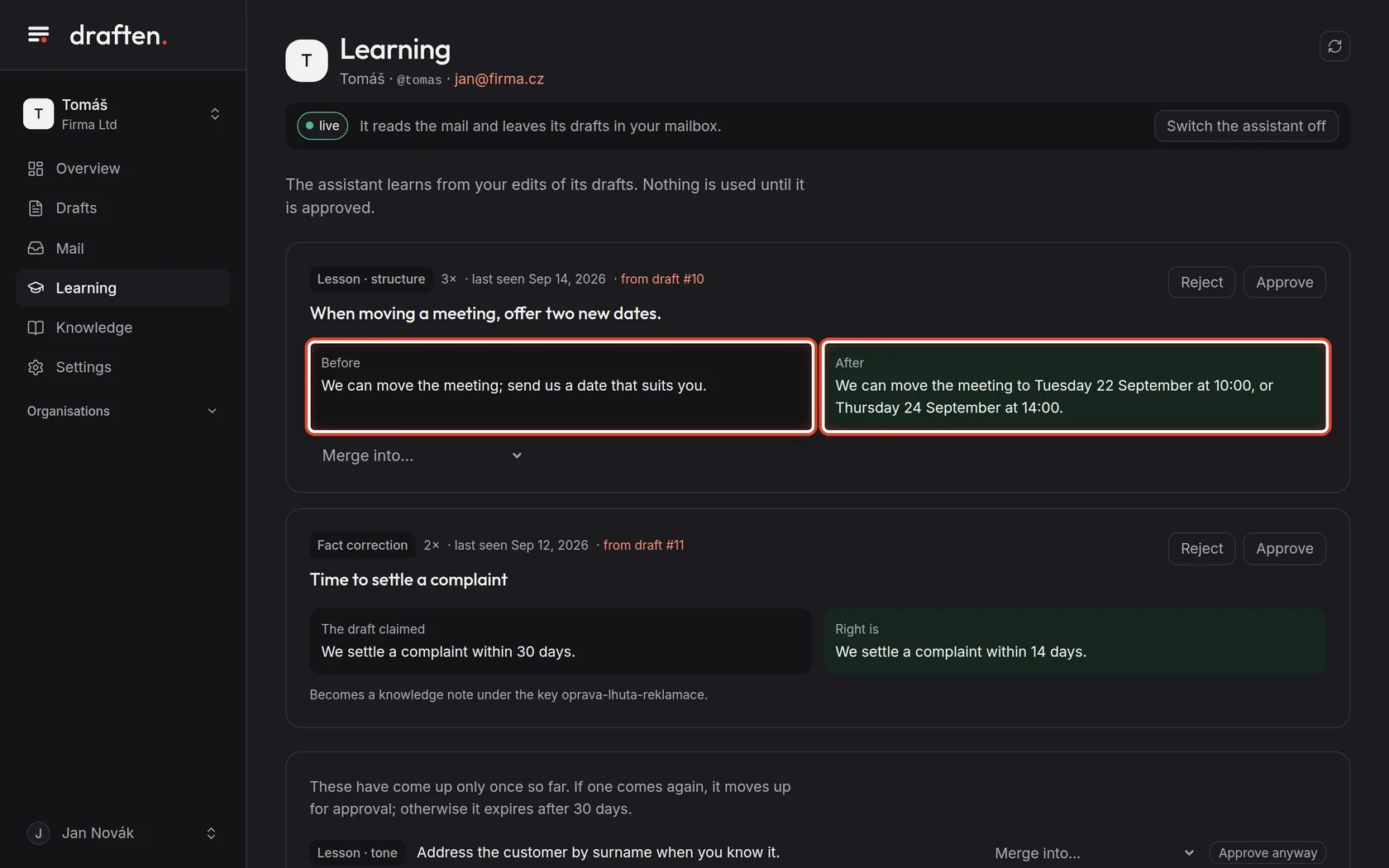
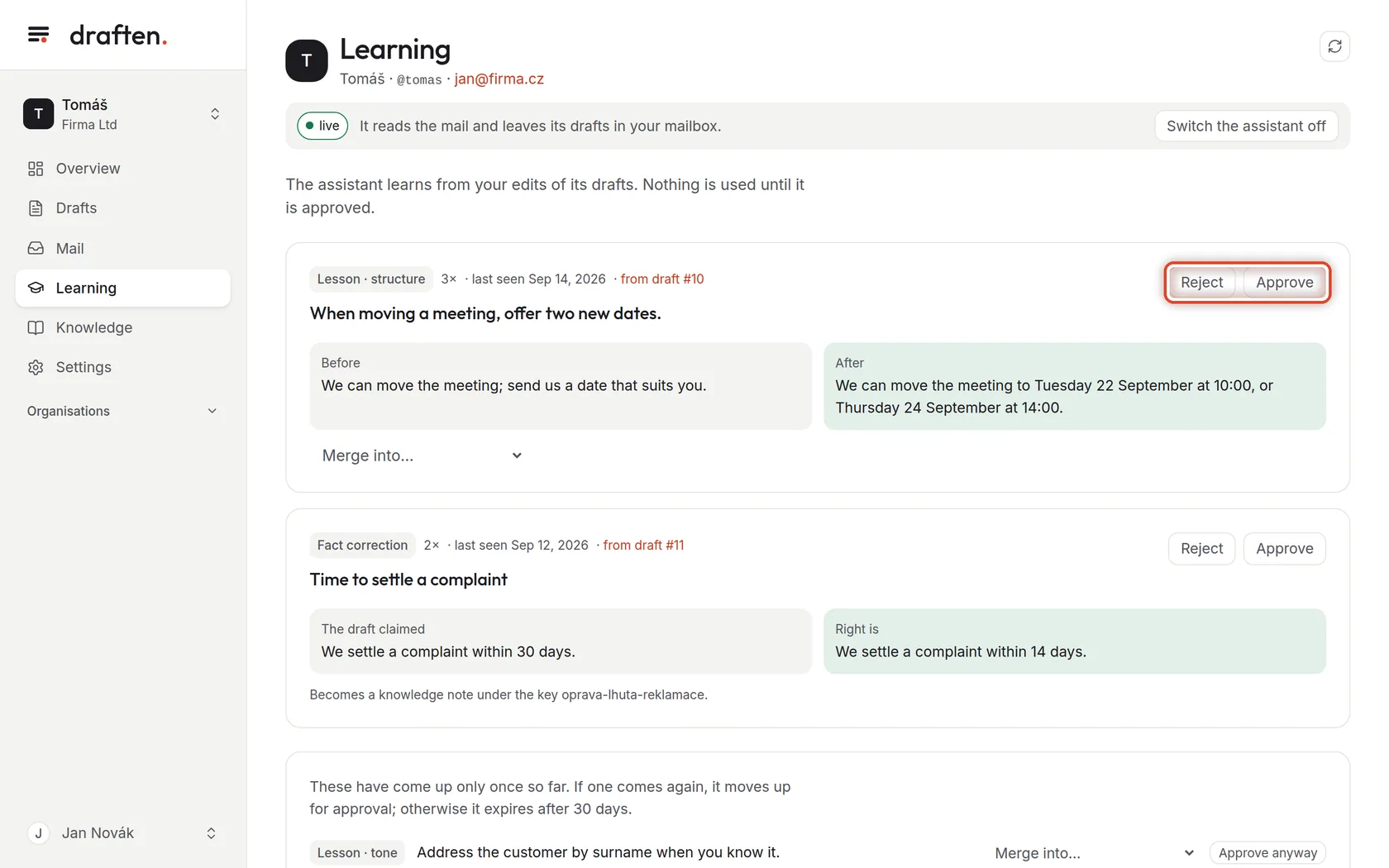
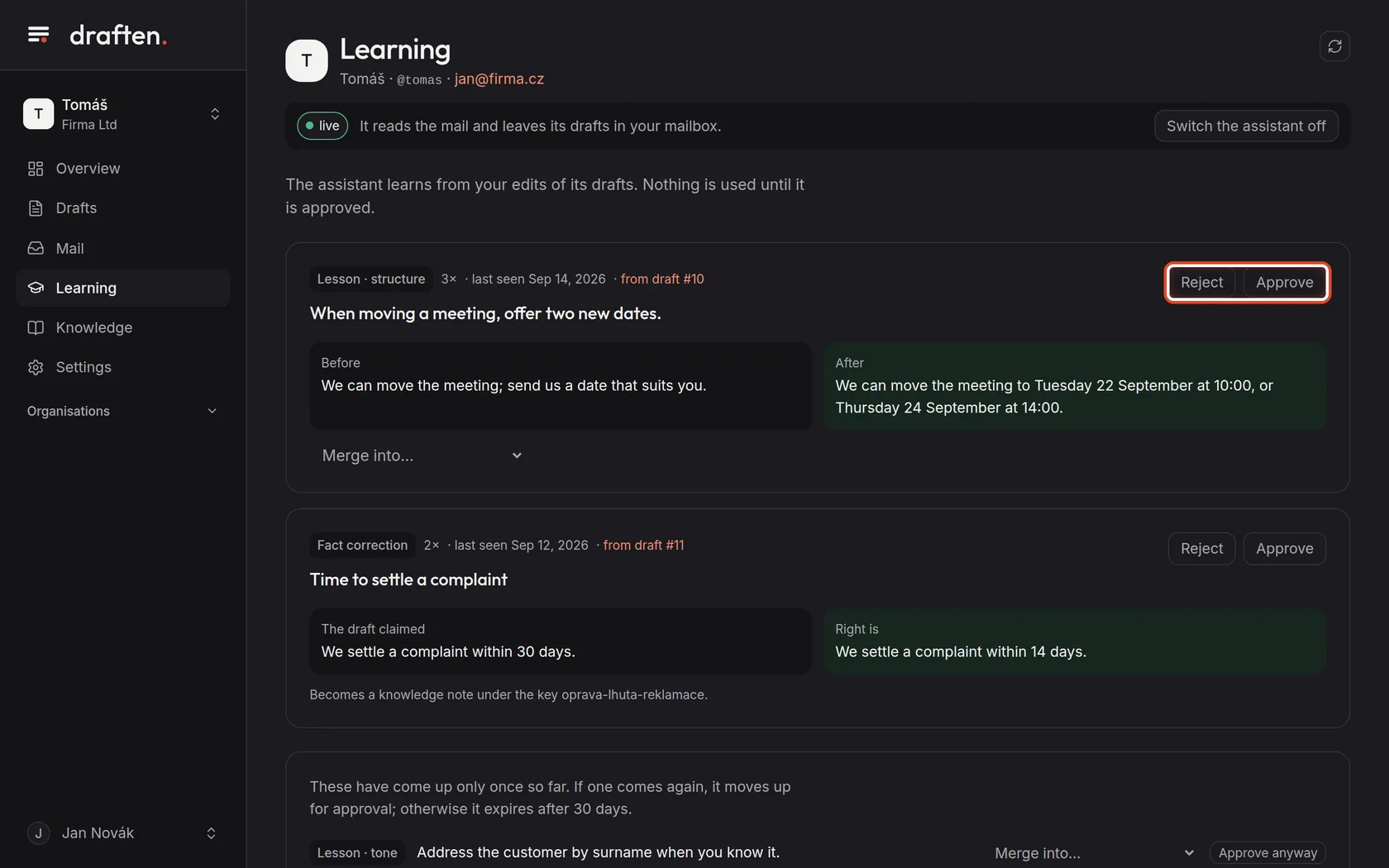
On the screenAt the top, a card labelled Lesson with a sentence the assistant drew from your edits.
Do thisWhen you keep editing drafts the same way, the assistant proposes a general rule of writing from it — a lesson. The label gives the kind (tone, structure, length…), the number says how often the edit came up, and the link leads to the draft the proposal came from.
NoteA proposal comes up for approval once it has been seen at least twice. A small edit that kept 97 % of the draft does not count towards a lesson.
Step 2 of 8
Before and after
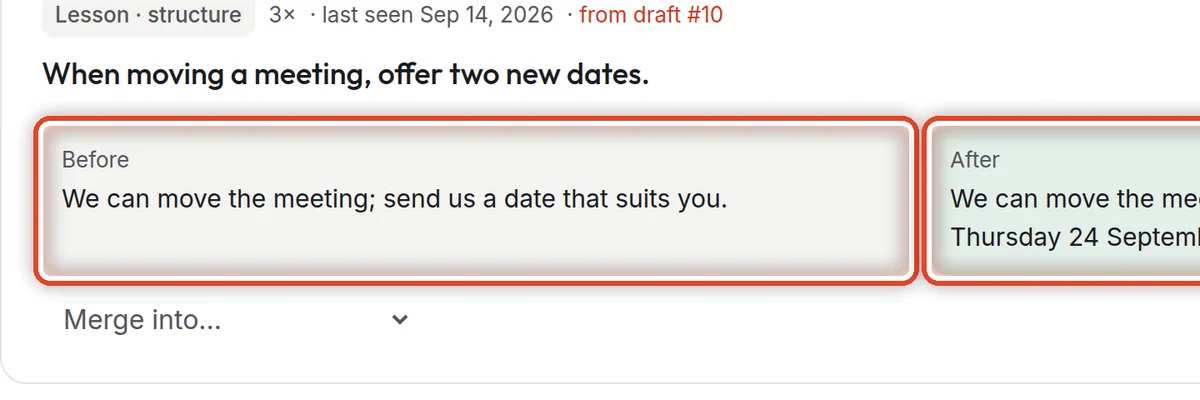
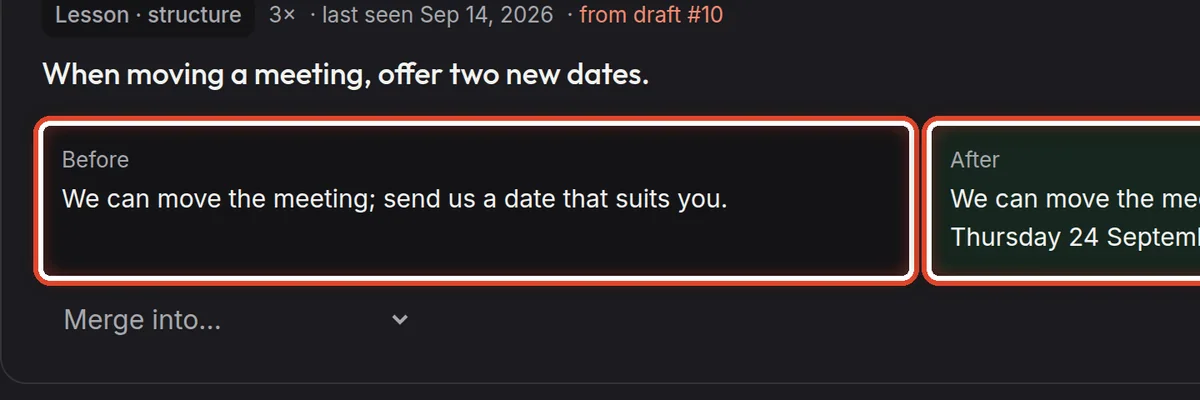
On the screenUnder the sentence, two boxes: Before and After.
Do thisOn the left is how the draft read, on the right how you edited it. That is how you judge whether the lesson really says what you meant.
Step 3 of 8
Approve or reject
On the screenAt the top right of the card, the Reject and Approve buttons.
Do thisApprove — the assistant follows the rule in every draft from now on. Reject — the rule is not used, and when the assistant draws it again, the sighting joins the rejected proposal and it does not come back.
NoteThe assistant's owner and editors decide. With a read-only role you only see the proposals.
Step 4 of 8
Two proposals say the same
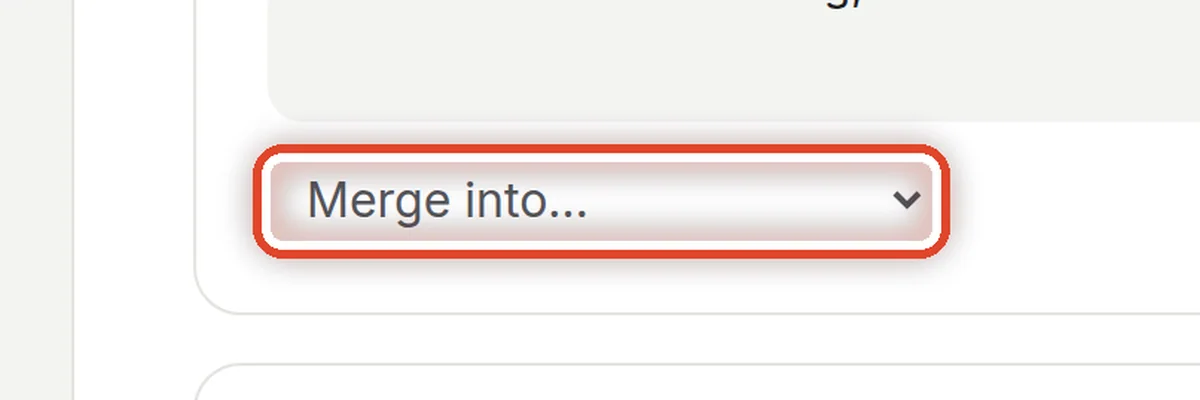
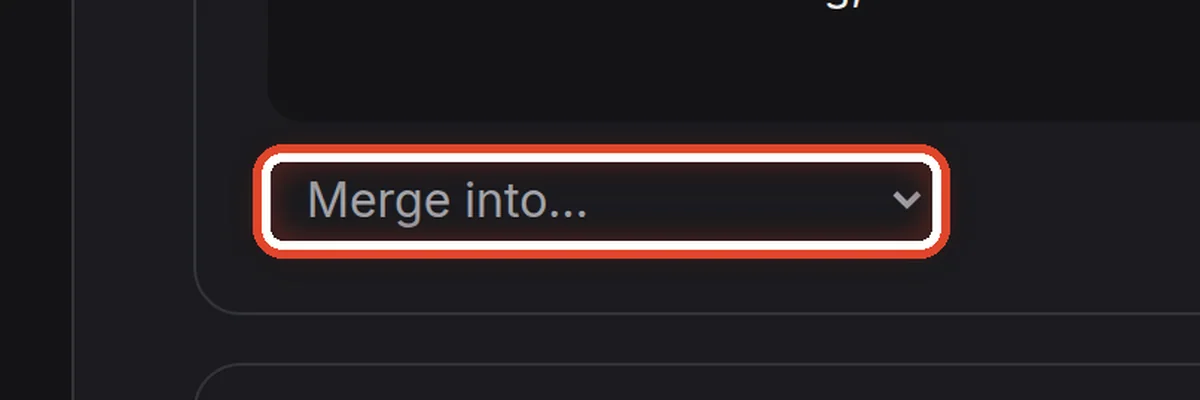
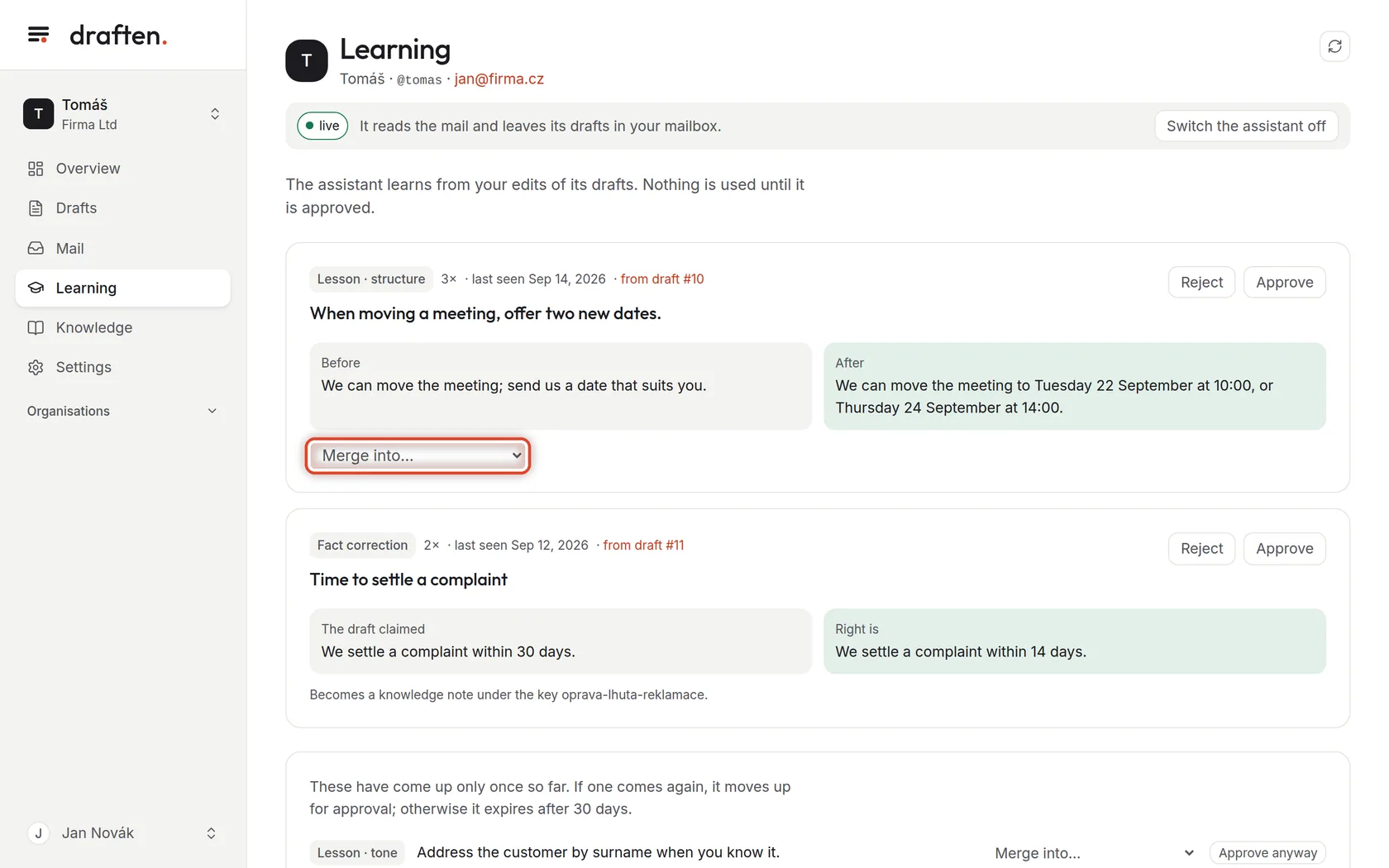
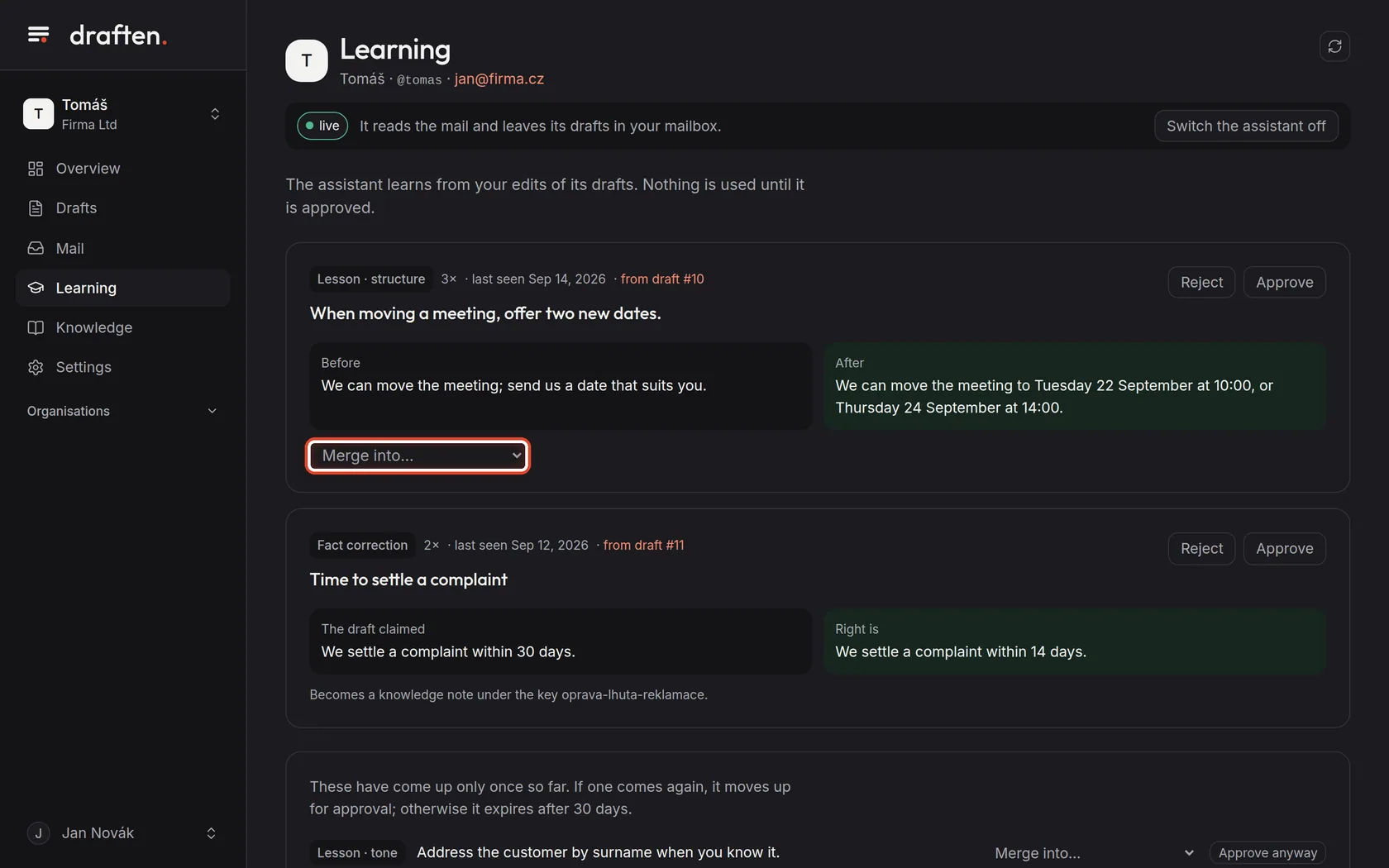
On the screenUnder the card, the Merge into… choice.
Do thisWhen a lesson says the same as another one, choose that one in Merge into… and confirm. The sightings add up; the text and the decision stay as the chosen lesson has them.
Step 5 of 8
A fact correction
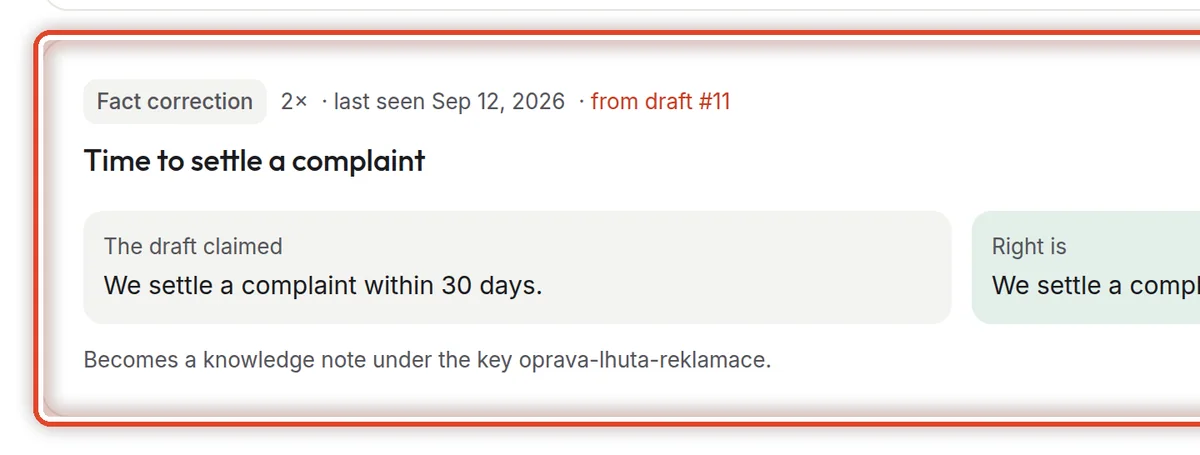
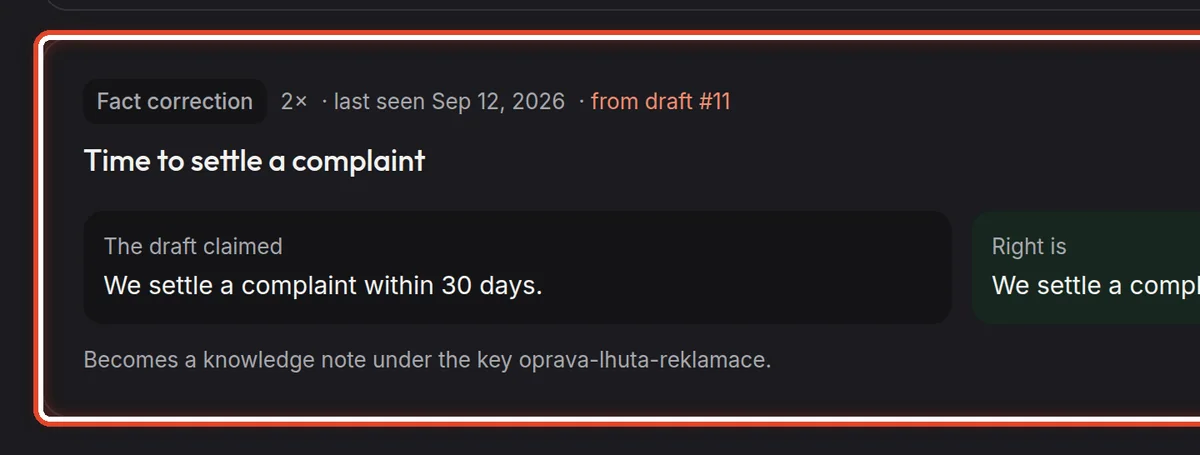
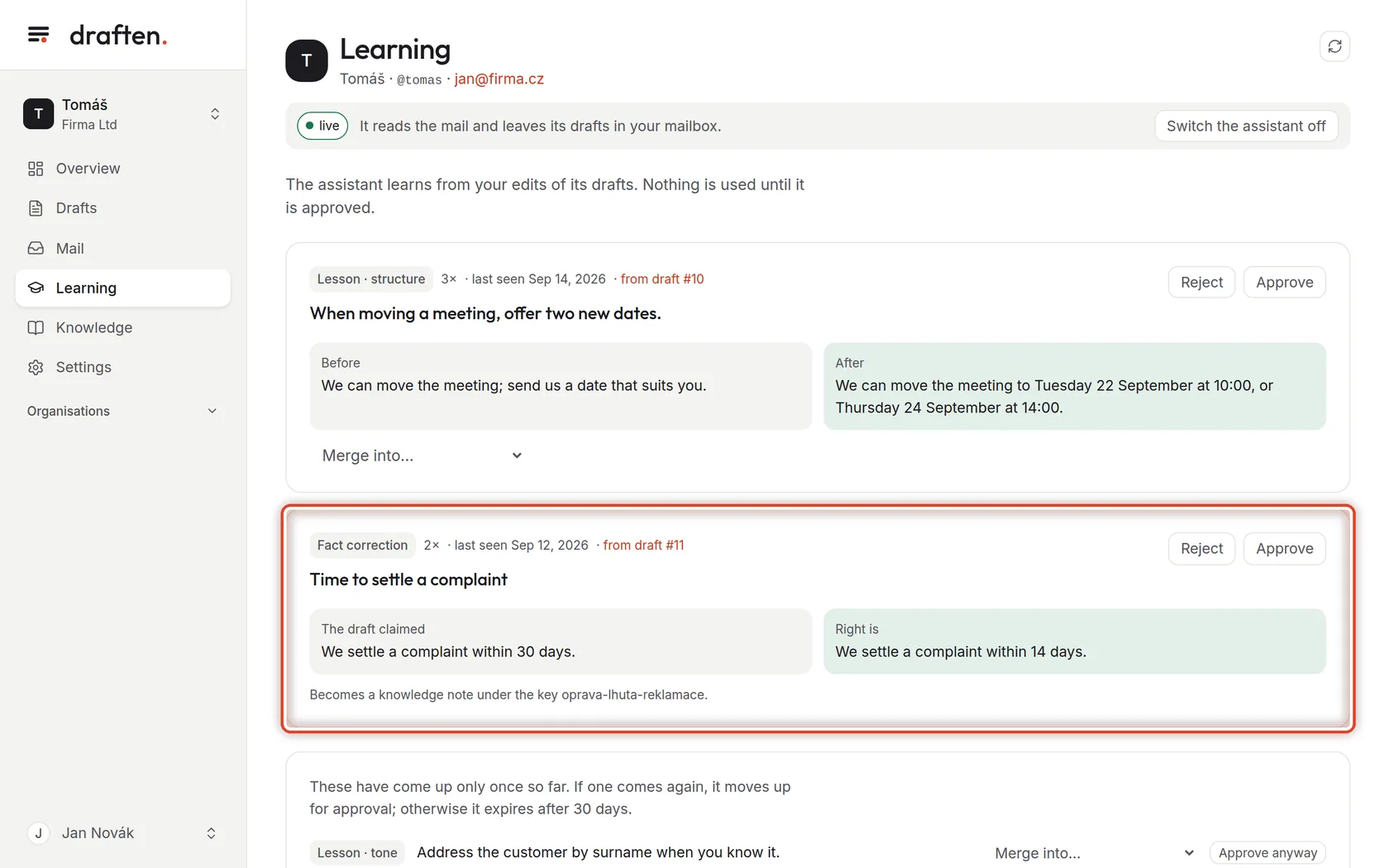
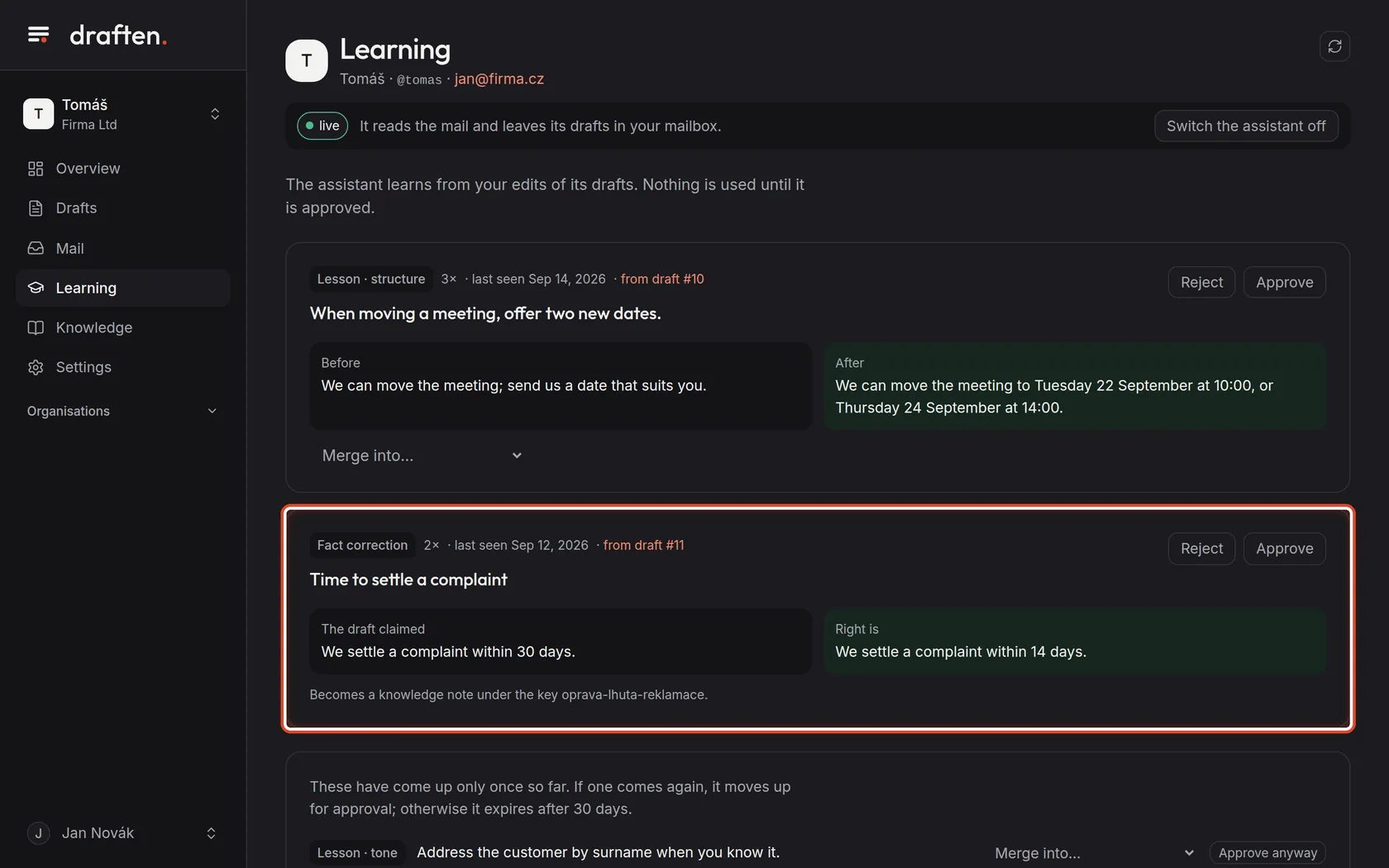
On the screenA Fact correction card with The draft claimed and Right is.
Do thisWhen you corrected a fact in a draft (a deadline, a price, a procedure), the assistant proposes a correction. Approve adds it to Knowledge as a note and the assistant follows it. Reject throws it away.
NoteA correction is proposed only when the knowledge sources do not already say it. When a source (a price list, say) says something else, fix that source above all — otherwise the assistant gets two different answers.
Step 6 of 8
Seen once
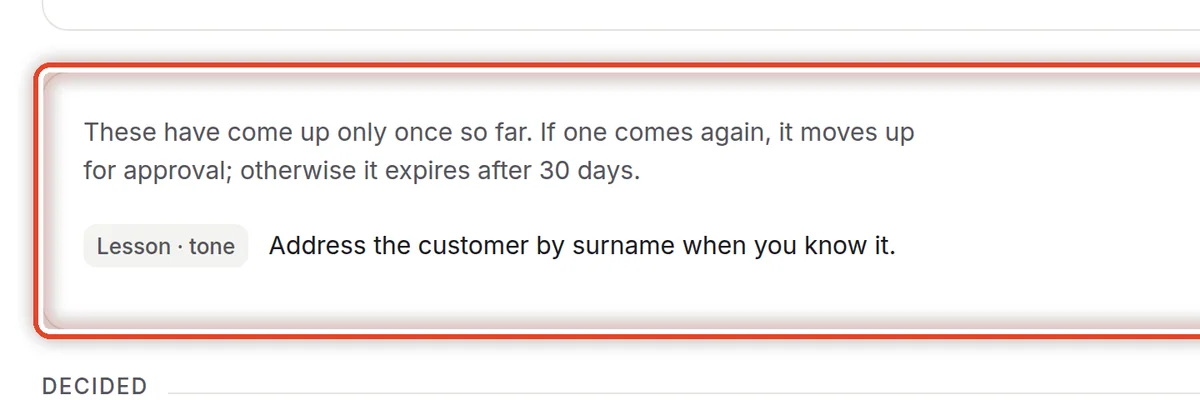
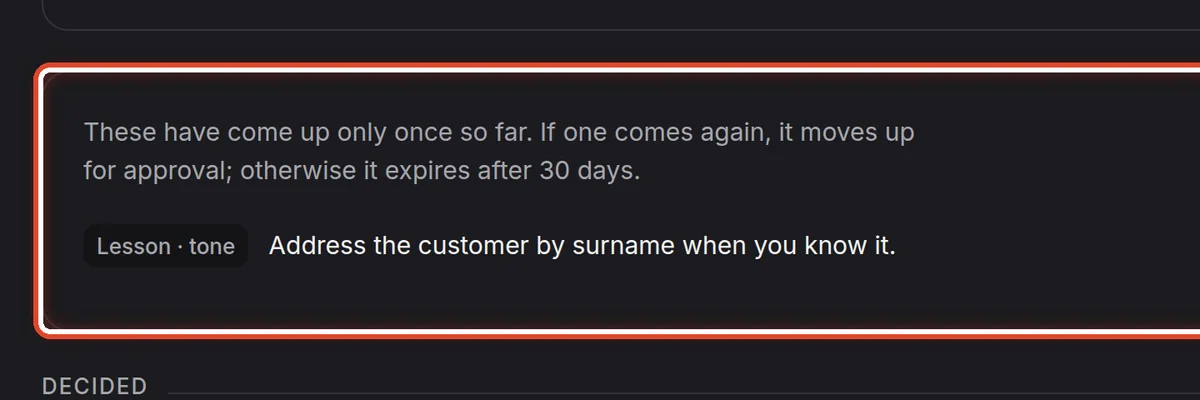
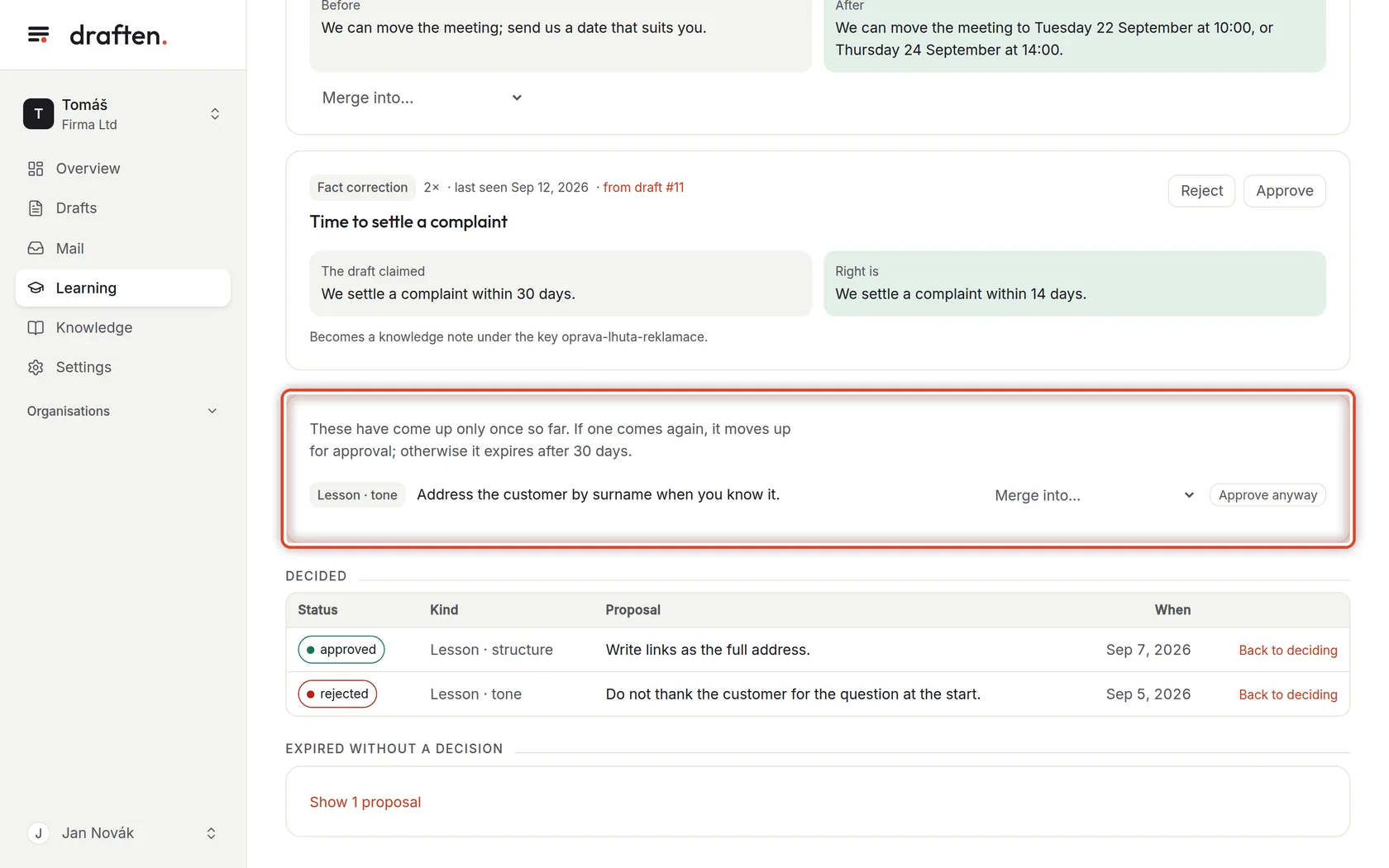
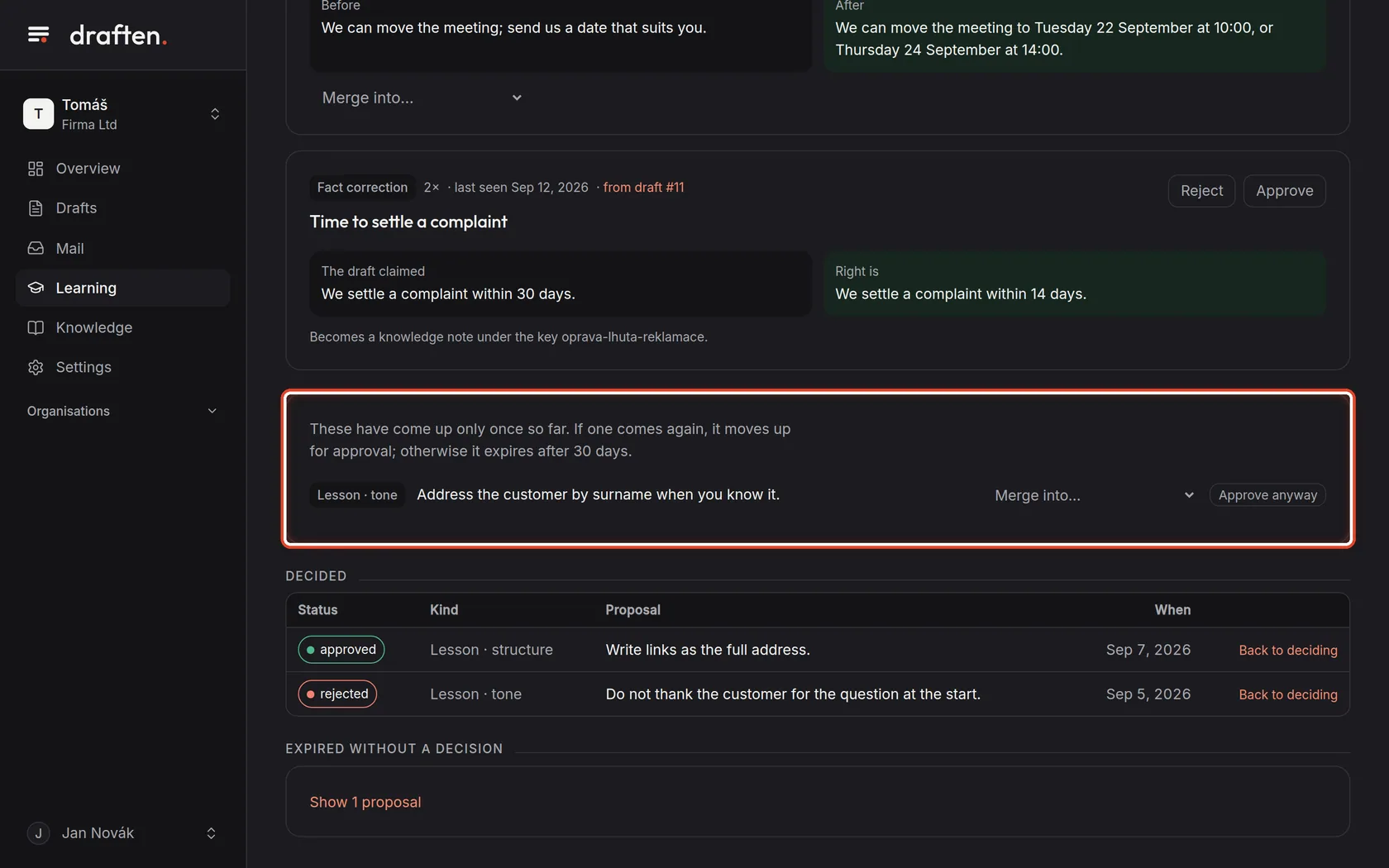
On the screenLower down, a card with proposals that came up only once.
Do thisThese are not up for approval yet. If one comes again it moves to the top; if not, it expires after 30 days. When you are sure straight away, click Approve anyway.
Step 7 of 8
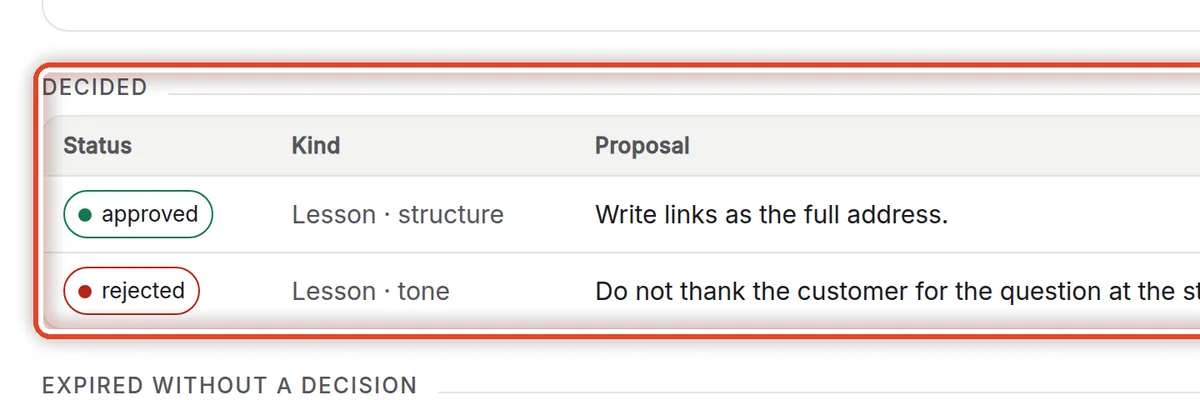
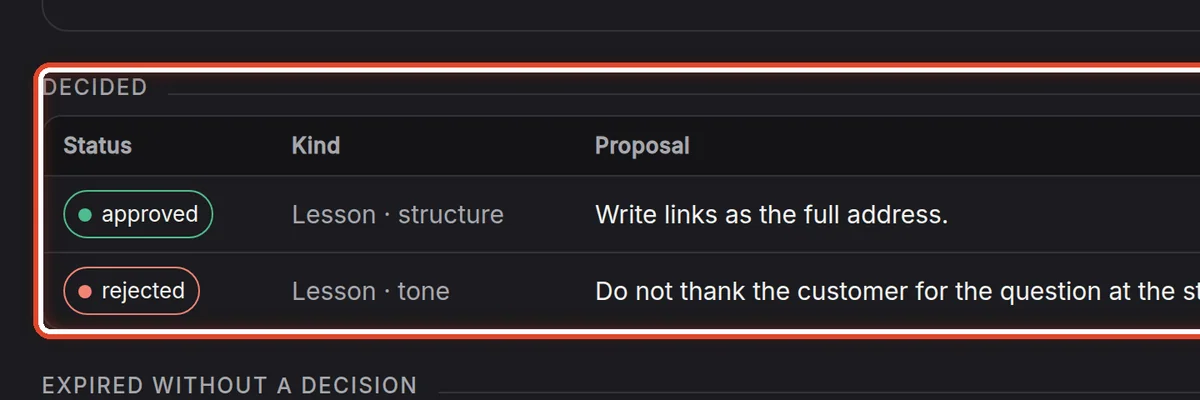
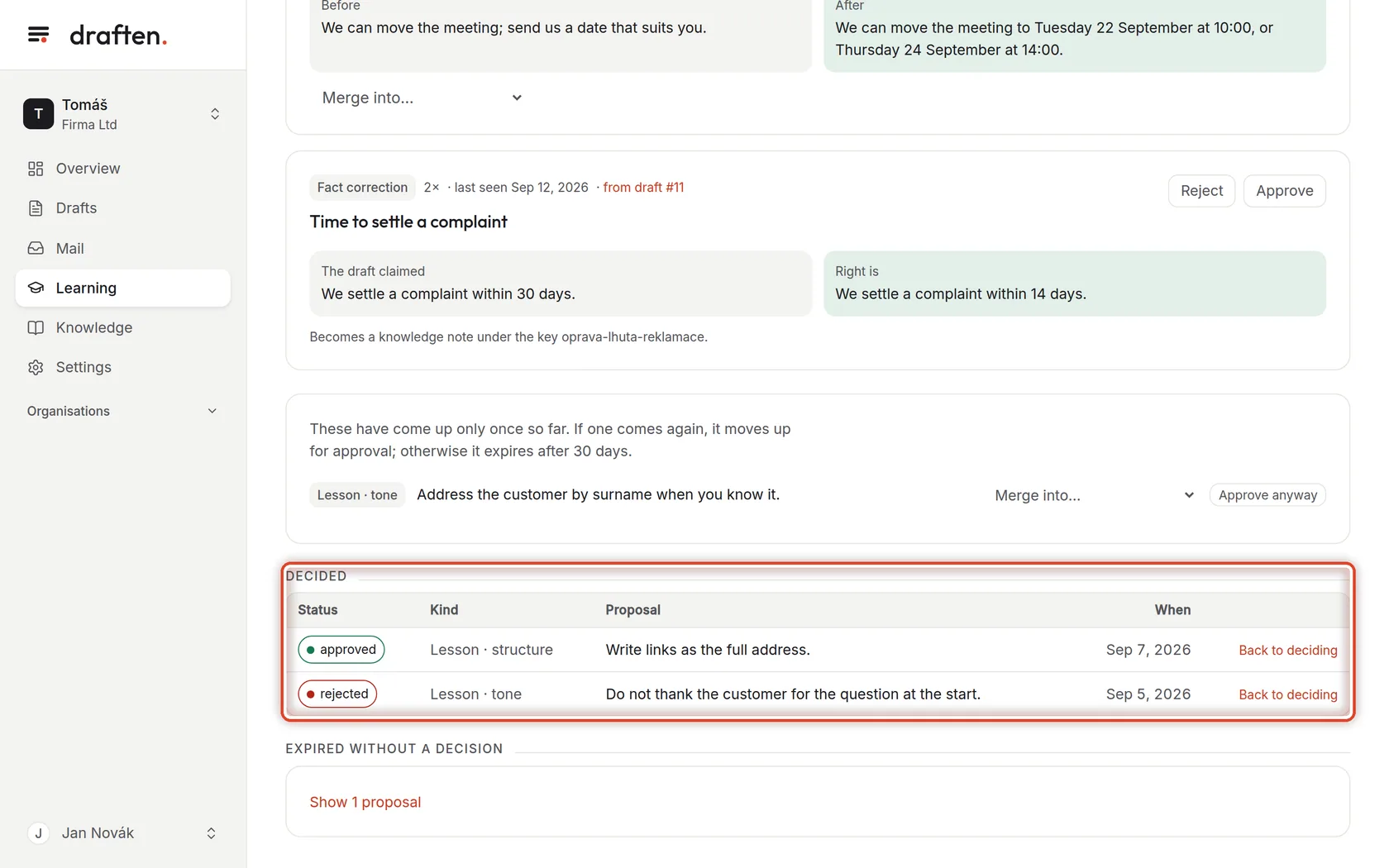
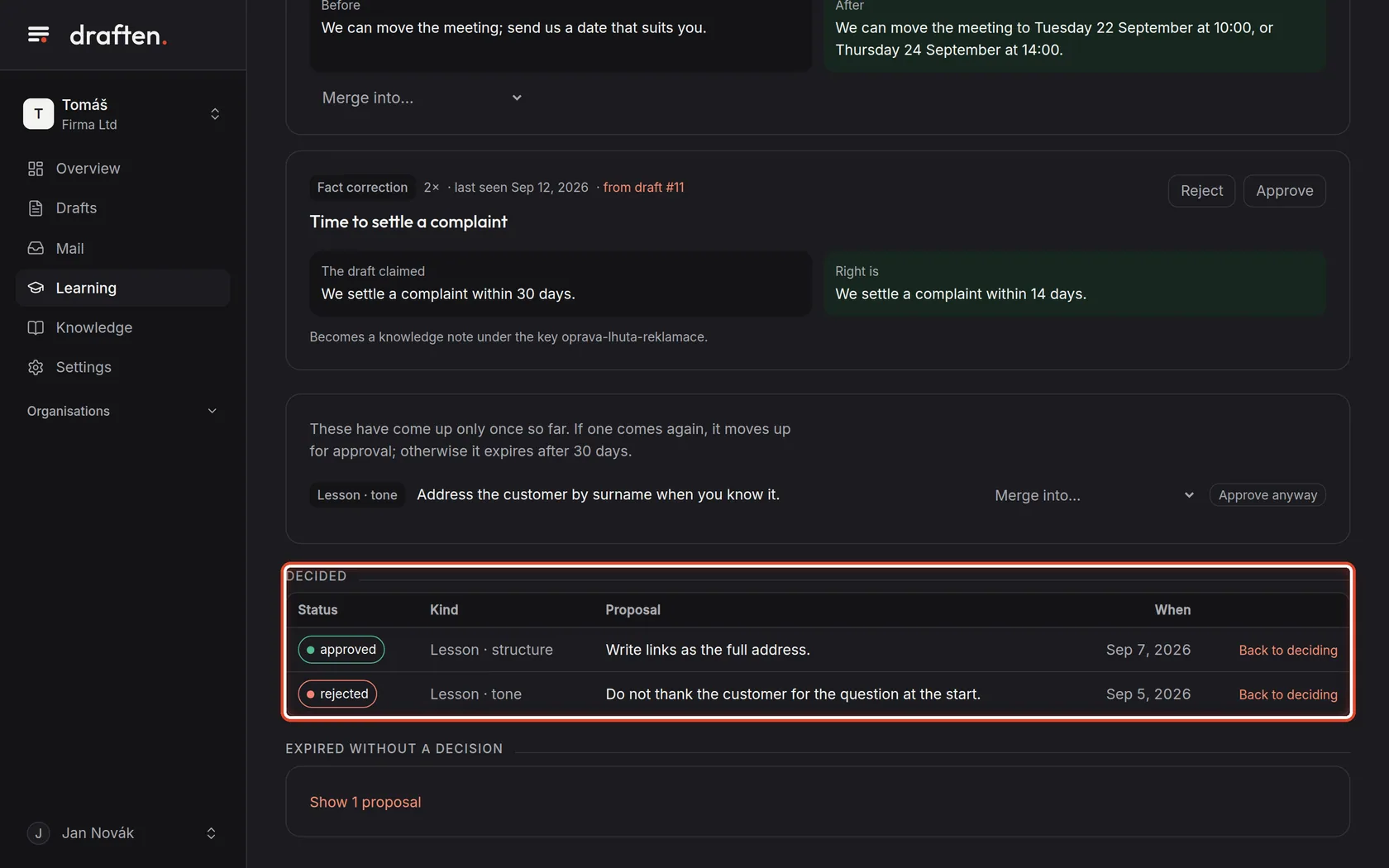
Decided
On the screenThe Decided table with approved and rejected proposals.
Do thisThis is what you have already decided. Changed your mind? Back to deciding returns the proposal to the top, among those waiting.
Step 8 of 8
Expired without a decision
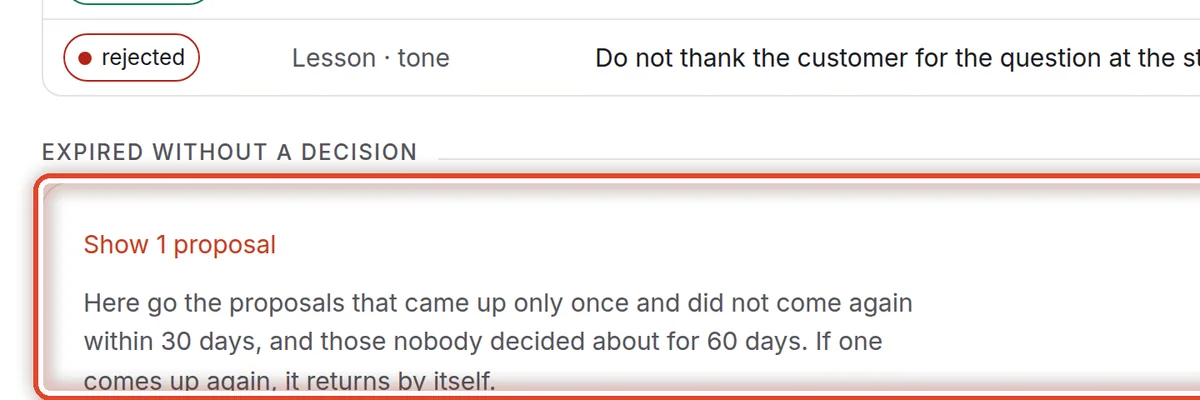
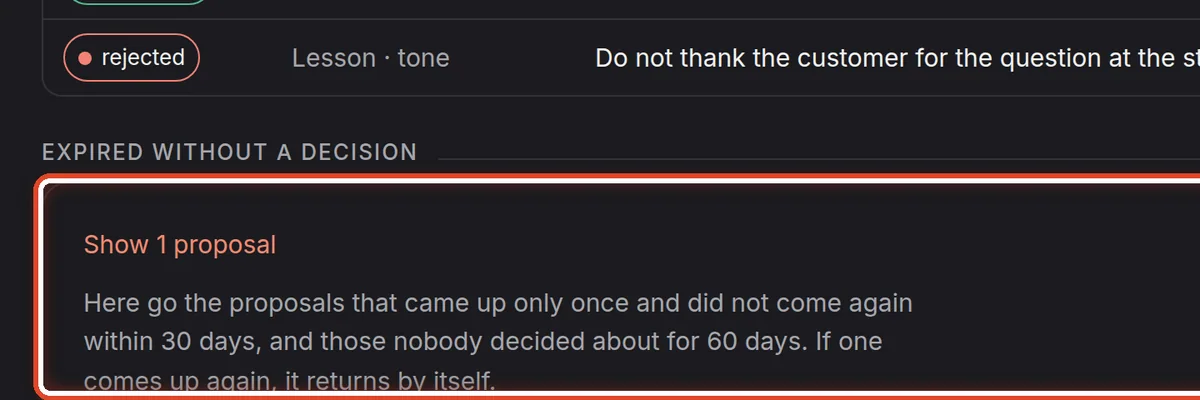
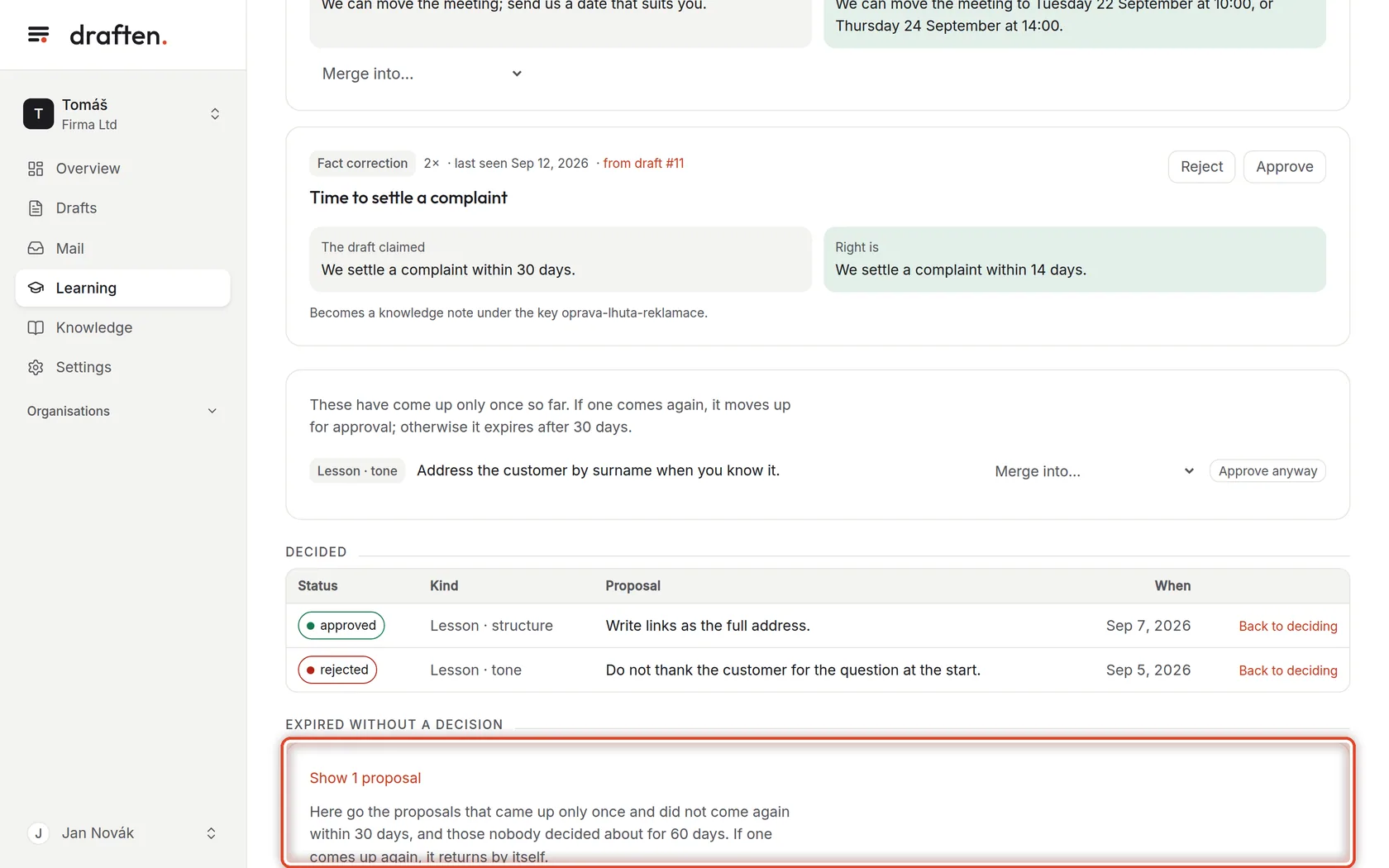
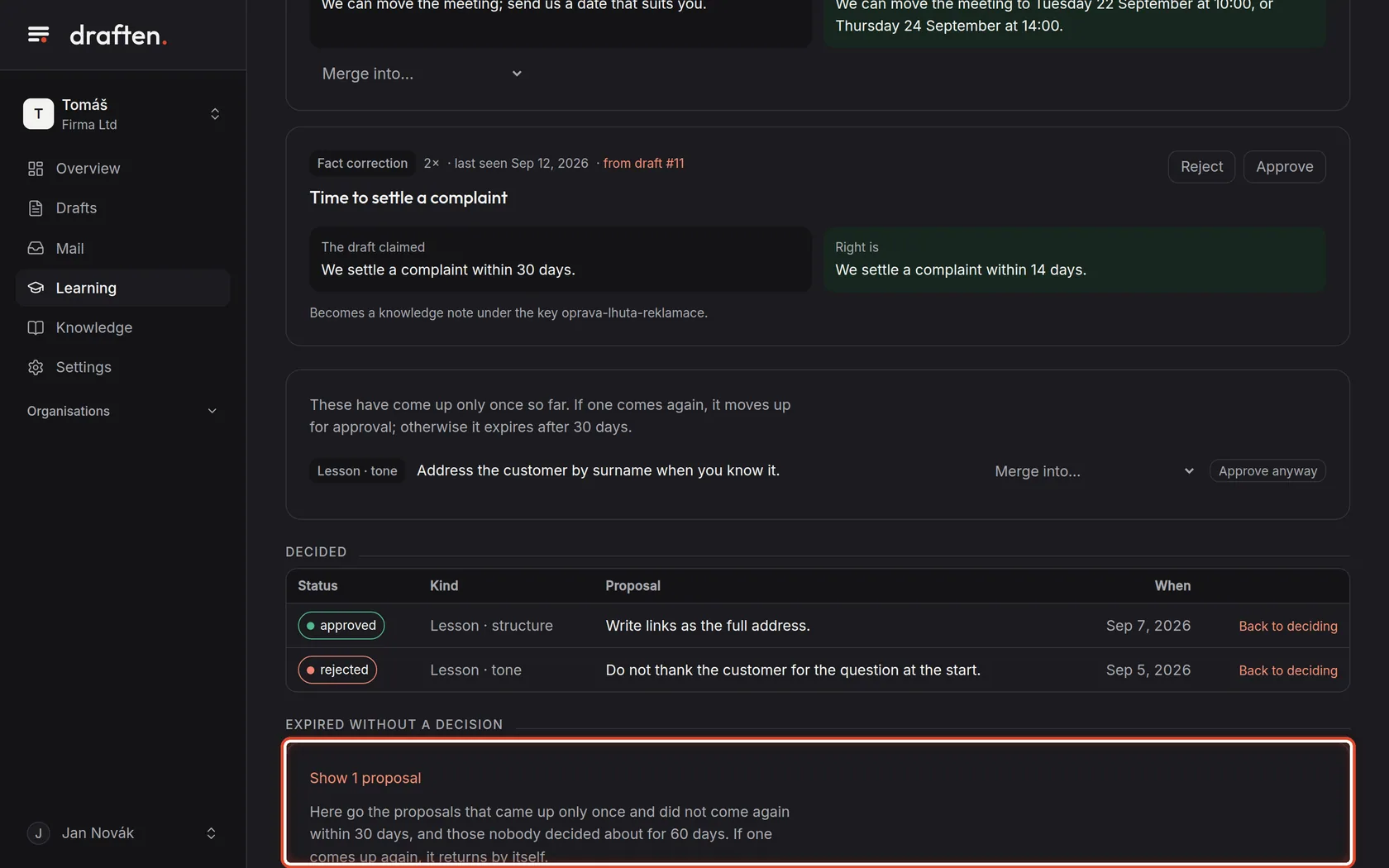
On the screenAt the bottom, the opened Expired without a decision section.
Do thisHere go the proposals that came up only once and did not come again within 30 days, and those nobody decided about for 60 days. If one comes up again, it returns by itself.
The end
The assistant learns your way
Look in here whenever the Overview shows proposals to decide.
- Approved lessonsThe assistant gets them with every draft, right after the Style instruction.
- Approved fact correctionsThey are notes in Knowledge; edit or delete them there.