Guide
How the assistant
works and writes.
The instructions are four texts the assistant gets with every reply: who it is, what it answers, how it writes and when it hands over. You can change them any time; every save is a new version, and an older one is one click away.
Before you start
- Editor or owner roleWith a read-only role you only read the instructions.
- An open assistantThe instructions are in Settings → Instructions.
Step 1 of 7
Four instructions
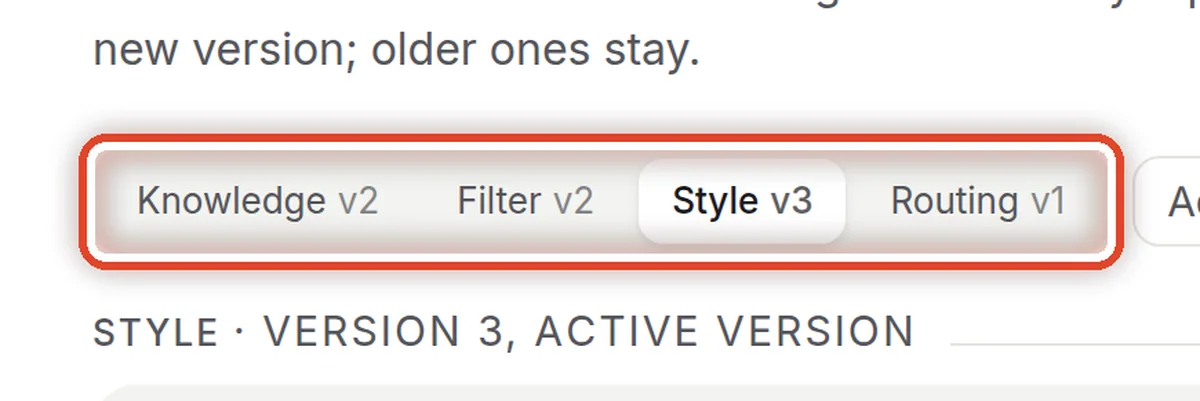
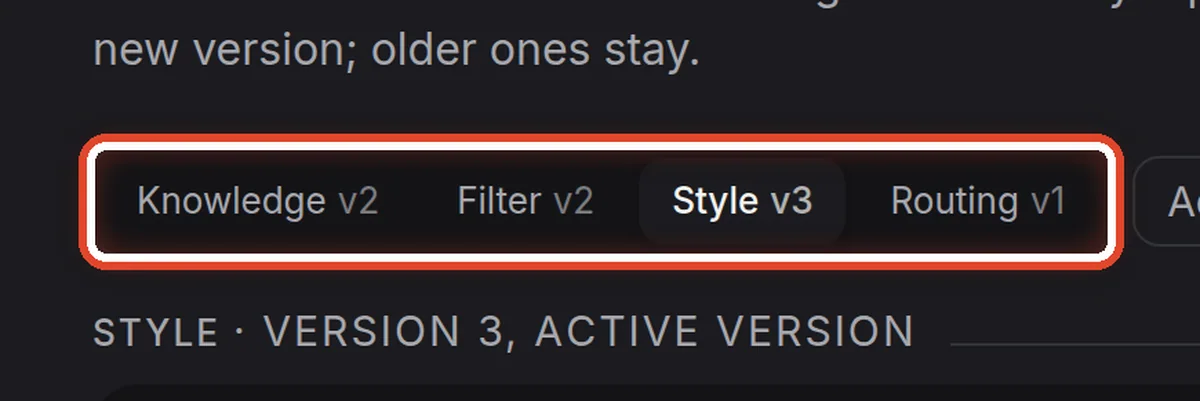
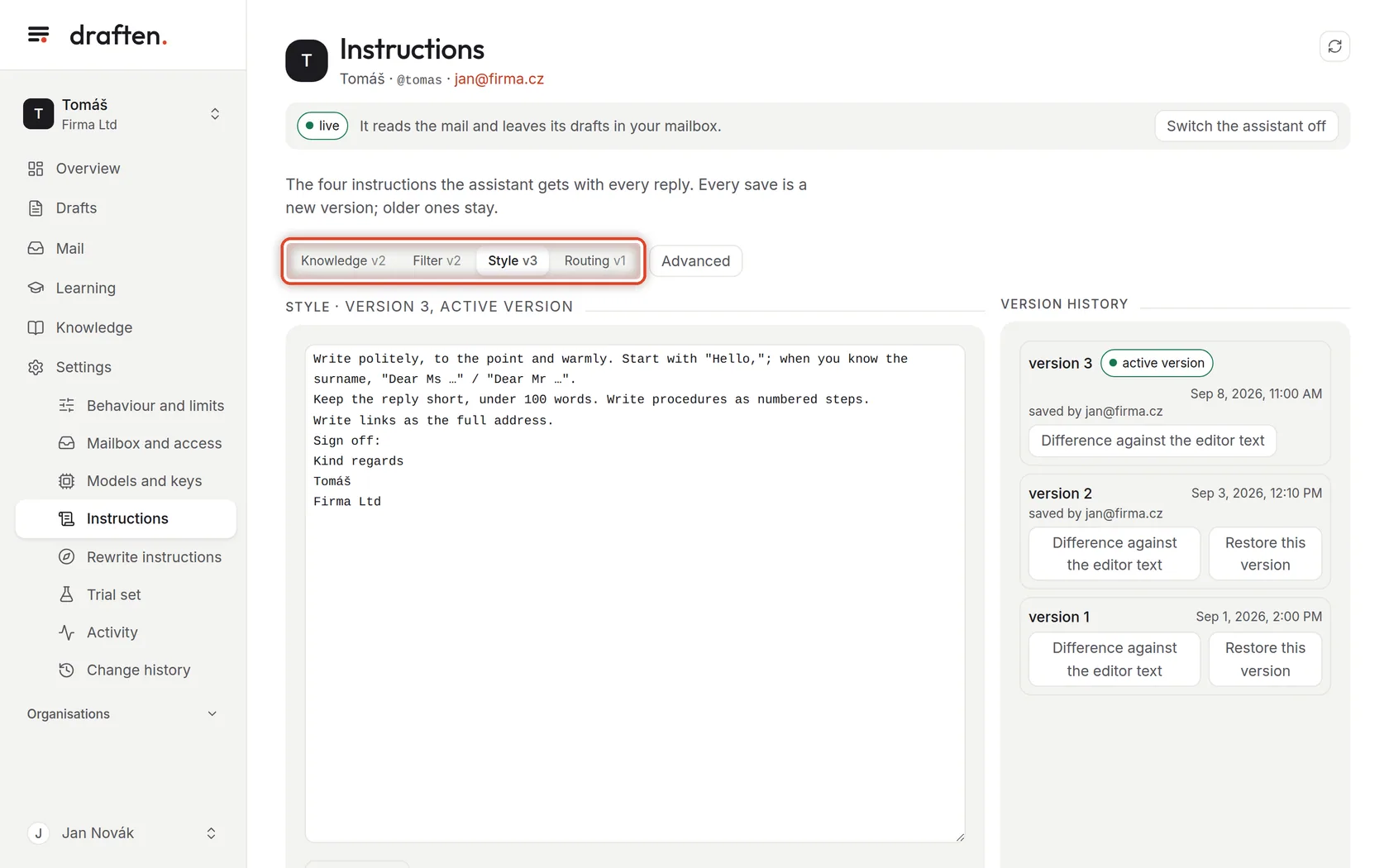
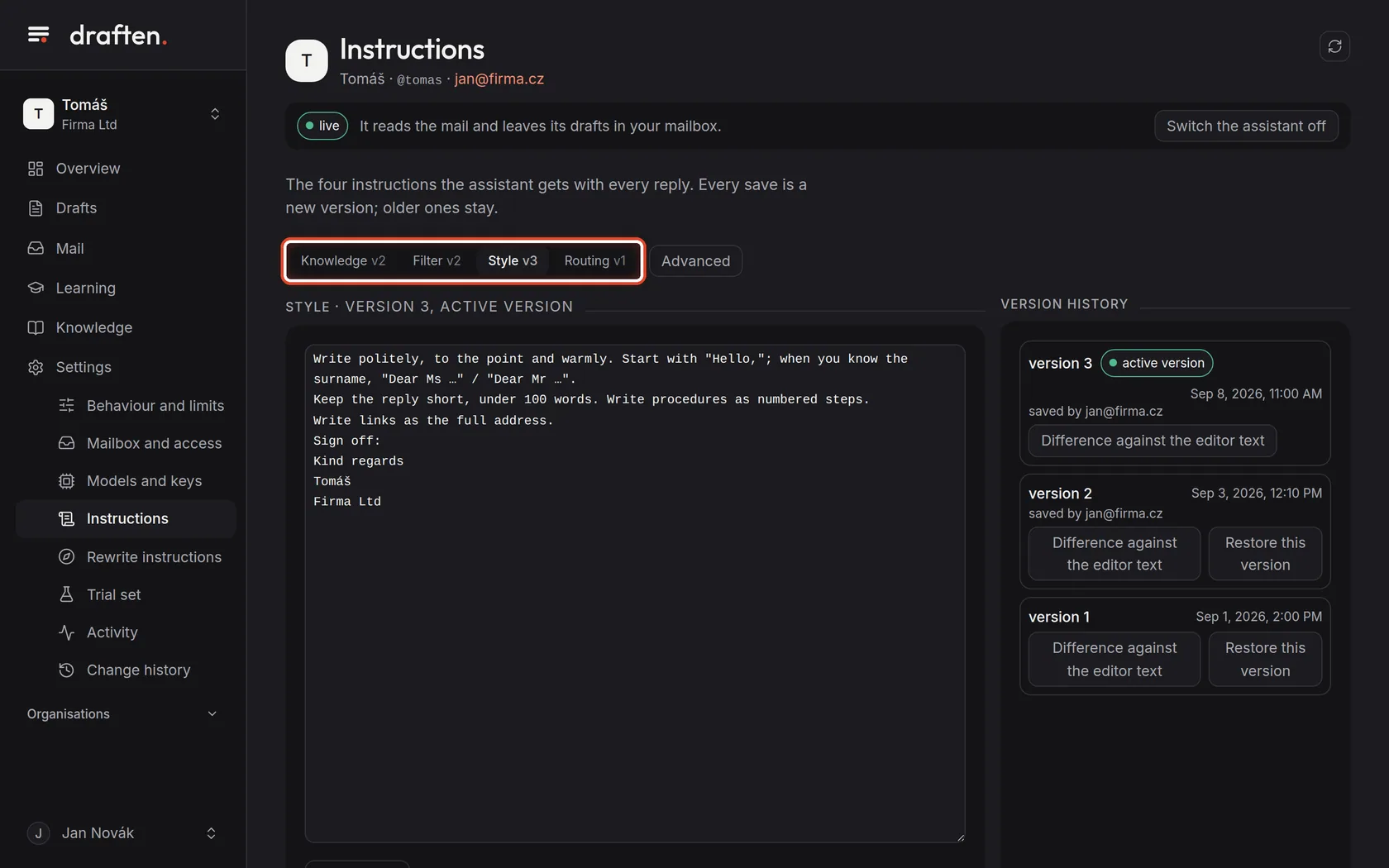
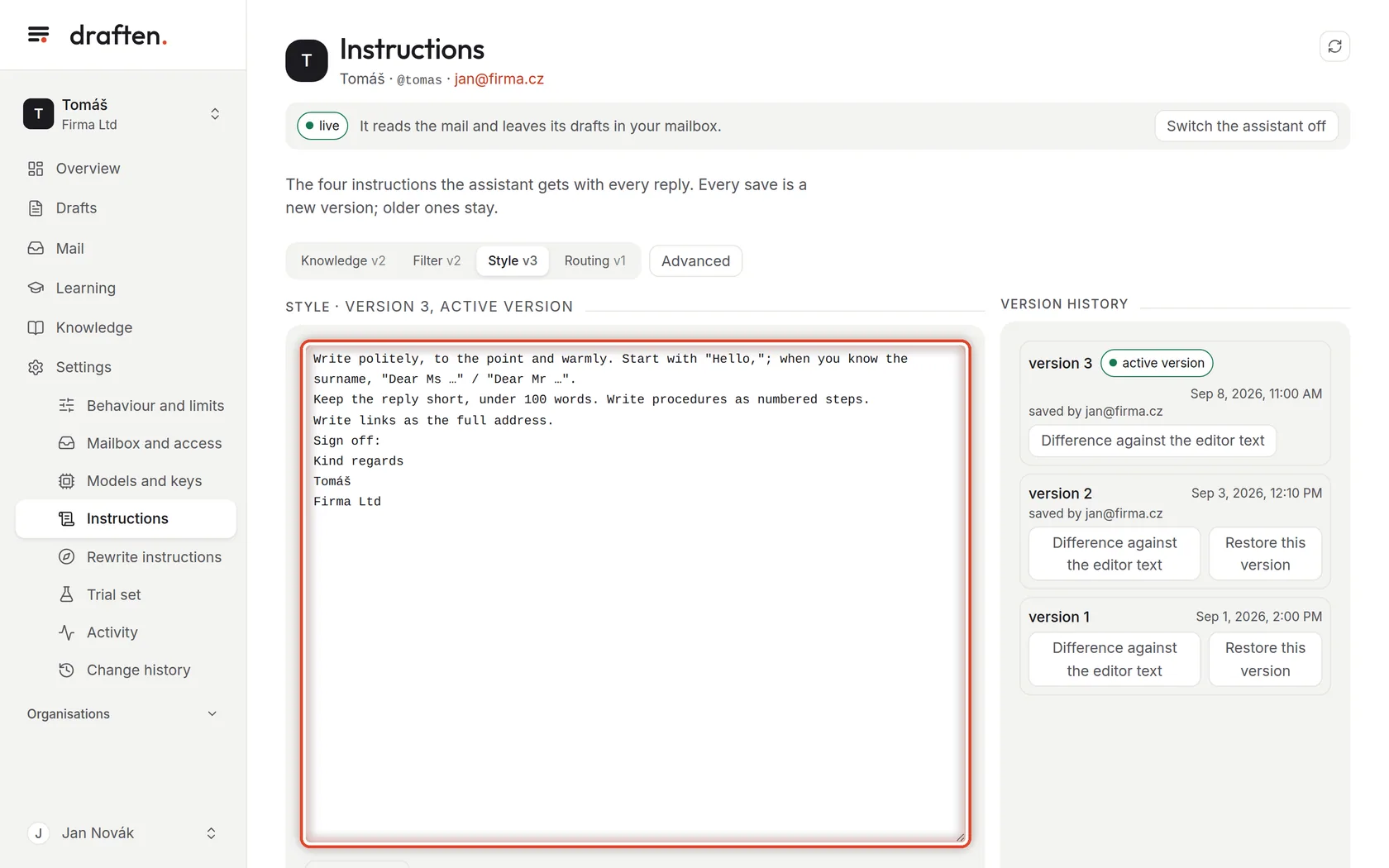
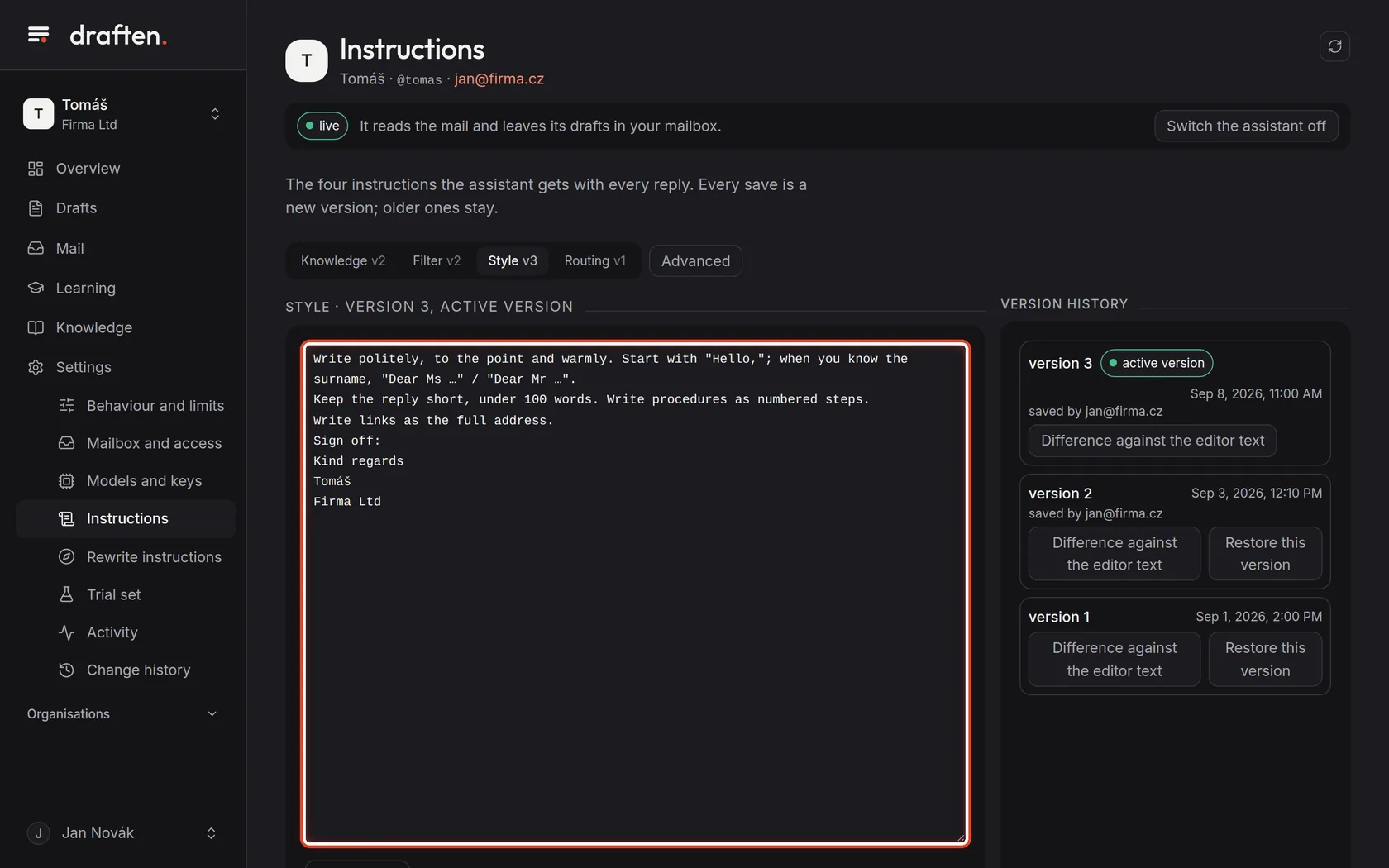
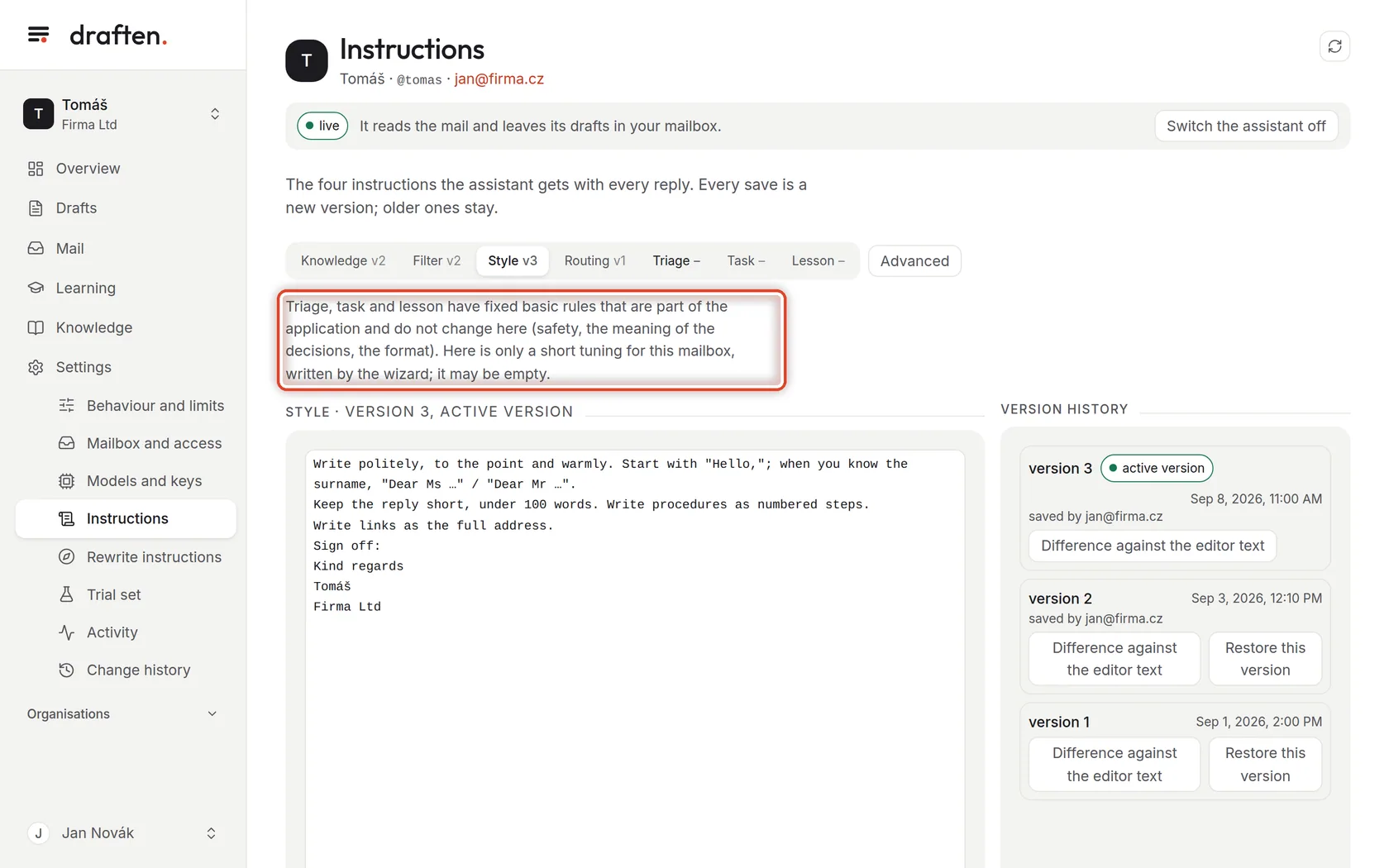
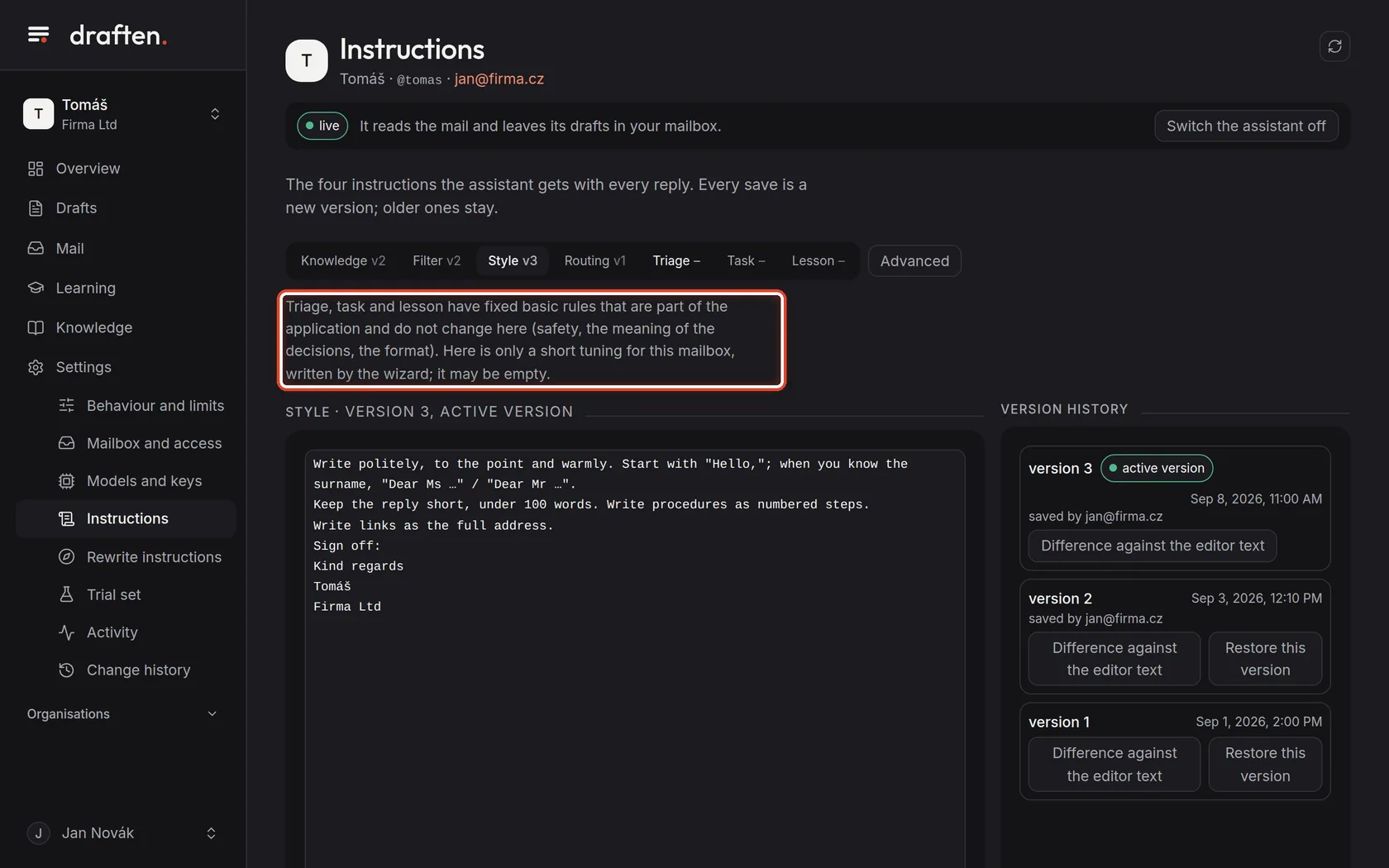
On the screenIn Settings → Instructions, the buttons Knowledge, Filter, Style and Routing.
Do thisEach instruction tells the assistant something else. Knowledge — who the assistant is and how it uses the knowledge sources. Filter — which mail to answer and which not. Style — how to write: greeting, tone, length, signature. Routing — when to answer alone, when to answer and hand over, and when not to reply. Click the instruction you want to see.
NoteThe number next to the name (v3, say) is the active version. The first versions were usually written by the new-assistant wizard.
Step 2 of 7
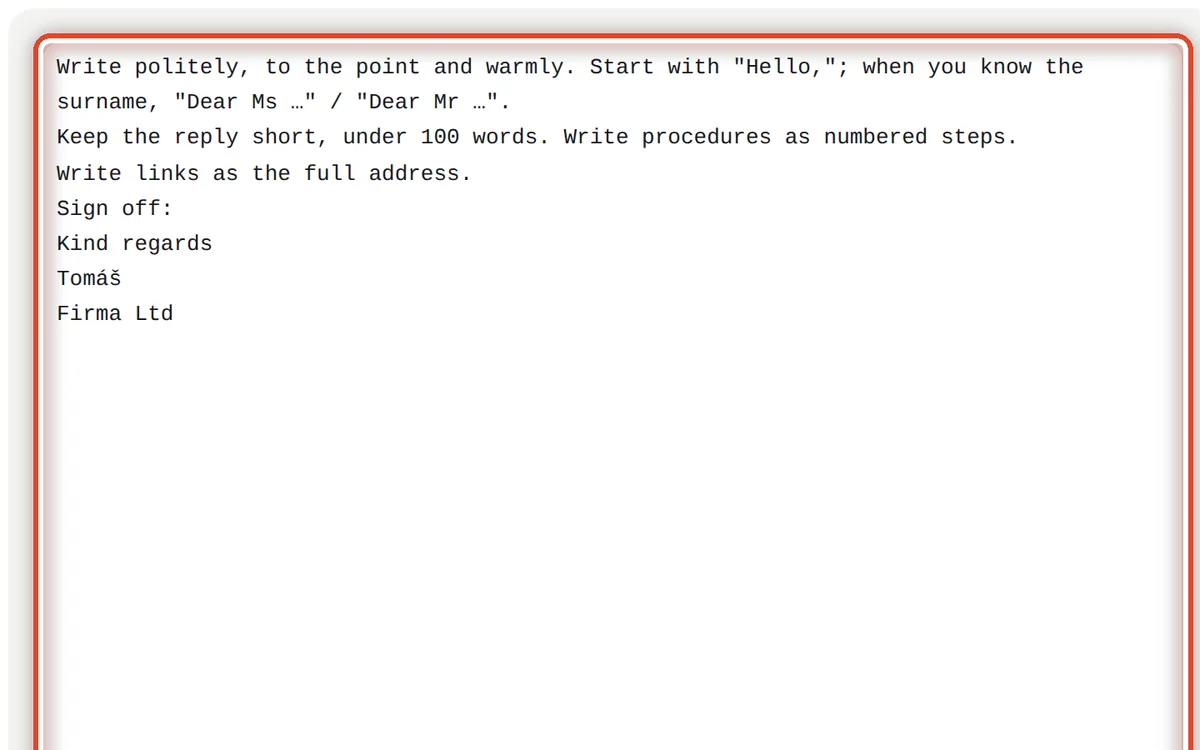
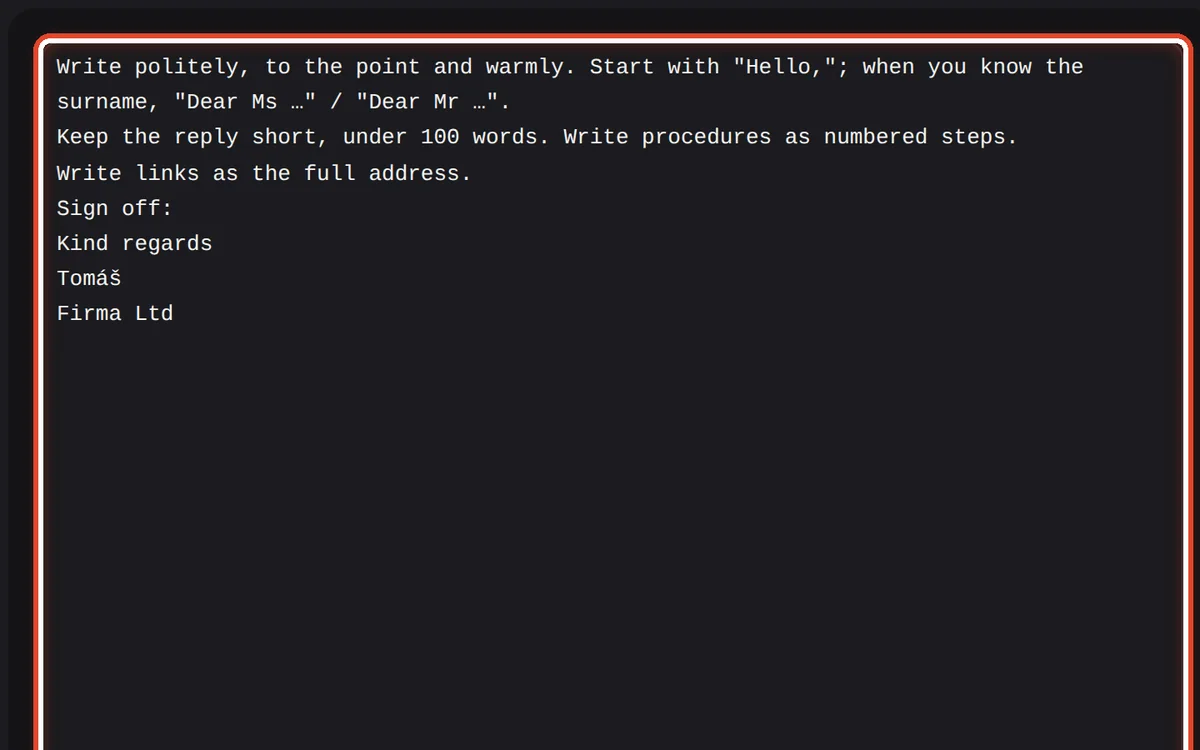
The instruction's text
On the screenA large field with the text of the chosen instruction.
Do thisInstructions are written in plain words, as if you were training a new colleague. Write rules, not single cases: "With a price question add the link to the price list", not "Send Ms Small the price list".
NoteFacts (prices, deadlines, procedures) do not belong in the instructions — put them in Knowledge. An instruction says how to behave; knowledge says what is true.
Step 3 of 7
Save a new version
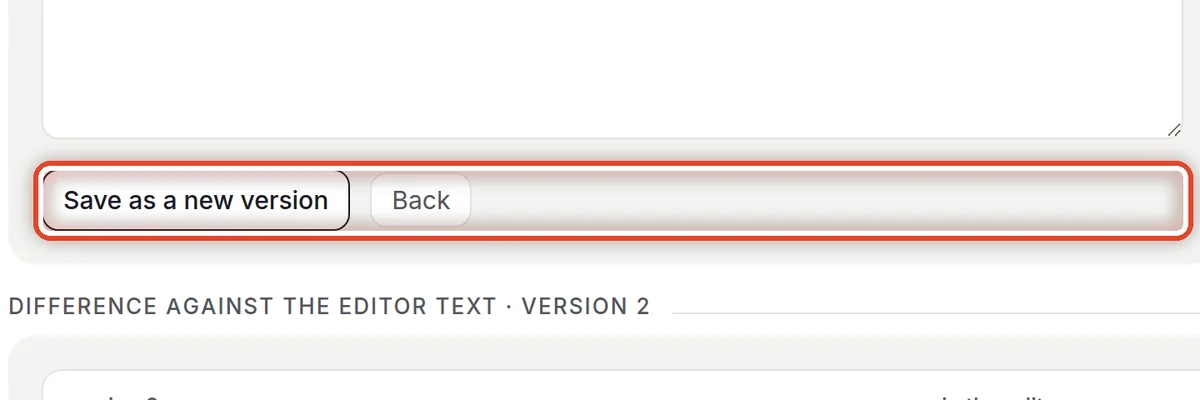
On the screenUnder the field, the Save as a new version button.
Do thisEdit the text and click Save as a new version. Back throws your edits away. The assistant follows the new version from the next mail check.
NoteTry a bigger change on the trial set first — you see how the assistant would answer the saved messages before the instruction goes live.
Step 4 of 7
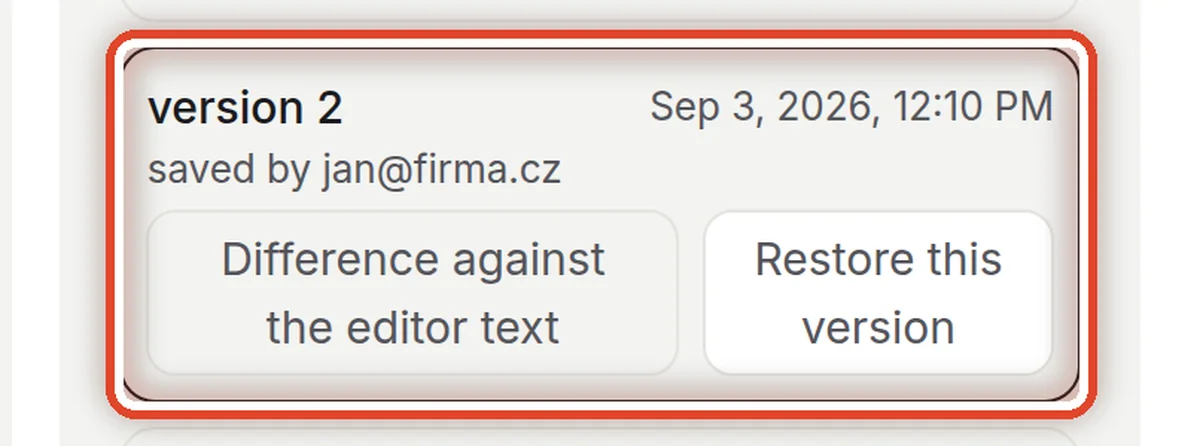
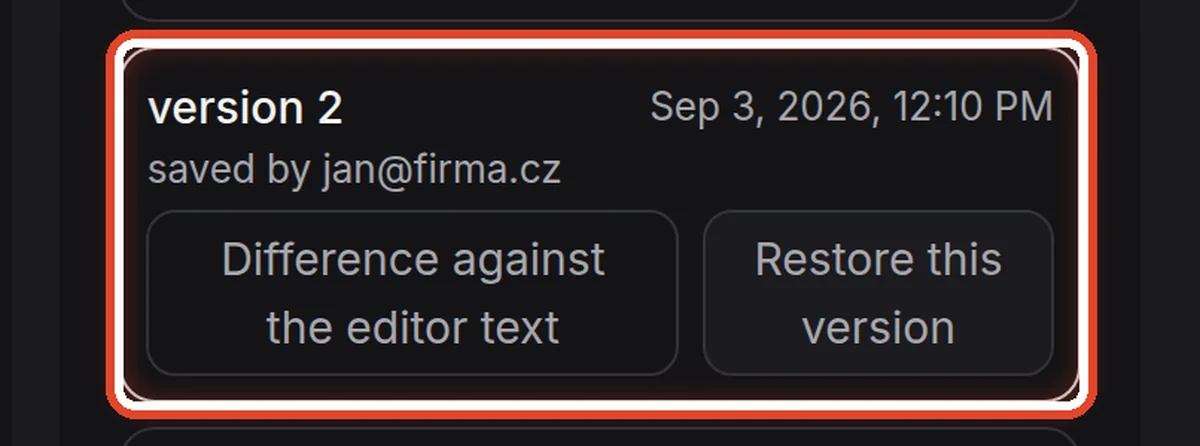
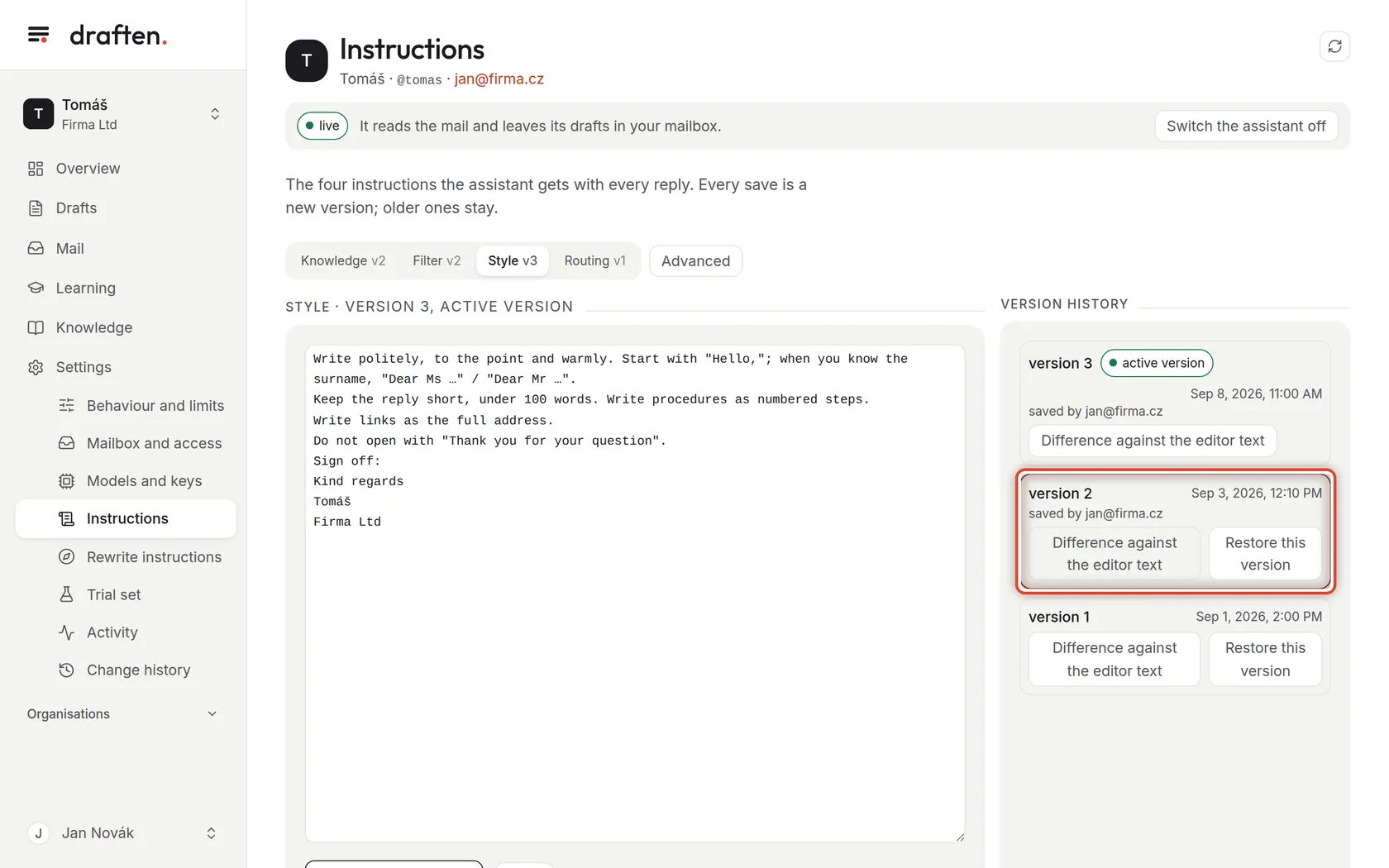
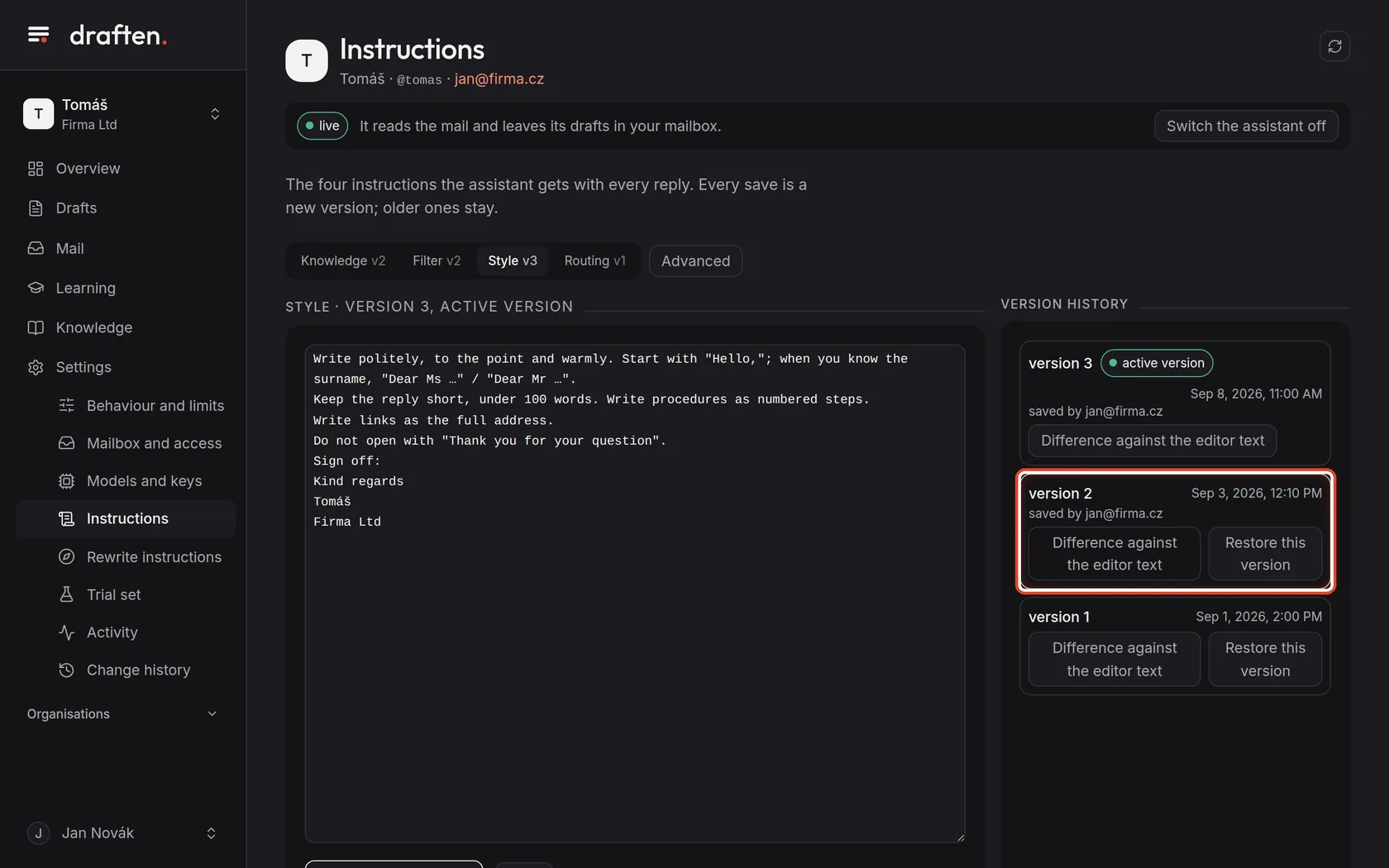
Version history
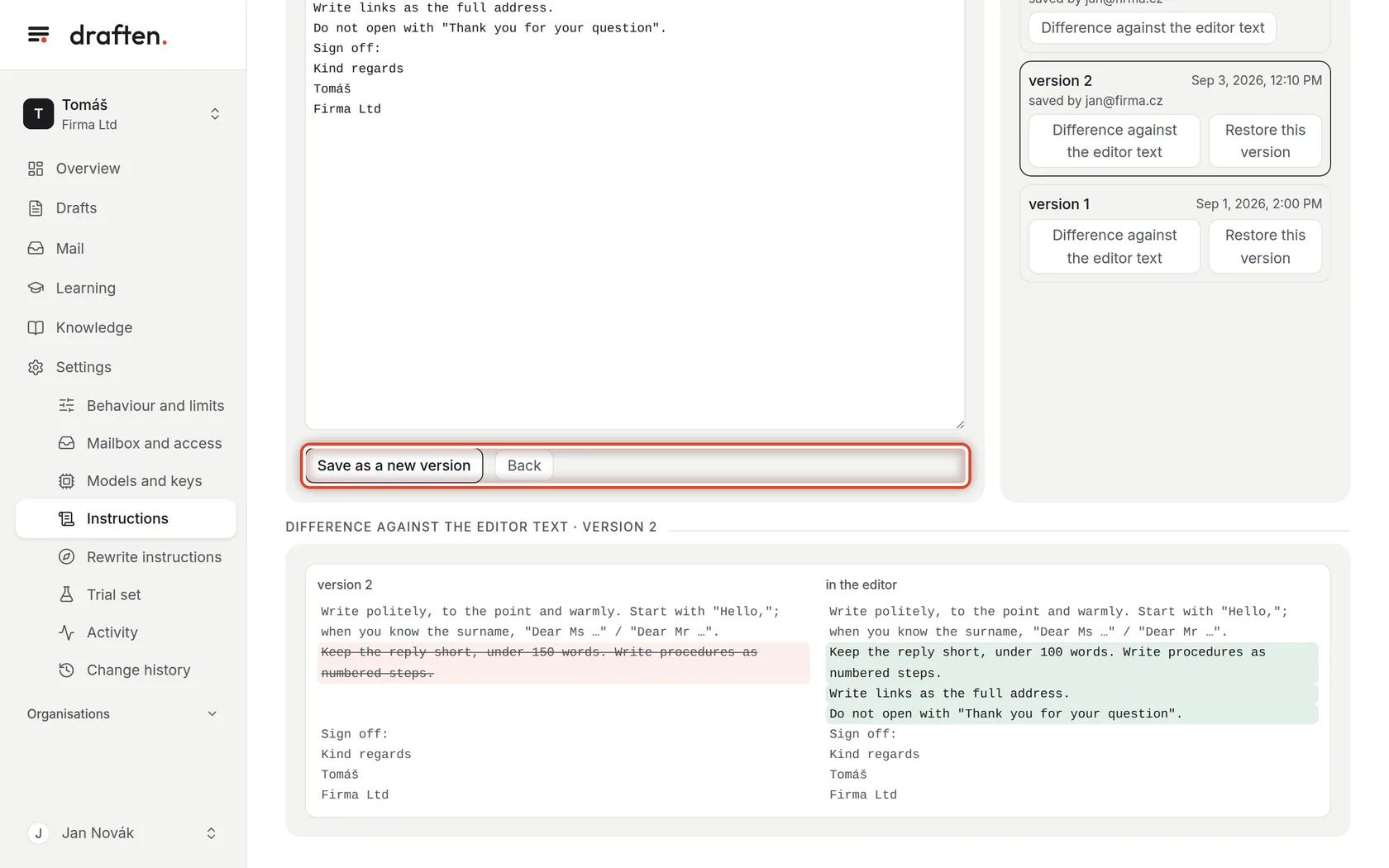
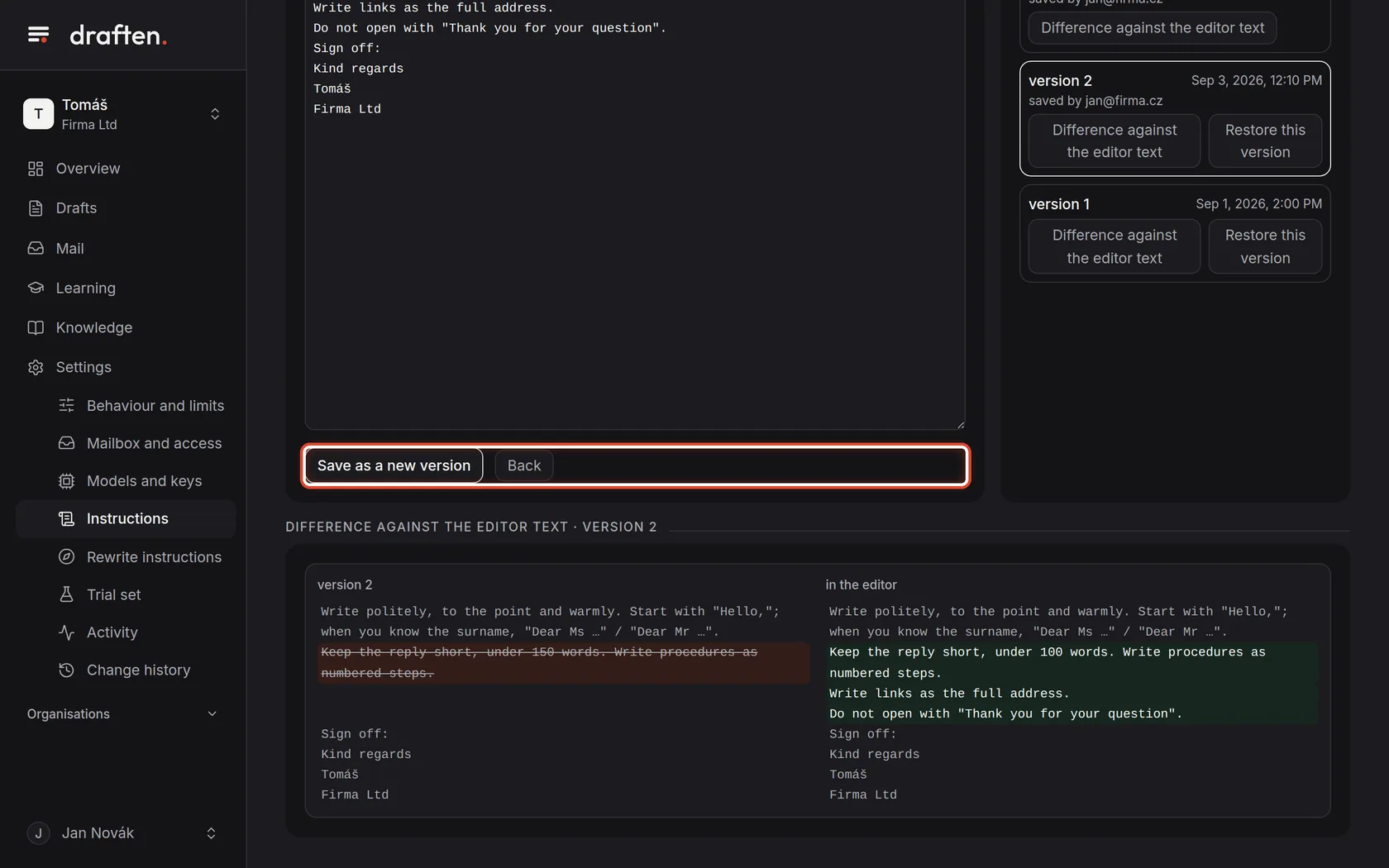
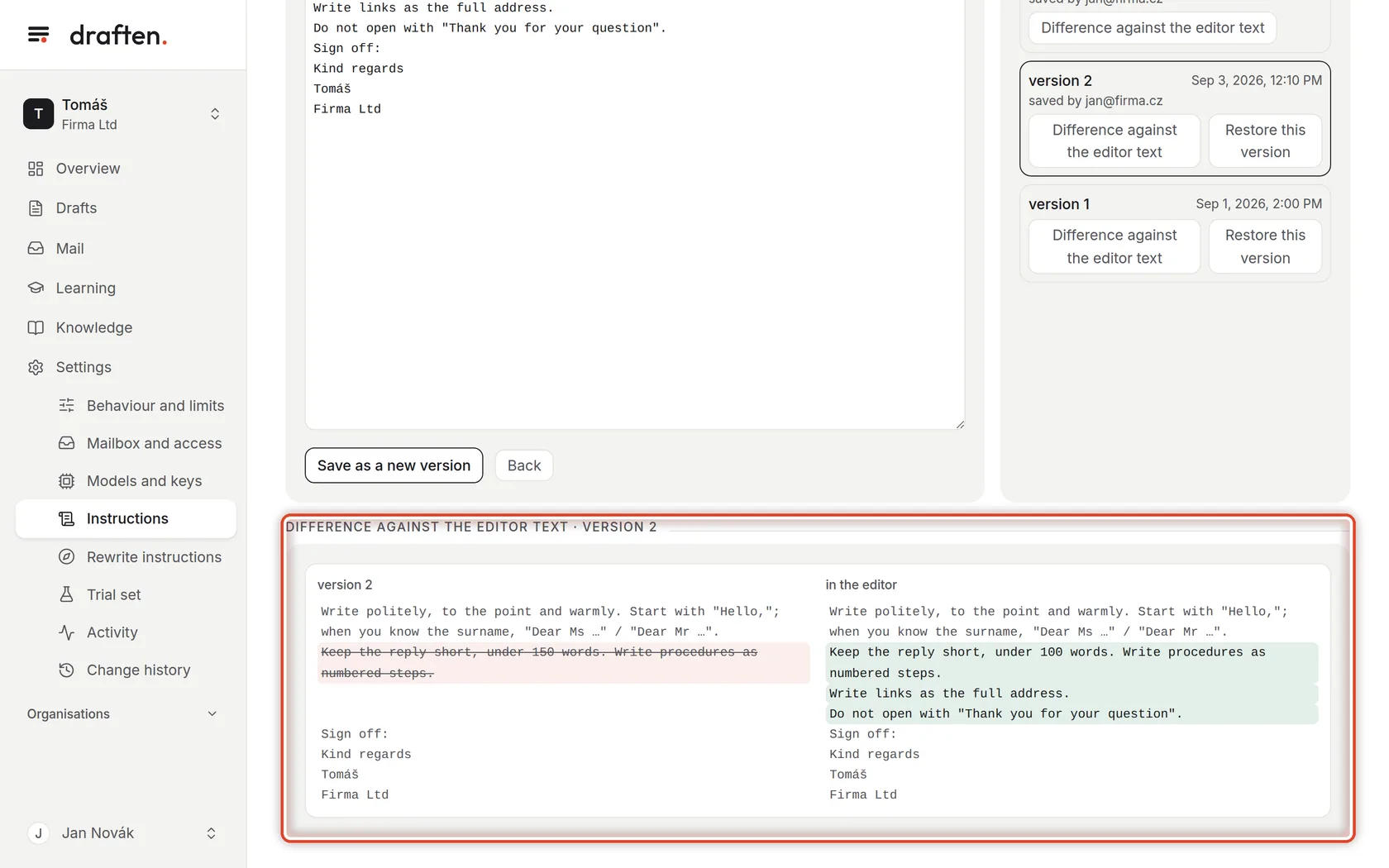
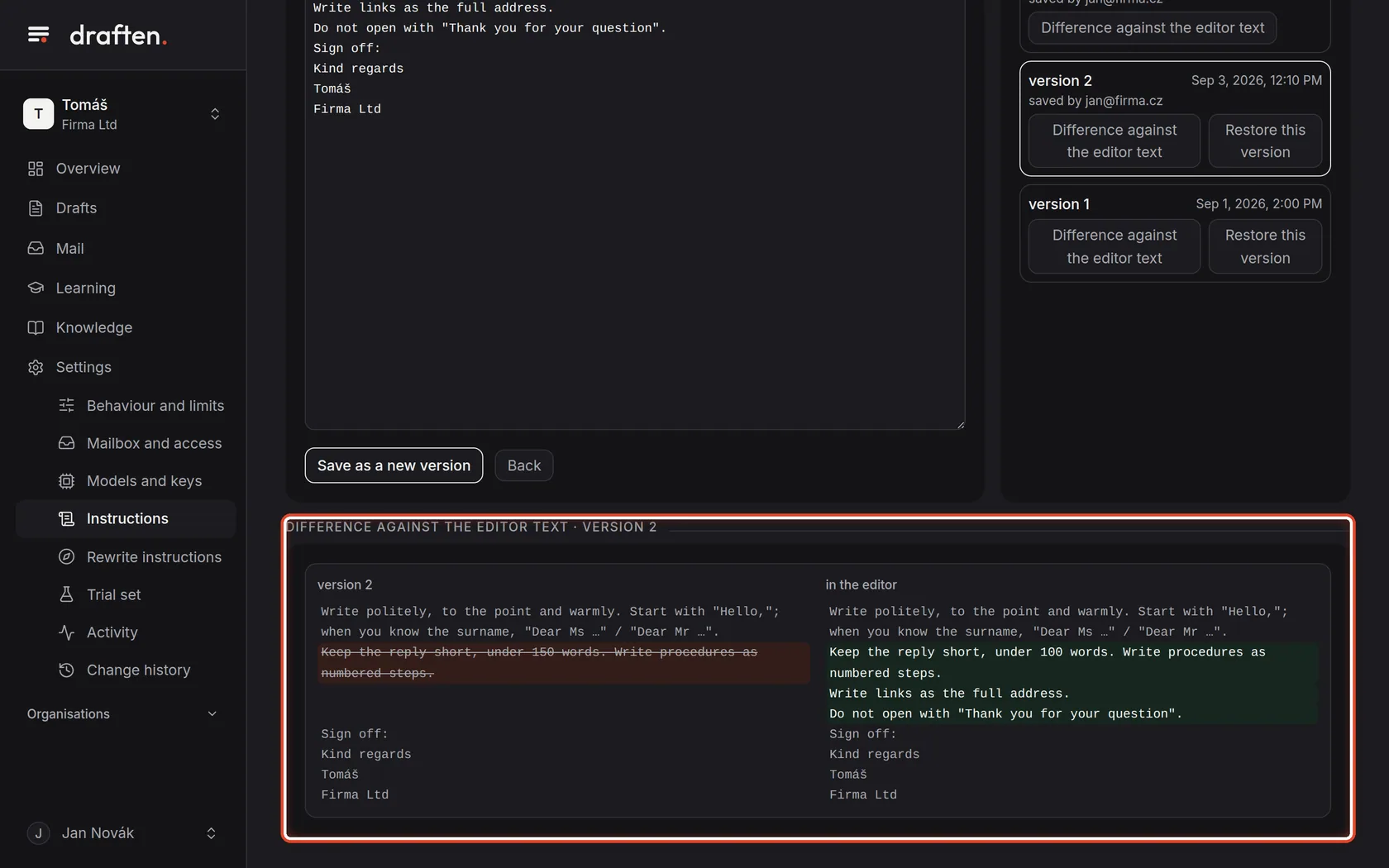
On the screenOn the right, the Version history card.
Do thisEvery save is a new version; the older ones stay. Each shows when and who saved it. Difference against the editor text shows how the version differs from what is in the field now.
Step 5 of 7
The comparison
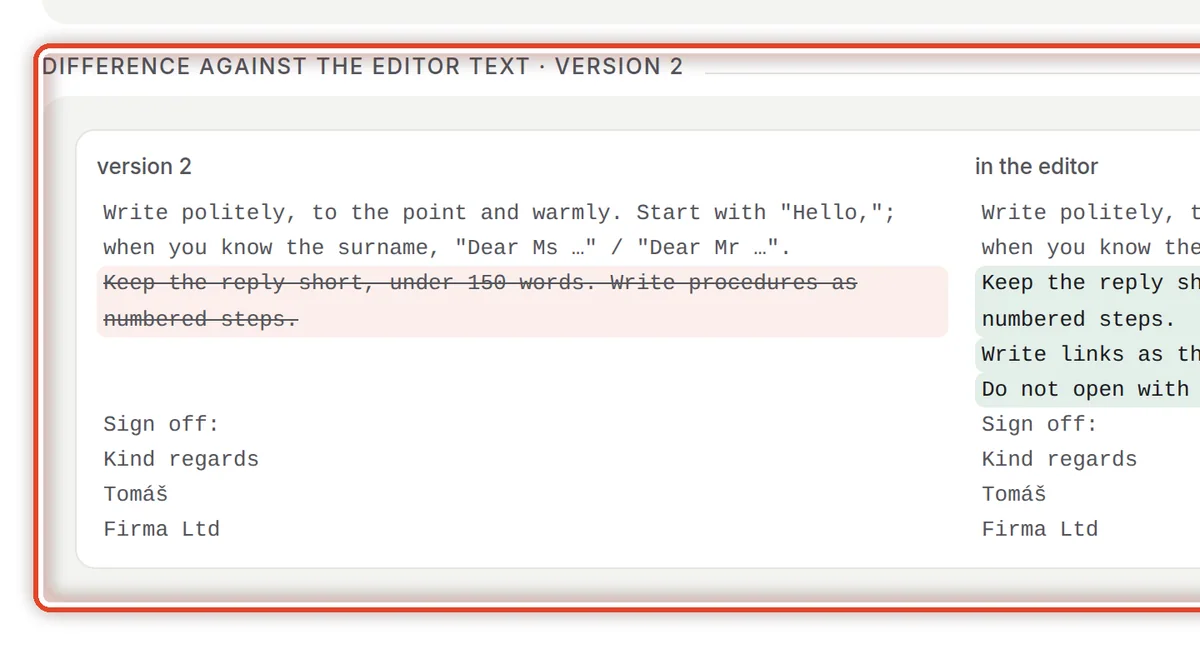
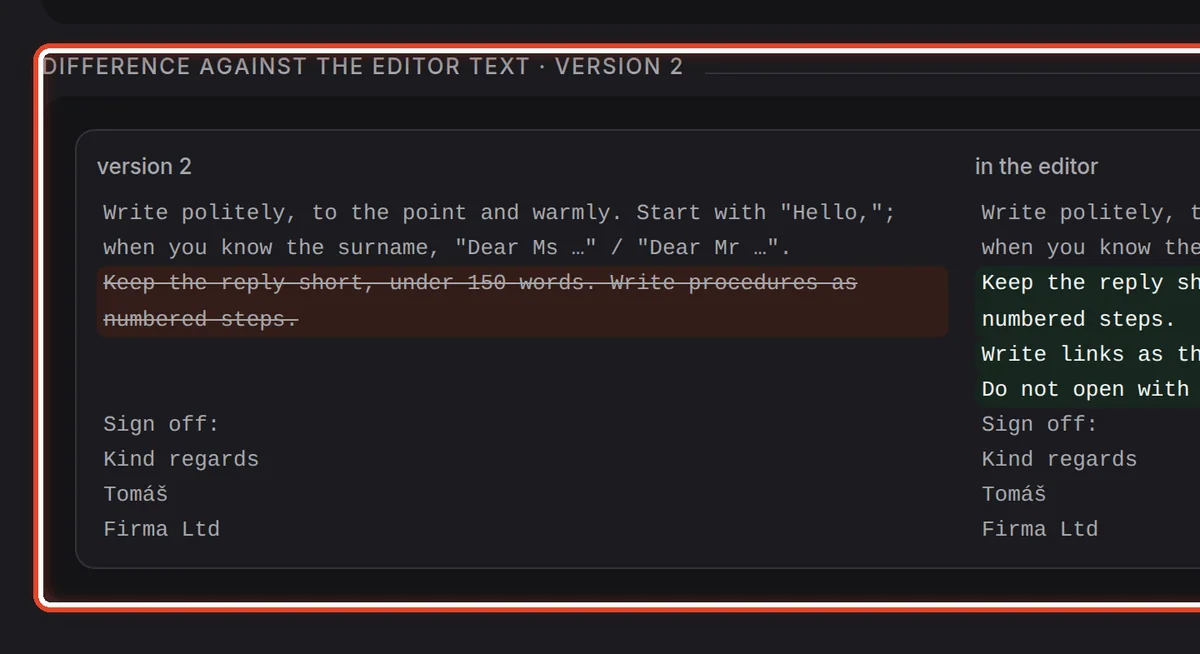
On the screenUnder the editor, a card with the comparison: the old version on the left, the editor text on the right.
Do thisRemoved lines are struck through in red, added ones are green. An easy way to check what changed before you save.
Step 6 of 7
Back to an older version
On the screenBy an older version, the Restore this version button.
Do thisWhen a new version does not work out, click Restore this version by an older one. It is saved as a new active version; nothing is deleted.
Step 7 of 7
Advanced: tunings
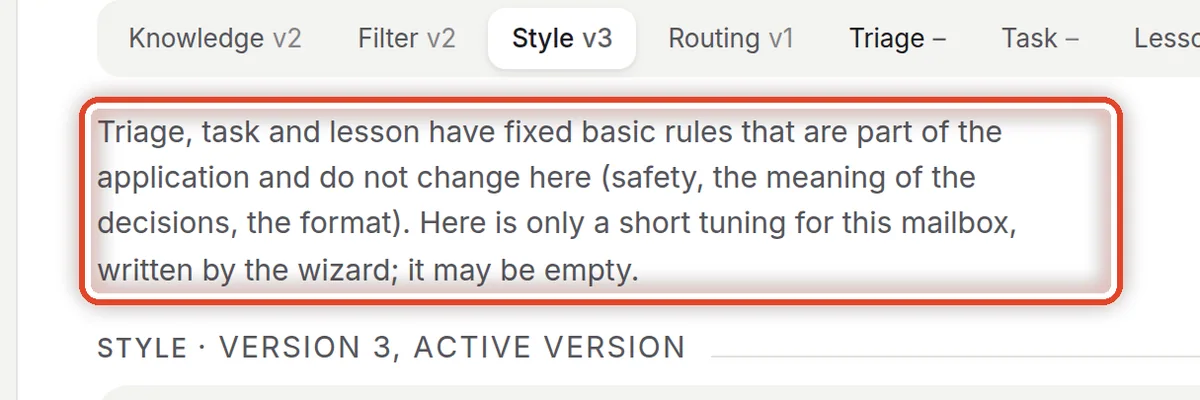
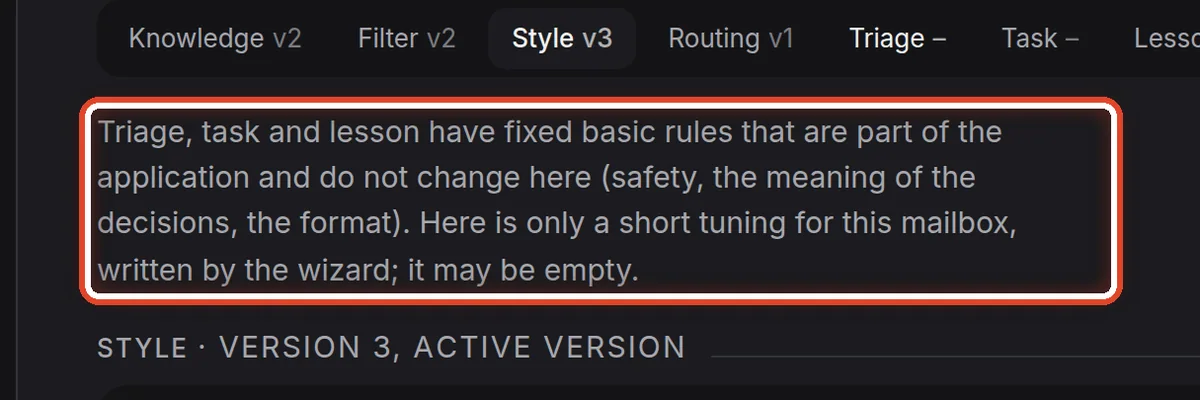
On the screenAfter clicking Advanced, three more: Triage, Task and Lesson.
Do thisThese three have fixed basic rules built into draften (safety, the meaning of the decisions). Here goes only a short tuning for your mailbox, and it may stay empty. Usually you need not change them.
The end
The instructions are yours
The assistant follows them from the next mail check. To write the instructions afresh from your mail, run Rewrite the instructions.
- Try without riskThe Trial set guide shows how to compare the replies before and after a change.
- The same edits again and againThe assistant proposes lessons by itself — the Learning guide.