Guide
Where things are
in draften.
A short tour: the menu, switching between assistants, the assistant's state and your account. You set nothing, you just look around.
Before you start
- Signed inHow to get into draften is in the Signing in guide.
- About 3 minutesThe tour takes a moment.
Step 1 of 6
The six parts of an assistant
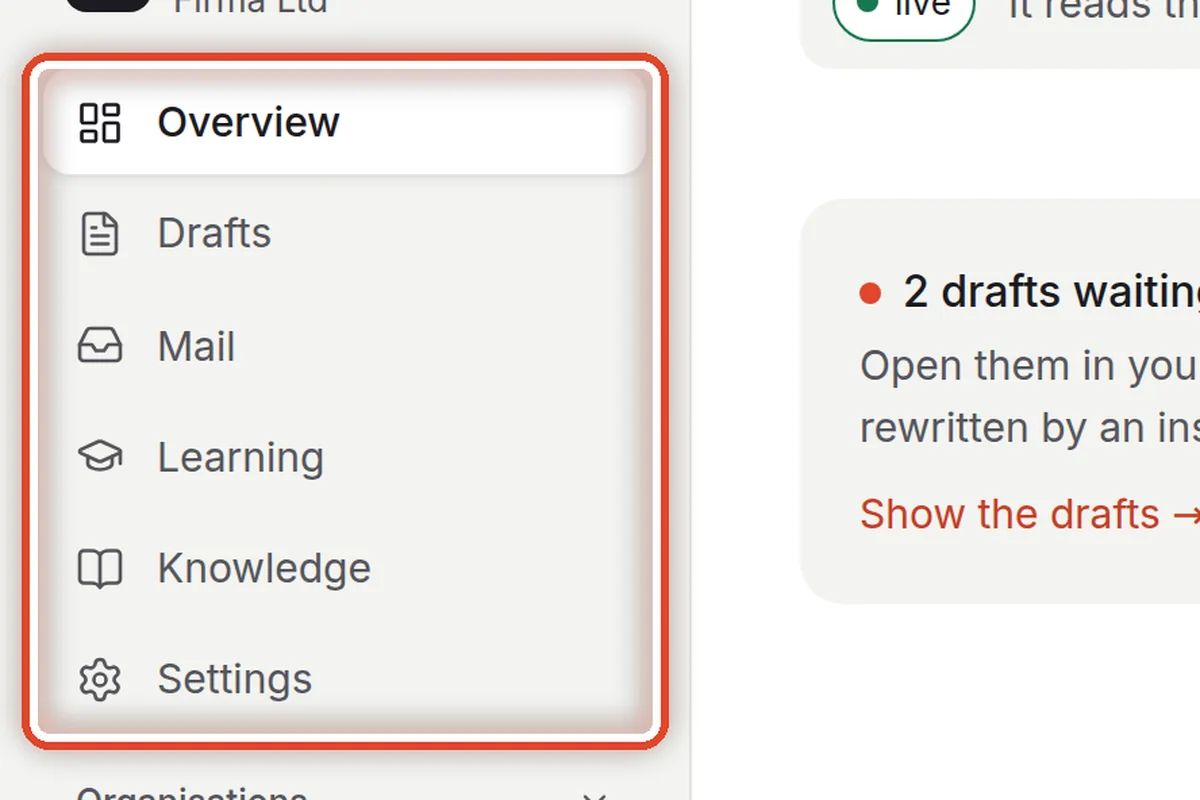
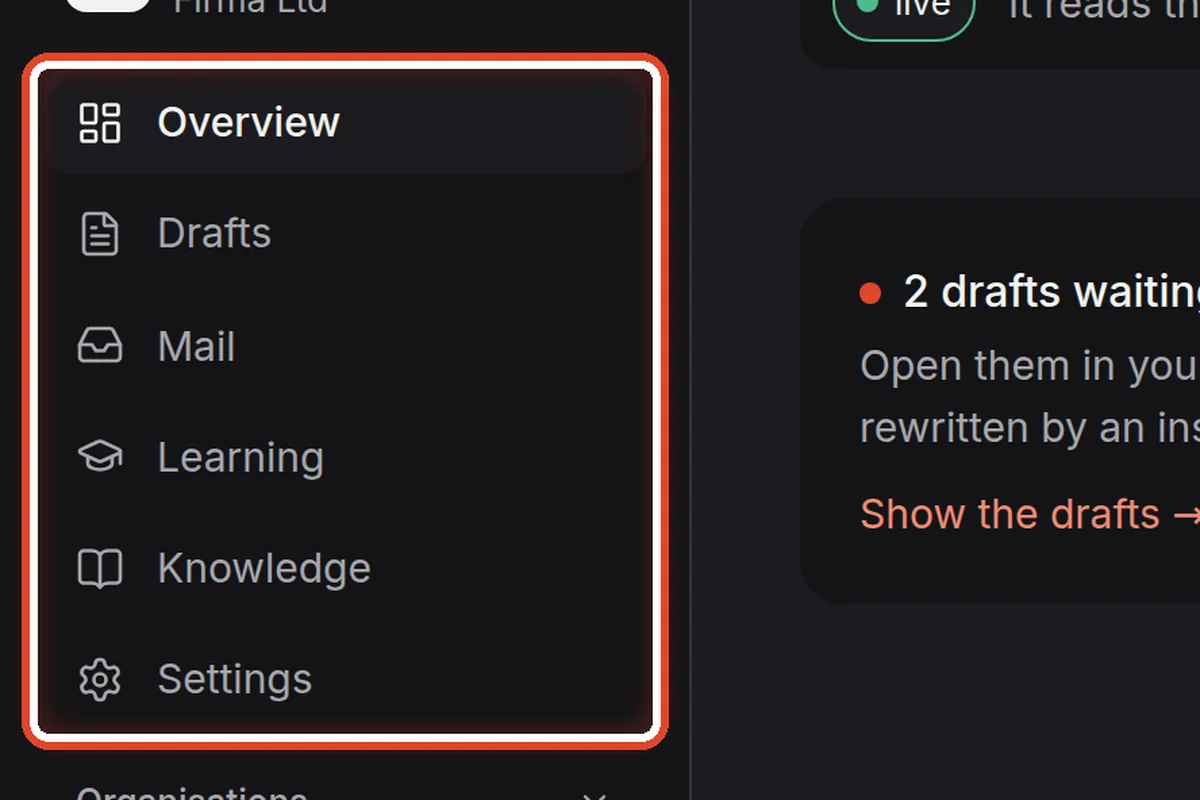
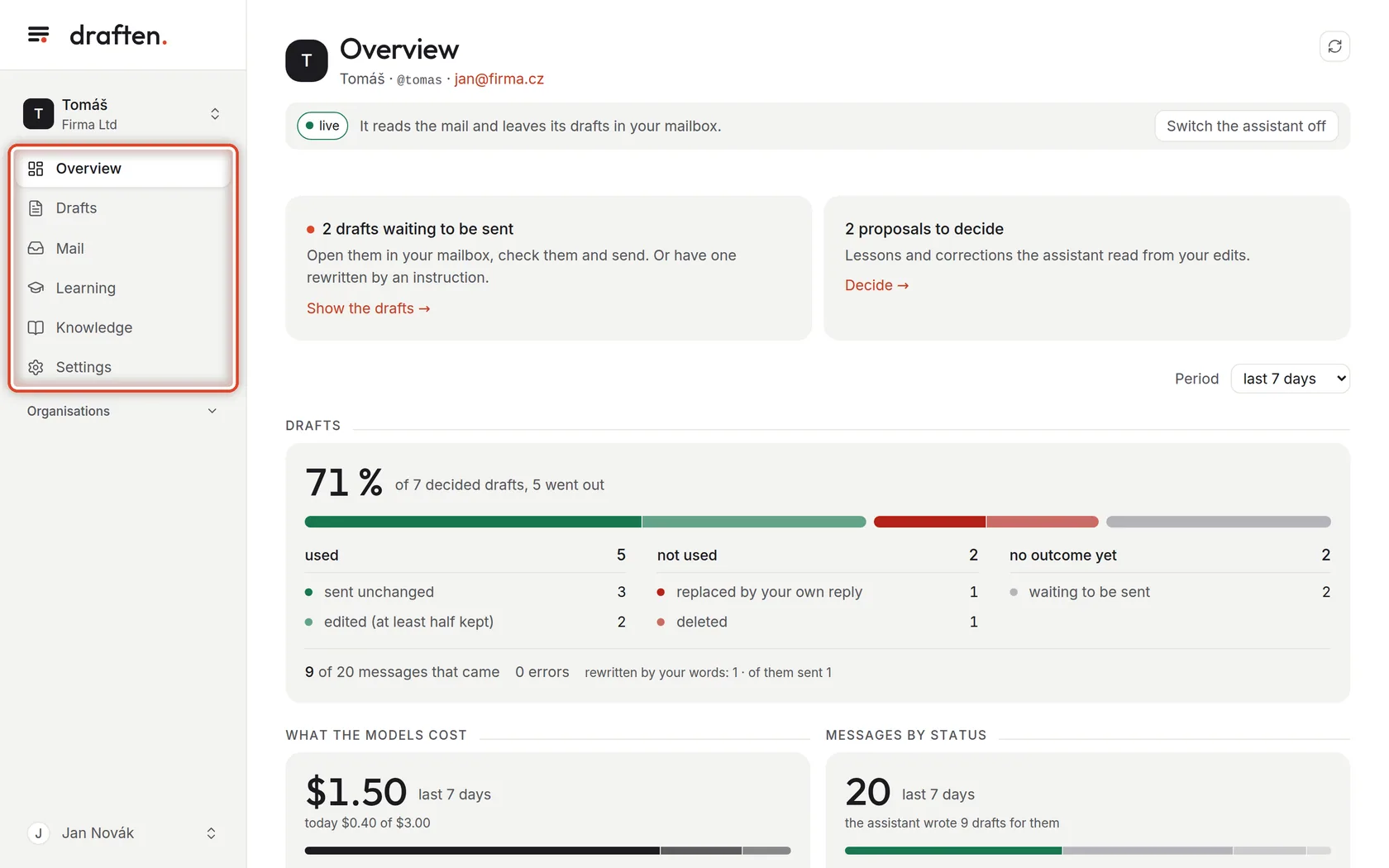
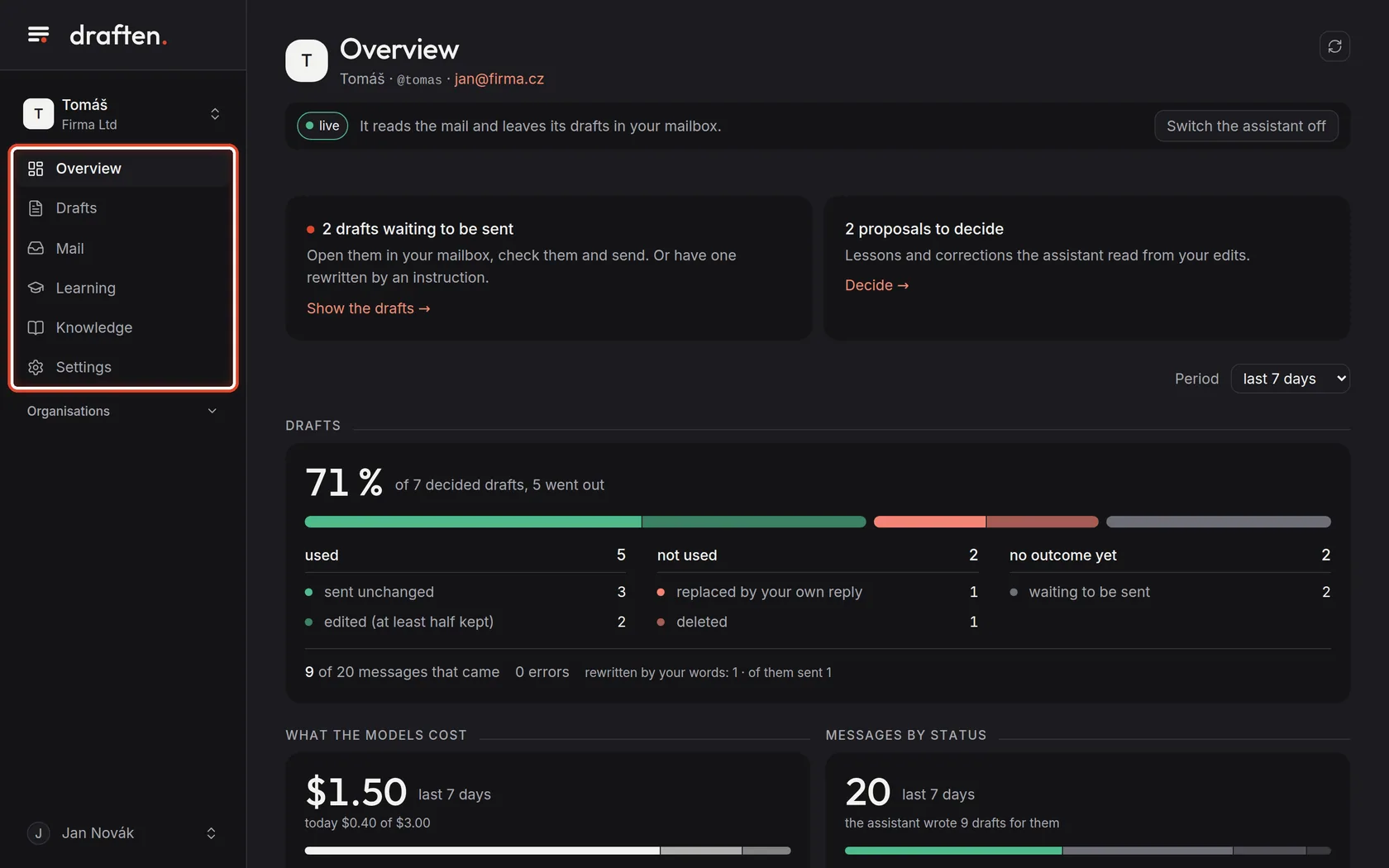
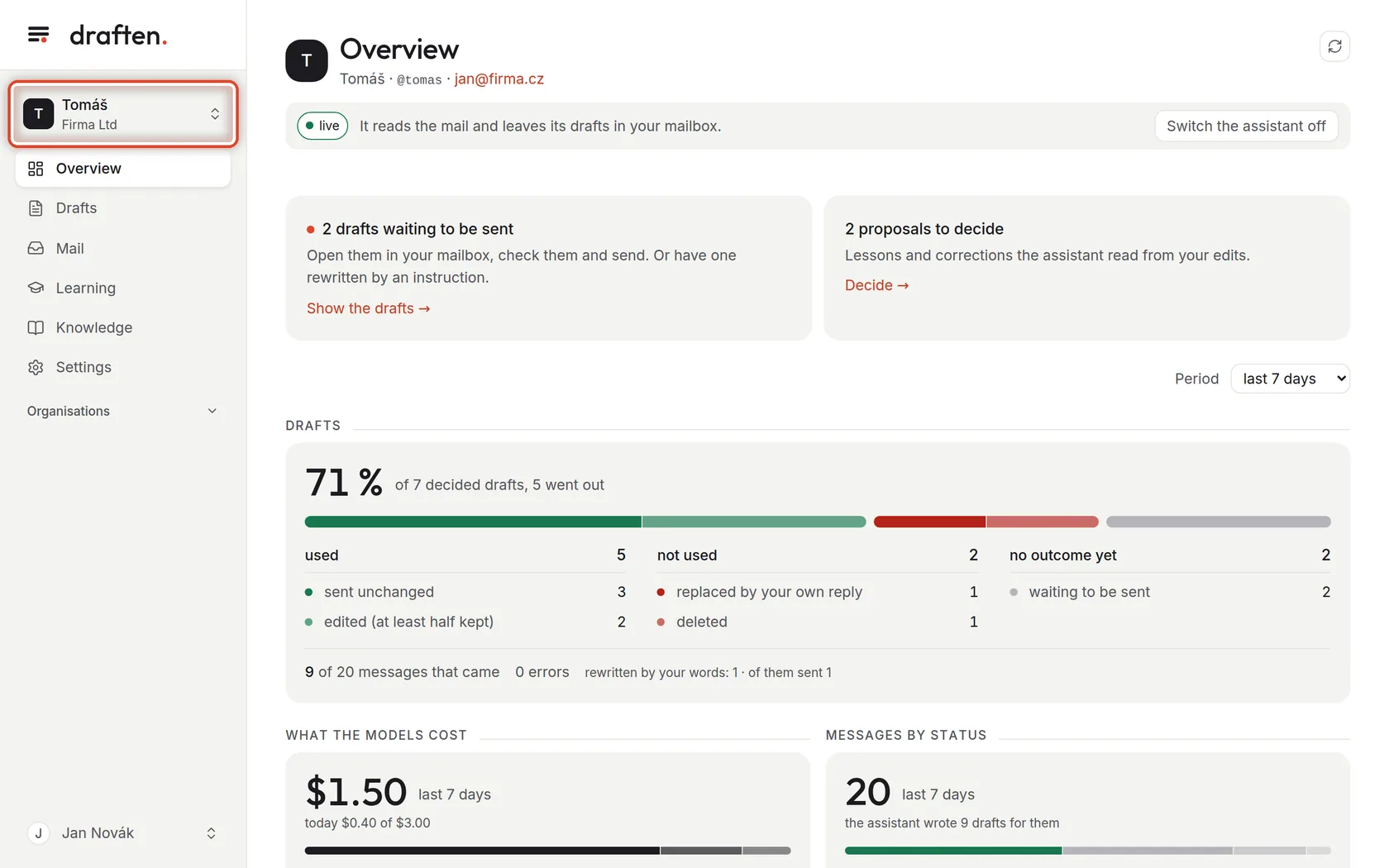
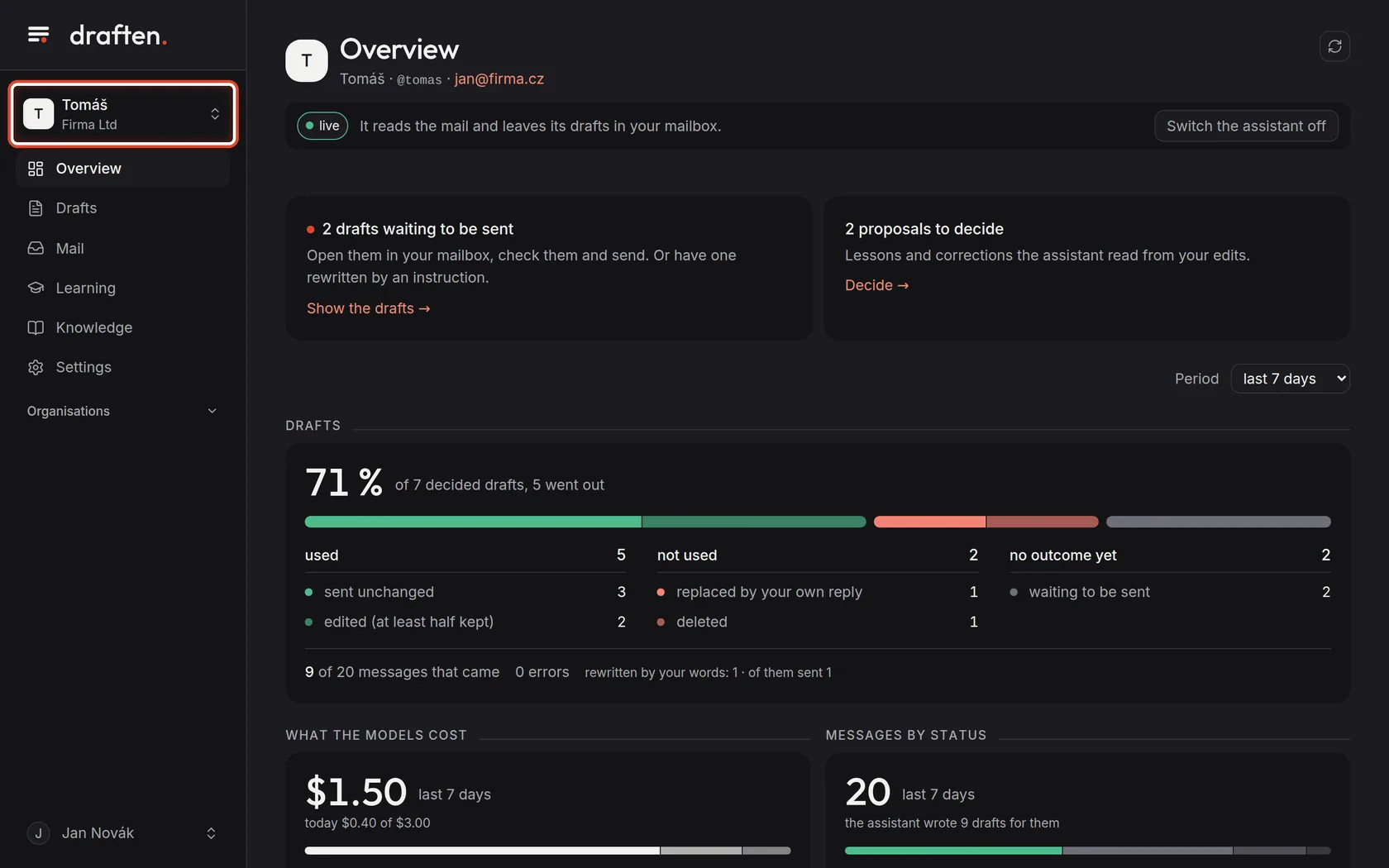
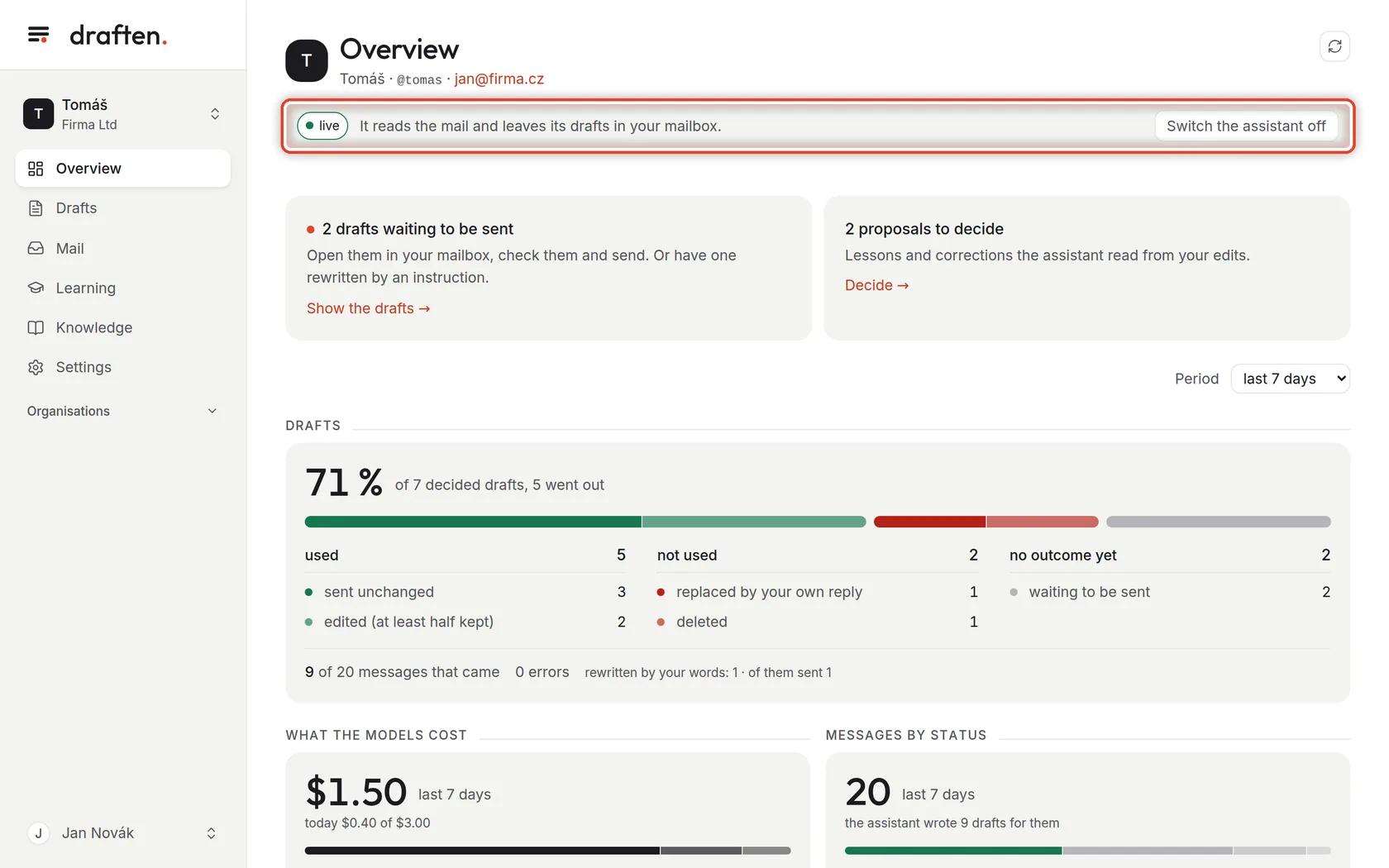
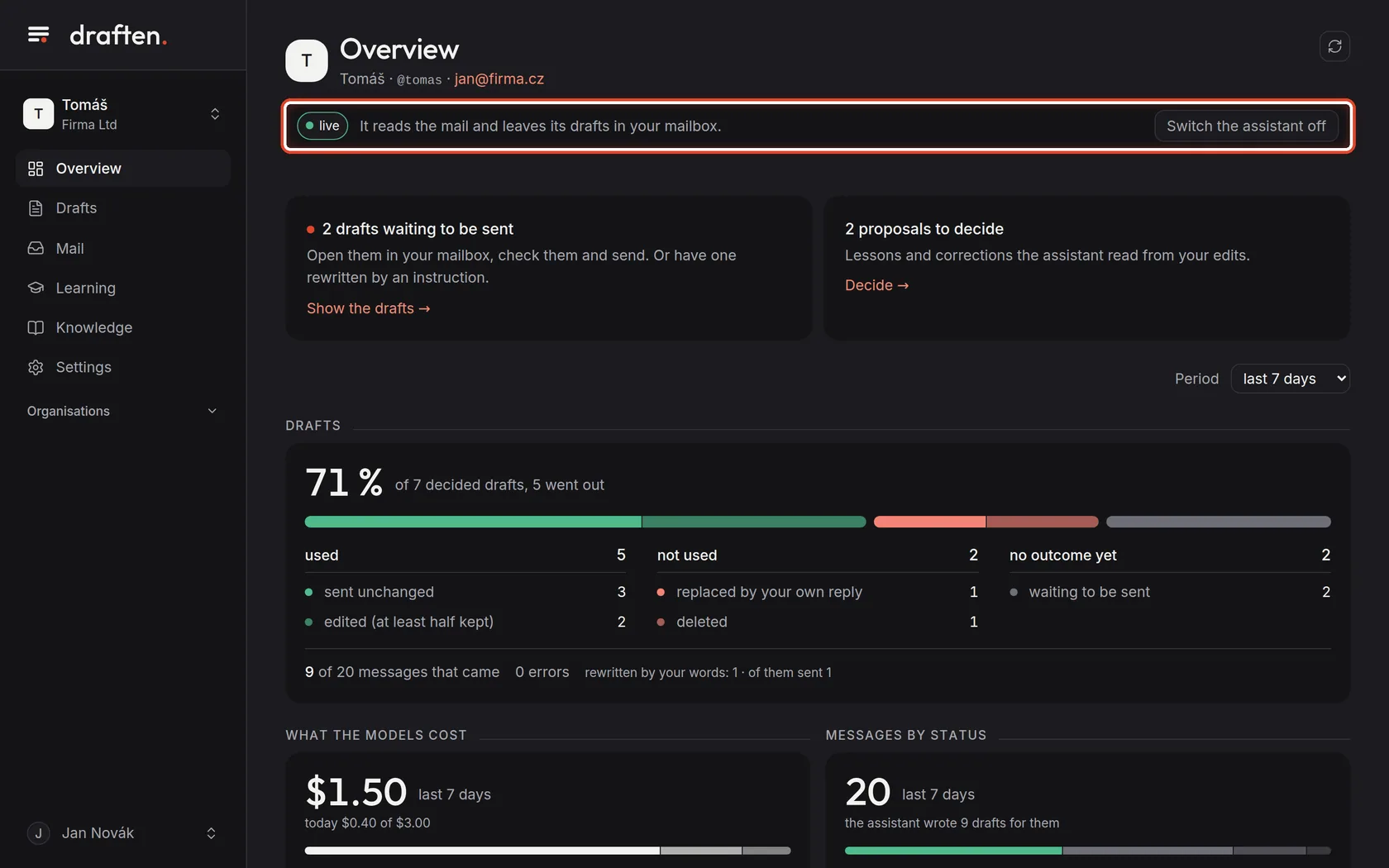
On the screenThe menu on the left: Overview, Drafts, Mail, Learning, Knowledge, Settings.
Do thisThis is how you move around draften. Overview shows how the assistant is doing. Drafts are the replies it wrote. Mail is everything that arrived in the mailbox. In Learning you approve what it learnt. Knowledge holds its sources of facts, and Settings everything else.
Step 2 of 6
Which assistant is open
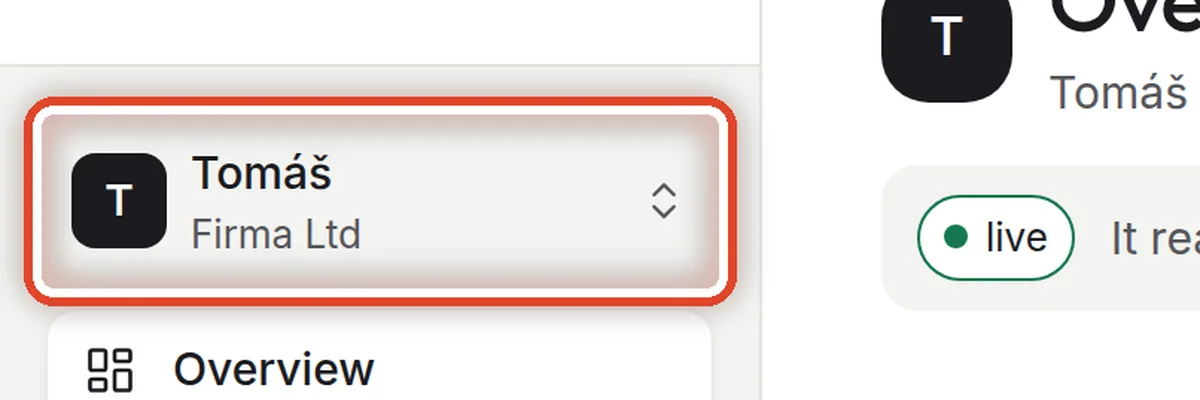
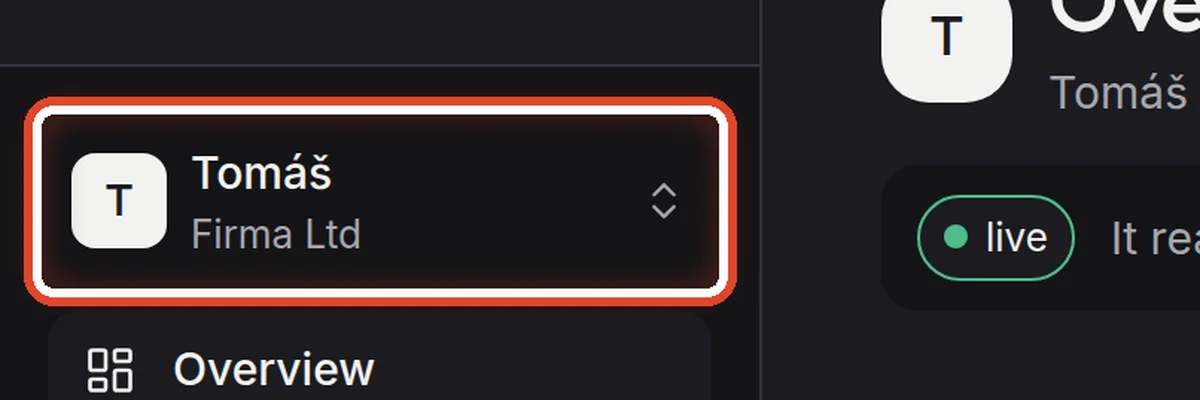
On the screenAbove the menu: the assistant's name and the organisation.
Do thisIf you have more than one assistant, click the name at the top and pick another.
Step 3 of 6
Switching to another assistant
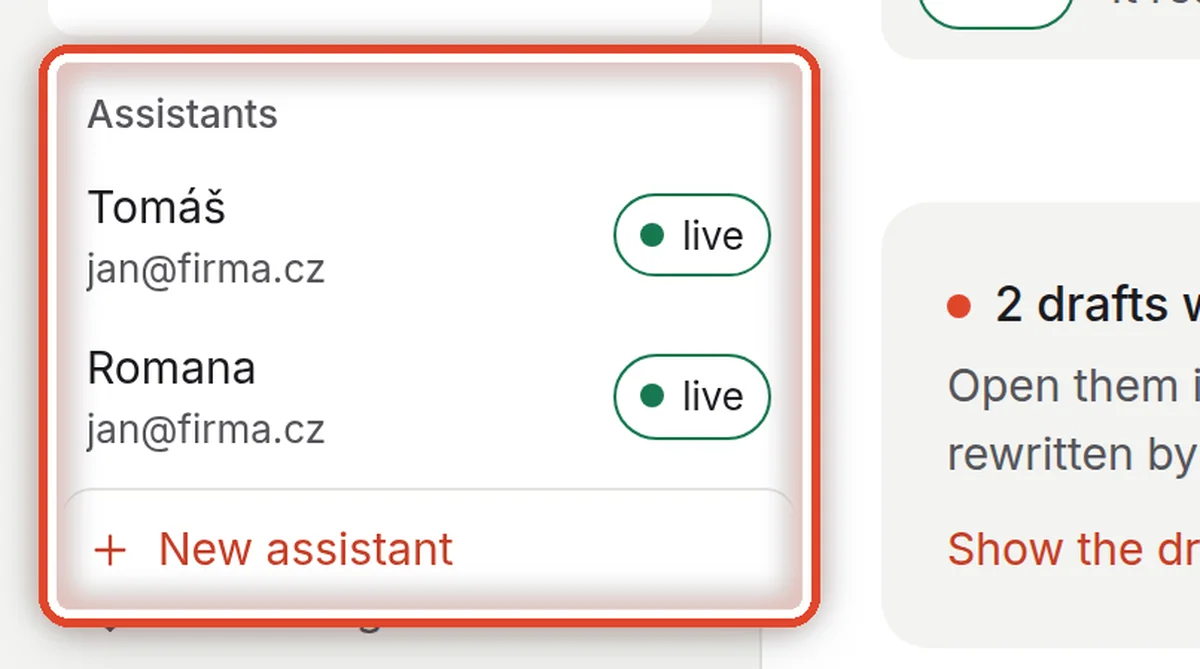
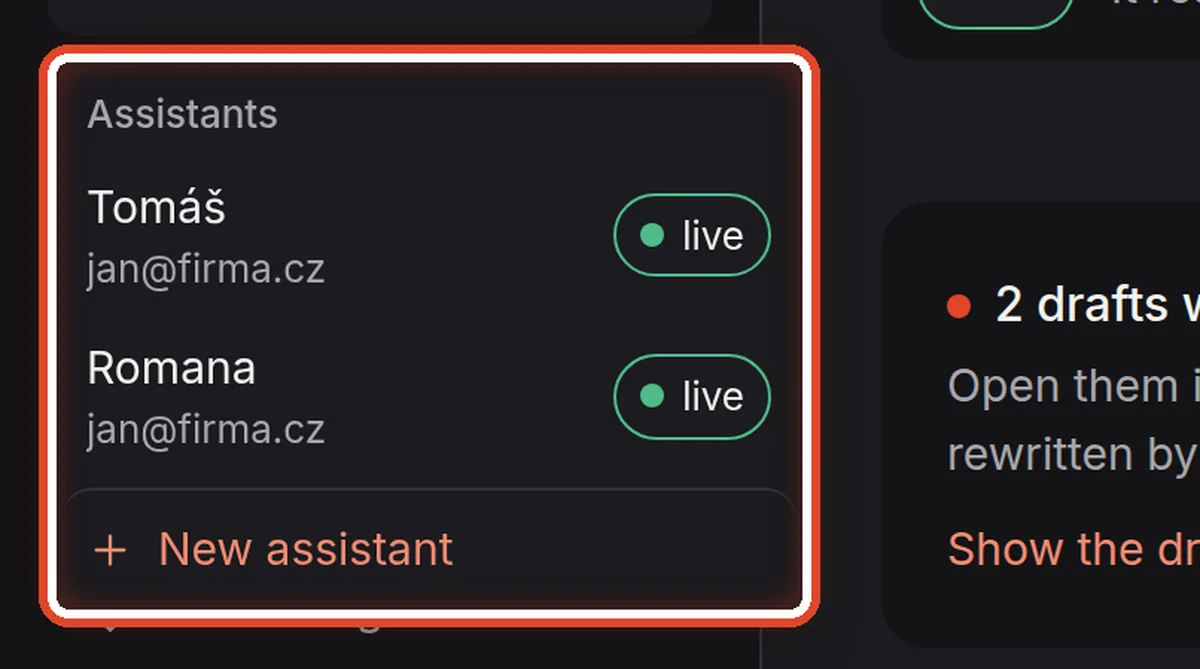
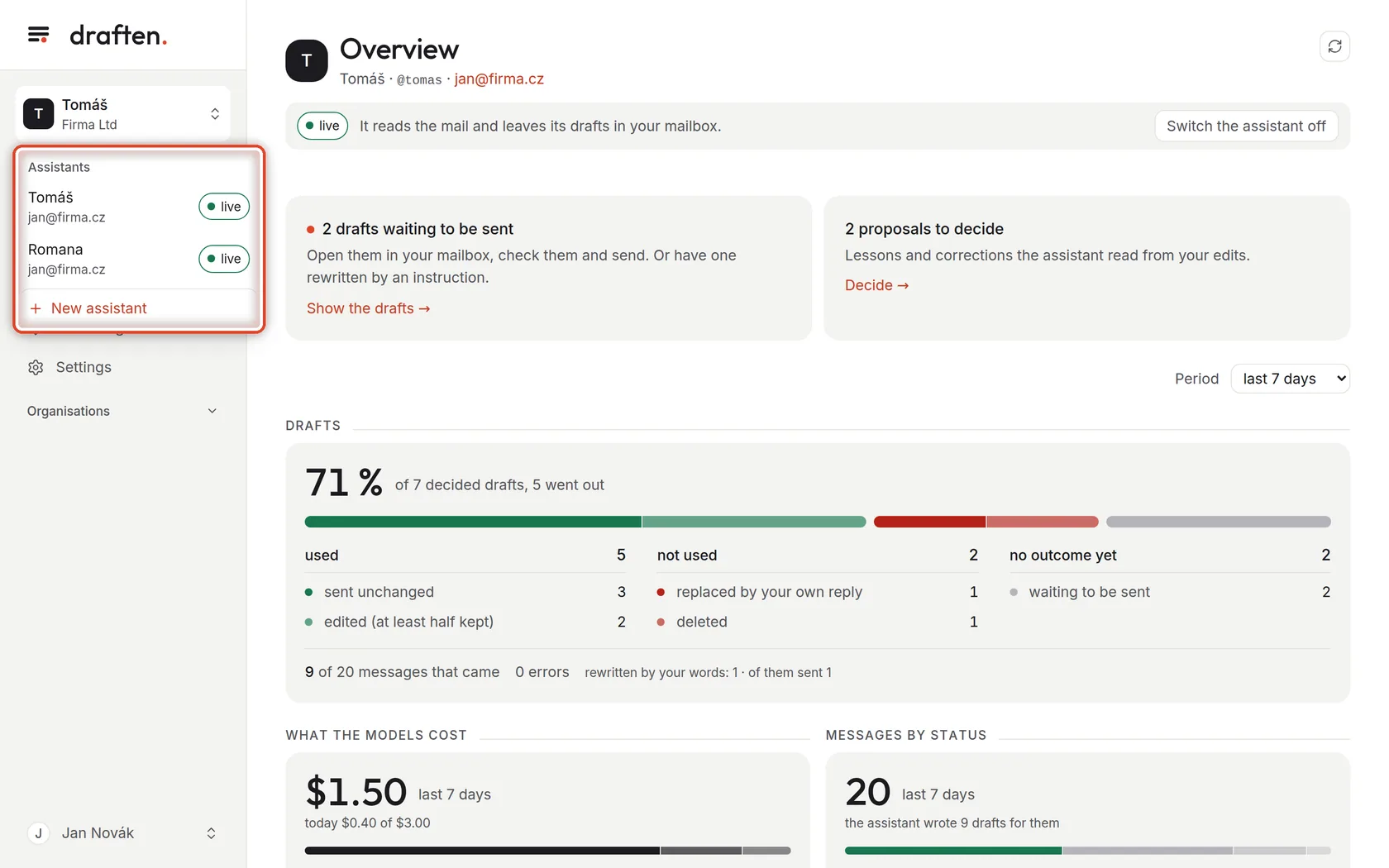
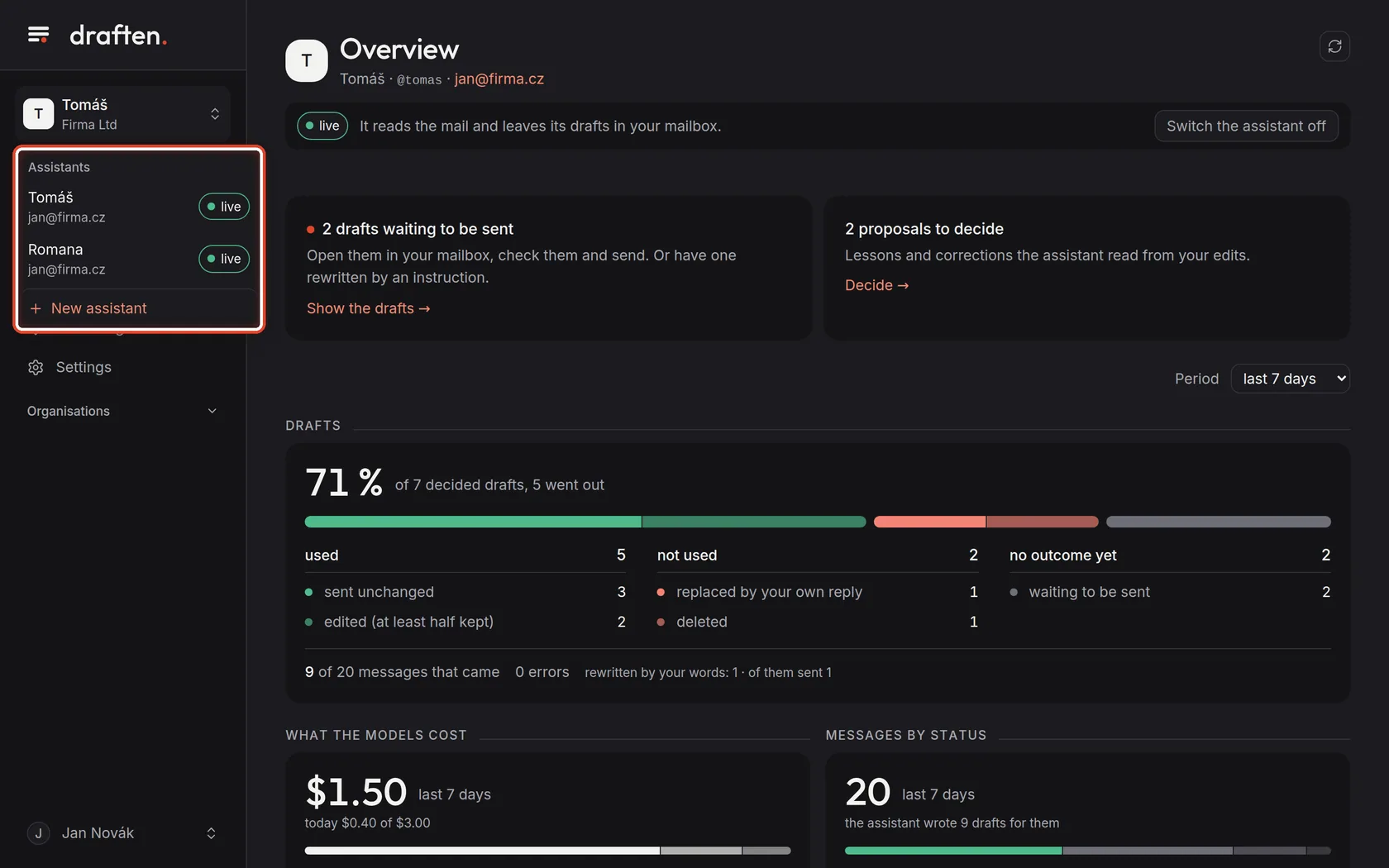
On the screenThe assistants you have access to, each with its state.
Do thisClick the assistant you want to work with. At the very bottom is New assistant — that is where another one is set up.
NoteThe list shows only the assistants of mailboxes your administrator has given you access to.
Step 4 of 6
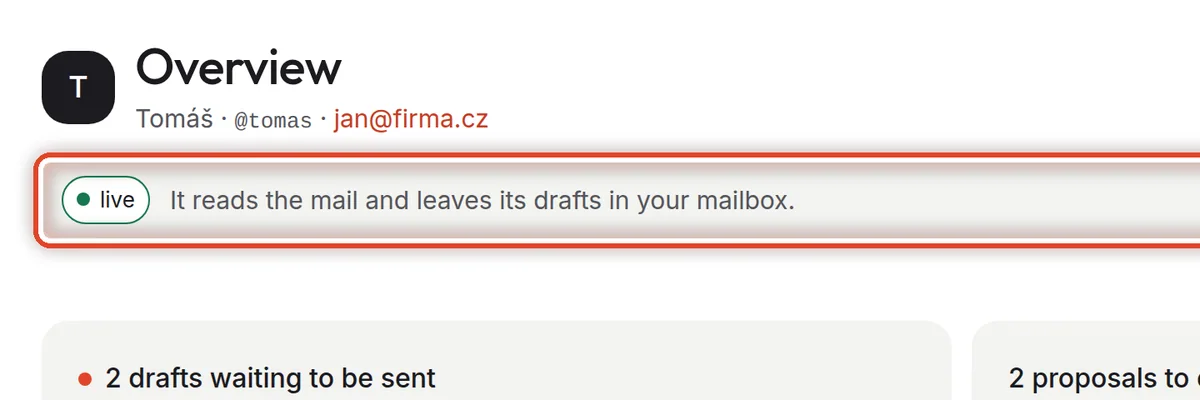
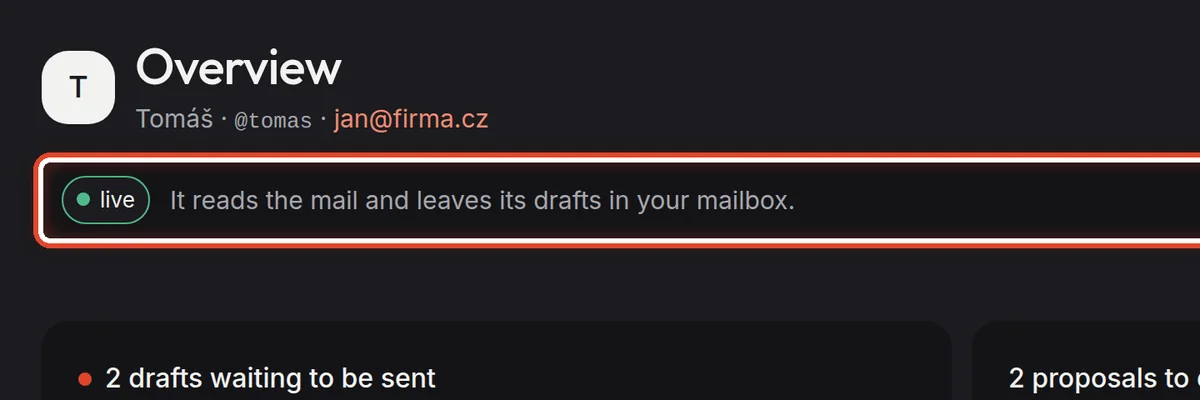
What state the assistant is in
On the screenThe bar below the page title.
Do thisThis shows what the assistant is doing right now: live (drafts go into your mailbox), trial mode (you see drafts only in draften) or paused (it does not read the mail at all). The button on the right switches it off or on again.
NoteA switched-off assistant forgets nothing — once started, it carries on where it stopped.
Step 5 of 6
Check the mail now
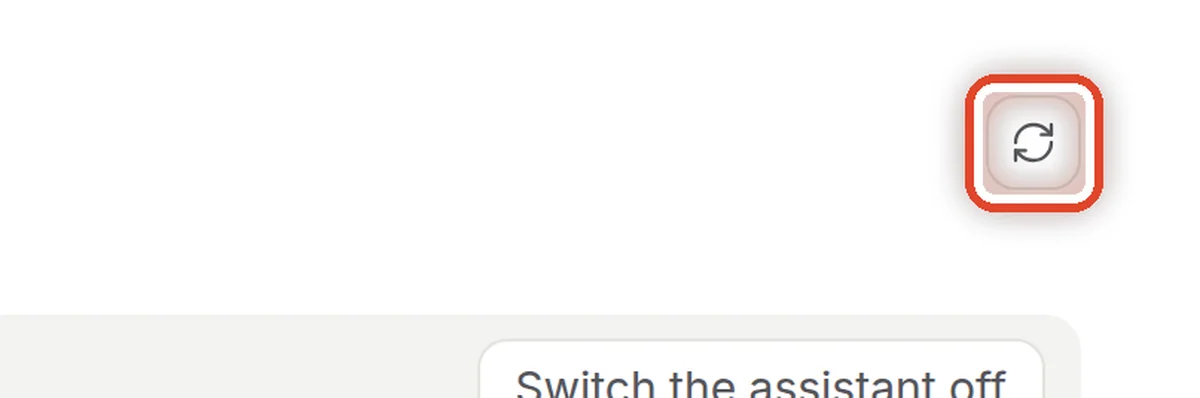
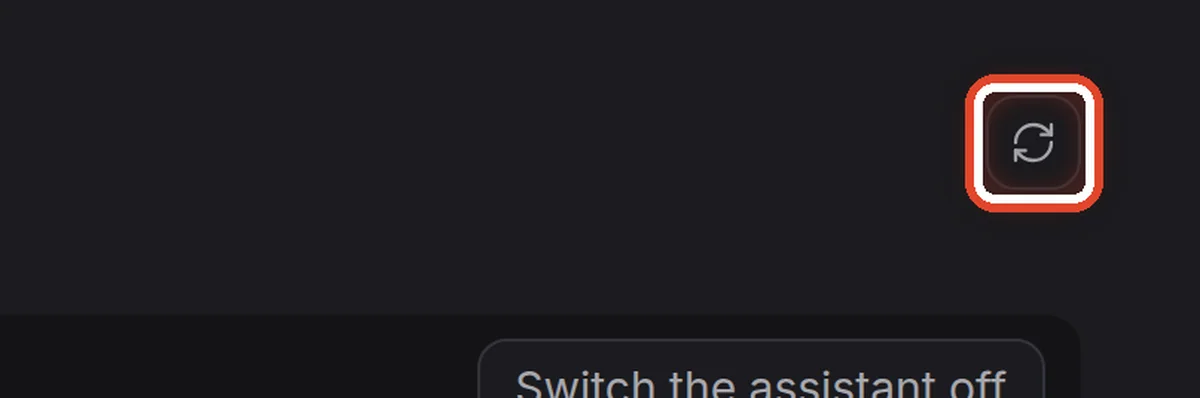
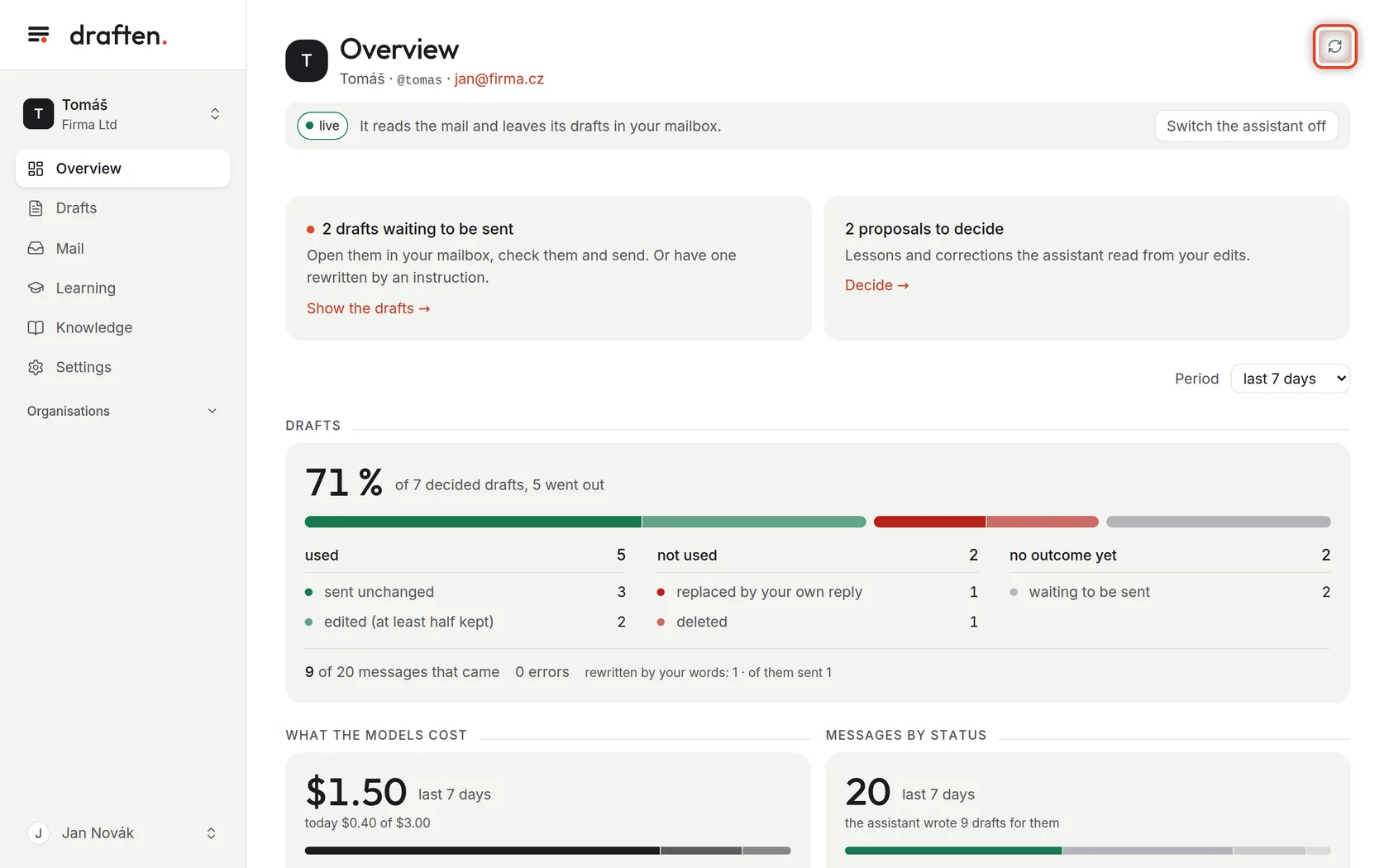
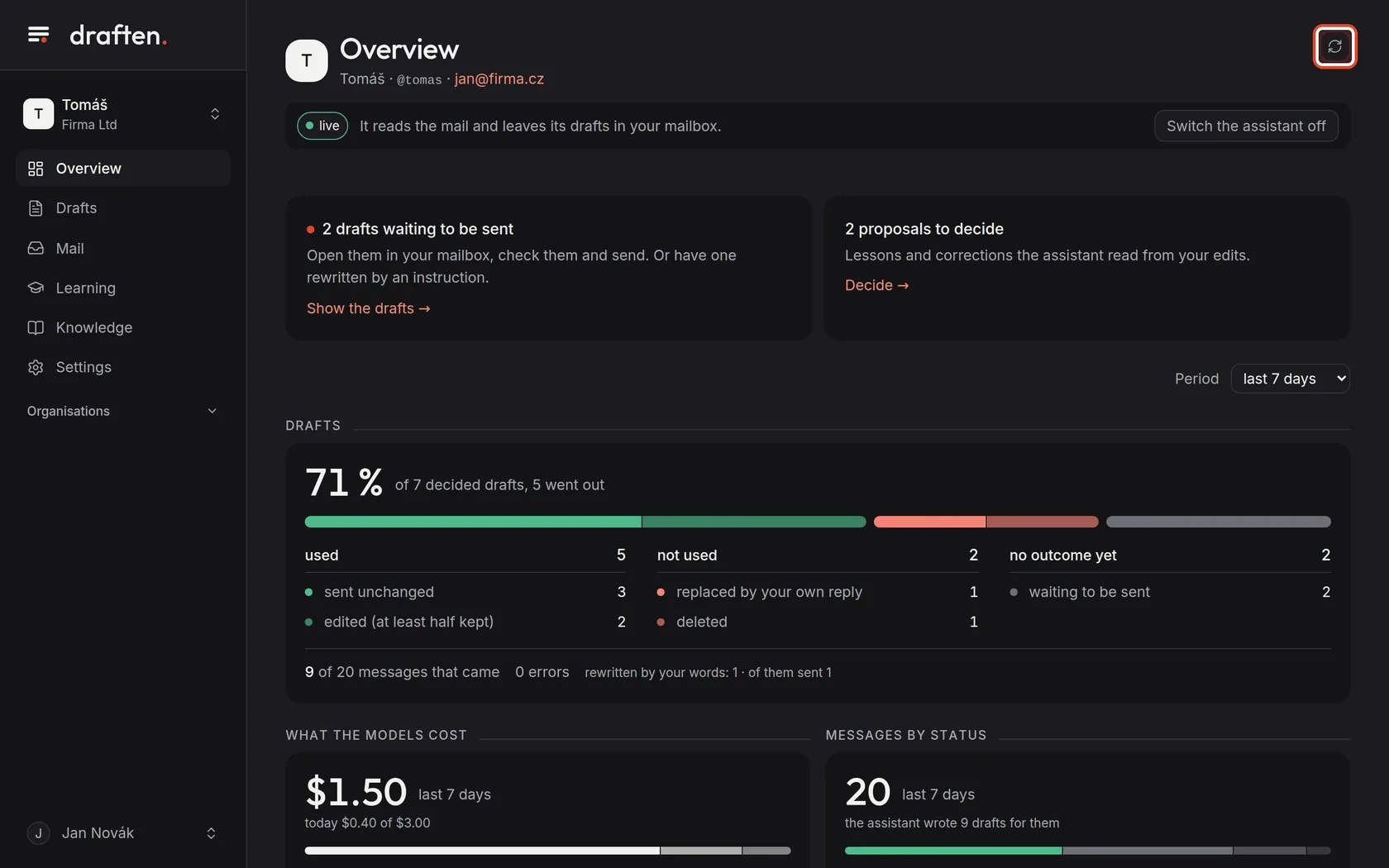
On the screenTop right, an icon with two arrows.
Do thisThe assistant looks into the mailbox by itself at regular intervals. If you do not want to wait, click Check the mail — it goes through the mailbox right away.
Step 6 of 6
Your account
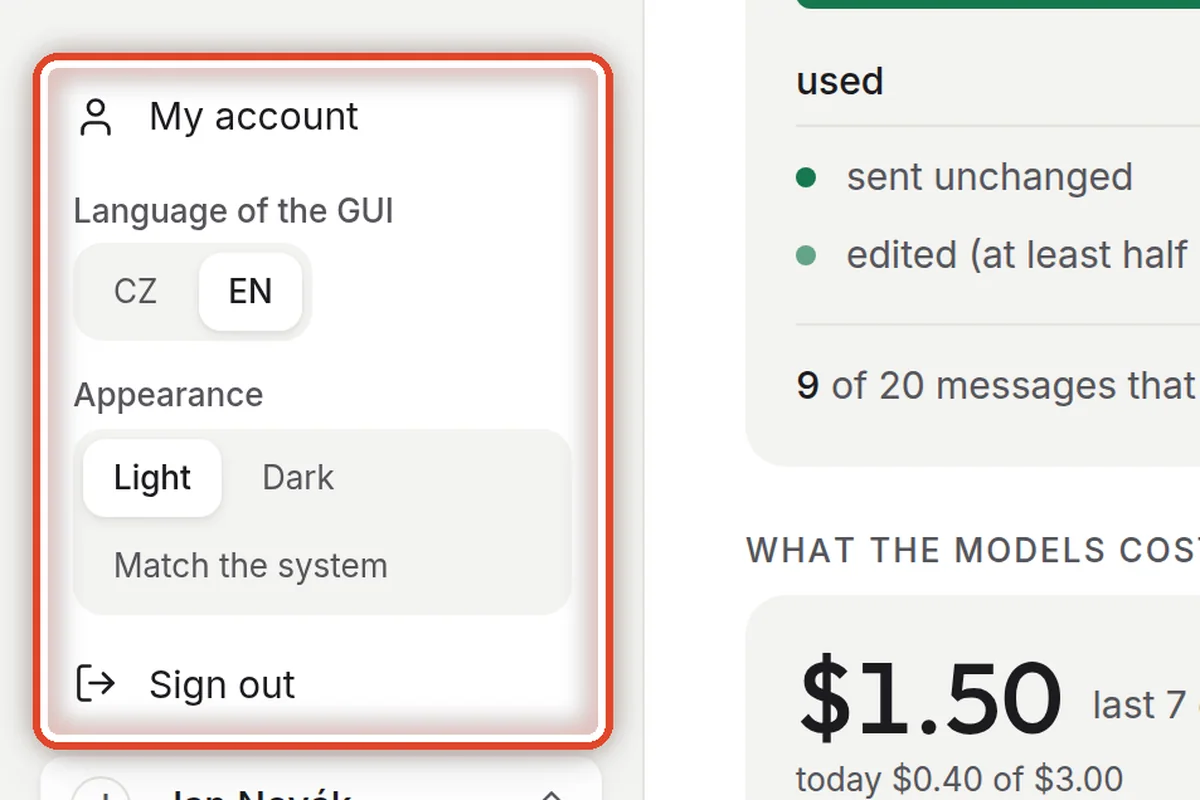
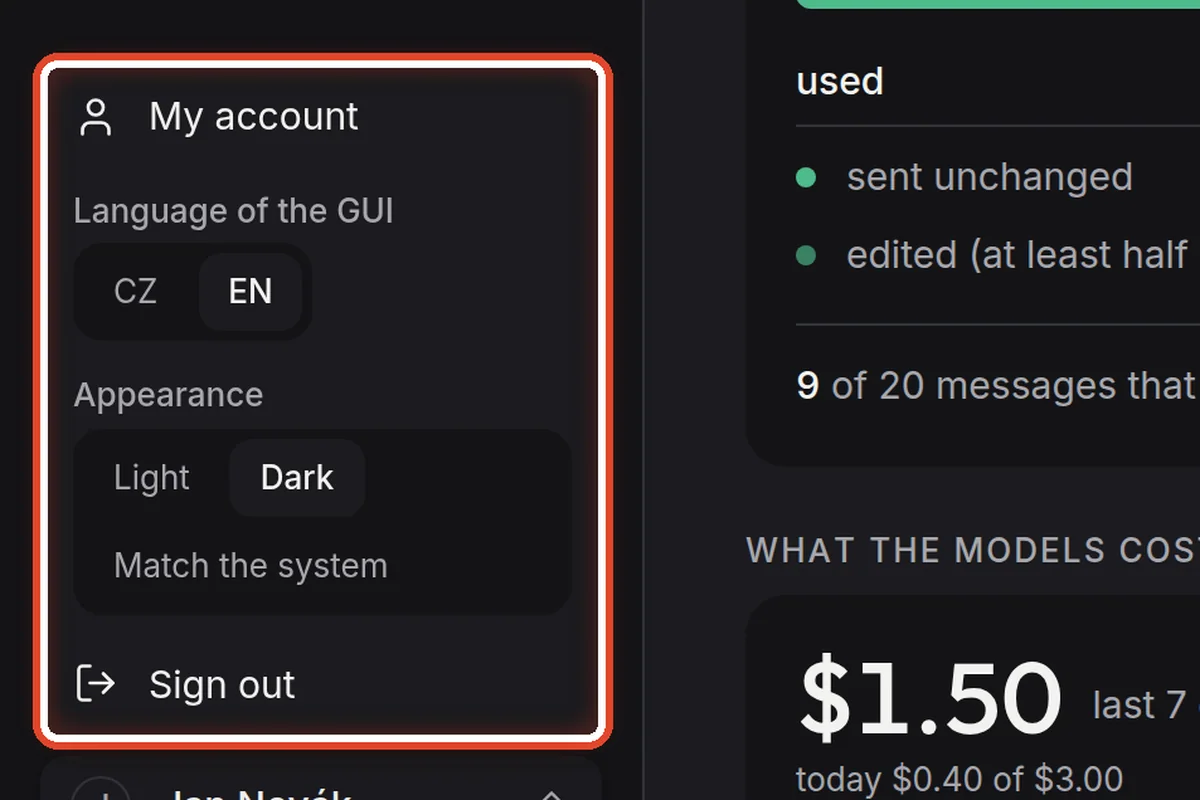
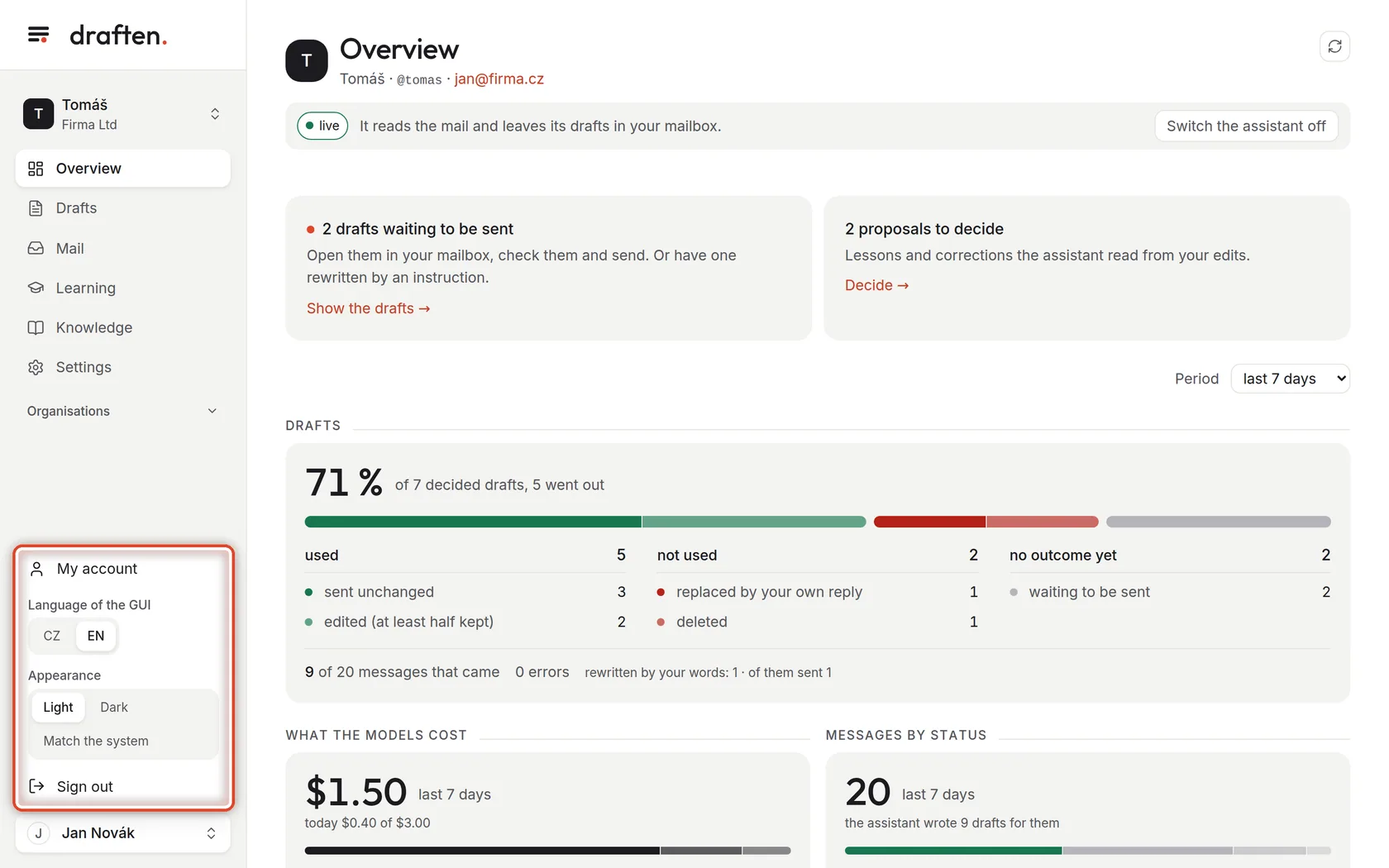
On the screenYour name, bottom left. Clicking it opens a menu.
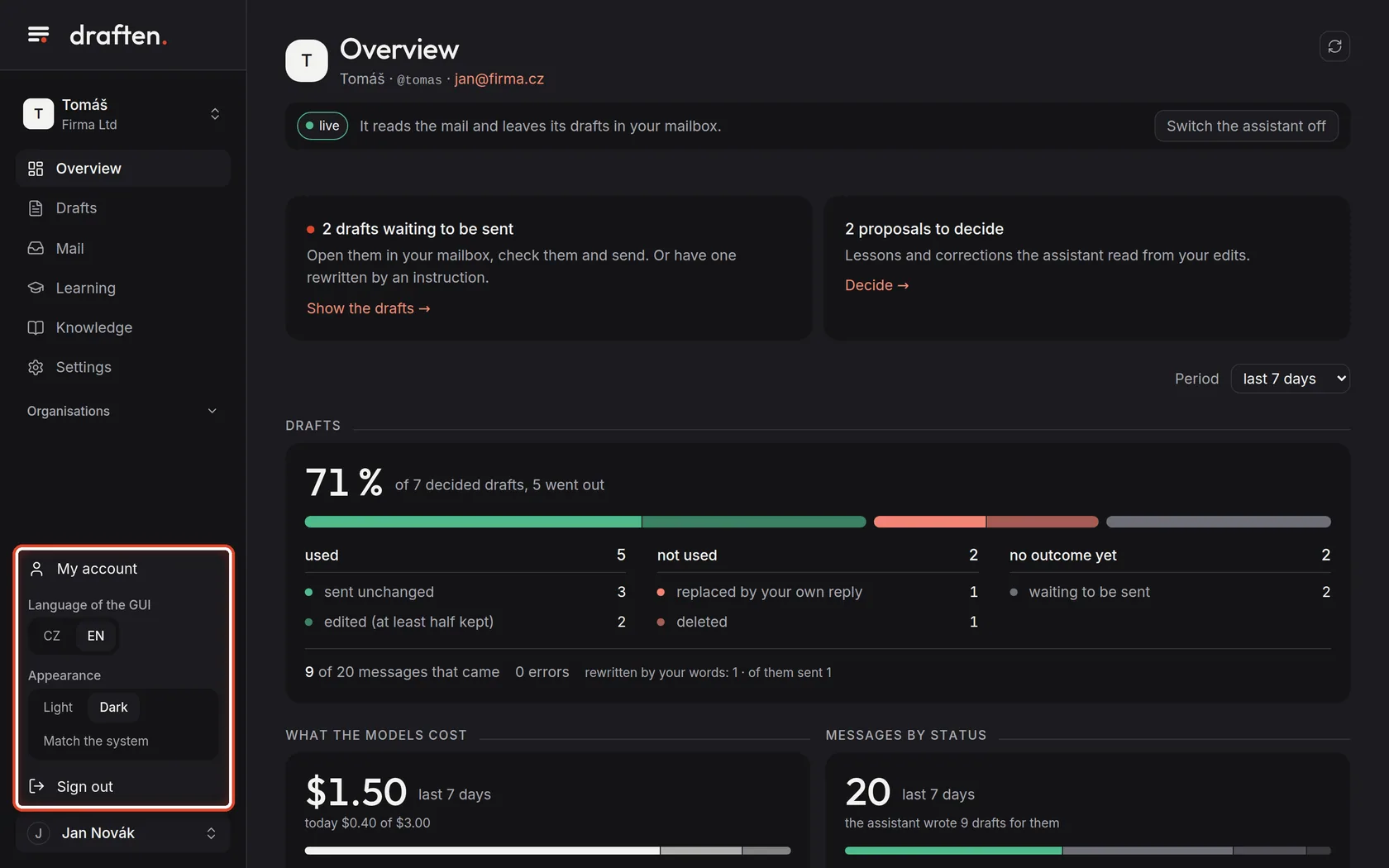
Do thisHere you switch the interface language (CZ / EN) and the appearance (Light, Dark, Match the system). My account leads to more settings, and Sign out is at the very bottom.
NoteLanguage and appearance apply only to you. The language the assistant replies to customers in is set elsewhere — in the assistant's Settings.
The end
You know your way
You know where everything is. Drafts and Learning are where you will go most.
- What nextThe Drafts guide shows how to go through and send a reply the assistant wrote.
- OrganisationBelow the menu is your organisation. Everyone sees it, but most things in it — mailboxes, people and access — are set up by administrators.