Guide
What the assistant
wrote.
The Drafts tab shows every reply the assistant prepared: what it says, who it goes to and what became of it. The sending itself is always yours, from your own mail.
Before you start
- An open assistantDrafts always belong to one assistant — the one whose name is at the top left. The Drafts tab is in the menu.
- About 4 minutesThe tour takes a moment.
Step 1 of 8
Choose what to see
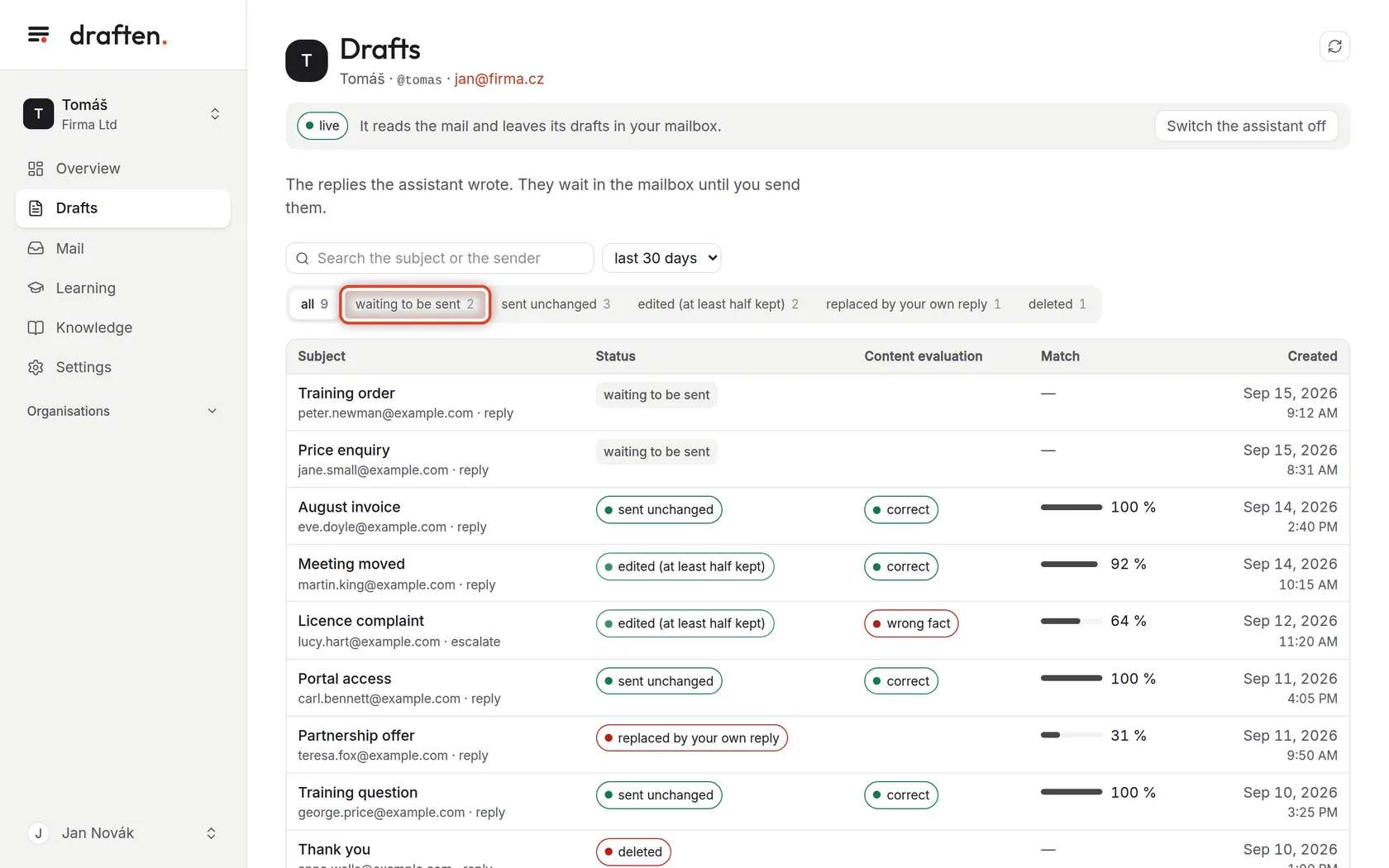
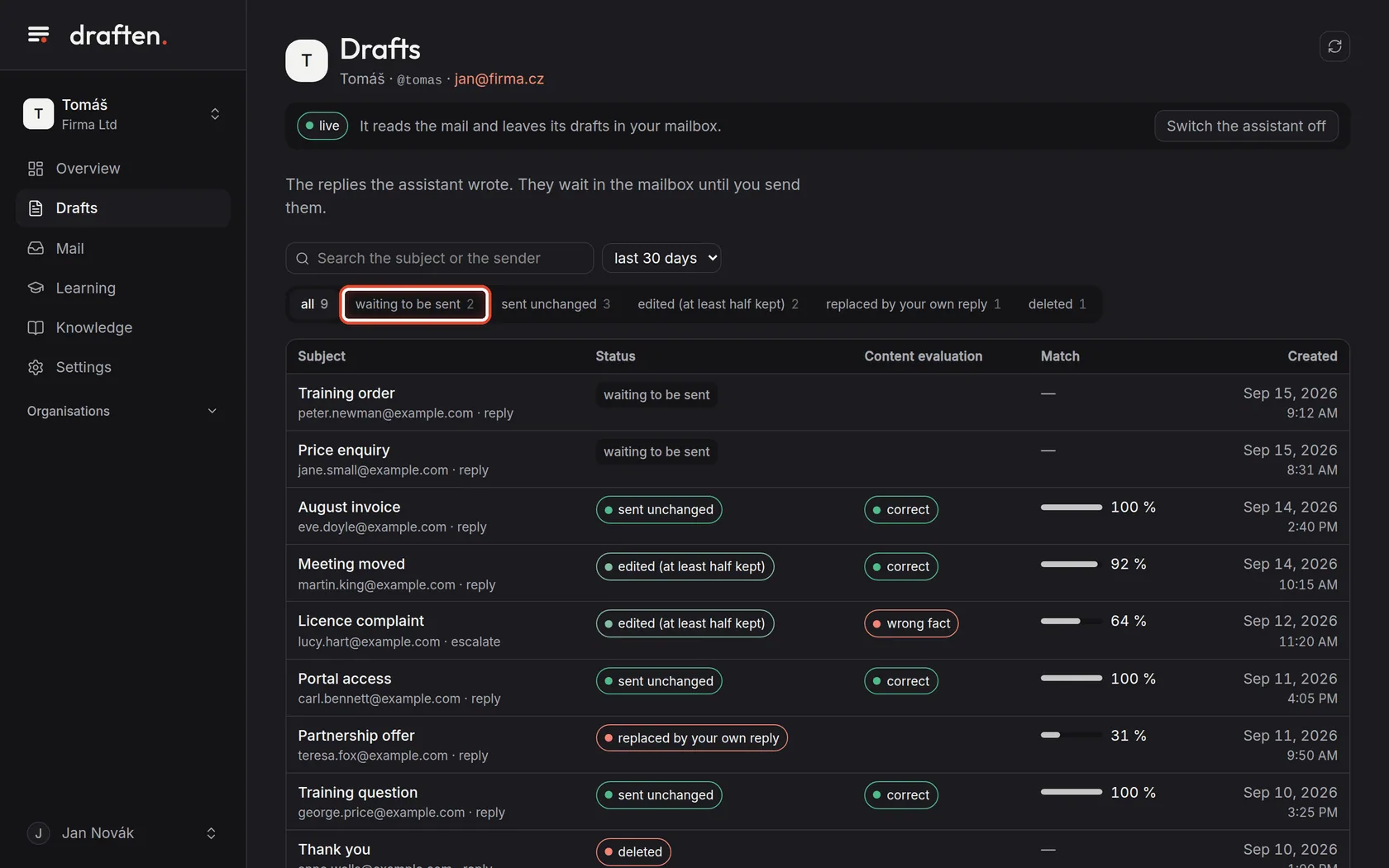
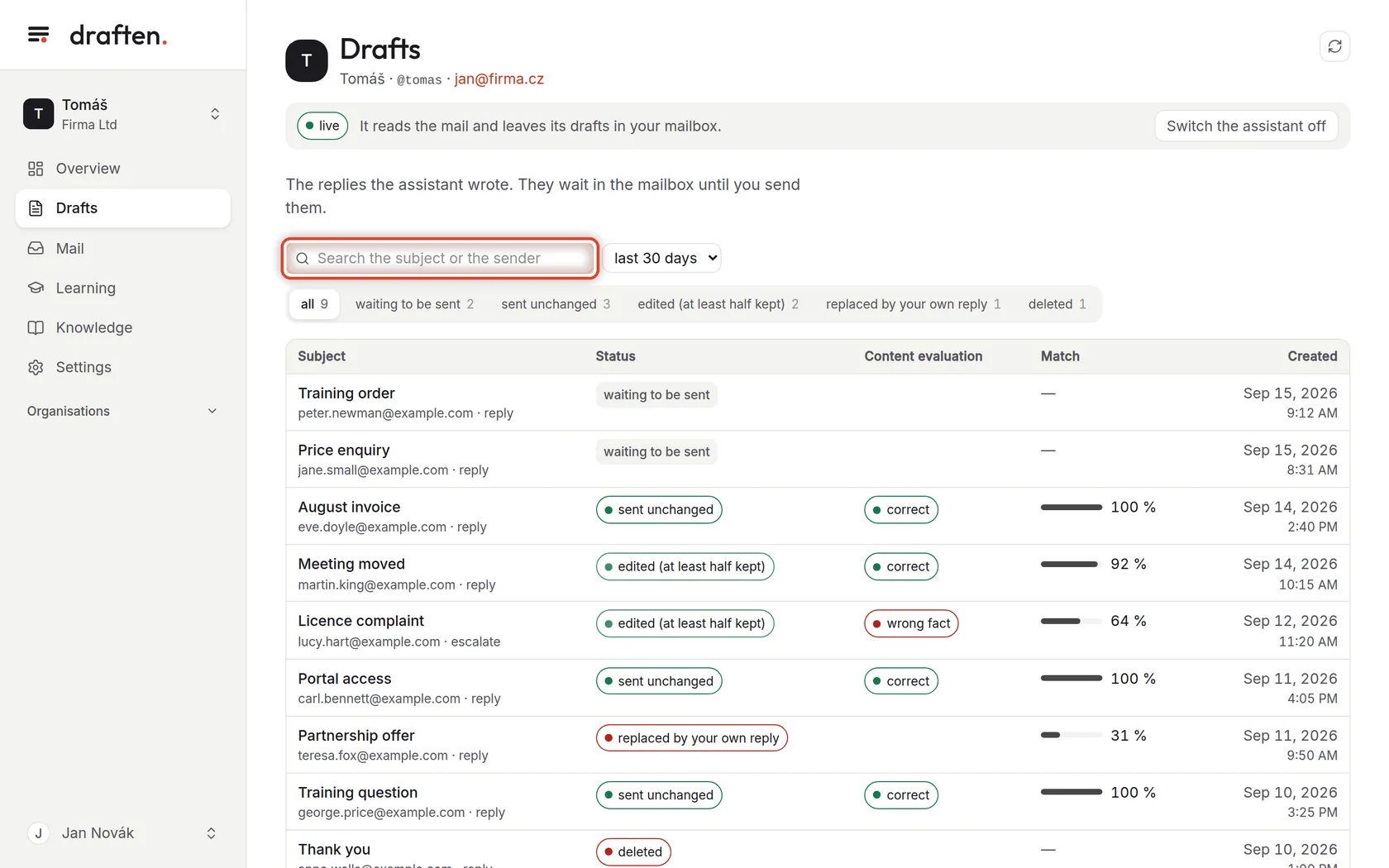
On the screenAbove the list of drafts, a row of buttons with states and counts.
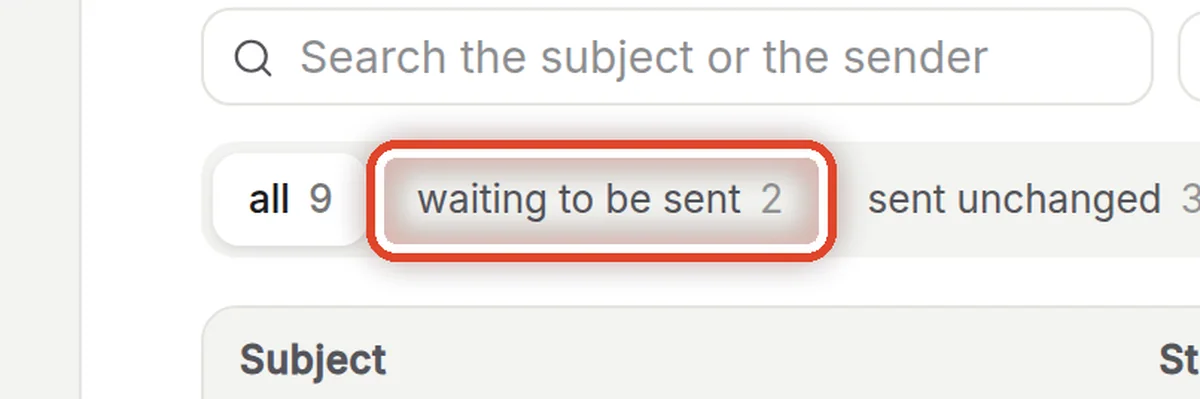
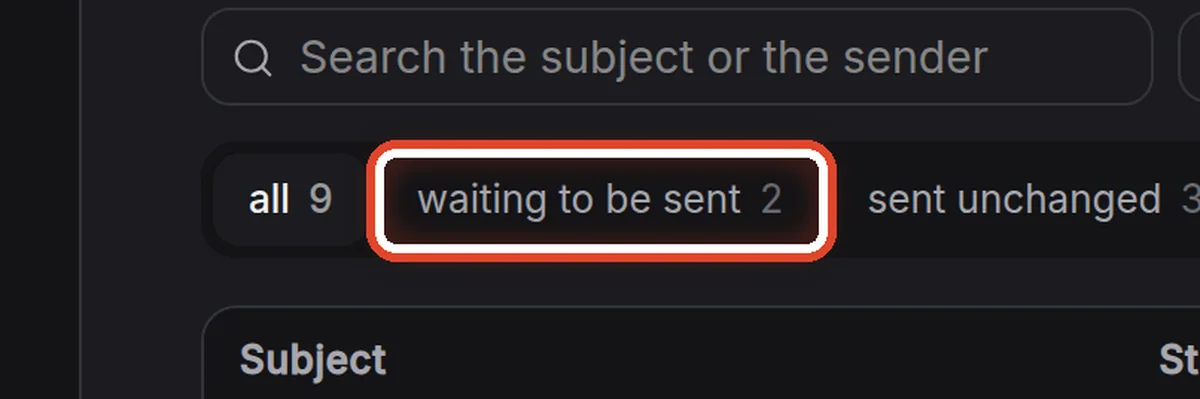
Do thisClick waiting to be sent — only the drafts that sit in your mailbox and have not been sent yet remain. In the same way you pick the sent, edited, replaced by your own reply or deleted ones.
NoteExpired means nobody touched the draft for 14 days. The exact meaning of every state is in the Glossary.
Step 2 of 8
Find a particular draft
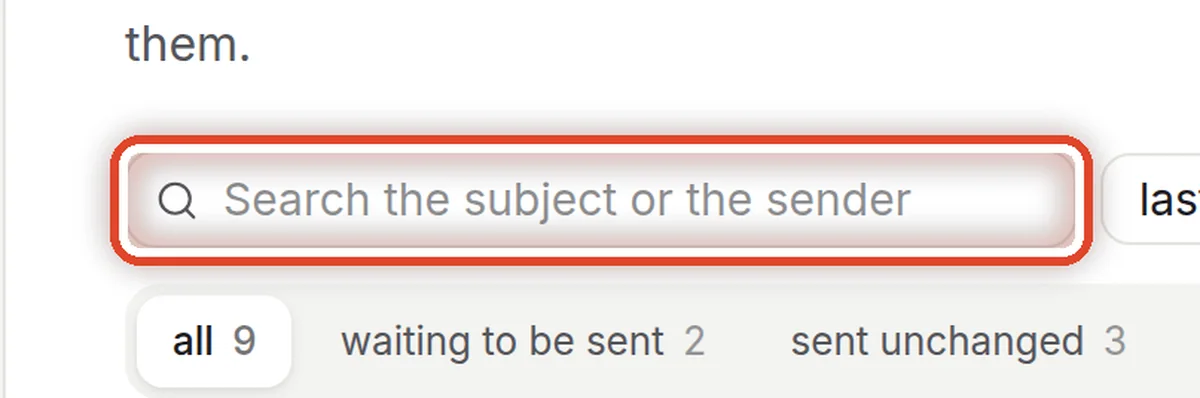
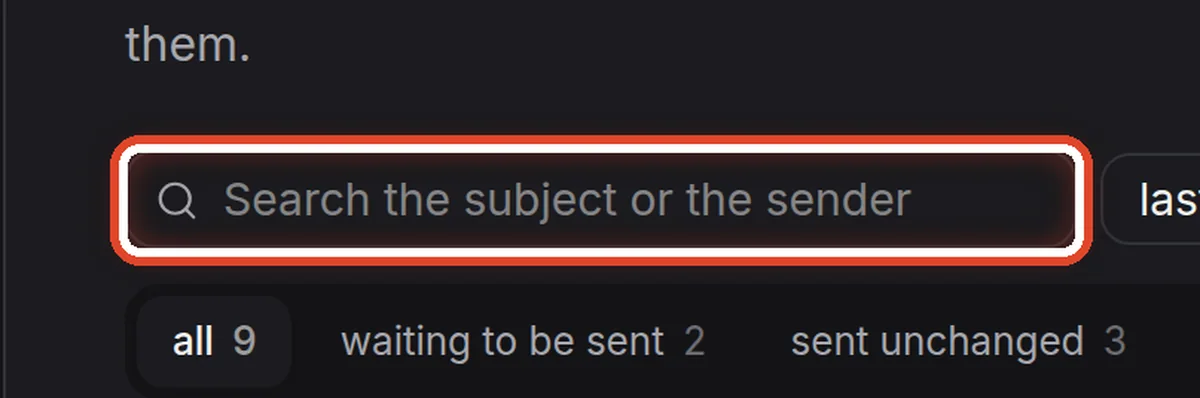
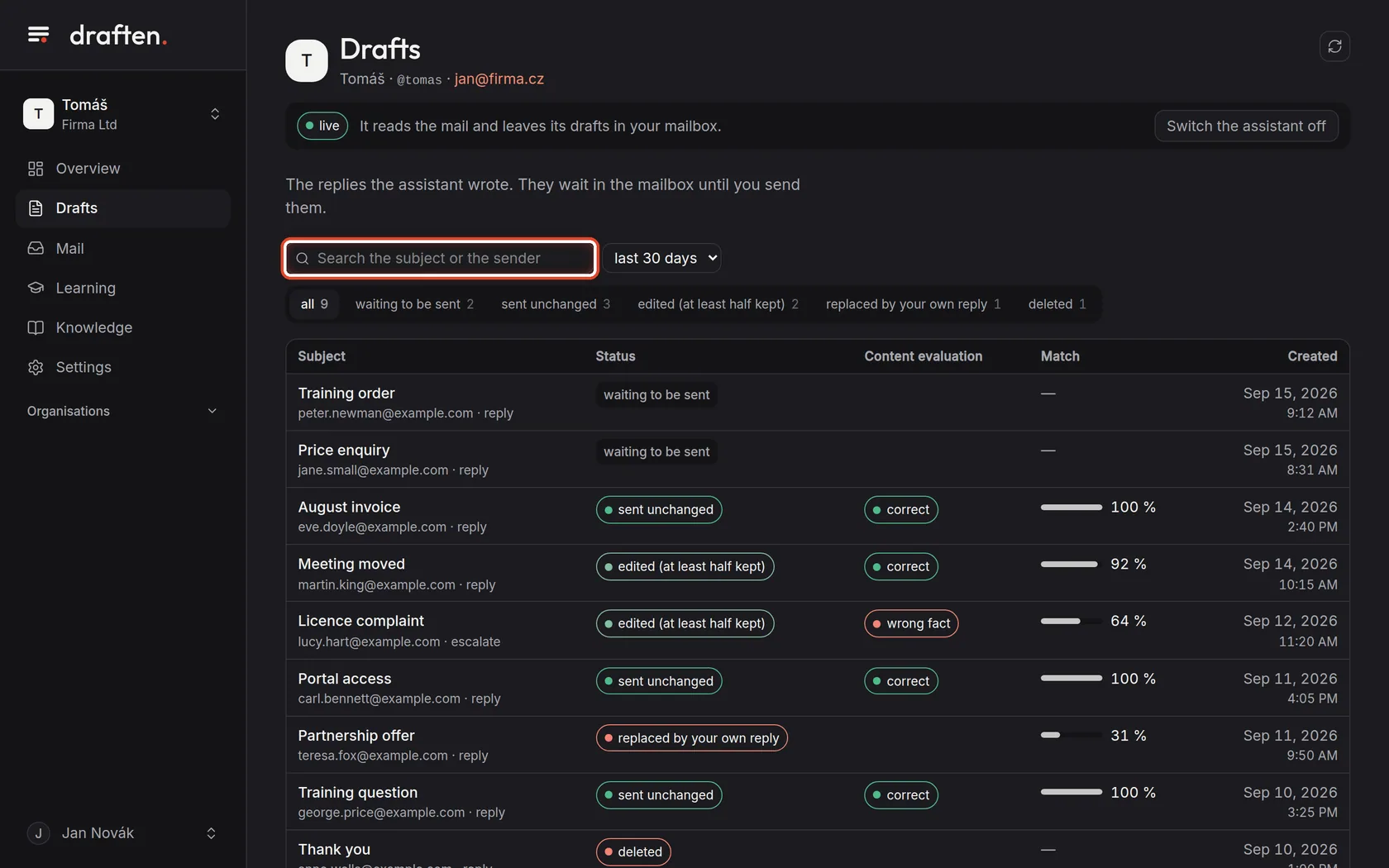
On the screenThe search field above the list.
Do thisType part of the subject, or the sender's name or e-mail. The list narrows to the drafts that match.
Step 3 of 8
Open a draft
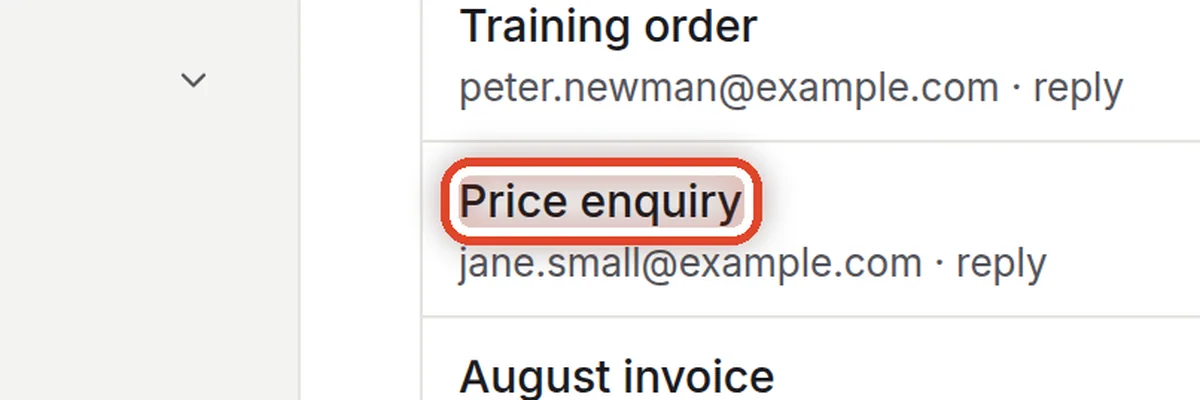
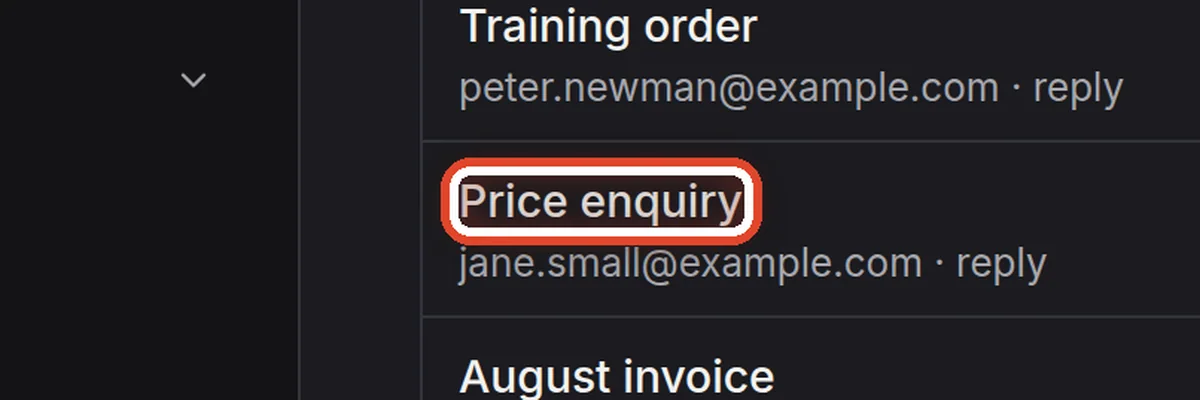
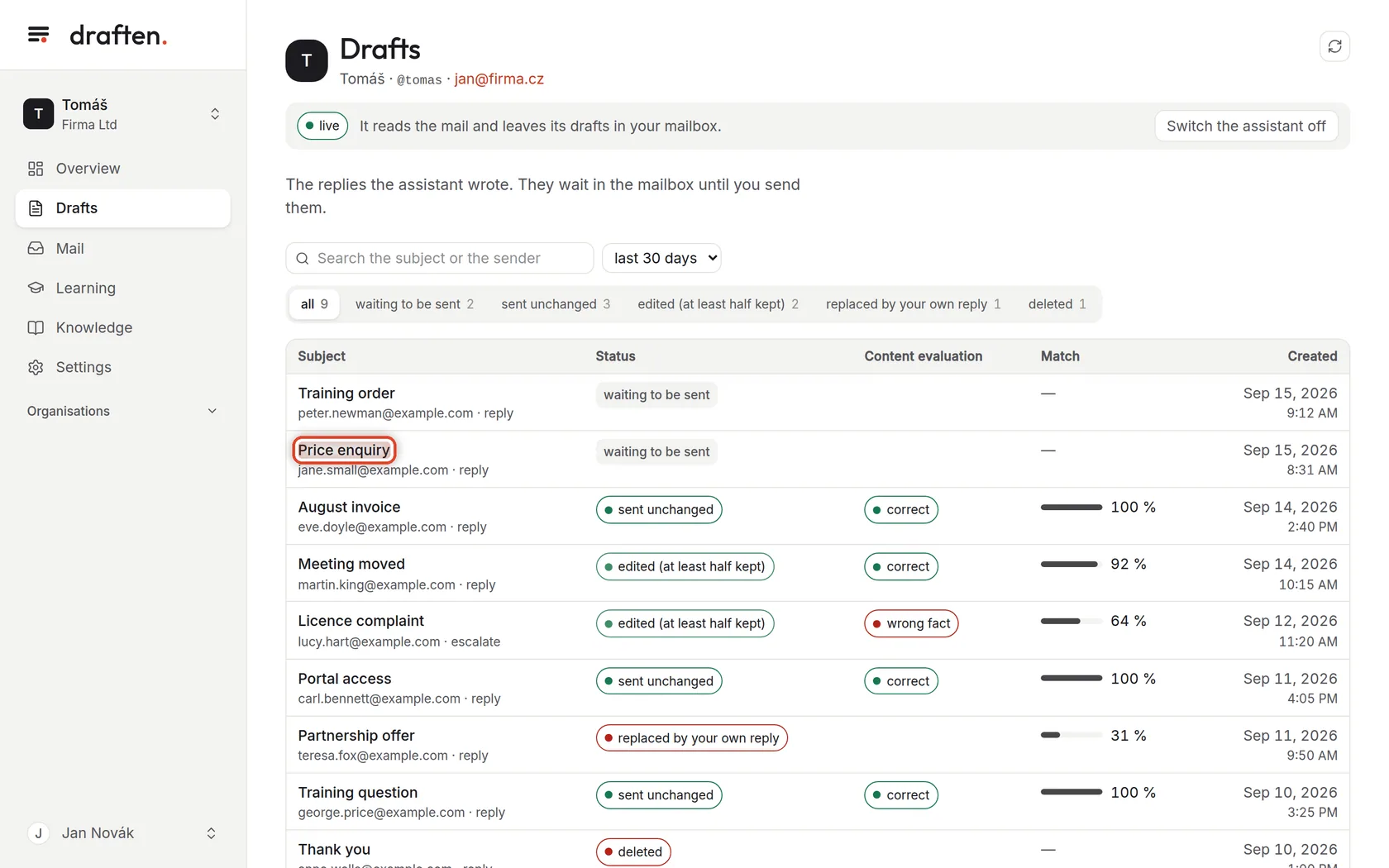
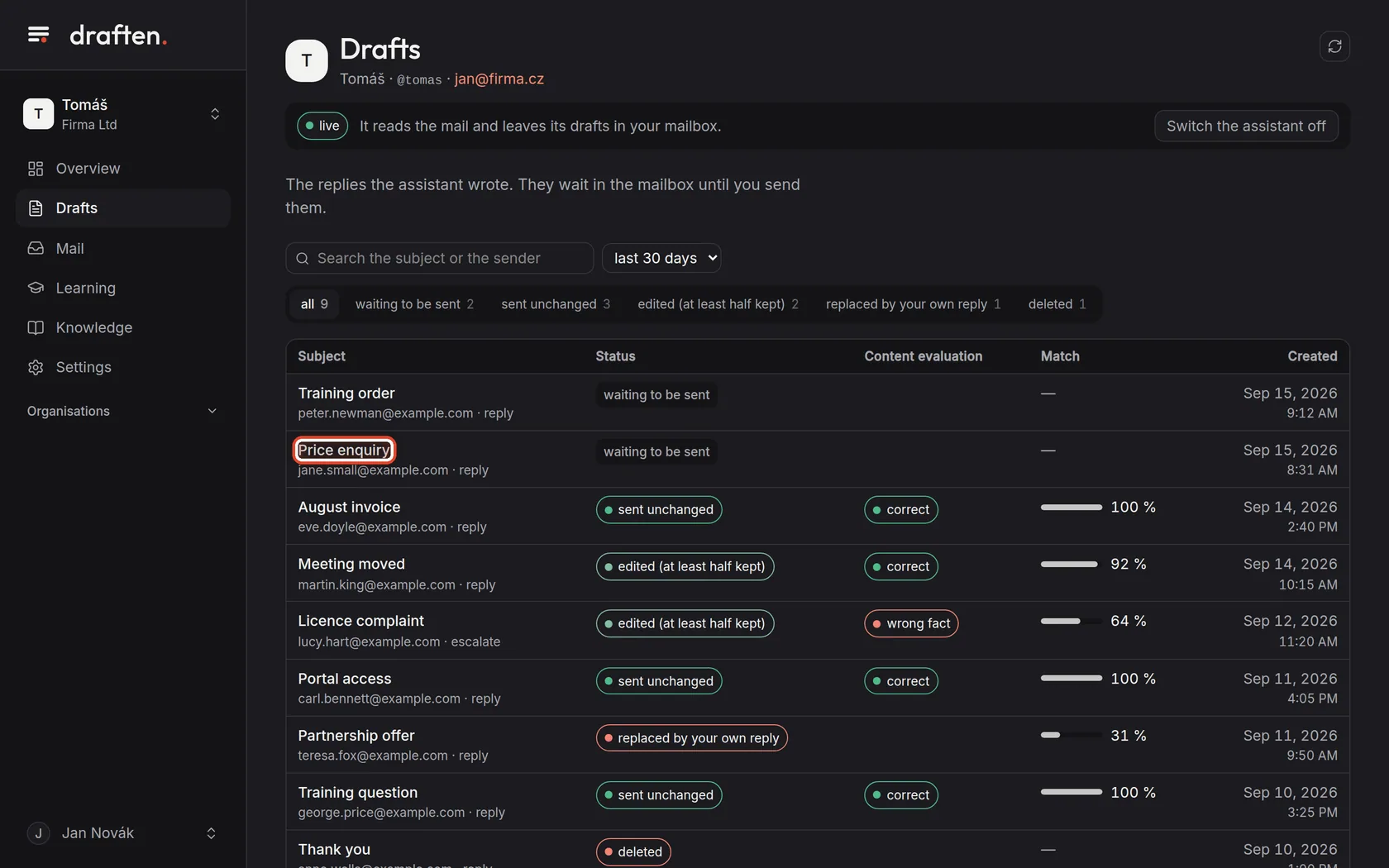
On the screenA row with the subject of the message the assistant prepared a reply to.
Do thisClick the subject. The draft detail opens.
NoteThe Content evaluation and Match columns fill in once you send, edit or delete the draft and the assistant evaluates it.
Step 4 of 8
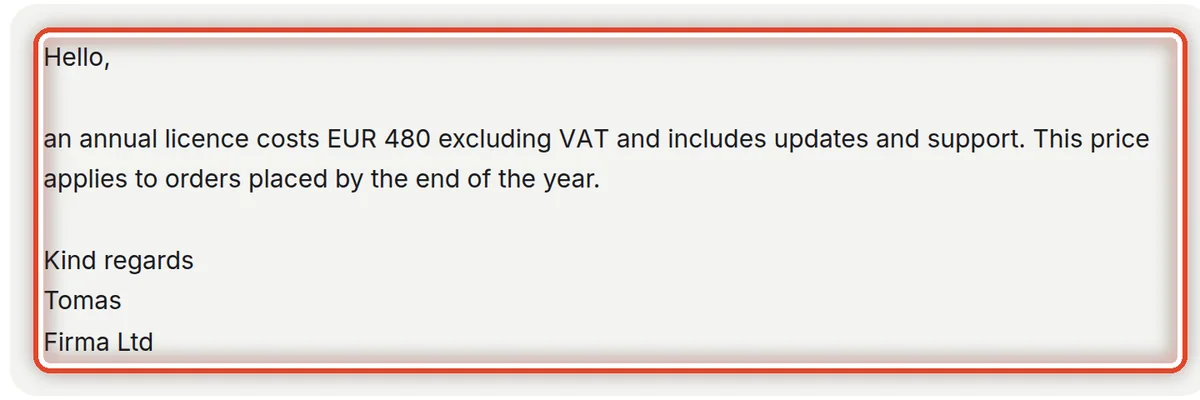
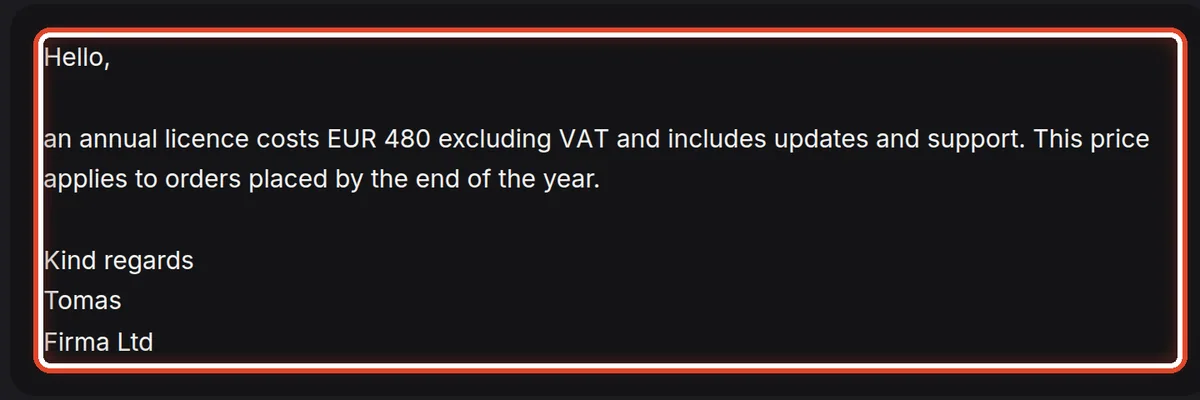
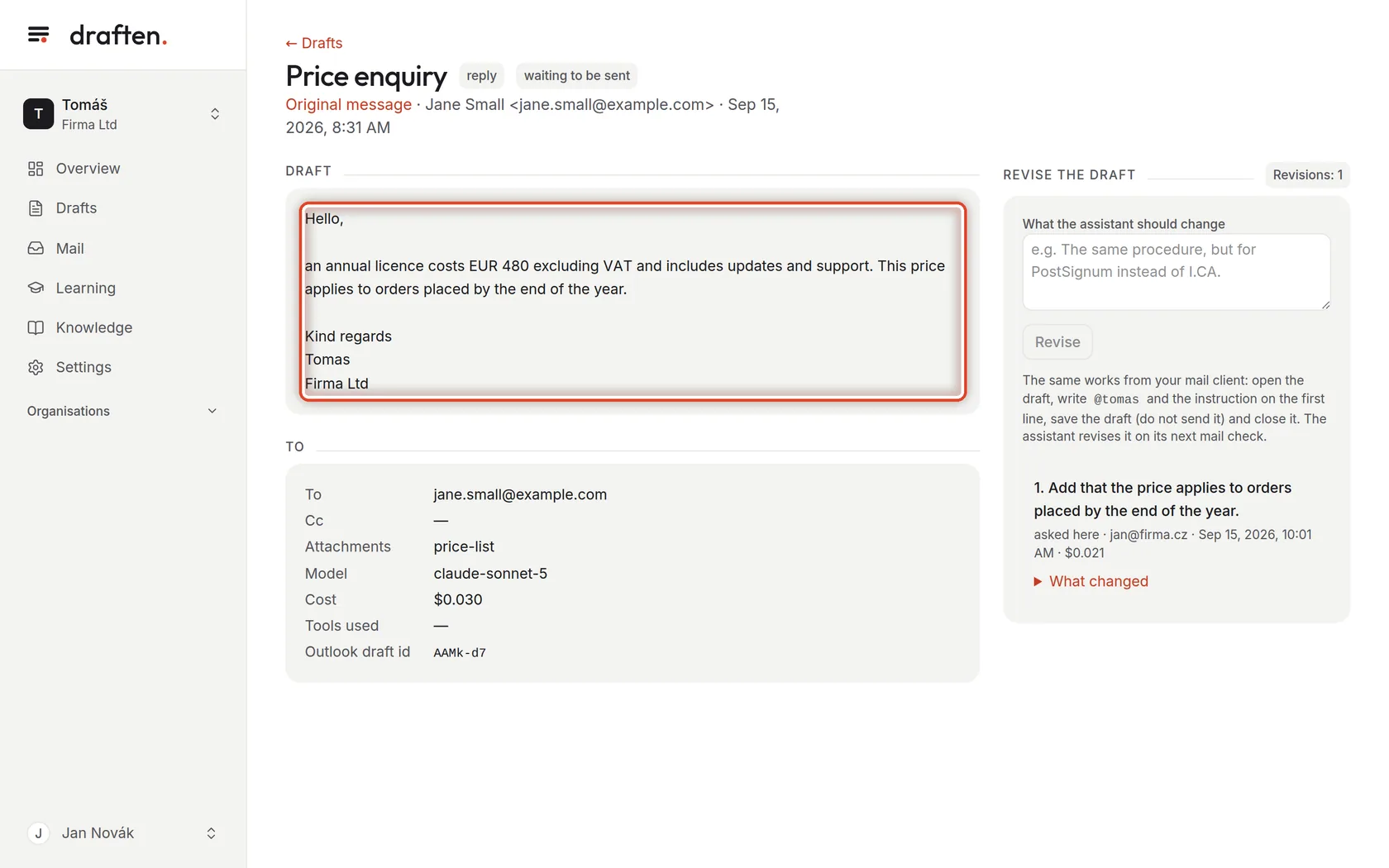
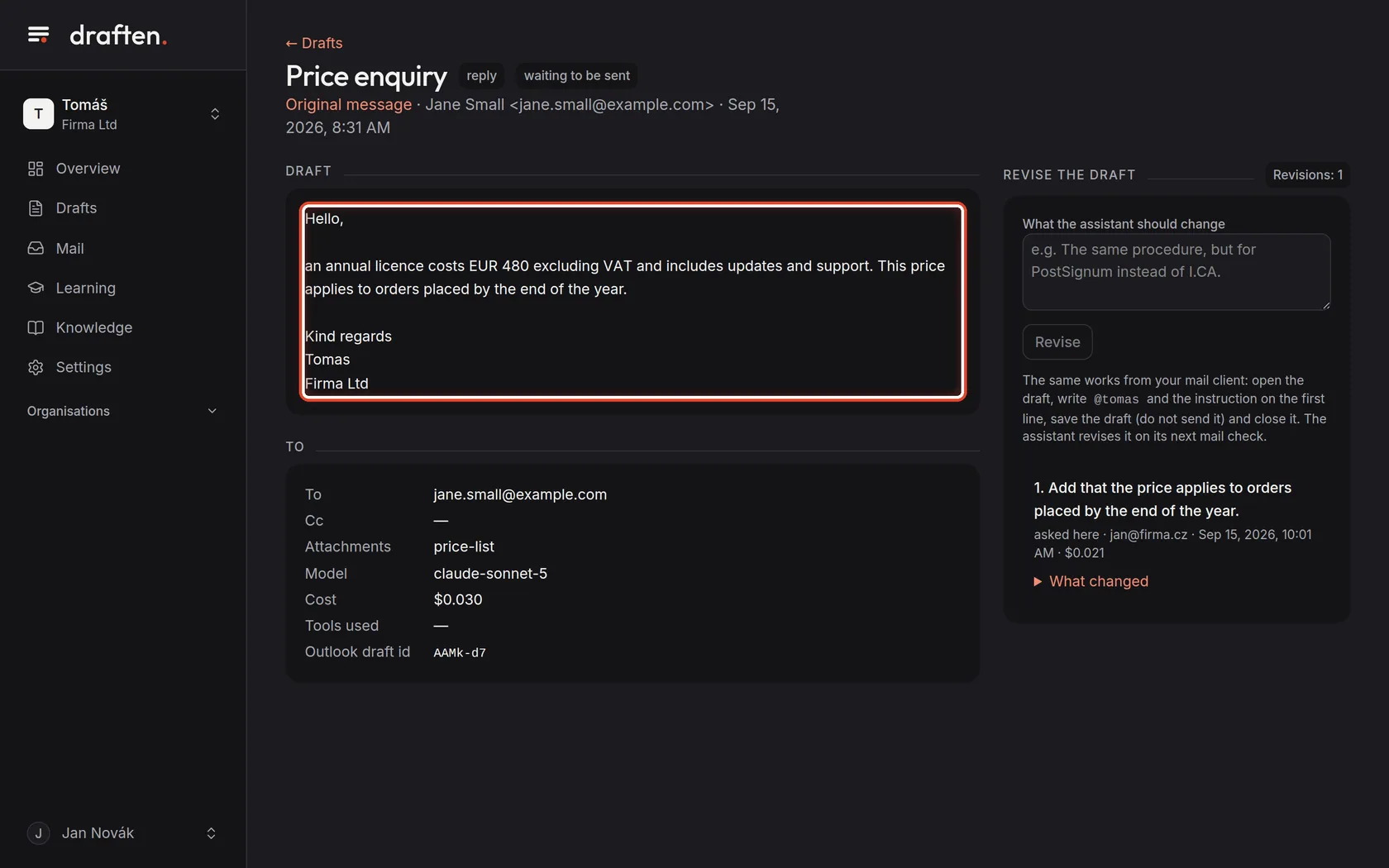
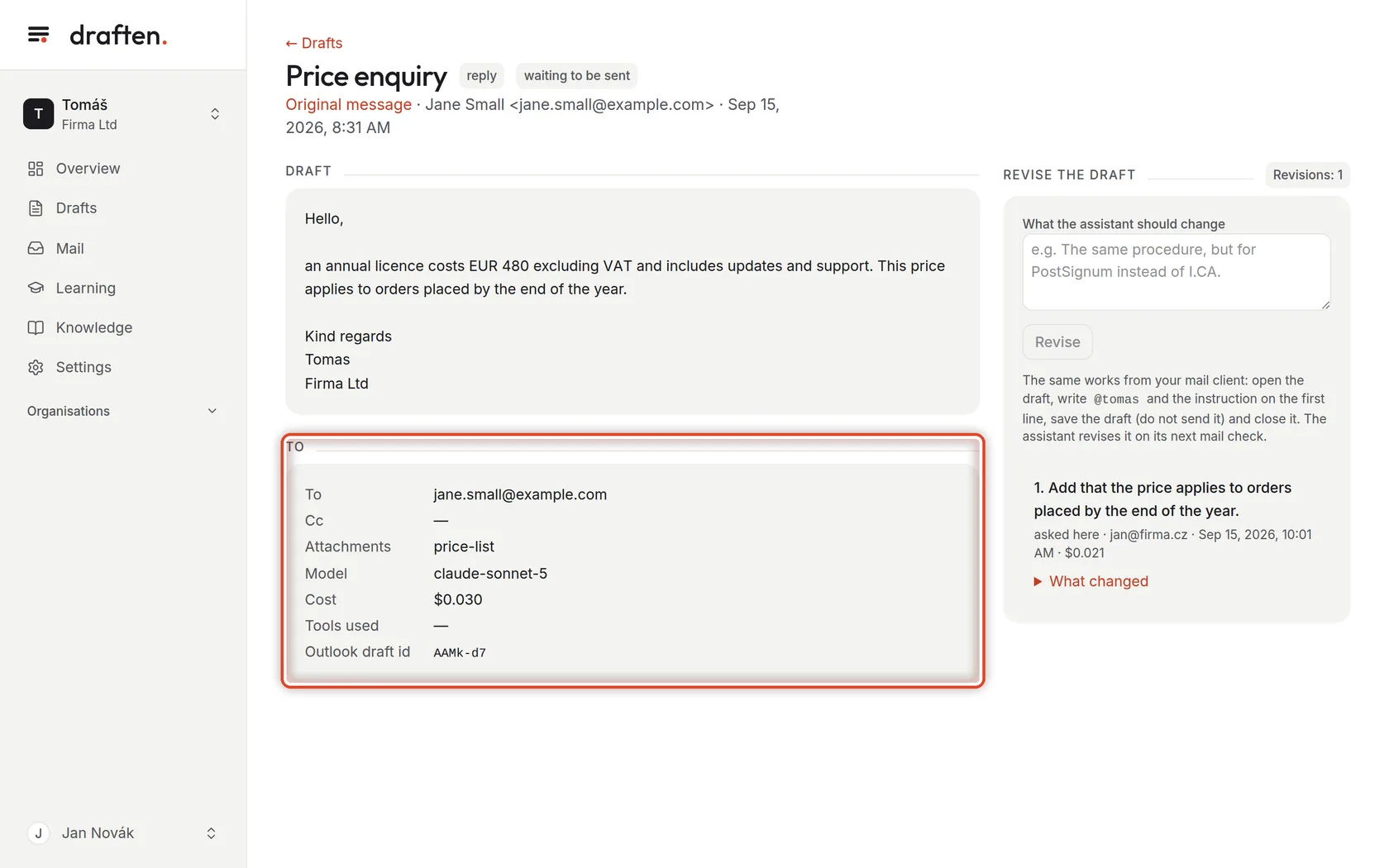
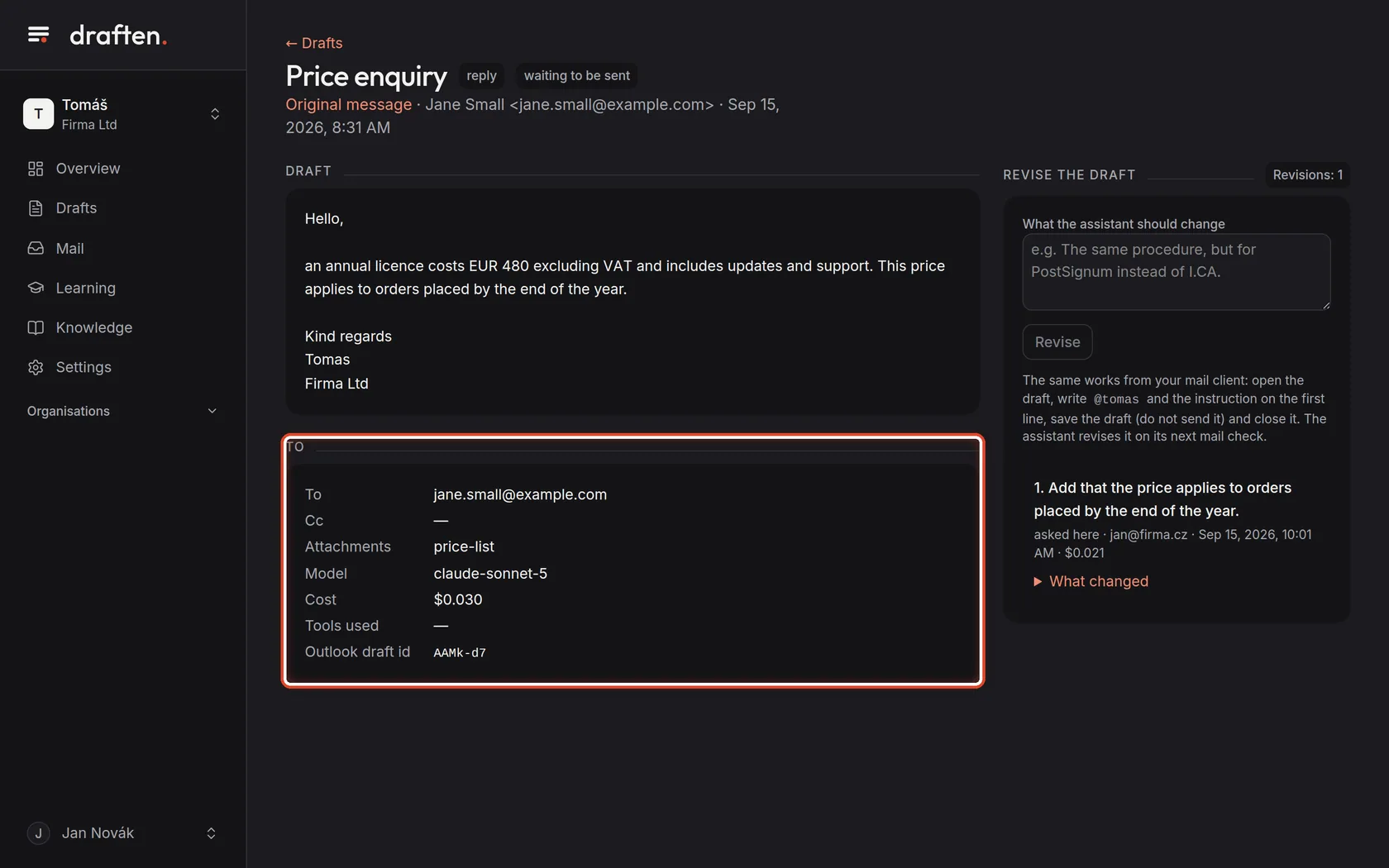
Read the draft
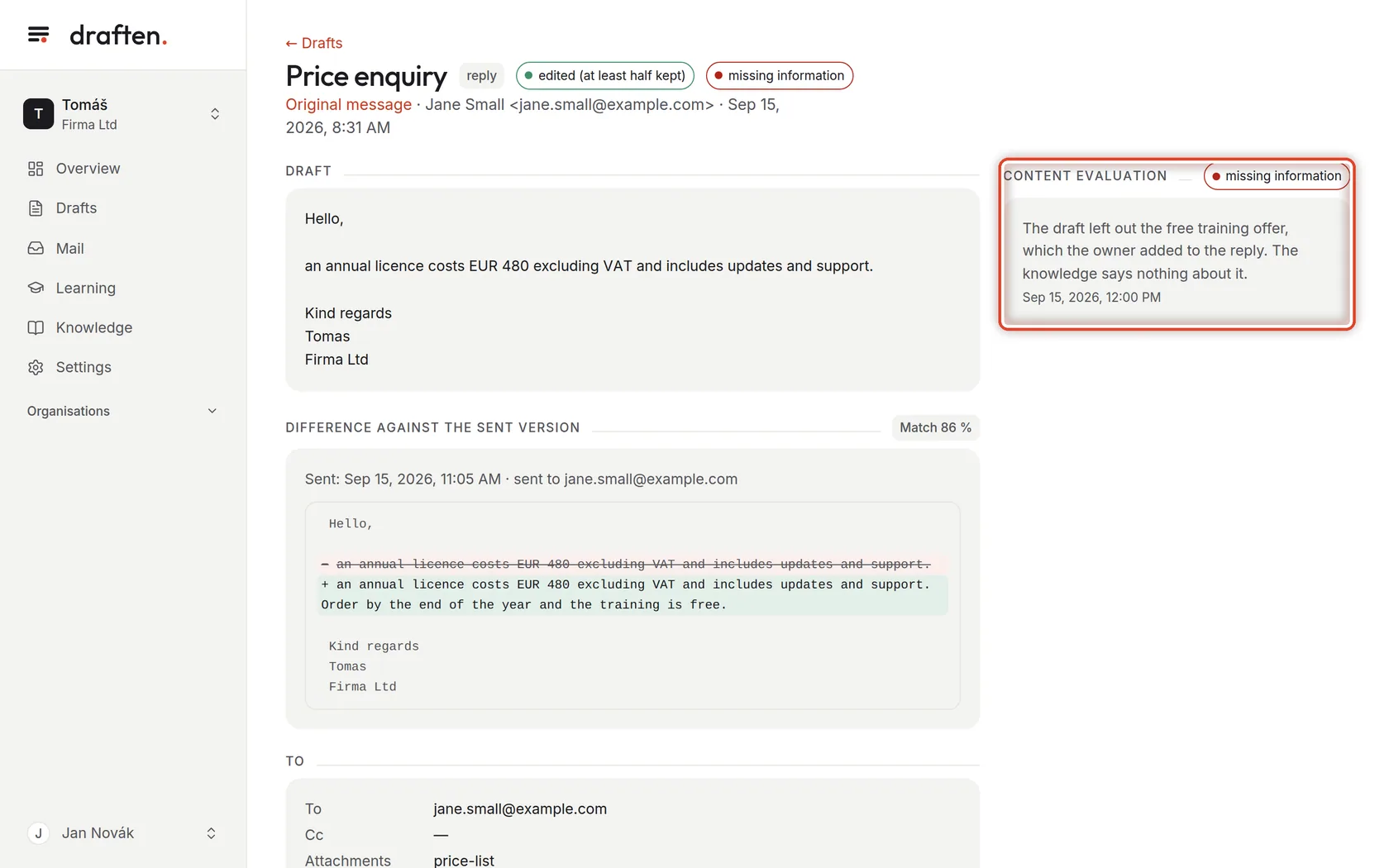
On the screenThe Draft card with the text of the reply.
Do thisThis is the text the assistant prepared. You will find the same draft in your mailbox in the Drafts folder — edit and send it from there as if it were yours. draften itself never sends anything.
NoteWhen you do not like the draft as a whole, you need not rewrite it by hand. The assistant can revise it by your instruction — see the guide Revising a draft by instruction.
Step 5 of 8
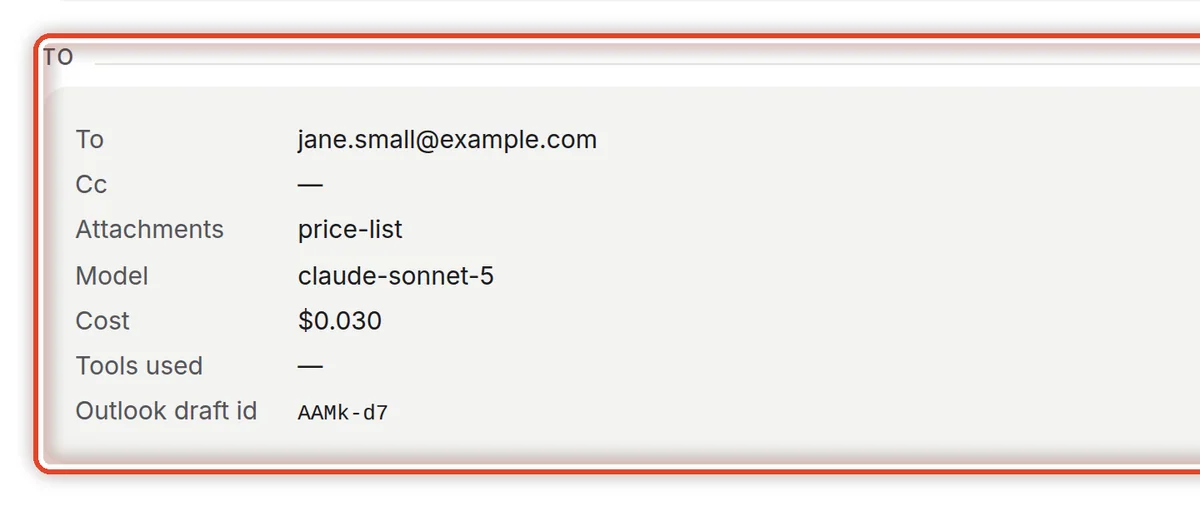
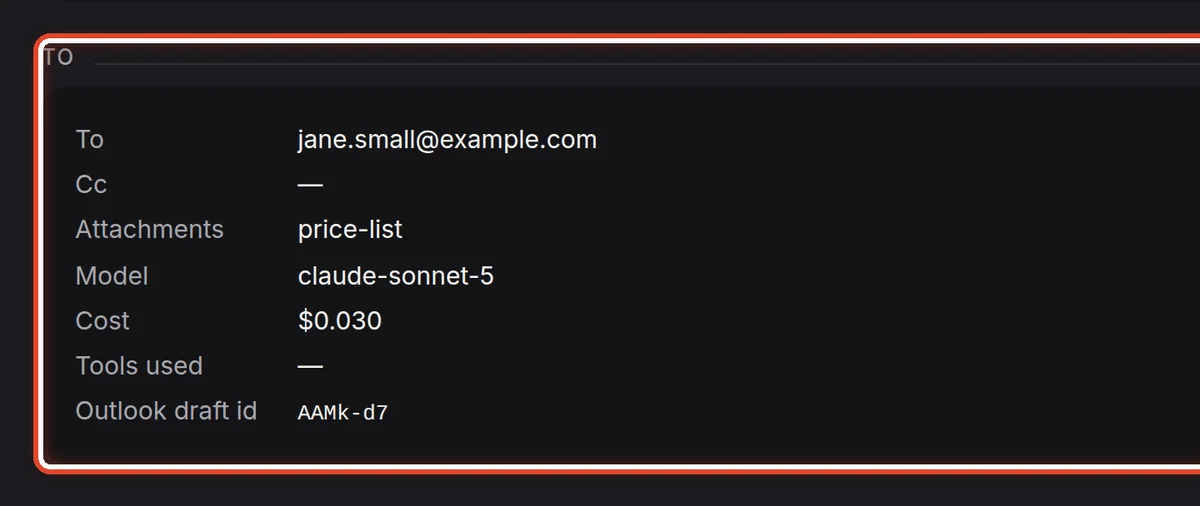
Check the recipients and attachments
On the screenOn the right, the To, Cc and Attachments cards.
Do thisWho the draft goes to, who gets a copy and what the assistant attached. Before you send the draft from your mail, check the recipients are right.
Step 6 of 8
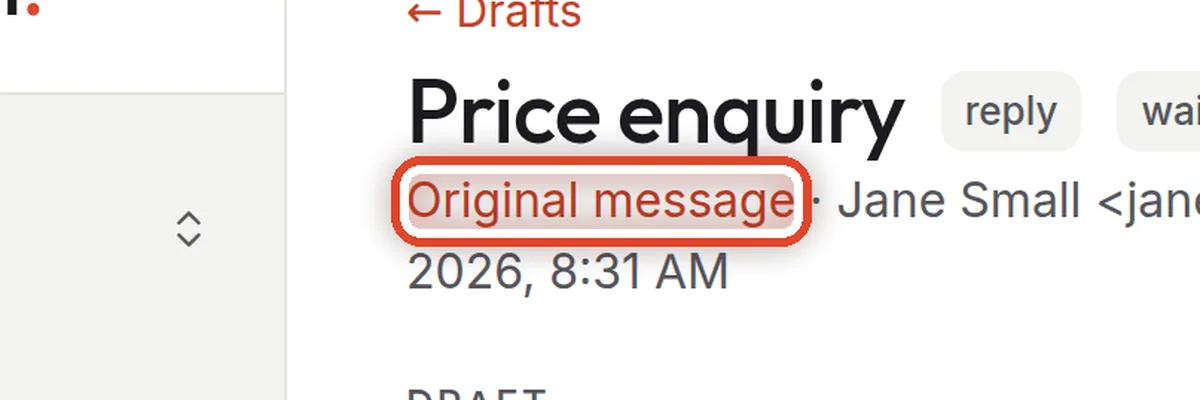
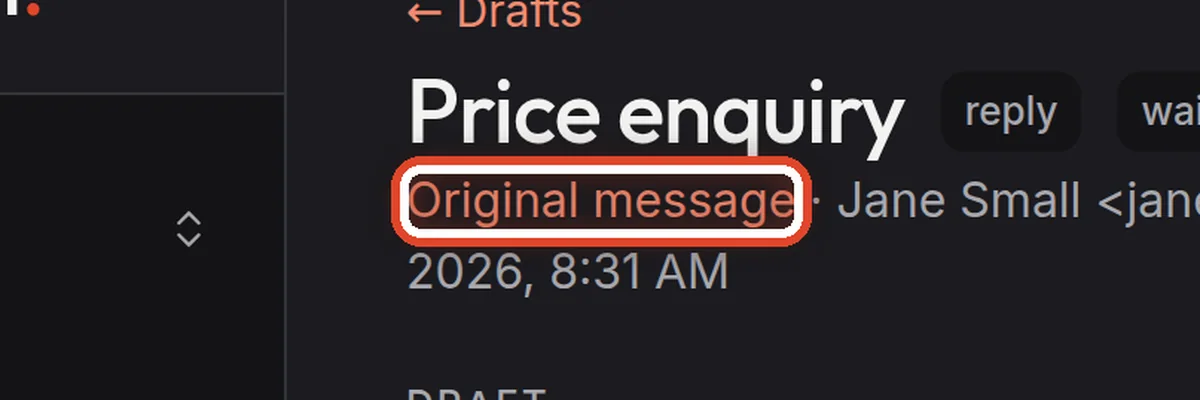
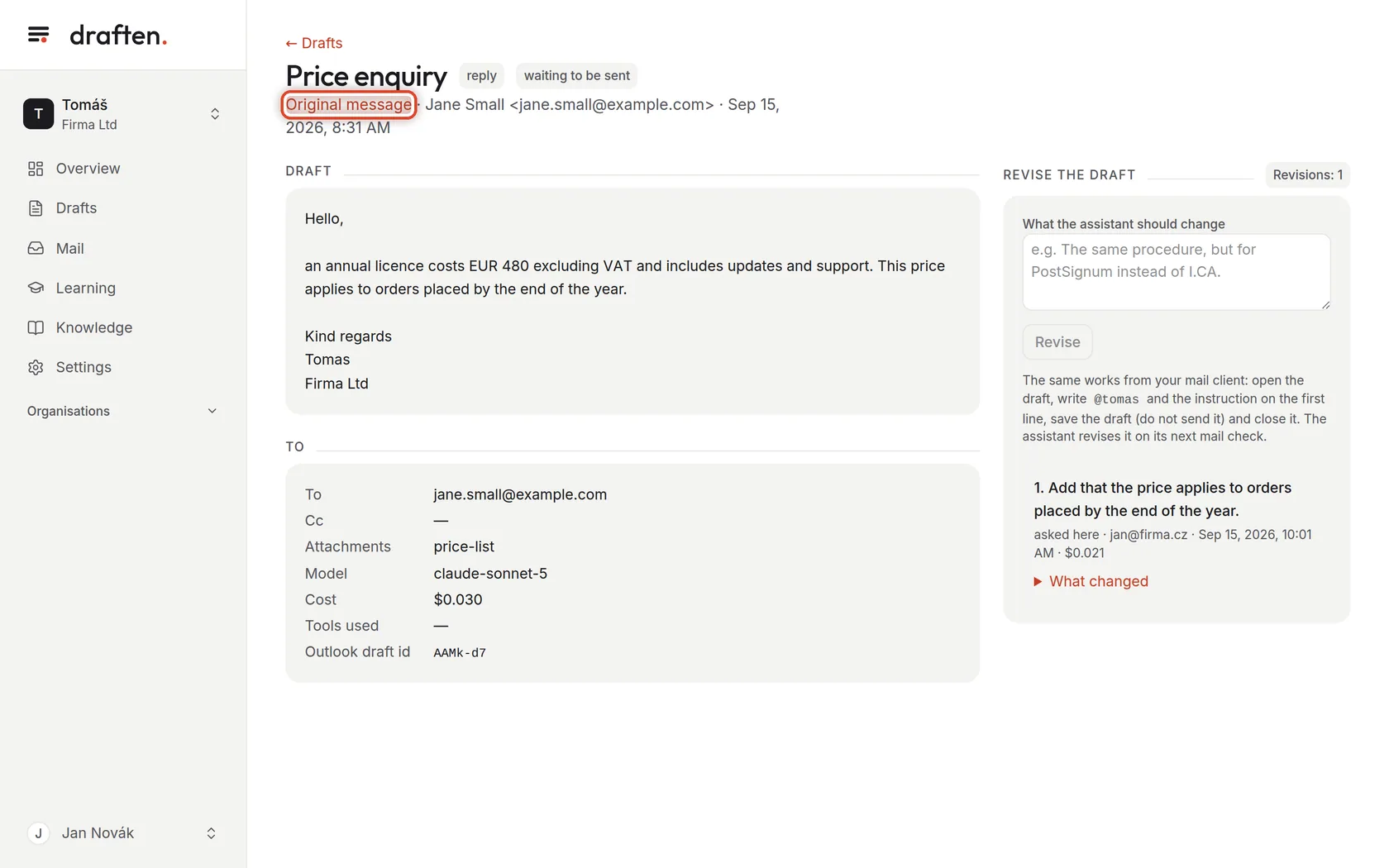
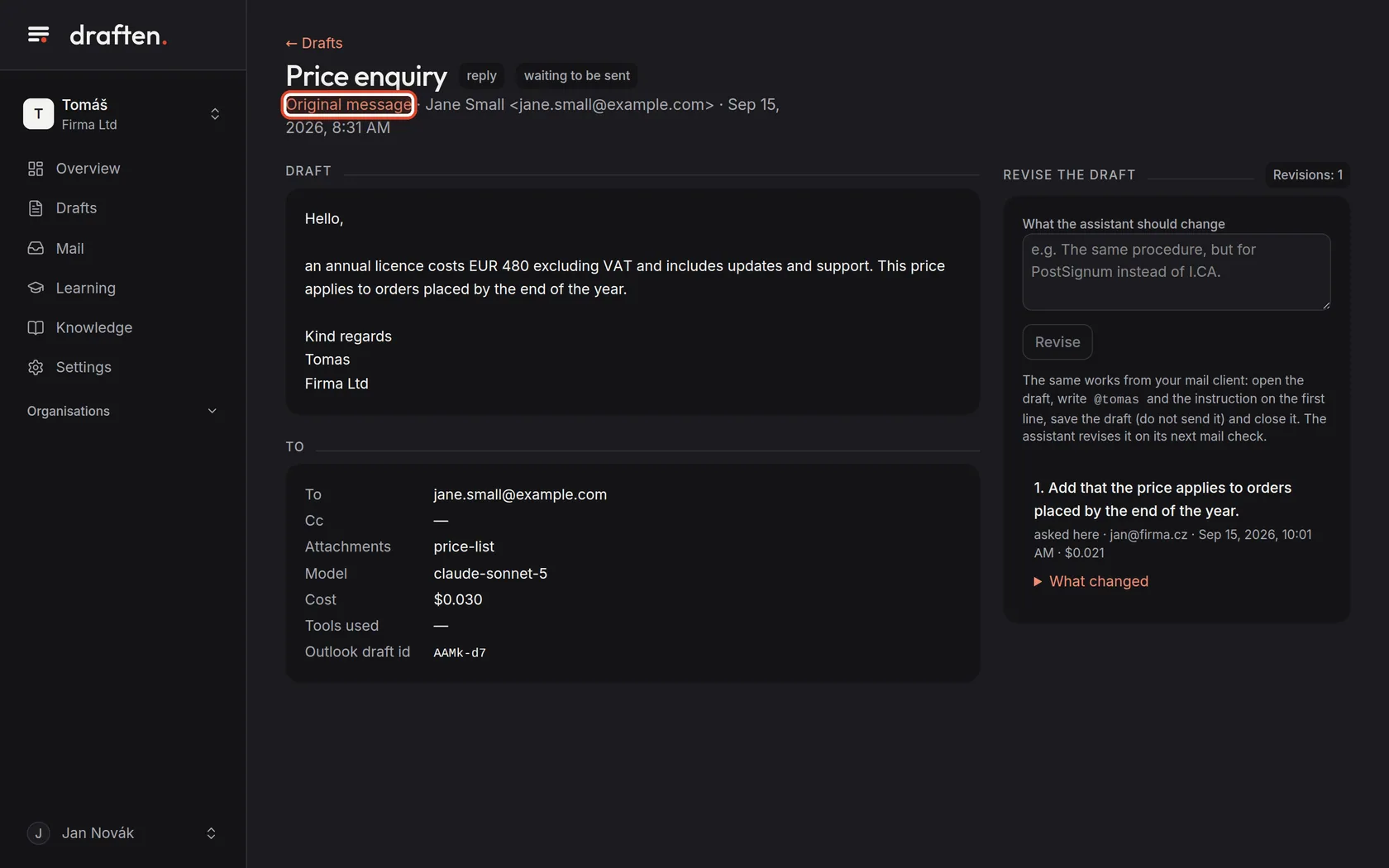
Look at the original message
On the screenAt the top, the Original message link, with the sender and time next to it.
Do thisClick Original message. You will see the message the assistant replied to, and why it decided to reply.
Step 7 of 8
What you changed in the draft
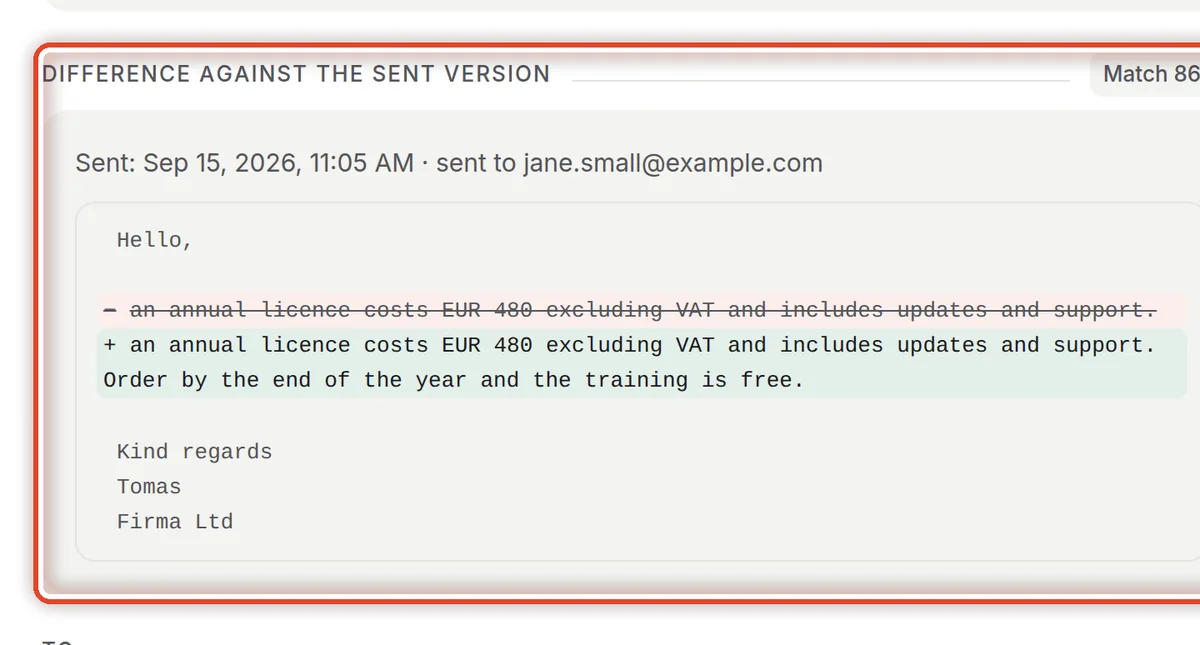
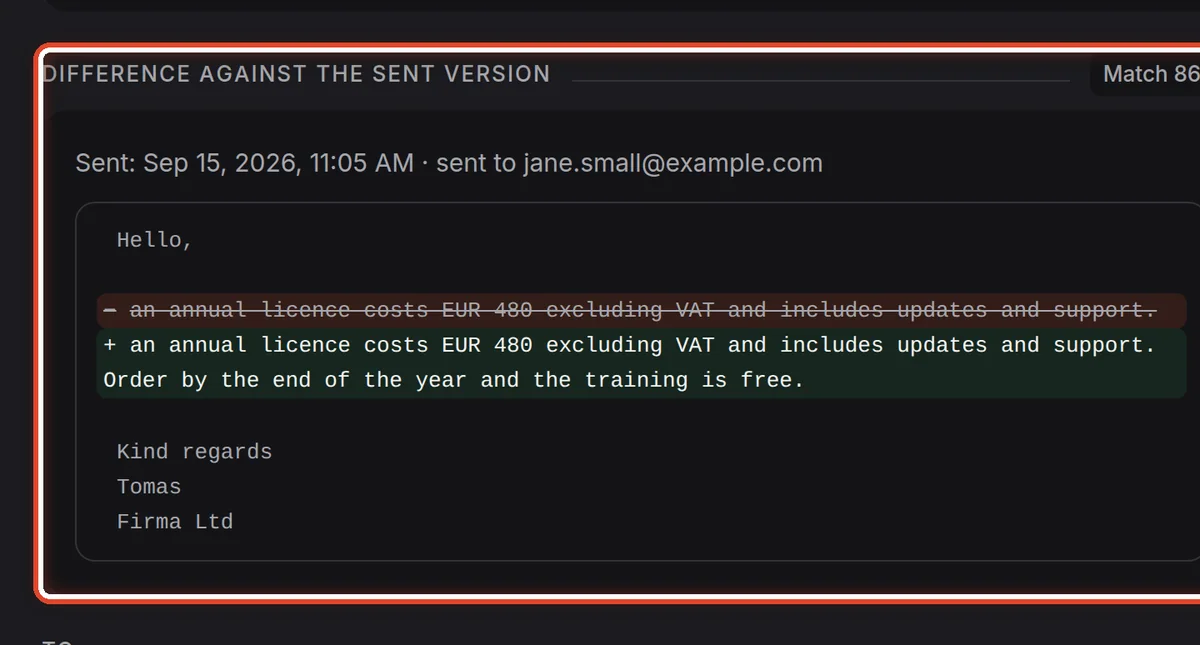
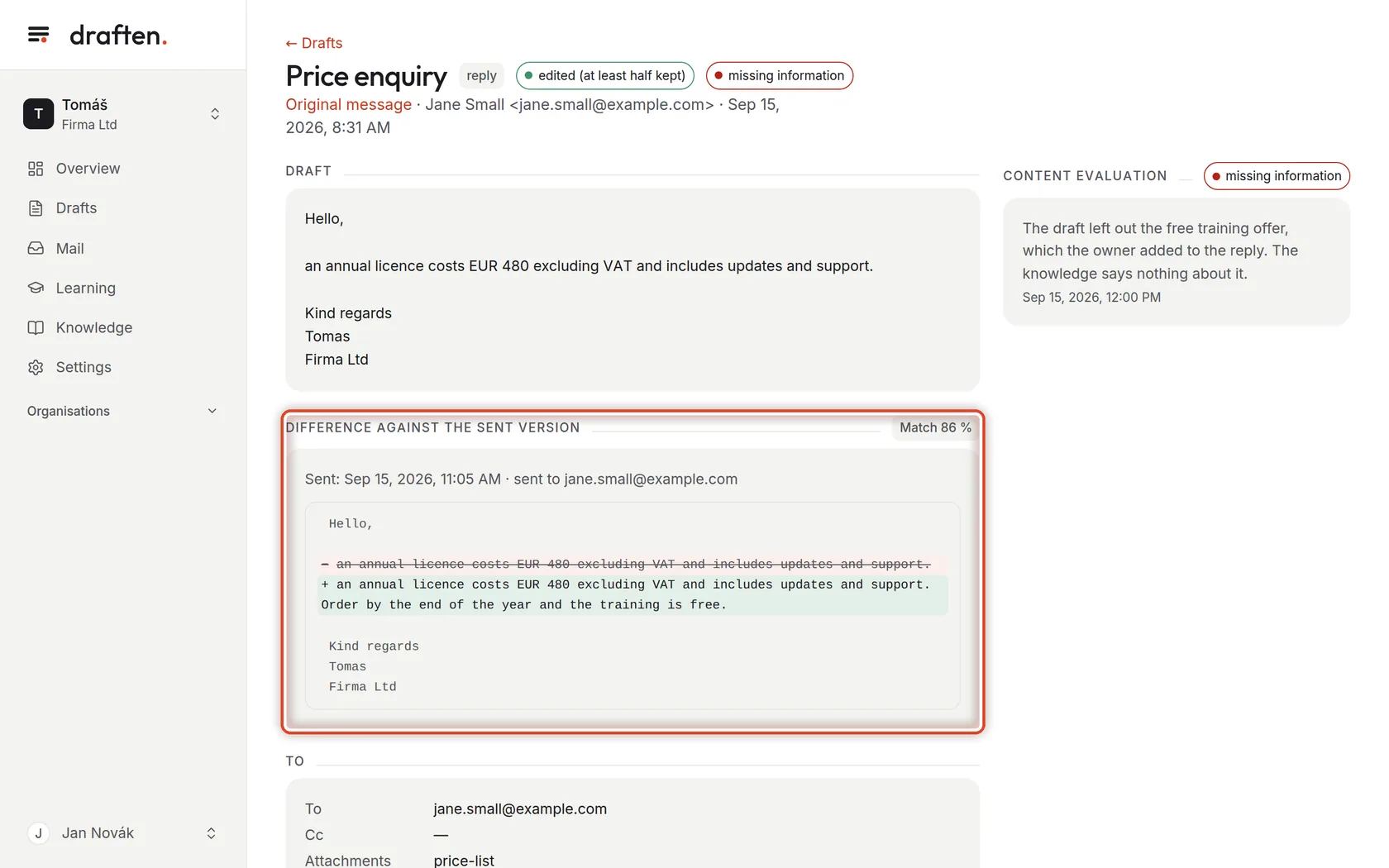
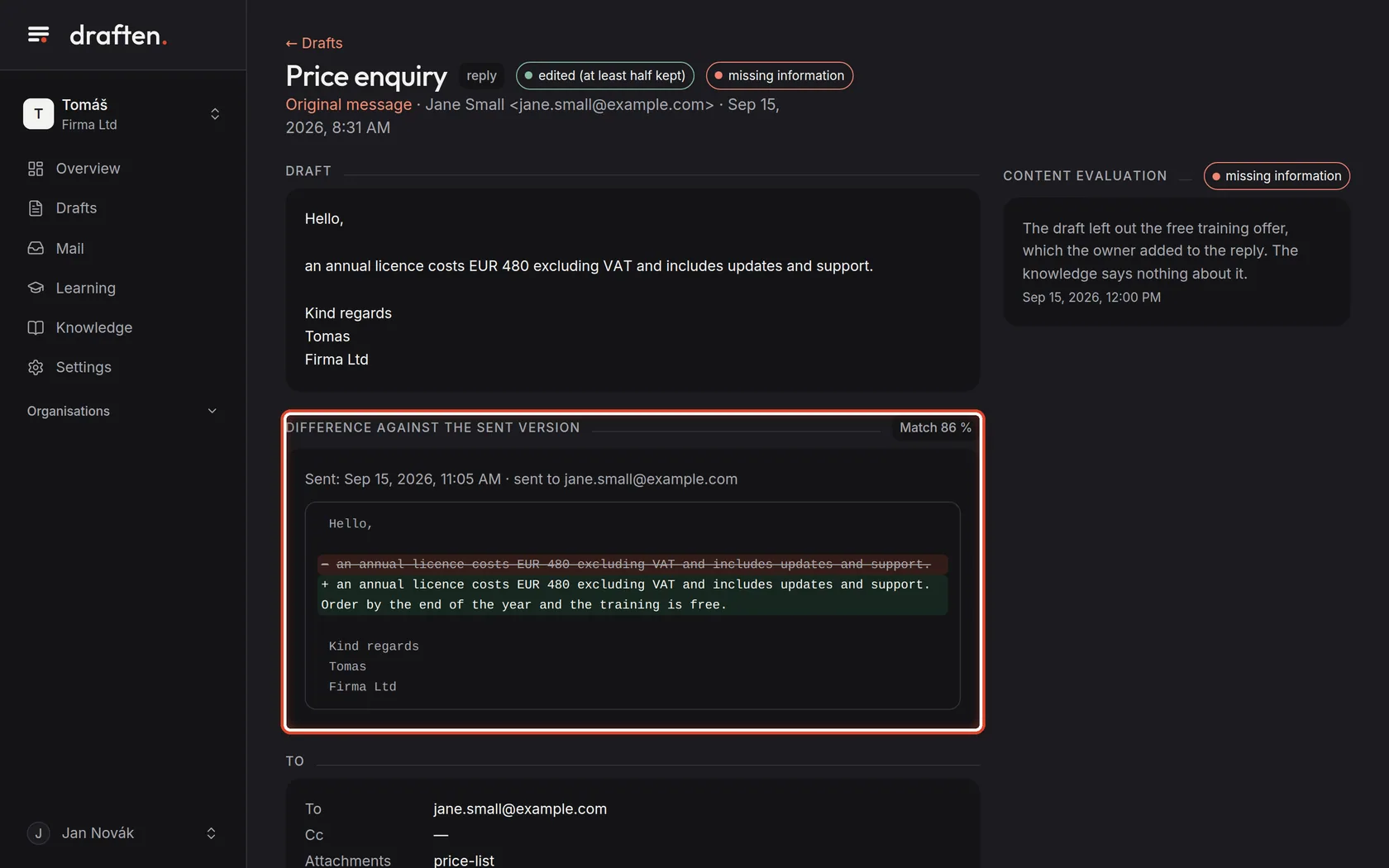
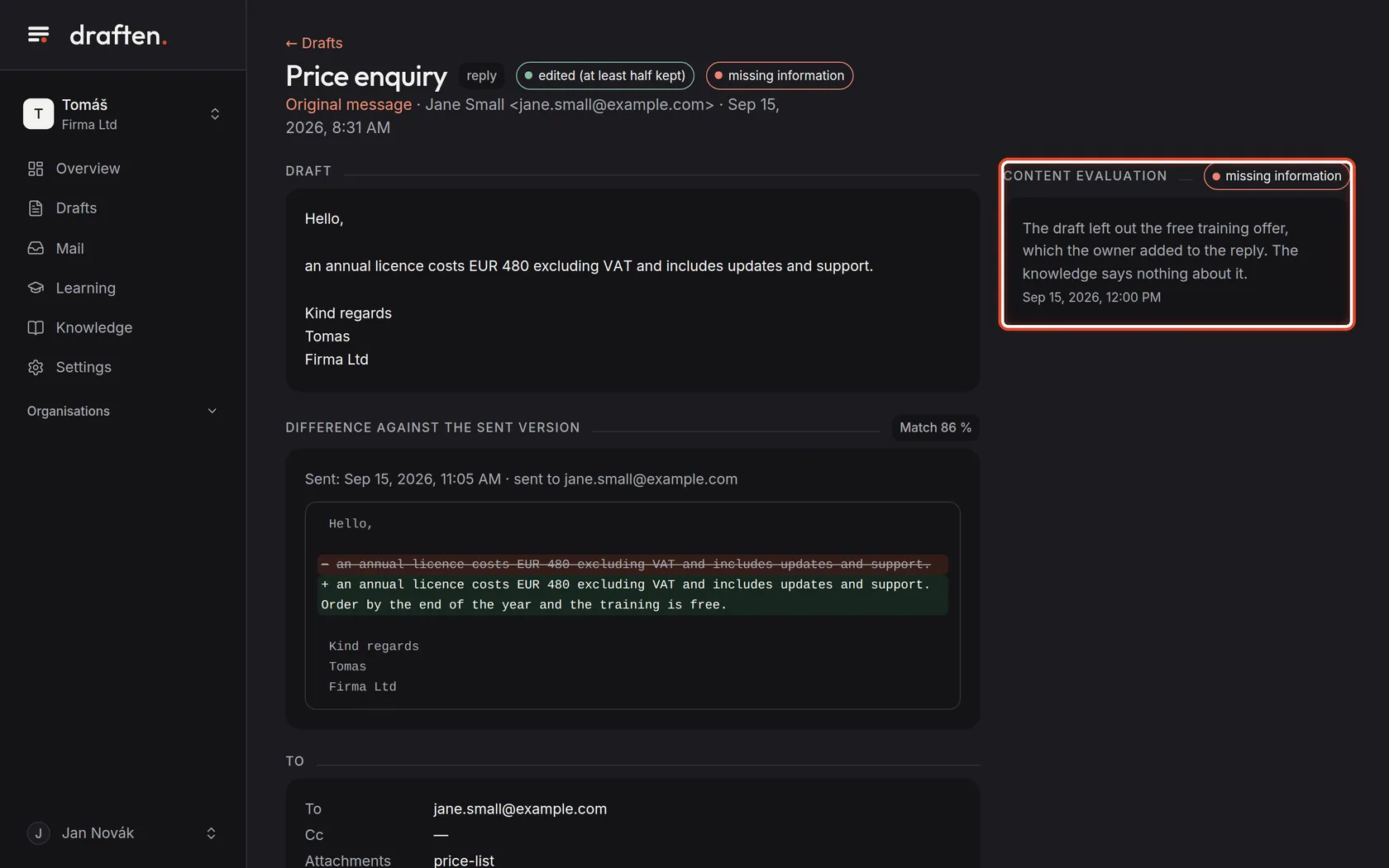
On the screenAfter sending, the Difference against the sent version card.
Do thisWhen you send the draft, the assistant compares it with what actually went out. Added text is marked + and green, removed text − and struck through. Match says how much of the draft's text stayed.
NoteWhen less than half of the draft stays, it counts as replaced by your own reply.
Step 8 of 8
Why you edited the draft
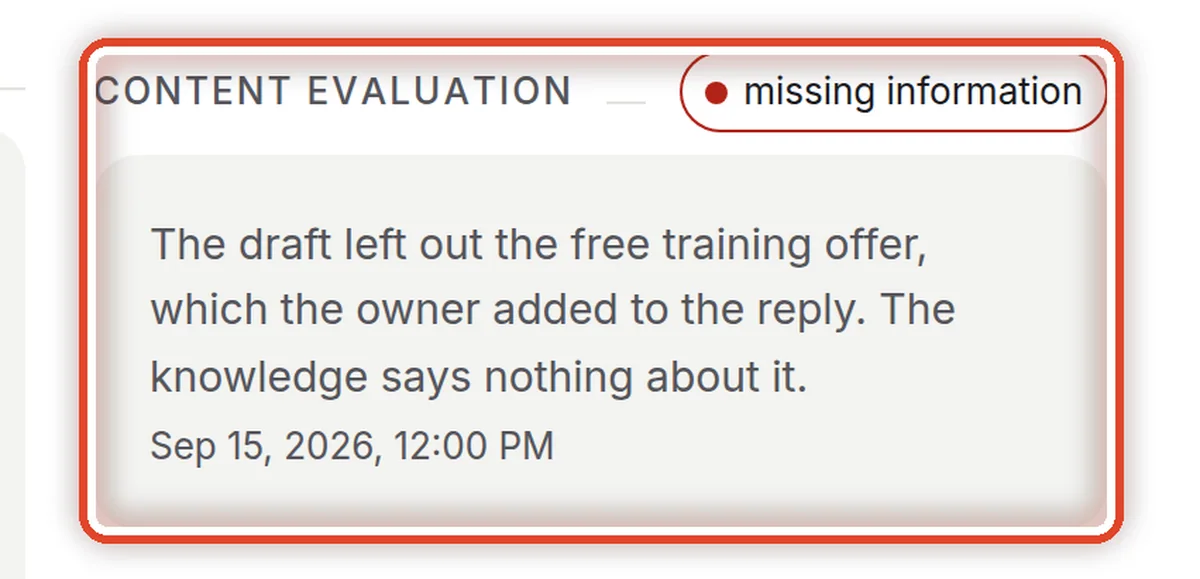
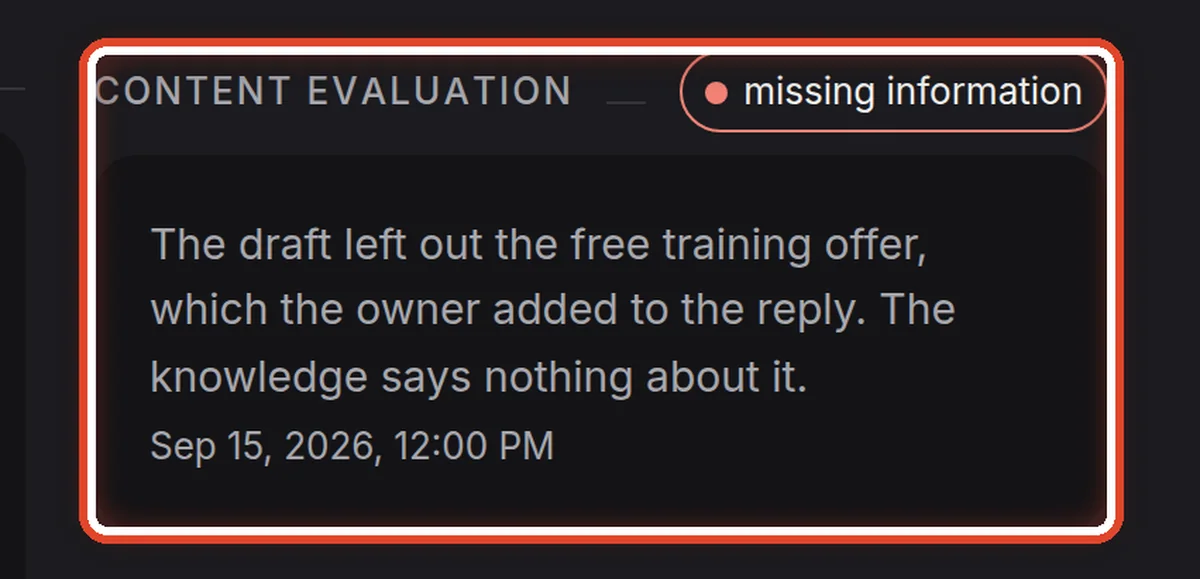
On the screenOn the right, the Content evaluation card with a short reason.
Do thisThe assistant judges on its own why you changed the draft: form only, wrong fact, missing information and so on. Here it lacked the offer — adding it to Knowledge helps.
NoteFrom the evaluations the assistant proposes rules and knowledge corrections. It uses none of them until you approve them (Overview → Decide). Evaluation runs only with learning switched on.
The end
You know how to go through drafts
Read a draft in draften or right in your mail. You always send it yourself — and the assistant learns from what you do with it.
- The draft is almost right?Have it revised by instruction — the guide Revising a draft by instruction.
- The same mistake keeps coming back?The help page The draft is wrong or invents things tells you whether to fix the knowledge or the instructions.