Guide
The assistant
in check.
Behaviour and limits decide whether the assistant is live, whether it learns, how many drafts it may write, how much it may spend and how often it looks into the mailbox.
Before you start
- Editor or owner roleWith a read-only role you only see the settings.
- An open assistantThey are in Settings → Behaviour and limits.
Step 1 of 7
Trial mode and learning
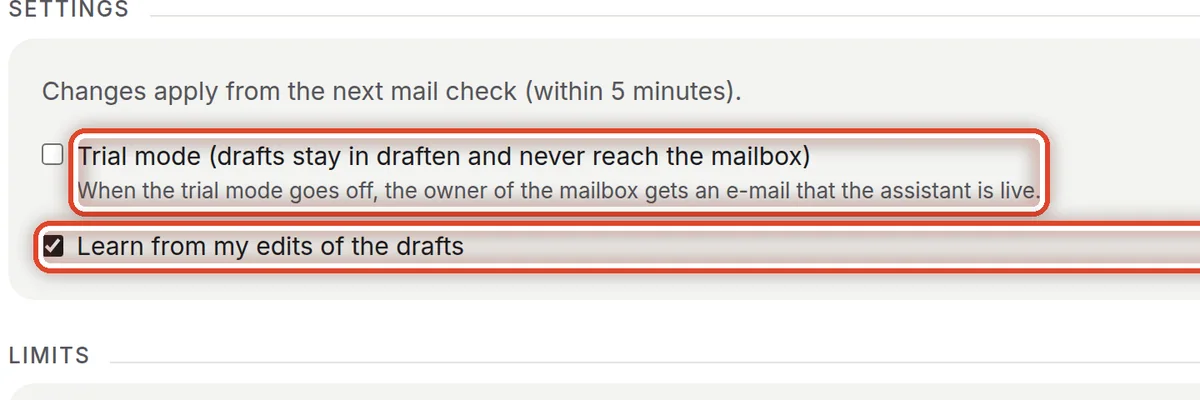
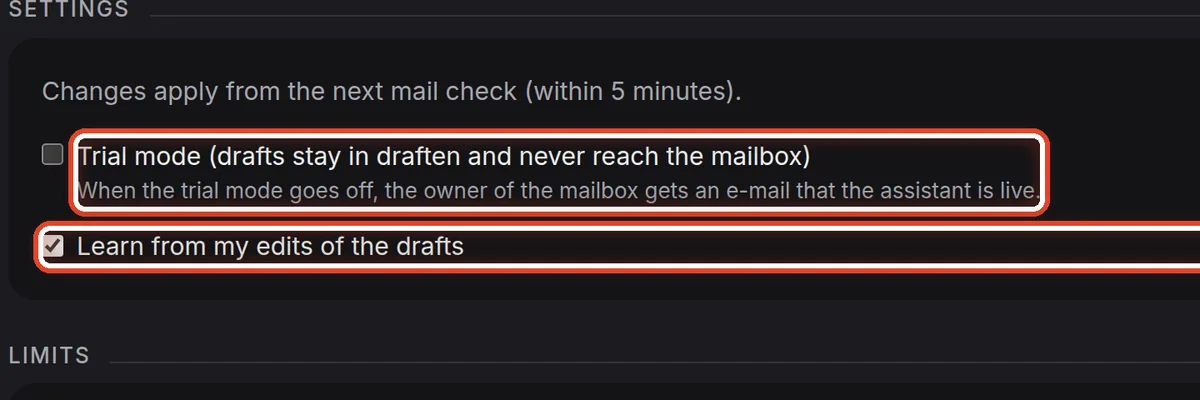
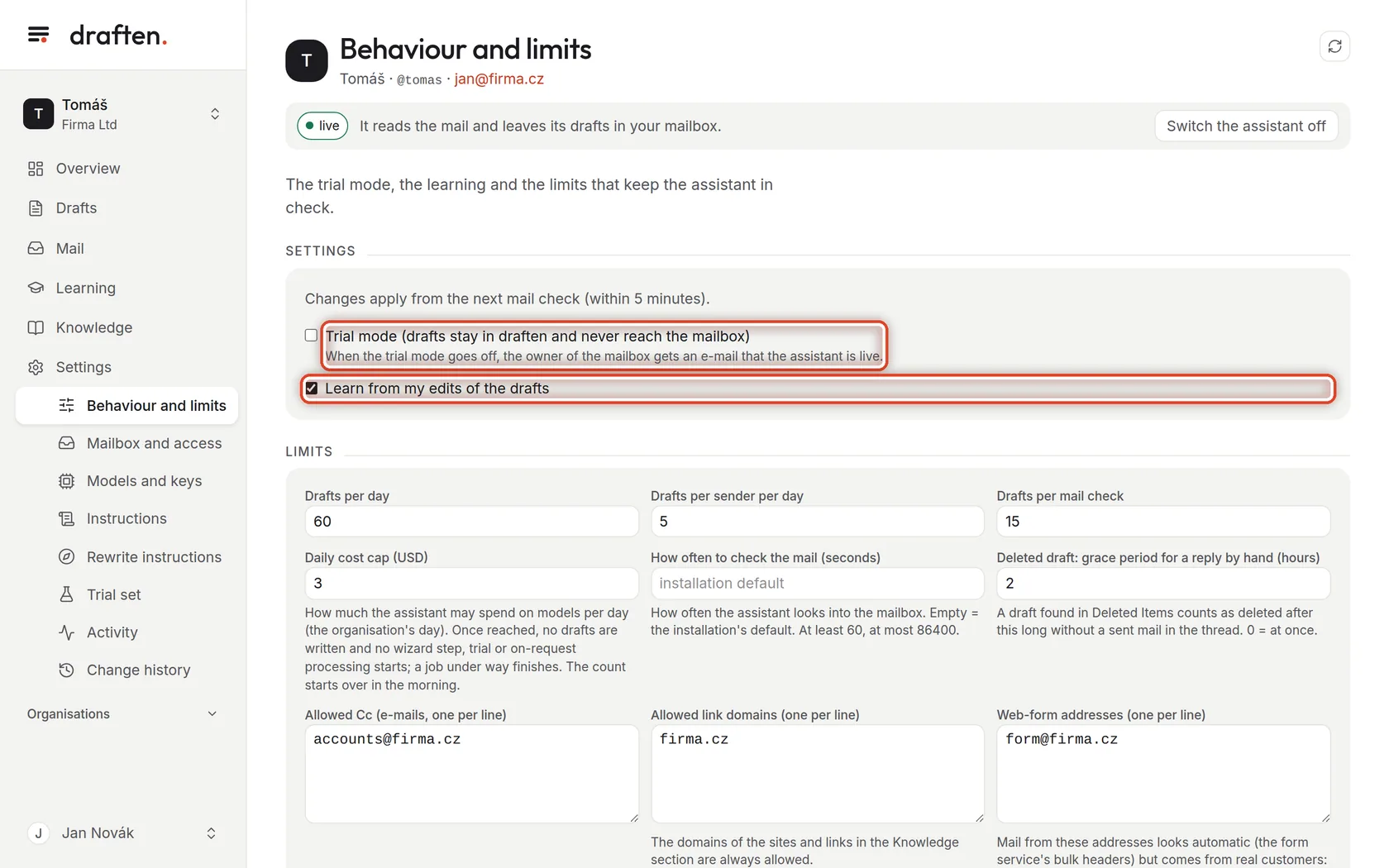
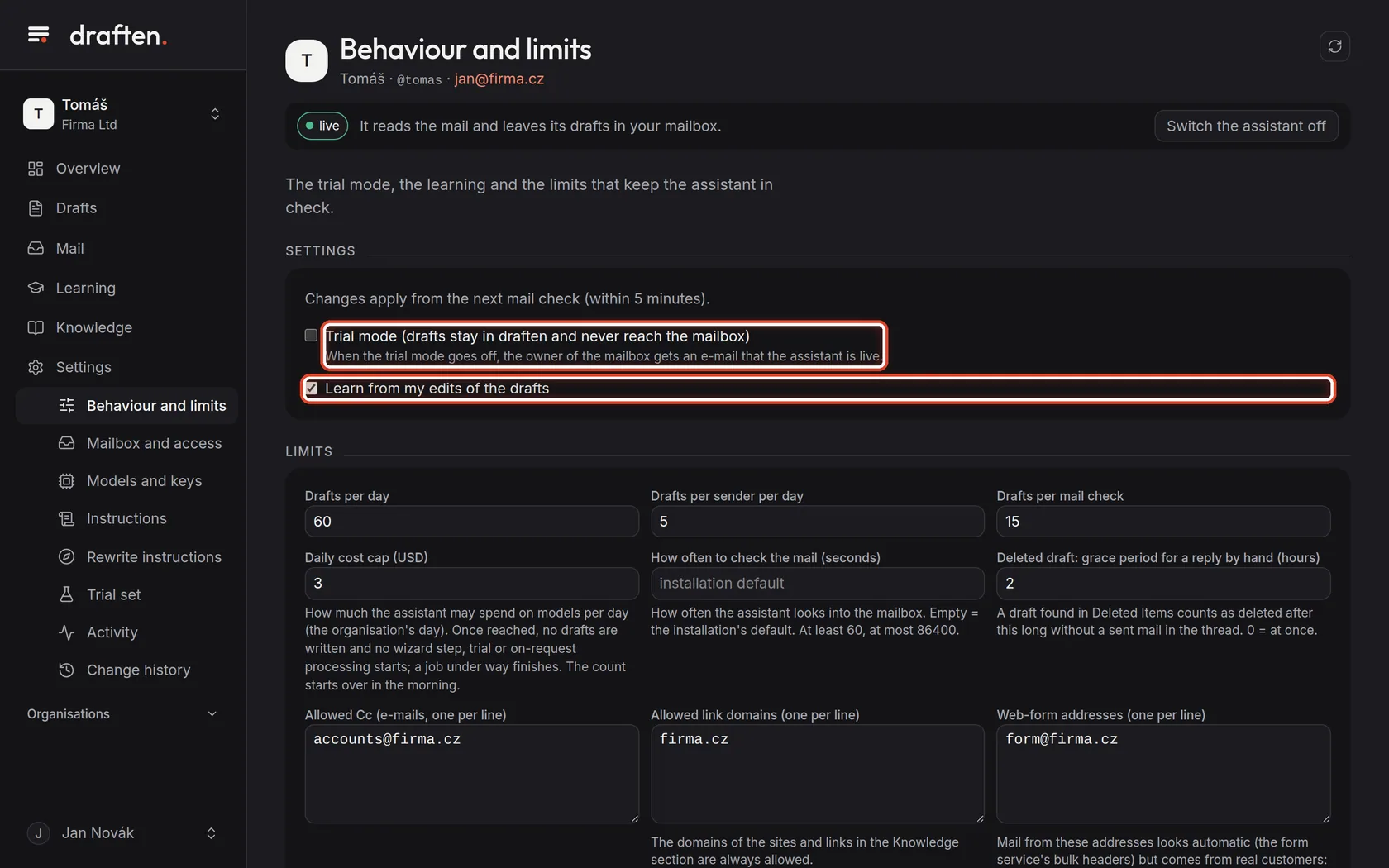
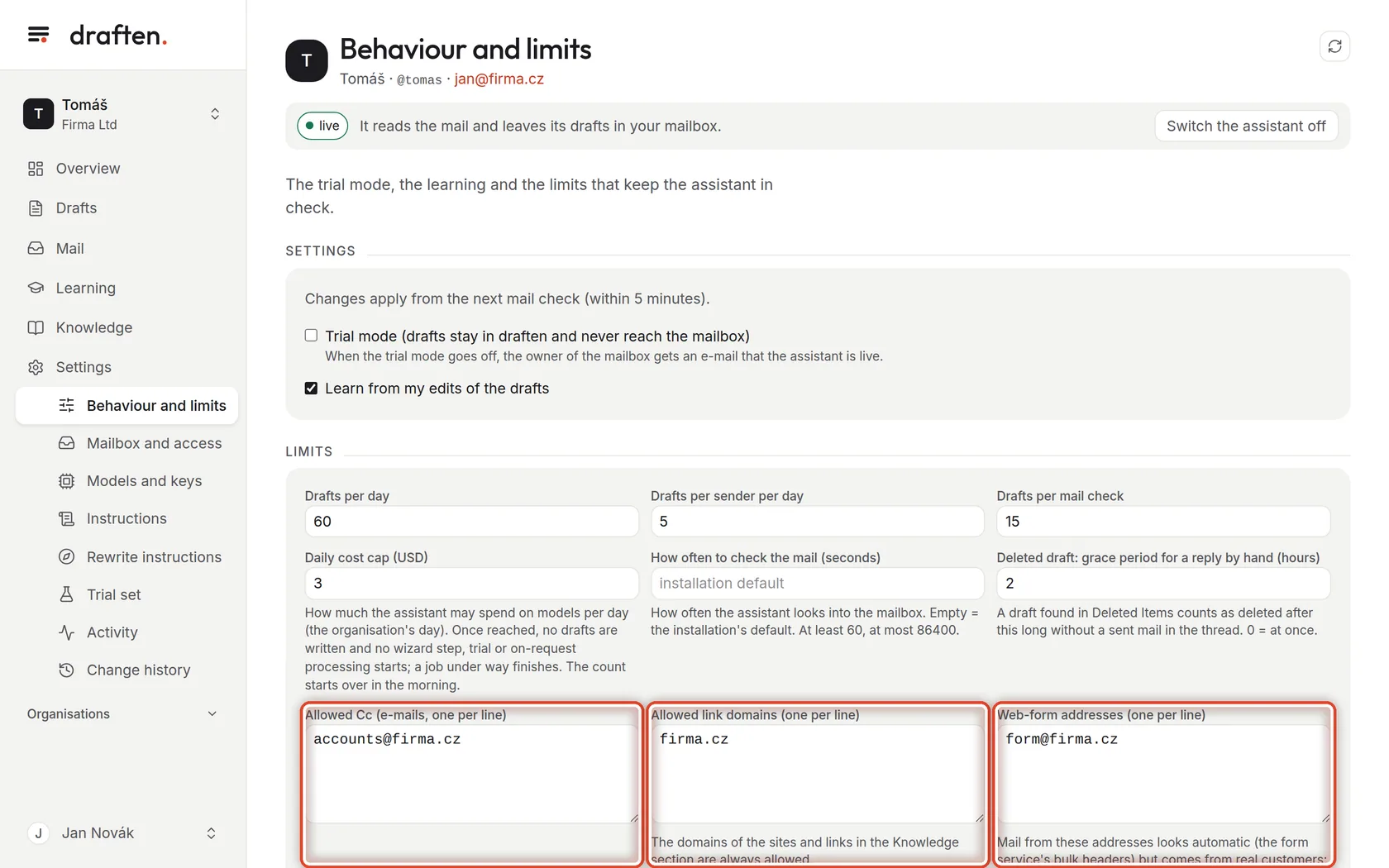
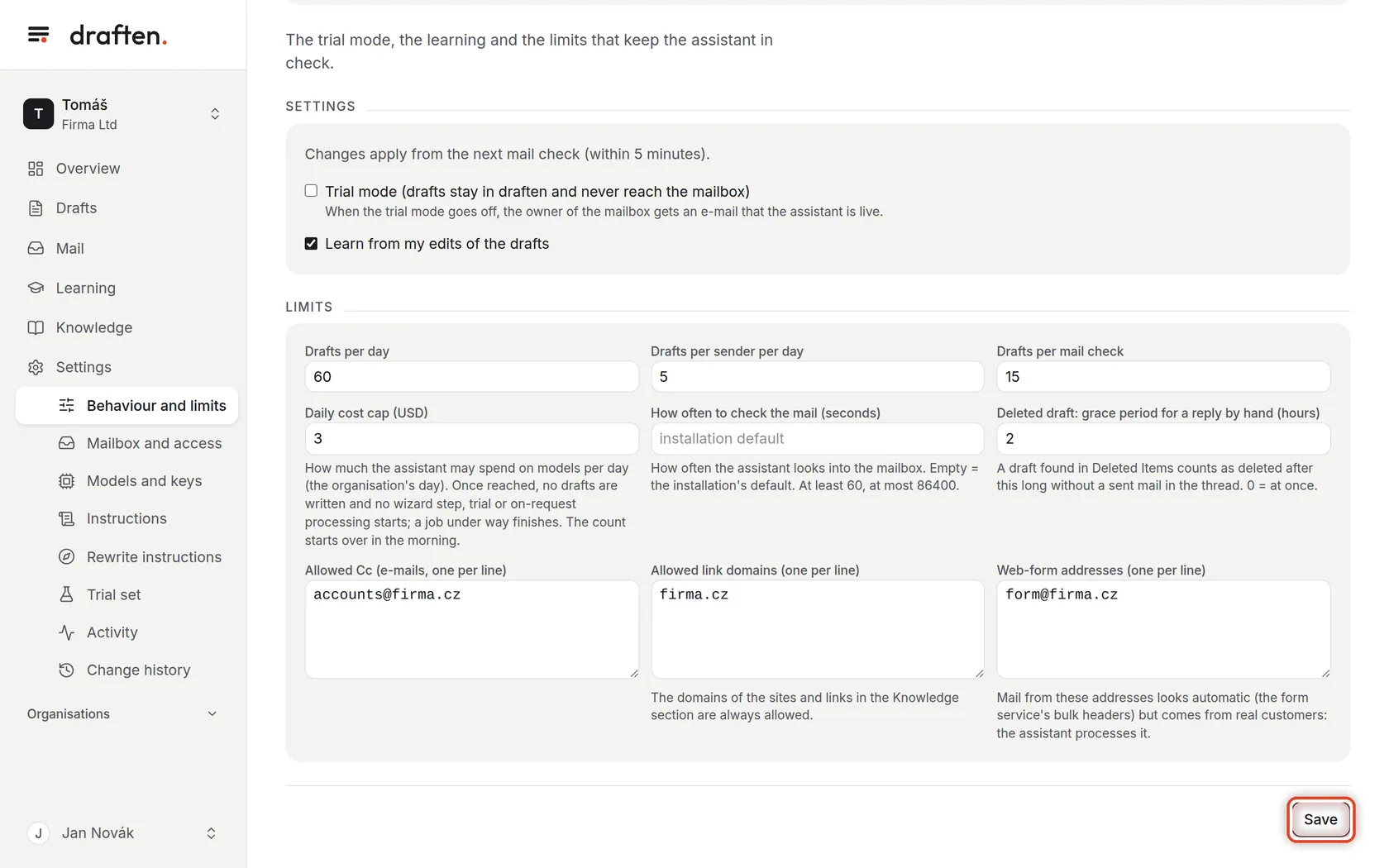
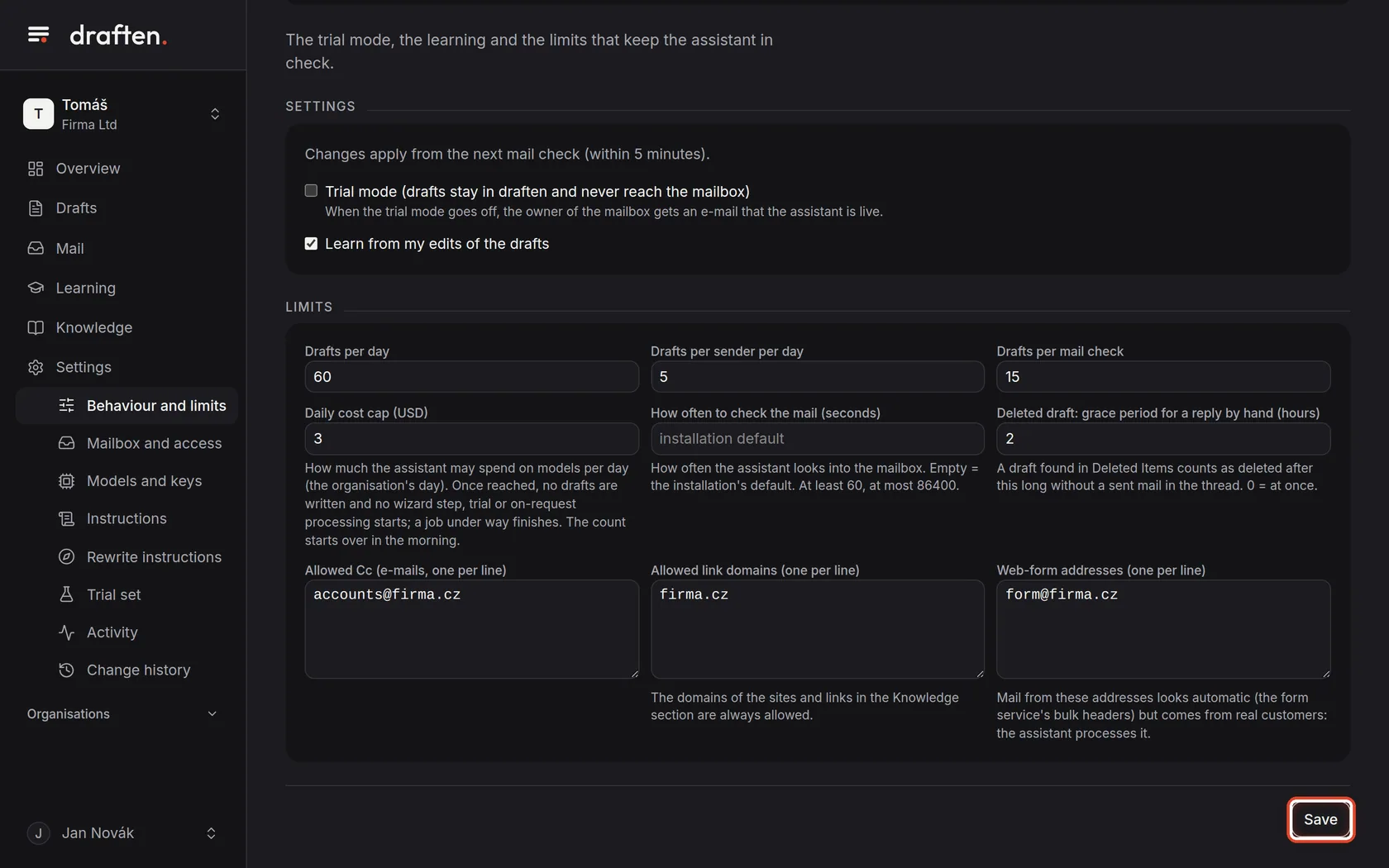
On the screenIn Settings → Behaviour and limits, the Settings card with two tick boxes.
Do thisTrial mode — drafts are made only in draften and do not go to the mail. When you switch it off the assistant is live and the mailbox owner gets an e-mail. Learn from my edits of the drafts — the assistant compares what you changed in drafts and proposes lessons and fact corrections.
NoteGoing live is described in detail in Trial mode and going live.
Step 2 of 7
How many drafts
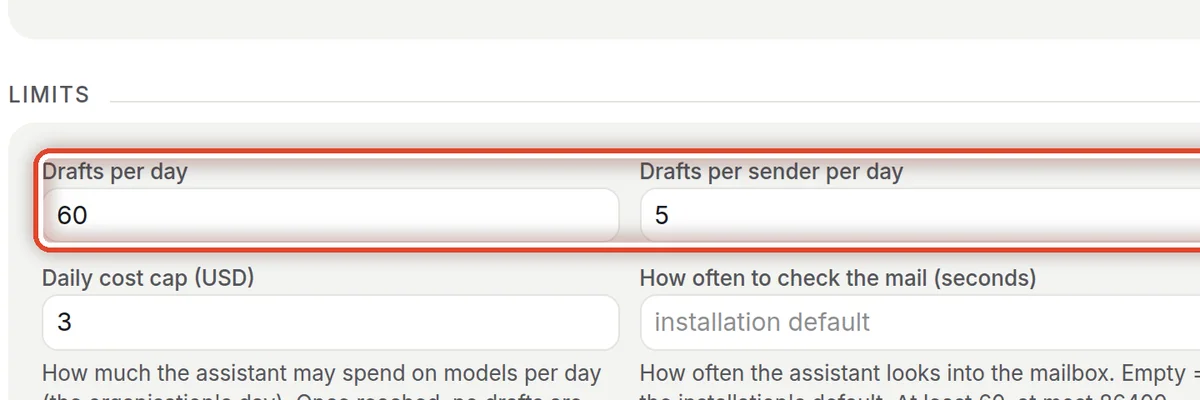
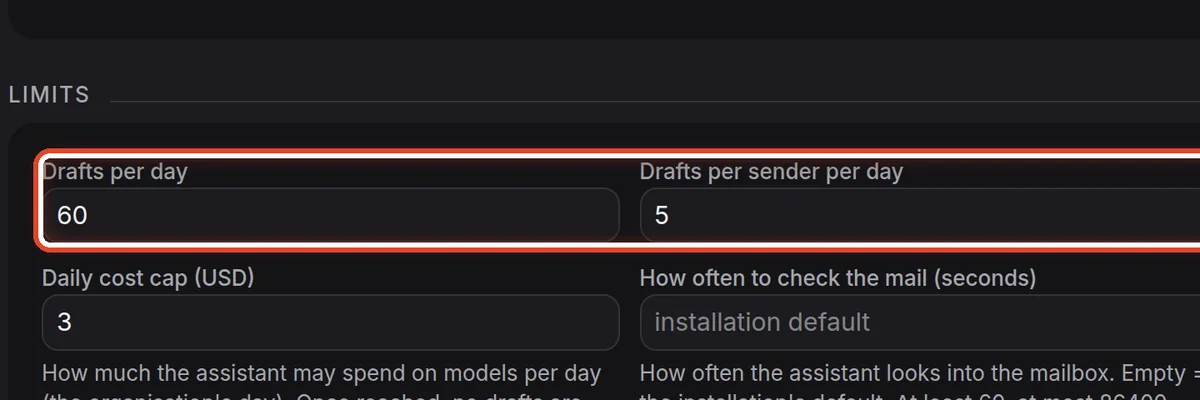
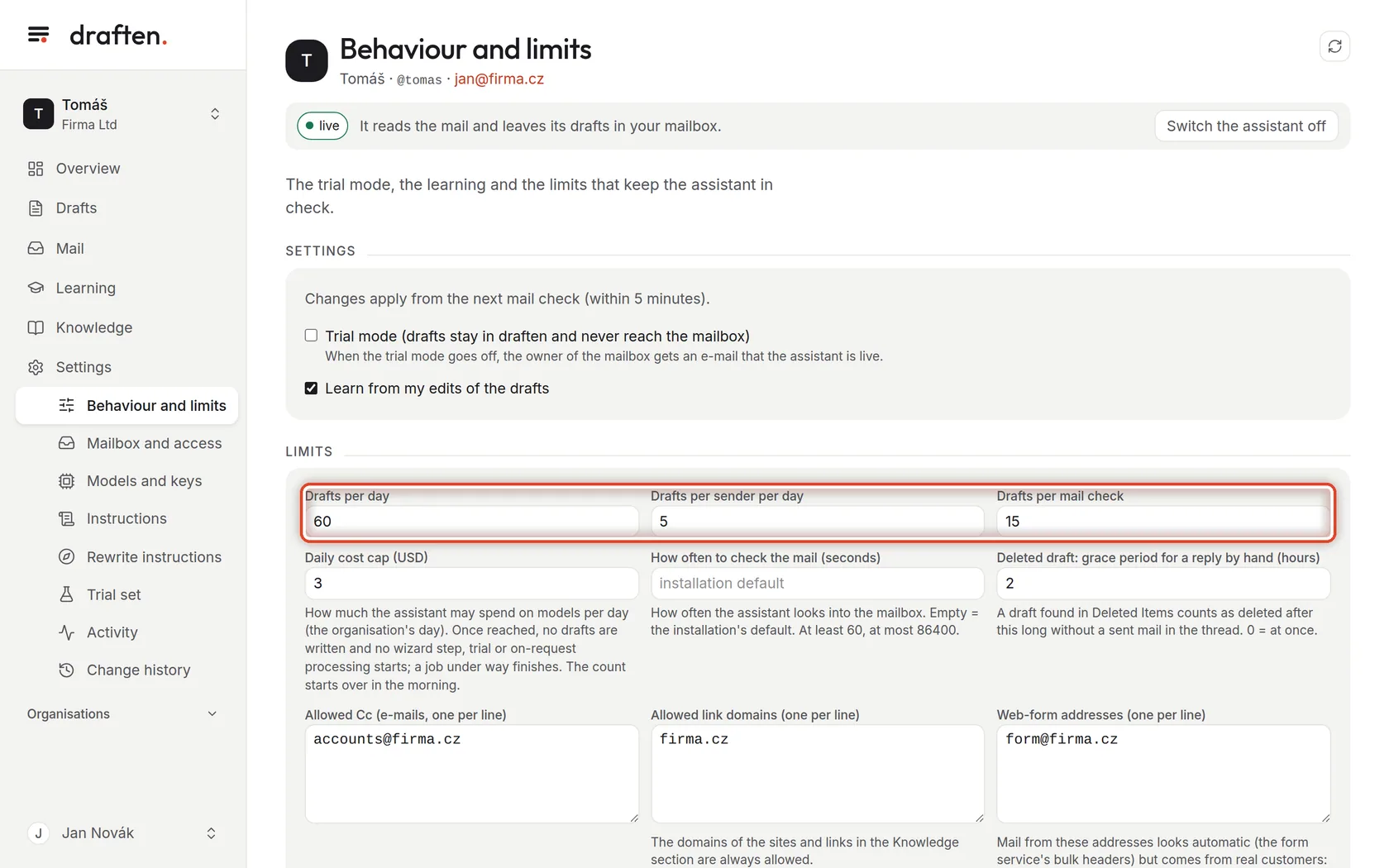
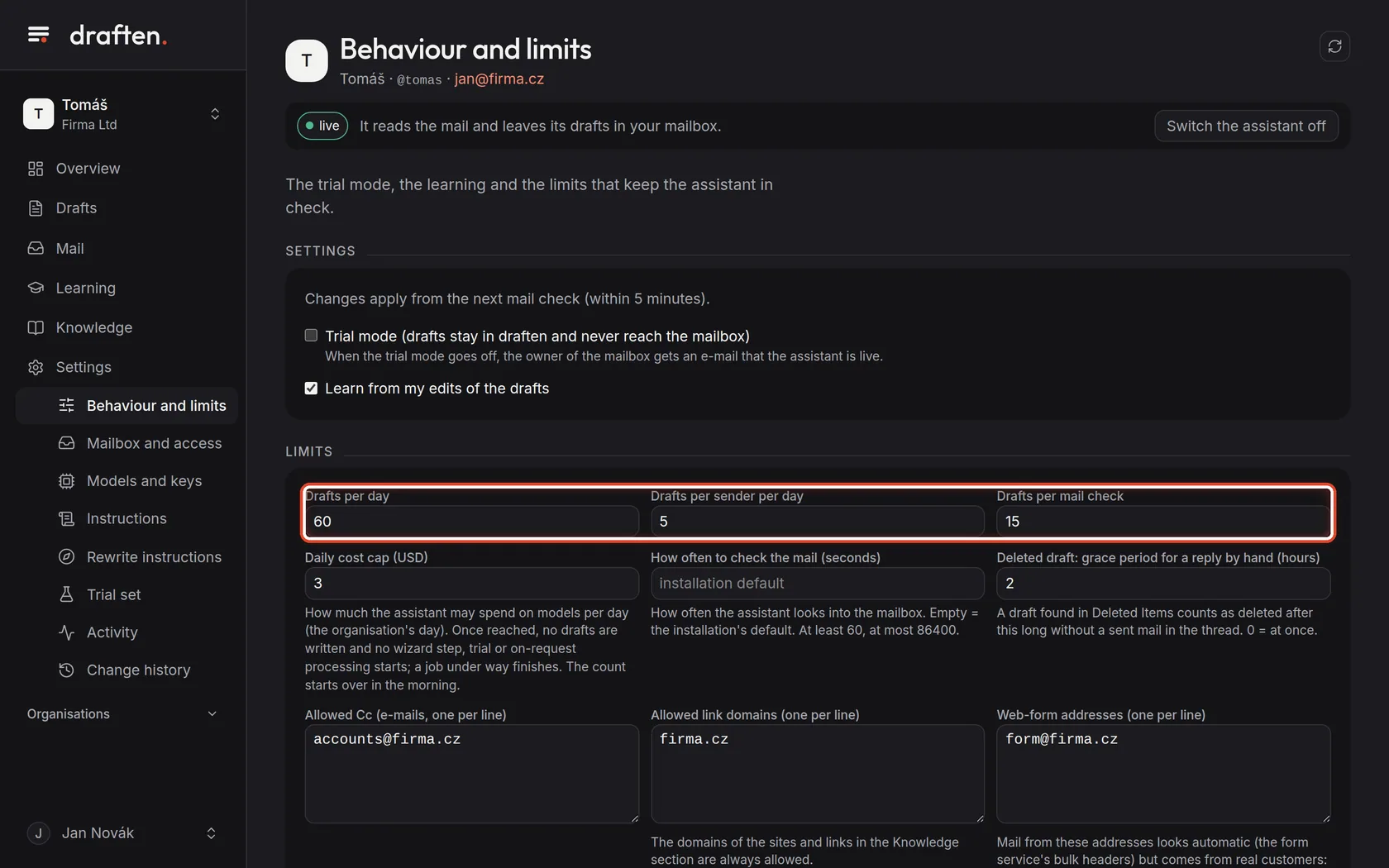
On the screenIn the Limits card, three counts: per day, per sender per day and per mail check.
Do thisLimits keep the assistant in check. Drafts per day caps the total. Per sender per day guards against a loop where two machines keep answering each other. Per mail check spreads a big pile: what does not fit is handled at the next check.
NoteA message that runs into a limit gets the limit status in Mail.
Step 3 of 7
Daily cost cap
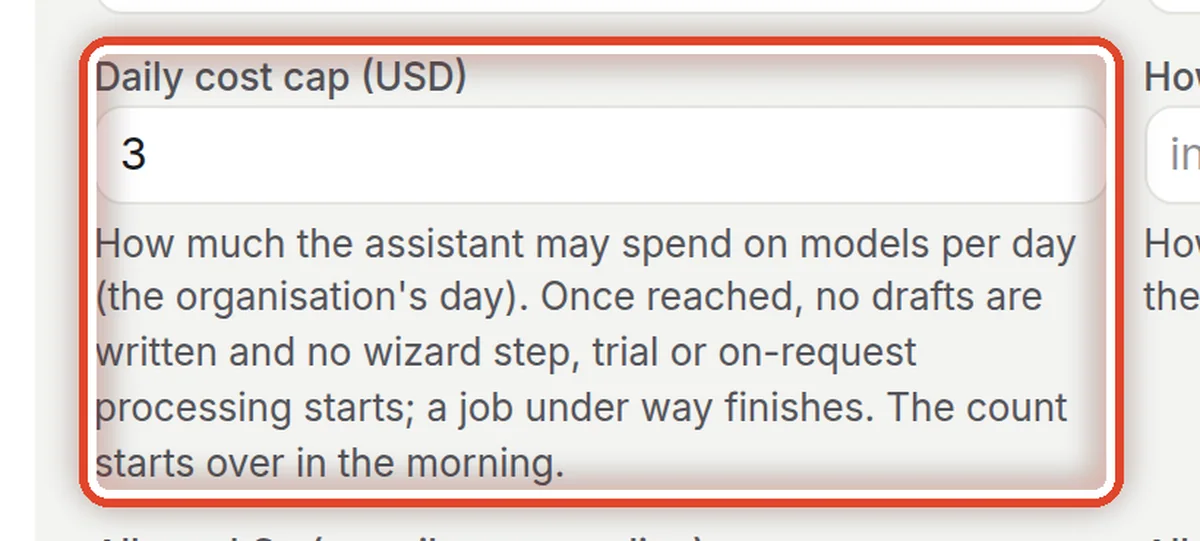
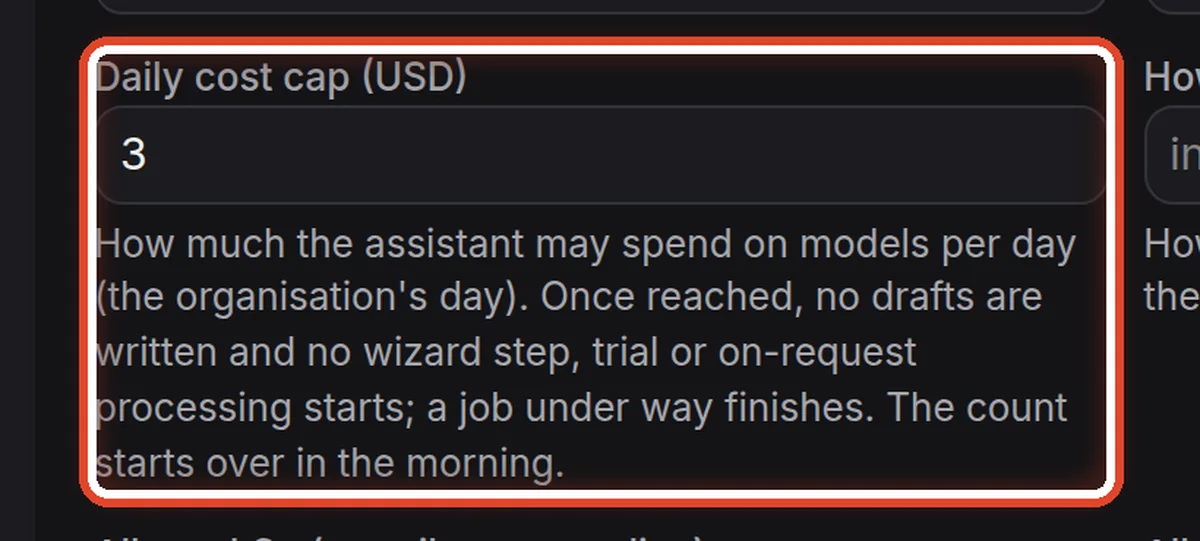
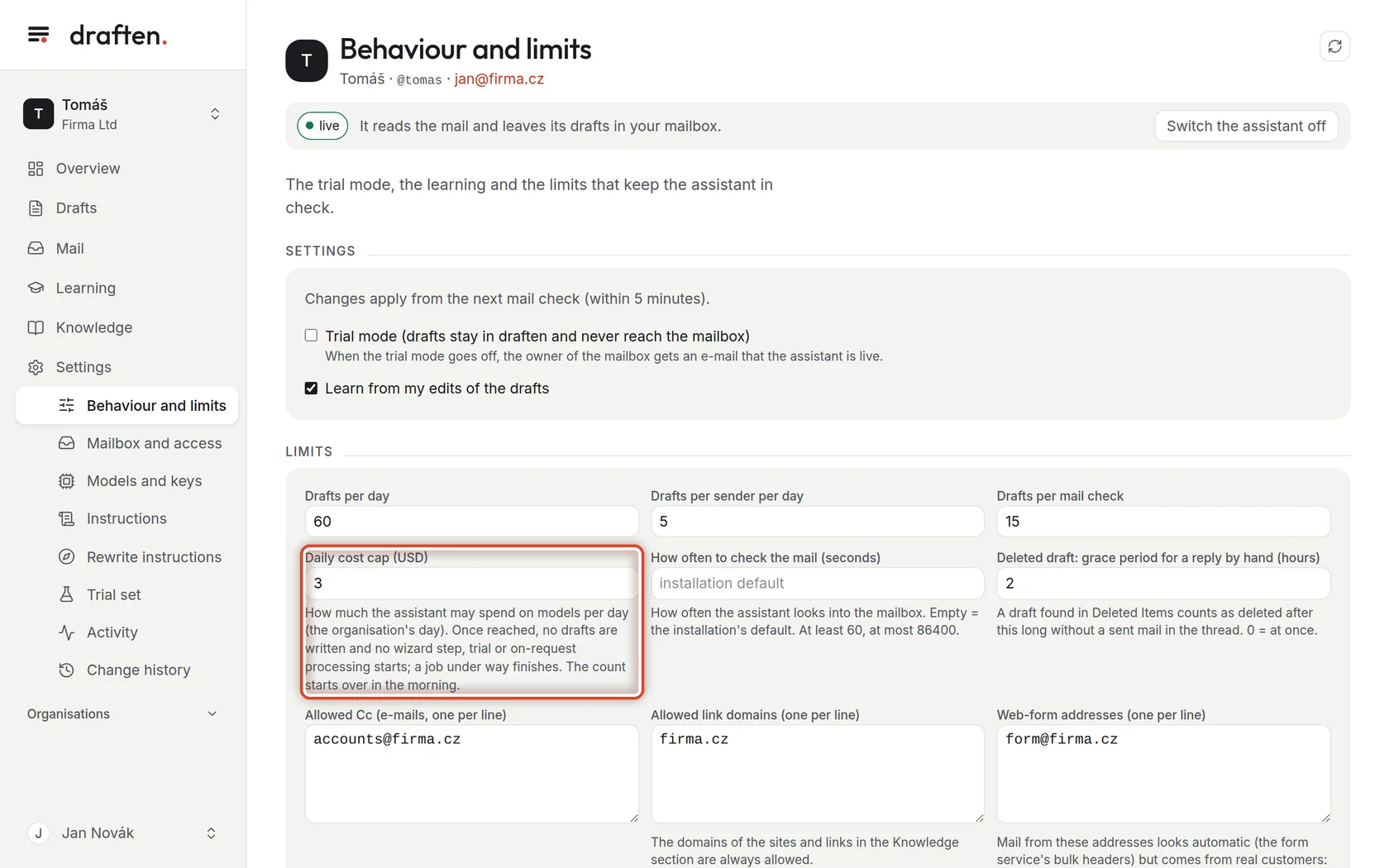
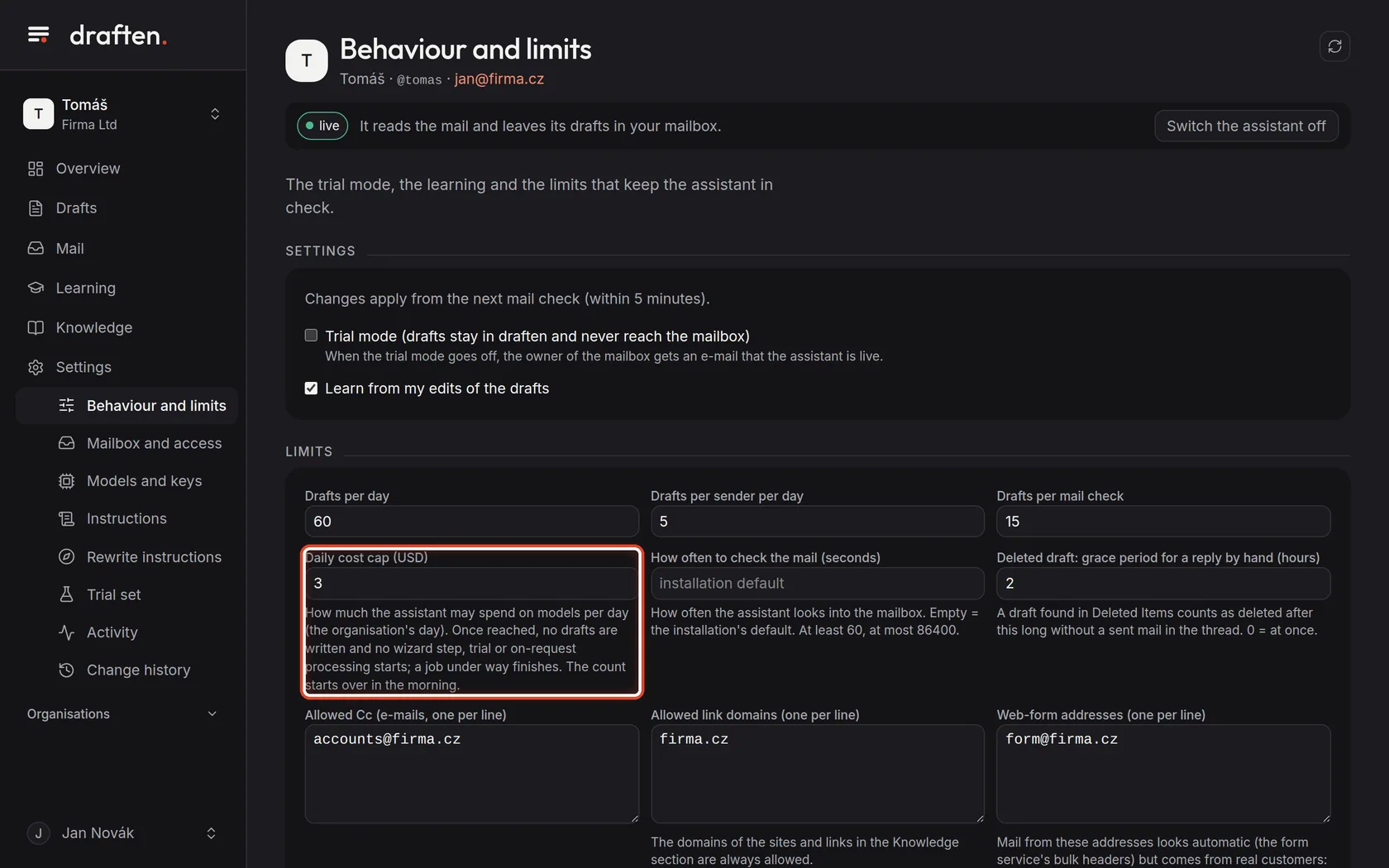
On the screenThe Daily cost cap (USD) field.
Do thisHow much the assistant may spend on language models per day. Once reached, it writes no drafts, and no wizard step or trial starts; the count starts over in the morning. An empty field means no cap.
NoteWhat the assistant spent today and its cap are on the Overview, in the What the models cost card. Prices are described in Models and prices.
Step 4 of 7
How often to check the mail
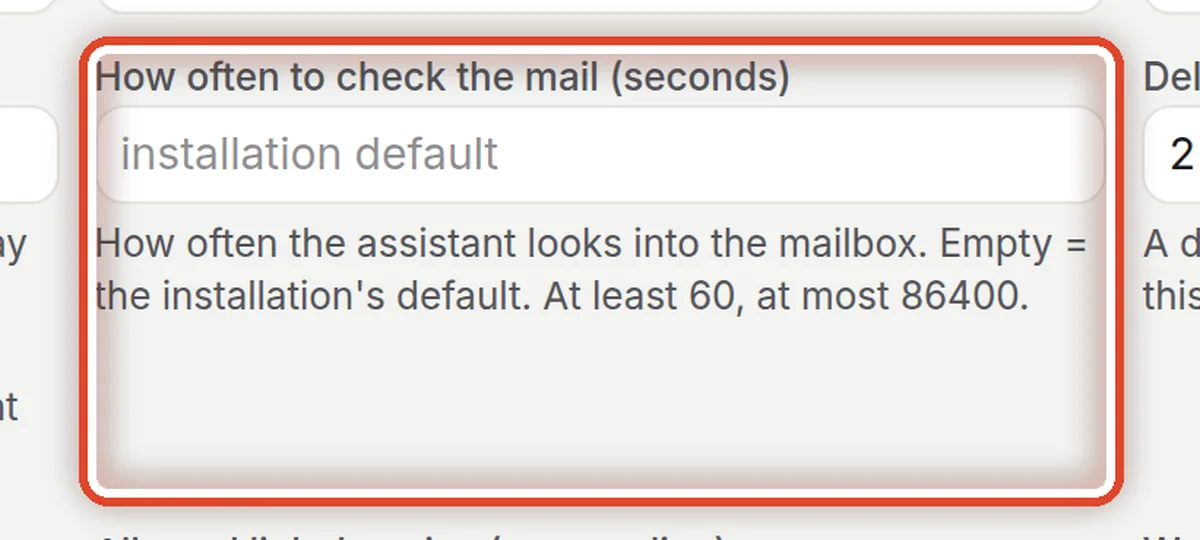
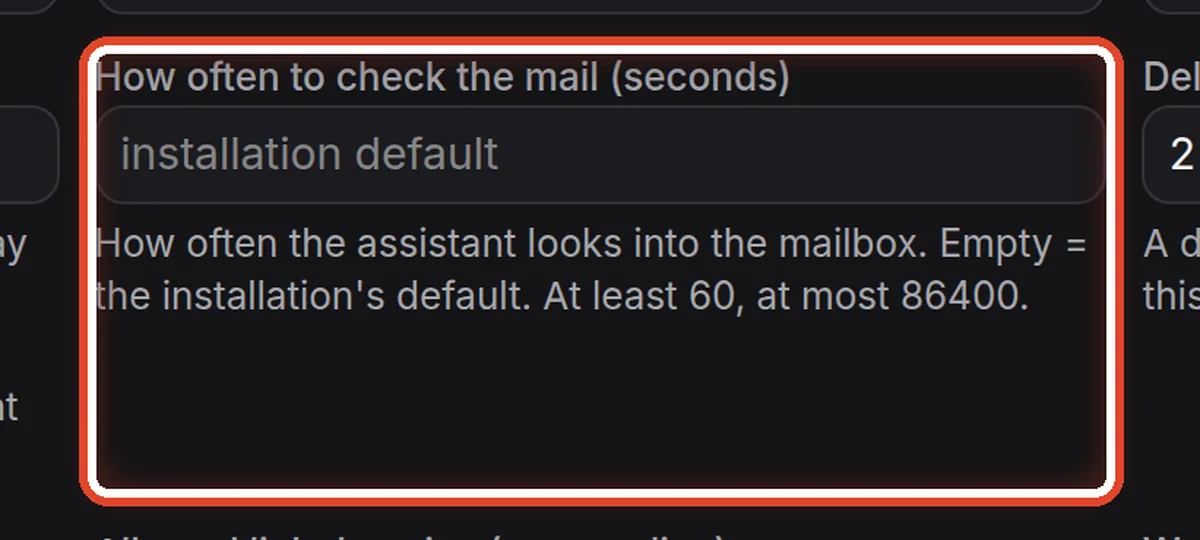
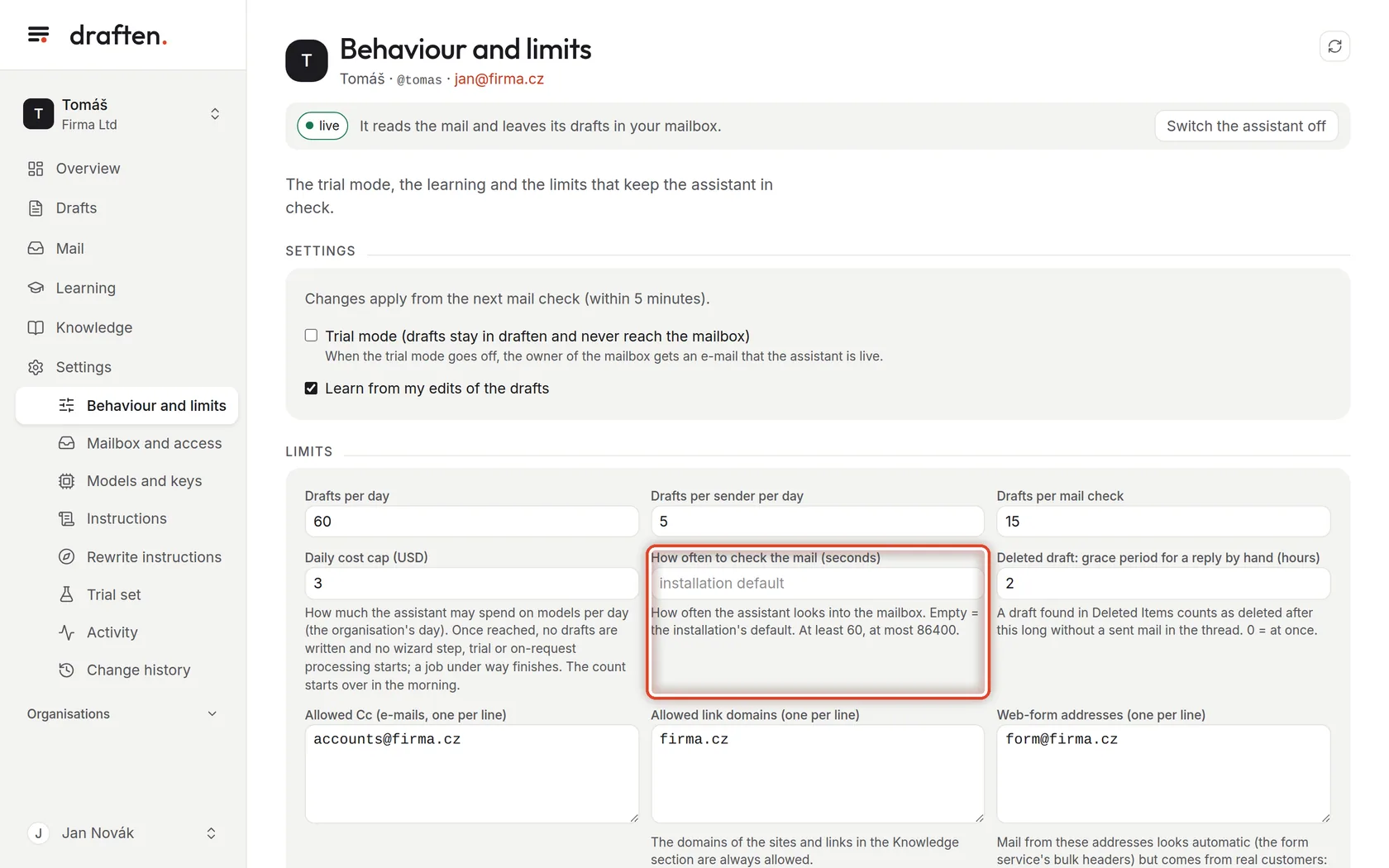
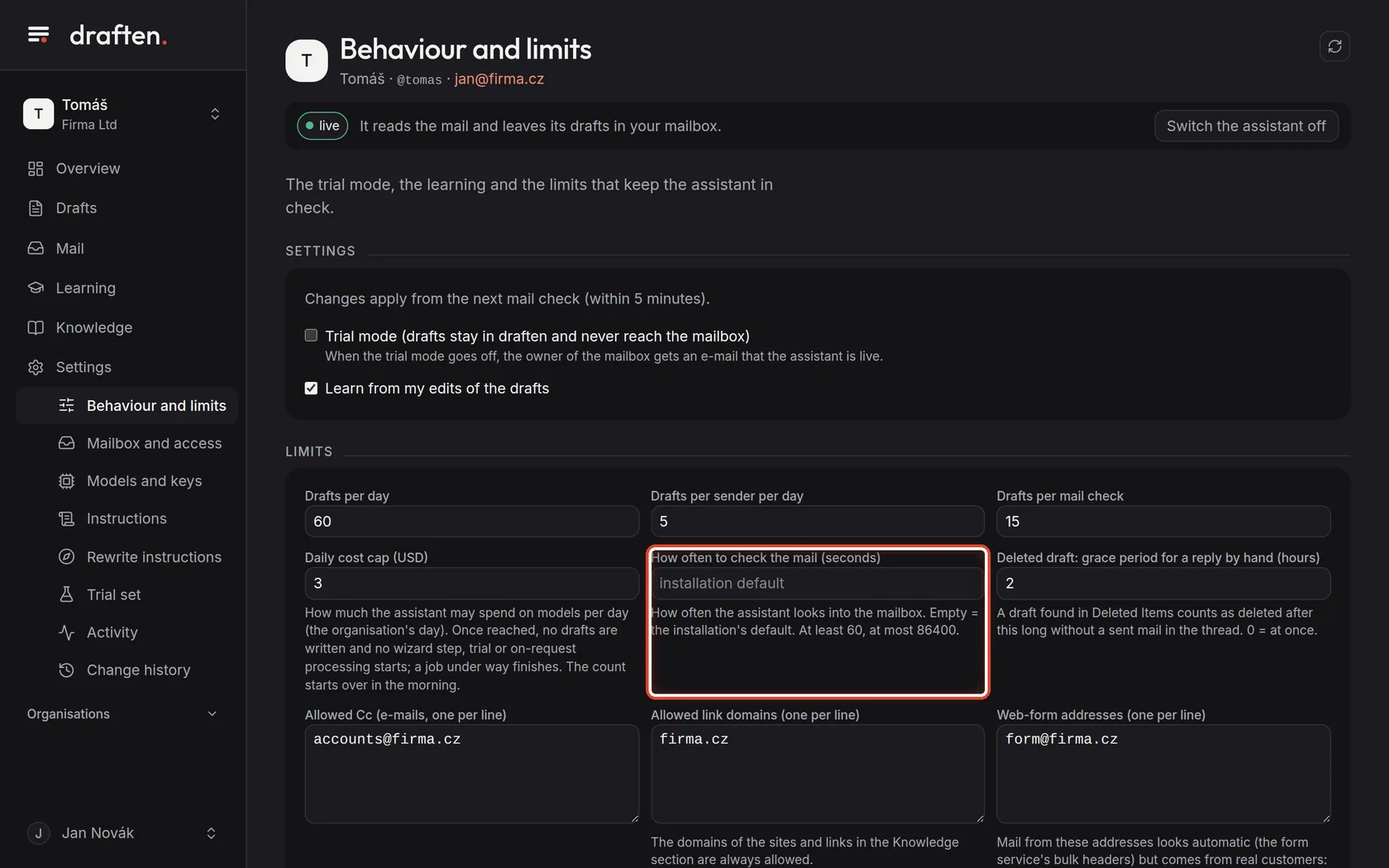
On the screenThe How often to check the mail (seconds) field.
Do thisHow often the assistant looks into the mailbox. Empty means the default (usually every 5 minutes); at least 60 seconds, at most once a day.
Step 5 of 7
Deleted draft
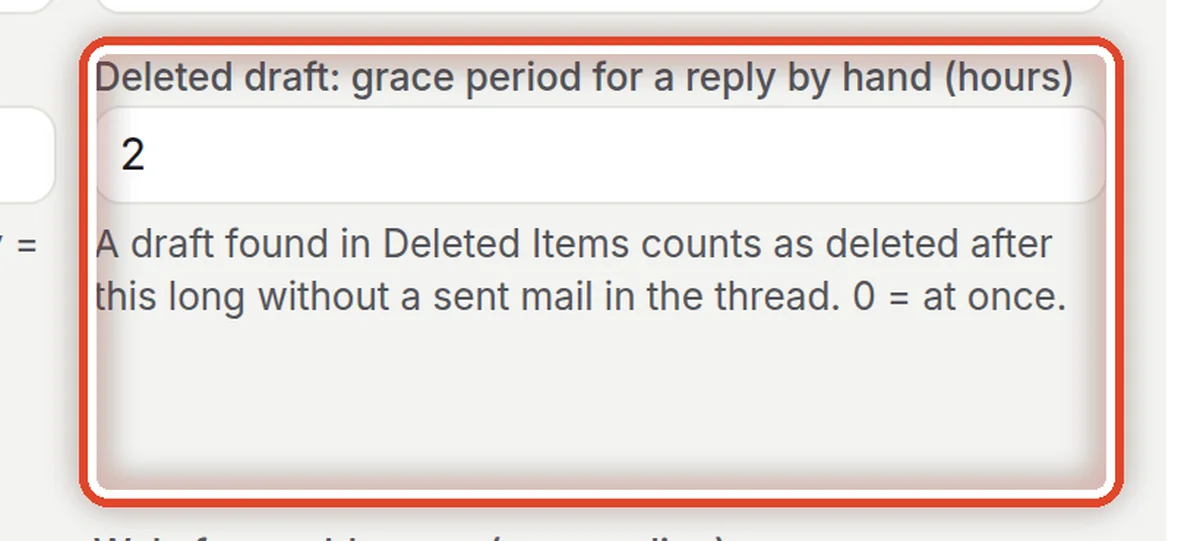
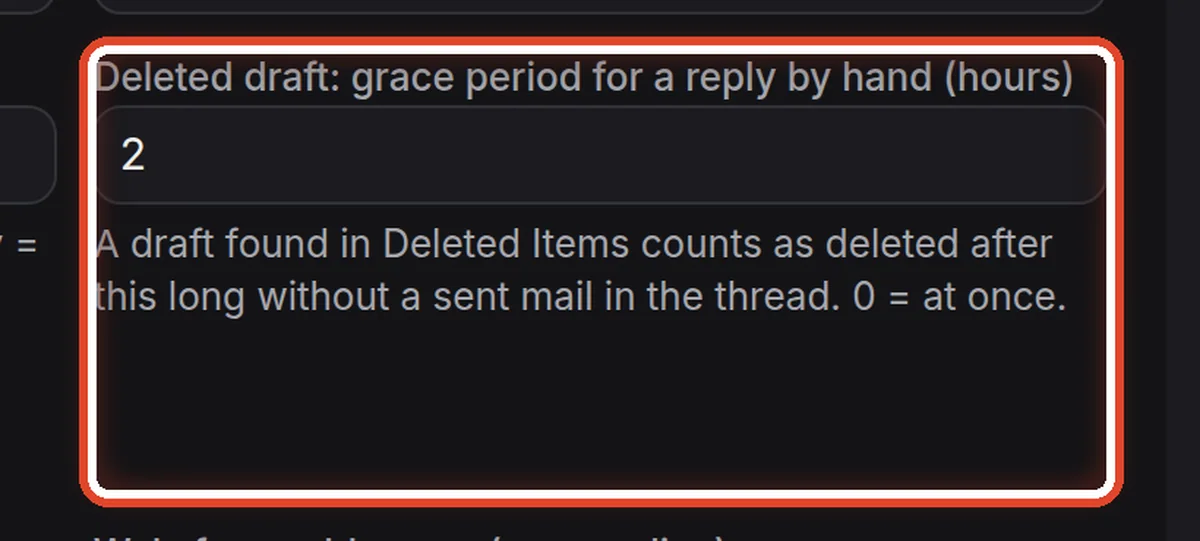
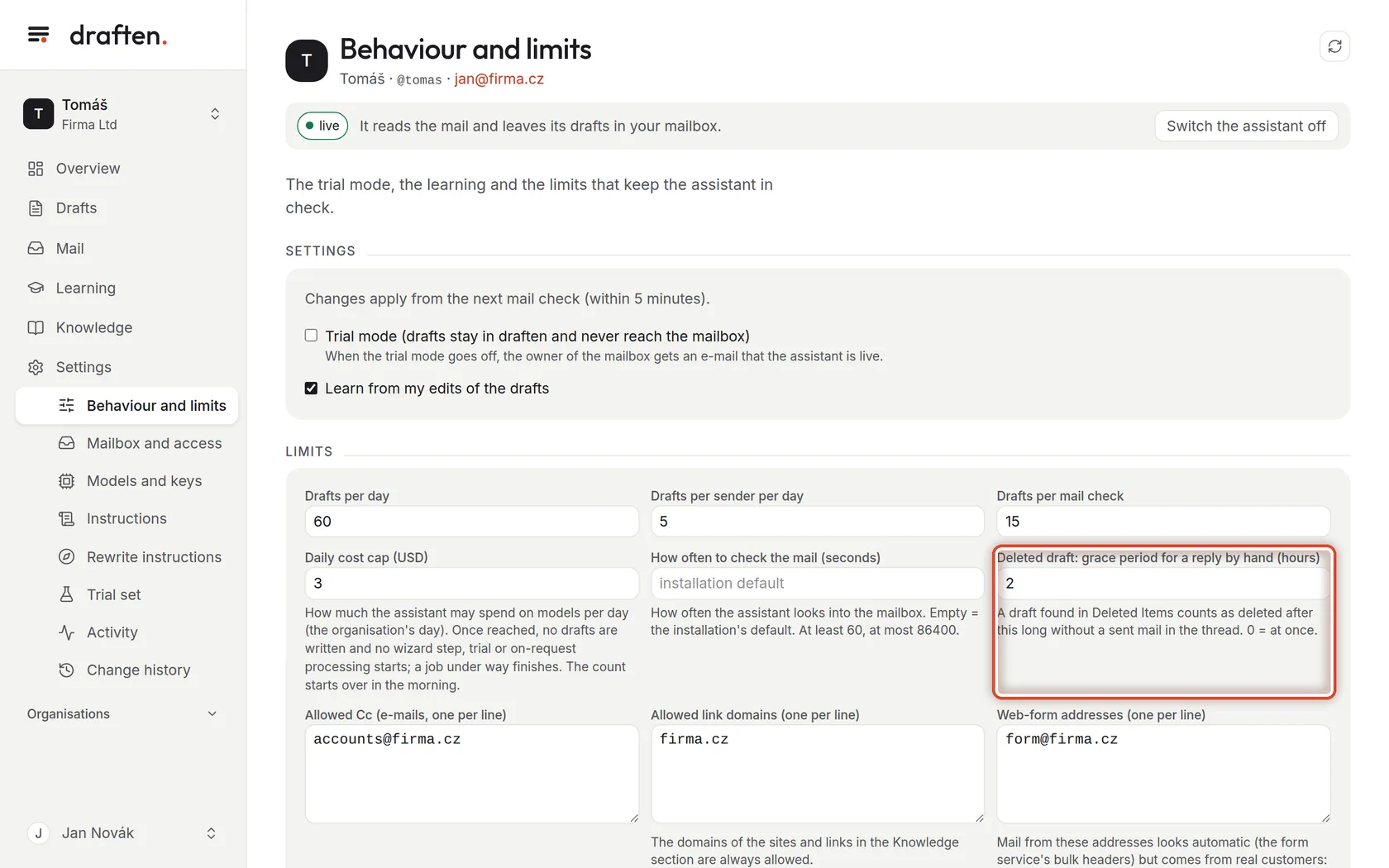
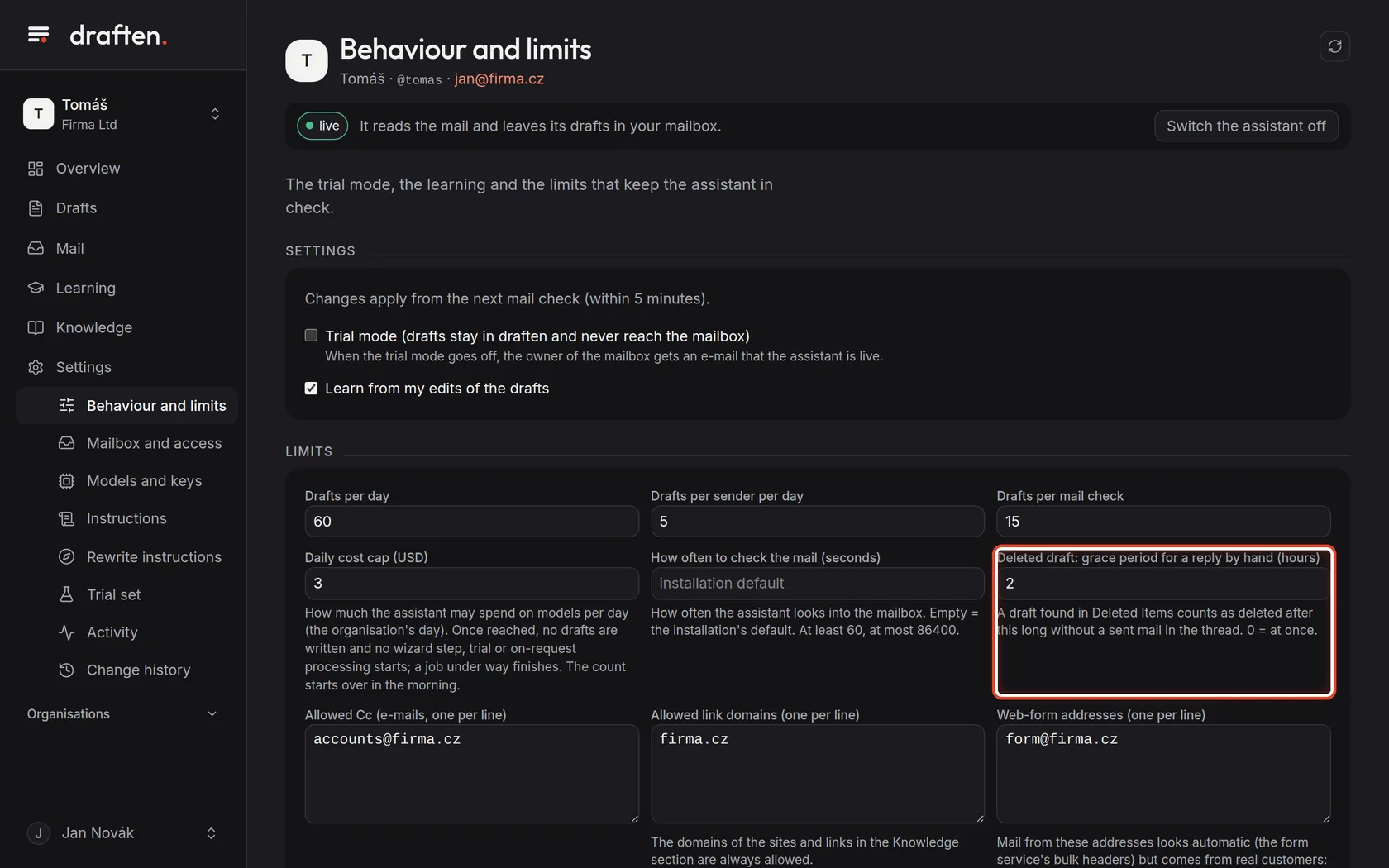
On the screenThe Deleted draft: grace period for a reply by hand (hours) field.
Do thisWhen you delete a draft and write the reply yourself, that takes a while. The assistant waits this many hours before it counts the draft as deleted — otherwise it would miss your own reply.
Step 6 of 7
Allowed Cc, domains and forms
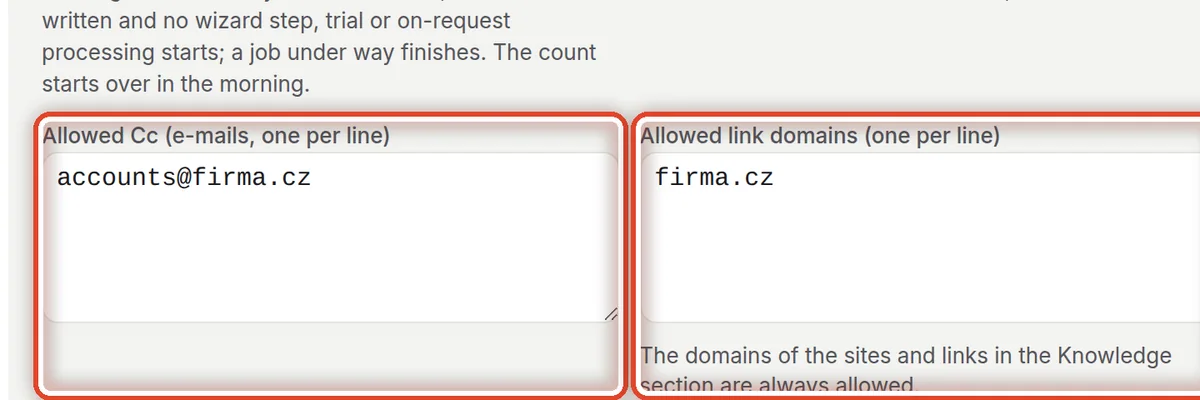
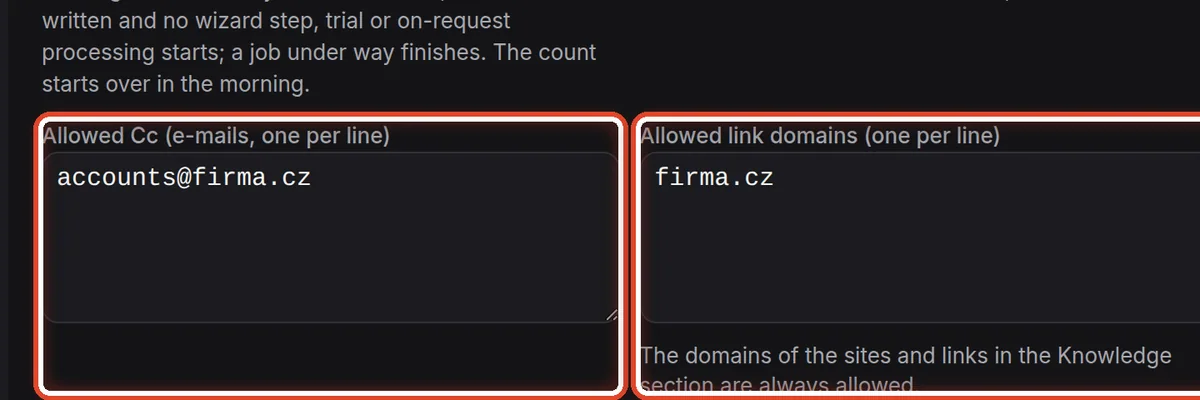
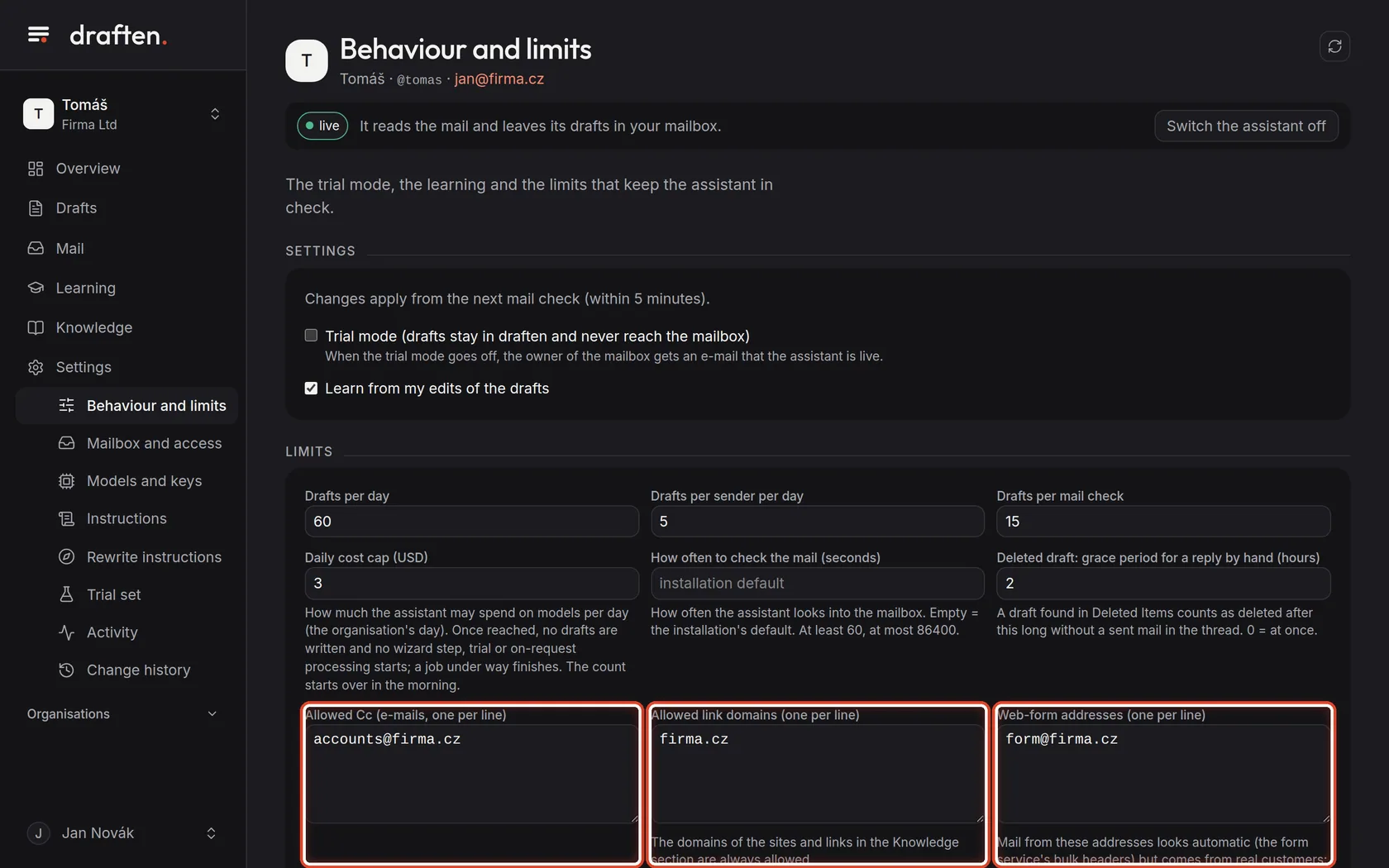
On the screenThree fields: Allowed Cc, Allowed link domains and Web-form addresses.
Do thisAllowed Cc — the assistant may copy in only these addresses. Allowed link domains — a draft linking anywhere else is not created (the knowledge sources' domains are always allowed). Web-form addresses — mail from them looks automatic but is written by customers; the assistant handles it.
NoteOne address or domain per line.
Step 7 of 7
Save
On the screenAt the bottom, the Save button.
Do thisClick Save. Changes apply from the next mail check, within 5 minutes.
The end
The limits are set
The defaults suit most mailboxes. Change them when you know why — after a flood of mail or unexpected costs, say.
- Models and their priceWhich model the assistant uses is in Settings → Models and keys; prices are described in Models and prices.
- A message with the limit statusFind it in Mail; after changing the limit you can have it processed again.