Guide
A mailbox
for the organisation.
Before an assistant writes drafts, the mailbox has to be in the organisation and draften has to see into it. You add it in Organisation → Mailboxes and connect it with an app registration, the mailbox account or IMAP.
Before you start
- Owner or manager of the organisationOnly they add mailboxes.
- Access to the mailThe organisation's app registration, or the mailbox's sign-in, or the IMAP server details.
Step 1 of 6
The organisation's mailboxes
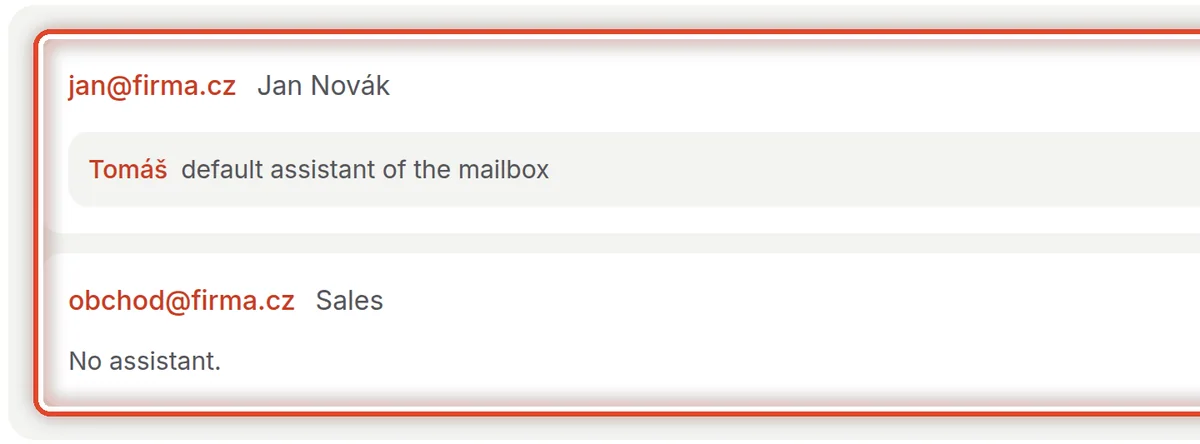
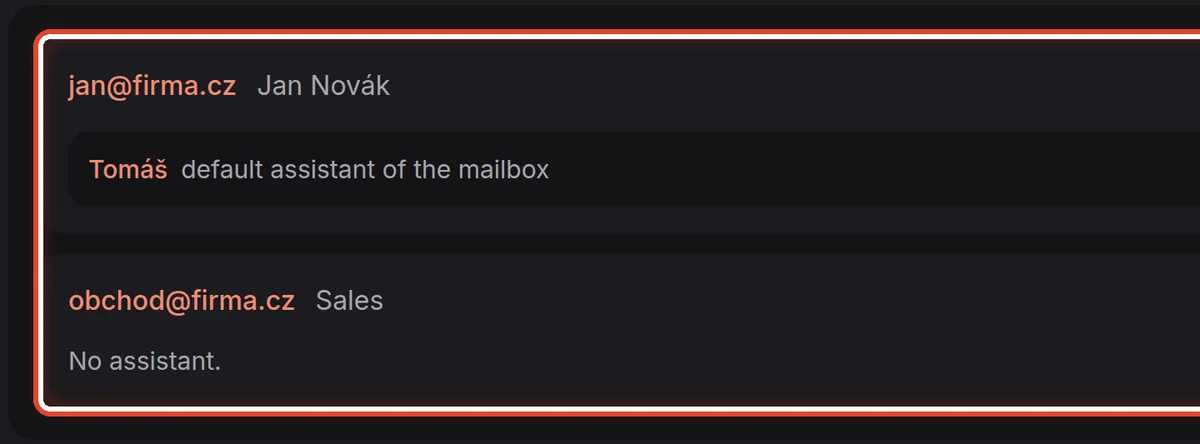
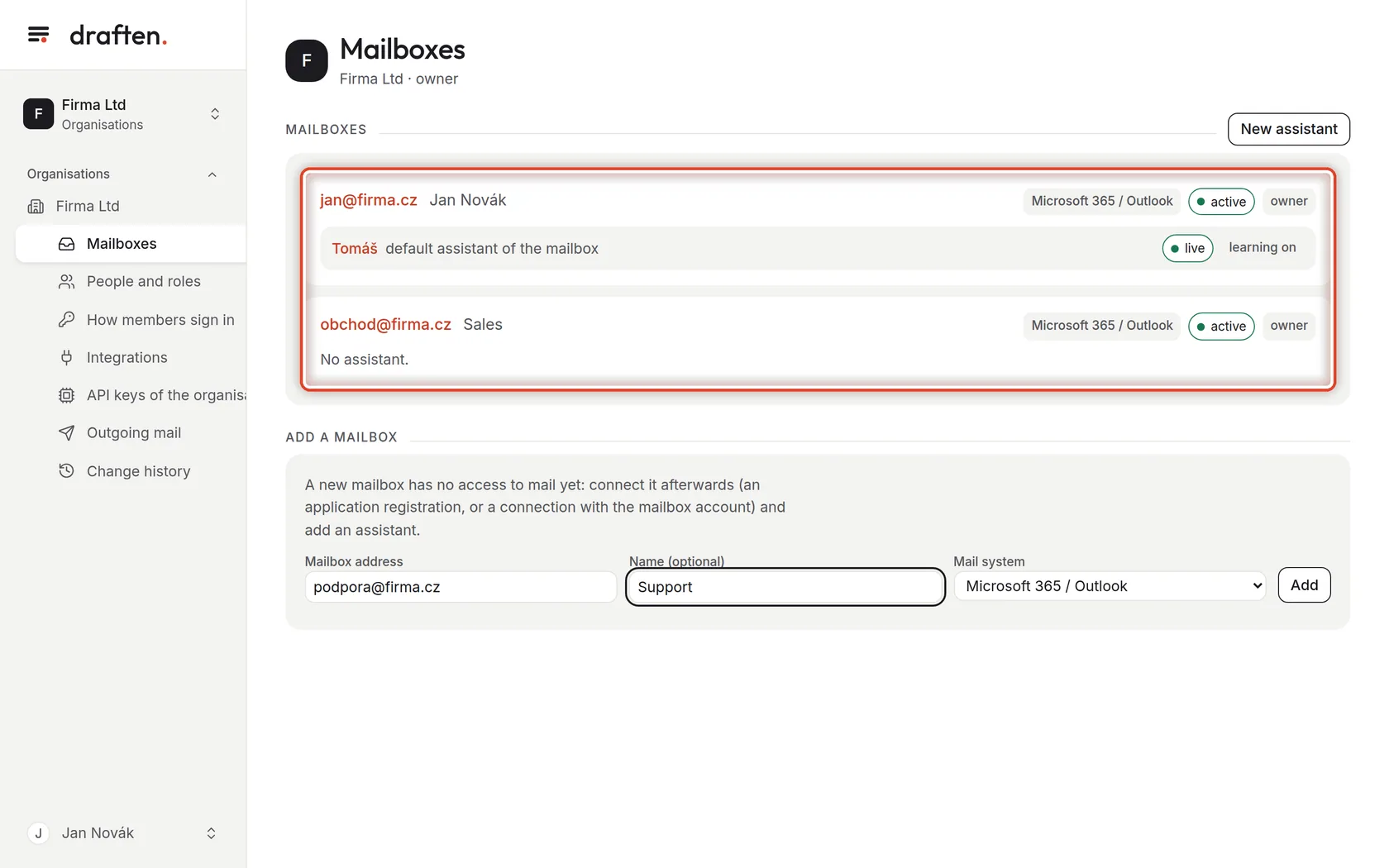
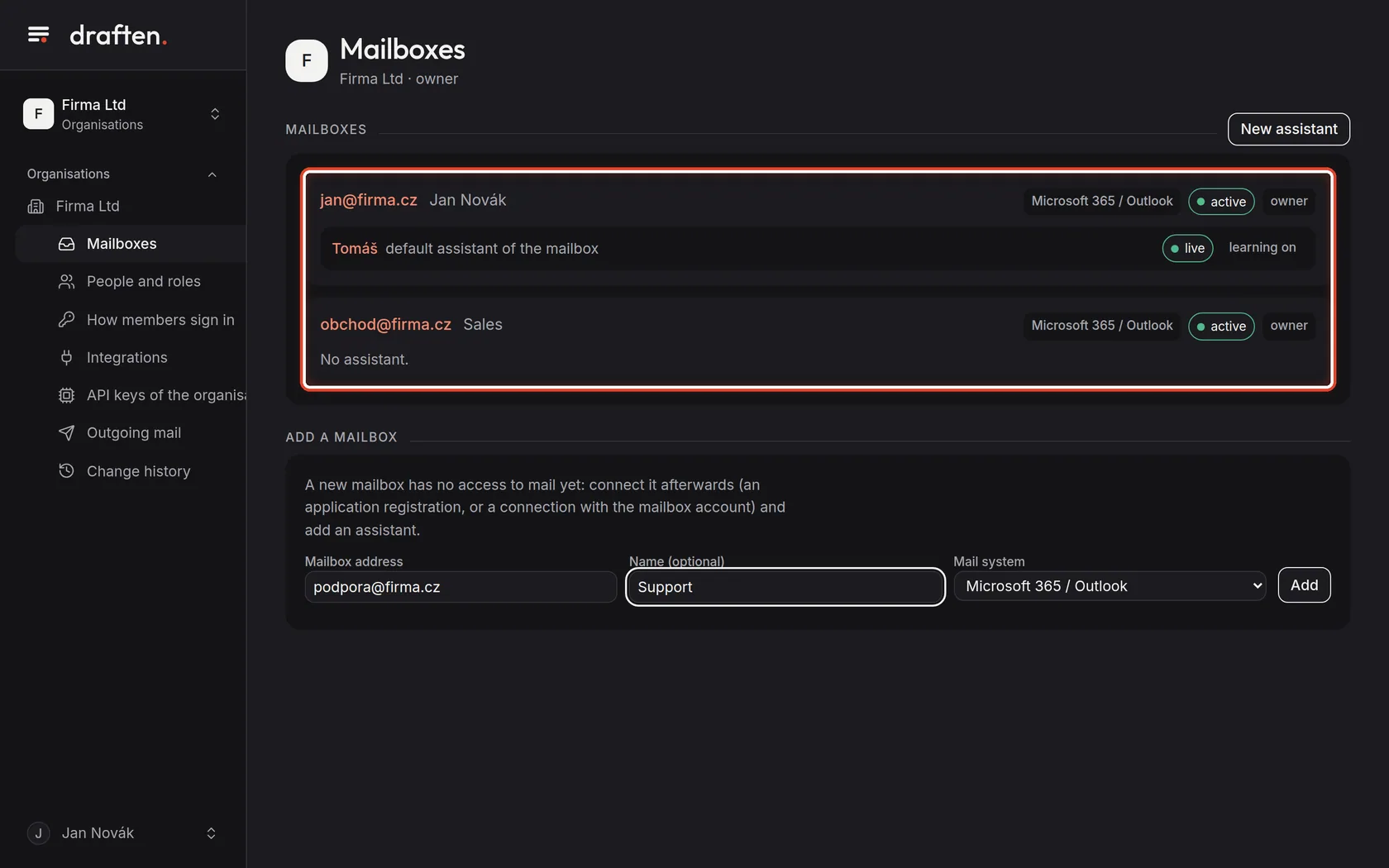
On the screenIn Organisation → Mailboxes, a list of mailboxes with the mail system, status and assistants.
Do thisHere are all the organisation's mailboxes. Each shows its mail system, its status (active, paused, disconnected) and the assistants answering it.
Step 2 of 6
Add a mailbox
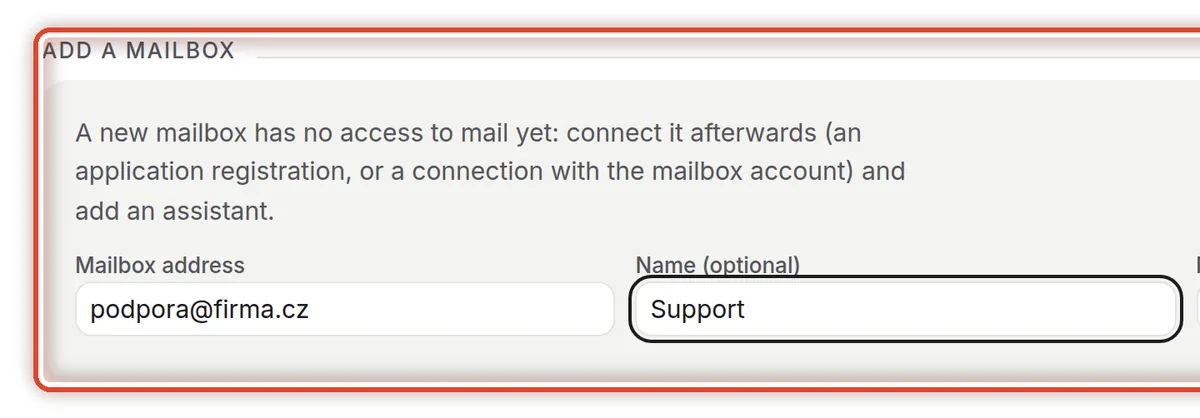
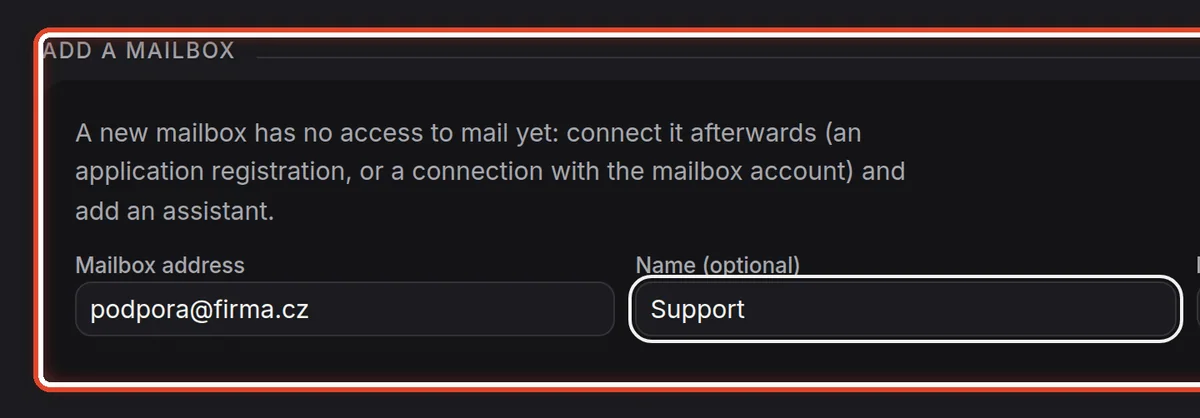
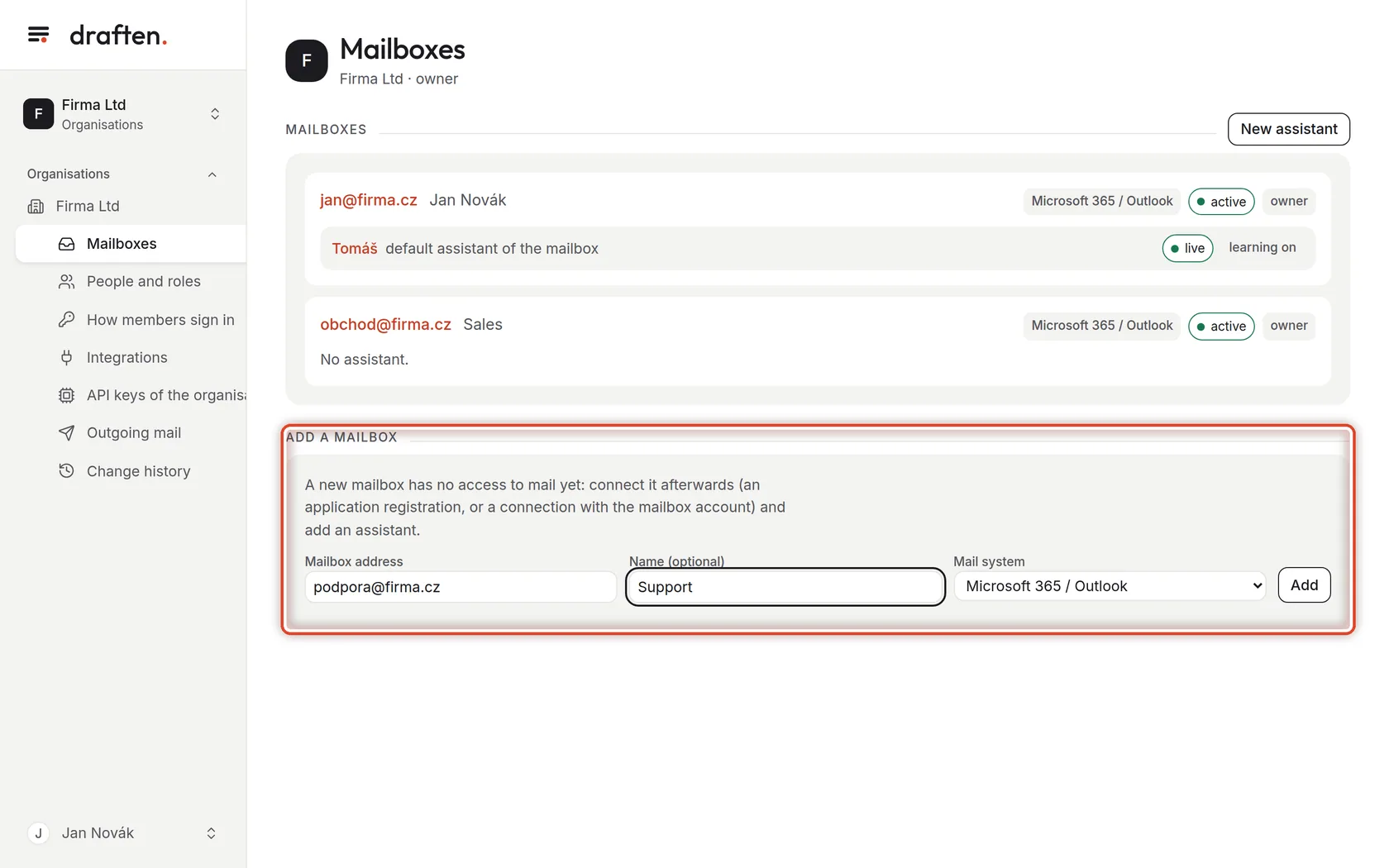
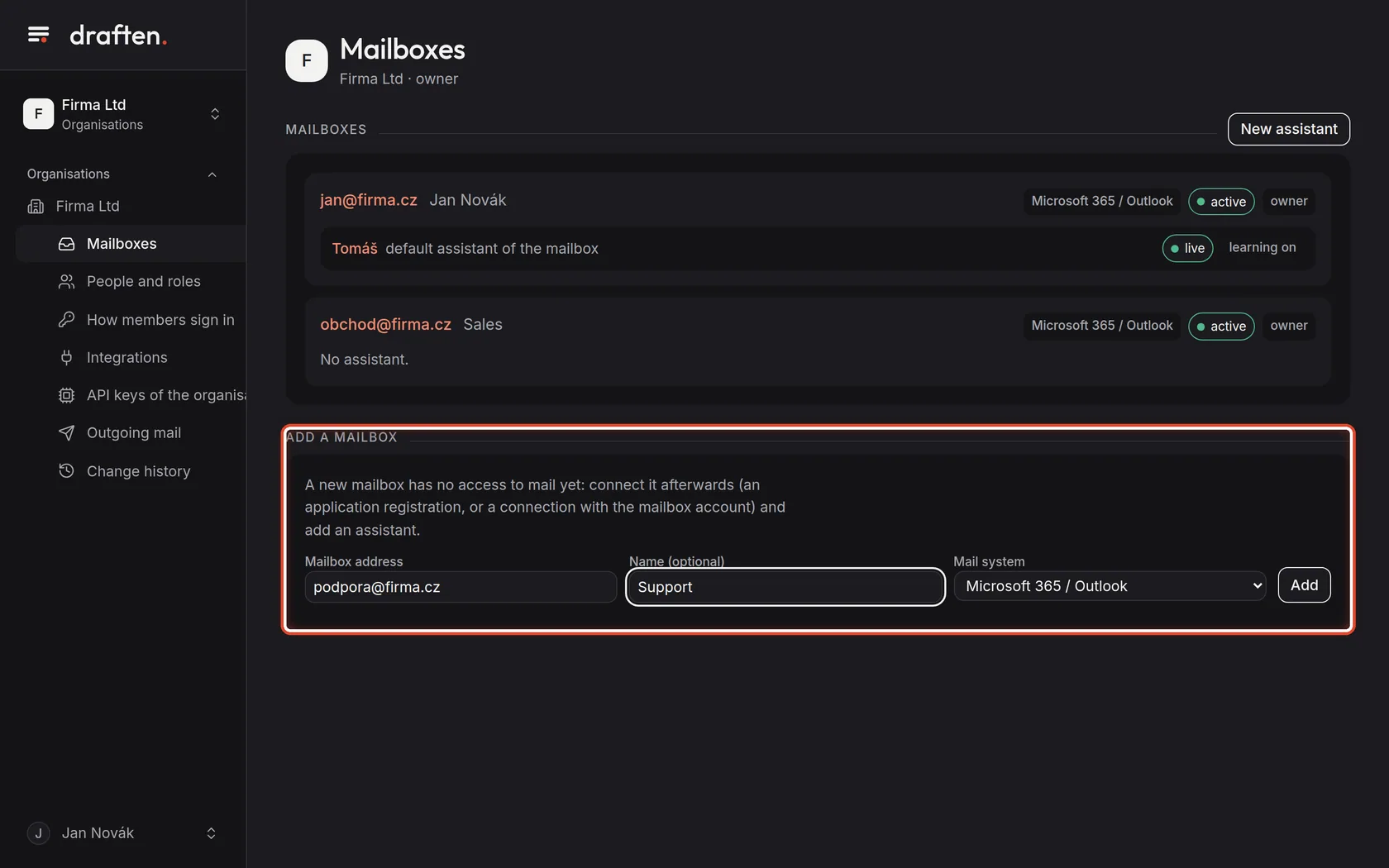
On the screenAt the bottom, the Add a mailbox card.
Do thisFill in the mailbox address, an optional name and the mail system: Microsoft 365 / Outlook, Google Workspace / Gmail, or Other mailbox (IMAP). Click Add.
NoteThe organisation's owners and managers add mailboxes. An organisation owner has owner rights to every mailbox, a manager editor rights; you make a member the mailbox's owner in the Access to the mailbox card. A new mailbox has no access to mail yet — that is the next step.
Step 3 of 6
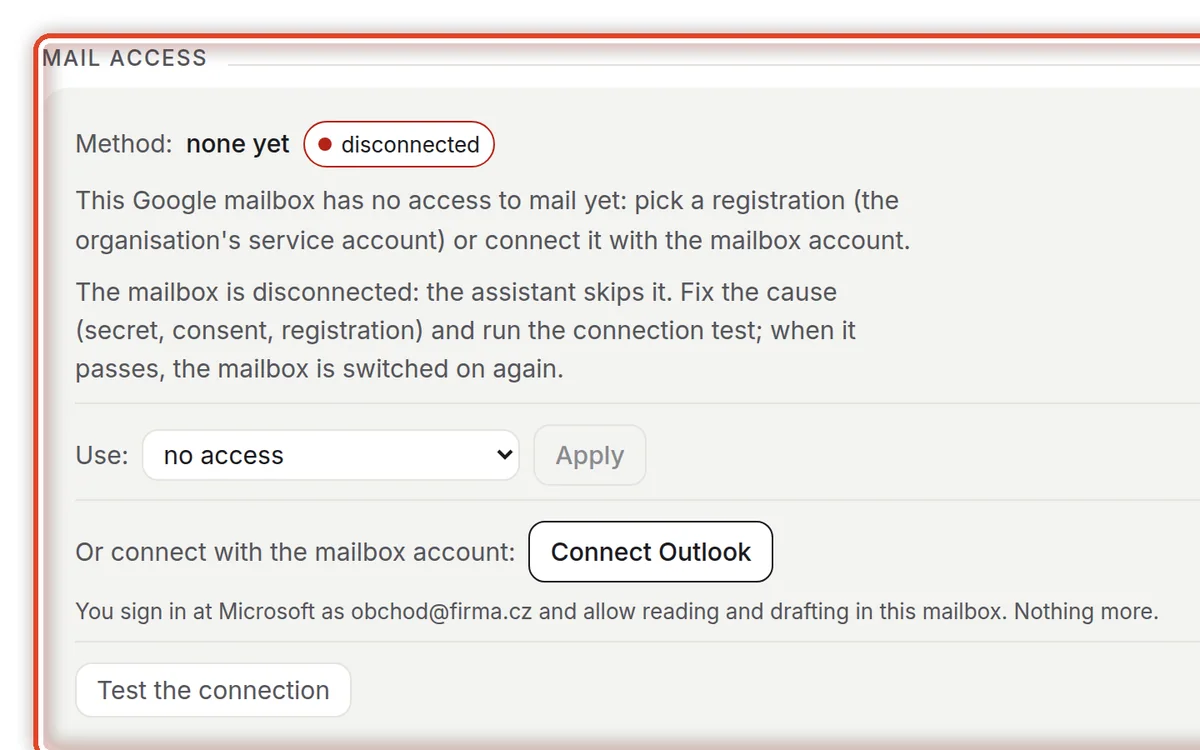
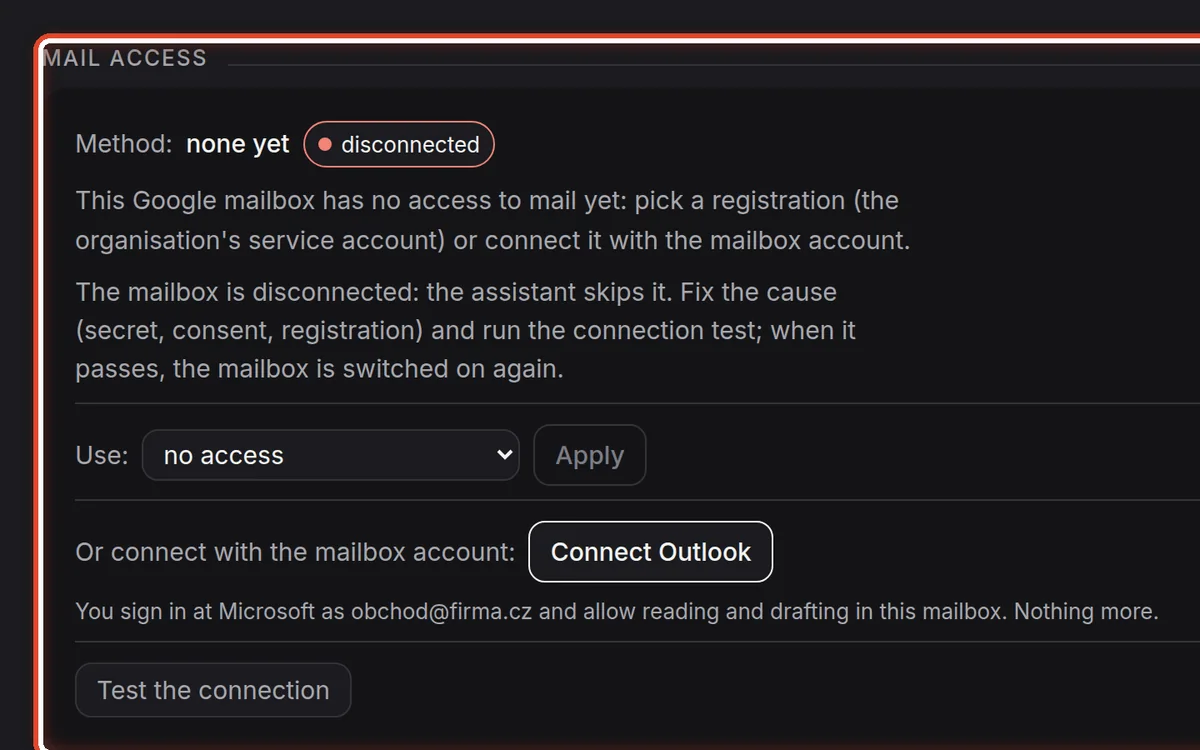
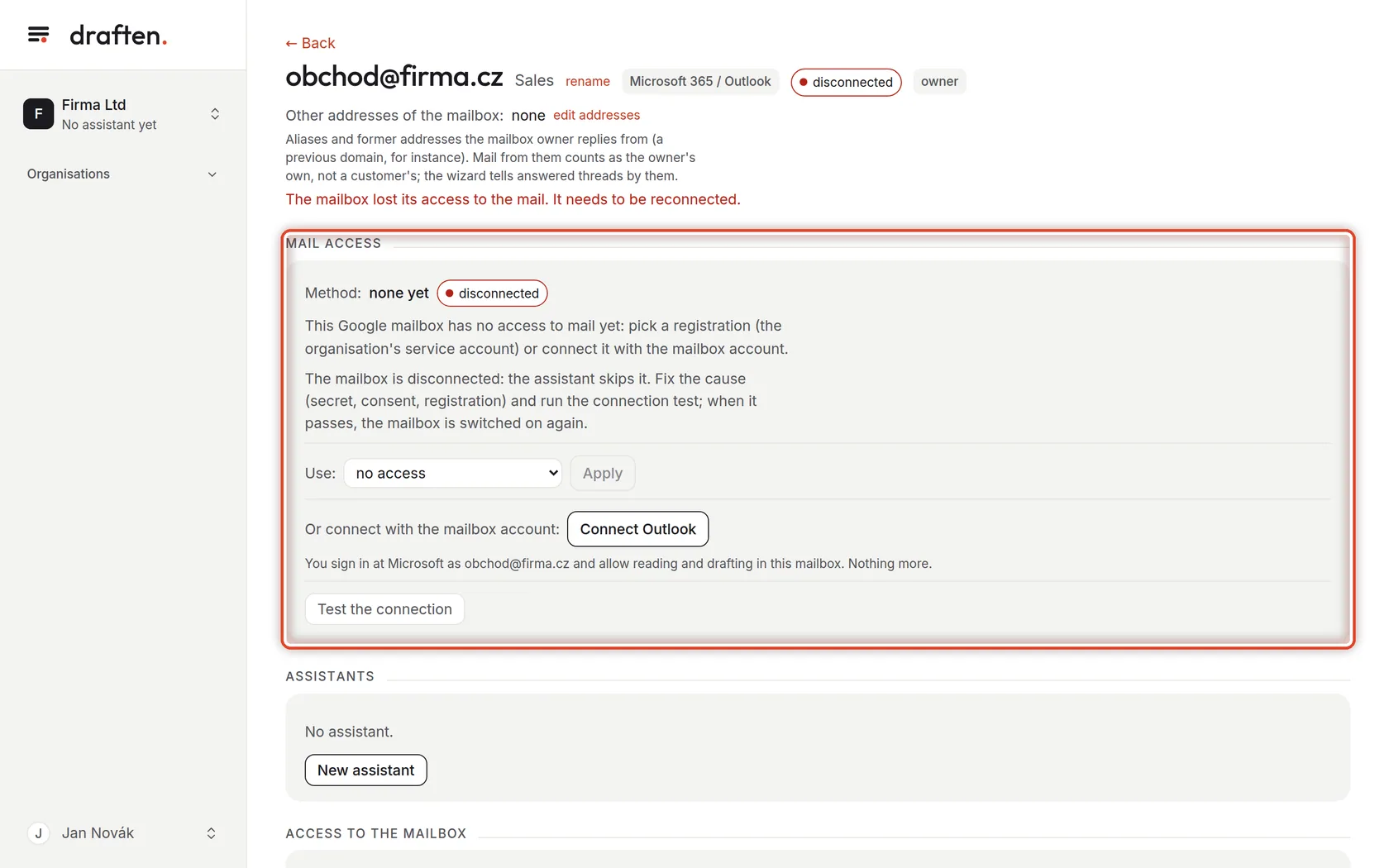
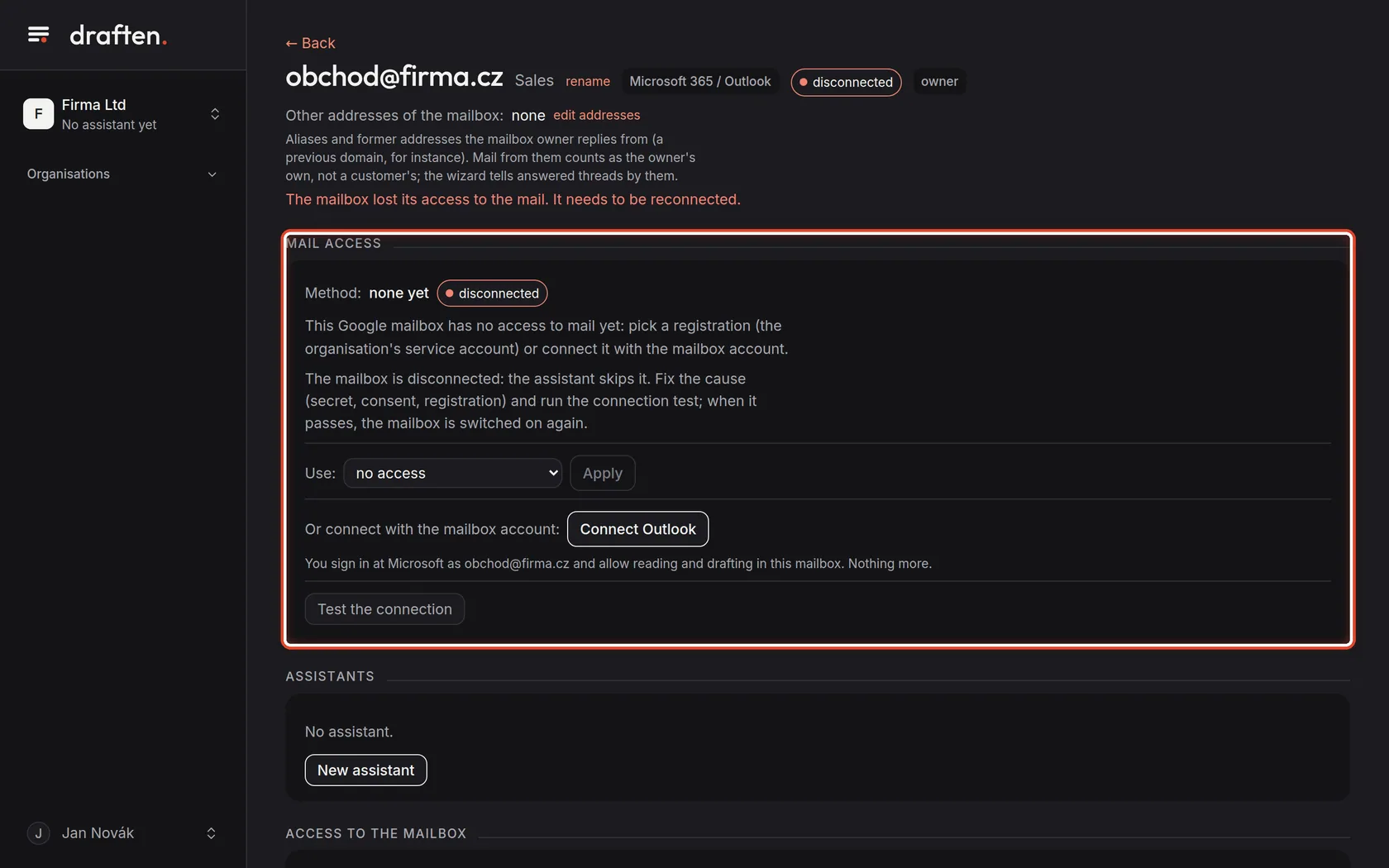
Mail access
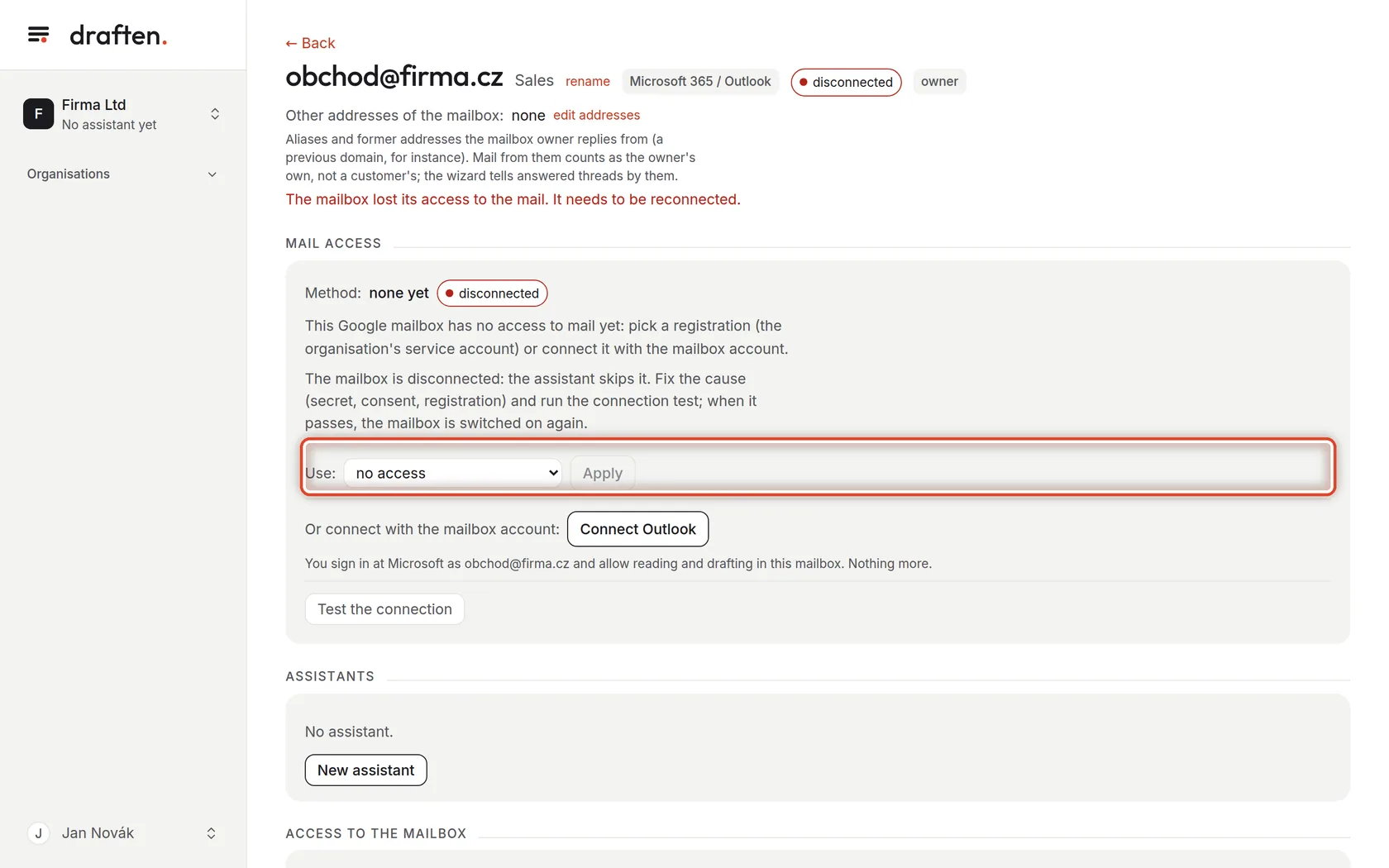
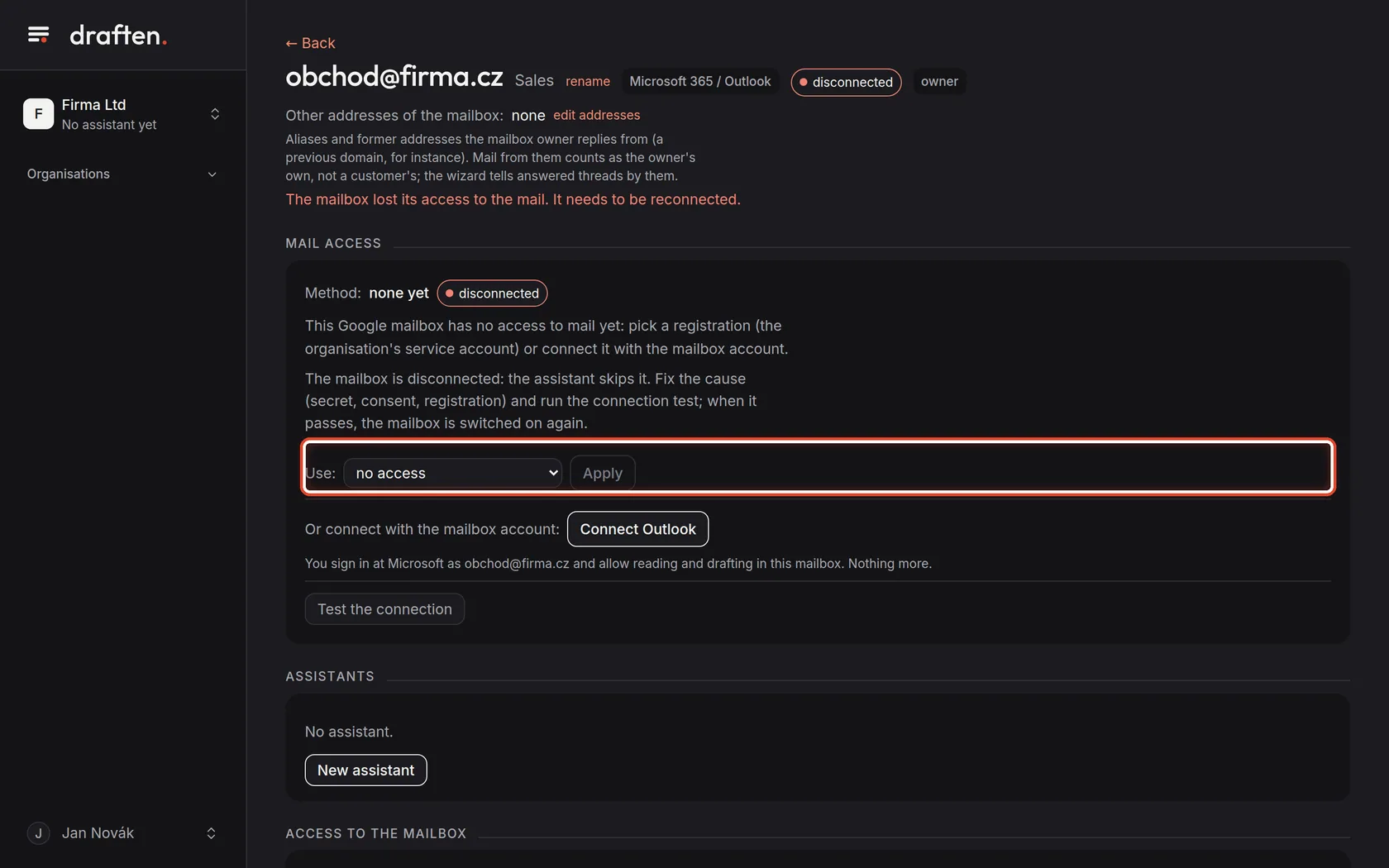
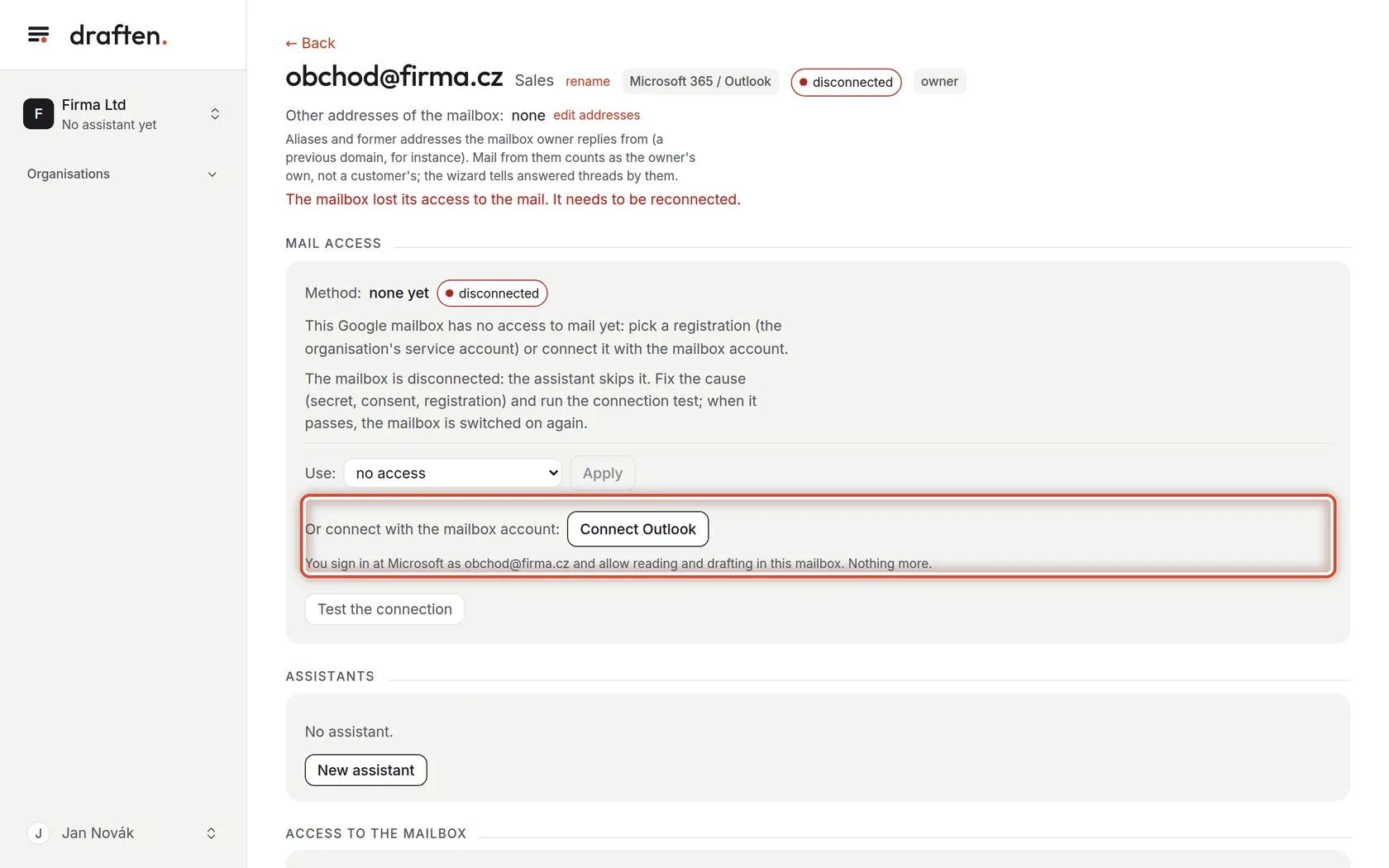
On the screenOn the new mailbox's page, the Mail access card with the disconnected status.
Do thisThe assistant gets into the mailbox in one of three ways. An app registration — access for the whole organisation through an app in Microsoft Entra or a Google service account; nobody signs in per mailbox. A connected account — the mailbox owner signs in once and allows reading and drafts. An IMAP login — for other mail services, a server, name and password.
NoteIn every case only reading and writing drafts. draften never asks for permission to send or delete.
Step 4 of 6
App registration
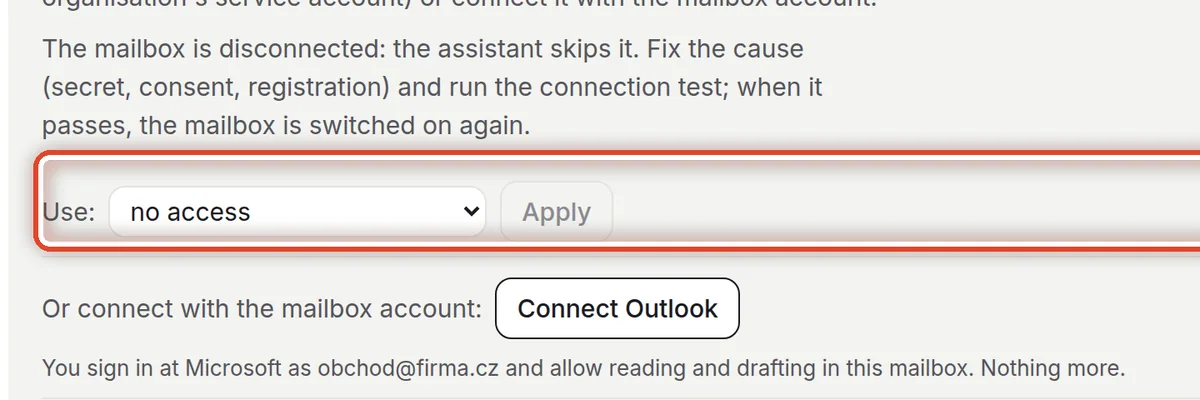
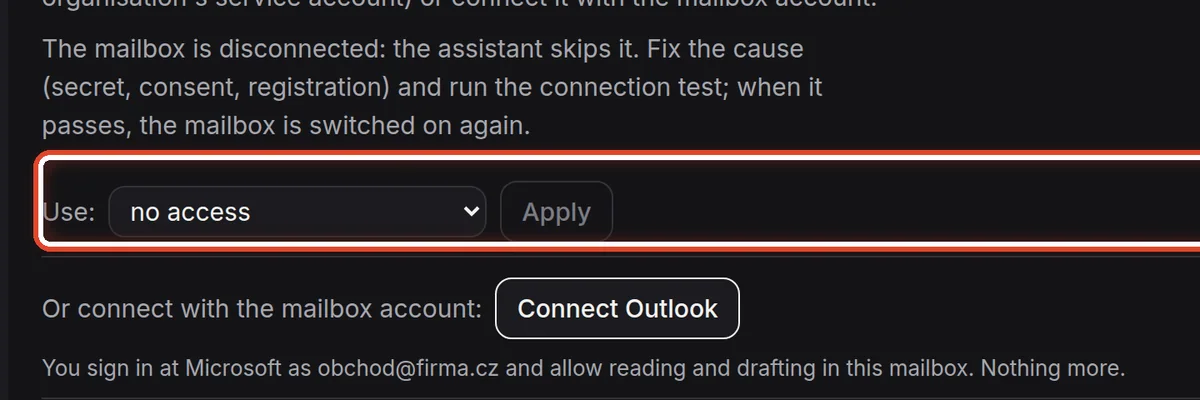
On the screenThe Use row with a choice of registration and the Apply button.
Do thisChoose the organisation's registration and click Apply. The organisation owner sets it — a manager has only editor rights to mailboxes and does not see this row. You create the registration first in Organisation → Integrations; the steps for Microsoft 365 and Google are in Mail access for the whole organisation.
NoteWith Microsoft 365, the Application Access Policy in Exchange Online must cover the mailbox, or the assistant marks it disconnected, with the reason.
Step 5 of 6
Or connect with the account
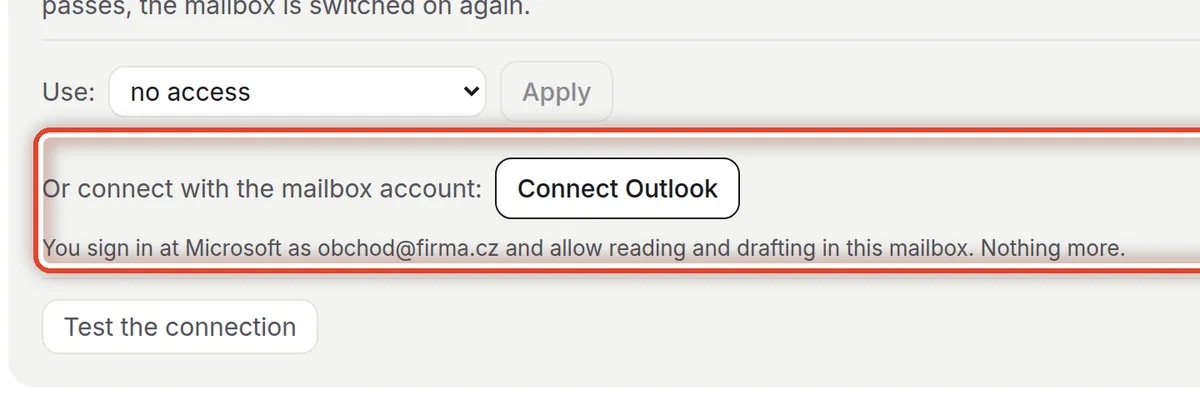
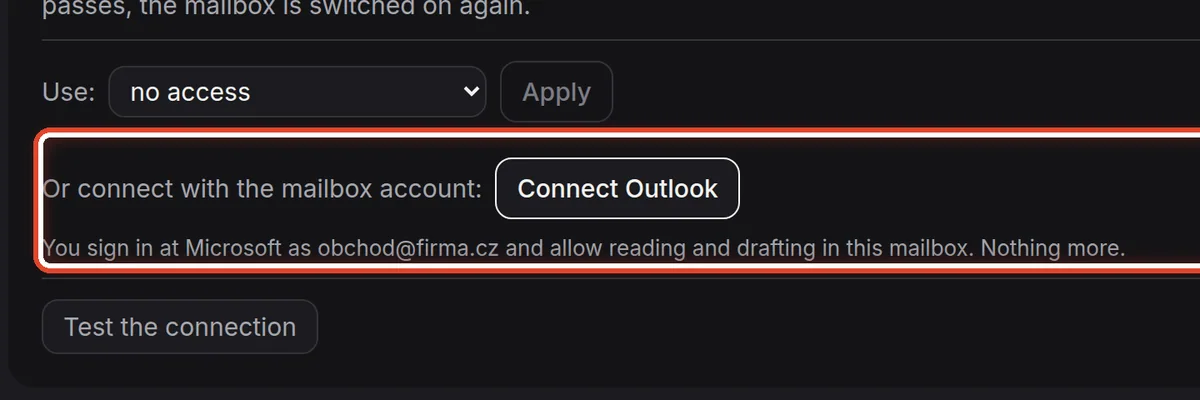
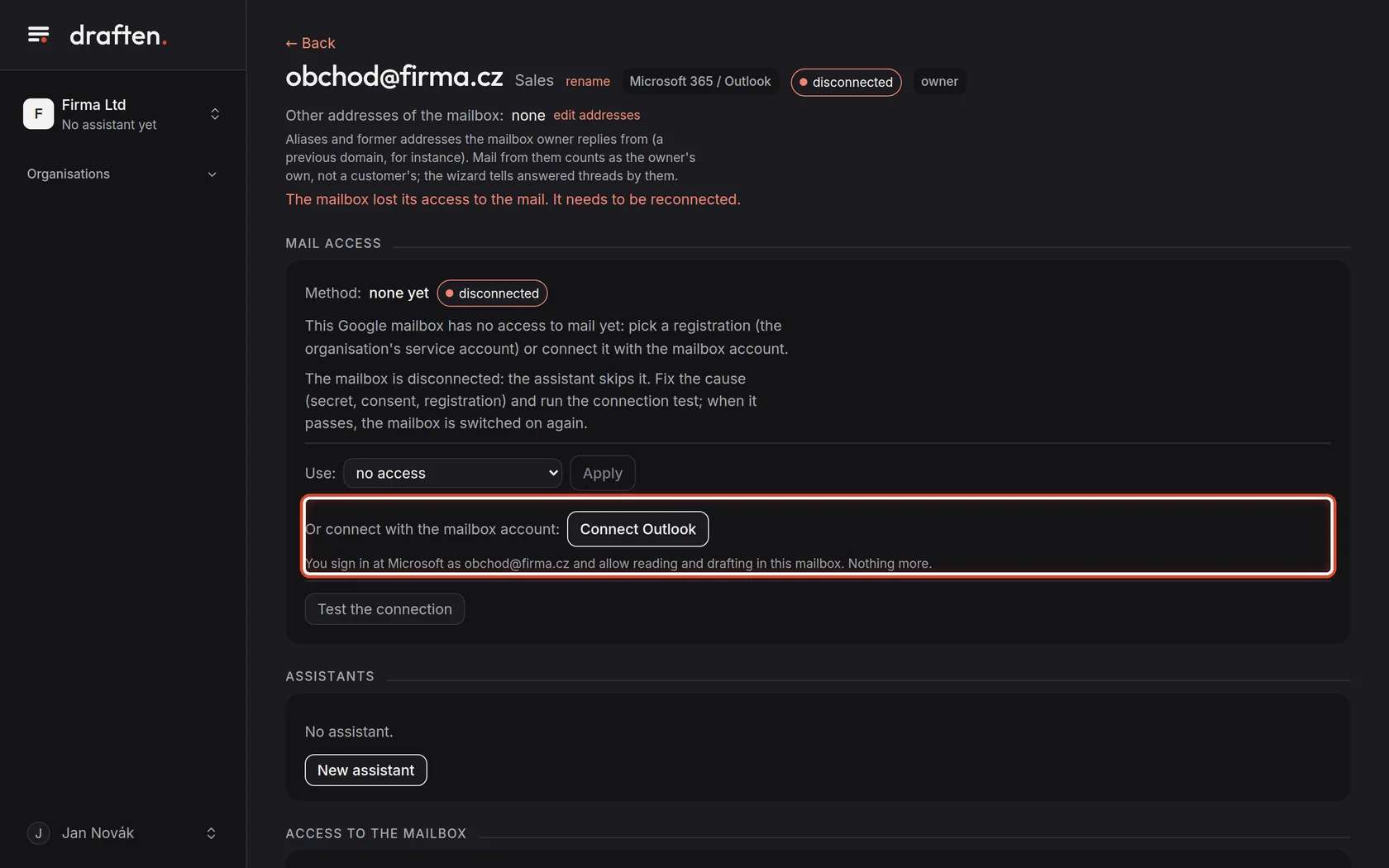
On the screenThe Or connect with the mailbox account row with the Connect Outlook (Connect Gmail) button.
Do thisWhen the organisation has no registration, the mailbox owner connects it: clicks Connect Outlook, signs in with the mailbox account and allows reading and drafting.
NoteThe button works only when the organisation has its own OAuth clients set (Organisation → How members sign in). For IMAP there is a form for the server and password instead.
Step 6 of 6
Test the connection
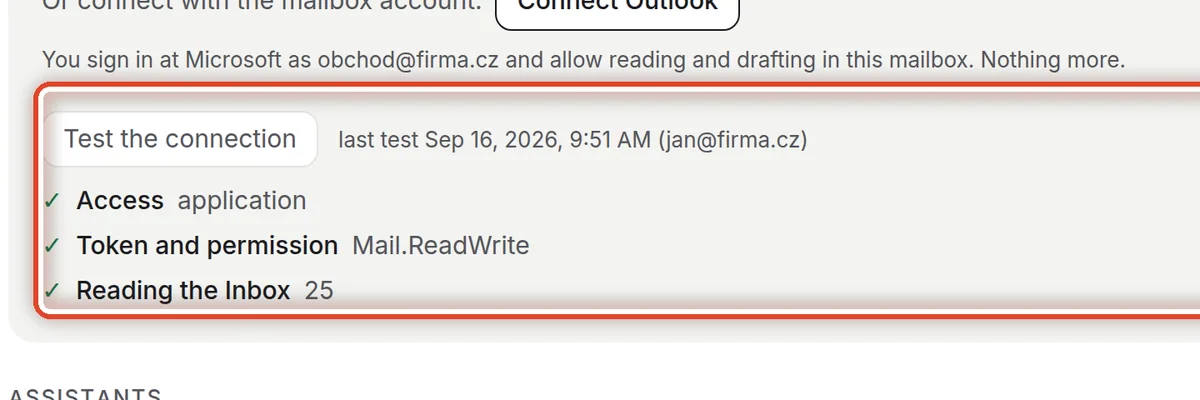
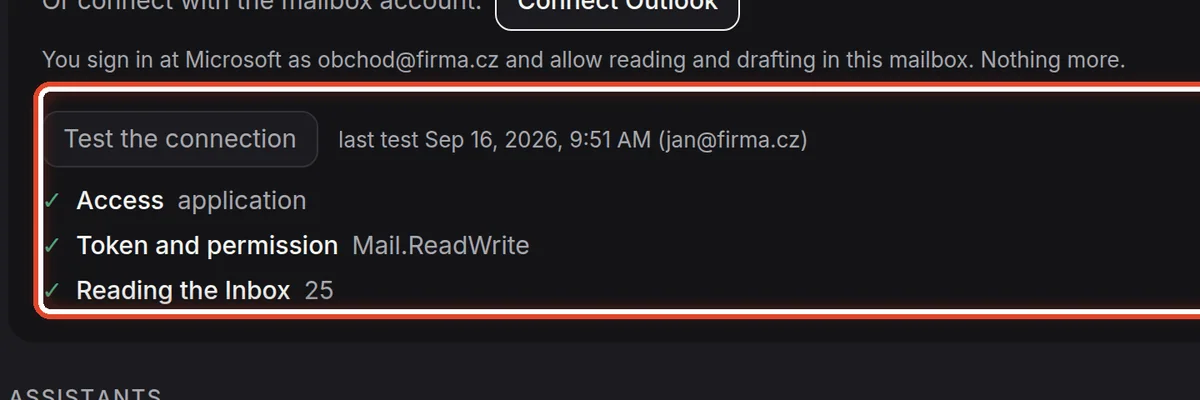
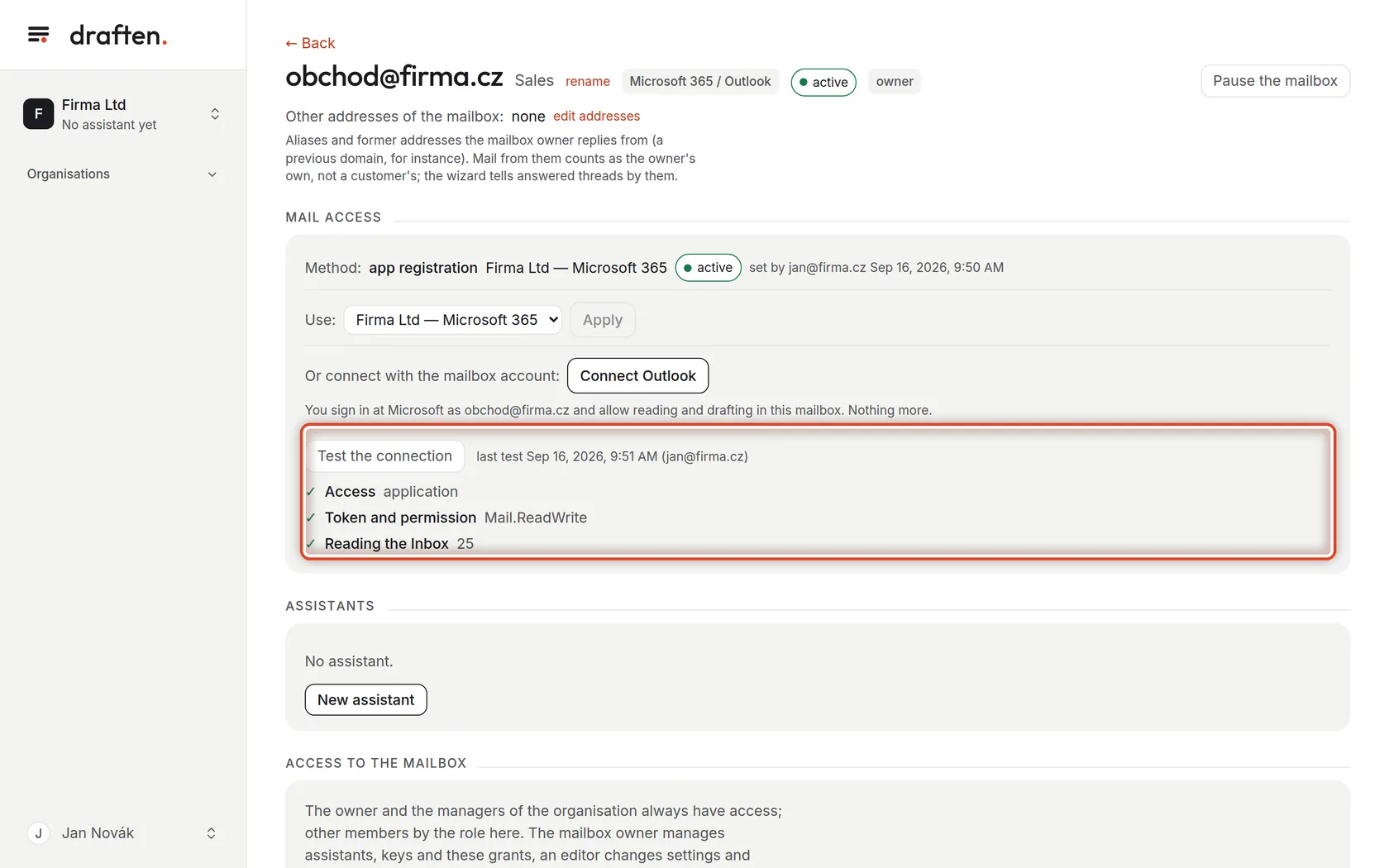
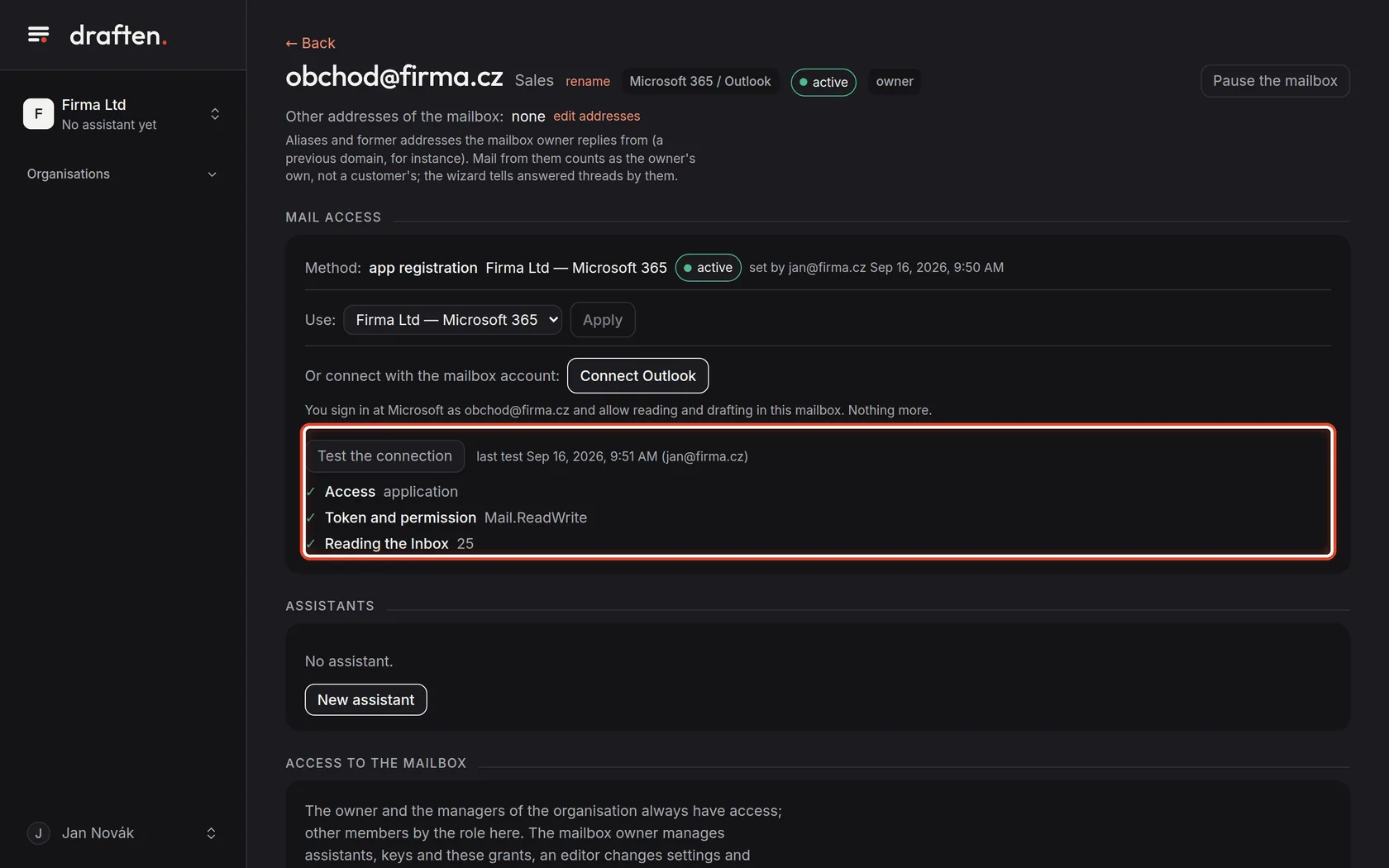
On the screenAfter applying: the method app registration, the status active and the test result under it.
Do thisClick Test the connection. The test checks the access, the token and permission, and reading the inbox; each step gets a tick or a cross with the reason. A disconnected mailbox switches itself on after a passing test.
NoteThen make an assistant with New assistant under the card (the users' guide A new assistant, step by step) and give colleagues access to the mailbox.
The end
The mailbox is connected
Now make an assistant for it and give colleagues access.
- An assistantThe users' guide A new assistant, step by step.
- Colleagues in the mailboxThe users' guide Mailbox and access.