Guide
Signing in
to draften.
You sign in with your work e-mail. draften recognises your company from it and offers the way it signs in — a Microsoft or Google account, or a password.
Before you start
- Your work e-mailThe one your draften invitation came to.
- AccessYour organisation's administrator gives it to you with an invitation. Some companies let their people in straight away.
- About a minuteSigning in takes a moment.
Step 1 of 7
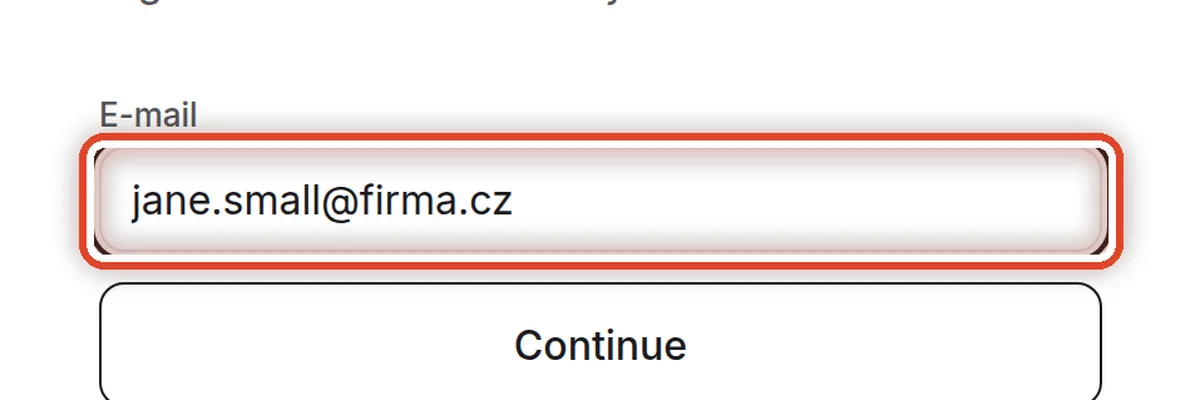
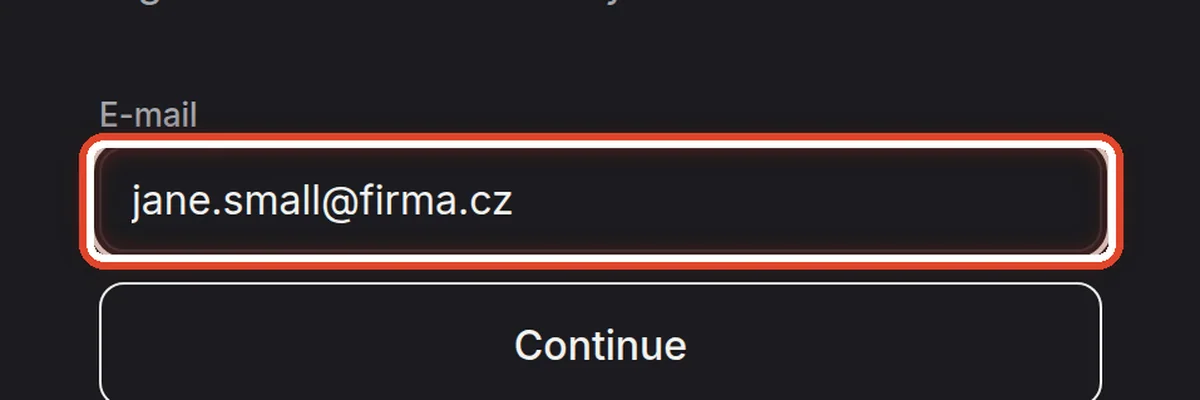
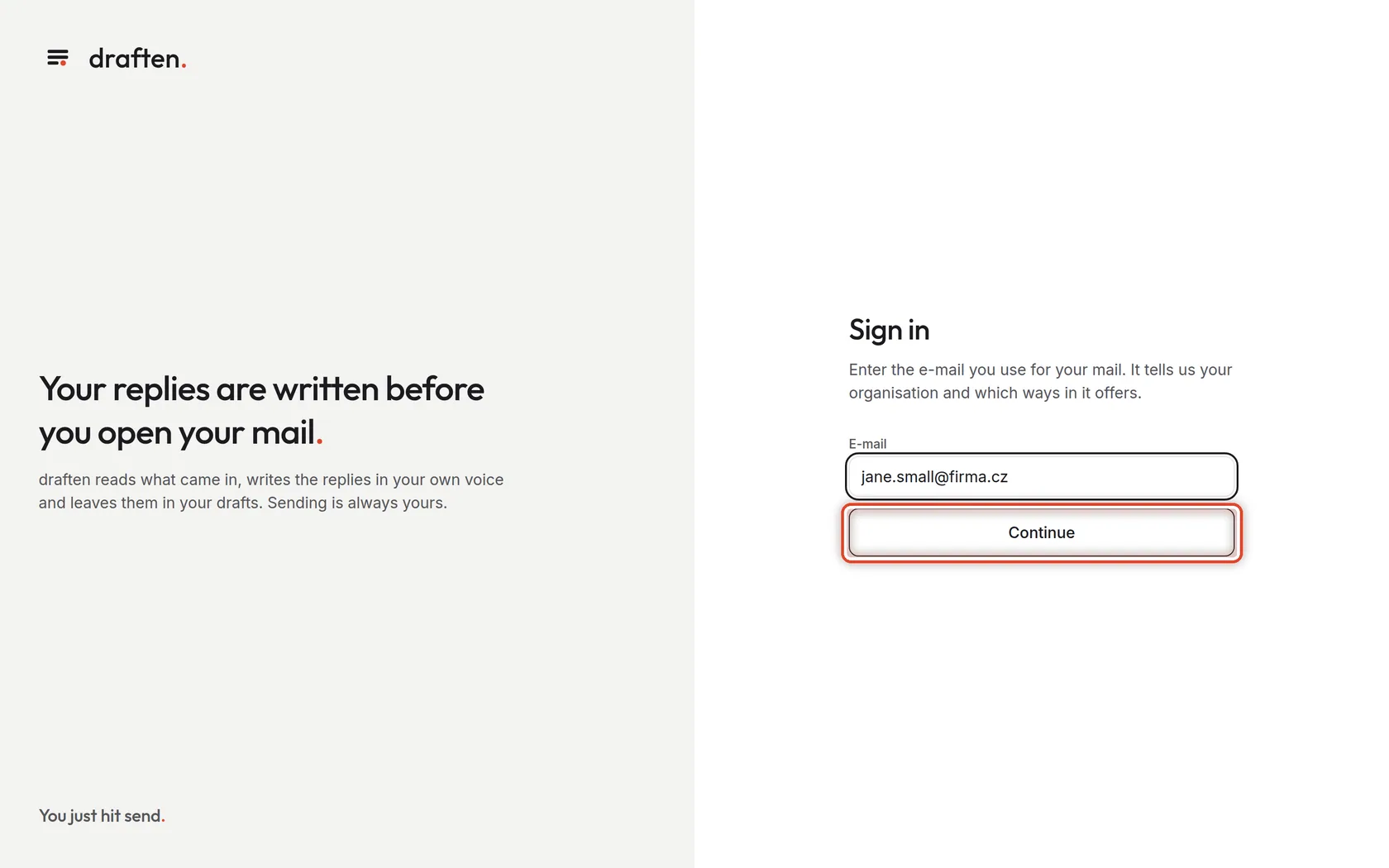
Enter your e-mail
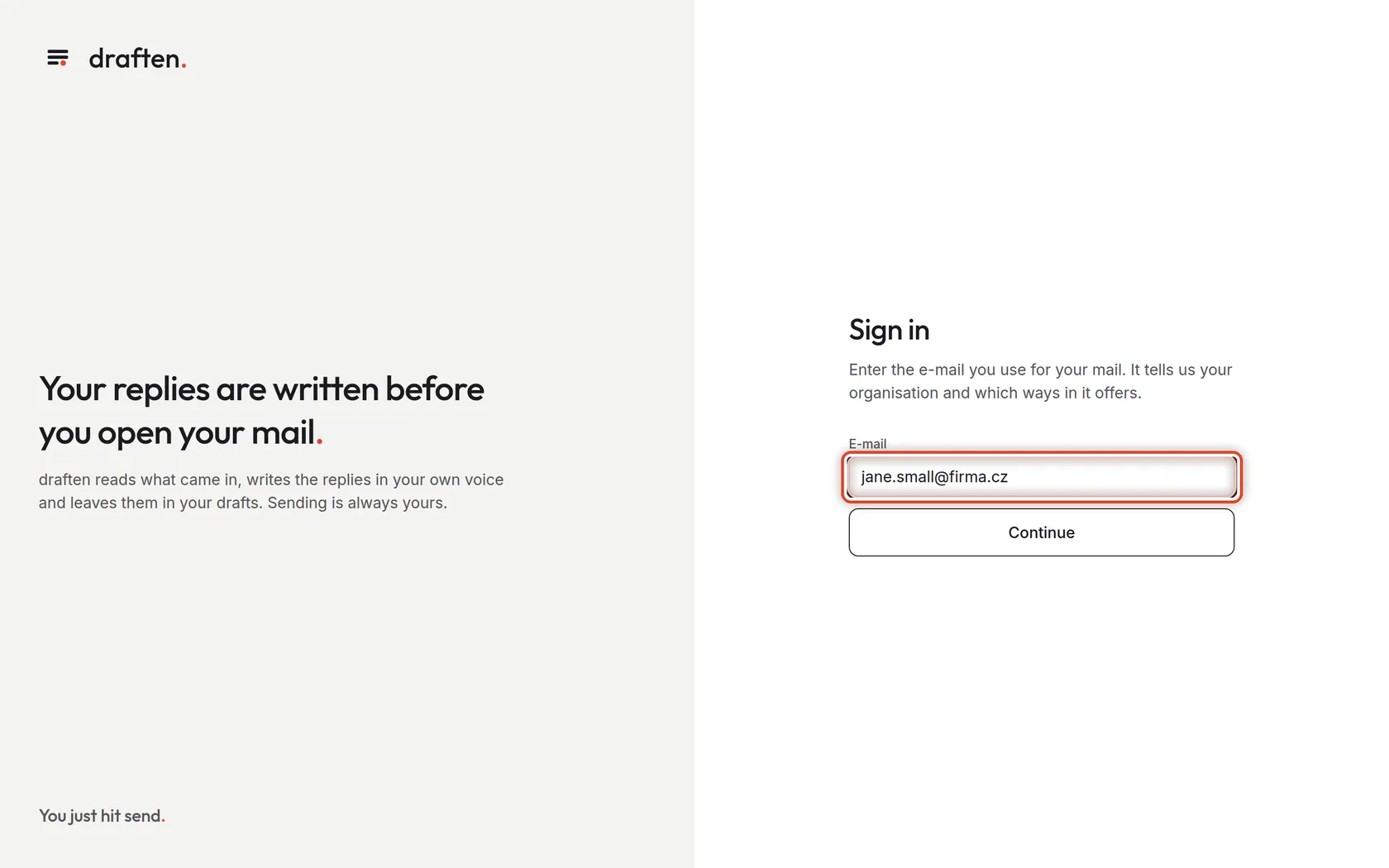
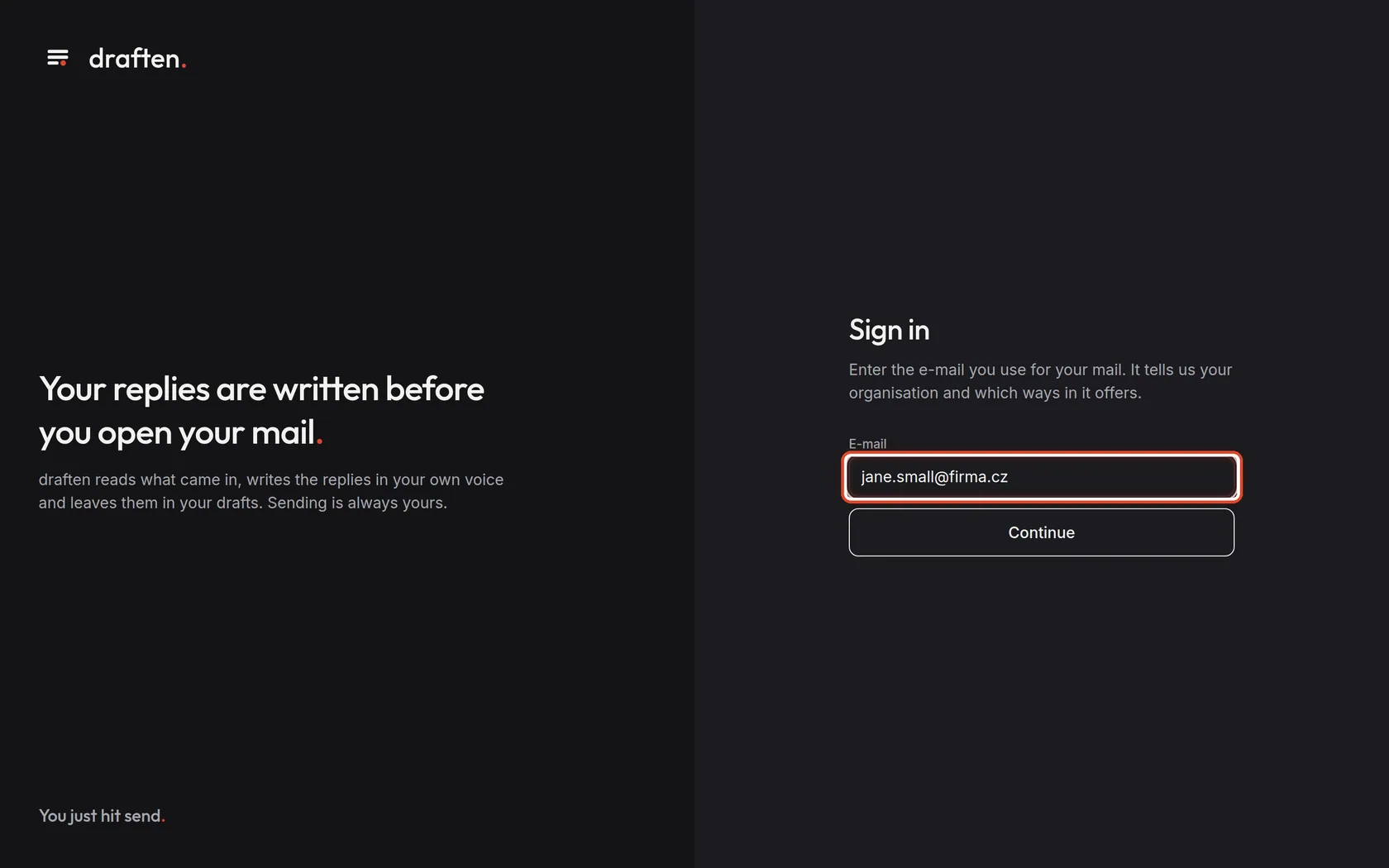
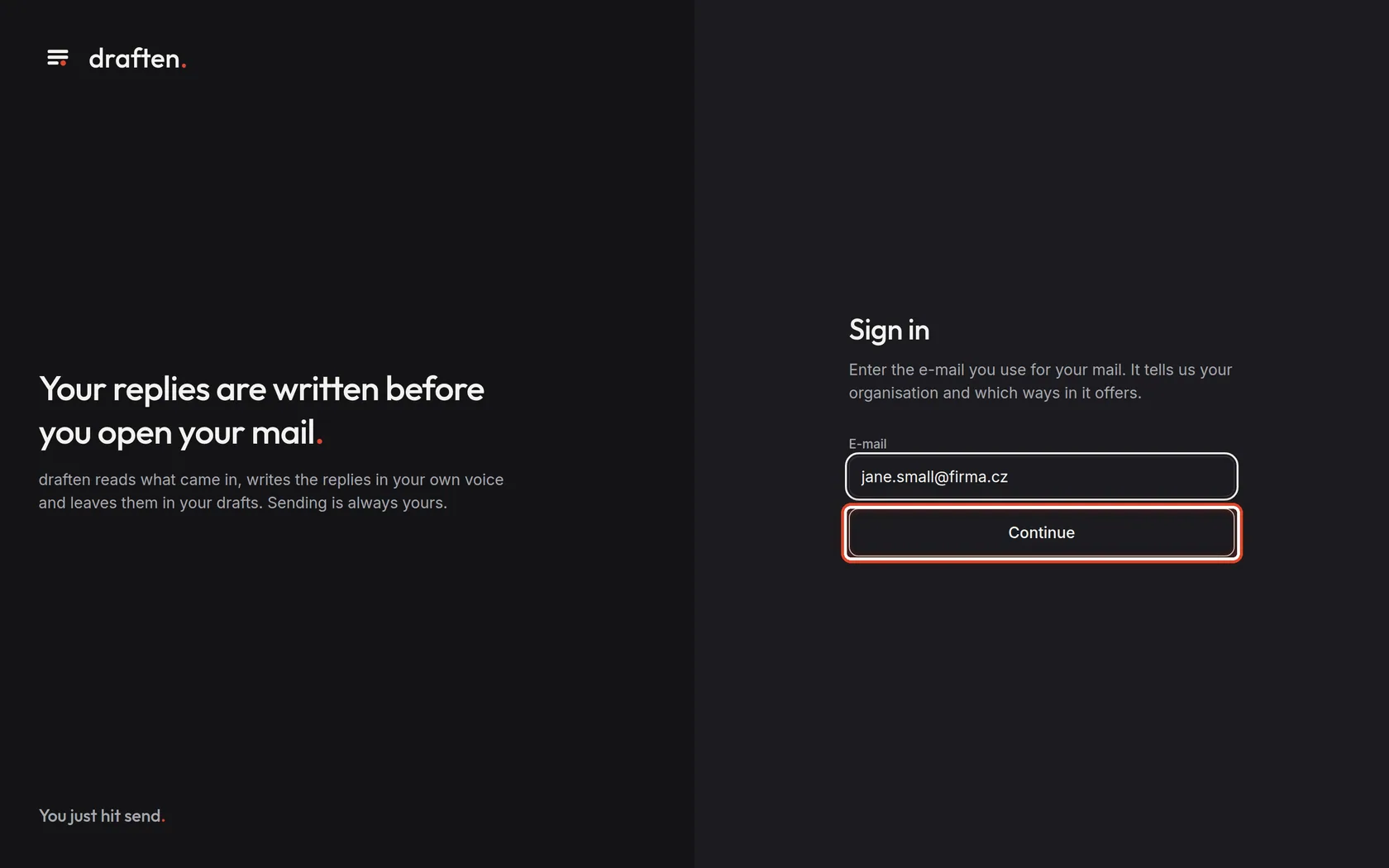
On the screendraften's sign-in page.
Do thisIn E-mail type the address you use at work — the one you sign in to your mail with.
NoteFrom the address draften recognises your organisation and offers only the ways of signing in that it uses.
Step 2 of 7
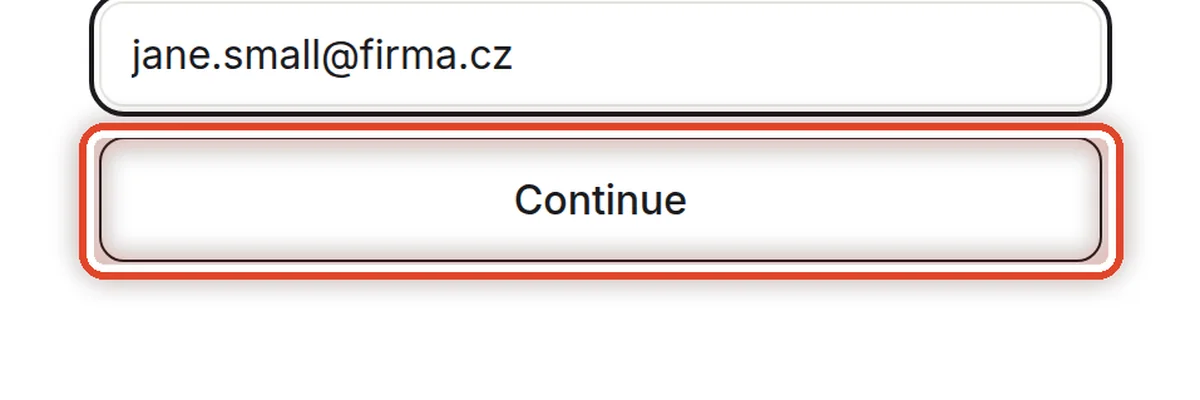
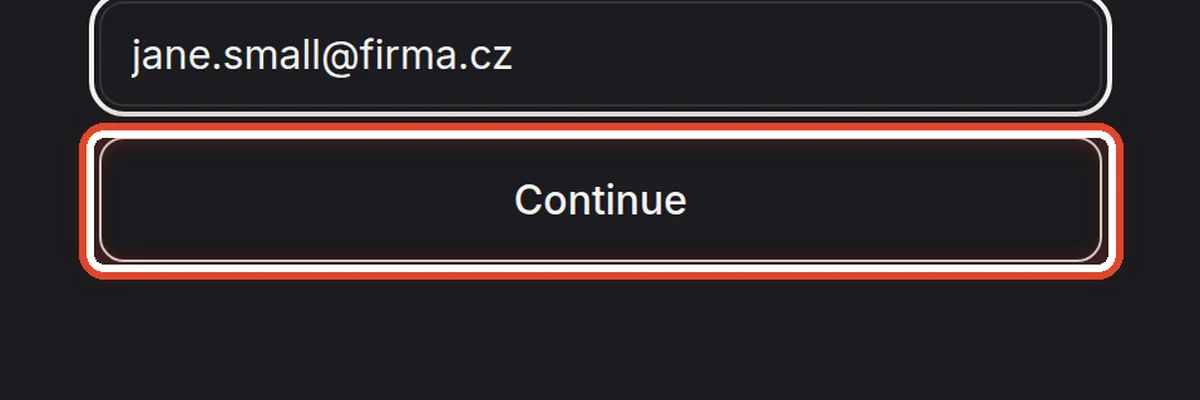
Continue
On the screenBelow the e-mail field there is a button.
Do thisClick Continue.
Step 3 of 7
Sign in with your organisation's account
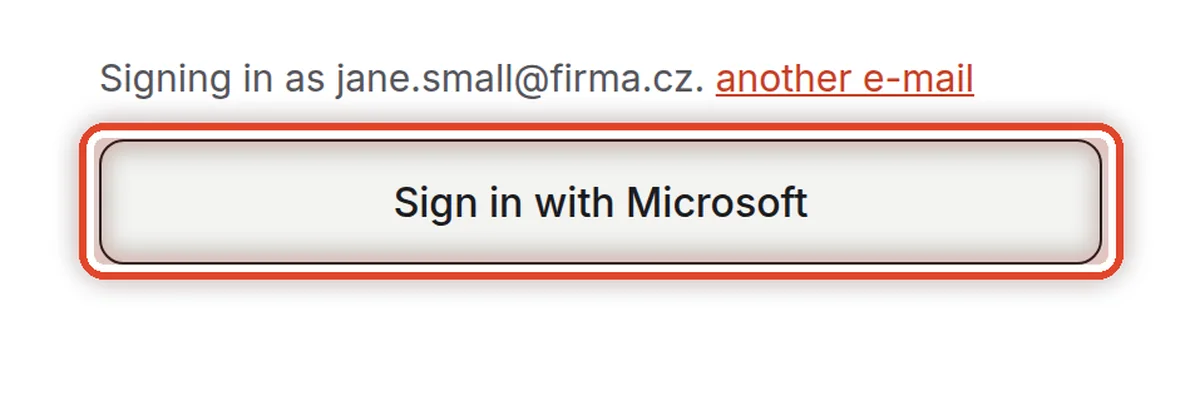
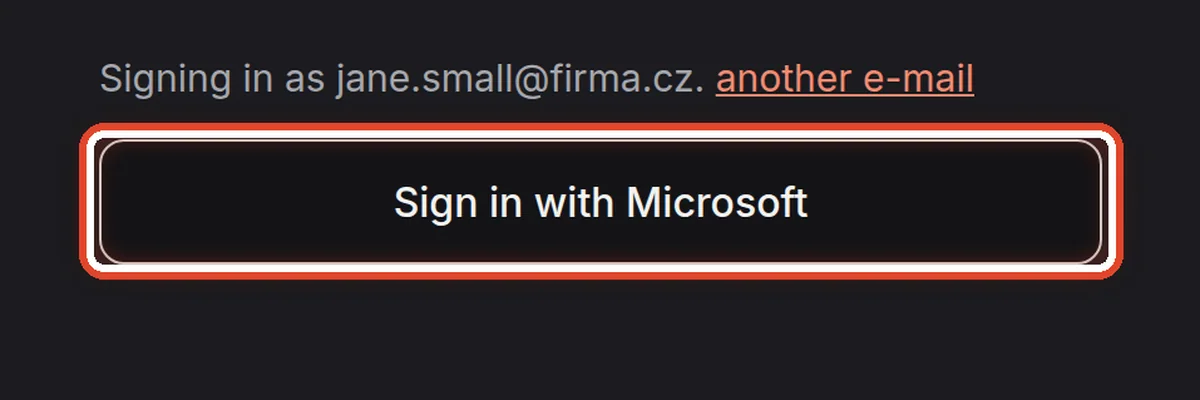
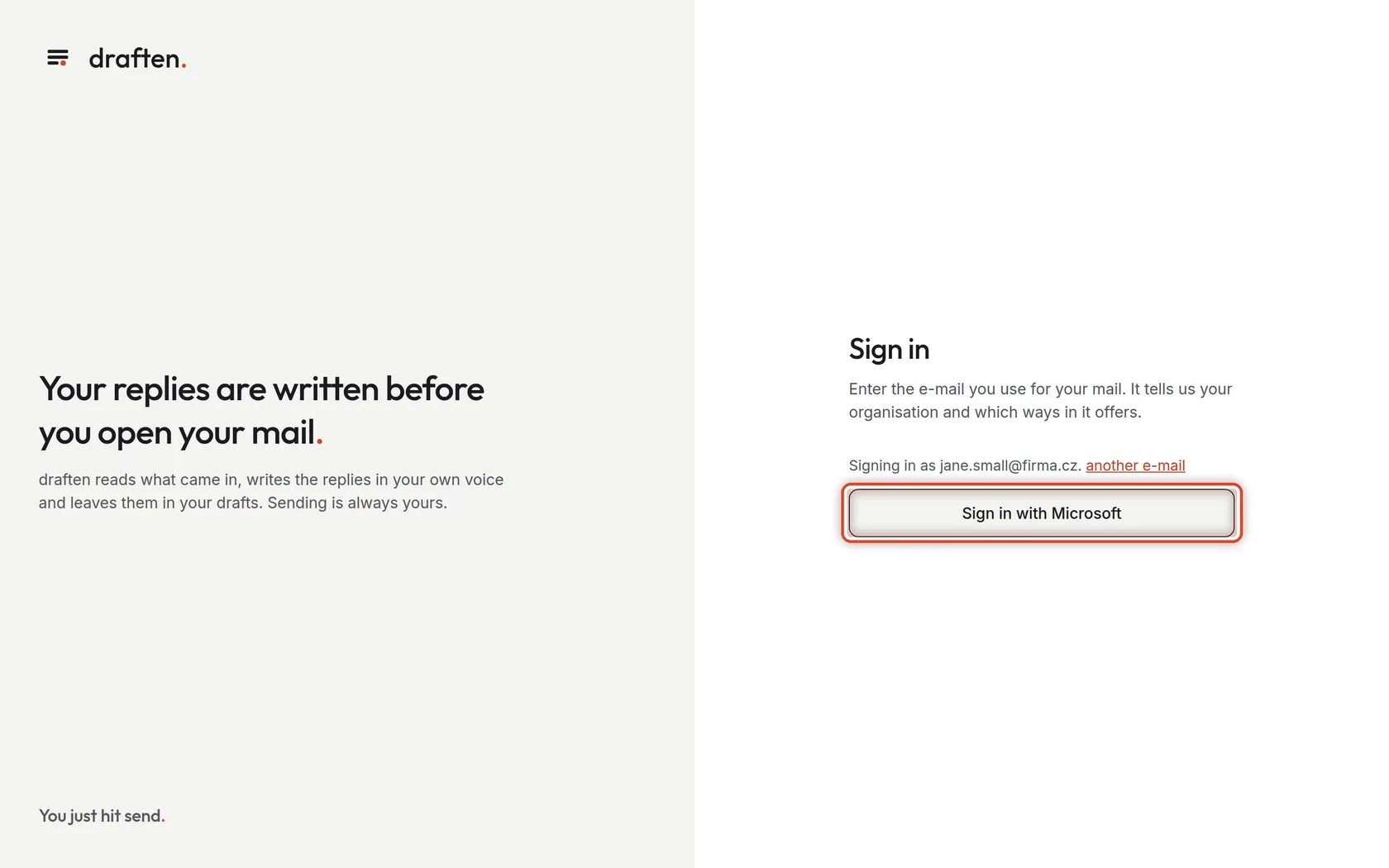
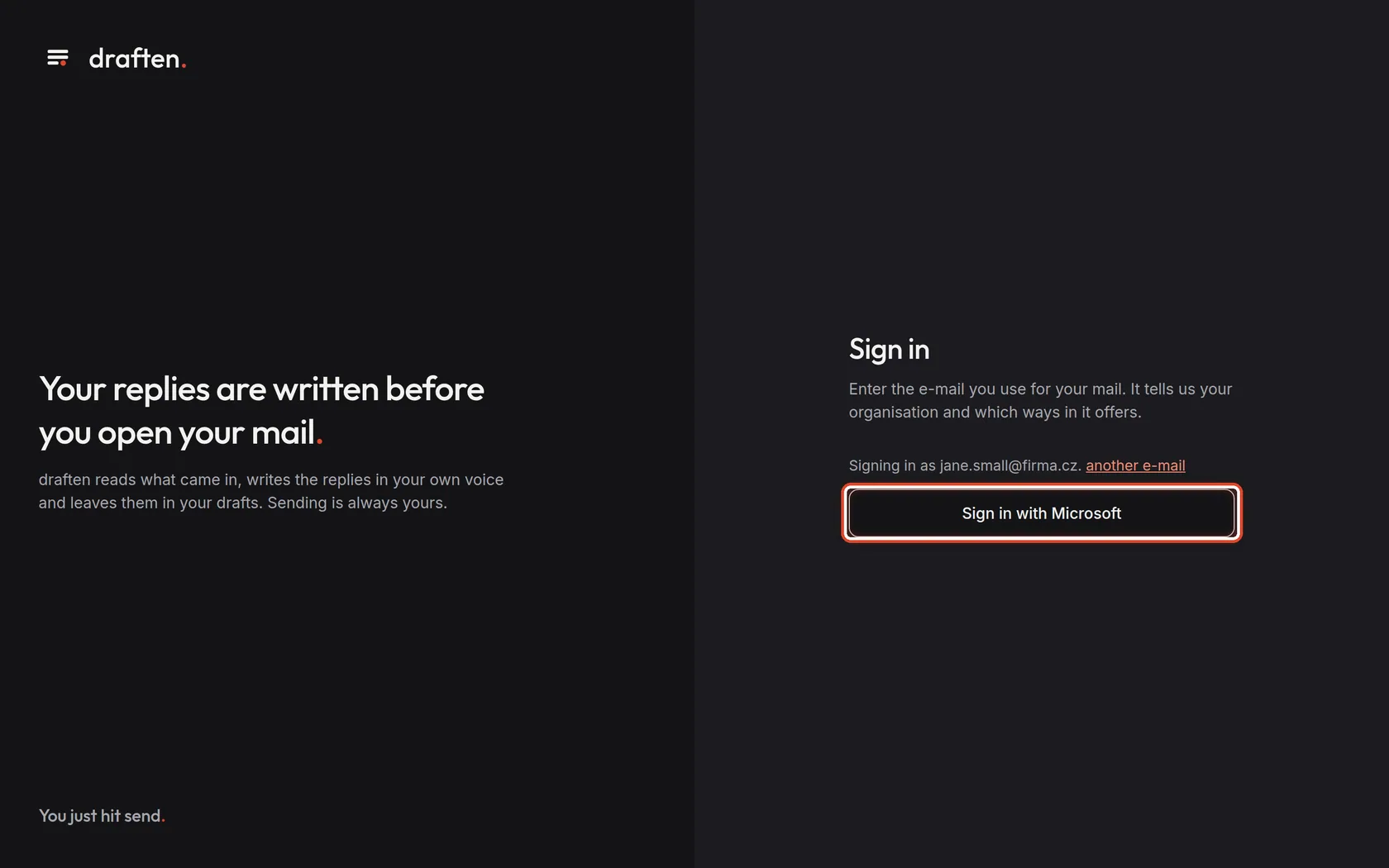
On the screenIf your company signs in with a Microsoft or Google account, a button appears.
Do thisClick Sign in with Microsoft (or Sign in with Google) and sign in as you do to your mail. You come straight back to draften.
NoteIn this case you have no draften password and need none. If your work account is closed, you can no longer sign in to draften either.
CarefulA personal Google account (…@gmail.com) will not do — it has to be your company's work account.
Step 4 of 7
Or enter your password
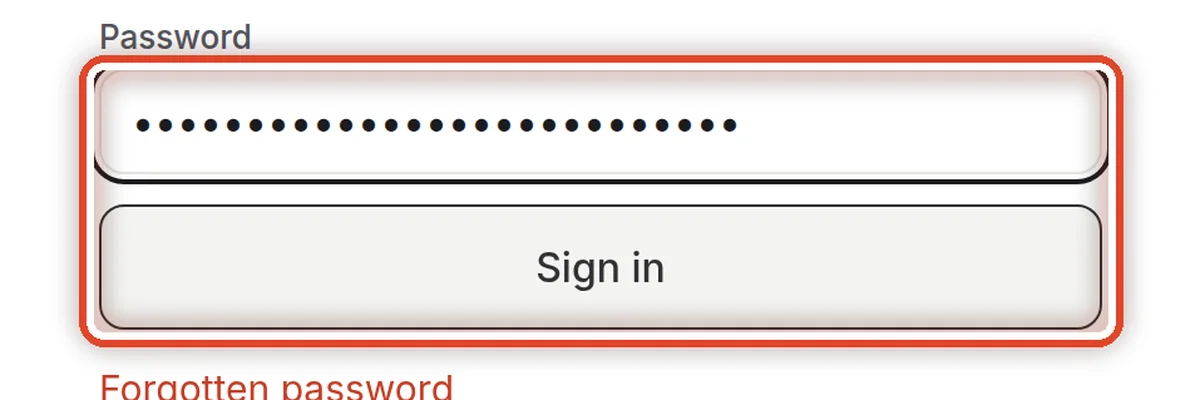
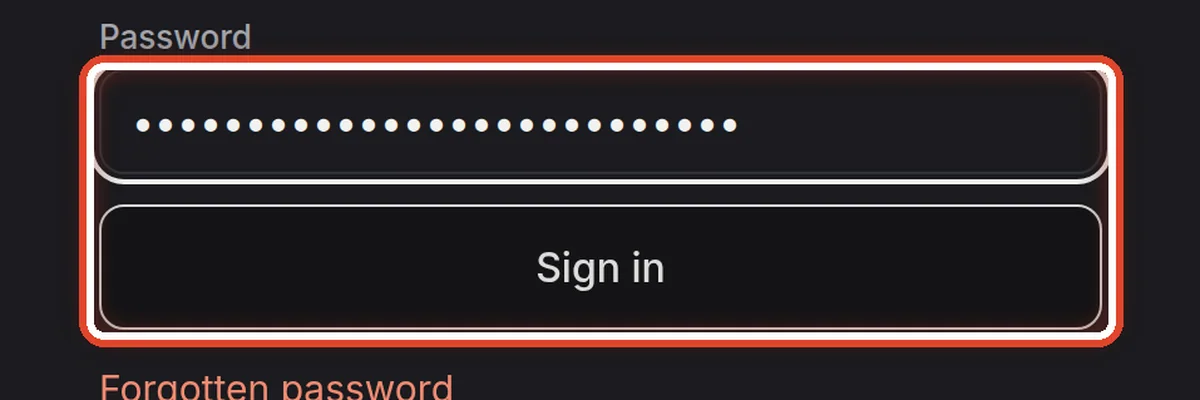
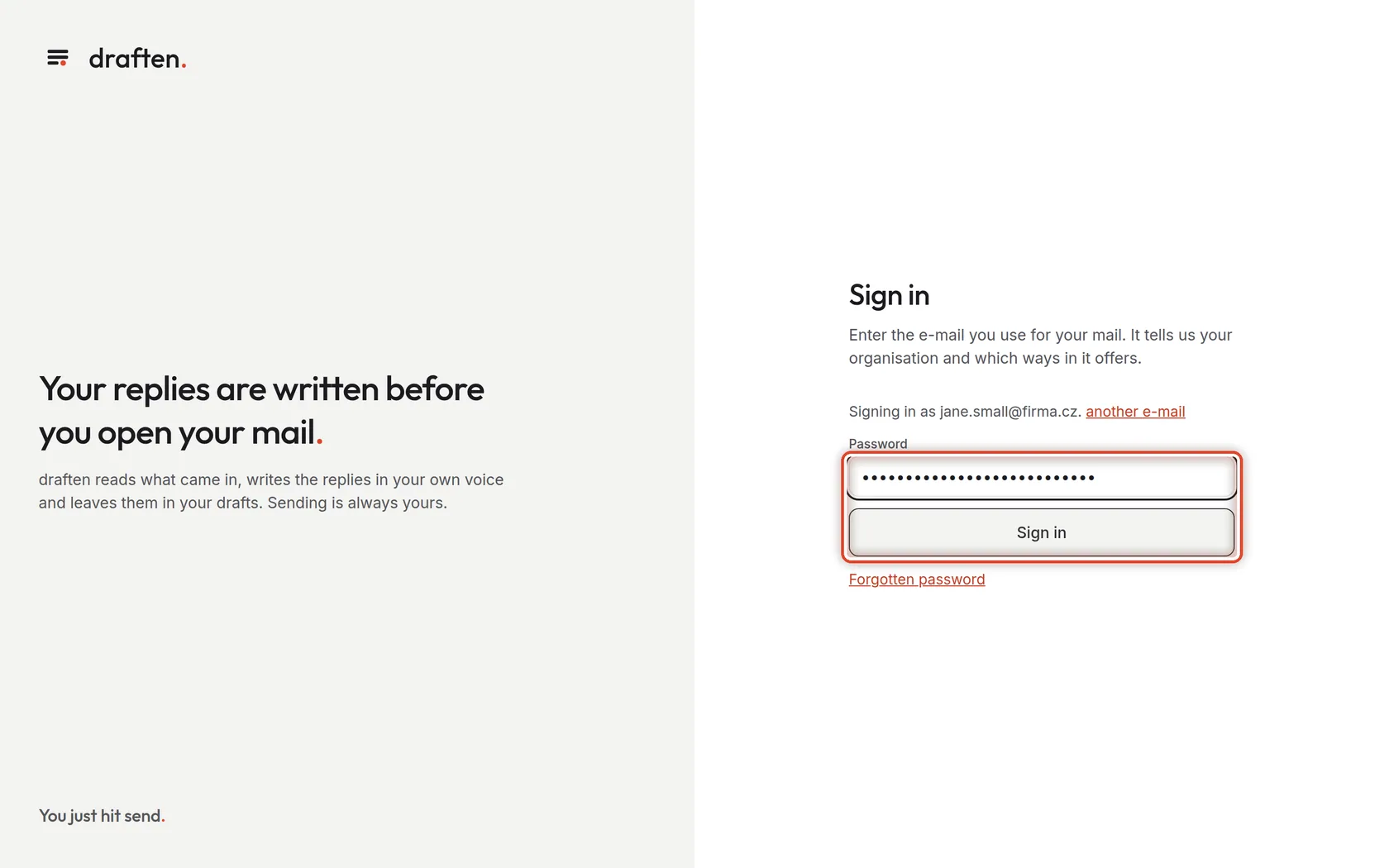
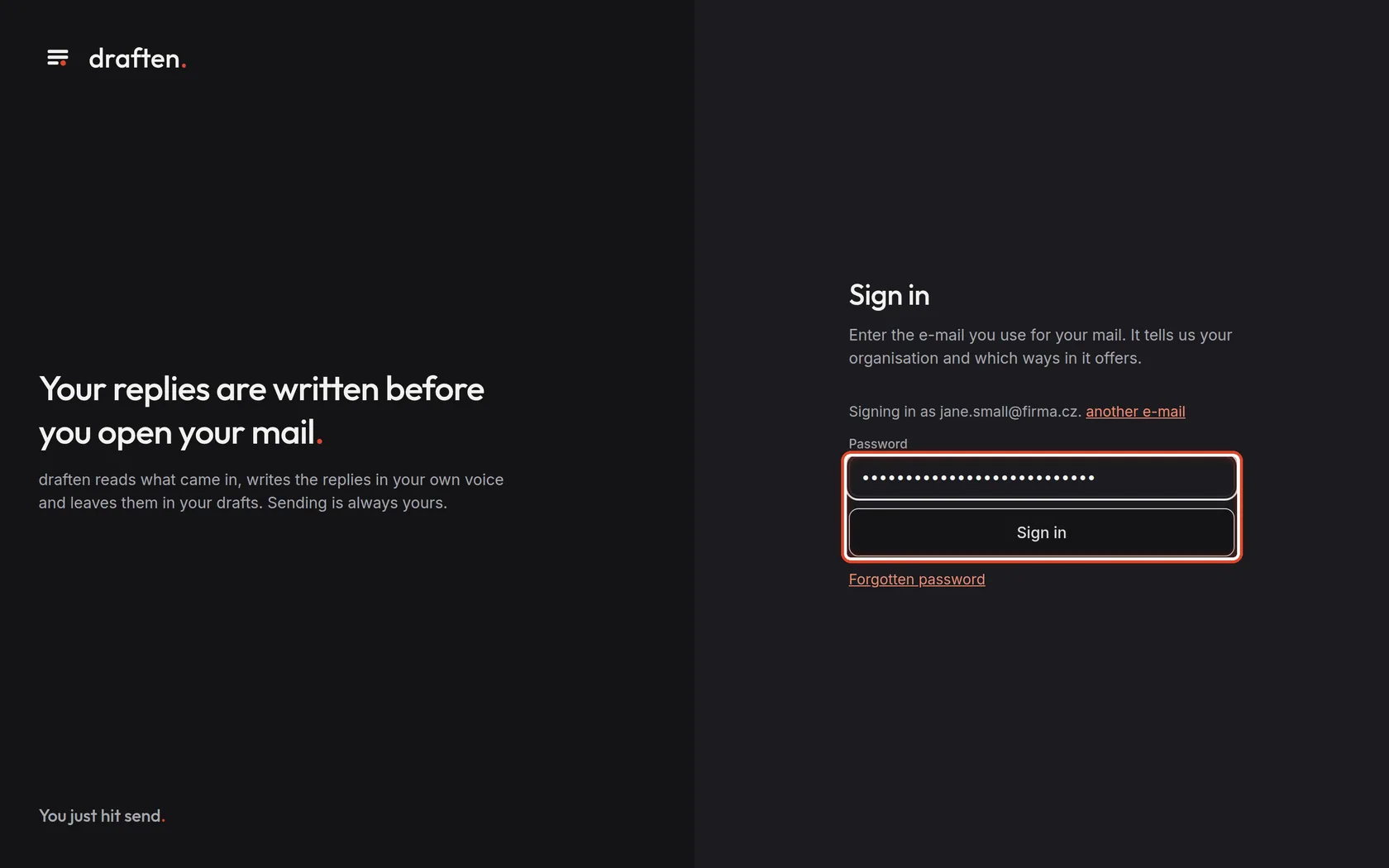
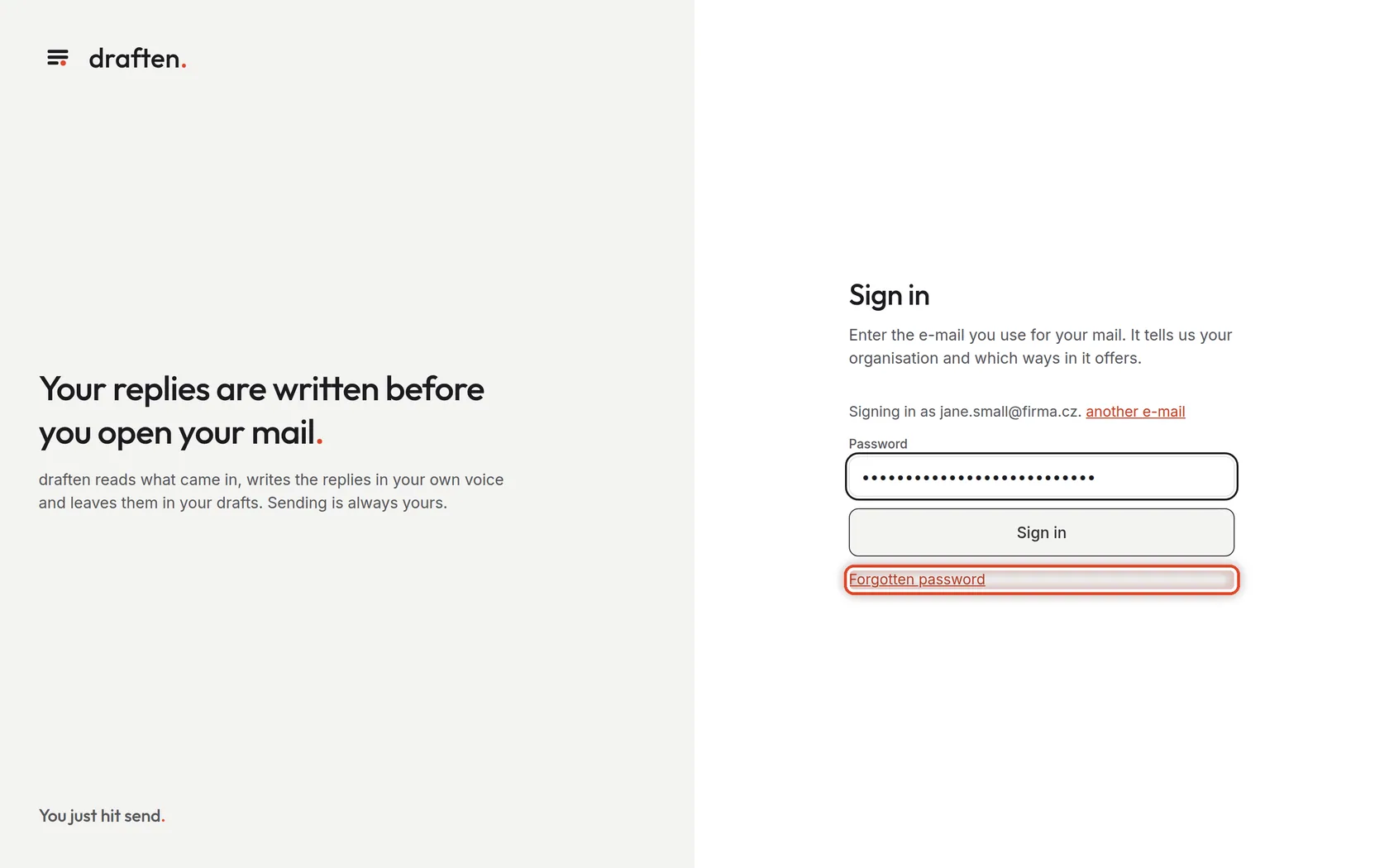
On the screenIf your company signs in with passwords, a Password field appears.
Do thisType your password in Password and click Sign in.
NoteYou set the password yourself, through the link in your invitation. After ten wrong attempts you have to wait a while.
Step 5 of 7
When you do not know your password
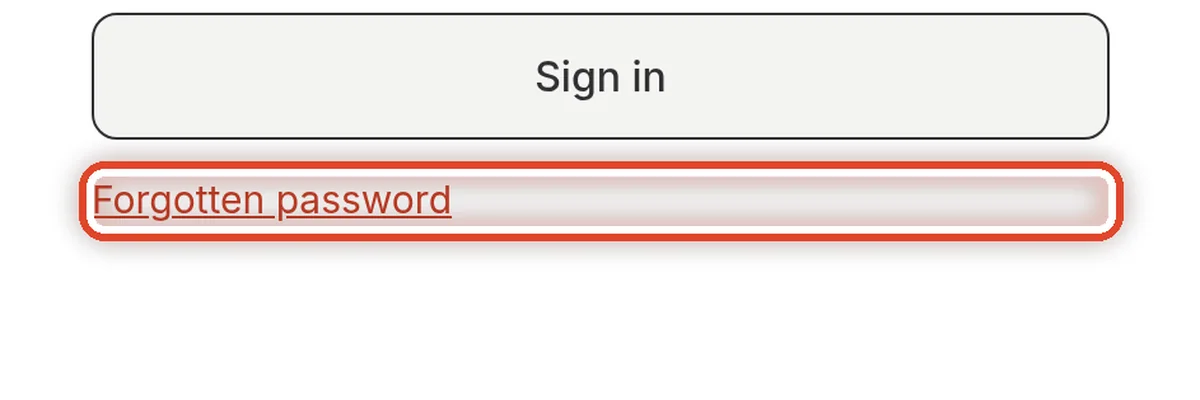
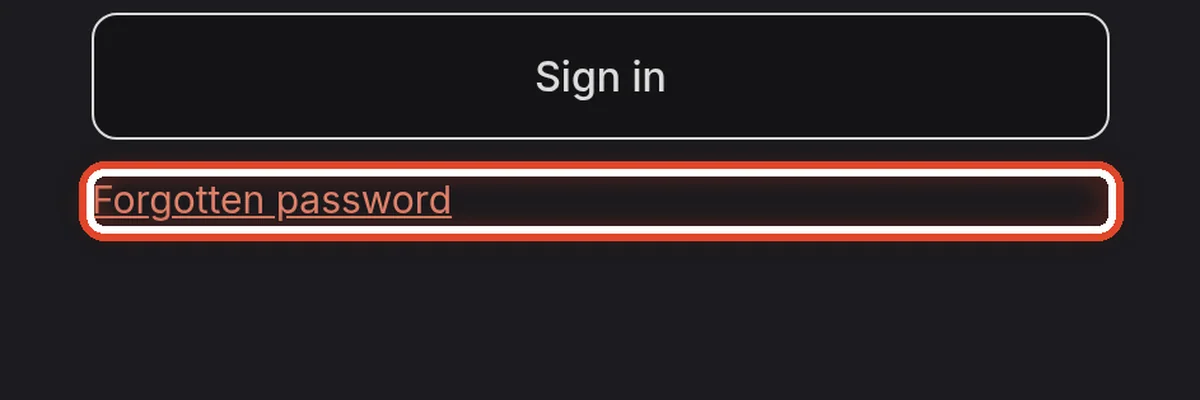
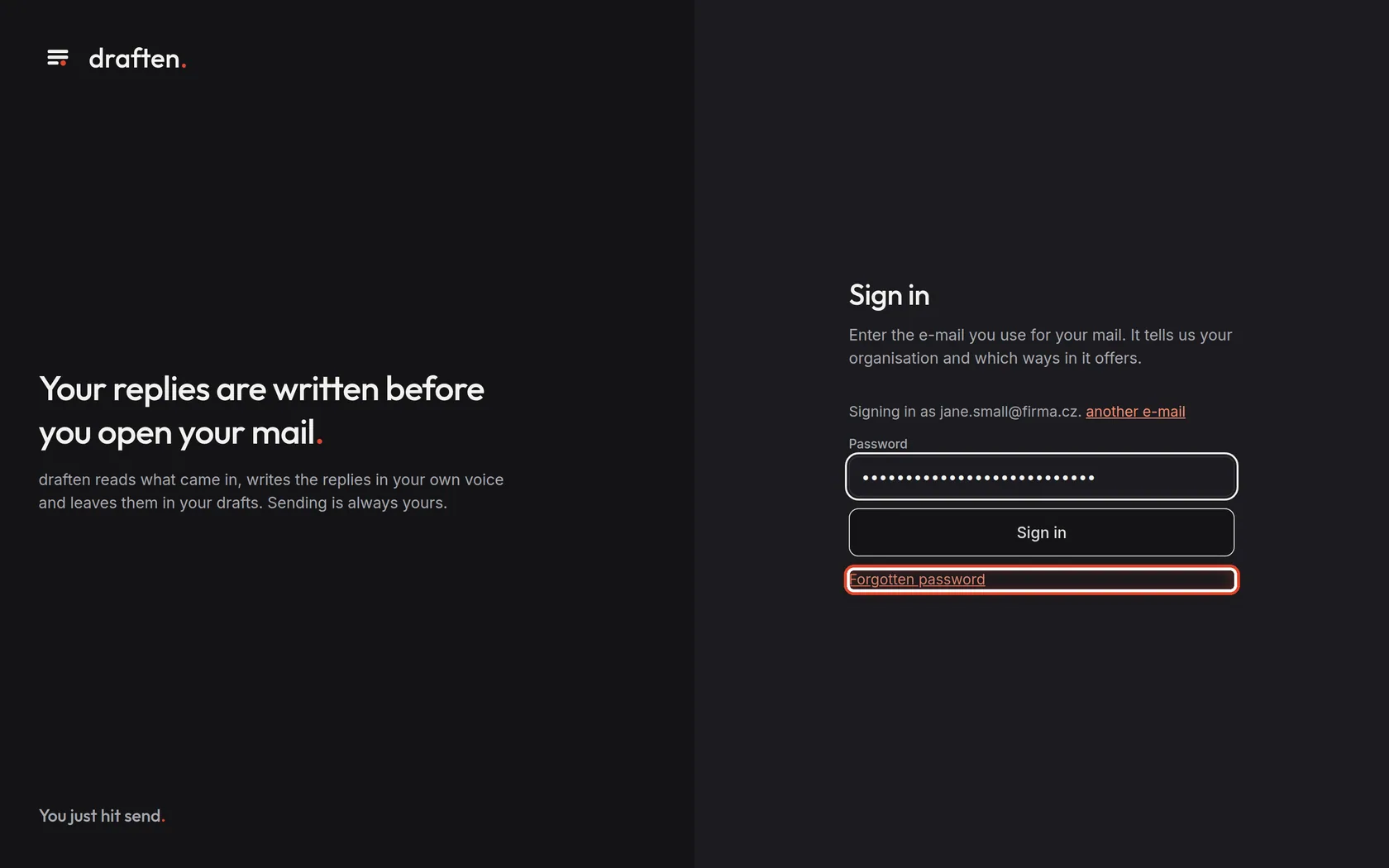
On the screenThere is a link below the button.
Do thisClick Forgotten password.
Step 6 of 7
Wait for the e-mail
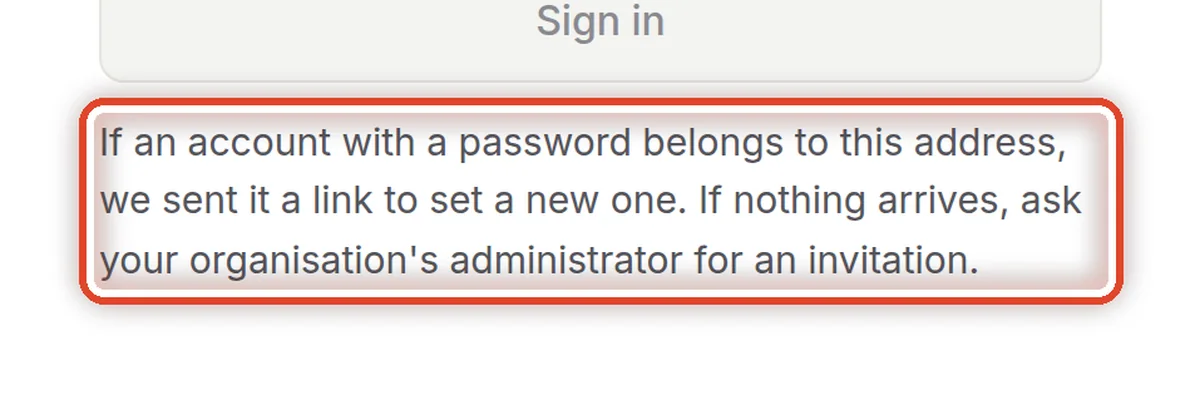
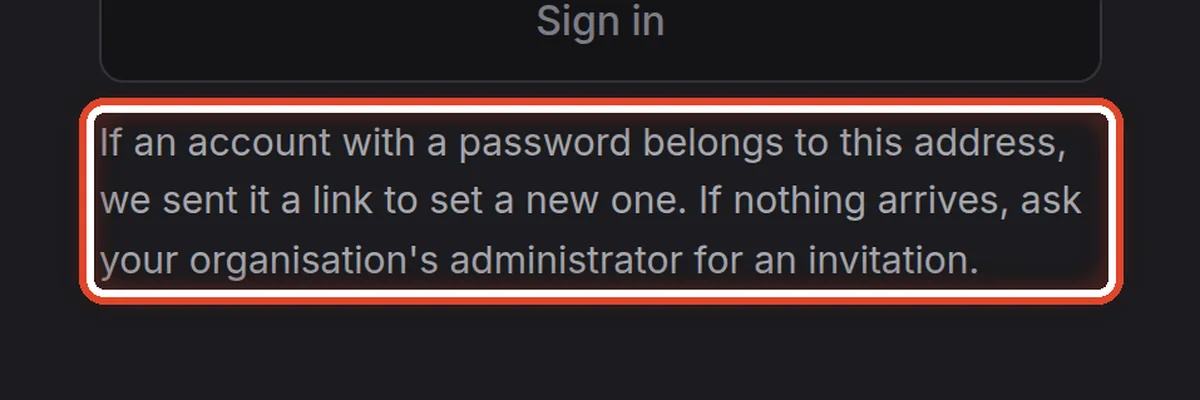
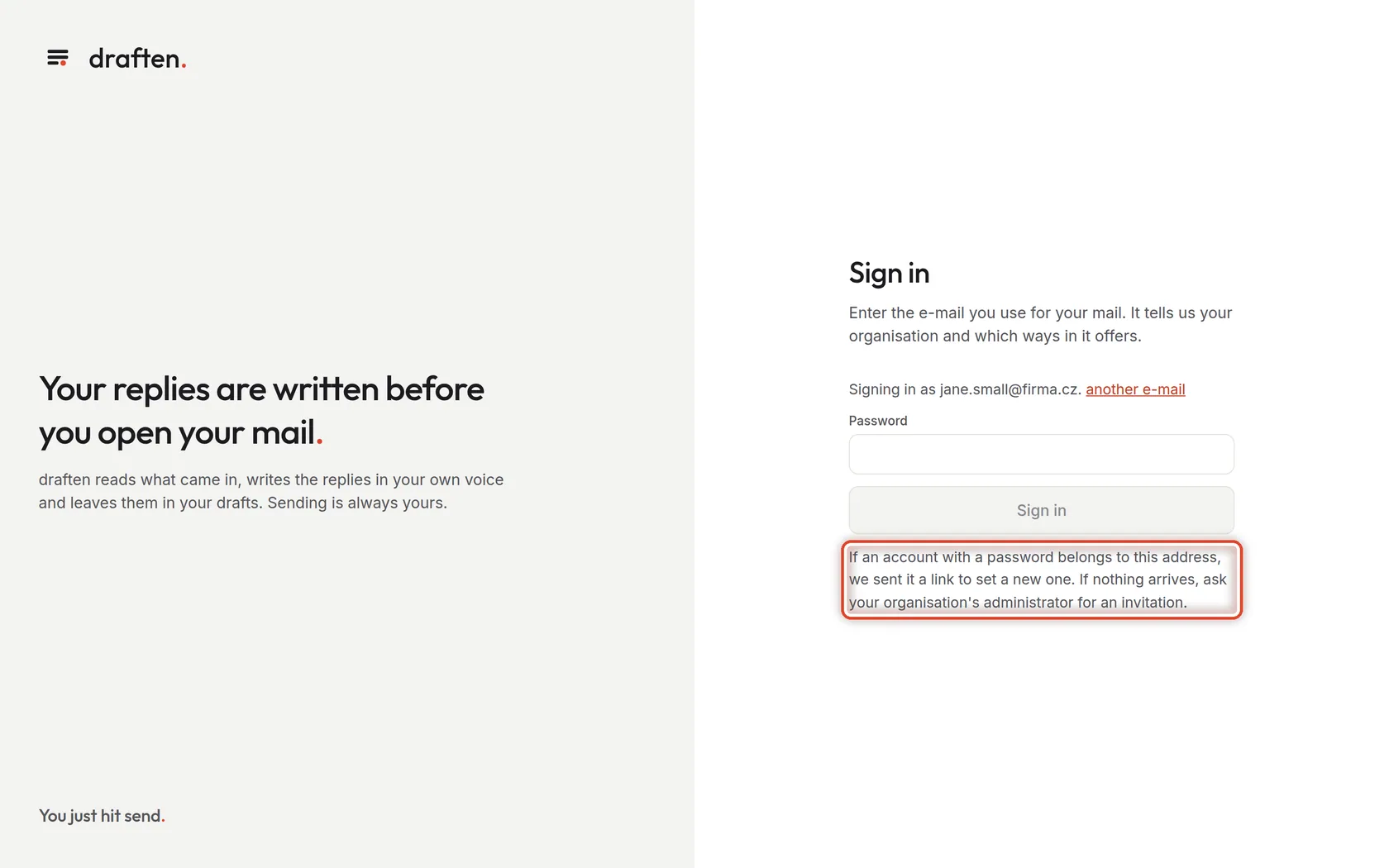
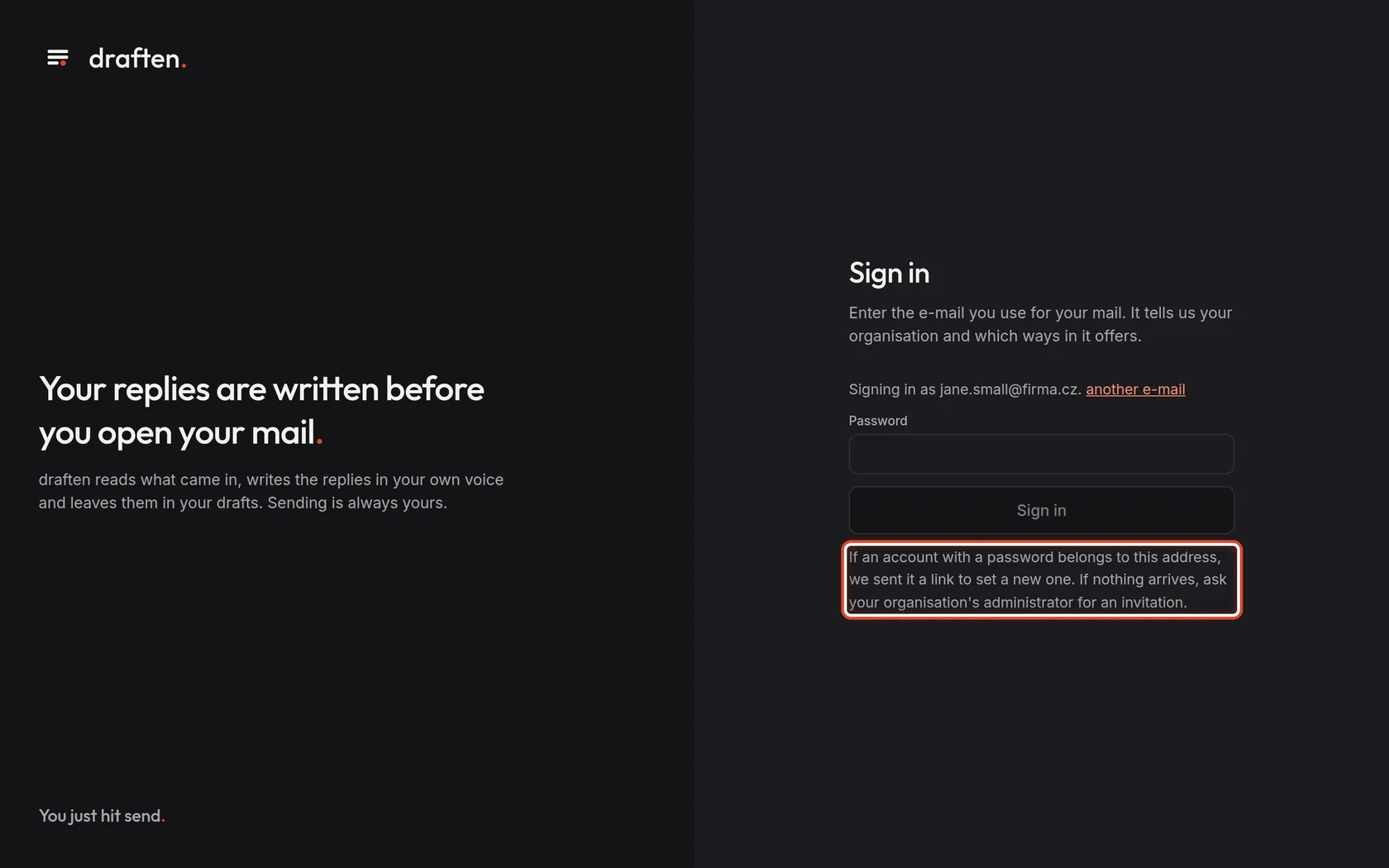
On the screendraften confirms it has sent a link.
Do thisOpen your mail and find the e-mail from draften. Click the link in it to set a new password.
NoteFor security, draften never says whether an account really belongs to the address. If no e-mail arrives, ask your organisation's administrator for a new invitation.
Step 7 of 7
Set a new password
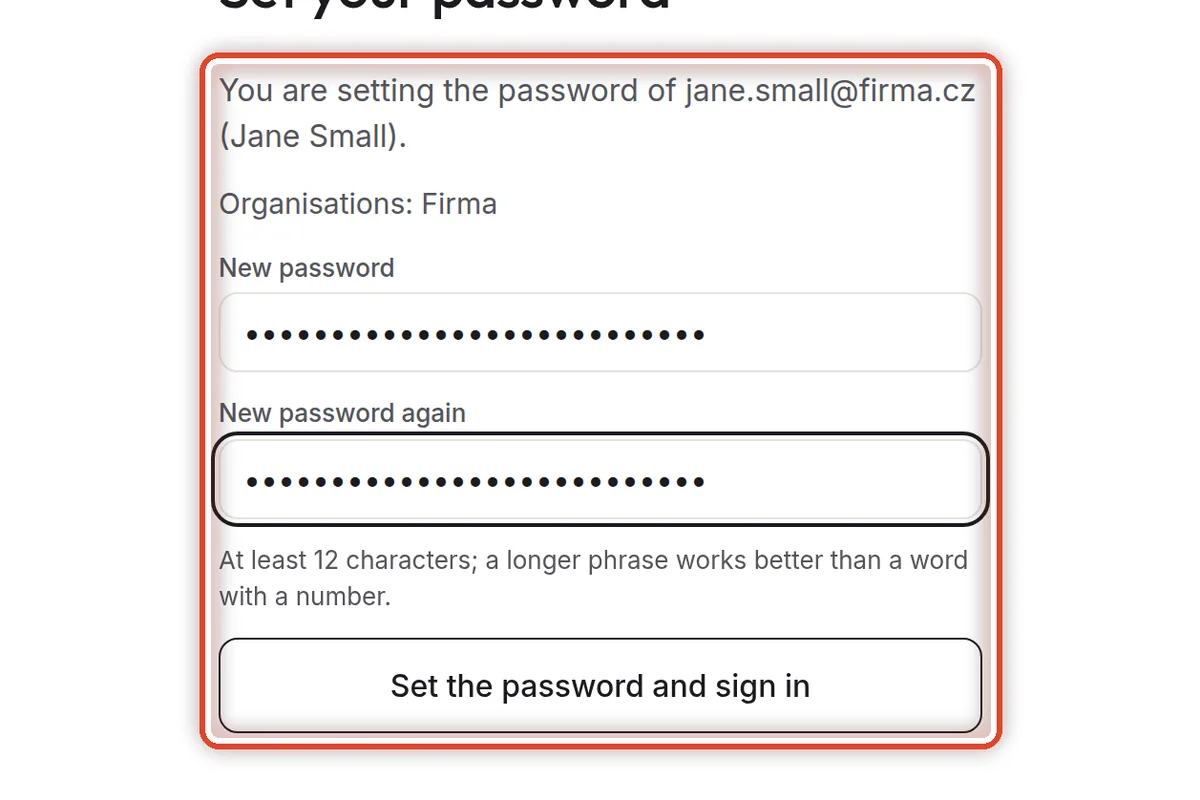
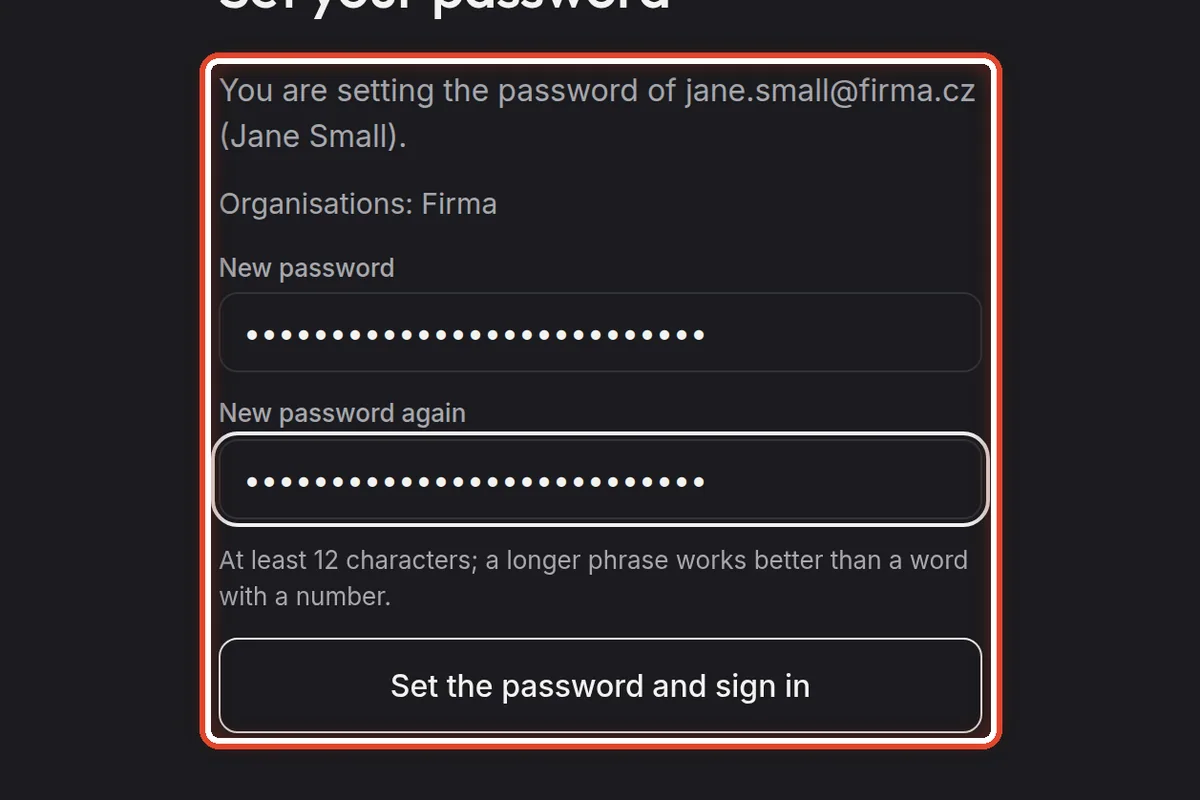
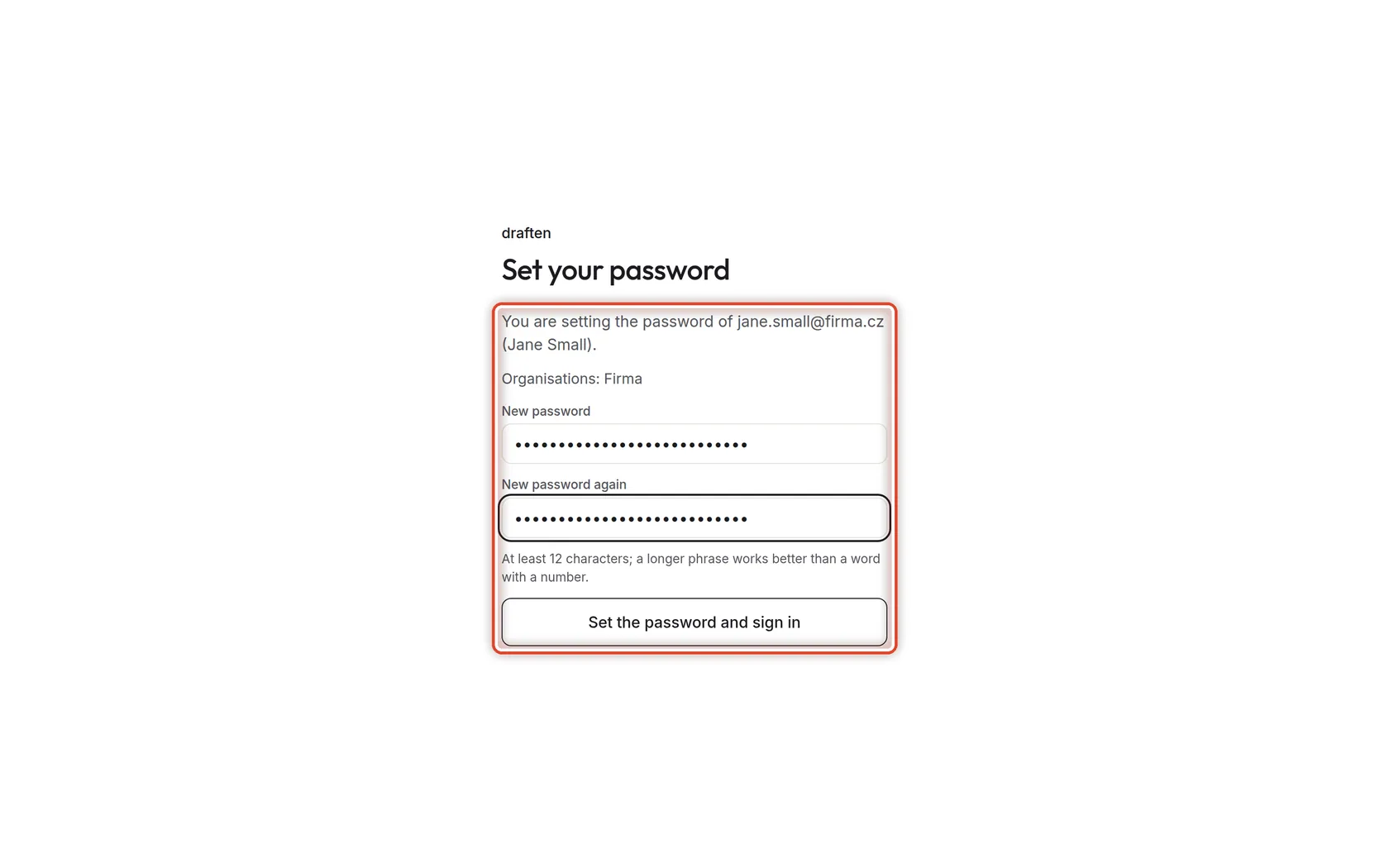
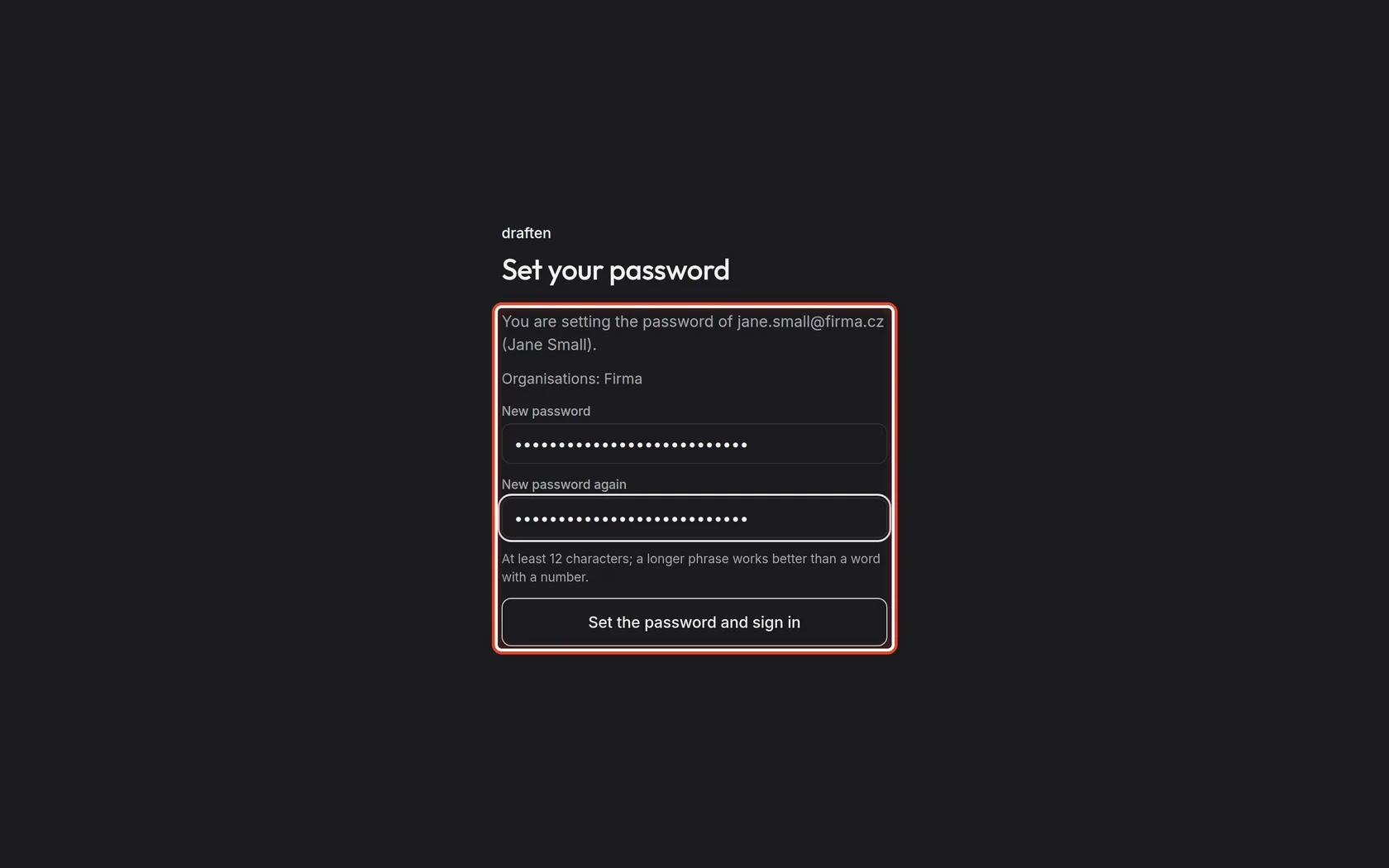
On the screenThe Set your password page with your address and organisation.
Do thisType the new password twice and click Set the password and sign in. You are signed in straight away.
NoteThe password needs at least 12 characters. A short sentence you can remember works best. The link in the e-mail is valid for 7 days.
The end
You are signed in
Your assistant's Overview opens — how many drafts are waiting and what is new.
- No assistant yet?Create one with the wizard — the guide A new assistant, step by step takes you through it. If the wizard does not offer your mailbox, ask your organisation's administrator to add it.
- It says “There is currently no way to sign in with this address”The address is not set up in draften. Check for a typo, or ask for an invitation.
- Language and appearanceChange them in My account — bottom left, under your name.