Guide
The instructions
afresh from your mail.
When the mailbox's work has changed, the wizard can write the instructions again: it reads your sent replies, proposes new instructions and knowledge sources, and tries them on mail the learning never saw. It is the same wizard that sets up a new assistant, only for an assistant already at work.
Before you start
- Editor or owner roleThe assistant's owner or an editor runs the wizard.
- About half an hourEvery paid step shows the estimated cost first, usually a few dollars.
Step 1 of 9
Say what the assistant is for
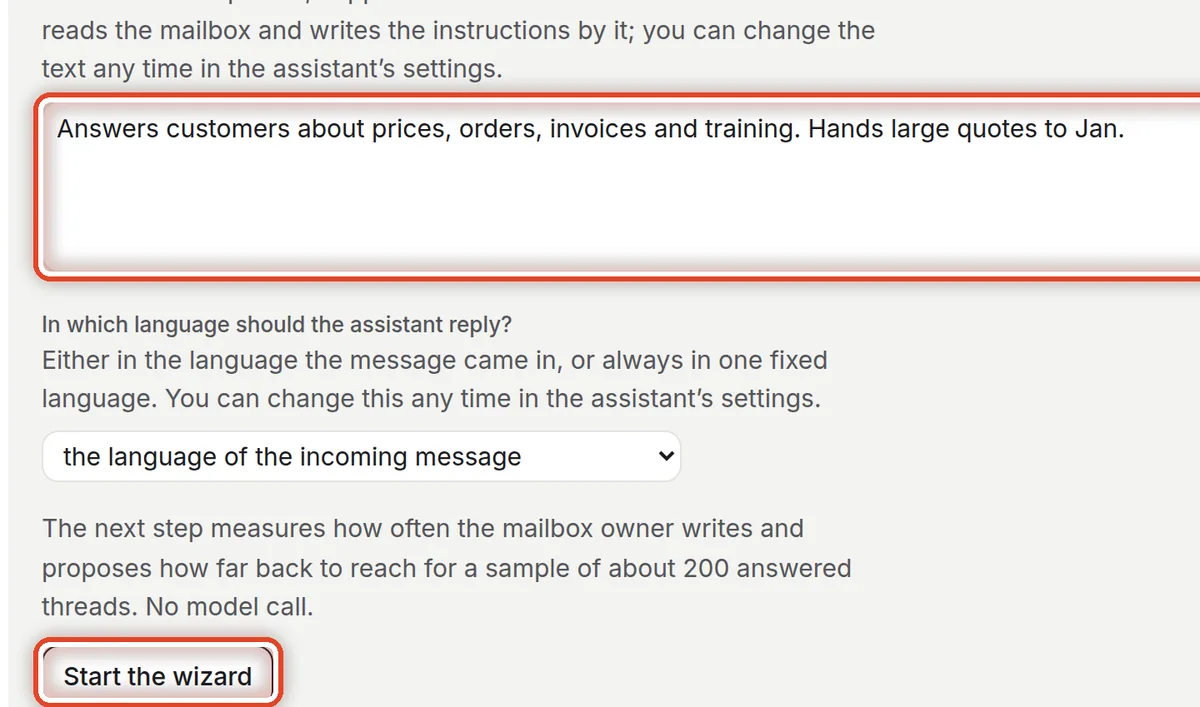
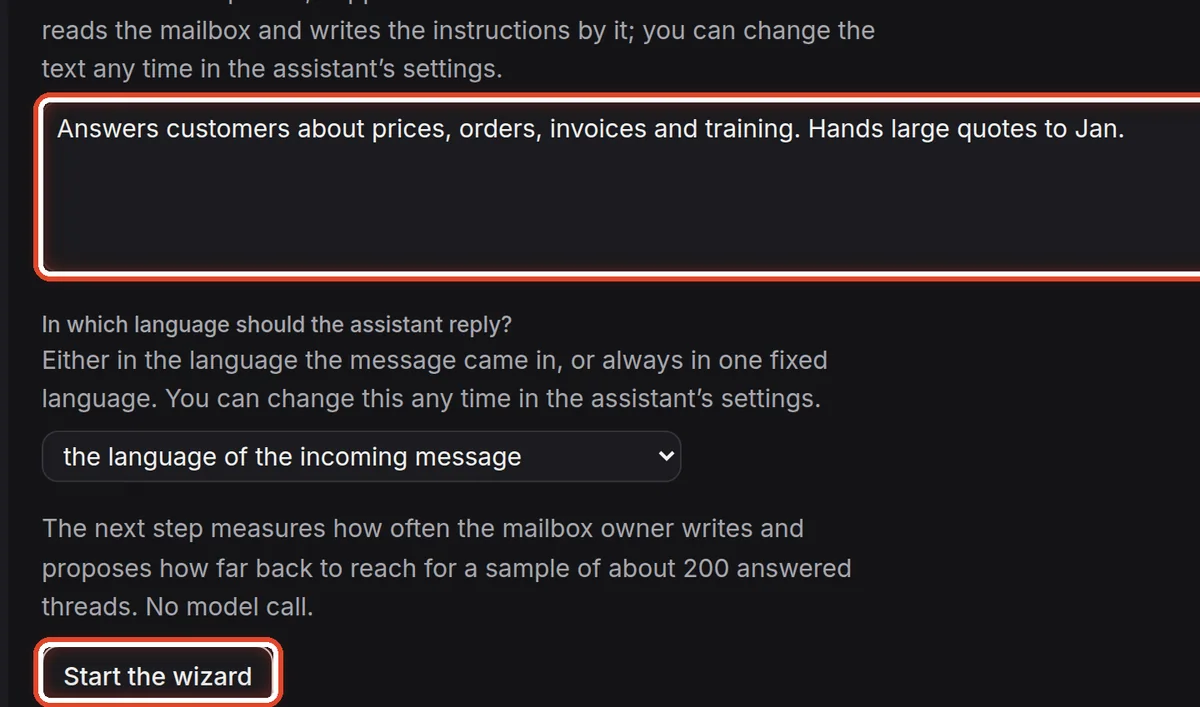
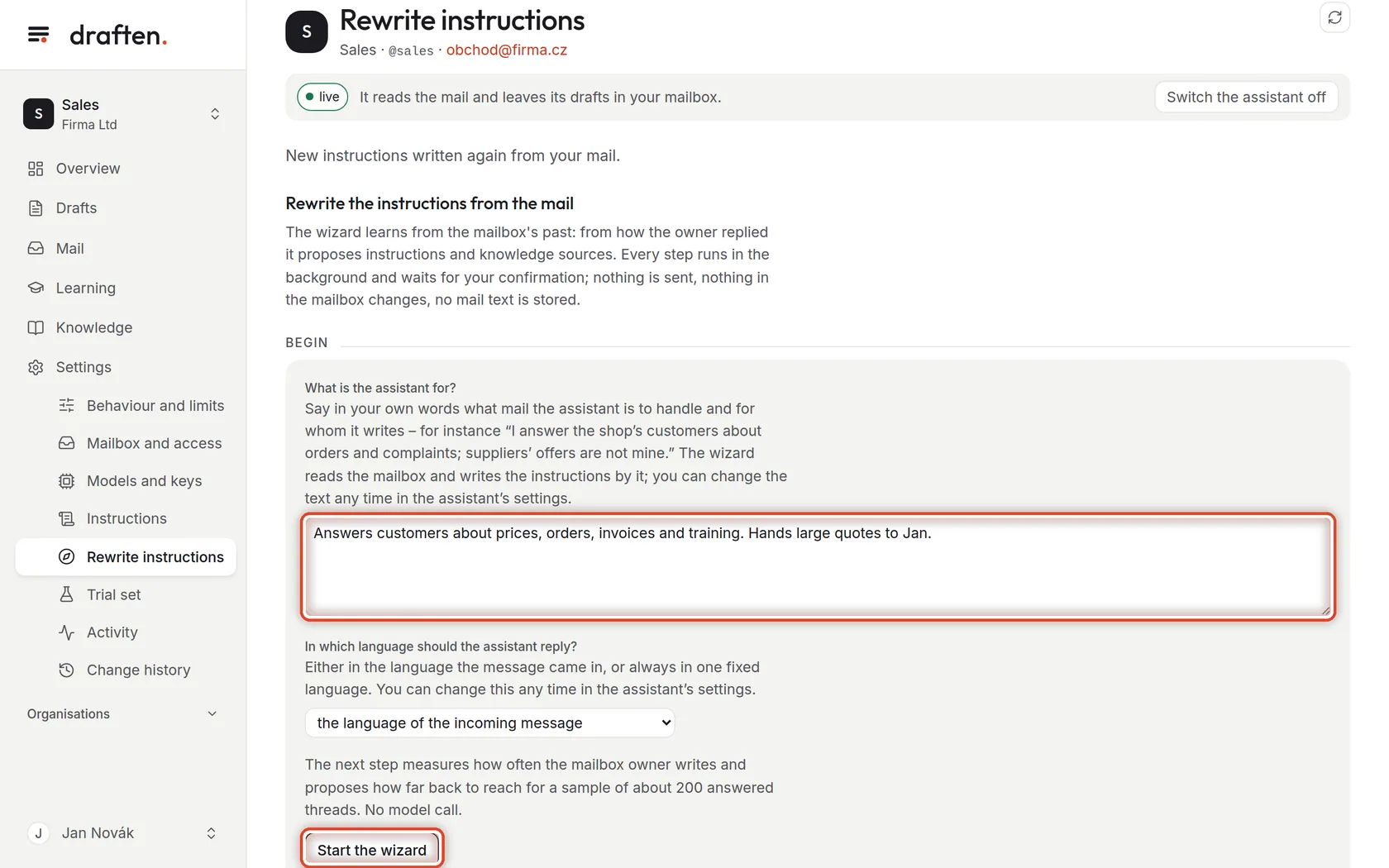
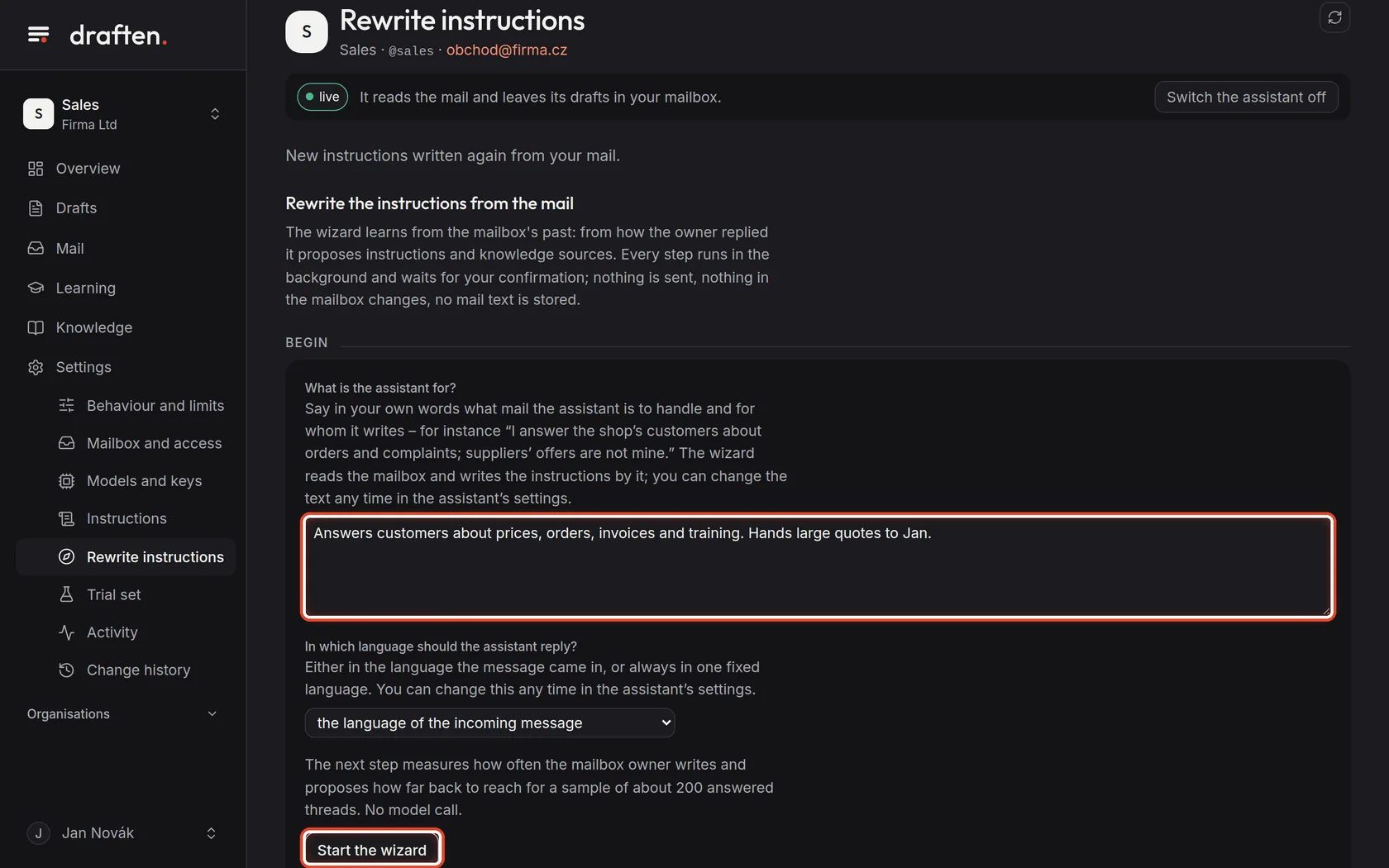
On the screenIn Settings → Rewrite instructions, the Begin card with the What is the assistant for? field.
Do thisCheck the description in your own words (it is filled in from the settings) and the language of the replies. Then click Start the wizard.
NoteThe wizard learns from mail you have already sent and writes the instructions again. It helps when the mailbox's work has changed or the instructions have drifted over time. The old versions stay in the history.
Step 2 of 9
Period
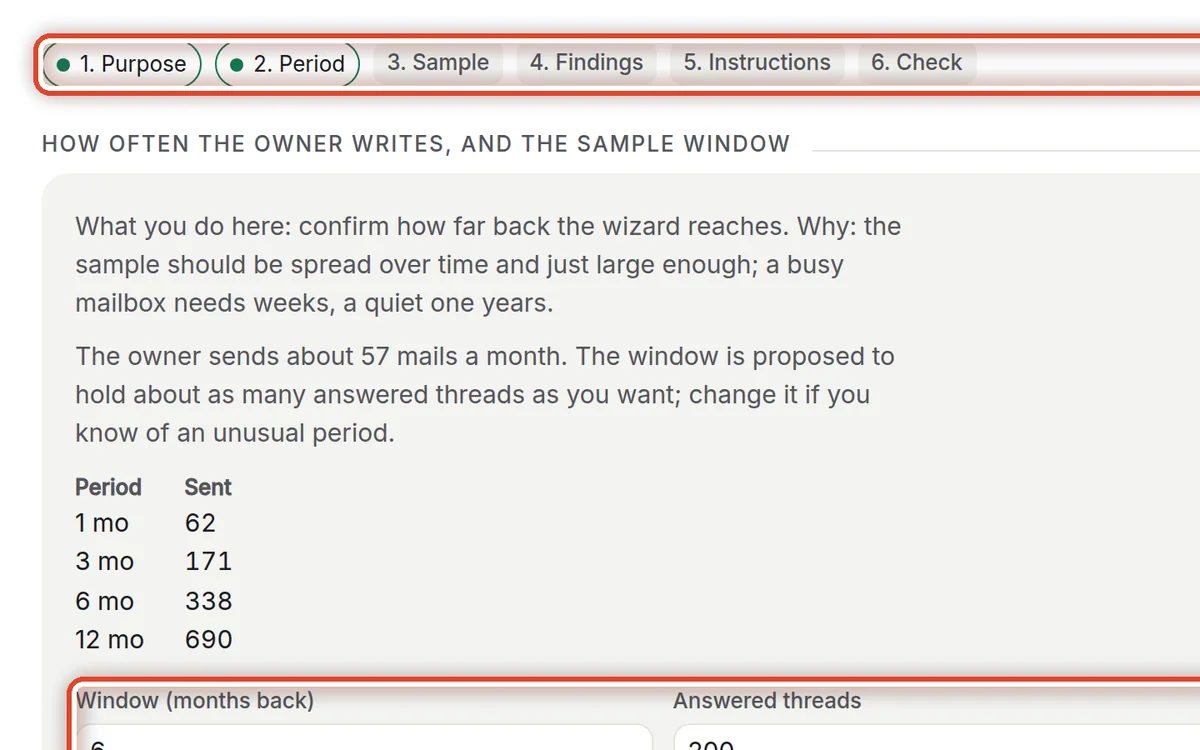
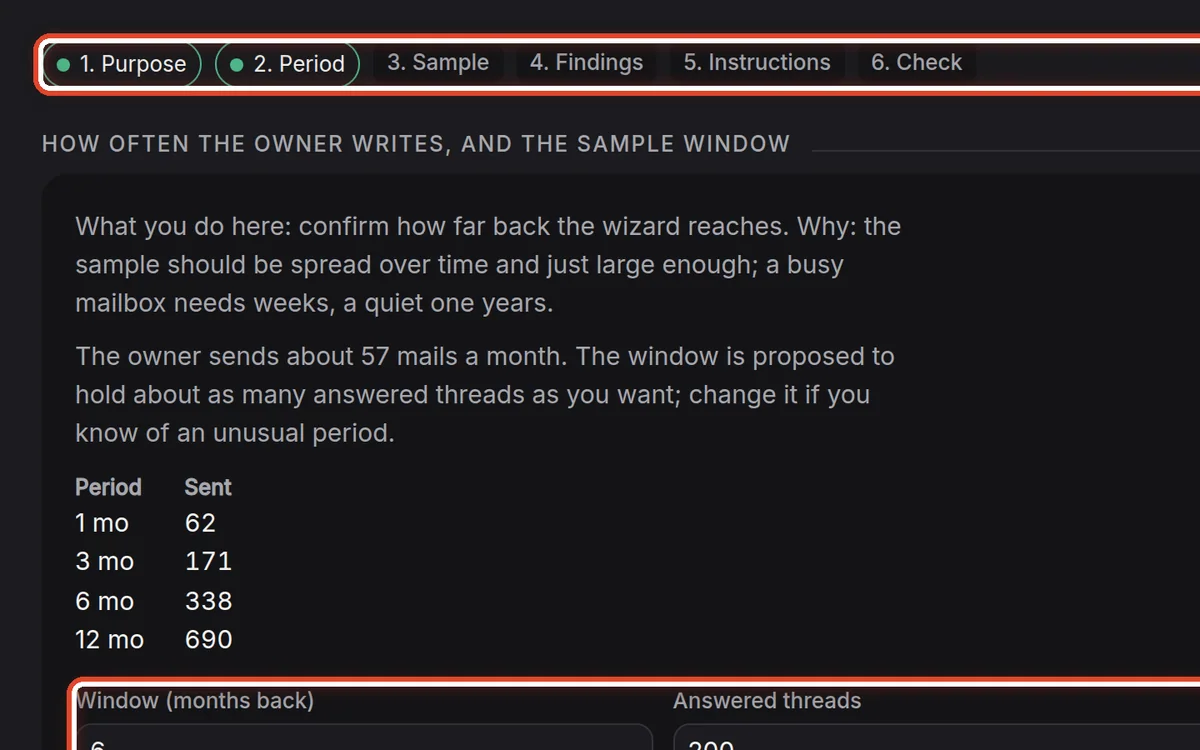
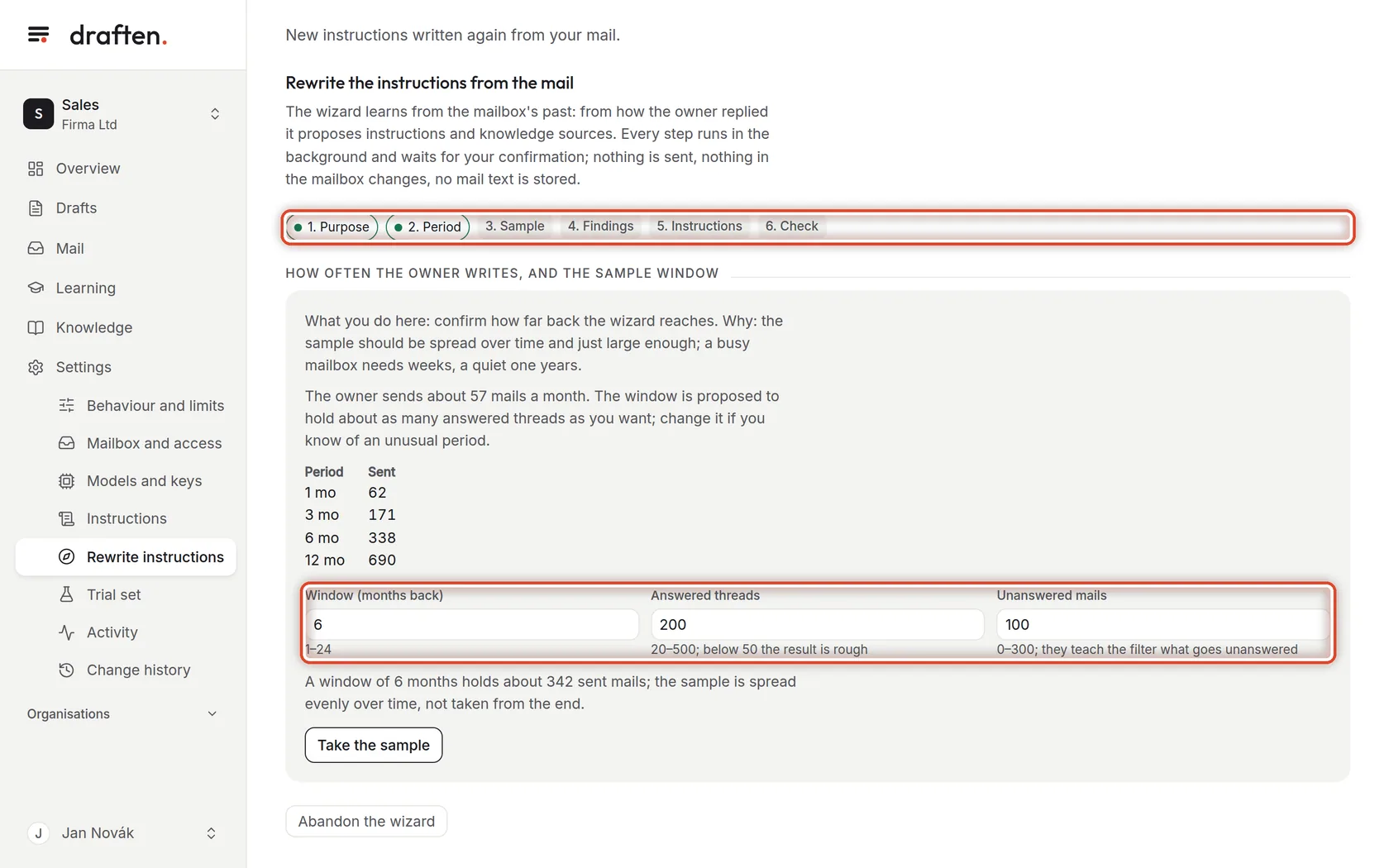
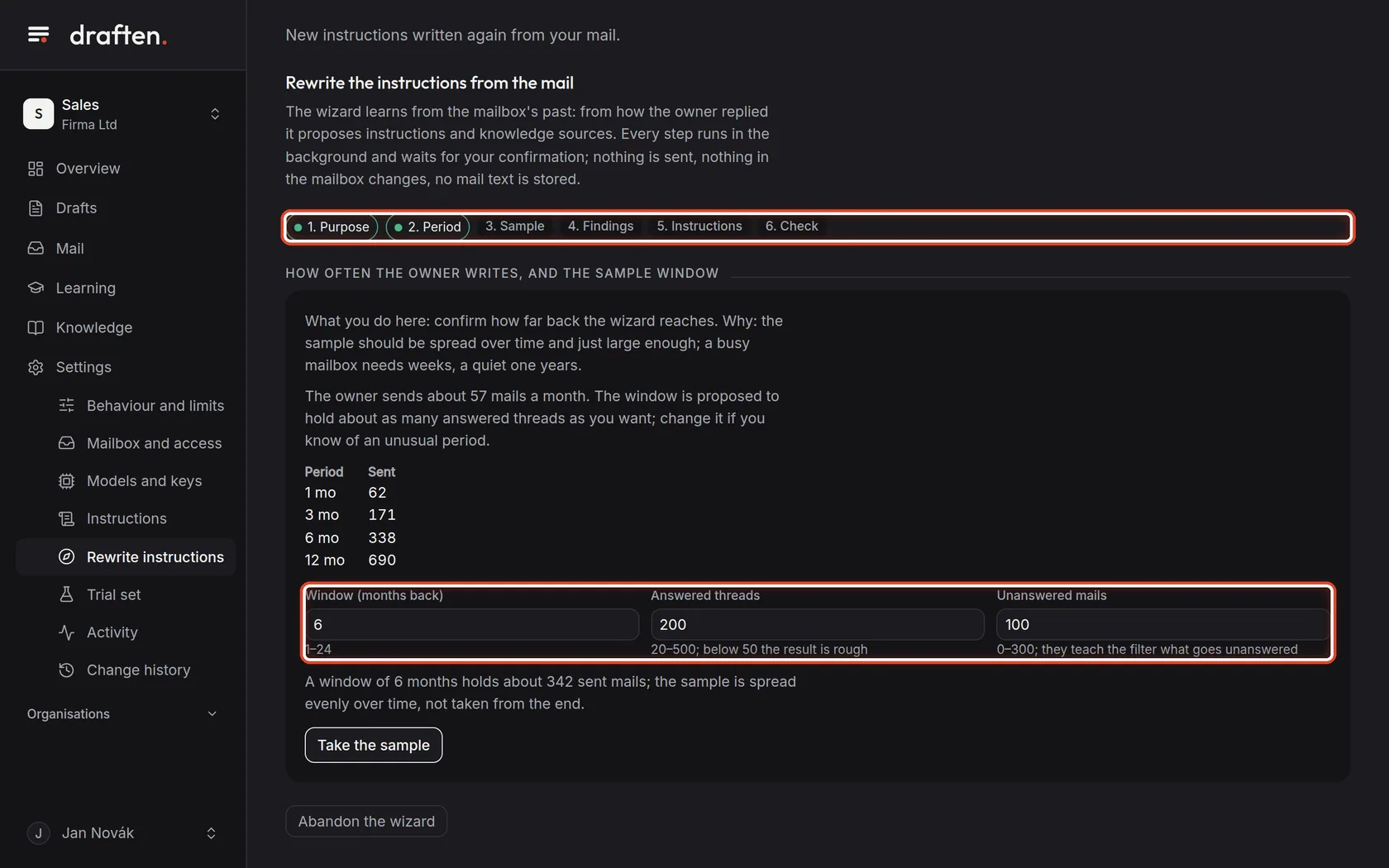
On the screenAt the top, a bar of six steps and a card with how much mail you send.
Do thisThe wizard proposes how far back to reach. Unless you know of an unusual period, leave the numbers as they are and click Take the sample. This step is free.
Step 3 of 9
Sample and description
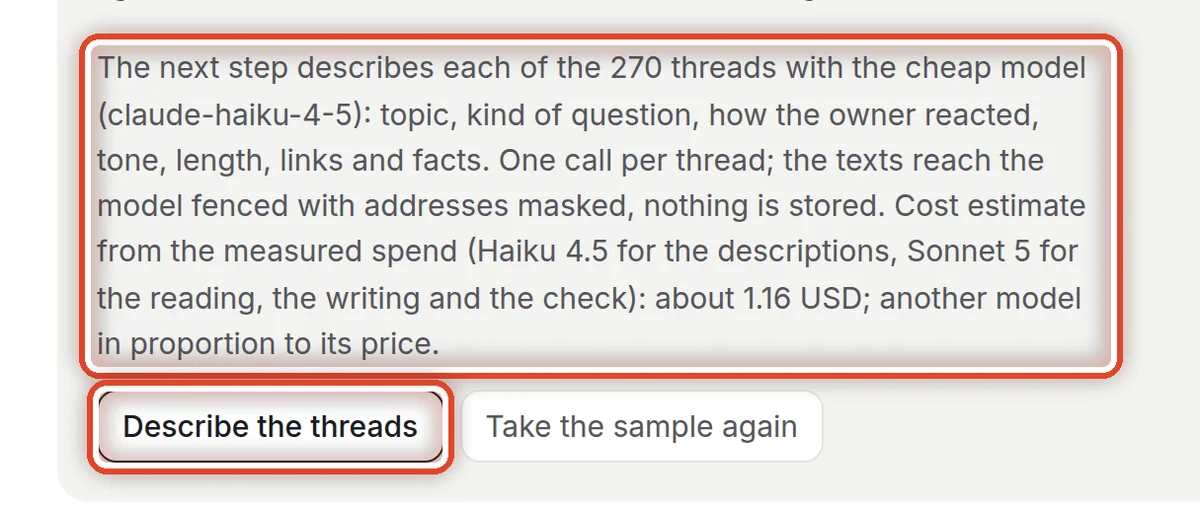
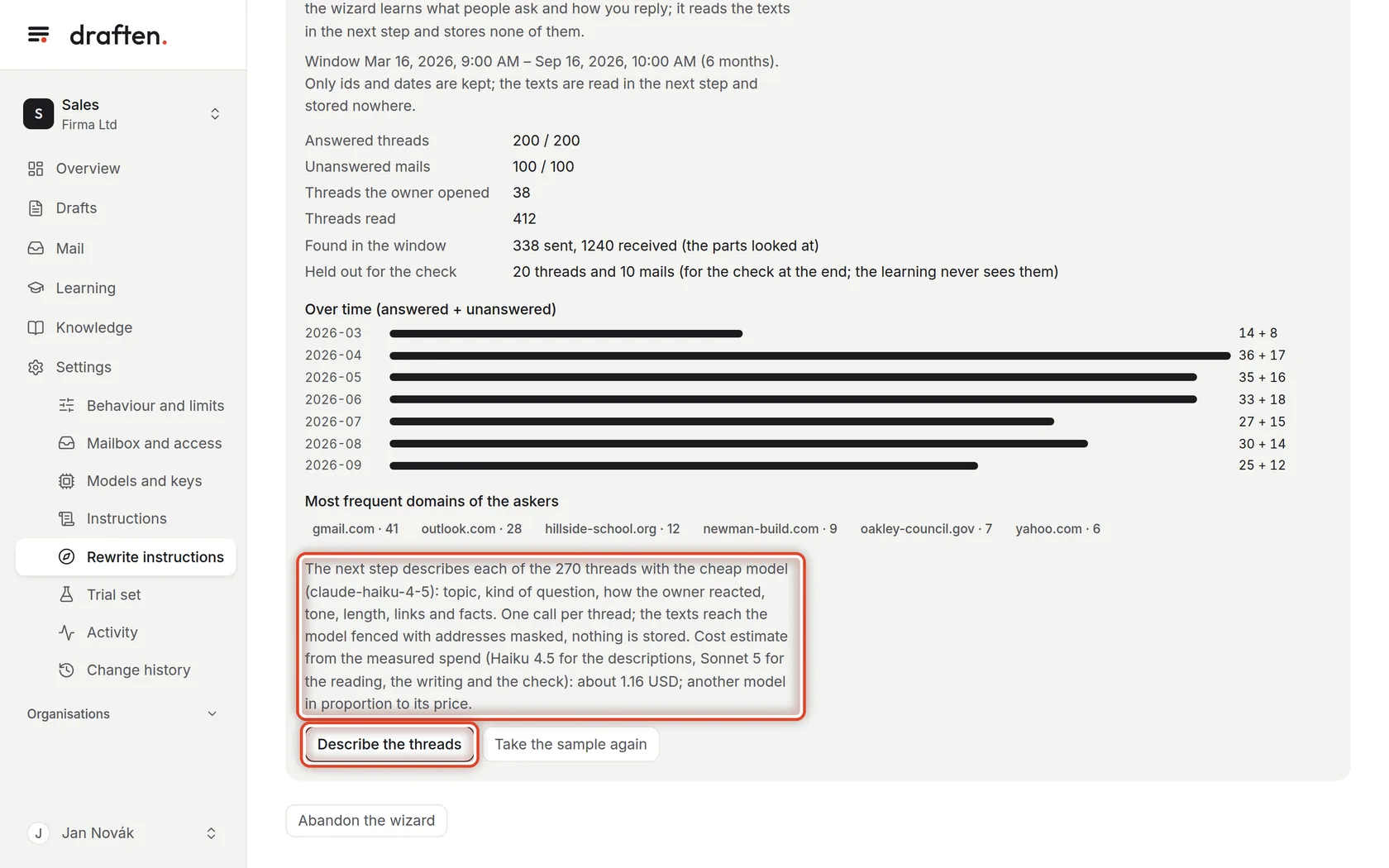
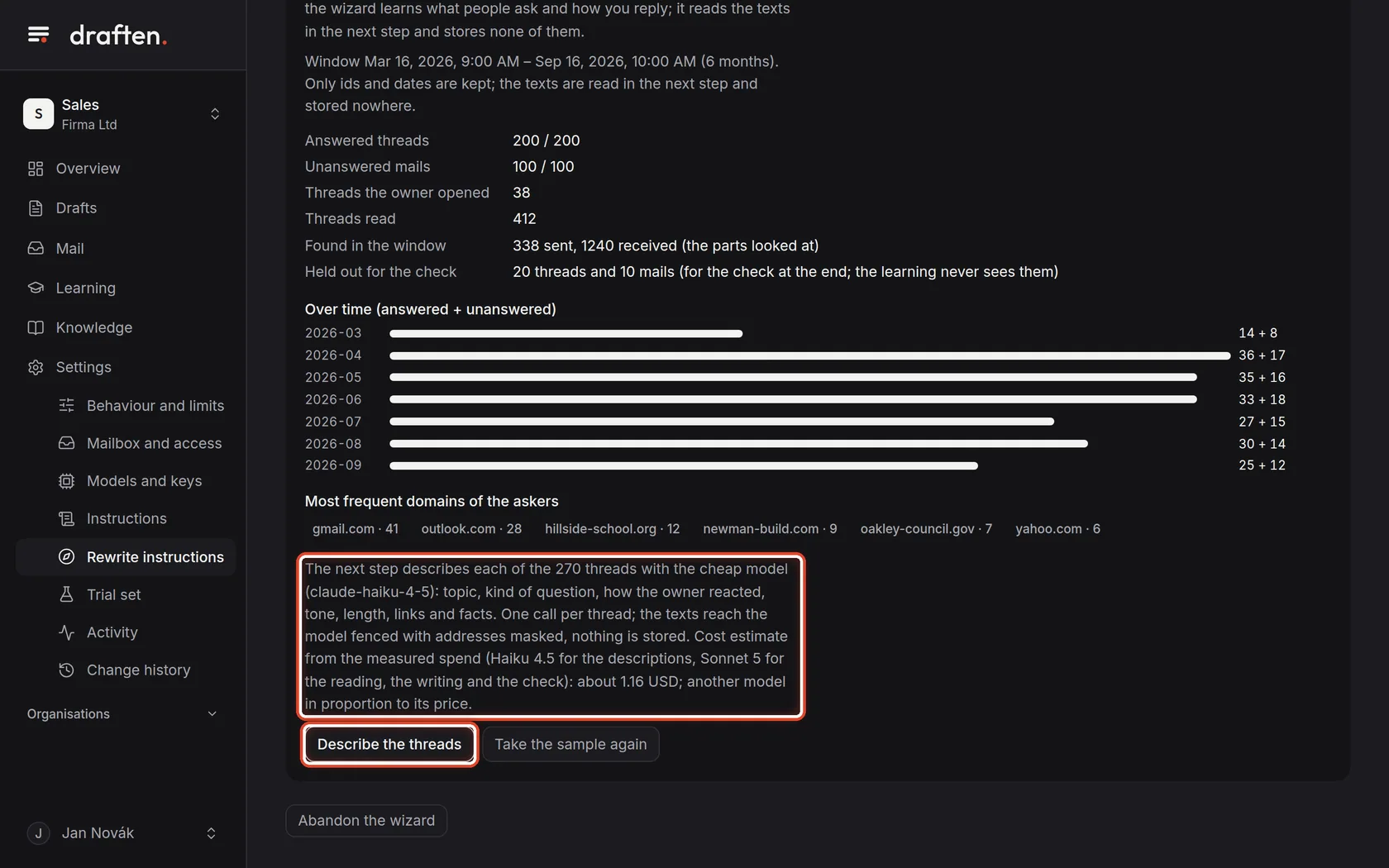
On the screenUnder the sample summary, the cost estimate and the Describe the threads button.
Do thisCheck the sample will do and click Describe the threads. The cheap model describes each thread; it takes a while.
Step 4 of 9
Findings and notes
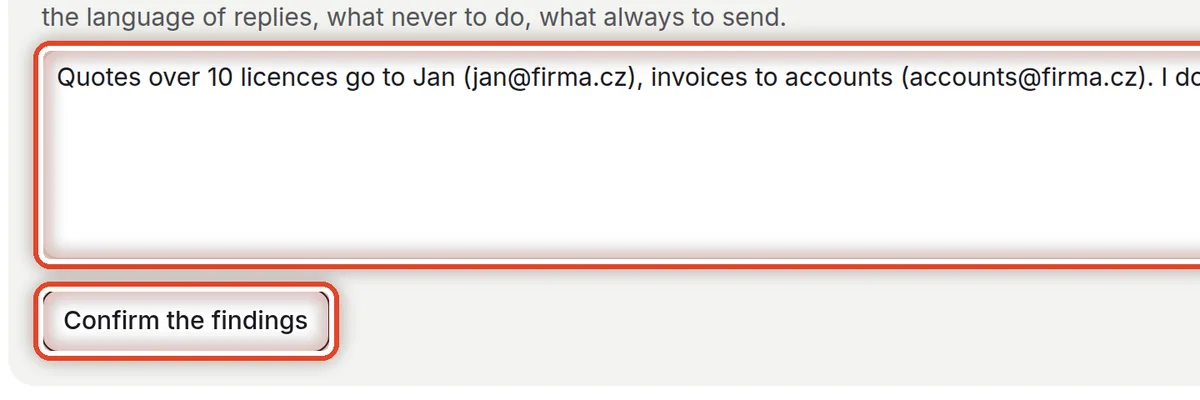
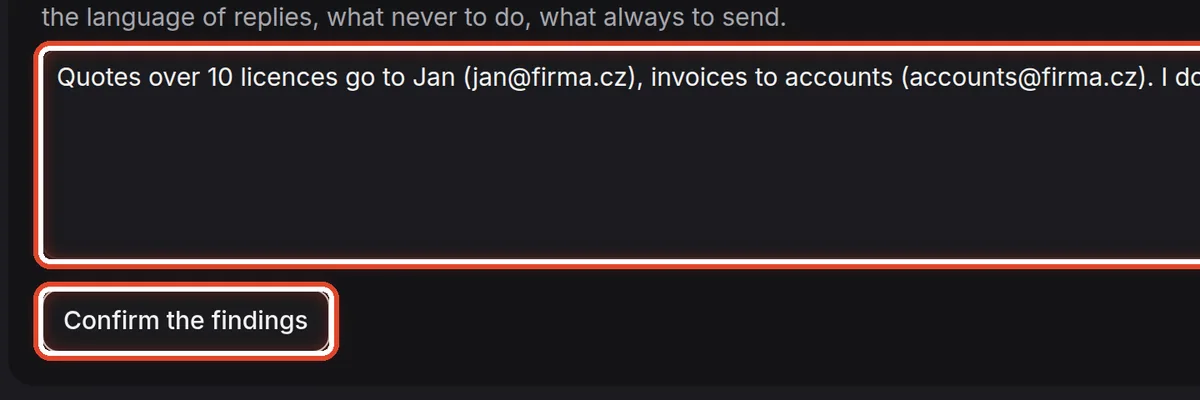
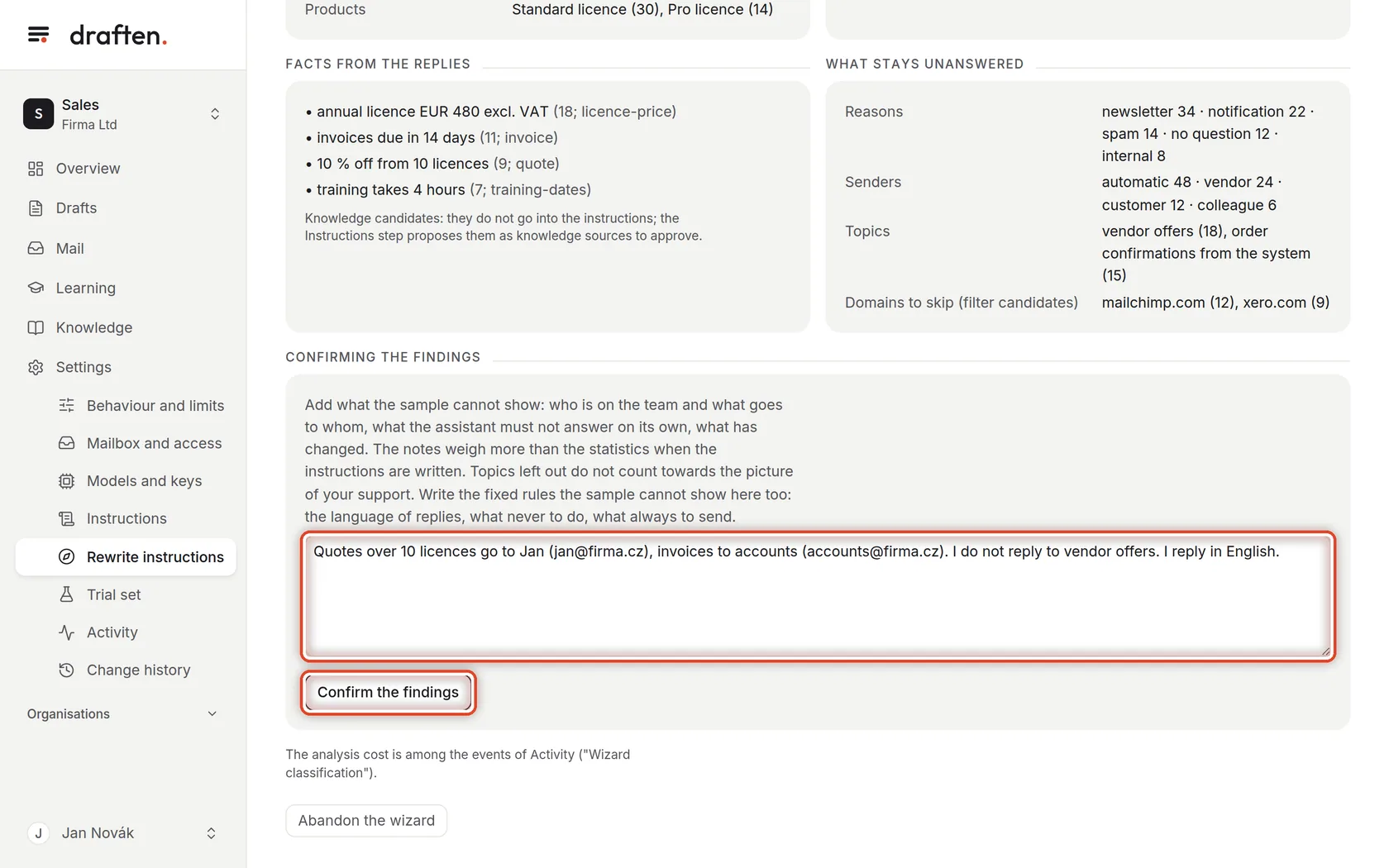
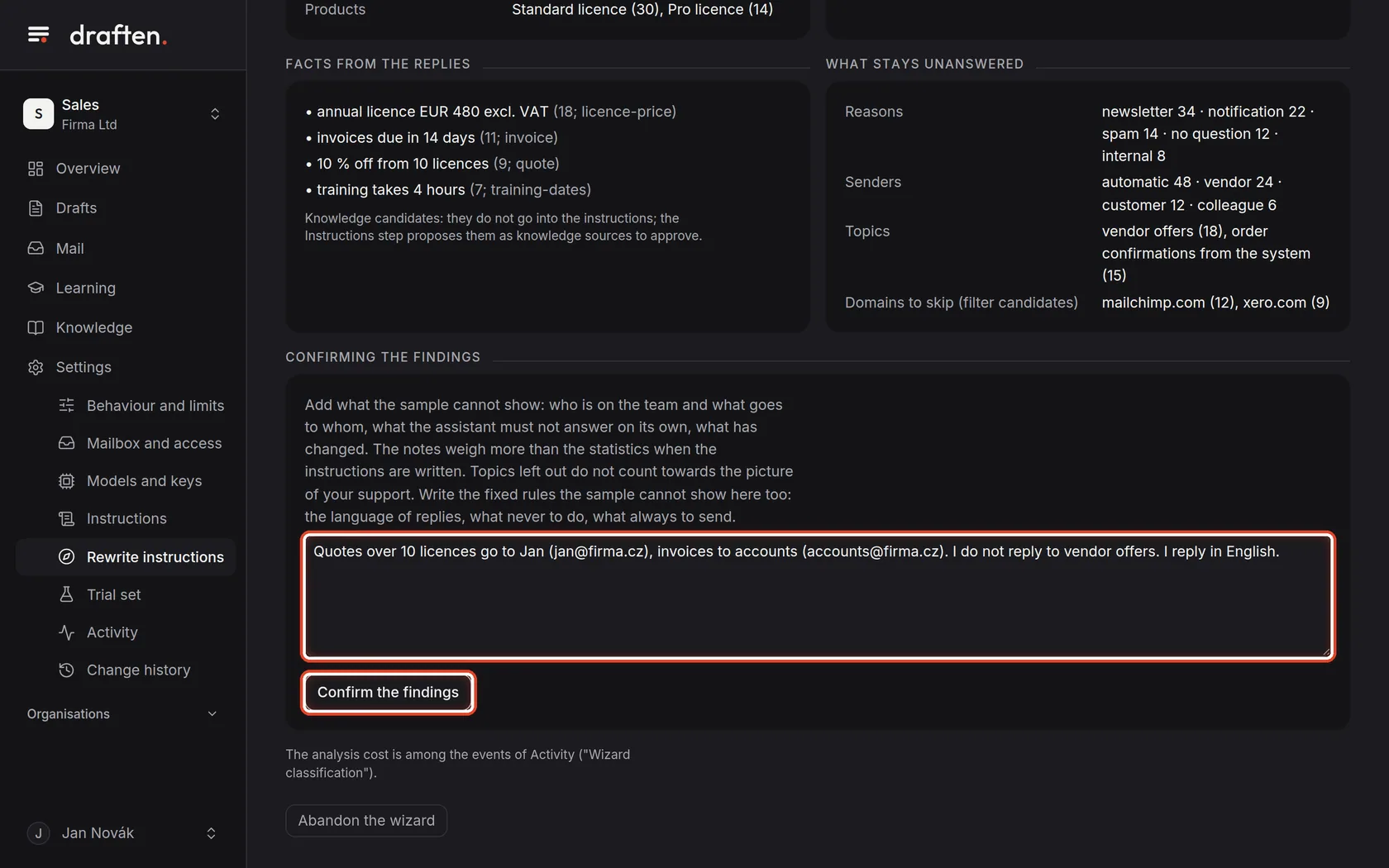
On the screenThe Confirming the findings card with a field for notes.
Do thisGo through the topics and kinds of mail, write what the sample cannot show (who handles what, what the assistant must not do), and click Confirm the findings.
Step 5 of 9
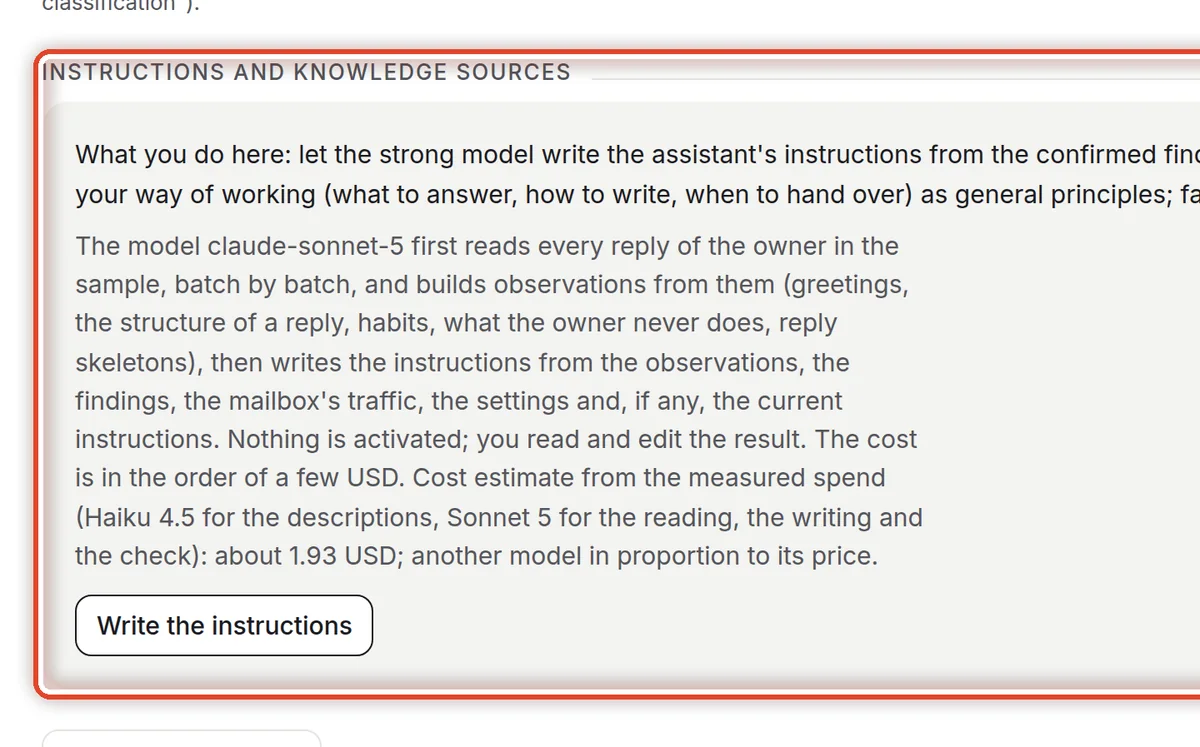
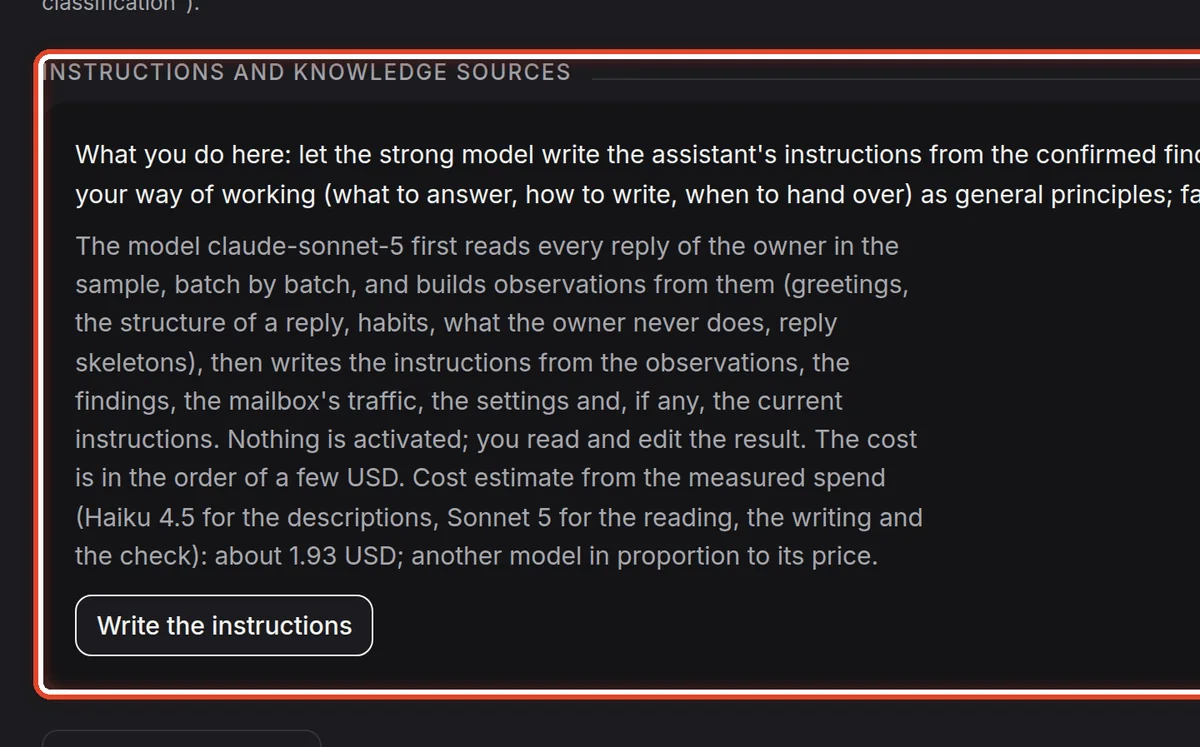
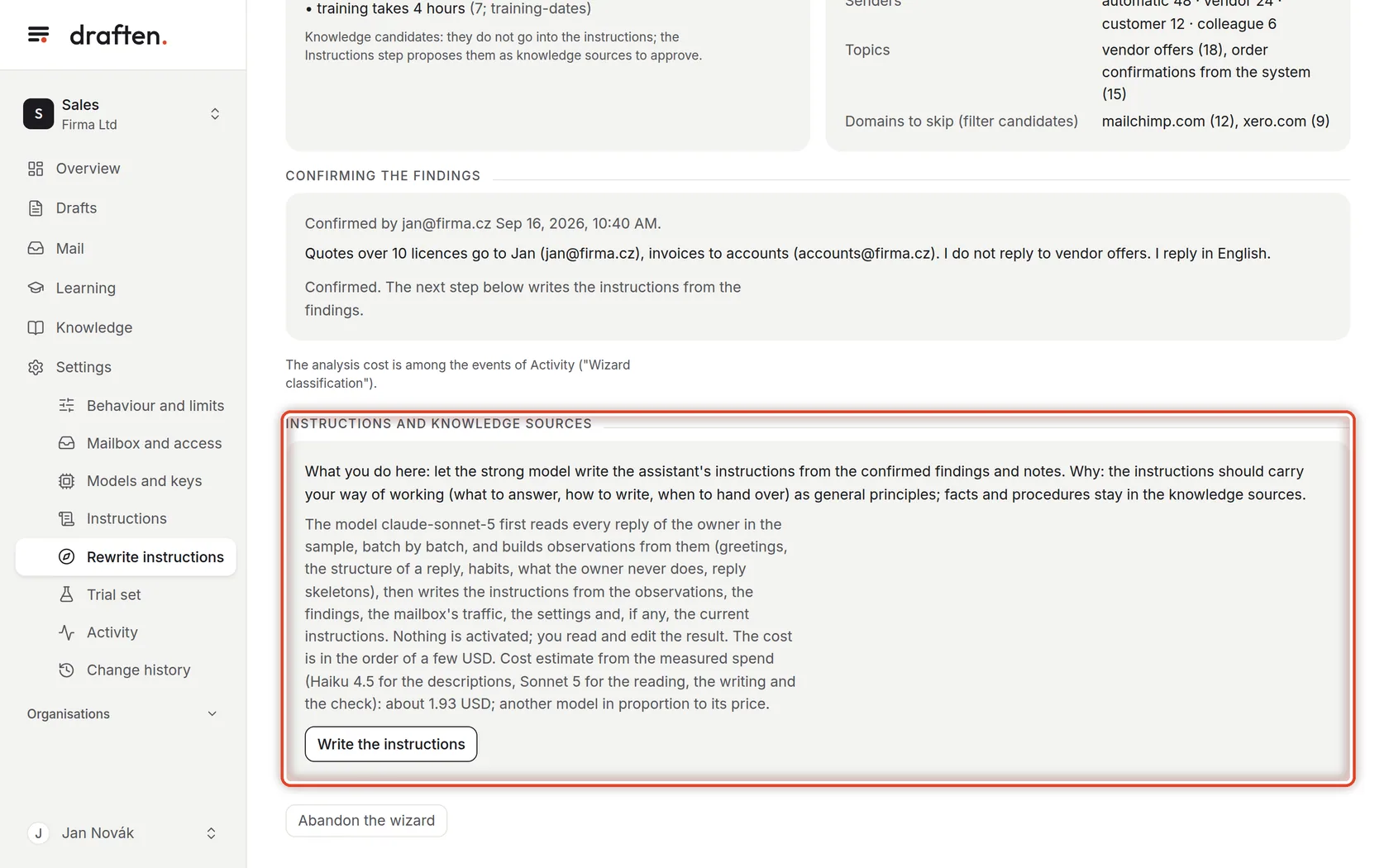
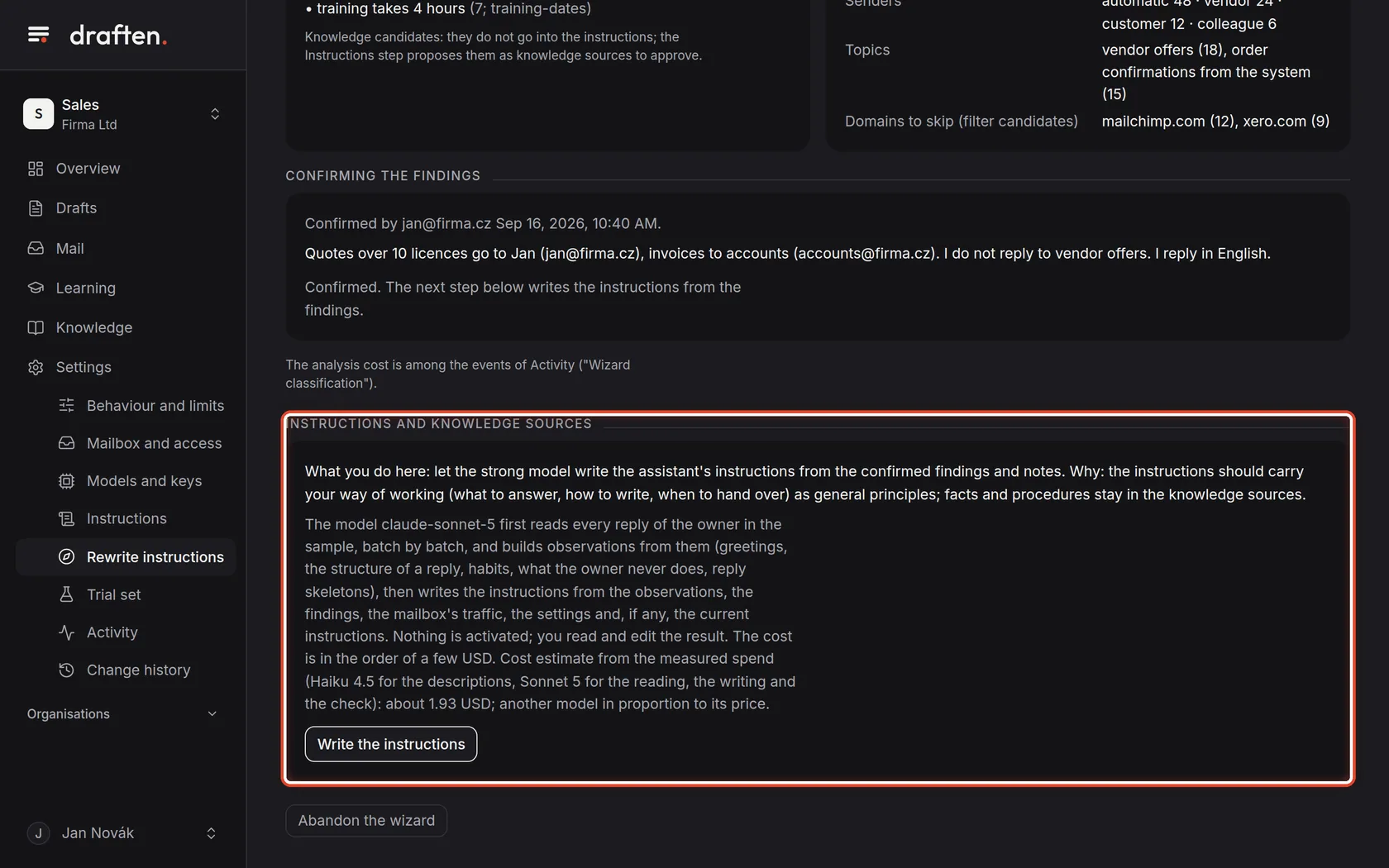
Writing the instructions
On the screenThe Instructions and knowledge sources card with a cost estimate.
Do thisClick Write the instructions. The strong model reads your replies and writes new instructions. Nothing is applied yet.
Step 6 of 9
Checking the text
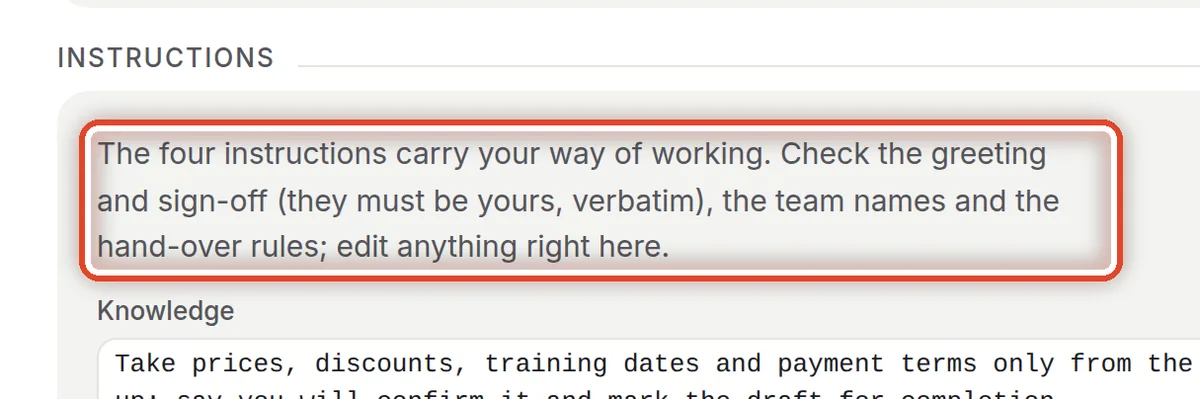
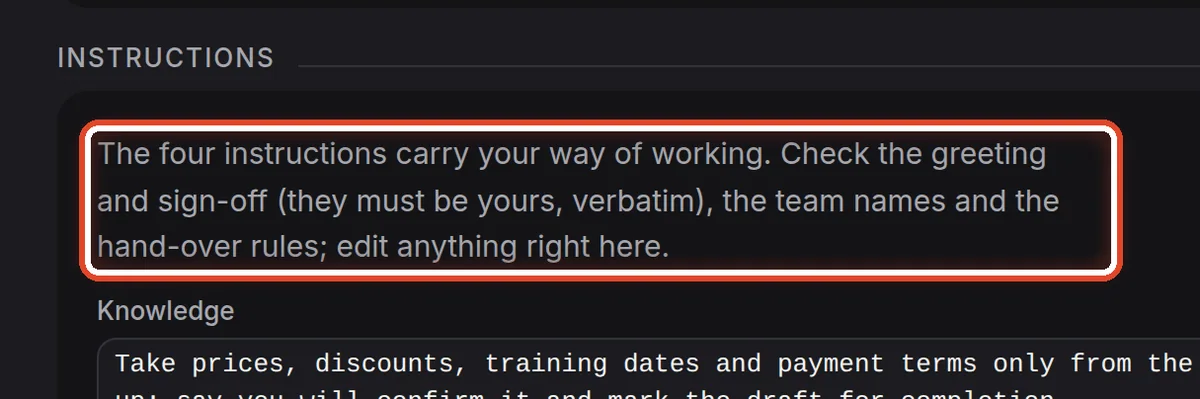
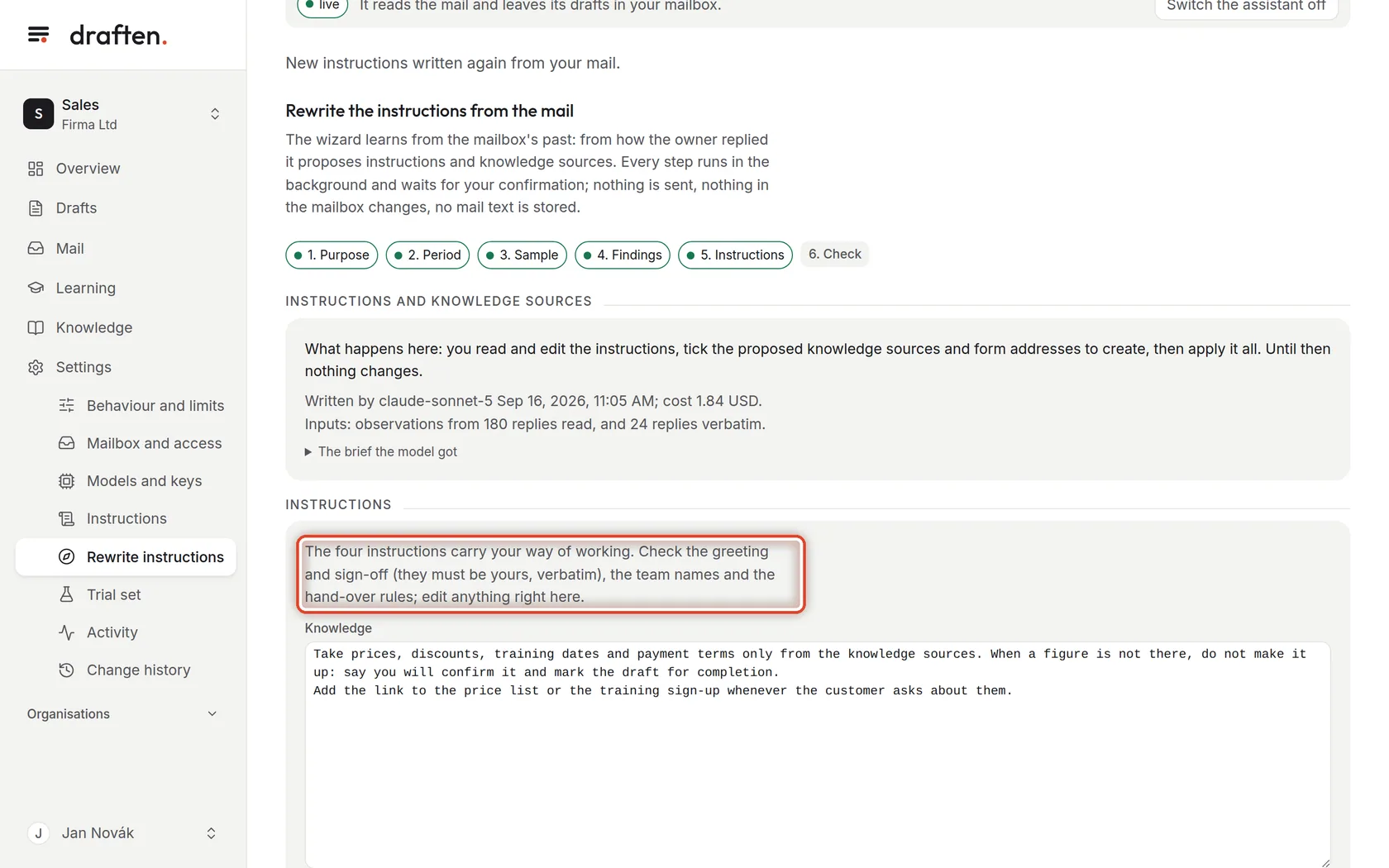
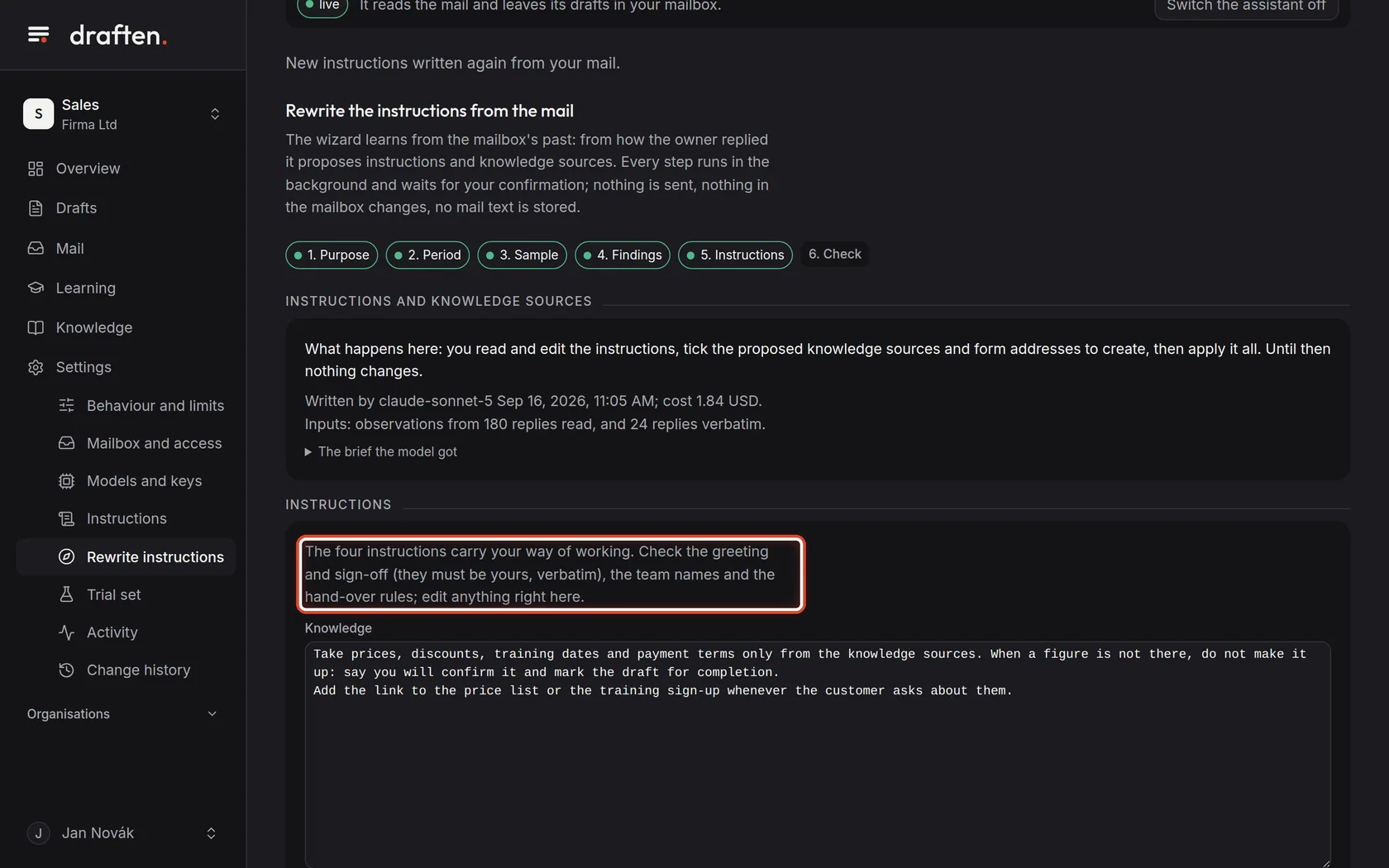
On the screenFour fields with the new instructions.
Do thisRead them and change what is off — above all the greeting and sign-off, the team names and the hand-over rules.
Step 7 of 9
The check on held-out threads
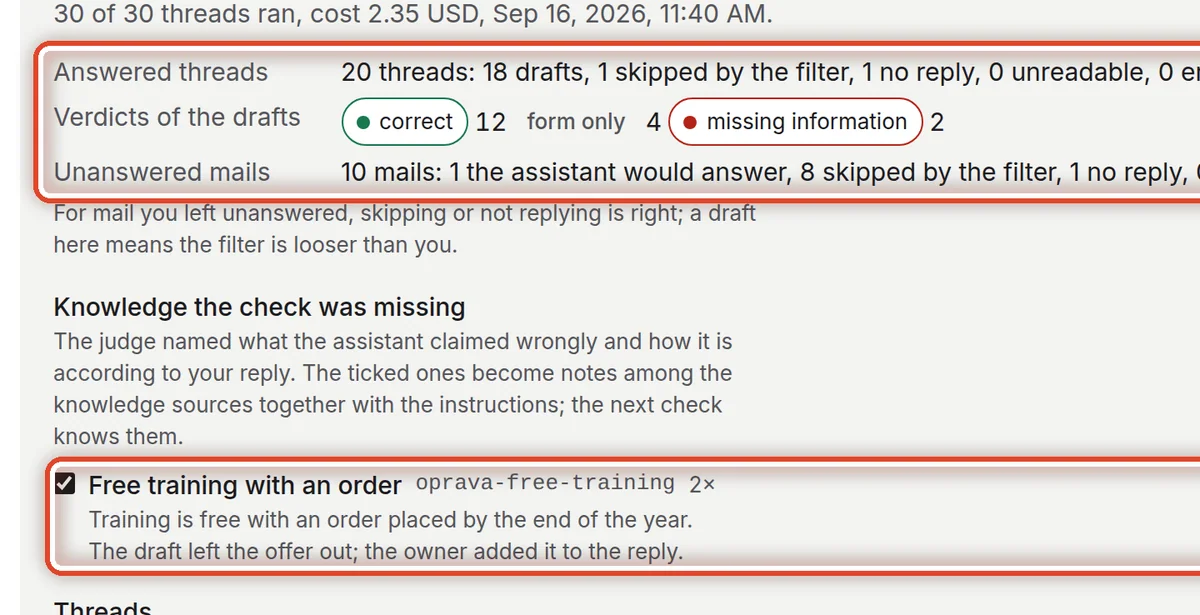
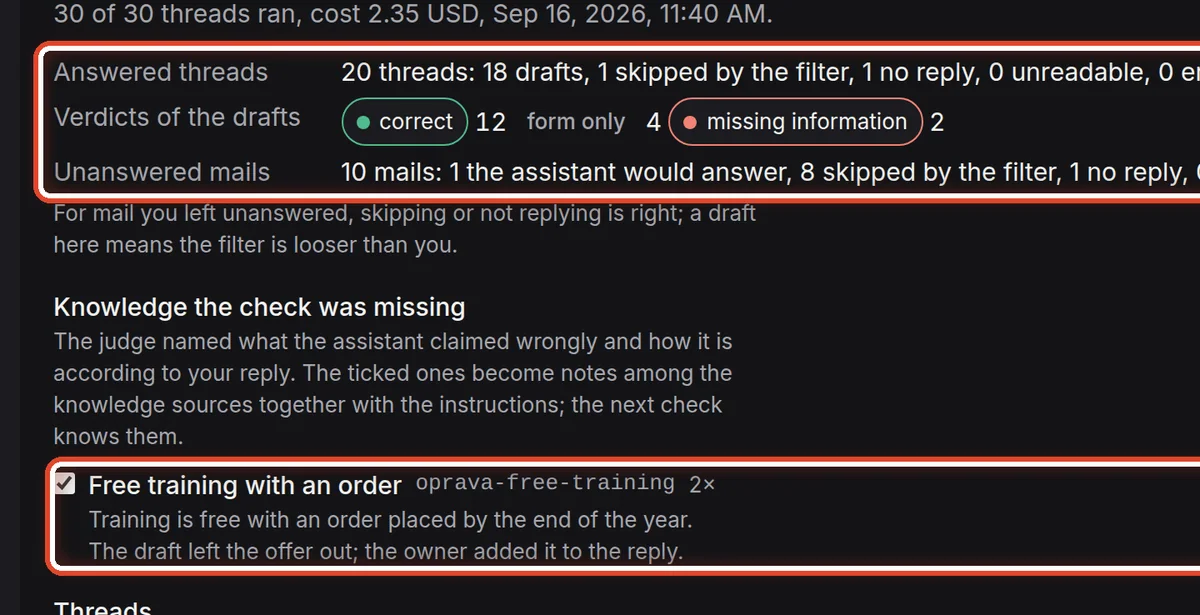
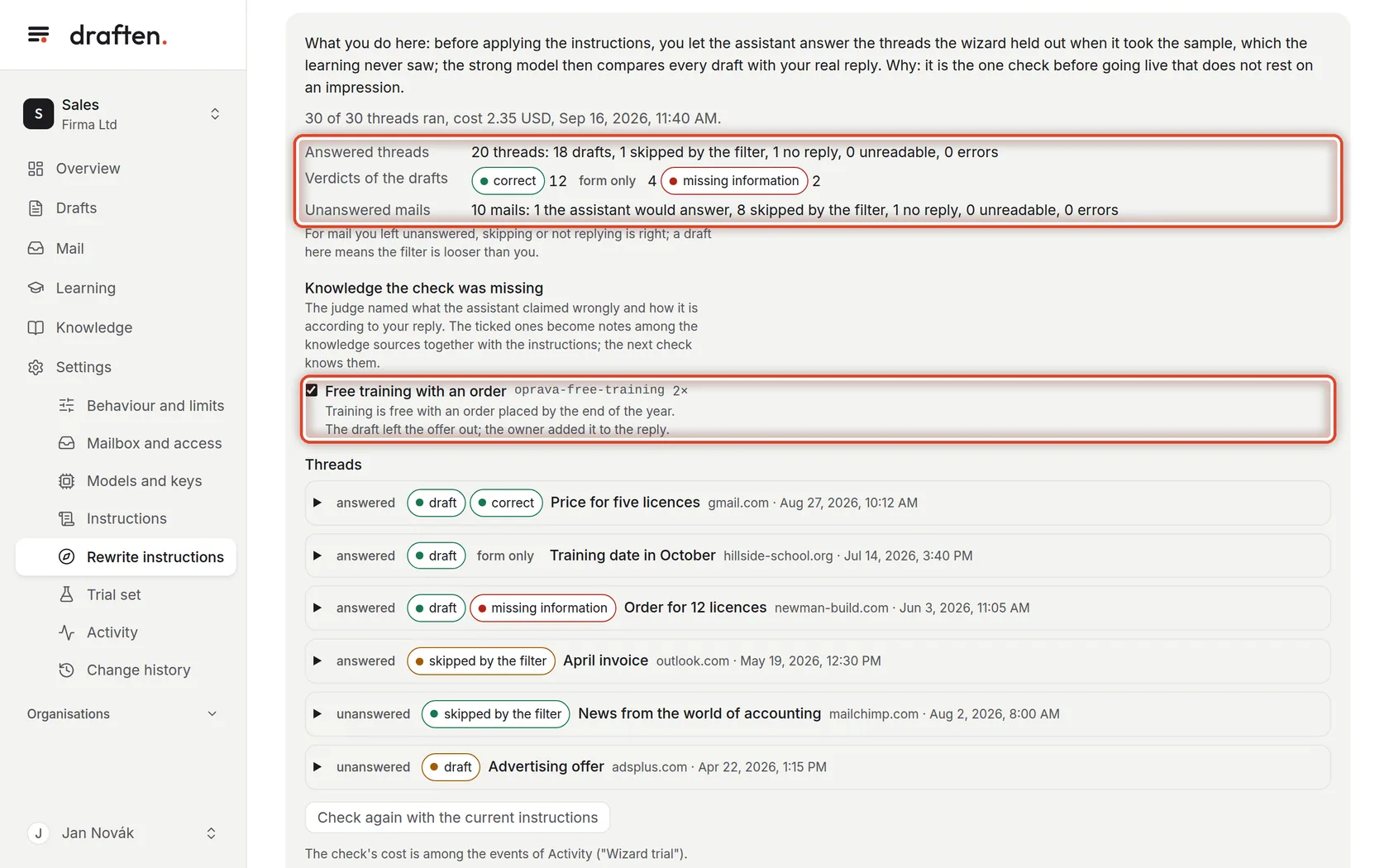
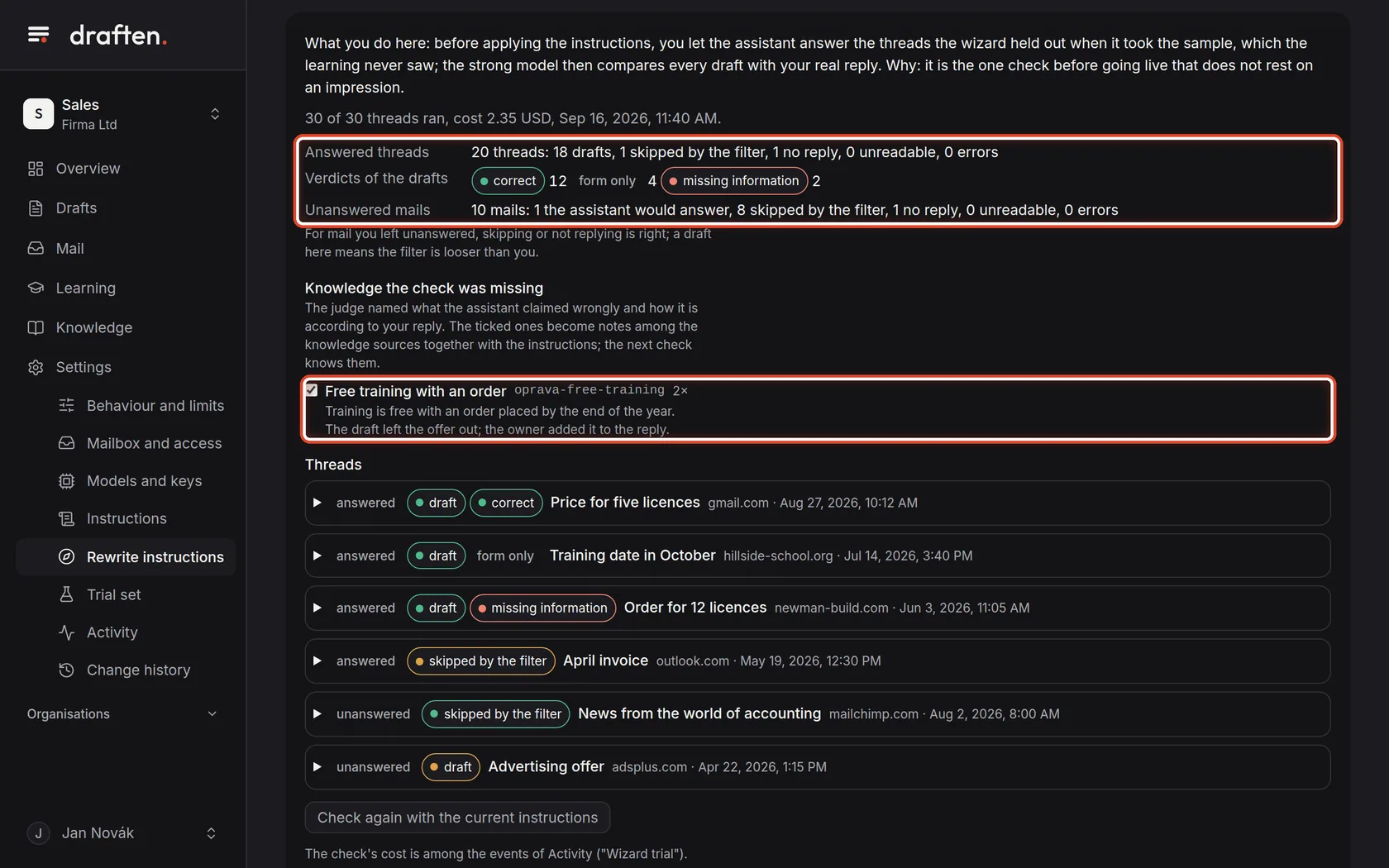
On the screenThe result of the check: how many drafts were written and how they did.
Do thisClick Check on the held-out threads and read the result. What the assistant lacked, the wizard offers as new knowledge.
NoteTo be even surer, run the trial set as well — though the new instructions appear in it only after you apply them.
Step 8 of 9
Apply the new instructions
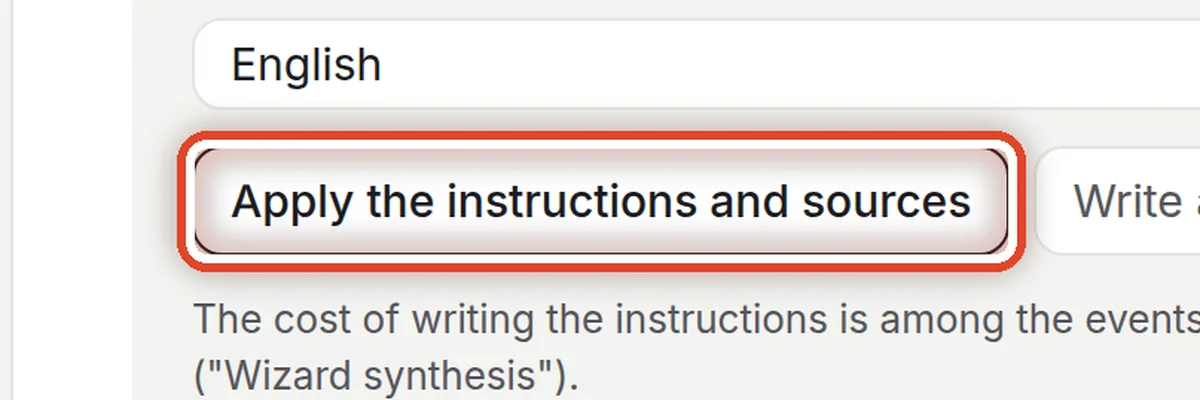
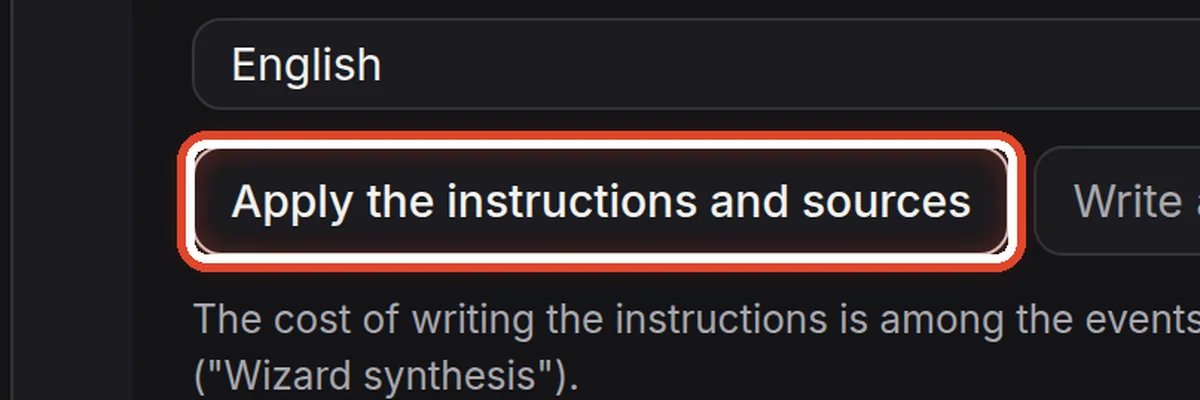
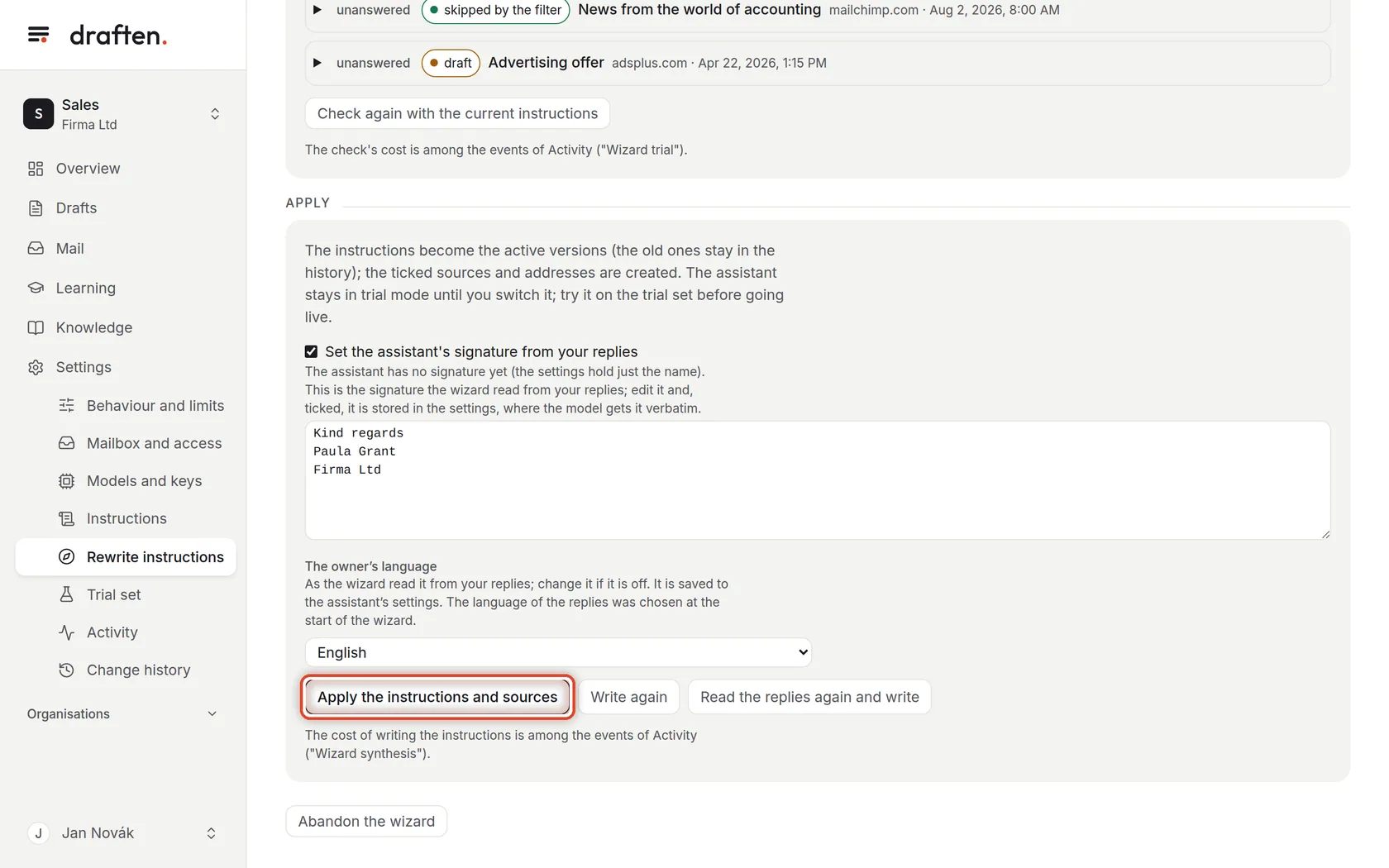
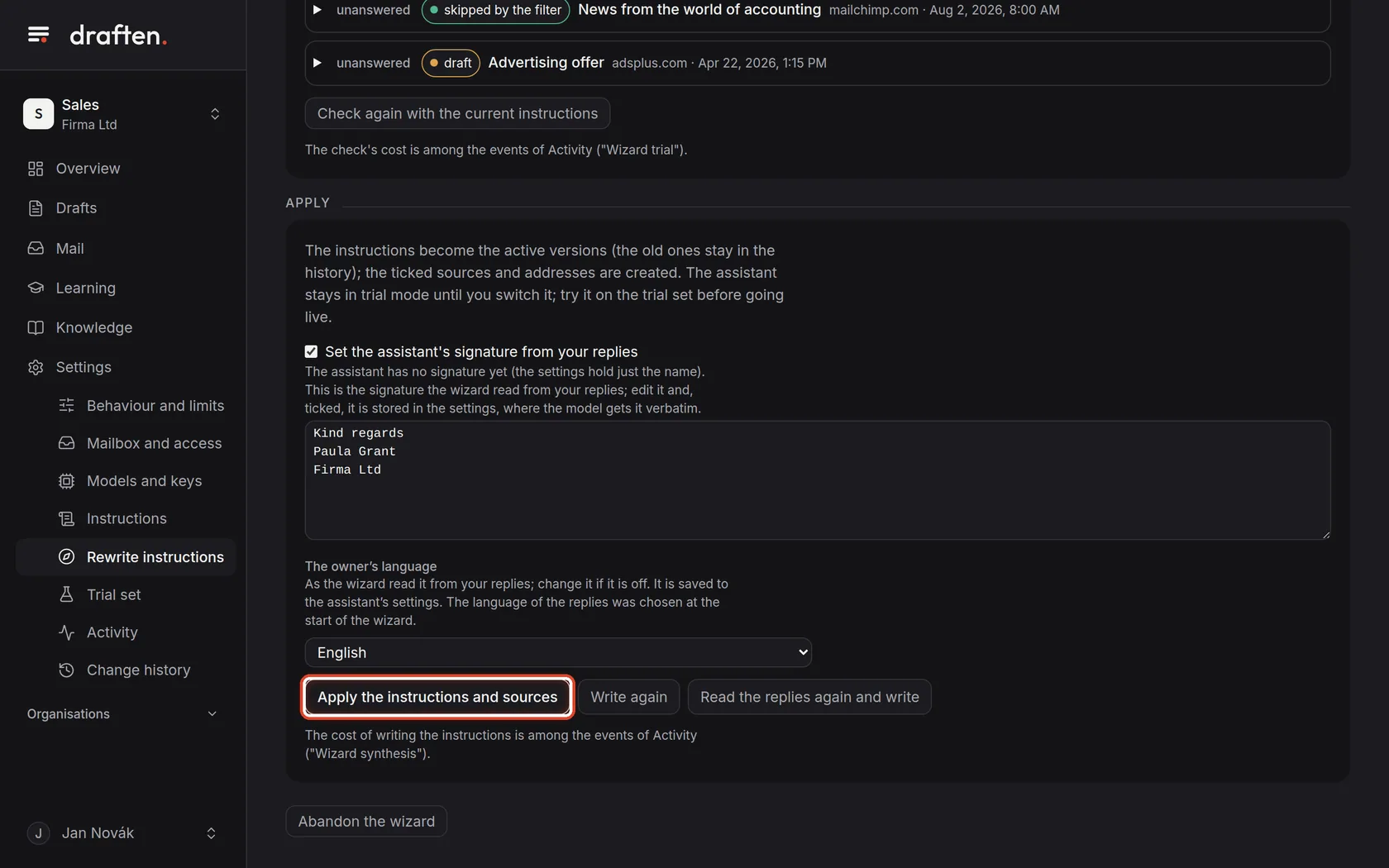
On the screenAt the bottom, the Apply card with the Apply the instructions and sources button.
Do thisWhen you are happy with the result, click Apply the instructions and sources. The instructions become the new active versions and the ticked sources are created.
NoteCareful: applying does not change trial mode. An assistant that is live writes by the new instructions from the next mail check — drafts into your mailbox. To be safe, switch it to trial mode before applying (Settings → Behaviour and limits).
Step 9 of 9
Done
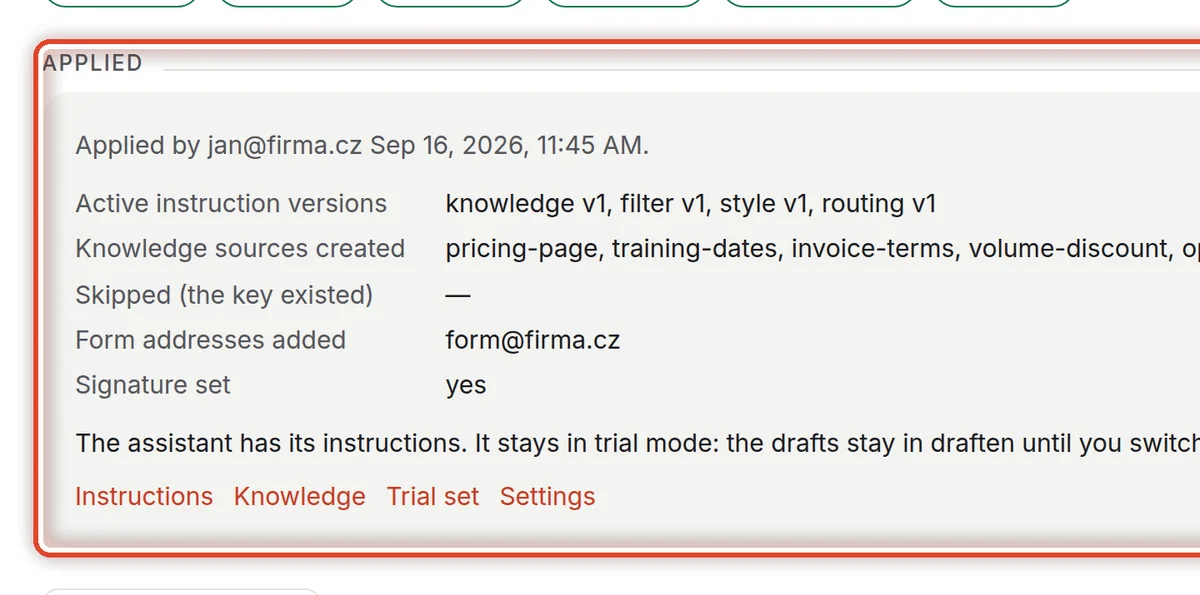
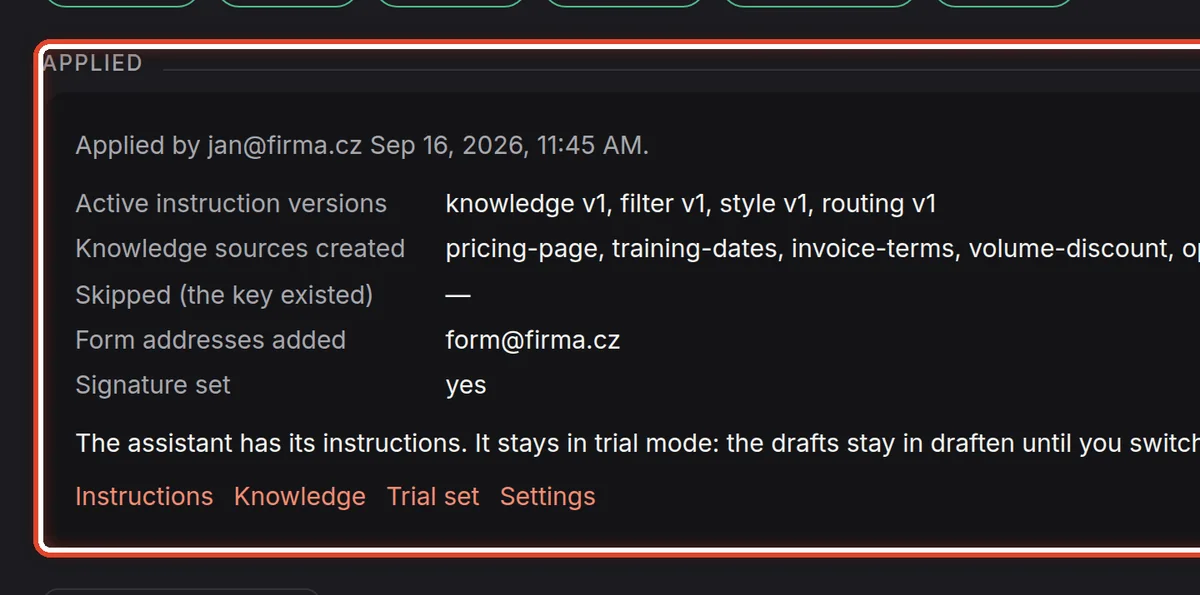
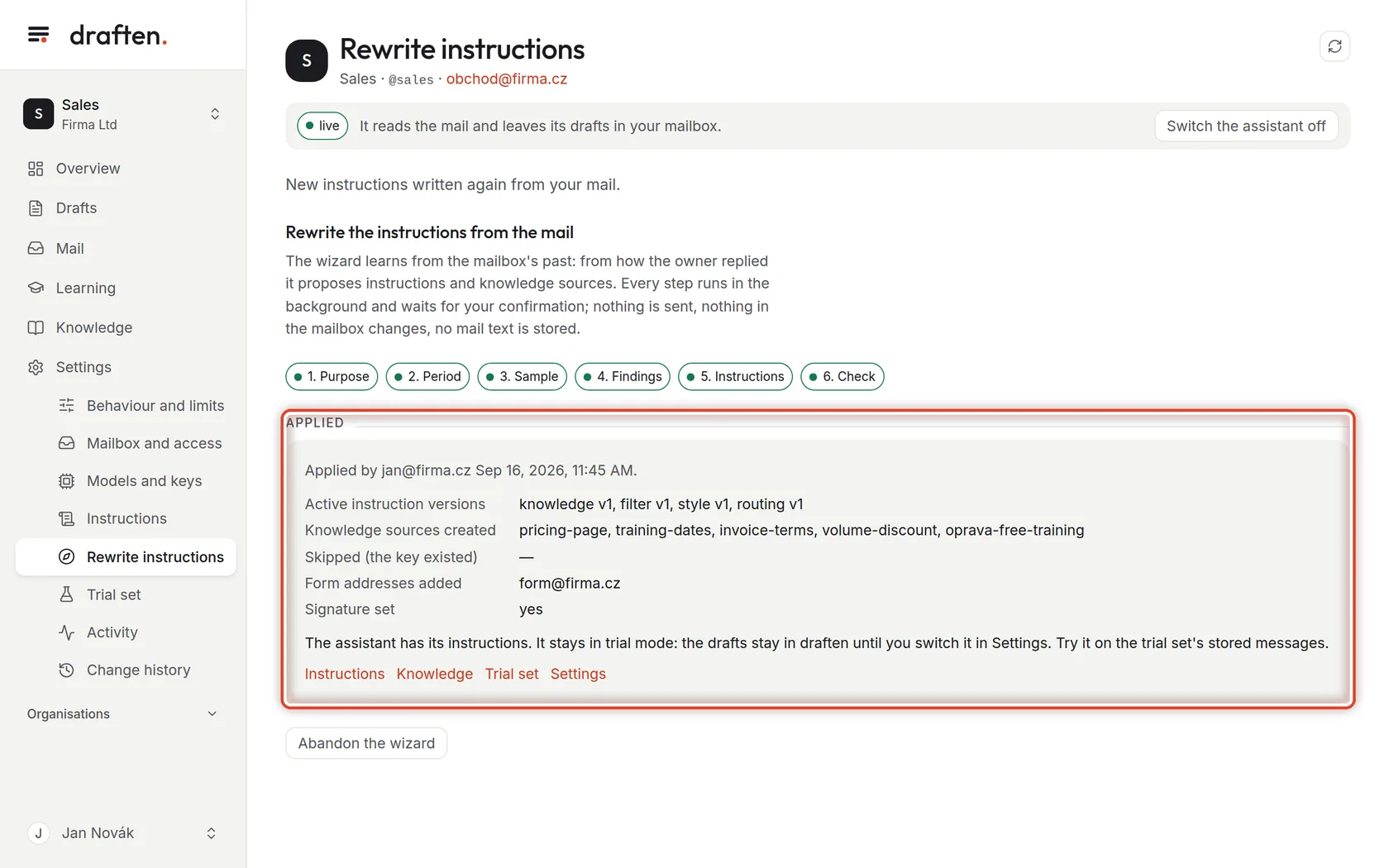
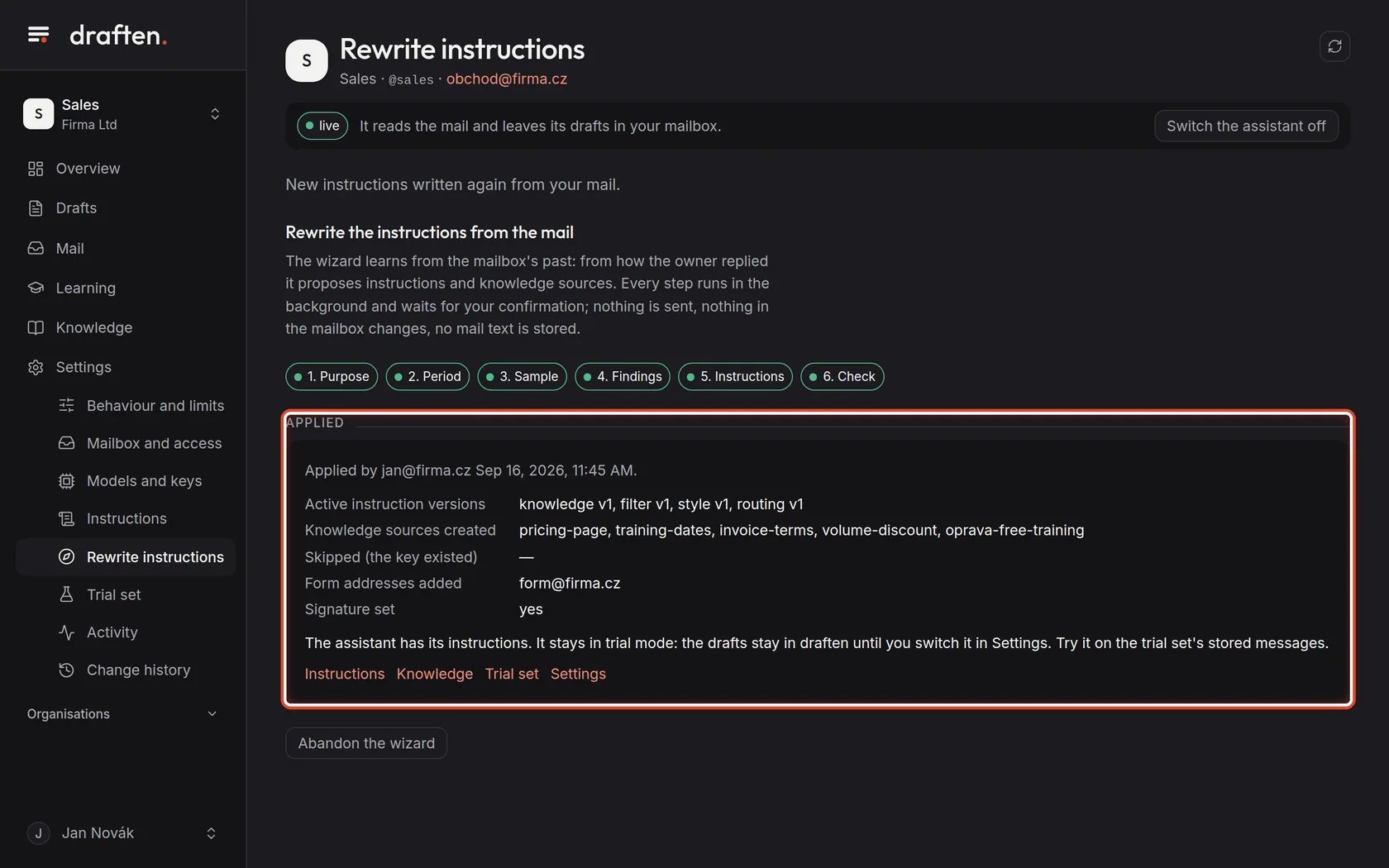
On the screenThe Applied card with a summary and links.
Do thisYou see the new instruction versions, the sources created and the form addresses added. The links lead to Instructions, Knowledge, the Trial set and Settings.
NoteWhen the new instructions do not work out, go back to an older version of each in Settings → Instructions with Restore this version.
The end
The new instructions apply
Watch the drafts and the Overview for a few days. The old instruction versions stayed in the history.
- Every step in more detailA new assistant, step by step goes through the same screens in detail.
- Back to an older versionSettings → Instructions → Version history → Restore this version.